


A new buyer appears to have found your business. The email is polite, names a procurement manager, and asks whether your company can manufacture a product described in the attachment. For a sales team, that can look like an ordinary opportunity.
The Product Review Request email scam is a phishing campaign. Its attachment is not a product specification document. It is an HTML file that opens a fake email login and sends the submitted credentials to criminals.
Overview
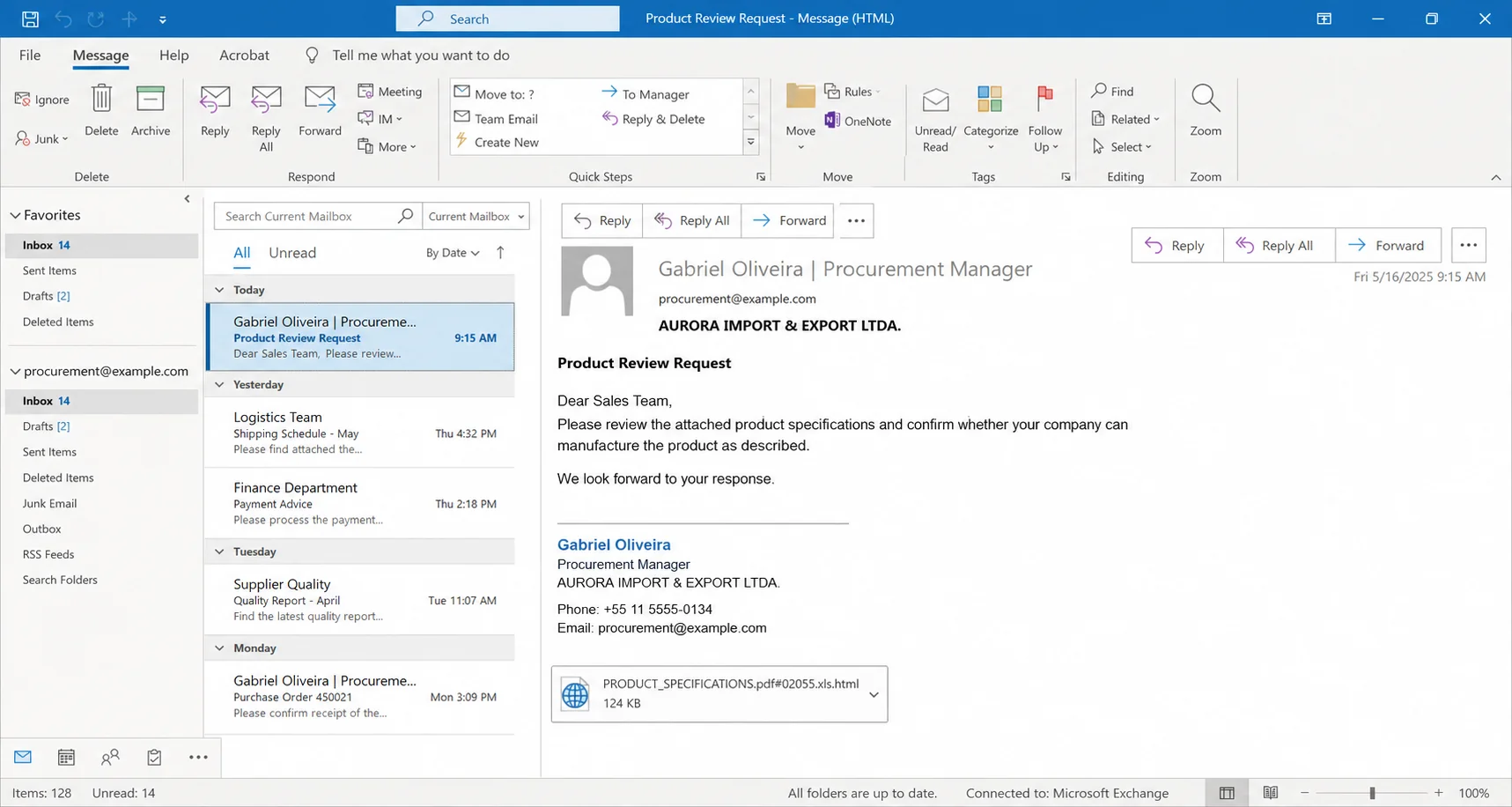
This campaign disguises itself as a business procurement inquiry. An observed version claims to come from a procurement manager named Gabriel Oliveira at AURORA IMPORT & EXPORT LTDA. and asks the recipient to review specifications for a possible manufacturing order.
The attached filename, “PRODUCT_SPECIFICATIONS.pdf#02055.xls.html,” is designed to look like a mixture of PDF and spreadsheet formats. Its true extension is .html, which allows the file to display a web page in the browser.
The business request creates a believable reason to open a file
Manufacturers, wholesalers, designers, and sales departments regularly receive requests for quotations and technical reviews. The message avoids an obviously extravagant promise and instead asks a normal pre-sales question.
The named person and company provide a story, not authentication. Criminals can borrow real business identities, invent them, or combine public details from several sources.
The attachment is a web page wearing a document name
Windows and some mail clients may shorten a long filename or emphasize the familiar words near its beginning. A recipient can see “PRODUCT_SPECIFICATIONS.pdf” while overlooking the final .html extension.
Opening an HTML attachment launches locally stored web content in a browser. That content can display logos, forms, scripts, and background pages without being a genuine PDF or Excel workbook.
The fake login targets the recipient’s mailbox
- The email address and current password
- One-time verification codes
- Microsoft 365, Google Workspace, or webmail access
- Business contacts, quotes, invoices, and contracts
- Password-reset messages for connected services
The company named in the message is not responsible for the campaign. The scammer uses a procurement identity to place a credential-harvesting page directly in front of employees who handle new business.
Why a Product Review Request Can Bypass Caution
New customers are expected to be unfamiliar
Most phishing advice tells people to distrust unknown senders, but sales and procurement roles must communicate with strangers. The campaign exploits that necessary openness.
A first contact with no previous thread is not automatically fraudulent. It does, however, require independent verification before an unusual attachment is opened.
The request is flattering without being excessive
The email implies that the recipient’s company may be capable of fulfilling a meaningful order. It invites expertise and suggests potential revenue, which can make the attachment feel worth a quick look.
Unlike a lottery lure, the promise is understated. The attacker relies on business curiosity and routine workflow rather than excitement alone.
Complex filenames resemble exported office documents
Real procurement systems generate long filenames containing product numbers, dates, and multiple descriptors. The phishing file copies that clutter to hide its final extension.
The inclusion of “.pdf” and “.xls” inside the name does not change the file type. Only the final effective extension and the file’s actual content determine how it opens.
How the Product Review Request Email Scam Works
Step 1: The attacker selects business-facing recipients
Addresses for sales, purchasing, management, quotes, and general enquiries are often published on company websites. Individual employee details can also come from professional networks and data breaches.
The attacker does not need deep knowledge of the company. A generic manufacturing request can be sent to many industries and still reach someone willing to review it.
Step 2: A procurement identity is constructed
The email includes a personal name, job title, company name, and location. A professional signature and formal language make the sender look like a legitimate buyer.
These details may be copied from a real firm that has no connection to the message. Calling a number or replying to an address supplied only by the email does not provide independent verification.
Step 3: The recipient is asked to assess specifications
The message asks whether the business can manufacture a product as described. This establishes a practical reason to inspect the attachment before discussing prices or quantities.
Important commercial details are deliberately withheld from the email body. The victim must open the file to learn what the supposed opportunity involves.
Step 4: A disguised HTML file is opened
The filename places familiar extensions before the real .html ending. When opened, the file launches in a browser rather than in a trusted PDF reader or spreadsheet application.
An HTML file can run interface code and send information over the internet. Even when saved on the device, it should not be trusted simply because the browser address begins with a local file path.
Step 5: The file displays a provider-themed sign-in
The page may imitate Gmail, Outlook, Yahoo, or a generic company webmail portal. It can prefill the recipient’s address and display a blurred document or real provider page behind the form.
The fake login claims authentication is necessary to view protected specifications. A legitimate document attachment does not require the recipient to submit an email password to local HTML code.
Step 6: The form transmits the credentials
After submission, scripts inside the file can send the email address and password to an attacker-controlled service. The victim may see an error, blank page, or redirect afterward.
Any “incorrect password” message must be treated as part of the deception. The first entry may already have left the device.
Step 7: Criminals enter the real business mailbox
Stolen credentials are tested against Microsoft 365, Google Workspace, webmail, and single sign-on portals. An attacker may also request a genuine multi-factor prompt.
Once inside, the criminal can study real customers, invoices, vocabulary, and approval chains. That intelligence makes later fraud much more convincing.
Step 8: The compromise becomes business email fraud
The account can be used to send new phishing attachments or alter payment instructions in existing conversations. Messages from a real employee address are harder for partners to dismiss.
Attackers may create hidden forwarding rules and wait for a valuable transaction. The visible product-review email can therefore be only the first step in a longer intrusion.
How to Inspect the Attachment Without Opening It
Show complete file extensions
Configure the operating system to display known extensions. Read the name from the end, not from the first familiar term inside it.
A filename ending in .html or .htm is a web page. A name such as “specifications.pdf.html” remains HTML regardless of the word “pdf.”
Use the mail client’s file information
Check the declared type, size, and any security warning. A tiny HTML attachment is inconsistent with a detailed catalog containing high-resolution product drawings.
Do not use a preview if the security product treats preview and opening the same way. Forward the message to the security team as an attachment so headers and evidence are preserved.
Verify the buyer through independent channels
Find the organization’s official website yourself and call a published switchboard. Ask to be connected to the named employee and confirm the request without using numbers in the message.
If the company cannot verify the person or project, do not continue. If it can, ask for documents through an established business portal or a newly composed message from a verified address.
Use a managed analysis process
Organizations should route suspicious files to trained security staff or a sandbox designed for untrusted content. Employees should not upload confidential business mail to random public scanners.
Warning Signs in the Product Review Email
- An unexpected buyer sends specifications before any conversation.
- The sender domain does not match the represented company.
- The file has several apparent extensions in one name.
- The final extension is .html or .htm.
- The attachment opens in a browser instead of a document reader.
- A local file asks for an email or Microsoft 365 password.
- The login branding changes based on the email address.
- The sender discourages independent contact or creates a tight deadline.
A well-written inquiry can still be malicious. The strongest warning is the workflow: an unsolicited HTML file asks for credentials that a product specification has no reason to need.
Why HTML Attachments Are Dangerous
They can operate outside an obvious website
Recipients may know to inspect a website domain but feel safer when a file opens from Downloads. The HTML document can still communicate with remote servers and submit form data.
The local path shown in the address bar identifies where the interface file is stored, not where entered credentials will be transmitted.
They can imitate several providers
One phishing kit can examine the recipient’s address and select matching colors and logos. This adaptability lets the same attachment target several email ecosystems.
A generic webmail form can also avoid using a brand entirely. Employees with privately hosted email may find that neutral design plausible.
They can hide the destination from ordinary link checks
The original email may contain no visible phishing URL. Simple filtering that focuses on message links can miss a form embedded inside an attachment.
Organizations should consider controls for high-risk attachment types and educate staff that HTML files are active web content, not passive documents.
What a Stolen Business Mailbox Exposes
Sales and procurement accounts often contain pricing, bank details, tax forms, customer lists, and contract discussions. Even without direct access to a bank, that information can support convincing invoice fraud.
The mailbox may also provide single sign-on access to document storage, customer management tools, chat, and other cloud services. The scope depends on the permissions assigned to the user.
Attackers can study writing style and signature blocks, then reply inside real threads. A partner may trust the conversation history even when the newest bank account belongs to a criminal.
Fast reporting matters. Security teams can revoke sessions, preserve logs, block the attachment, search for other recipients, and warn partners before a fraudulent request is paid.
How Businesses Can Prevent Similar Attacks
Block or quarantine HTML attachments when business needs allow. If they are required, place them behind additional review and do not permit scripts or forms to run by default.
Use phishing-resistant multi-factor authentication for email and single sign-on. Limit administrative privileges and separate payment approval from the mailbox of one employee.
Require independent verification for new suppliers, changed banking details, and urgent payment instructions. Use a known phone number and a second authorized employee.
Train customer-facing teams with examples that match their work. Generic awareness material is less effective when a salesperson regularly receives legitimate attachments from unknown people.
What to Do if You Have Fallen Victim to This Scam
- Close the HTML page. Do not enter another password or approve any verification prompt.
- Disconnect if unexpected software started. Remove the device from the network and contact IT if the file launched downloads, scripts, or installation requests.
- Change the exposed password. Use the official email service from a clean device and create a unique replacement.
- Revoke active access. Sign out all sessions and remove unknown tokens, connected apps, app passwords, delegates, and authentication methods.
- Inspect mailbox settings. Check forwarding, filters, inbox rules, automatic replies, and sent or deleted mail for attacker changes.
- Replace reused credentials. Prioritize cloud, finance, customer-management, and vendor portals tied to the business address.
- Notify the security team immediately. Provide the original email, attachment name, time opened, data entered, and any prompt approved.
- Search for secondary fraud. Review recent password resets, file access, supplier conversations, and changes to payment instructions.
- Warn customers and partners if necessary. Tell them how to verify recent requests without relying on the compromised mailbox.
- Contact financial institutions. Attempt a transfer recall and protect affected accounts if banking details or payments were exposed.
- Run a trusted security scan. Use Malwarebytes to check for information stealers, malicious extensions, and remote-access software, even if credential theft was the obvious goal.
- Report and block the campaign. Submit the message through company and provider channels, and consider AdGuard to block known phishing and redirect domains.
Is Your Device Infected? Run a Free Malware Scan
Slow performance, constant pop-ups, or strange behavior? These are classic signs of a malware infection. A quick way to check is to scan your device with Malwarebytes Free, one of the most trusted malware removal tools available. If you only visited a scam page and didn’t download or install anything, this scan is optional.
The free version detects and removes the most common threats, including:
- Adware — the cause of those annoying pop-ups
- Browser hijackers — unwanted redirects and changed homepages
- Trojans and spyware — hidden programs stealing your data
- Potentially unwanted programs (PUPs) — software you never asked for
👉 Select your device below — Windows, Mac, or Android — then follow the simple steps to download Malwarebytes, scan your system, and remove any threats it finds. The scan usually takes 5 to 20 minutes.
Run a Malware Scan with Malwarebytes for Windows
Malwarebytes is one of the most popular and trusted anti-malware tools for Windows — and it’s completely free for removing infections. It catches threats that many antivirus programs miss, including adware, browser hijackers, and trojans. Follow the steps below to scan your PC and remove what Malwarebytes finds.
Download Malwarebytes
Click the button below to download the latest version of Malwarebytes for Windows from the official source. The free version is all you need — it will scan your computer and remove adware, browser hijackers, and other malicious software at no cost.
Download MalwarebytesOfficial installer for Windows 11 and 10. Your download starts right away.Want real-time protection? See Malwarebytes Premium Malwarebytes Free for WindowsScans and removes malware at no cost
-
Install Malwarebytes
When the download finishes, open your Downloads folder and double-click the MBSetup file. If Windows shows a User Account Control pop-up, click “Yes” to allow the installation.

Follow the On-Screen Prompts to Install Malwarebytes
The setup wizard will walk you through a few quick screens:
-
Choose where you’re installing the program — “Personal Computer” or “Work Computer” — then click Next.

-
Malwarebytes will now install on your device. This usually takes under a minute.

-
When installation is complete, the “Welcome to Malwarebytes” screen will open automatically.

-
On the final screen, click Open Malwarebytes to launch the program.

-
Optional: Check for rootkits with a Custom Scan
You don’t need to change any settings for a normal scan. The standard Threat Scan in the next step is enough for most problems, so you can go straight to it.
If you also want to check for rootkits, use a Custom Scan. In current versions of Malwarebytes, rootkit scanning is only available there:
- On the Scanner tile, click the three-dot menu and select Advanced Scan.
- Choose Custom Scan. In its options, check Scan for rootkits.
- Select your system drive (usually C:\) as the location to scan, then start the scan. It takes longer than a Threat Scan.
- When it finishes, review and quarantine the results as described in the steps below.
Rootkit scanning isn’t available on Windows devices with ARM processors.
Start the Scan
Click the blue Scan button. Malwarebytes will automatically update its virus database and start checking your computer for malware.

-
Wait for the Scan to Finish
The scan checks your entire system for browser hijackers and other malicious programs, so it can take 5 to 20 minutes depending on your computer. Feel free to do something else — just check back occasionally to see the progress.

-
Quarantine the Detected Threats
When the scan is done, you’ll see a list of everything Malwarebytes found — malware, adware, and potentially unwanted programs. Click the “Quarantine” button to remove all of them at once.

Malwarebytes will now remove the malicious files and registry entries and move them safely into quarantine.

-
Restart Your Computer
Some threats can only be fully removed after a reboot. If Malwarebytes asks you to restart, click Yes. Once you’re logged back in, Malwarebytes has finished removing the threats it found.

When the scan is done, check whether the problems you noticed have stopped. If they continue, see the options below.
If you are still having problems with your computer after completing these instructions, then please follow one of the steps:
- Run a computer scan with ESET Online Scanner
- Ask for help in our Windows Malware Removal Help & Support forum.
Run a Malware Scan with Malwarebytes for Mac
Malwarebytes for Mac is a free on-demand scanner that removes the malware other security software tends to miss — adware, browser hijackers, and unwanted programs included. Cleaning an infected Mac with Malwarebytes has always been completely free, and it’s our go-to recommendation. Follow the steps below to scan your Mac and remove what Malwarebytes finds.
-
Download Malwarebytes for Mac
Click the button below to download the latest version of Malwarebytes for Mac.
Download MalwarebytesOfficial installer for macOS. Your download starts right away.Want real-time protection? See Malwarebytes PremiumMalwarebytes Free for MacScans and removes malware at no cost -
Open the Malwarebytes setup file
When the download finishes, open your Downloads folder and double-click the setup file to begin the installation.

-
Follow the On-Screen Prompts to Install Malwarebytes
The Malwarebytes for Mac Installer will guide you through a few quick screens. Click “Continue” and keep following the prompts until the installation completes.



When the installation is complete, Malwarebytes opens to the Welcome to Malwarebytes screen. Click “Get started“.
Malwarebytes needs Full Disk Access to check your whole Mac. When it asks, open System Settings > Privacy & Security > Full Disk Access, turn on Malwarebytes (it may be listed as Malwarebytes Protection), and confirm with your password or Touch ID. Then return to Malwarebytes. On macOS Monterey and earlier, this setting is in System Preferences > Security & Privacy > Privacy.
-
Select “Personal Computer” or “Work Computer”
Malwarebytes will ask what type of computer you’re installing it on. Click either Personal Computer or Work Computer, whichever applies.

-
Start the Scan
Click the “Scan” button. Malwarebytes will automatically update its detection database and begin checking your Mac for malware.

-
Wait for the Scan to Finish
Malwarebytes will scan your Mac for adware, browser hijackers, and other malicious programs. This can take a few minutes, so feel free to do something else — just check back occasionally to see the progress.

-
Quarantine the Detected Threats
When the scan is done, you’ll see a list of everything Malwarebytes found. Click the “Quarantine” button to remove all the threats at once.

-
Restart Your Mac
Malwarebytes will now remove all the malicious files it found. Some threats can only be fully removed after a reboot — if Malwarebytes asks you to restart, allow it. Once you’re logged back in, check whether the problems you noticed have stopped. If they come back, save the scan report and ask for help in our forum.

If the problems you noticed continue after the scan, see the options below.
If you are still experiencing problems while trying to remove a malicious program from your computer, please ask for help in our Mac Malware Removal Help & Support forum.
Run a Malware Scan with Malwarebytes for Android
Malwarebytes for Android scans your phone or tablet for malware, adware, and potentially unwanted apps. The free version scans only when you start a scan. Real-time protection, which checks apps automatically, is part of the paid Premium version.
-
Download Malwarebytes for Android.
You can download Malwarebytes for Android by clicking the link below.
Get Malwarebytes for AndroidOpens Google Play in a new tab.Want real-time protection? See Malwarebytes Premium for AndroidMalwarebytes for AndroidScans your phone and removes malware at no cost -
Install Malwarebytes for Android on your phone.
In the Google Play Store, tap “Install” to install Malwarebytes for Android on your device.

When the installation process has finished, tap “Open” to begin using Malwarebytes for Android. You can also open Malwarebytes by tapping on its icon in your phone menu or home screen.

-
Follow the on-screen prompts to complete the setup process
When Malwarebytes opens, it walks you through a short setup. Tap Get started and follow the prompts. If you see an offer for a trial or a paid plan, read it before you accept. You can skip it and keep using the free scanner.
Malwarebytes will ask for permission to access the files on your phone so it can scan them. Tap Allow, or turn on the permission in the Android screen that opens, then return to Malwarebytes.
-
Run a scan with Malwarebytes for Android
On the main screen, tap Scan now. In some versions, you open the menu, tap Scanner, and then tap Run a scan.
-
Wait for the Malwarebytes scan to complete.
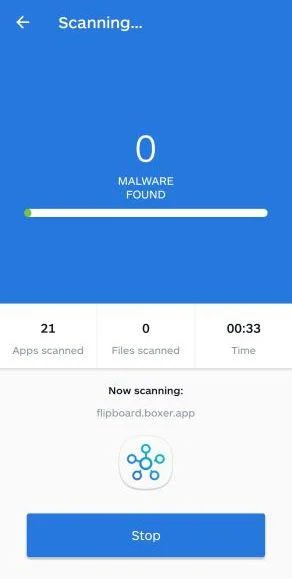
Malwarebytes will now start scanning your phone for adware and other malicious apps. This process can take a few minutes, so we suggest you do something else and periodically check on the status of the scan to see when it is finished.
-
Remove the detected apps.
When the scan has been completed, you will see a list of the threats that Malwarebytes for Android has detected. Next to each detected item, tap the menu icon (three dots), then choose to uninstall the app or delete the file. Android then asks you to confirm. Tap OK or Uninstall to remove the app.
-
Restart your phone.
When the detected apps are removed, restart your phone if Malwarebytes asks you to. Then check whether the problems you noticed have stopped.
If the problems you noticed continue after the scan, see the options below.
If you are still having problems with your phone after completing these instructions, then please follow one of the steps:
- Ask for help in our Mobile Malware Removal Help & Support forum.
- Only as a last resort, reset your phone to factory settings. Read the warning below first.
- Back up your photos, videos, files, and messages, for example to your Google account or a computer.
- Make sure you know your Google account email and password. The phone asks for them after the reset. If you changed the password recently, Google recommends waiting 24 hours before you reset.
- On a Samsung phone, also make sure you know your Samsung account password.
- If you use an authenticator app for two-step verification, move your accounts to another device or save your backup codes first.
Stay Protected: Block Ads and Malicious Sites
No scan can prove a device is completely clean, so it helps to block threats before they reach you. Most infections start with a malicious ad or a fake download button — so blocking them at the source is your best defense.
We recommend AdGuard, which blocks malicious ads, phishing pages, and dangerous redirects before they can reach you.
👉 Download AdGuard and browse safely
Frequently Asked Questions
Is PRODUCT_SPECIFICATIONS.pdf#02055.xls.html a PDF?
No. Its final extension is .html, so it is a web page. The words “pdf” and “xls” inside the filename are camouflage.
Can opening an HTML file steal my password automatically?
This campaign displays a form and relies on the victim to submit credentials. HTML can also contain active code, so unexpected files should still be handled as untrusted content.
What if the named company is real?
Real company details can be impersonated. Contact the business through information you find independently and confirm the person and request before opening files.
Why did the page show my email provider?
Phishing code can infer a provider from the address or display a preselected template. Matching branding does not prove the page is connected to that service.
Am I safe if I opened the file but entered nothing?
The credential risk is lower, but report the event and check whether anything downloaded or ran. Follow your organization’s incident process rather than assuming the file was passive.
Should a real product document require my email password?
No. Protected business portals may require their own verified authentication, but a document should never collect your email password through an attached HTML form.
The Bottom Line
The Product Review Request email scam turns a plausible sales opportunity into a credential trap. Its long attachment name hides an HTML file that imitates an email login instead of showing genuine specifications.
Verify new buyers independently and read file extensions from the end. If you submitted credentials, change them immediately, revoke sessions, inspect mailbox rules, and involve your organization’s security team before the compromise develops into payment fraud.

Join the discussion
0 commentsShare your experience or ask a question about this article.
Discussion
Start the conversation
Have a question or something useful to share? Add the first comment.