


You want somebody to examine a suspicious message, but the screenshot also shows your telephone number, another person’s name, and part of an account.
Covering the obvious details is only the beginning. A useful sharing copy should explain the problem without exposing information that never needed to become public.
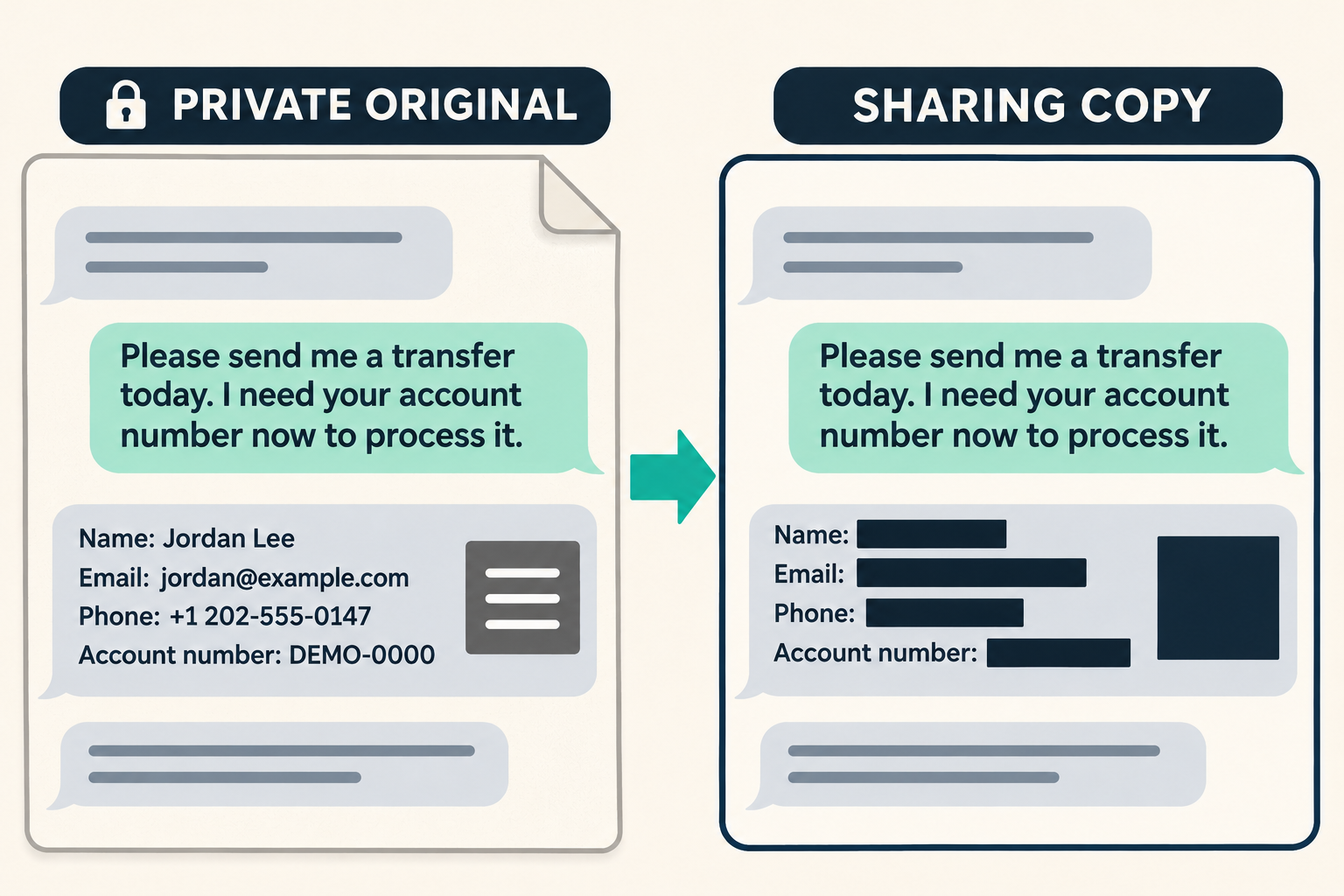
Overview
Keep the private original outside your editing workflow
The safest starting point is a separate copy. Preserve the original privately, then make the version you intend to share without editing that original.
Your public copy serves a different purpose from your private record. It needs enough context for a reader, not every personal detail visible on your screen.
The fictional illustration above shows this separation conceptually. It is not a real message, a provider interface, or an example containing somebody’s actual account information.
Automatic redaction only covers its stated categories
Windows Snipping Tool offers Quick redact for email addresses and telephone numbers. That feature does not promise to remove every sensitive detail in an image.
An order number, reset link, face, QR code, or private chat preview may need your attention even after automatic redaction finishes.
Treat automation as an assistant rather than a final privacy check. You remain responsible for deciding which information belongs in a public post.
Inspect the actual exported copy before sharing it
- Keep the unchanged original in a private location.
- Remove unnecessary surroundings before examining the remaining details.
- Cover sensitive content completely rather than merely disguising it.
- Save a separate flattened image for public sharing.
- Reopen that exact file before uploading it anywhere.
This guide concerns public-sharing privacy, not building a bank dispute or replacing an authority’s evidence-submission instructions. Those destinations may require different information through private channels.
Decide what the reader actually needs to see
Start with the question you want answered. Someone assessing a payment request usually needs its wording and requested action, not your entire conversation history.
If the concern is an unusual demand, preserve that demand. If the concern is sender impersonation, preserve enough sender context to explain the mismatch.
Do not publish information merely because it appears beside something relevant. A screenshot can include unrelated notifications, open tabs, account balances, and other people’s messages.
Consider a fictional text asking for a delivery fee. The requested amount and urgency may explain the concern, while your address contributes nothing useful.
A transaction reference may matter privately when contacting your bank. It usually does not help strangers understand why the wording or request looks suspicious.
Public readers can also misunderstand incomplete context. Crop away irrelevant surroundings, but keep the sentences that show what was requested and why you are asking.
| Information category | Usually helpful publicly | Usually keep private |
|---|---|---|
| The suspicious request | Wording, claimed reason, and requested action. | Any personal answer you supplied afterward. |
| Your account or payment | A general description of the issue. | Account identifiers, balances, and transaction references. |
| Another person’s identity | The role they claim to hold. | Unnecessary names, photographs, and contact details. |
| A link or machine-readable code | A safely described destination or concern. | Reset tokens, private invitation links, and exposed codes. |
These are decisions about necessity, not a claim that every identifier can unlock an account. Removing unnecessary details reduces avoidable exposure without overstating their power.
Make a sharing copy in the right order
Step 1: Separate the original from the copy
Keep the original file in a private location you control. The NHS Counter Fraud Authority’s redaction guidance likewise emphasizes working on copies, not originals.
For example, use a name such as message-sharing-copy.png rather than a person’s name or account number. Filenames can become visible alongside uploaded attachments.
If your editor saves changes automatically, confirm which file it is editing first. A duplicate is only useful when the application actually opens that duplicate.
Check your capture tool’s saving behavior as well. Microsoft’s Snipping Tool instructions describe automatic saving and a separate Save as option.
Do not assume the version on your clipboard is the version saved to disk. Capture tools and sharing applications can maintain several different copies.
Step 2: Reduce the image to relevant context
Remove unrelated desktop areas, chat lists, browser tabs, and notifications from the sharing copy. This reduces the number of details you must inspect afterward.
Keep enough surrounding text to prevent a misleading impression. Showing only a threatening sentence may hide that it came from an obvious fictional exercise.
When a conversation matters, include the relevant exchange rather than every earlier message. Other participants’ unrelated disclosures do not become necessary because you received them.
Inspect the top and bottom edges after cropping. Names, account avatars, message previews, and keyboard suggestions often survive outside the area attracting your attention.
Step 3: Cover everything that should remain private
Use a solid, fully opaque covering for information that must not be readable. Cover the complete value, including any visible beginning or ending.
For recognized text, Microsoft’s Snipping Tool product team documented selecting the text and choosing Redact text from its right-click menu.
On a Windows 11 build offering that option, open Text actions, select the entire sensitive identifier, then right-click and choose Redact text.
The product-team announcement describes an earlier rollout, not a guarantee for every current build. If your tool cannot select the content, use the safe exclusion fallback below.
Do not rely on a translucent highlighter, a thin pen stroke, or an effect that still leaves recognizable characters beneath it.
Blur and pixelation can also leave patterns or partial text visible. You do not need to predict a recovery technique when complete removal is available.
Leave enough margin around the private value to avoid exposed character edges. A tightly drawn box can miss a digit, a domain suffix, or another line.
Machine-readable content deserves its own check. A QR code or barcode is information even when you cannot read its contents by looking at it.
If that code is unnecessary, remove the entire code area rather than covering a few squares. Do not scan it merely to decide whether strangers need it.
Step 4: Export, reopen, and inspect the final file
Save a separate raster image, such as a PNG or JPEG, for sharing. Avoid uploading an editable project containing the original image beneath removable objects.
Flattening means the exported picture contains the final visible pixels rather than a separate editable covering. It does not automatically remove every other piece of information.
Close the editing view and open the exact file you plan to upload. Verify its filename, visible content, and redactions instead of relying on the editor preview.
Zoom in to inspect small characters and box edges, then view the whole image again. The larger view can reveal unrelated details you overlooked.
Finally, inspect the platform’s attachment preview before submitting. Make sure it selected the sharing copy rather than a nearby unedited original.
Use Windows Quick redact without overestimating it
In current Windows Snipping Tool guidance, Text actions can recognize text within an image. Microsoft says this recognition happens locally on your device.
Quick redact then covers recognized email addresses and telephone numbers. Microsoft’s documentation does not describe it as a complete account-identifier or secret-removal system.
For a Windows user, this can make an initial pass easier. Open the intended copy, inspect Text actions, and use the available redaction control where appropriate.
Then examine the result manually, including the categories the feature does not promise to handle. Recognition can also miss text that is small or visually difficult.
A screenshot containing a telephone number and a password therefore requires two different judgments. Finding the number does not establish that the password was detected.
The same applies to a recovery phrase written as ordinary words. You should remove that content entirely, not assume a text-recognition feature understands its significance.
If manual text selection is unavailable, exclude the sensitive area rather than disguising it. A rectangular snip can omit an entire identifier block or QR area.
When private details are interleaved with the needed wording, share a carefully checked plain-text description instead. You do not need a screenshot to explain every request.
Check these easily missed areas
Names and photographs can identify other people
A message can include a colleague’s portrait, a child’s name, or a relative’s contact card. Their information may have nothing to do with your question.
Replace unnecessary identities with role descriptions in your written explanation. Saying the sender claimed to be a manager often explains more than exposing a person’s photograph.
Be especially careful with accusations attached to an ordinary person’s name. A displayed name or stolen image does not establish who actually sent a message.
Links can carry information beyond a domain
A long link may contain an invitation token, document-sharing identifier, password-reset token, or other private parameter. The unfamiliar ending is not automatically meaningless.
For public discussion, describe the link’s role without publishing the full private value. If a destination matters, explain what you can safely identify.
Do not paste a live link into your post just because you covered it in the image. The written explanation needs the same privacy review.
Small surrounding details can reveal the account
Look at profile menus, browser account icons, account-switching panels, open document names, and notification previews. These details are easy to overlook beside a dramatic message.
A partial address may identify you within a small community even when it would not identify you globally. Match the redaction to your intended audience.
Also inspect serial numbers, device names, delivery labels, appointment details, and work-project names when they appear. Their sensitivity depends on the surrounding context.
The file and accompanying post need their own checks
A safe-looking image can still arrive with a revealing filename or an overly detailed explanation. Review everything being submitted, not just the largest picture.
Do not assume every screenshot contains GPS coordinates, and do not assume every screenshot is metadata-free. Saving tools and file formats can differ.
If metadata matters for your situation, inspect the exported file using a suitable local tool. A visible redaction does not answer that separate question.
Choose what to share for your situation
Open the branch that fits your immediate goal. Nothing here uploads a file or asks you to enter personal information.
I only need help understanding the wording
Share the relevant wording with identities and account details removed. A short written description may answer your question without requiring an image at all.
Keep the requested action, claimed authority, and relevant sequence understandable. Remove unrelated conversation history rather than inviting readers to search through it.
I need to show a sender or link mismatch
Preserve the specific detail that demonstrates the mismatch, but remove private tokens and unrelated identifiers. Explain the comparison in ordinary text beside your sharing copy.
If revealing the detail would expose private access information, do not publish it. Use a trustworthy private support route appropriate to the problem instead.
The screenshot contains a code or account secret
Keep that content out of the public copy entirely. If a secret has already been exposed, address the exposure through the relevant service before posting again.
Do not ask strangers to verify whether a recovery code still works. Testing or displaying it publicly can create precisely the risk you wanted to avoid.
I already uploaded the unedited original
Use the exposure steps below before preparing another attachment. A replacement sharing copy is useful, but it cannot reverse information somebody already obtained.
Work through the fictional account-reference example
In the lead illustration, the useful evidence is the transfer demand. Jordan’s fictional contact details and DEMO-0000 account reference are unnecessary for understanding that request.
On your sharing copy, open Text actions if available and try selecting the whole account reference. If the context menu offers Redact text, apply it to that value.
For a QR code or unselectable reference, display the copy, press Windows+Shift+S, and choose a rectangular snip. Select only the demand bubble, excluding the entire private block.
Inspect all four edges of the new snip before saving it separately. This method omits the private content rather than depending on text recognition or partial covering.
If a private reference sits inside the demand itself, stop trying to fit everything into an image. Write the relevant request in plain text without that reference.
For example, explain that the sender demanded an immediate transfer and requested account details. Preserve any stated amount that matters, but omit identifiers and machine-readable codes.
Use Save as for the intended sharing version, then reopen that file. Check your written explanation too, so it does not reintroduce the information you removed.
What to Do If the Original Was Shared Publicly
-
Remove or replace the public attachment where the platform permits, then review what was exposed. Deleting your post cannot guarantee that nobody copied it.
-
If passwords, tokens, or recovery information were visible, use the relevant provider’s security controls. Removing the image alone does not invalidate an exposed secret.
-
If somebody else’s private details appeared, tell them what was exposed without repeating those details publicly. They may need to take their own protective steps.
-
Prepare a new sharing copy from your private original only after addressing the exposure. Recheck the file selection so you do not repeat the same upload.
Frequently Asked Questions
Should I edit the original screenshot directly?
Keep the original private and edit a separate copy. This lets you share a reduced version without replacing your unchanged private record.
Does Quick redact remove every sensitive identifier?
No, Microsoft’s current guidance specifies email addresses and telephone numbers. Check account identifiers, codes, passwords, faces, and other private details yourself.
Is a highlighter enough to hide information?
Not when the text remains visible beneath it. Use a fully opaque covering and inspect the actual exported image rather than trusting the editing preview.
Can I leave part of a QR code visible?
Remove the whole unnecessary code area from the sharing copy. Partial covering is not a dependable way to decide whether machine-readable content remains usable.
Do I need an image to ask for help?
Often, a short description and safely quoted wording are enough. Choose the least revealing format that still explains the question you want answered.
Will deleting an exposed screenshot solve every problem?
No, copies may already exist and exposed secrets may remain usable. Remove the attachment where possible and address sensitive access information through its provider.
The Bottom Line
To redact screenshots safely, preserve your private original and make a separate public copy. Keep useful context while removing information the audience does not need.
Automatic tools can help with limited categories, but the final check is yours. Reopen the exact exported file and inspect the attachment before sharing.

Join the discussion
0 commentsShare your experience or ask a question about this article.
Community experiences
Did this happen to you?
Your experience could help someone recognize the same scam. Submit a private report for our team to review.
I experienced this tooReports are reviewed before publication. Sharing publicly is always your choice.
Discussion
Start the conversation
Have a question or something useful to share? Add the first comment.