

RblxHelper.co claims to give players free Robux in just a few simple steps. The promise is tempting, especially for younger users looking to unlock premium items in Roblox. However, what appears to be an easy reward system is actually a carefully designed trap. In this article, we break down exactly how this scam works, why it spreads so quickly, and what you should do if you have interacted with it.
Scam Overview
The RblxHelper.co scam is part of a broader ecosystem of “free Robux generator” schemes that have circulated for years. While the domain name may change, the structure, tactics, and end goal remain the same: extract value from users without ever delivering the promised Robux.
Below is a clear breakdown of how this scam operates at a high level.
What RblxHelper.co Claims
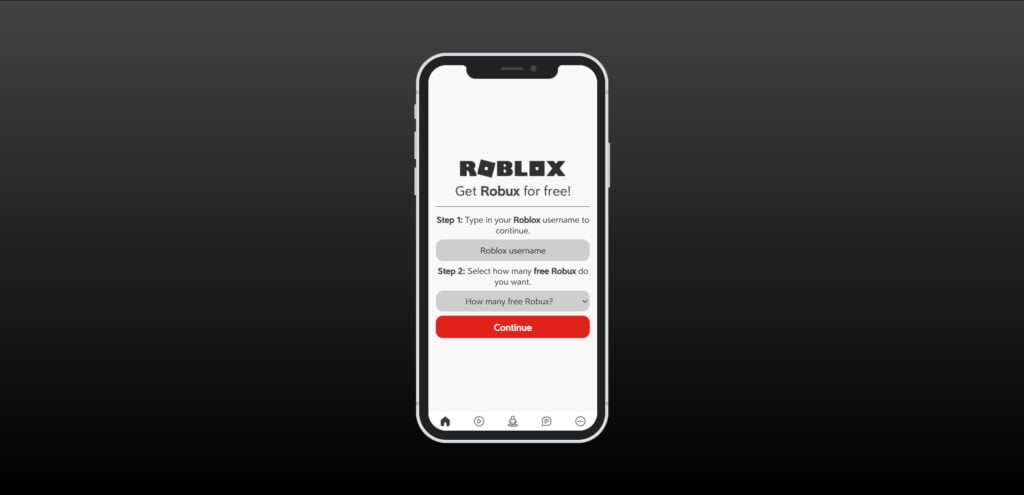
At first glance, the site looks simple and convincing. It presents itself as a tool that can “generate” or “add” Robux to your account.
Typical claims include:
- Enter your Roblox username to begin
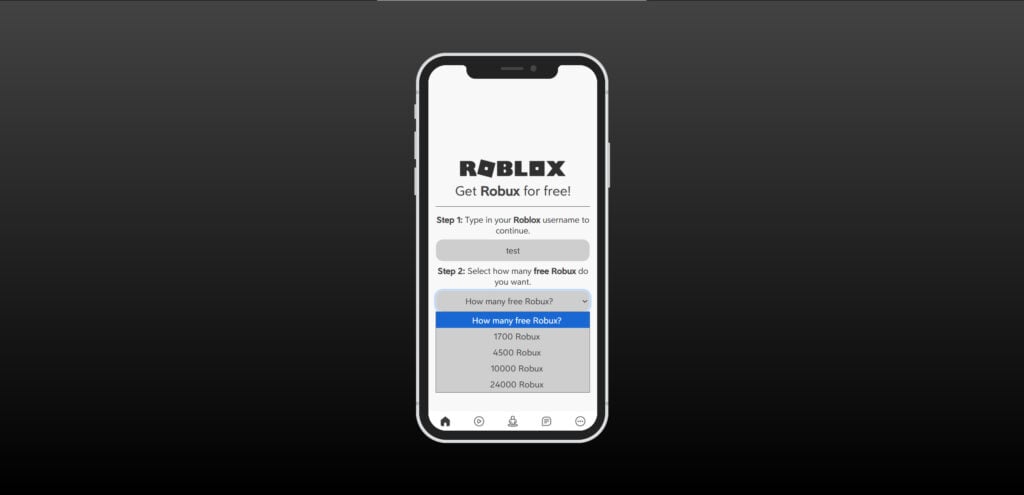
- Choose how many Robux you want
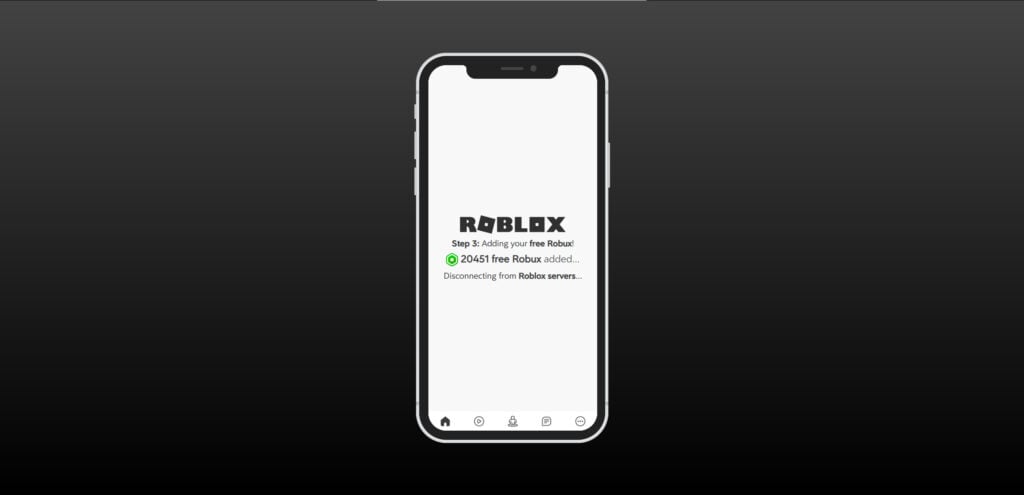
- Wait while the system “connects to Roblox servers”
- Complete a quick verification step
- Receive free Robux instantly
These steps are designed to feel logical and low-risk. The interface mimics legitimate systems, using loading animations and progress messages to build trust.
What Actually Happens
In reality, no Robux is ever generated or transferred. Instead, users are funneled into a monetization system based on affiliate offers.
Here is what truly happens:
- Your username is collected but never used for any real transaction
- Fake loading screens simulate interaction with Roblox servers
- You are told to “verify” your account
- Verification leads to third-party offers such as apps, surveys, or subscriptions
- Each completed action earns money for the scam operators
The core deception is simple: you are not verifying anything. You are completing paid actions that benefit the scammer.
Key Red Flags
RblxHelper.co exhibits several clear warning signs that identify it as a scam:
- Promises of free Robux without any official Roblox involvement
- No login through official Roblox authentication
- Generic domain name not associated with Roblox Corporation
- Forced “human verification” steps
- Repeated redirects to unrelated offers
- No actual Robux delivery, regardless of actions completed
Any legitimate Robux purchase or reward system would operate directly within Roblox or through authorized partners. External “generators” are always fraudulent.
Why These Scams Keep Working
Despite widespread awareness, these scams continue to succeed due to a combination of psychological and technical factors.
1. High Demand for Robux
Robux is central to the Roblox experience. Players use it for:
- Skins and cosmetics
- Game passes
- Private servers
- Avatar upgrades
Because of this, the idea of getting Robux for free is extremely appealing.
2. Targeting Younger Users
Many victims are children or teenagers who:
- May not recognize scam patterns
- Are more likely to trust simple instructions
- Feel urgency to obtain in-game items
Scammers intentionally design interfaces that are easy to understand and visually engaging.
3. Social Spread Through Roblox
The scam spreads aggressively inside Roblox itself:
- Spam messages in game chats
- Fake giveaways in private servers
- Messages from compromised accounts
- YouTube comments and TikTok videos promoting the site
This creates a false sense of legitimacy because users see it shared by other players.
4. Affiliate Revenue Model
The real engine behind the scam is affiliate marketing abuse.
Scammers earn money when users:
- Install apps
- Sign up for trials
- Enter personal information
- Complete surveys
Even if each user generates a small amount, the scale makes it profitable.
Common Variants of the Same Scam
RblxHelper.co is not unique. It belongs to a large network of similar sites that reuse the same template.
Examples of variations include:
- Different domain names such as “rbxboost,” “robuxgen,” or “claimrobux”
- Slightly different user interfaces
- Different Robux amounts offered
- New branding to avoid detection
The underlying mechanism remains identical across all versions.
How The Scam Works
To fully understand the danger of RblxHelper.co, it is important to break down the process step by step. Each stage is carefully designed to guide the user deeper into the scam.
Step 1: Initial Exposure
Most users do not find RblxHelper.co through a search engine. Instead, they encounter it through:
- Roblox chat spam
- Discord servers
- YouTube descriptions or comments
- TikTok videos claiming “working Robux method”
These messages often include phrases like:
- “This actually works”
- “I just got 10,000 Robux”
- “Limited time method”
The goal is to create urgency and social proof.
Step 2: Landing on the Website
Once the user clicks the link, they are taken to a clean, mobile-friendly page.
The site typically shows:
- Roblox branding and logo
- A simple form asking for a username
- A dropdown to select Robux amount
This simplicity is intentional. It reduces suspicion and makes the process feel quick.
Step 3: Entering a Username
Users are asked to input their Roblox username.
Important details:
- No password is requested at this stage
- This creates a false sense of safety
- The system pretends to “locate” the account
In reality, this step is purely cosmetic. It does not connect to Roblox servers.
Step 4: Fake Processing Animation
After selecting a Robux amount, the site displays a loading sequence.
Common messages include:
- “Connecting to Roblox servers”
- “Injecting Robux into account”
- “Bypassing security protocols”
These messages are entirely fake but designed to simulate a real backend process.
This stage builds anticipation and trust.
Step 5: Fake Success Message
The user is then shown a message indicating success.
Examples:
- “4187 Robux added”
- “24000 Robux ready”
This is the psychological turning point. The user now believes the system worked.
However, there is always a catch introduced immediately after.
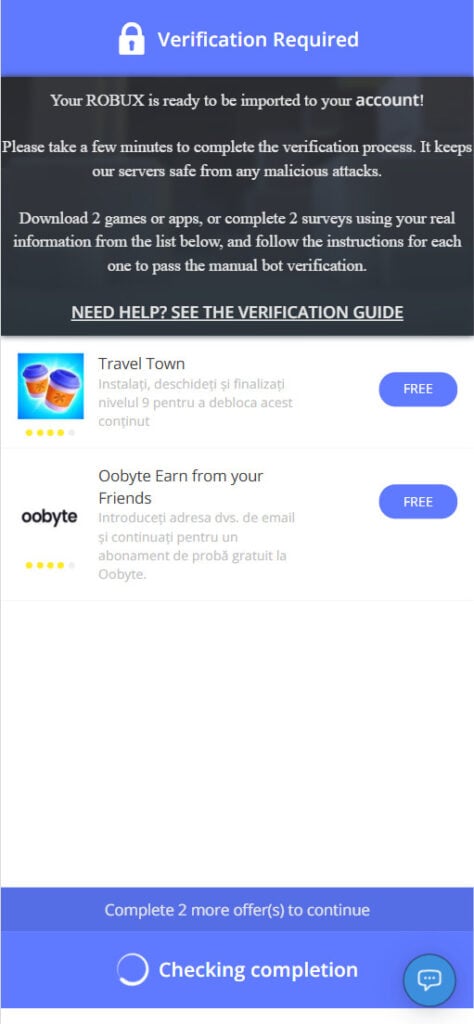
Step 6: The Verification Trap
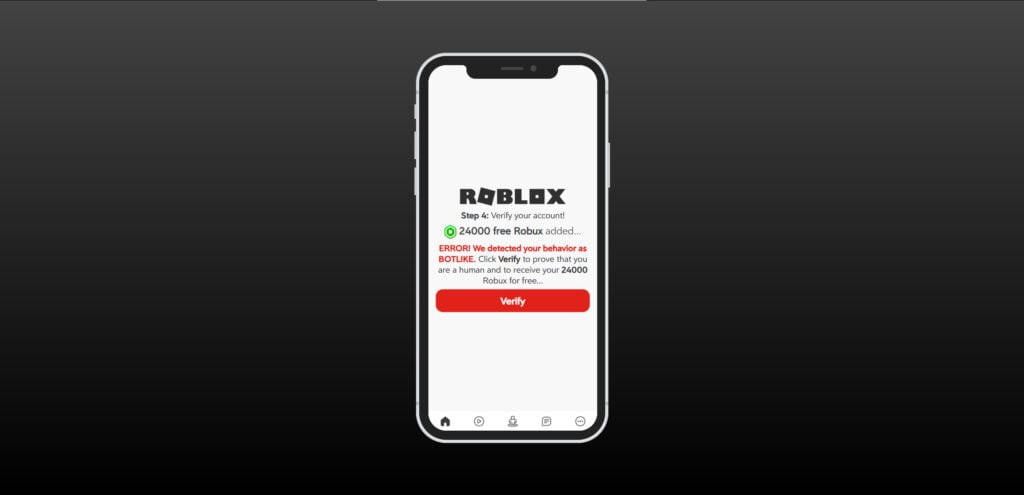
Users are told they must complete a “human verification” step.
Typical wording:
- “We detected bot-like behavior”
- “Verify to receive your Robux”
- “Complete 2 offers to unlock”
This is where the scam actually begins generating revenue.
Step 7: Redirect to Offer Walls
Clicking “Verify” redirects users to third-party platforms known as offer walls.
These include tasks such as:
- Downloading mobile apps
- Signing up for free trials
- Completing surveys
- Entering email addresses or phone numbers
Each action is tracked through affiliate links.
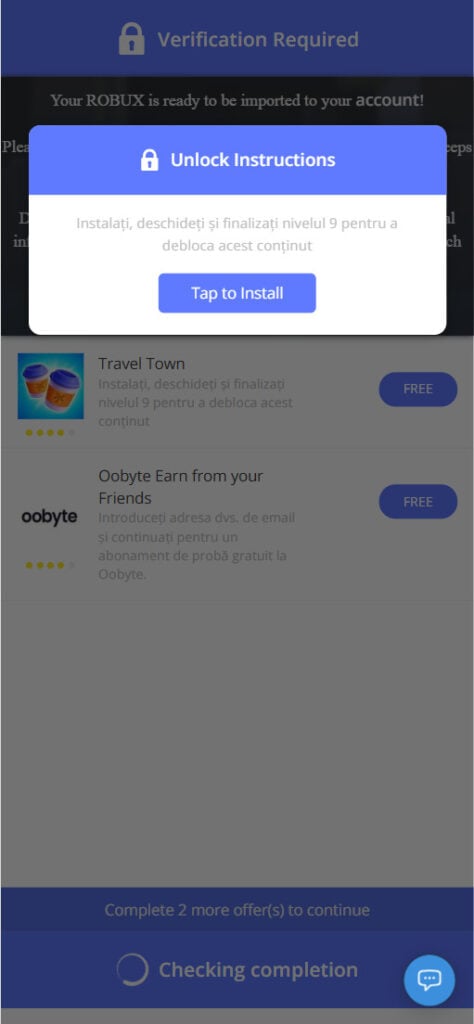
Step 8: Endless Loop
Even after completing tasks, users rarely receive anything.
Instead, they are:
- Asked to complete additional offers
- Redirected to new pages
- Told verification failed
This loop continues until the user gives up.
Step 9: Data Collection and Potential Risks
Beyond wasted time, users may also expose personal data.
Risks include:
- Email spam
- Unwanted subscriptions
- Phone number misuse
- Potential identity theft if sensitive data is entered
In some cases, malicious apps may also be installed.
Step 10: No Robux Delivered
At the end of the process:
- No Robux is added
- No confirmation is provided
- The site may simply stop responding
The entire experience is designed to extract value without delivering anything.
What To Do If You Have Fallen Victim to This Scam
If you or your child interacted with RblxHelper.co, it is important to act quickly. While no Robux is lost directly, other risks may still apply.
Follow these steps to secure your information and prevent further issues.
- Do Not Complete Any More OffersStop interacting with the site immediately. Completing additional tasks will not result in Robux and may increase exposure.
- Clear Your Browser DataRemove cookies and cached data to prevent tracking.
- Clear browsing history
- Delete cookies
- Restart your browser
- Check for Unwanted SubscriptionsIf you entered an email or phone number:
- Review recent sign-ups
- Cancel any unknown subscriptions
- Monitor billing statements
- Uninstall Suspicious AppsIf you downloaded anything:
- Remove the app immediately
- Check app permissions
- Scan your device for malware
- Secure Your Roblox AccountEven if you did not enter a password, take precautions:
- Change your Roblox password
- Enable two-factor authentication
- Log out of all sessions
- Monitor Your Email and PhoneWatch for:
- Phishing emails
- Spam messages
- Suspicious links
- Warn OthersThese scams spread through social sharing.
- Inform friends or family
- Report spam messages inside Roblox
- Help prevent others from falling for the same trap
- Report the ScamYou can report the site to:
- Roblox support
- Browser security tools
- Anti-phishing organizations
Is Your Device Infected? Run a Free Malware Scan
Slow performance, constant pop-ups, or strange behavior? These are classic signs of a malware infection. The fastest way to find out is to scan your device with Malwarebytes Free — one of the most trusted malware removal tools available.
The free version detects and removes the most common threats, including:
- Adware — the cause of those annoying pop-ups
- Browser hijackers — unwanted redirects and changed homepages
- Trojans and spyware — hidden programs stealing your data
- Potentially unwanted programs (PUPs) — software you never asked for
👉 Select your device below — Windows, Mac, or Android — then follow the simple steps to download Malwarebytes, scan your system, and remove any threats it finds. The scan usually takes 5 to 20 minutes.
Run a Malware Scan with Malwarebytes for Windows
Malwarebytes is one of the most popular and trusted anti-malware tools for Windows — and it’s completely free for removing infections. It catches threats that many antivirus programs miss, including adware, browser hijackers, and trojans. Follow the steps below to scan and clean your PC in just a few minutes.
Download Malwarebytes
Click the button below to download the latest version of Malwarebytes for Windows from the official source. The free version is all you need — it will scan your computer and remove adware, browser hijackers, and other malicious software at no cost.
Download MalwarebytesOfficial installer for Windows 11 and 10. Your download starts right away.Want real-time protection? See Malwarebytes Premium Malwarebytes Free for WindowsScans and removes malware at no cost
-
Install Malwarebytes
When the download finishes, open your Downloads folder and double-click the MBSetup file. If Windows shows a User Account Control pop-up, click “Yes” to allow the installation.

Follow the On-Screen Prompts to Install Malwarebytes
The setup wizard will walk you through a few quick screens:
-
Choose where you’re installing the program — “Personal Computer” or “Work Computer” — then click Next.

-
Malwarebytes will now install on your device. This usually takes under a minute.

-
When installation is complete, the “Welcome to Malwarebytes” screen will open automatically.

-
On the final screen, click Open Malwarebytes to launch the program.

-
Enable “Scan for Rootkits”
Before scanning, turn on rootkit detection so Malwarebytes can find even the most hidden threats. Click the Settings gear icon on the left side of the screen.

In the settings menu, find “Scan for rootkits” and click the toggle so it turns blue.

Done? Click “Dashboard” in the left pane to return to the main screen.
Start the Scan
Click the blue Scan button. Malwarebytes will automatically update its virus database and start checking your computer for malware.

-
Wait for the Scan to Finish
The scan checks your entire system for browser hijackers and other malicious programs, so it can take 5 to 20 minutes depending on your computer. Feel free to do something else — just check back occasionally to see the progress.

-
Quarantine the Detected Threats
When the scan is done, you’ll see a list of everything Malwarebytes found — malware, adware, and potentially unwanted programs. Click the “Quarantine” button to remove all of them at once.

Malwarebytes will now remove the malicious files and registry entries and move them safely into quarantine.

-
Restart Your Computer
Some threats can only be fully removed after a reboot. If Malwarebytes asks you to restart, click Yes. Once you’re logged back in, Malwarebytes has finished removing the threats it found.

That’s it — your Windows PC is now clean of trojans, adware, and other malware, and should be back to running smoothly.
If you are still having problems with your computer after completing these instructions, then please follow one of the steps:
- Run a computer scan with ESET Online Scanner
- Ask for help in our Windows Malware Removal Help & Support forum.
Run a Malware Scan with Malwarebytes for Mac
Malwarebytes for Mac is a free on-demand scanner that removes the malware other security software tends to miss — adware, browser hijackers, and unwanted programs included. Cleaning an infected Mac with Malwarebytes has always been completely free, and it’s our go-to recommendation. Follow the steps below to scan and clean your Mac in just a few minutes.
-
Download Malwarebytes for Mac
Click the button below to download the latest version of Malwarebytes for Mac.
Download MalwarebytesOfficial installer for macOS. Your download starts right away.Want real-time protection? See Malwarebytes PremiumMalwarebytes Free for MacScans and removes malware at no cost -
Open the Malwarebytes setup file
When the download finishes, open your Downloads folder and double-click the setup file to begin the installation.

-
Follow the On-Screen Prompts to Install Malwarebytes
The Malwarebytes for Mac Installer will guide you through a few quick screens. Click “Continue” and keep following the prompts until the installation completes.



When the installation is complete, Malwarebytes opens to the Welcome to Malwarebytes screen. Click “Get started“.
-
Select “Personal Computer” or “Work Computer”
Malwarebytes will ask what type of computer you’re installing it on. Click either Personal Computer or Work Computer, whichever applies.

-
Start the Scan
Click the “Scan” button. Malwarebytes will automatically update its detection database and begin checking your Mac for malware.

-
Wait for the Scan to Finish
Malwarebytes will scan your Mac for adware, browser hijackers, and other malicious programs. This can take a few minutes, so feel free to do something else — just check back occasionally to see the progress.

-
Quarantine the Detected Threats
When the scan is done, you’ll see a list of everything Malwarebytes found. Click the “Quarantine” button to remove all the threats at once.

-
Restart Your Mac
Malwarebytes will now remove all the malicious files it found. Some threats can only be fully removed after a reboot — if Malwarebytes asks you to restart, allow it. Once you’re logged back in, your Mac is clean.

That’s it — your Mac is now free of adware, rogue browser extensions, and other potentially harmful software.
If you are still experiencing problems while trying to remove a malicious program from your computer, please ask for help in our Mac Malware Removal Help & Support forum.
Run a Malware Scan with Malwarebytes for Android
Malwarebytes for Android automatically detects and removes dangerous threats like malware and ransomware so you don’t have to worry about your most-used device being compromised. Aggressive detection of adware and potentially unwanted programs keeps your Android phone or tablet running smooth.
-
Download Malwarebytes for Android.
You can download Malwarebytes for Android by clicking the link below.
Get Malwarebytes for AndroidOpens Google Play in a new tab.Want real-time protection? See Malwarebytes Premium for AndroidMalwarebytes for AndroidScans your phone and removes malware at no cost -
Install Malwarebytes for Android on your phone.
In the Google Play Store, tap “Install” to install Malwarebytes for Android on your device.

When the installation process has finished, tap “Open” to begin using Malwarebytes for Android. You can also open Malwarebytes by tapping on its icon in your phone menu or home screen.

-
Follow the on-screen prompts to complete the setup process
When Malwarebytes will open, you will see the Malwarebytes Setup Wizard which will guide you through a series of permissions and other setup options.
This is the first of two screens that explain the difference between the Premium and Free versions. Swipe this screen to continue.
Tap on “Got it” to proceed to the next step.
Malwarebytes for Android will now ask for a set of permissions that are required to scan your device and protect it from malware. Tap on “Give permission” to continue.
Tap on “Allow” to permit Malwarebytes to access the files on your phone.
-
Update database and run a scan with Malwarebytes for Android
You will now be prompted to update the Malwarebytes database and run a full system scan.

Click on “Update database” to update the Malwarebytes for Android definitions to the latest version, then click on “Run full scan” to perform a system scan.

-
Wait for the Malwarebytes scan to complete.
Malwarebytes will now start scanning your phone for adware and other malicious apps. This process can take a few minutes, so we suggest you do something else and periodically check on the status of the scan to see when it is finished.

-
Click on “Remove Selected”.
When the scan has been completed, you will be presented with a screen showing the malware infections that Malwarebytes for Android has detected. To remove the malicious apps that Malwarebytes has found, tap on the “Remove Selected” button.

-
Restart your phone.
Malwarebytes for Android will now remove all the malicious apps that it has found. To complete the malware removal process, Malwarebytes may ask you to restart your device.
That’s it — your Android phone is now clean — no more malicious apps, adware, or browser redirects.
If you are still having problems with your phone after completing these instructions, then please follow one of the steps:
- Restore your phone to factory settings by going to Settings > General management > Reset > Factory data reset.
- Ask for help in our Mobile Malware Removal Help & Support forum.
Stay Protected: Block Ads and Malicious Sites
Now that your device is clean, keep it that way. Most infections start with a malicious ad or a fake download button — so blocking them at the source is your best defense.
We recommend AdGuard, which blocks malicious ads, phishing pages, and dangerous redirects before they can reach you.
👉 Download AdGuard and browse safely
The Bottom Line
RblxHelper.co is not a Robux generator. It is a well-structured scam built to exploit demand for free in-game currency. By combining fake interfaces, psychological triggers, and affiliate monetization, it convinces users to complete actions that generate profit for scammers.
No external website can legally or technically add Robux to your account for free. Any platform that claims otherwise should be treated as fraudulent.
The safest approach is simple: if it sounds too good to be true, it is.
FAQ
Is RblxHelper.co a legitimate free Robux website?
No. RblxHelper.co is not a legitimate Roblox website or an authorized Robux source. It is part of a scam that uses fake promises of free Robux to push users into affiliate offers, app installs, surveys, and other money-making actions for the site operators.
Can RblxHelper.co actually add Robux to your account?
No. It cannot add Robux to any Roblox account. The site only pretends to connect to Roblox servers and show progress messages, but there is no real transfer happening behind the scenes.
Why does RblxHelper.co ask for a Roblox username?
It asks for a username to make the process feel real. This step is mainly used to build trust and create the illusion that the site is linking to a live Roblox account.
What is the “verification” step on RblxHelper.co?
The verification step is the core of the scam. It usually redirects users to surveys, app downloads, trial offers, or other third-party pages. Completing these actions earns money for the scammer, but users do not receive any Robux.
What happens if you complete the offers?
In most cases, nothing useful happens. Users are often sent to more offers, trapped in a loop, or told the verification is still incomplete. The promised Robux never arrives.
Can RblxHelper.co steal your Roblox account?
If you only entered a username, direct account theft is less likely. However, scam sites like this can still expose you to phishing attempts, spam, malicious downloads, or fake login pages later. If you entered any password anywhere after visiting the site, change it immediately.
Is it safe to download apps from the verification page?
No. These downloads are part of the scam funnel. Some may be low-quality apps used for affiliate payouts, while others can expose you to privacy risks, spam, or unwanted subscriptions.
Why do so many free Robux scams look real?
They are designed to look convincing. Many use Roblox branding, progress bars, fake “server connection” messages, and polished mobile layouts to make users believe the process is legitimate.
How do people usually find RblxHelper.co?
Most victims are led there through spam messages, Roblox server chat, Discord messages, YouTube comments, TikTok videos, or fake giveaway posts that claim the method is working.
What should I do if my child used RblxHelper.co?
Start by checking whether they downloaded any apps, entered personal information, or followed additional links. Change the Roblox password, enable two-factor authentication, review the device for suspicious apps, and explain that free Robux sites outside Roblox are scams.
Will Roblox ever give free Robux through random outside websites?
No. Legitimate Robux transactions and promotions happen through official Roblox channels or authorized partners. Random third-party generator sites are not real.
How can I tell if a Robux website is fake?
Common warning signs include:
- Promises of free Robux with no official Roblox connection
- Requests to complete surveys or install apps
- Claims about “human verification”
- Fake loading bars and “connecting to Roblox servers” messages
- Domains that are not official Roblox websites
Can I get my time or money back if I completed offers?
That depends on what you signed up for. If you started a paid trial, entered payment details, or subscribed to something through an offer page, cancel it right away and contact your bank or service provider if charges appear. The site itself will not send the promised Robux.
Are sites like RblxHelper.co part of a bigger scam trend?
Yes. RblxHelper.co fits into a large, long-running pattern of free Robux scams that rotate through new domain names, new layouts, and new social media posts, but use the same basic trick every time.
What is the safest way to get Robux?
The safest way is through official Roblox purchases, gift cards, or legitimate promotions directly connected to Roblox. Anything else should be treated with extreme caution.

Join the discussion
4 commentsShare your experience or ask a question about this article.
Discussion
i need 10k robux
In reply to pomuuuyygr
same buckaroo i am in the direst need of some robux.
In reply to Sam
There is no working way to get free Robux. Every “generator”, “free Robux” site, or Discord/YouTube link promising them is either after your Roblox login, after a payment, or trying to get you to install something. Once someone has your login they usually strip the account of items and use it to scam your friends.
The only safe ways to get Robux are buying them in the official Roblox app or on roblox.com, a Roblox gift card from a real shop, or Roblox Premium. If you already entered your password on one of these sites, change it right away and turn on 2-Step Verification in Roblox settings.
In reply to pomuuuyygr
There is no way to get 10,000 Robux for free, and every site, video or Discord link that says otherwise is after either your Roblox login or a payment. Once someone has your login they strip the account of items and then use it to run the same scam on your friends list.
The only real sources are the Roblox app or roblox.com, a Roblox gift card from a shop, or Premium. If you want a large amount without paying, the legitimate route is making something people want – selling clothing items or a game pass, or joining the affiliate and creator programmes – which is slow but real.
And if you have already entered your password on one of these sites, change it now and turn on 2-Step Verification in Roblox settings.