

The “Apple Security: Hackers Are Watching You!” pop-up is a browser-based advertisement that uses fake alerts stating that your device is under attack or infected to trick you into installing unwanted apps or subscribing to unneeded paid services.
What is the “Apple Security: Hackers Are Watching You!” pop-up?
The “Apple Security: Hackers Are Watching You!” pop-up is a scam that claims your iPhone has been hacked and that your Facebook, WhatsApp, and Instagram accounts will be compromised if you don’t take immediate action. The goal of this scam is to trick you into installing unwanted apps or subscribing to unnecessary paid services.
It is important to be aware that Apple will never send a message like this to its users, and that such messages should be ignored. If you are concerned about the security of your device, it is always best to contact Apple directly or visit an Apple store for assistance.
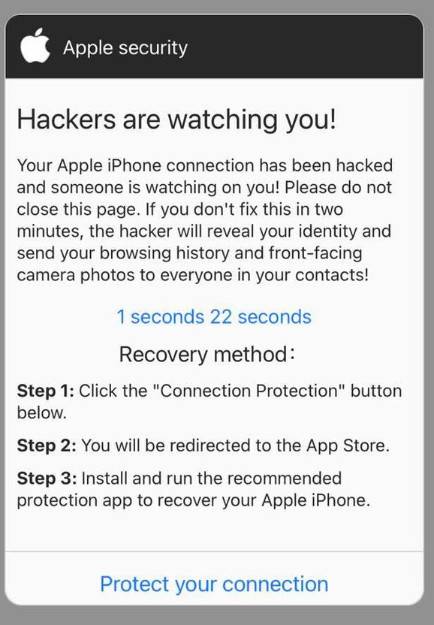
When the “Apple Security: Hackers Are Watching You!” pop-up ad is displayed in your browser it will show this message:
Apple Security
Hackers Are Watching You!
Your Apple iPhone connection has been hacked and someone is watching you!
Please do not close this page.
If you don’t fix this in two minutes the hacker will reveal your identity and send your browsing history and front-facing camera photos to everyone in your contacts!1)Click on the “Connection Protection”
2) you will be redirected the App store
3) Install and run the recommended protection app to recover your Apple iphone.
The “Apple Security: Hackers Are Watching You!” pop-up has nothing to do with Apple and anything it states is just false. If you have been redirected to the “Apple Security: Hackers Are Watching You!” ads, we recommend closing the page and do not enter any personal information.
Why am I seeing the “Apple Security: Hackers Are Watching You!” pop-up ads?
You are seeing the “Apple Security: Hackers Are Watching You!” pop-ups because of spam push notification ads, or a site that you have visited has redirected you to this page.
Less than reputable sites can display malicious ads that redirect your browser to the “Apple Security: Hackers Are Watching You!” fake alert messages to generate advertising revenue. If this happens, you can close the page and install an ad blocker like AdGuard [recommended] to block the malicious ads.
If your computer starts redirecting you to the “Apple Security: Hackers Are Watching You!” sites for no reason then you can reset your browser to its factory settings.
Removal Instructions for “Apple Security: Hackers Are Watching You!” Pop-up
Please perform all the steps in the correct order. If you have any questions or doubt at any point, stop and ask for our assistance.
STEP 1: Clean your browser
First, we’ll clean Safari using the built-in “Clear History and Website Data” feature. This removes your browsing history, cookies, and cached data — including the stored data that scam sites use to keep showing you pop-ups and redirects. Don’t worry: this won’t delete your photos, apps, or saved passwords.
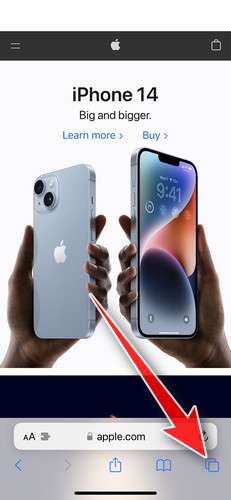
- Don’t tap anything inside the scam page or pop-up — the buttons are designed to trick you. Instead, tap the tabs icon in the lower-right corner of Safari, as shown below.
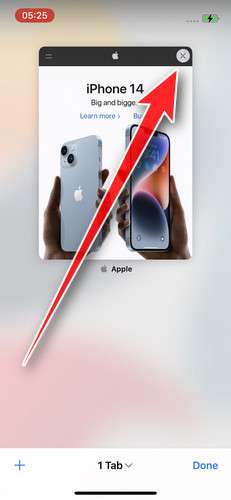
- Tap the X on the malicious tab (or swipe it up) to close it safely.
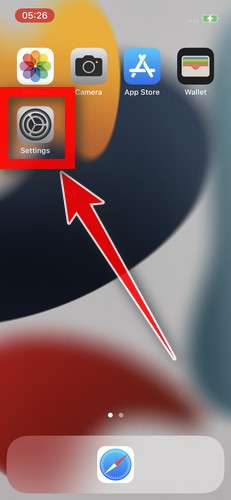
- Open the Settings app.
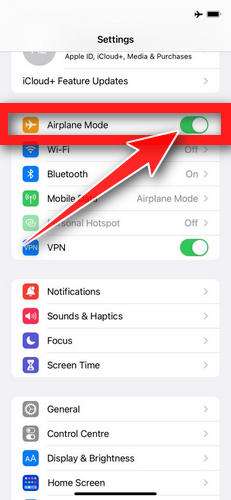
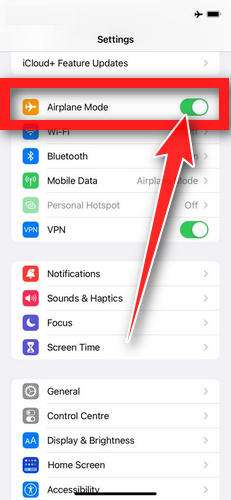
- Turn on Airplane Mode. This temporarily disconnects your iPhone from the internet, so the scam site can’t load anything while we clean up. We’ll turn it back off at the end.
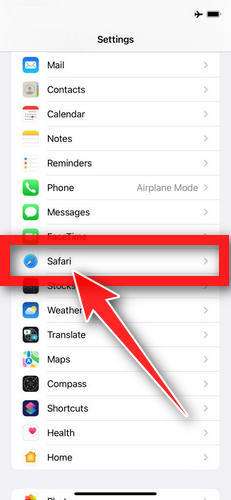
- Scroll down and tap Safari.
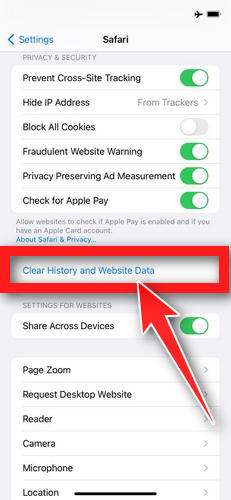
- Tap Clear History and Website Data.
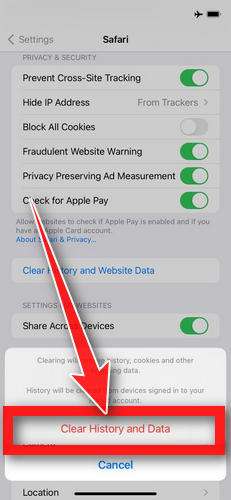
- Confirm by tapping “Clear History and Data” in the pop-up.
- While you’re still in Safari settings, turn on Block Pop-ups and Fraudulent Website Warning. These two switches stop most scam pages before they can even load.
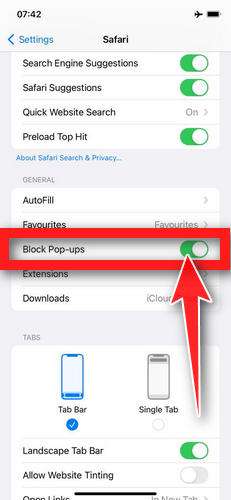
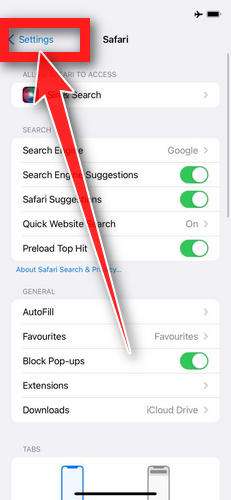
- Tap Settings in the upper-left corner to return to the main Settings menu.
- Turn Airplane Mode back off to reconnect your iPhone to the internet.
STEP 2: Delete unwanted apps
Next, we’ll remove any suspicious apps from your iPhone. If a shady website redirected you to the App Store and you installed an app — or you spot an app you don’t remember downloading — delete it now:
-
On the home screen, tap and hold the unwanted app’s icon until the icons start to wiggle.
-
Tap the minus (–) badge in the corner of the app icon, then tap Delete App. (On older iOS versions, this badge appears as an “X”.)
-
Confirm by tapping “Delete“.
That’s it — your iPhone is now clean and safe to use.
To stop these scam pages from coming back, we recommend installing an ad blocker like AdGuard. It blocks the malicious ads and redirects that cause these pop-ups in the first place.
Still having issues after completing these steps? Try one of the following:
- Run a scan with Malwarebytes for iOS
- Ask for help in our free Mobile Malware Removal Help & Support forum — our team will assist you personally.

Join the discussion
0 commentsShare your experience or ask a question about this article.
Discussion
Start the conversation
Have a question or something useful to share? Add the first comment.