

Trojan:JS/Medfos.B is a malicious JavaScript file that redirects search queries when using websites such as AOL, Ask, Bing, Google and Yahoo to other website from which cyber criminals get some sort of revenue.
Medfos is a member of the Win32/Medfos family and got your computer, after you have visited an infected website which exploited a vulnerability from a Java or Adobe software and Medfos installed a file called chromeupdate.crx in your %LOCALAPPDATA% folder.
As part of its self-defense mechanism,once installed Medfos disguises itself as a legitimate Google Chrome or Firefox extension with the name ChromeUpdateManager 1.0 or Translate This 2.0, as show in the below images:
Trojan:JS/Medfos.B sole purpose is to generate revenue for its authors via pay-per-click advertising links and redirect traffic to affiliate sites, so we recommend that you remove this Trojan as soon as possible from your computer.
Always opt for the custom installation and deselect anything that is not familiar, especially optional software that you never wanted to download and install in the first place. It goes without saying that you should not install software that you don’t trust.
How to remove Trojan:JS/Medfos.B virus (Virus Removal Guide)
Please perform all the steps in the correct order. If you have any questions or doubt at any point, STOP and ask for our assistance.
-
To remove Trojan:JS/Medfos.B virus, follow these steps:
- STEP 1: Use Zemana AntiMalware Portable to remove malware
- STEP 2: Scan and clean your computer with Malwarebytes Anti-Malware
- STEP 3: Double-check for malicious programs with HitmanPro
STEP 1: Use Zemana AntiMalware Portable to remove malware
Zemana AntiMalware Portable is a free utility that will scan your computer for the Trojan:JS/Medfos.B browser hijacker and other malicious programs.
- You can download Zemana AntiMalware Portable from the below link:
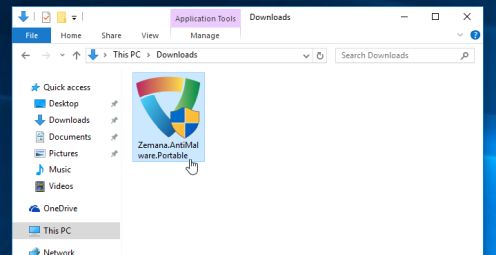
Download Zemana AntiMalwareOpens the download page in a new tab. - Double-click on the file named “Zemana.AntiMalware.Portable” to perform a system scan with Zemana AntiMalware Free.
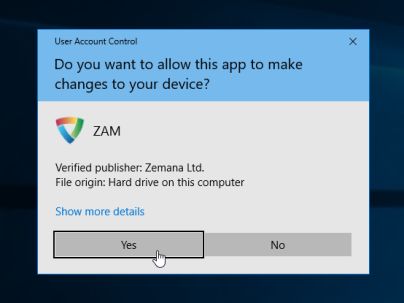
You may be presented with a User Account Control dialog asking you if you want to run this program. If this happens, you should click “Yes” to allow Zemana AntiMalware to run.
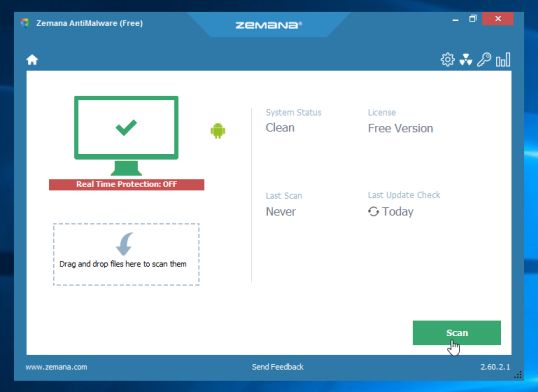
- When Zemana AntiMalware will start, click on the “Scan” button to perform a system scan.
- Zemana AntiMalware will now scan your computer for malicious programs. This process can take up to 10 minutes.
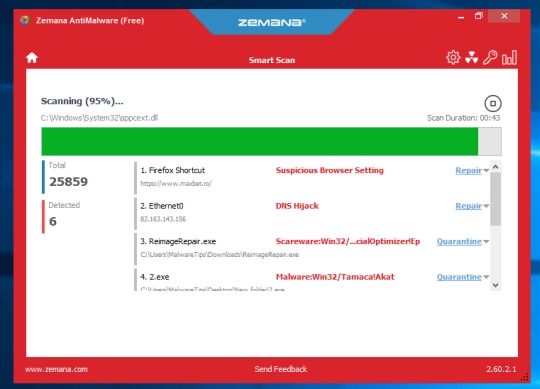
- When Zemana has finished finished scanning it will show a screen that displays any malware that has been detected. To remove all the malicious files, click on the “Next” button.
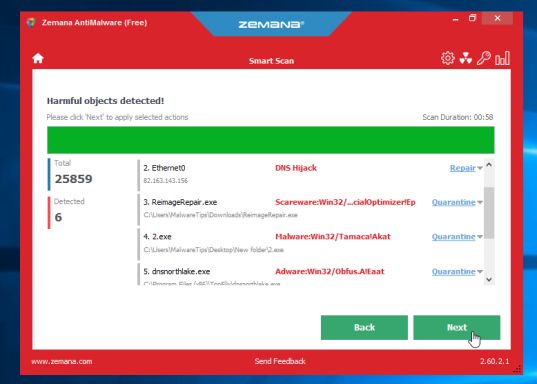
Zemana AntiMalware will now start to remove all the malicious programs from your computer. When the process is complete, you can close Zemana AntiMalware and continue with the rest of the instructions.
STEP 2: Scan and clean your computer with Malwarebytes Anti-Malware
Malwarebytes Anti-Malware is a powerful on-demand scanner which should remove the Trojan:JS/Medfos.B virus from your machine. It is important to note that Malwarebytes Anti-Malware will run alongside antivirus software without conflicts.
- You can download download Malwarebytes Anti-Malware from the below link.
Download MalwarebytesFree official installer. Your download starts right away. - When Malwarebytes has finished downloading, double-click on the “mb3-setup-consumer” file to install Malwarebytes Anti-Malware on your computer.
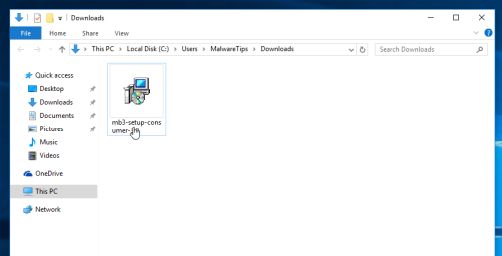
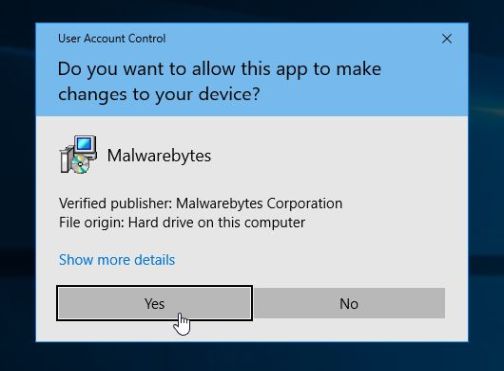
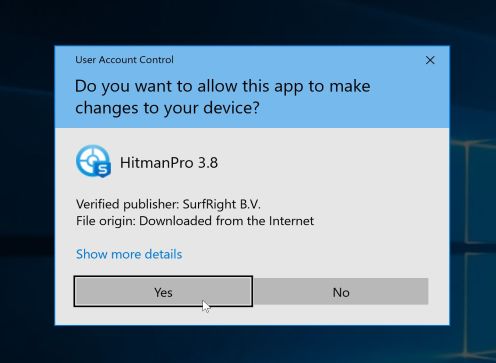
You may be presented with an User Account Control pop-up asking if you want to allow Malwarebytes to make changes to your device. If this happens, you should click “Yes” to continue with the installation.
- When the Malwarebytes installation begins, you will see the Malwarebytes Setup Wizard which will guide you through the installation process.
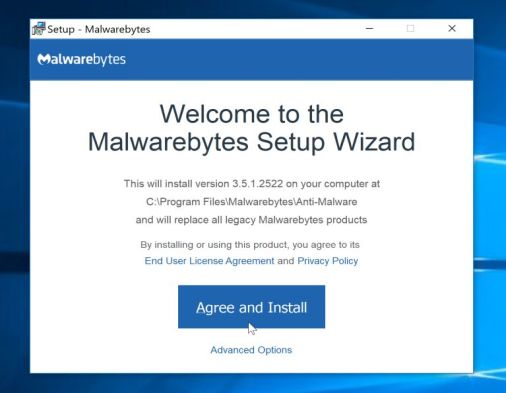
To install Malwarebytes Anti-Malware on your machine, keep following the prompts by clicking the “Next” button.
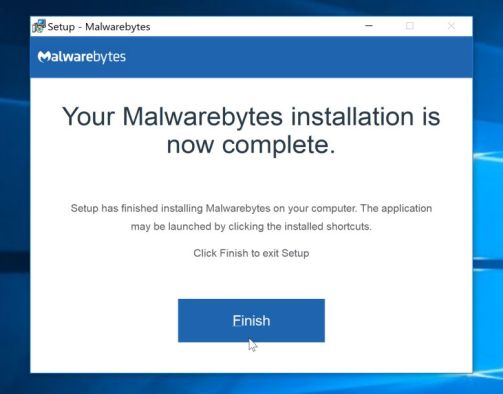
- Once installed, Malwarebytes will automatically start and update the antivirus database. To start a system scan you can click on the “Scan Now” button.
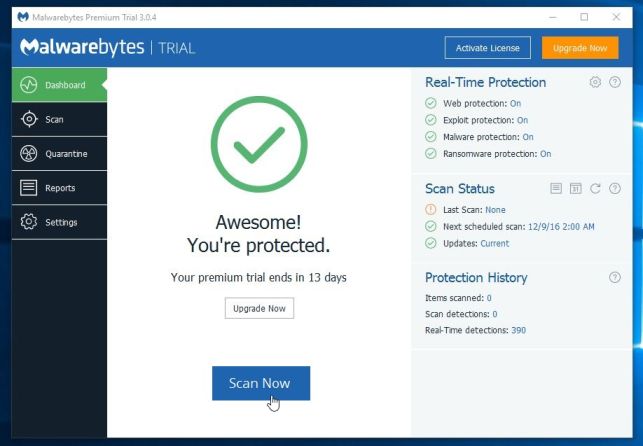
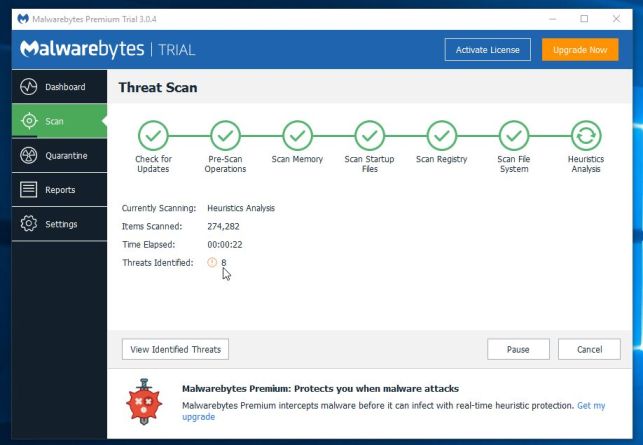
- Malwarebytes Anti-Malware will now start scanning your computer for malicious programs.
This process can take a few minutes, so we suggest you do something else and periodically check on the status of the scan to see when it is finished.
- When the scan has completed, you will be presented with a screen showing the malware infections that Malwarebytes Anti-Malware has detected.
To remove the malicious programs that Malwarebytes has found, click on the “Quarantine Selected” button.
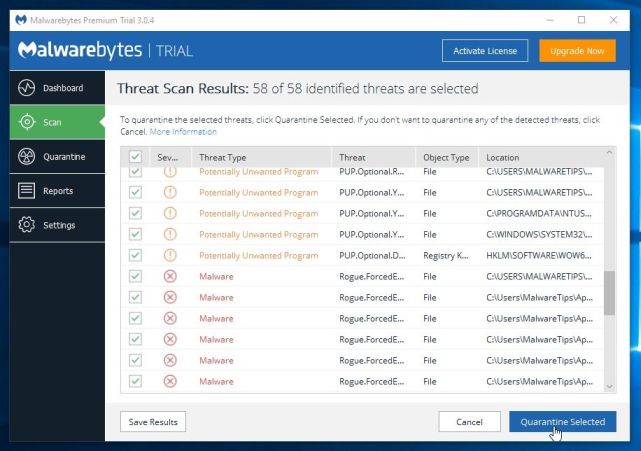
- Malwarebytes Anti-Malware will now quarantine all the malicious files and registry keys that it has found.
To complete the malware removal process, Malwarebytes may ask you to restart your computer.
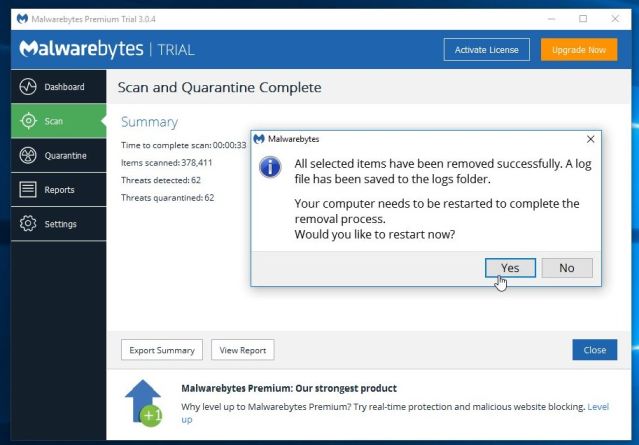
When the malware removal process is complete, you can close Malwarebytes Anti-Malware and continue with the rest of the instructions.
STEP 3: Double-check for malicious programs with HitmanPro
HitmanPro can find and remove malware, adware, bots, and other threats that even the best antivirus suite can oftentimes miss. HitmanPro is designed to run alongside your antivirus suite, firewall, and other security tools.
- You can download HitmanPro from the below link:
Download HitmanProOfficial Sophos download. Free scan, free 30-day trial to remove threats. - When HitmanPro has finished downloading, double-click on the “hitmanpro” file to install this program on your computer.
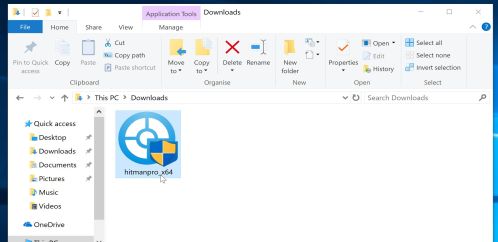
You may be presented with an User Account Control pop-up asking if you want to allow HitmanPro to make changes to your device. If this happens, you should click “Yes” to continue with the installation.
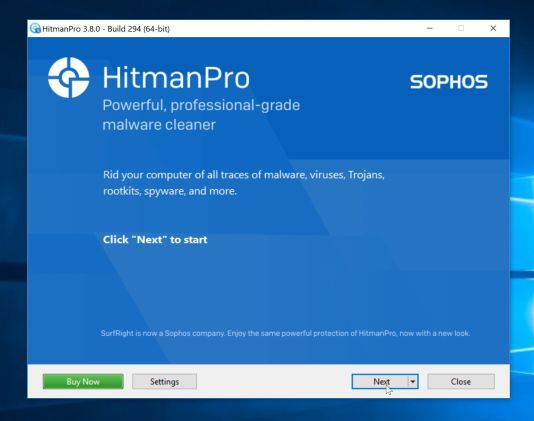
- When the program starts you will be presented with the start screen as shown below. Now click on the Next button to continue with the scan process.
- HitmanPro will now begin to scan your computer for malware.
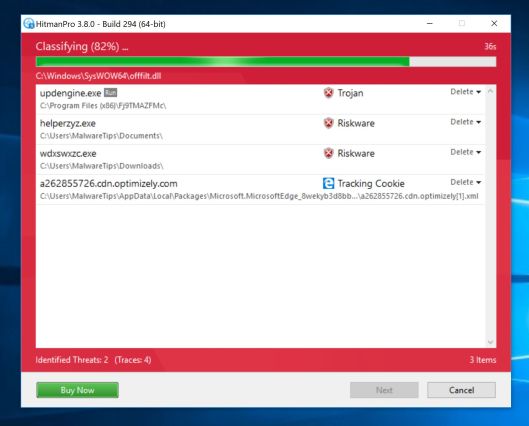
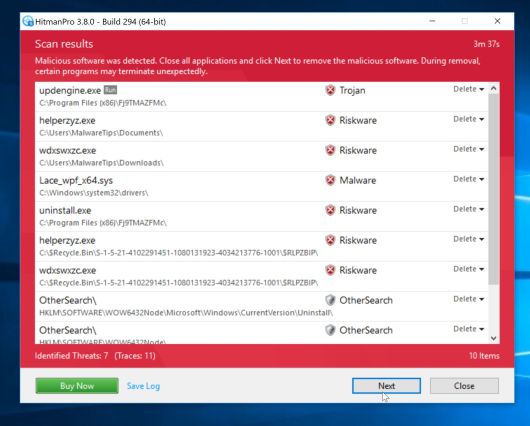
- When it has finished it will display a list of all the malware that the program found as shown in the image below. Click on the “Next” button, to remove malware.
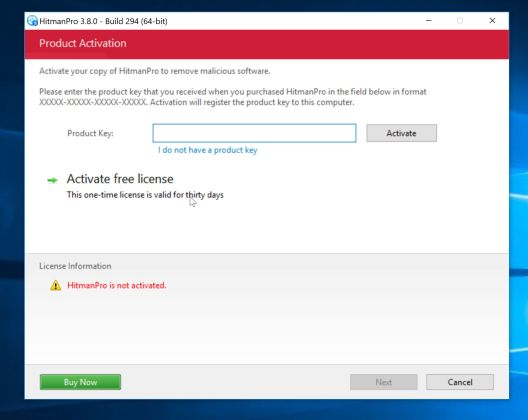
- Click on the “Activate free license” button to begin the free 30 days trial, and remove all the malicious files from your computer.
When the process is complete, you can close HitmanPro and continue with the rest of the instructions.









Great page. Got me sorted out. Much appreciated.
Well thank you very much for the simple and effective solution. I am not sure where the fix was actually done, but I am grateful all the same. Take note others about to do this – it takes hours so be patient, but the reward is that it works.
Thank you very much Stelian for helping my with my Messi
My antivirus blocks the ADWCleaner website, saying it is infected with Mal/Generic-L.
Is there an alternative?
I believe JS/Medfos on my friend’s computer came from the Avios website.
Hello Garnie,
Adwcleaner is a legit and malware free software..Your antivirus is having a false positive detection, which you can ignore.
My virus program found the troj_medfos.smi under appdata\roaming\rsvcrp.dll, squplo.dll, rcobc.dll but not able to remove the threat. Both malwarebytes and hitman pro scan came back zero. Rougekiller came back with a list of the registry that has those 3 dll files, I did not delete afraid I might be deleting something that I am not supposed to. All files are under system 32\rundll32.exe, also some window\regboot clean 64.exe
Hello BT,
Can you please copy/paste the RogueKiller (should be on your desktop) and Combofix (should be in C:\Combofix.txt) logs so that I can take a look at what’s going on…
Thank you very much for the helpful step-by-step instructions!
Thanks Stelian. This was a lifesaver for me. After three whole days of trying to get this fixed, things were getting a bit depressing but your steps took care of it beautifully!
Hello Stelian,
I can’t thank you enough for your help. With one exception, I followed your instructions to the letter and got rid of medfos, although it appeared that ComboFix and Roguekiller did most of the work. The exception: I did not rename the TTDSKiller executable. It did not make sense to me to call it iexplore.exe, so I didn’t. It worked anyhow. Why do you instruct the user to rename it?
I’m very pleased, and thank you again for your help. Best wishes,
Lou
Hello Lou,
There are different versions on the Medfos trojan, and some of them will detect and block TDSSKiller from running… In your case it worked without needing to be renamed so that’s great!:D
Stay safe!
Thank you!
Thank you so much for taking the time to help people solve this problem. Like another poster on here, I am also a single parent and can’t afford to take my laptop to the shop to get rid of this cursed virus. I also often work from home for my job and would have struggled without the computer. It took me about three hours, but I think I got rid of the virus by at first using info from other sites (w/o success), and then finding yours and going through the step by step directions. Also like others, MSE detected and quarantined the virus, but would not remove it. Malwarebytes and Superantispyware did not even detect it and neither did TDSSKiller, even with renaming it to iexplorer, etc. I think somewhere in or after the Combofix part of the process, I was finally able to get rid of the virus. I don’t know how I got it but suspect either an Adobe update or just being on an innocent-looking website. Thank you so much for your help!
Thank you! Thank you! Thank you! My heart dropped when I got this trojan from a java link. I am a single Mom who uses my computer for extra income. I did not have $100+ dollars to put it in the shop. As others mentioned. Rogue Killer seems to have worked. MSE kept finding this virus but didn’t get rid if it. This was very frustrating. Can’t thank you enough!
Thank you for your easy step by step instructions. Like most here, I think the remover was roguekiller but the other programs were helpful in determining the exact locations and assaulted areas of concern. Brilliant minds!!
Having been bitten by this pestiferous bug I approached the cleaning-up with some trepidation, being afraid to make more damage than good. However your step-by-step instructions, clear screen shots and detailed comments were a real boon for an old codger, and I’m glad to report that everything now looks fine. I am very grateful indeed. Combofix was a bit touchy, as was HitmanPro (didn’t complete the “one-off scan” but was OK when I changed the option). Again many thanks and a belated Happy New Year!
8{)
Thank you for the step-by-step instructions. Great to have people like you on the net.
BLESS YOU- my computer is completely fixed now! I’ve heard a lot of warnings against using Combofix, but it worked like a dream for me! Roguekiller was good too. Thanks a ton! ^___^
Thank You !!!
Thank you for the step-by-step instructions. They worked! I think the tool combination of ComboFix and RogueKiller worked on my computer, removing the malware, Trojan:JS/Medfos.B. The other tools were useful as well, cleaning up some other nits. Microsoft’s Security Essentials, while putting the malware into quarantine, could not remove it; the MSE website was not helpful. Thankfully, I found this website and its useful instructions. Time invested was about 6.5 hours running the tools, Malwarebytes having the longest run time, but it was time well spent. Thank you again for a most useful website, spot-on guidance, and effective instructions.
In Step 2, above, when I started Combofix it told me that Norton Virus Security was running. As I don’t have Nortons installed on the machine and no other programs or processes were running apart from Combofix, I decided to continue. The scan has now been running for over half an hour – should I just let it continue? I am running in Safe Mode – is that likely to stop it working properly?
Hello Helen,
Combofix may detect some left over files from Norton and give you that notification.Just to be on the safe side, skip the Combofix scan for now and go ahead with the rest of the guide.
Think we got it.
Microsoft Security Essentials tech support minimum charge for this is Usd $99.oo
Users should take note of “update” to get latest data on each of steps, as well as the “be sure to” advisories about how to install & run. Don’t panic, wait for the dialogue box to advise, and remember that some changes don’t happen (or happen completely) until after a restart.
BE YOUR OWN TECH SUPPORT!
Cheers Steleian.
rgds, J.
I too had this slippery little bugger on my computer, which had been picked up by both Avira and Malwarebytes but after scanning and removing it they simply couldn’t pick it up anymore and it was only MSE that did, otherwise i’d have been oblivious to it now.
There wasn’t a problem locating it, as mentioned in the article it was getting rid of it, eventually found this and put my trust in it even though i thought it was way over my head. Anyway, to cut a long story and some threasts towards the git that created it (at the sceen i may add), i took a short cut and went straight for the Hitman Pro, then followed the destructions from there; and yes it got it without too much pain to be honest, i’m just over the moon i had found this article and it WORKED!!!!
”JUST SO PEOPLE ARE AWARE; IT ALL STARTED WITH AN ADOBE UPDATE (IT LOOKED EVERYTHING LIKE THE ONE YOU GET WHEN TURNING THE COMPUTER ON) BUT TOOK ME 40MINS TO GET PAST IT AS I WAS REFUSING TO UPDATE AND ONCE I SAID YES, THATS WHEN IT ATTACKED”
THANK YOU SOO MUCH
A solution at last. Like previous comments many applications such as MSE found and quarantined this infection only for it to be reinstalled a few minutes later. Lke the others, step 3, “RogueKiller” worked a treat for me.
Thanks for the info.
Thanks for this information. My laptop was recently infected with Medfos. MSE kept quarantining it, but couldn’t remove it. I tried MalwareBytes Anti-Malware. Same thing-found it, but couldn’t get rid of it. Tried HitmanPro. Same result. So far, RogueKiller has worked. I deleted everything related to Java, but I’m going to have to reinstall it so my kid can play Minecraft, but I’m going to disable all my browser plug ins. This Trojan is insidious and I really appreciate the information you’ve provided.
The last post is correct
Only RogueKiller worked for me too.