

Supreme Savings is an adware program that will display their own ads on eBay, Amazon, Facebook and other websites that you are visiting.These advertisements will be shown as boxes containing various coupons that are available or as underlined keywords, which when clicked will display an advertisement that states it is brought to you by Supreme Savings.
![[Image: Supreme Savings coupons]](https://malwaretips.com/blogs/wp-content/uploads/mwt-media/fd/fddf4337674514c7e685d6bd2964a296e1a07dc9ef985a8074563a23505ae072/0d28814ac7a4b7e2e7f45553782d1cc6fa825e329eb643e7cc4ac9480d51e5ae-454.webp "Supreme Savings coupons")
Supreme Savings is an add-on for Internet Explorer, Firefox and Chrome that is typically added when you install other free programs. When you install these free programs, they will also install Supreme Savings as well. Some of the programs that are known to bundle Supreme Savings include 1ClickDownload, Yontoo and FBPhotoZoom.
Once installed, whenever you will browse Expedia, Wallmart, Facebook or any other similar websites, Supreme Savings will show in the right top part of your browser, a box containing related keyword suggestions,ads and sponsored links.
You should always pay attention when installing software because often, a software installer includes optional installs, such as this Supreme Savings browser hijacker. Be very careful what you agree to install. Always opt for the custom installation and deselect anything that is not familiar, especially optional software that you never wanted to download and install in the first place. It goes without saying that you should not install software that you don’t trust.
How to remove “Supreme Savings” (Virus Removal Guide)
This page is a comprehensive guide, which will remove “Supreme Savings” virus from your computer, and any other adware program that may have been installed during the setup process.
Please perform all the steps in the correct order. If you have any questions or doubt at any point, STOP and ask for our assistance.
STEP 1: Uninstall Supreme Savings from Windows
STEP 2: Remove “Ads by Supreme Savings” virus from Internet Explorer, Firefox and Google Chrome
STEP 3: Remove Supreme Savings adware from Internet Explorer, Firefox and Google Chrome with AdwCleaner
STEP 4: Remove “Ads by Supreme Savings” virus with Malwarebytes Anti-Malware Free
STEP 5: Double-check for the “Supreme Savings” malware with HitmanPro
STEP 1 : Uninstall Supreme Savings from Windows
In this first step, we will try to identify and remove any malicious program that might be installed on your computer.
- To uninstall the Supreme Savings program from Windows XP, Windows Vista or Windows 7, click the “Start” button, then click on the “Control Panel” menu option.
![[Image: Control Panel in Windows Start Menu]](https://malwaretips.com/blogs/wp-content/uploads/mwt-media/56/56ac005bf149366d33075df70182d7933c19b066be2e500869e031cc9cac279b/273fcfd76a87bfc0fcd3b6b019be9066a9342174ed0b81f9002efcb804ca5be8-346.webp "Control Panel in Windows Start Menu")
If you are using Windows 8, simply drag your mouse pointer to the right edge of the screen, select Search from the list and search for “control panel” .Or you can right-click on a bottom left hot corner (formerly known as the Start button) and select Control Panel from there.
![[Image: Type Control Panel in Windows 8 search box]](https://malwaretips.com/blogs/wp-content/uploads/mwt-media/19/19b3dfd3f8dae0196b26a26667cde64d8798986cbddc8a3f852b17558f6cb59a/f10ef5806254209730c66022bc9f197add2e726e8fff02ea282526bb6be410a0-534.webp "Type Control Panel in Windows 8 search box")
- When the “Control Panel” window opens click on the “Uninstall a program” option under “Programs” category. This option is shown by the arrow in the image below. If you are using the “Classic View” of the Control Panel, then you would double-click on the “Programs and Features” icon instead.
![[Image: Uninstall a program]](https://malwaretips.com/blogs/wp-content/uploads/mwt-media/2a/2a46a9e643eeeb764fb164177551c571817a8b4d4fe8141504dca801f8abc8cc/f2a64da5c9bbae588b1c04059e9f6a1e9a413554048666c6db3aa65196a7b99a-557.webp "Click on Uninstall a program")
- When the “Programs and Features” or the “Uninstall a Program” screen is displayed, scroll through the list of currently installed programs and uninstall Supreme Savings and any other recently installed unknown program from your computer.
Supreme Savings has been found to be bundled with 3rd party software. To view the most recently installed programs, you can click on the “Installed On” column to sort your program by the installation date. Scroll through the list, and uninstall any unwanted or unknown programs.
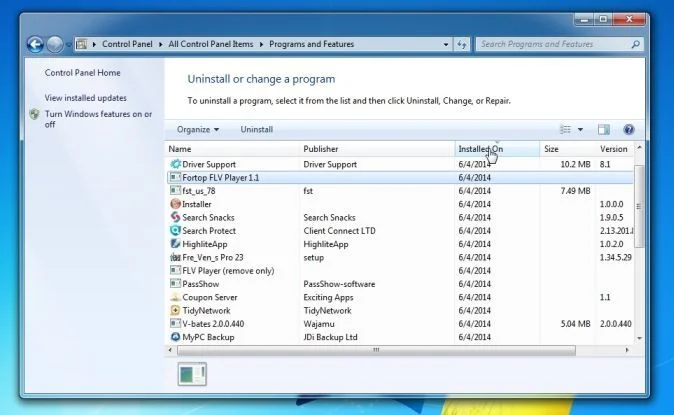
If you cannot find any unwanted or unknown programs on your machine, then you can proceed with the next step.
If you are having issues while trying to uninstall the Supreme Savings program, you can use Revo Uninstaller to completely remove this unwanted program from your machine.
STEP 2: Remove “Supreme Savings” Ads from Internet Explorer, Firefox and Google Chrome
Remove “Ads by Supreme Savings” virus from Internet Explorer
You can reset Internet Explorer settings to return them to the state they were in when Internet Explorer was first installed on your PC.
- Open Internet Explorer, click on the “gear icon”
 in the upper right part of your browser, then click again on Internet Options.
![[Image: Internet Options in Internet Explorer]](https://malwaretips.com/blogs/wp-content/uploads/mwt-media/52/522e9c30de2b8b1009dec93b1735a5e5ec22f4d7d2e025c30c251ca96799dec2/45442bf30d44812b12c1d4152796bddfd0d05542d55e7c907b8edde3ac50c4d7-625.webp "Click on the Gear Icon then on Internet Options")
- In the “Internet Options” dialog box, click on the “Advanced” tab, then click on the “Reset” button.
![[Image: Reset Internet Explorer]](https://malwaretips.com/blogs/wp-content/uploads/mwt-media/89/89e96623f76134cd3bfd7a5579d40fefa7118a81811be6e9888bb8b92ac84adf/ca946d49c693e69239029b3c145713bf590c959486dc4af7bbae81db5ec5a627-613.webp "In the Advanced tab click on the Reset button")
- In the “Reset Internet Explorer settings” section, select the “Delete personal settings” check box, then click on “Reset” button.
![[Image: Reset Internet Explorer to its default settings to remove Supreme Savings]](https://malwaretips.com/blogs/wp-content/uploads/mwt-media/f2/f240d9aad8df73300edecc78c67f33cd5fccb1f5732245b8d5990b4524313abb/c2ef750ff5d9642431fc10968d9e8699c75c0b149affcf506387fa0c948e4874-626.webp "Click on the Reset button to revert IE to its default settings")
- When Internet Explorer has completed its task, click on the “Close” button in the confirmation dialogue box. You will now need to close your browser, and then you can open Internet Explorer again.
![[Image Reset Internet Explorer settings]](https://malwaretips.com/blogs/wp-content/uploads/mwt-media/22/22bcd4ddf7b1a0aac3fcb25d72a4d24b8d1748a2ee365e4f52181e6d57a4ef94/7d992d833ea0dbef9fbfdfbe664c145a6a794975aa5980dfbdde3369647953b4-621.webp "Click on the Close button")
Remove “Ads by Supreme Savings” virus from Mozilla Firefox
If you’re having problems with Firefox, resetting it can help. The reset feature fixes many issues by restoring Firefox to its factory default state while saving your essential information like bookmarks, passwords, web form auto-fill information, browsing history and open tabs.
- In the upper-right corner of the Firefox window, click the Firefox menu button (
![[Image: Firefox Menu button]](https://malwaretips.com/blogs/wp-content/uploads/mwt-media/6f/6f648cb445905efd8b48fc51022903baf5a0db5eb5c8478d587f29d3dc216d6c/03f95ff9f91ad81d0407ba6842827f193c40eb3d4b407eda9f698f330de02814-16.webp "Firefox Menu button") ), the click on the “Help” (
), the click on the “Help” (![[Image: Firefox Help button]](https://malwaretips.com/blogs/wp-content/uploads/mwt-media/da/dad9a8056176398d90be70e0b13e0181d2f95a3cd817a0f9bd296d3e00b47109/feab1435cad07dba7dbf1e08f210872708ea08865694c59cfbac294ba8583f2a-16.webp "Firefox Help button") ) button.
) button.
![[Image: Click on the Menu button then Help]](https://malwaretips.com/blogs/wp-content/uploads/mwt-media/b3/b377cb8cff0bee416c3d3119f3b297121b11a191b03960f59042d04eaf1b024f/e6666aaf95fdc45769a3ad8643bf420b9a6bbfb926d8f9f5c085273ceab43042-639.webp "Click on the Menu button then question mark button")
- From the Help menu, choose Troubleshooting Information.
![[Image: Troubleshooting Information in Firefox]](https://malwaretips.com/blogs/wp-content/uploads/mwt-media/69/69762affb073db88c58031bb0921652382117b19b00bddaf65ff209f7f251209/02317ac4d0bd202b13a64cc831d8b76e93d8de421c502f4e620fbe4ddc59ff3a-635.webp "Troubleshooting Information in Firefox")
- Click the “Reset Firefox” button in the upper-right corner of the “Troubleshooting Information” page.
![[Image: Reset Firefox to its default settings to remove Supreme Savings]](https://malwaretips.com/blogs/wp-content/uploads/mwt-media/71/71b1ebcca7d6b615ce3847771661140188cc56e13ef5a22c4e7e81b496117d17/3c21366391fc1ca103f62493d5f9e237d72648b740577a599cd03a125d63bf06-642.webp "Reset Firefox to its default settings")
- To continue, click on the “Reset Firefox” button in the new confirmation window that opens.
![[Image: Click on the Reset Firefox button]](https://malwaretips.com/blogs/wp-content/uploads/mwt-media/54/54ef1813bb040e2ebcfc2633c0583795c99e285d9fed97ca760618dbfc71a704/7c01c1595c602bbdad2a46e822b7761992e499c61b42e52bc1a239371b8f2b9c-637.webp "Click on the Reset Firefox button")
- Firefox will close itself and will revert to its default settings. When it’s done, a window will list the information that was imported. Click on the “Finish“.
Note: Your old Firefox profile will be placed on your desktop in a folder named “Old Firefox Data“. If the reset didn’t fix your problem you can restore some of the information not saved by copying files to the new profile that was created. If you don’t need this folder any longer, you should delete it as it contains sensitive information.
Remove “Ads by Supreme Savings” virus from Google Chrome
- Click on the “Chrome menu button” (
 ) on the browser toolbar, select “Tools“, and then click on “Extensions“.
![[Image: Extensions menu in Chrome]](https://malwaretips.com/blogs/wp-content/uploads/mwt-media/1c/1c68c16920f484963bbe8ff043b167d0fd55ae1900a2bfe0c693e4d447fdab0a/cad1479a0948ac24f8071e061e8d55d39af0e00415dd4cb6bcaa9a4930f5e208-647.webp "Extensions menu in Chrome")
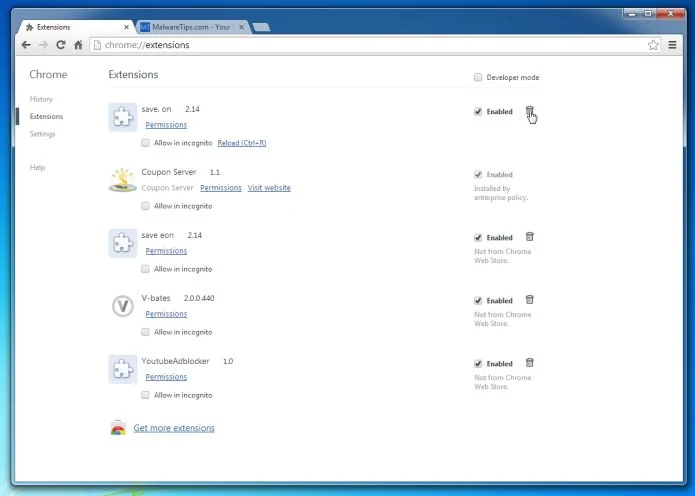
- In the “Extensions” tab, remove the Supreme Savings any other unknown extensions by clicking the trash can
![[Image: Remove an extension from Chrome]](https://malwaretips.com/blogs/wp-content/uploads/mwt-media/15/15312192a9e993d0b47828bcc4a4243b8327edfe01567c83ac4ac59042b1ed49/ef971b5a6abccddf090910da018056c4845ae3d8fc7de8265833328ba64c0041-20.webp "Remove an extension from Chrome") icon.
icon.
Basically, if you have not installed an extensions then you should remove it from your web browser.
If you cannot remove the Supreme Savings extension, and under the trash can you can see the “Installed by enterprise policy” text, then you will need to follow our “Remove Installed by enterprise policy extension from Chrome” guide.
STEP 3: Remove Supreme Savings adware from Internet Explorer, Firefox and Google Chrome with AdwCleaner
The AdwCleaner utility will scan your computer and web browser for the “Supreme Savings” malicious files, browser extensions and registry keys, that may have been installed on your computer without your knowledge.
- You can download AdwCleaner utility from the below link.
Download AdwCleanerFree official download. Nothing to install. - Before starting AdwCleaner, close all open programs and internet browsers, then double-click on the AdwCleaner icon.
If Windows prompts you as to whether or not you wish to run AdwCleaner, please allow it to run. - When the AdwCleaner program will open, click on the “Scan” button as shown below.
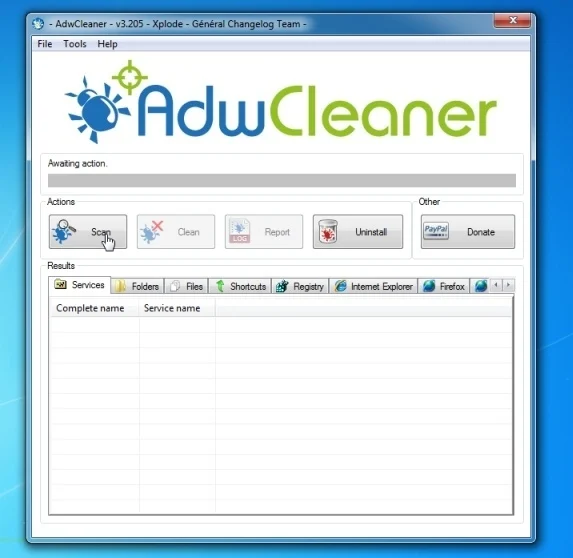
AdwCleaner will now start to search for the “Supreme Savings” malicious files that may be installed on your computer. - To remove the “Supreme Savings” malicious files that were detected in the previous step, please click on the “Clean” button.
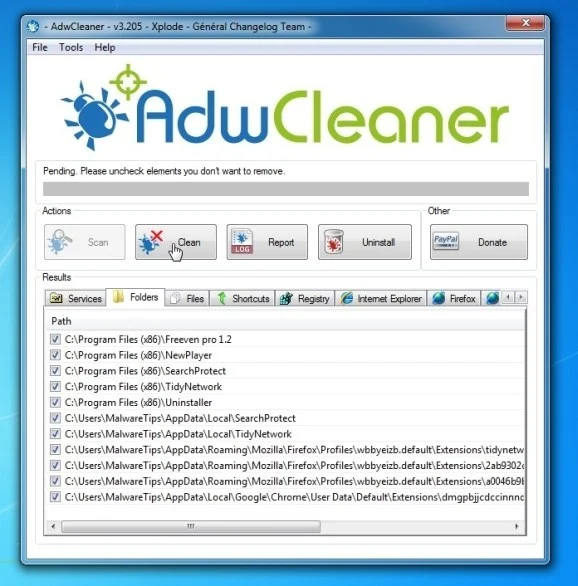
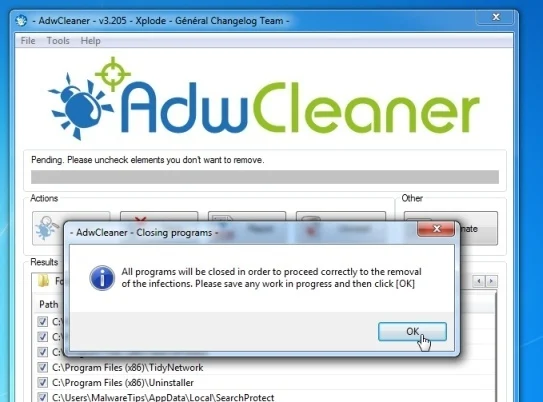
- AdwCleaner will now prompt you to save any open files or documents, as the program will need to reboot the computer. Please do so and then click on the OK button.
STEP 4: Remove “Supreme Savings” virus with Malwarebytes Anti-Malware Free
Malwarebytes Anti-Malware Free uses industry-leading technology to detect and remove all traces of malware, including worms, Trojans, rootkits, rogues, dialers, spyware, and more.
It is important to note that Malwarebytes Anti-Malware works well and should run alongside antivirus software without conflicts.
- You can download download Malwarebytes Anti-Malware from the below link.
Download MalwarebytesFree official installer. Your download starts right away. - Once downloaded, close all programs, then double-click on the icon on your desktop named “mbam-setup-consumer-2.00.xx” to start the installation of Malwarebytes Anti-Malware.
![[Image: Malwarebytes Anti-Malware setup program]](https://malwaretips.com/blogs/wp-content/uploads/mwt-media/0d/0d753e667804c3aa3748bd016ccce9f8c0536bca429616a55ddea37ce384d555/74812df3e35a7a41ae873b6e22a7fb179f2700fbf6cbc82e74ed61a37d0d6123-107.webp "Malwarebytes Anti-Malware setup program")
 You may be presented with a User Account Control dialog asking you if you want to run this file. If this happens, you should click “Yes” to continue with the installation.
 - When the installation begins, you will see the Malwarebytes Anti-Malware Setup Wizard which will guide you through the installation process.
![[Image: Malwarebytes Anti-Malware Setup Wizard]](https://malwaretips.com/blogs/wp-content/uploads/mwt-media/81/81f935c9428354bb149215e48688f631cd5a5a62faf74d6225001b0453bbca8c/3602f8514cc23acd6cec36061a527c508f9573cd46ecc90aafece3dffc434679-538.webp "Malwarebytes Anti-Malware Setup Wizard")
To install Malwarebytes Anti-Malware on your machine, keep following the prompts by clicking the “Next” button.
![[Image: Malwarebytes Anti-Malware Final Setup Screen]](https://malwaretips.com/blogs/wp-content/uploads/mwt-media/3f/3f231d4b2d8a4d2cb17315dde7a7d4c6dbb851d93ed482418611fe613fbbb864/40e783e7159f9b1c16e350eca98c1e5cad9302d6dc0e6754bd2d411d5fc77489-528.webp "Malwarebytes Anti-Malware Final Setup Screen")
- Once installed, Malwarebytes Anti-Malware will automatically start and you will see a message stating that you should update the program, and that a scan has never been run on your system. To start a system scan you can click on the “Fix Now” button.
![[Image: Click on the Fix Now button to start a scan]](https://malwaretips.com/blogs/wp-content/uploads/mwt-media/39/397642932bd225caef10b38b171def1df393a996003d19b4582dc7dec15bbc3e/6c2e1886cbfe35a01245fd55aaabfccb552b8dc515622a4a40d2858a31263188-669.webp "Remove Supreme Savings coupons (Uninstall Guide) 2")
Alternatively, you can click on the “Scan” tab and select “Threat Scan“, then click on the “Scan Now” button.
![[Image: Malwarebytes Anti-Malware Threat Scan]](https://malwaretips.com/blogs/wp-content/uploads/mwt-media/ae/aeade34915168b750f843b5f3215b01aaafc8fb09f7157e906e5f685c835a53e/4738036de2b70a9d95be56eb778635095ad7aff3af404c23b34aba00978013ec-645.webp "Malwarebytes Anti-Malware Threat Scan")
- Malwarebytes Anti-Malware will now check for updates, and if there are any, you will need to click on the “Update Now” button.
![[Image: Click on Update Now to update Malwarebytes Anti-Malware]](https://malwaretips.com/blogs/wp-content/uploads/mwt-media/78/7855ebe97b523c19228fcf3cb4daf63cdf9e67b06707b53f04a66d553e0998f8/487f55b5cf520d201e56fc23748091c41fbc1ab50607e7ce74b3dce76effe458-650.webp "Click on Update Now to update Malwarebytes Anti-Malware")
- Malwarebytes Anti-Malware will now start scanning your computer for the Supreme Savings virus. When Malwarebytes Anti-Malware is scanning it will look like the image below.
![[Image: Malwarebytes Anti-Malware while performing a scan]](https://malwaretips.com/blogs/wp-content/uploads/mwt-media/0c/0c19f7f54697a59603912b4420035538035ecae8dc8a53dd2a4b5caa76738d3a/35ef1e0dee50f5ed4291828f5d220c3d3902541957d9998c2f9293a533d8e77e-642.webp "Malwarebytes Anti-Malware while performing a scan")
- When the scan has completed, you will now be presented with a screen showing you the malware infections that Malwarebytes’ Anti-Malware has detected. To remove the malicious programs that Malwarebytes Anti-malware has found, click on the “Quarantine All” button, and then click on the “Apply Now” button.
![[Image: Remove Supreme Savings with Malwarebytes Anti-Malware]](https://malwaretips.com/blogs/wp-content/uploads/mwt-media/be/be4965ad0a96322fa2aaa6250cf65d0e07ea43d68f3ae5cc5f1849e7d93b0001/a491bcef2bfe10e87fa16b978b3c01704c837db4581c754a9db57ec7e5975947-804.webp "Remove the malware that Malwarebytes Anti-Malware has detected")
Please note that the infections found may be different than what is shown in the image. - Malwarebytes Anti-Malware will now quarantine all the malicious files and registry keys that it has found. When removing the files, Malwarebytes Anti-Malware may require a reboot in order to remove some of them. If it displays a message stating that it needs to reboot your computer, please allow it to do so.
![[Image: Malwarebytes Anti-Malware removing Supreme Savings]](https://malwaretips.com/blogs/wp-content/uploads/mwt-media/11/118f4e52c9890302751ff1c1547809138d36300a08e80d62862e73250993d3bc/0d2ff1aed2aa2f9c2d364e3d68485b8d6395b9de8e66742485ee519c65496e7e-651.webp "Malwarebytes Anti-Malware asking to reboot your computer")
After your computer will restart, you should open Malwarebytes Anti-Malware and perform another “Threat Scan” scan to verify that there are no remaining threats
STEP 5: Double-check for the “Supreme Savings” malware infection with HitmanPro
HitmanPro is a second opinion scanner, designed to rescue your computer from malware (viruses, trojans, rootkits, etc.) that have infected your computer despite all the security measures you have taken (such as anti-virus software, firewalls, etc.). HitmanPro is designed to work alongside existing security programs without any conflicts. It scans the computer quickly (less than 5 minutes) and does not slow down the computer.
- You can download HitmanPro from the below link:
Download HitmanProOfficial Sophos download. Free scan, free 30-day trial to remove threats. - Double-click on the file named “HitmanPro.exe” (for 32-bit versions of Windows) or “HitmanPro_x64.exe” (for 64-bit versions of Windows). When the program starts you will be presented with the start screen as shown below.
![[Image: HitmanPro start-up screen]](https://malwaretips.com/blogs/wp-content/uploads/mwt-media/17/179226529eaacb1be41384d6652aeed130dbb2fe0c863731b2a019c54fd397ad/21db3c233c08ed0f2bb2649265ffa195d20b3094deac4f98a2f630d13ea2cffe-598.webp "HitmanPro startup screen (Click Next)")
Click on the “Next” button, to install HitmanPro on your computer.
![[Image: HitmanPro setup options]](https://malwaretips.com/blogs/wp-content/uploads/mwt-media/db/db3fc79f21e090f20a9361e6d61977165b6b6eff9eb4b78c91e08ce80a65efe6/cf5150e1a5e0321ab326deba7824b44b76433fcf80dd6fa25ebf2e1f45f18cb8-594.webp "HitmanPro installation options (Click Next)")
- HitmanPro will now begin to scan your computer for Supreme Savings malicious files.
![[Image: HitmanPro scanning for malware]](https://malwaretips.com/blogs/wp-content/uploads/mwt-media/98/988a6c1b94f8fe64a616506fa24ac6811b607b4907e7edb545787819f319ce8f/7b8dd5a3b737d213ae2693572466b5f4e9487bc2f04e82c95089e0041c932ef7-594.webp "HitmanPro scanning for Supreme Savings pop-up virus")
- When it has finished it will display a list of all the malware that the program found as shown in the image below. Click on the “Next” button, to remove Supreme Savings virus.
![[Image: HitmanPro scan results]](https://malwaretips.com/blogs/wp-content/uploads/mwt-media/10/1062728333b2406d51dde014190952550042472f9aadf5aef891f04cf8f56bf5/be41d2989197ce644e79cf3f8c45f5bc82dd27b6c77845d3910ac46e68c5e02b-591.webp "HitmanPro scan results (Click Next)")
- Click on the “Activate free license” button to begin the free 30 days trial, and remove all the malicious files from your computer.
![[Image: HitmanPro Activate Free License]](https://malwaretips.com/blogs/wp-content/uploads/mwt-media/6a/6a182cc86c5bb0da6e2a397c95427a596e7ce9a67c23eb1cfc96900695f39048/482f7d1f786a4b4ac381f1ff27ec73e252b78cdc0c255a550749bb178d4309d1-594.webp "Click on the Activate free license button")

Join the discussion
11 commentsShare your experience or ask a question about this article.
Your progress
Did these steps help?
Let us know how the guide worked for you.
Describe what you see and the step you reached. Keep passwords and other private information out.
Discussion
As the newest commenter, I’ll attest that the Junkware Removal Tool (JRT) works awesome! It’s super easy to run.
Holly was correct in that some of the previous ones–like the Avast Browser Cleanup (which is what I use)–don’t work anymore. But the JRT works wonderfully as of 7/8/13
Youre advice is now out of date , the Supreme Savings trojan is no longer removable by the steps described
In reply to holly
Hello,
Did you follow all the steps including the Adwcleaner scan?
Lets try to remove this infection:
STEP 1: Run a scan with AdwCleaner
Please run AdwCleaner (as seen on STEP 3) to remove this infection!
STEP 2: Run a scan with Junkware Removal Tool
1.Download Junkware Removal Tool to your desktop from the below link:
JUNKWARE REMOVAL TOOL : http://thisisudax.org/download…
2. Double-click on the JRT.exe icon to start this utility.
3. The tool will open and start scanning your system. Please be patient as this can take a while to complete depending on your system’s specifications
Waiting for your reply to see how everything is running…
Thank You!!!!
for some reason it says that my super savings is managed and cannot be deleted , help ?
In reply to daniel
Hello Daniel,
Did you uninstall Supreme Savings program as seen in STEP 1?
Can you please download and run the avast! Browser Cleanup tool.
Go to your browser tab and disable any unwanted or unknown extensions, then click on Reset to default settings button.
Next, please run a scan with Adwcleaner.
I am having the same problem as Anne, but mine was found under the name of DomaIQ. Having difficulty still trying to eradicate this nuisance.
In reply to Kermit
Hello Kermit,
Did you uninstall Supreme Savings and DomalQ?
Please run a scan with Junkware Removal Tool.
JUNKWARE REMOVAL TOOL DOWNLOAD LINK (This link will automatically download Junkware Removal Tool on your computer)
The tool will open and start scanning your system. Please be patient as this can take a while to complete depending on your system’s specifications
It worked! Thank you so much!!!!!!!!! :)
I’m using google chrome & I cannot get rid the supreme savings because somehow it says on the extension when trying to remove it that’s managed and it cannot be removed or disabled! What do I do?!
In reply to Anne
Hello Anne,
Did you uninstall the Supreme Savings program? Please keep in mind that it might have a different name on your computer.
Next, you can download and install avast! Browser Cleanup tool. Then go to the Google Chrome tab, and disable any unwanted extensions, then click on Reset to default settings button.