

Sweetpacks is an adware program, which is promoted via other free downloads, and once installed it will add to your browser the Sweetpacks Toolbar, change your homepage to start.sweetpacks.com and set your browser default search engine to search.sweetpacks.com.
Sweetpacks search will display advertisements and sponsored links in your search results, and may collect search terms from your search queries.
![[Image: Sweetpacks search virus]](http://malwaretips.com/blogs/wp-content/uploads/2013/04/Sweetpacks-search-virus.png "Remove Sweetpacks Toolbar (Removal Guide) 1")
Sweetpacks Toolbar got on your computer after you have installed another free software or add-on that had bundled into their installer this browser hijacker.
For example, when you install SweetIM, SweetPCFix or GamePacks, you will also agree to install the Sweetpacks Toolbar, change your browser homepage to start.sweetpacks.com , and default search engine to search.sweetpacks.com .
However, when you uninstall these programs from your computer, your web browser’s default settings will not be restored. This means that you’ll have to remove from your favorite web browser manually.
You should always pay attention when installing software because often, a software installer includes optional installs, such as this Sweetpacks adware. Be very careful what you agree to install.
Always opt for the custom installation and deselect anything that is not familiar, especially optional software that you never wanted to download and install in the first place. It goes without saying that you should not install software that you don’t trust.
How to remove Sweetpacks Toolbar (Virus Removal Guide)
This page is a comprehensive guide, which will remove Sweetpacks from your Internet Explorer, Firefox and Google Chrome.
Please perform all the steps in the correct order. If you have any questions or doubt at any point, STOP and ask for our assistance.
STEP 1: Uninstall Sweetpacks Toolbar from Windows
STEP 2: Remove Sweetpacks Toolbar browser hijacker from Internet Explorer, Firefox and Google Chrome with AdwCleaner
STEP 3: Remove Sweetpacks Toolbar with Malwarebytes Anti-Malware Free
STEP 4: Double-check for the Sweetpacks Toolbar with HitmanPro
(OPTIONAL) STEP 5: Remove Sweetpacks Toolbar and Ask Search from Internet Explorer, Firefox and Chrome
STEP 1 : Uninstall Sweetpacks malicious programs from your computer
In this first step, we will try to identify and remove any malicious program that might be installed on your computer.
- To uninstall a program from Windows XP, Windows Vista or Windows 7, click the “Start” button, then click on the “Control Panel” menu option.
![[Image: Control Panel in Windows Start Menu]](//malwaretips.com/blogs/wp-content/uploads/2014/01/windows-start-menu-control-panel.jpg "Control Panel in Windows Start Menu")
If you are using Windows 8, simply drag your mouse pointer to the right edge of the screen, select Search from the list and search for “control panel” .Or you can right-click on a bottom left hot corner (formerly known as the Start button) and select Control Panel from there.
![[Image: Type Control Panel in Windows 8 search box]](//malwaretips.com/blogs/wp-content/uploads/2014/06/windows-8-uninstall.jpg "Type Control Panel in Windows 8 search box")
- When the “Control Panel” window opens click on the “Uninstall a program” option under “Programs” category. This option is shown by the arrow in the image below. If you are using the “Classic View” of the Control Panel, then you would double-click on the “Programs and Features” icon instead.
![[Image: Uninstall a program]](//malwaretips.com/blogs/wp-content/uploads/2013/03/uninstall-a-program-windows.jpg "Click on Uninstall a program")
- When the “Programs and Features” or the “Uninstall a Program” screen is displayed, scroll through the list of currently installed programs and uninstall Search Protect, Sweetpacks Toolbar, SweetIM for Messenger, SweetPacks Toolbar for Internet Explorer or Update Manager for SweetPacks
To view the most recently installed programs, you can click on the “Installed On” column to sort your programs by the installation date. Scroll through the list, and uninstall any unwanted or unknown program.If you are having issues while trying to uninstall the Sweetpacks program, you can use Revo Uninstaller to completely remove this unwanted program from your machine.![[Image: Sweetpacks removal]](//malwaretips.com/blogs/wp-content/uploads/2013/04/Sweetpacks-uninstall.png "Uninstall Sweetpacks programs")
If you cannot find any unwanted or unknown programs on your machine, then you can proceed with the next step.
![[Image: Control Panel in Windows Start Menu]](http://malwaretips.com/blogs/wp-content/uploads/2014/01/windows-start-menu-control-panel.jpg "Control Panel in Windows Start Menu")
![[Image: Type Control Panel in Windows 8 search box]](http://malwaretips.com/blogs/wp-content/uploads/2014/06/windows-8-uninstall.jpg "Type Control Panel in Windows 8 search box")
![[Image: Uninstall a program]](http://malwaretips.com/blogs/wp-content/uploads/2013/03/uninstall-a-program-windows.jpg "Click on Uninstall a program")
![[Image: Sweetpacks removal]](http://malwaretips.com/blogs/wp-content/uploads/2013/04/Sweetpacks-uninstall.png "Uninstall Sweetpacks programs")
STEP 2: Remove Sweetpacks Toolbar browser hijacker from Internet Explorer, Firefox and Google Chrome with AdwCleaner
- You can download AdwCleaner from the below link.
Download AdwCleanerFree official download. Nothing to install. - Before starting AdwCleaner, close all open programs and internet browsers, then double-click on the AdwCleaner icon.
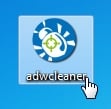
If Windows prompts you as to whether or not you wish to run AdwCleaner, please allow it to run. - When the AdwCleaner program will open, click on the “Scan” button as shown below.
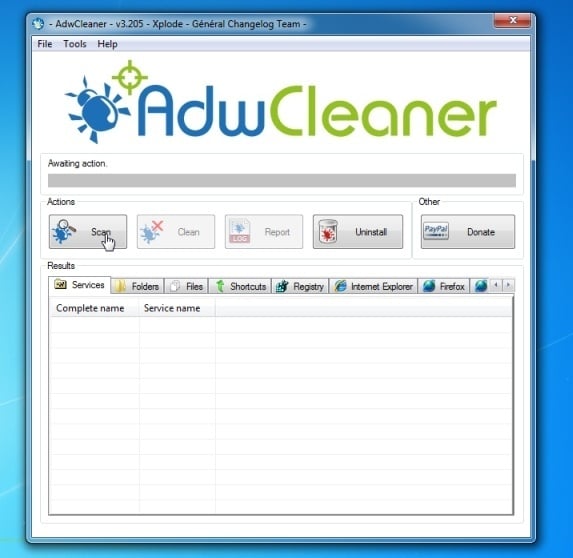
AdwCleaner will now start to search for the “Sweetpacks Toolbar” browser hijacker that may be installed on your computer. - To remove the “Sweetpacks Toolbar” malicious files that were detected in the previous step, please click on the “Clean” button.
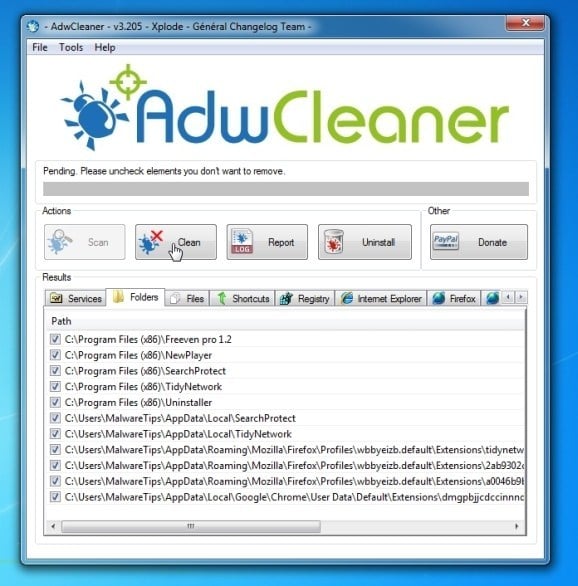
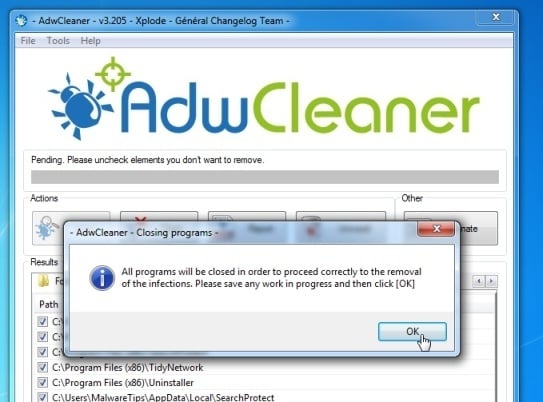
- AdwCleaner will prompt you to save any open files or documents, as the program will need to reboot the computer. Please do so and then click on the OK button.
STEP 3: Remove Sweetpacks Toolbar with Malwarebytes Anti-Malware Free
Malwarebytes Anti-Malware Free uses industry-leading technology to detect and remove all traces of malware, including worms, Trojans, rootkits, rogues, dialers, spyware, and more.
It is important to note that Malwarebytes Anti-Malware works well and should run alongside antivirus software without conflicts.
- You can download download Malwarebytes Anti-Malware from the below link.
Download MalwarebytesFree official installer. Your download starts right away. - Once downloaded, close all programs, then double-click on the icon on your desktop named “mbam-setup-consumer-2.00.xx” to start the installation of Malwarebytes Anti-Malware.
![[Image: Malwarebytes Anti-Malware setup program]](//malwaretips.com/blogs/wp-content/uploads/2014/02/Malwarebytes-Anti-Malware-Setup.jpg "Malwarebytes Anti-Malware setup program")
 You may be presented with a User Account Control dialog asking you if you want to run this file. If this happens, you should click “Yes” to continue with the installation.
 - When the installation begins, you will see the Malwarebytes Anti-Malware Setup Wizard which will guide you through the installation process.
![[Image: Malwarebytes Anti-Malware Setup Wizard]](//malwaretips.com/blogs/wp-content/uploads/2014/02/malwarebytes-anti-malware-2-0-installation.jpg "Malwarebytes Anti-Malware Setup Wizard")
To install Malwarebytes Anti-Malware on your machine, keep following the prompts by clicking the “Next” button.
![[Image: Malwarebytes Anti-Malware Final Setup Screen]](//malwaretips.com/blogs/wp-content/uploads/2014/02/malwarebytes-anti-malware-2-0-final-screen.jpg "Malwarebytes Anti-Malware Final Setup Screen")
- Once installed, Malwarebytes Anti-Malware will automatically start and you will see a message stating that you should update the program, and that a scan has never been run on your system. To start a system scan you can click on the “Fix Now” button.
![[Image: Click on the Fix Now button to start a scan]](//malwaretips.com/blogs/wp-content/uploads/2014/02/malwarebytes-anti-malware-fix-now.jpg "Remove Sweetpacks Toolbar (Removal Guide) 3")
Alternatively, you can click on the “Scan” tab and select “Threat Scan“, then click on the “Scan Now” button.
![[Image: Malwarebytes Anti-Malware Threat Scan]](//malwaretips.com/blogs/wp-content/uploads/2014/02/malwarebytes-anti-malware-threat-scan-option.jpg "Malwarebytes Anti-Malware Threat Scan")
- Malwarebytes Anti-Malware will now check for updates, and if there are any, you will need to click on the “Update Now” button.
![[Image: Click on Update Now to update Malwarebytes Anti-Malware]](//malwaretips.com/blogs/wp-content/uploads/2014/02/malwarebytes-anti-malware-2-0-update-now.jpg "Click on Update Now to update Malwarebytes Anti-Malware")
- Malwarebytes Anti-Malware will now start scanning your computer for the Sweetpacks virus. When Malwarebytes Anti-Malware is scanning it will look like the image below.
![[Image: Malwarebytes Anti-Malware while performing a scan]](//malwaretips.com/blogs/wp-content/uploads/2014/02/malwarebytes-anti-malware-scan.jpg "Malwarebytes Anti-Malware while performing a scan")
- When the scan has completed, you will now be presented with a screen showing you the malware infections that Malwarebytes’ Anti-Malware has detected. To remove the malicious programs that Malwarebytes Anti-malware has found, click on the “Quarantine All” button, and then click on the “Apply Now” button.
![[Image: Remove the malware that Malwarebytes Anti-Malware has found]](//malwaretips.com/blogs/wp-content/uploads/2014/02/malwarebytes-anti-malware-potential-threat-detected.jpg "Remove the malware that Malwarebytes Anti-Malware has detected")
Please note that the infections found may be different than what is shown in the image. - Malwarebytes Anti-Malware will now quarantine all the malicious files and registry keys that it has found. When removing the files, Malwarebytes Anti-Malware may require a reboot in order to remove some of them. If it displays a message stating that it needs to reboot your computer, please allow it to do so.
![[Image: Malwarebytes Anti-Malware while removing viruses]](//malwaretips.com/blogs/wp-content/uploads/2014/02/malwarebytes-anti-malware-remove-virus.jpg "Malwarebytes Anti-Malware asking to reboot your computer")
After your computer will restart, you should open Malwarebytes Anti-Malware and perform another “Threat Scan” scan to verify that there are no remaining threats
![[Image: Malwarebytes Anti-Malware setup program]](http://malwaretips.com/blogs/wp-content/uploads/2014/02/Malwarebytes-Anti-Malware-Setup.jpg "Malwarebytes Anti-Malware setup program")
 You may be presented with a User Account Control dialog asking you if you want to run this file. If this happens, you should click “Yes” to continue with the installation.
![[Image: Malwarebytes Anti-Malware Setup Wizard]](http://malwaretips.com/blogs/wp-content/uploads/2014/02/malwarebytes-anti-malware-2-0-installation.jpg "Malwarebytes Anti-Malware Setup Wizard")
![[Image: Malwarebytes Anti-Malware Final Setup Screen]](http://malwaretips.com/blogs/wp-content/uploads/2014/02/malwarebytes-anti-malware-2-0-final-screen.jpg "Malwarebytes Anti-Malware Final Setup Screen")
![[Image: Click on the Fix Now button to start a scan]](http://malwaretips.com/blogs/wp-content/uploads/2014/02/malwarebytes-anti-malware-fix-now.jpg "Remove Sweetpacks Toolbar (Removal Guide) 3")
![[Image: Malwarebytes Anti-Malware Threat Scan]](http://malwaretips.com/blogs/wp-content/uploads/2014/02/malwarebytes-anti-malware-threat-scan-option.jpg "Malwarebytes Anti-Malware Threat Scan")
![[Image: Click on Update Now to update Malwarebytes Anti-Malware]](http://malwaretips.com/blogs/wp-content/uploads/2014/02/malwarebytes-anti-malware-2-0-update-now.jpg "Click on Update Now to update Malwarebytes Anti-Malware")
![[Image: Malwarebytes Anti-Malware while performing a scan]](http://malwaretips.com/blogs/wp-content/uploads/2014/02/malwarebytes-anti-malware-scan.jpg "Malwarebytes Anti-Malware while performing a scan")
![[Image: Remove the malware that Malwarebytes Anti-Malware has found]](http://malwaretips.com/blogs/wp-content/uploads/2014/02/malwarebytes-anti-malware-potential-threat-detected.jpg "Remove the malware that Malwarebytes Anti-Malware has detected")
![[Image: Malwarebytes Anti-Malware while removing viruses]](http://malwaretips.com/blogs/wp-content/uploads/2014/02/malwarebytes-anti-malware-remove-virus.jpg "Malwarebytes Anti-Malware asking to reboot your computer")
STEP 4: Double check for the Sweetpacks Toolbar infection with HitmanPro
HitmanPro is a second opinion scanner, designed to rescue your computer from malware (viruses, trojans, rootkits, etc.) that have infected your computer despite all the security measures you have taken (such as anti virus software, firewalls, etc.). HitmanPro is designed to work alongside existing security programs without any conflicts. It scans the computer quickly (less than 5 minutes) and does not slow down the computer.
- You can download HitmanPro from the below link:
Download HitmanProOfficial Sophos download. Free scan, free 30-day trial to remove threats. - Double-click on the file named “HitmanPro.exe” (for 32-bit versions of Windows) or “HitmanPro_x64.exe” (for 64-bit versions of Windows). When the program starts you will be presented with the start screen as shown below.
![[Image: HitmanPro start-up screen]](//malwaretips.com/blogs/wp-content/uploads/2014/03/hitmanpro-install.jpg "HitmanPro startup screen (Click Next)")
Click on the “Next” button, to install HitmanPro on your computer.
![[Image: HitmanPro setup options]](//malwaretips.com/blogs/wp-content/uploads/2014/03/hitmapro-start-scan.jpg "HitmanPro installation options (Click Next)")
- HitmanPro will now begin to scan your computer for Sweetpacks malicious files.
![[Image: HitmanPro scanning for malware]](//malwaretips.com/blogs/wp-content/uploads/2014/03/hitmanpro-scanning.jpg "HitmanPro scanning for Sweetpacks virus")
- When it has finished it will display a list of all the malware that the program found as shown in the image below. Click on the “Next” button, to remove Sweetpacks malware.
![[Image: HitmanPro scan results]](//malwaretips.com/blogs/wp-content/uploads/2014/03/hitmanpro-scan-results.jpg "HitmanPro scan results (Click Next)")
- Click on the “Activate free license” button to begin the free 30 days trial, and remove all the malicious files from your computer.
![[Image: HitmanPro Activate Free License]](//malwaretips.com/blogs/wp-content/uploads/2014/03/hitmanpro-activation.jpg "Click on the Activate free license button")
![[Image: HitmanPro start-up screen]](http://malwaretips.com/blogs/wp-content/uploads/2014/03/hitmanpro-install.jpg "HitmanPro startup screen (Click Next)")
![[Image: HitmanPro setup options]](http://malwaretips.com/blogs/wp-content/uploads/2014/03/hitmapro-start-scan.jpg "HitmanPro installation options (Click Next)")
![[Image: HitmanPro scanning for malware]](http://malwaretips.com/blogs/wp-content/uploads/2014/03/hitmanpro-scanning.jpg "HitmanPro scanning for Sweetpacks virus")
![[Image: HitmanPro scan results]](http://malwaretips.com/blogs/wp-content/uploads/2014/03/hitmanpro-scan-results.jpg "HitmanPro scan results (Click Next)")
![[Image: HitmanPro Activate Free License]](http://malwaretips.com/blogs/wp-content/uploads/2014/03/hitmanpro-activation.jpg "Click on the Activate free license button")
(OPTIONAL) STEP 5: Remove Sweetpacks Toolbar and Ask Search from Internet Explorer, Firefox and Chrome
If you are still experiencing issues with the Sweetpacks Toolbar in Internet Explorer, Firefox or Chrome, we will need to reset your browser to its default settings. This step needs to be performed only if your issues have not been solved by the previous steps.
Reset Internet Explorer
- Open Internet Explorer, click on the “gear icon”
![[Image: icongear.jpg]](//malwaretips.com/images/removalguide/icongear.jpg "Remove Sweetpacks Toolbar (Removal Guide) 4") in the upper right part of your browser, then click again on Internet Options.
in the upper right part of your browser, then click again on Internet Options.
![[Image: Internet Options in Internet Explorer]](//malwaretips.com/blogs/wp-content/uploads/2014/03/Internet-Options-Internet-Explorer.jpg "Click on the Gear Icon then on Internet Options")
- In the “Internet Options” dialog box, click on the “Advanced” tab, then click on the “Reset” button.
![[Image: Reset Internet Explorer]](//malwaretips.com/blogs/wp-content/uploads/2014/03/Reset-Internet-Explorer.jpg "In the Advanced tab click on the Reset button")
- In the “Reset Internet Explorer settings” section, select the “Delete personal settings” check box, then click on “Reset” button.
![[Image: Reset Internet Explorer to its default settings]](//malwaretips.com/blogs/wp-content/uploads/2014/03/reset-button-Internet-Explorer.jpg "Click on the Reset button to revert IE to its default settings")
- When Internet Explorer has completed its task, click on the “Close” button in the confirmation dialogue box. You will now need to close your browser, and then you can open Internet Explorer again.
![[Image Reset Internet Explorer settings]](//malwaretips.com/blogs/wp-content/uploads/2014/03/Close-button-Reset.jpg "Click on the Close button")
![[Image: icongear.jpg]](http://malwaretips.com/images/removalguide/icongear.jpg "Remove Sweetpacks Toolbar (Removal Guide) 4") in the upper right part of your browser, then click again on Internet Options.
in the upper right part of your browser, then click again on Internet Options.![[Image: Internet Options in Internet Explorer]](http://malwaretips.com/blogs/wp-content/uploads/2014/03/Internet-Options-Internet-Explorer.jpg "Click on the Gear Icon then on Internet Options")
![[Image: Reset Internet Explorer]](http://malwaretips.com/blogs/wp-content/uploads/2014/03/Reset-Internet-Explorer.jpg "In the Advanced tab click on the Reset button")
![[Image: Reset Internet Explorer to its default settings]](http://malwaretips.com/blogs/wp-content/uploads/2014/03/reset-button-Internet-Explorer.jpg "Click on the Reset button to revert IE to its default settings")
![[Image Reset Internet Explorer settings]](http://malwaretips.com/blogs/wp-content/uploads/2014/03/Close-button-Reset.jpg "Click on the Close button")
Reset Mozilla Firefox
- In the upper-right corner of the Firefox window, click the Firefox menu button (
![[Image: Firefox Menu button]](//malwaretips.com/blogs/wp-content/uploads/2014/04/Firefox-menu-button.png "Firefox Menu button") ), then click on the “Help” (
), then click on the “Help” (![[Image: Firefox Help button]](//malwaretips.com/blogs/wp-content/uploads/2014/04/Firefox-Help.png "Firefox Help button") ) button.
) button.
![[Image: Click on the Menu button then Help]](//malwaretips.com/blogs/wp-content/uploads/2014/04/Firefox-Help-button.jpg "Click on the Menu button then question mark button")
- From the Help menu, choose Troubleshooting Information.
If you’re unable to access the Help menu, type about:support in your address bar to bring up the Troubleshooting information page.
![[Image: Troubleshooting Information in Firefox]](//malwaretips.com/blogs/wp-content/uploads/2014/04/Firefox-Troubleshooting-Information.jpg "Troubleshooting Information in Firefox")
- Click the “Reset Firefox” button in the upper-right corner of the “Troubleshooting Information” page.
![[Image: Reset Firefox to its default settings]](//malwaretips.com/blogs/wp-content/uploads/2014/04/Reset-Firefox-button.jpg "Reset Firefox to its default settings")
- To continue, click on the “Reset Firefox” button in the new confirmation window that opens.
![[Image: Click on the Reset Firefox button]](//malwaretips.com/blogs/wp-content/uploads/2014/04/Reset-Firefox-to-default-settings.jpg "Click on the Reset Firefox button")
- Firefox will close itself and will revert to its default settings. When it’s done, a window will list the information that was imported. Click on the “Finish“.
![[Image: Firefox Menu button]](http://malwaretips.com/blogs/wp-content/uploads/2014/04/Firefox-menu-button.png "Firefox Menu button") ), then click on the “Help” (
), then click on the “Help” (![[Image: Firefox Help button]](http://malwaretips.com/blogs/wp-content/uploads/2014/04/Firefox-Help.png "Firefox Help button") ) button.
) button.![[Image: Click on the Menu button then Help]](http://malwaretips.com/blogs/wp-content/uploads/2014/04/Firefox-Help-button.jpg "Click on the Menu button then question mark button")
![[Image: Troubleshooting Information in Firefox]](http://malwaretips.com/blogs/wp-content/uploads/2014/04/Firefox-Troubleshooting-Information.jpg "Troubleshooting Information in Firefox")
![[Image: Reset Firefox to its default settings]](http://malwaretips.com/blogs/wp-content/uploads/2014/04/Reset-Firefox-button.jpg "Reset Firefox to its default settings")
![[Image: Click on the Reset Firefox button]](http://malwaretips.com/blogs/wp-content/uploads/2014/04/Reset-Firefox-to-default-settings.jpg "Click on the Reset Firefox button")
Note: Your old Firefox profile will be placed on your desktop in a folder named “Old Firefox Data“. If the reset didn’t fix your problem you can restore some of the information not saved by copying files to the new profile that was created. If you don’t need this folder any longer, you should delete it as it contains sensitive information.
Google Chrome
- Click on Chrome’s main menu button, represented by three horizontal lines (
![[Image: Chrome's main menu button]](//malwaretips.com/blogs/wp-content/uploads/2014/02/reset-Chrome-button.png "Google Chrome's main menu button") ) .When the drop-down menu appears, select the option labeled Settings.
) .When the drop-down menu appears, select the option labeled Settings.
![[Image: Click on Settings button]](//malwaretips.com/blogs/wp-content/uploads/2014/02/Reset-Chrome-Settings-1.jpg "Click on Settings button")
- Chrome’s Settings should now be displayed in a new tab or window, depending on your configuration. Next, scroll to the bottom of the page and click on the Show advanced settings link (as seen in the below example).
![[Image: Click on Show advanced settings link]](//malwaretips.com/blogs/wp-content/uploads/2014/02/Reset-Chrome-Settings-2.jpg "Click on Show advanced settings link")
- Chrome’s advanced Settings should now be displayed. Scroll down until the Reset browser settings section is visible, as shown in the example below. Next, click on the Reset browser settings button.
![[Image: Click on Reset browser button]](//malwaretips.com/blogs/wp-content/uploads/2014/02/Reset-Chrome-Settings-3.jpg "Click on Reset browser button")
- A confirmation dialog should now be displayed, detailing the components that will be restored to their default state should you continue on with the reset process. To complete the restoration process, click on the Reset button.
![[Image: Click on Reset button to restore Chrome to default settings]](//malwaretips.com/blogs/wp-content/uploads/2014/02/Reset-Chrome-Settings-4.jpg "Click on Reset button to restore Chrome to default settings")
![[Image: Chrome's main menu button]](http://malwaretips.com/blogs/wp-content/uploads/2014/02/reset-Chrome-button.png "Google Chrome's main menu button") ) .When the drop-down menu appears, select the option labeled Settings.
) .When the drop-down menu appears, select the option labeled Settings.![[Image: Click on Settings button]](http://malwaretips.com/blogs/wp-content/uploads/2014/02/Reset-Chrome-Settings-1.jpg "Click on Settings button")
![[Image: Click on Show advanced settings link]](http://malwaretips.com/blogs/wp-content/uploads/2014/02/Reset-Chrome-Settings-2.jpg "Click on Show advanced settings link")
![[Image: Click on Reset browser button]](http://malwaretips.com/blogs/wp-content/uploads/2014/02/Reset-Chrome-Settings-3.jpg "Click on Reset browser button")
![[Image: Click on Reset button to restore Chrome to default settings]](http://malwaretips.com/blogs/wp-content/uploads/2014/02/Reset-Chrome-Settings-4.jpg "Click on Reset button to restore Chrome to default settings")









Thank you so much…. the entire process worked as documented above.
Thank you SO much, this is the second time you bailed me out of a malware mess!!
Every time I try to remove Sweetpacks from progams, it doesn’t uninstall.
I tried using Malwarebytes to remove it as well, and restarted my computer, but it remains there even after the restart.
Advice?
Hello,
Lets try to remove this infection:
STEP 1: Run a scan with AdwCleaner
1. Download AdwCleaner from here: http://general-changelog-team.fr/fr/downloads/finish/20-outils-de-xplode/2-adwcleaner
2.Close all open programs and internet browsers.
3.Double click on adwcleaner.exe to run the tool.
4.Click on Clean button. Your computer should restart.
STEP 2: Run a scan with Junkware Removal Tool
1.Download Junkware Removal Tool to your desktop from the below link:
JUNKWARE REMOVAL TOOL : http://thisisudax.org/download…
2. Double-click on the JRT.exe icon to start this utility.
3. The tool will open and start scanning your system. Please be patient as this can take a while to complete depending on your system’s specifications
Next, please run a scan with Malwarebytes Anti-Malware and HitmanPro as see in this guide.
Stay safe!
alright nevermind i ran malwarebytes and im pretty sure it did the trick 84 trojans gone lol wtf happened
After you have gone through all the above (very helpful, thanks!), there is one more step. (Incidentally, be VERY careful of Hitman–it will try to remove a lot of stuff that maybe it shouldn’t.)
Use wordpad to open
users>username>AppData>local>Google>Chrome>User Data>Defaule>Secure Preferences. Scan for Sweetpack. CAREFULLY remove it from the list of “Startup URLs”. There may be a bunch of other stuff there that I recognized from previous virus removals. Now, if you are logged on to a Google account, you will find the change you made reappears. That’s Google’s sync “feature”. This seems to happen regardless of unchecking all the sync settings in Menu>Settings>Advanced login … Disconnect your Google account (Chrome>Menu>Settings>Login, Disconnect_Google_Account button.and make the changes again. Now, you have finally exorcised the SweetPacks virus. Hopefully. Malwarebytes should give you a bill of health free of SweetPacks.
In my opinion, any software that hijacks your browser, or your search engine, or sniffs you keystrokes or shoves unwanted advertising up your screen or redirects your work in any way is a virus. This is big bucks, like Billion$. One has to wonder if some money changes hands for the AV folks to ignore these “PUPs.” I’m not accusing. Just saying….
Finally its dead.I didn’t even install it. That’s the thing .I declined and it went ahead and installed itself anyway. I was freakin’ high-jacked.
Needless to say I was furious at the time. I finished most of the removal before i came here looking for a way to get rid of all of it.ii did the uninstall and removals but it wouldn’t leave all together.I found after i did the last two steps added to the ones i already did and a few manual searches of my own before hand it was pretty much all gone and i didn’t need those programs you set to be installed here.
Thanks for the help and i think you should add a warning that this program will try installing itself even when declined.
It probably shouldn’t have but that really pissed me off all the same.No one likes being high-jacked.I got mine from the gimp digital art program.I wont be checking here for responses but if you want to tell me something or respond to this you can always find me on my deviantart here: http://ixisnyx.deviantart.com/
Thank you so much, this is help me get rid of that annoying thing! I was wondering if i had a virus for days now and i decided to search google with sweetpacks and wala I found you thank god
Thank You very much. I am very happy I found these instructions. God Bless and great work. I really appreciate you.
I have tried everything listed and this SweetPacks keeps coming back. Even after I did a system reset. I don’t even know how this ridiculous add-on got onto my computer especially since I have not downloaded anything recently and whenever I have in the past, I always make sure to look for any add-ons and not allow them to be downloaded. Thanks for the information, but I don’t know what else to do to get rid of this pesky malware.
Hello CC,
Lets try to remove this infection:
STEP 1: Run a scan with AdwCleaner
1. Download AdwCleaner from here: http://general-changelog-team.fr/fr/downloads/finish/20-outils-de-xplode/2-adwcleaner
2.Close all open programs and internet browsers.
3.Double click on adwcleaner.exe to run the tool.
4.Click on Clean button. Your computer should restart.
STEP 2: Run a scan with Junkware Removal Tool
1.Download Junkware Removal Tool to your desktop from the below link:
JUNKWARE REMOVAL TOOL : http://thisisudax.org/download…
2. Double-click on the JRT.exe icon to start this utility.
3. The tool will open and start scanning your system. Please be patient as this can take a while to complete depending on your system’s specifications
Next, please run a scan with Malwarebytes Anti-Malware and HitmanPro as see in this guide.
Stay safe!
Thank you so much I hate this sweetpacks shit
Hello,
Did you manage to remove this infection? Do you need any additional help?
Taking ownership, renaming and then rebooting to delete worked. Very complicated process. I can’t say I got every vestige, but it hasn’t reared its head again.
I wouldn’t have found this folder and its Trojan library without surfing my registry for “conduit”. Generally if I find Malware I note the names of files etc and then look for registry keys relating to them. So with the Conduit Search thing, I turned up the other tentacles.
That was incredibly helpful, thank you for saving me so much time and effort.
Thank you! That was driving me nuts –
thank you so much you don’t know how much I needed that I wish you great health and succses
Thank you. I want to punch whoever made SweetCraps in the face for ruining my morning.
Man, you are awesome. This is the second time you have rescued my PC. I can’t thank you enough.
Hello Sara,
Lets try to remove this infection:
STEP 1: Run a scan with AdwCleaner
1. Download AdwCleaner from here: http://general-changelog-team.fr/fr/downloads/finish/20-outils-de-xplode/2-adwcleaner
2.Close all open programs and internet browsers.
3.Double click on adwcleaner.exe to run the tool.
4.Click on Clean button. Your computer should restart.
STEP 2: Run a scan with Junkware Removal Tool
1.Download Junkware Removal Tool to your desktop from the below link:
JUNKWARE REMOVAL TOOL : http://thisisudax.org/download…
2. Double-click on the JRT.exe icon to start this utility.
3. The tool will open and start scanning your system. Please be patient as this can take a while to complete depending on your system’s specifications
Next, please run a scan with Malwarebytes Anti-Malware and HitmanPro as see in this guide.
Stay safe!
Yup. I remember back in the day when cnet downloads was amazing. I got everything off of there. Browsers, anti-viruses, CCleaner, Skype, etc. Now it’s all maleware garbage.
Hello,
You can set the default action from Ignore to Delete, as their is no reason to keep those files and registry keys.
Stay safe!
Thanks! Great post and sollution for this $%#%@^ program.
that did help. The in the latest version of chrome, the sweetpacks evil was lurking in the “open these pages” tab in settings. Thanks again for the help, and a hex upon malware miscreants.
Hello Shannon,
It’s annoying however on our testing machine, the CAPTCHA pop-up (word verification) also showed, so you can type if the words, as will not harm your computer.
Alternatively, you can follow these two steps:
STEP 1: Run a scan with AdwCleaner
1. Download AdwCleaner from here: http://general-changelog-team.fr/fr/downloads/finish/20-outils-de-xplode/2-adwcleaner
2.Close all open programs and internet browsers.
3.Double click on adwcleaner.exe to run the tool.
4.Click on Delete, then confirm each time with Ok.
STEP 2: Run a scan with Junkware Removal Tool
1.Download Junkware Removal Tool to your desktop from the below link:
JUNKWARE REMOVAL TOOL : http://thisisudax.org/download…
2. Double-click on the JRT.exe icon to start this utility.
3. The tool will open and start scanning your system. Please be patient as this can take a while to complete depending on your system’s specifications
Stay safe!