


Webregadvertising.com is a site that tries to trick you into subscribing to its push notifications so that it can send notification spam directly to your desktop or phone.
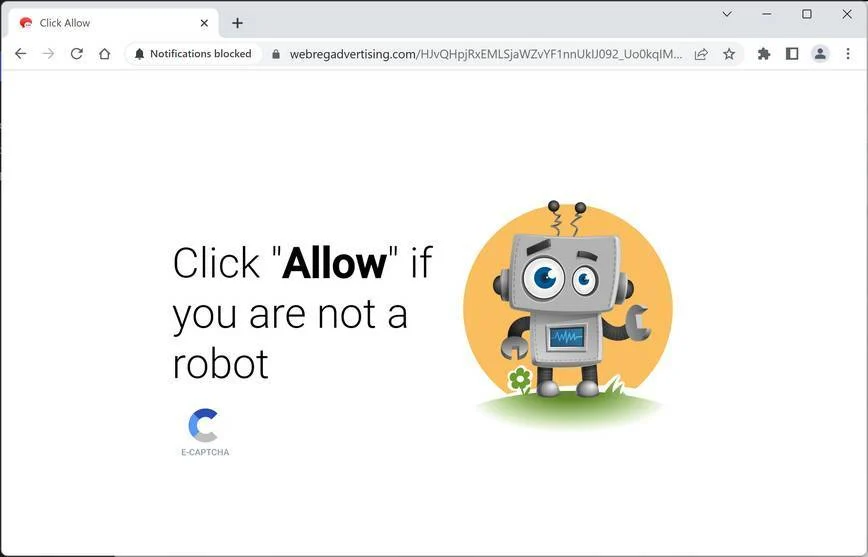
What is Webregadvertising.com?
Webregadvertising.com is a site that displays fake messages to trick you into subscribing to its spam push notifications.
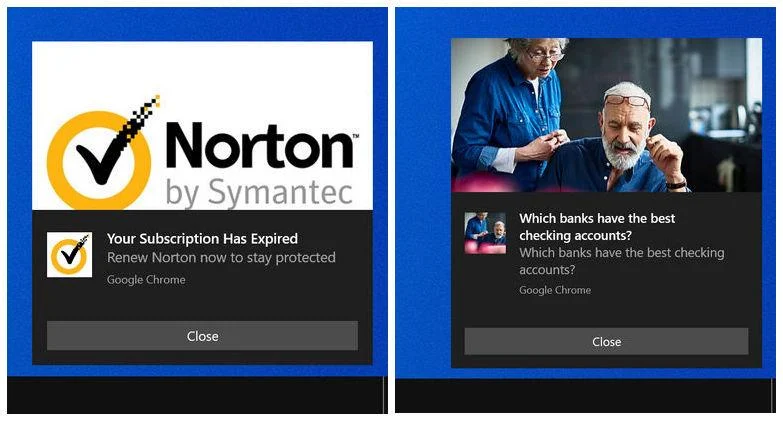
If you do subscribe to the Webregadvertising.com notifications, you will start seeing receiving spam popups directly on your desktop or phone even if the browser is closed. These ads are for adult sites, online web games, fake software updates, and unwanted programs.
Why am I seeing the Webregadvertising.com pop-up ads?
You are seeing the Webregadvertising.com advertisements because your computer is infected with a malicious program or a site that you have visited has redirected your browser to this page.
Less than reputable sites can display malicious ads that redirect your browser to Webregadvertising.com to generate advertising revenue. If this happens, you can close the page and install an ad blocker like AdGuard [recommended] to remove ads from the sites you visit.
However, if you continuously see pop-ups from Webregadvertising.com, then your computer might be infected with a malicious program, and we will need to scan your device for malware and remove it.
Here are a few typical signs that you have a malicious program installed on your computer:
- Advertisements appear in places they shouldn’t be.
- Your web browser’s homepage has mysteriously changed without your permission.
- Web pages that you typically visit are not displaying properly.
- Website links redirect to sites different from what you expected.
- Browser popups appear which recommend fake updates or other software.
- Other unwanted programs might get installed without your knowledge.
To check your computer for the Webregadvertising.com adware and remove it for free, please use the guide below.
Removal Instructions for Webregadvertising.com pop-up ads
Please perform all the steps in the correct order. If you have any questions or doubts at any point, stop and ask for our assistance.
 Remove Webregadvertising.com from Windows
-
 Remove Webregadvertising.com from Mac
 Remove Webregadvertising.com from Android
Remove Webregadvertising.com from Windows
- STEP 1: Reset your web browser settings to remove Webregadvertising.com spam notifications ads
- STEP 2: Use Malwarebytes to remove the Webregadvertising.com browser hijacker
- STEP 3: Use HitmanPro to scan your computer for Webregadvertising.com and other malware
STEP 1: Reset your web browser settings to remove Webregadvertising.com spam notifications ads
In this first step, we will reset your browser settings back to their default settings to remove the Webregadvertising.com spam notifications, malicious extensions, and unwanted search engines.
Please note that this method will remove all extensions, toolbars, and other customizations but will leave your bookmarks and favorites intact. For each browser that you have installed on your computer, please click on the browsers tab below and follow the displayed steps to reset that browser.
Remove Webregadvertising.com browser hijacker from Google Chrome
To remove Webregadvertising.com from Google Chrome, we will reset the browser settings to their original defaults. This will reset your startup page, new tab page, search engine, and pinned tabs. It will also disable all extensions and clear temporary data like cookies. Your favorites, history, and saved passwords will not be cleared.
-
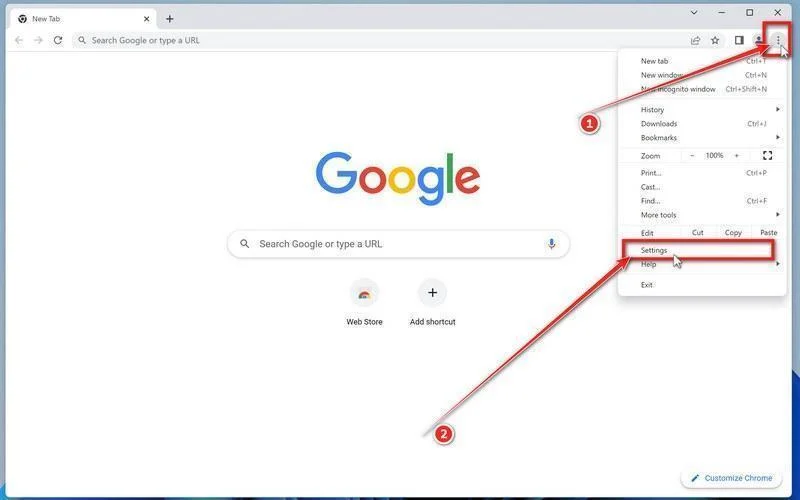
Click the three dots in the top-right corner and then click on “Settings”.
Open Chrome and click on the menu button (represented by three vertical dots) in the top right corner of the window. In the dropdown menu that opens, click “Settings“.
-
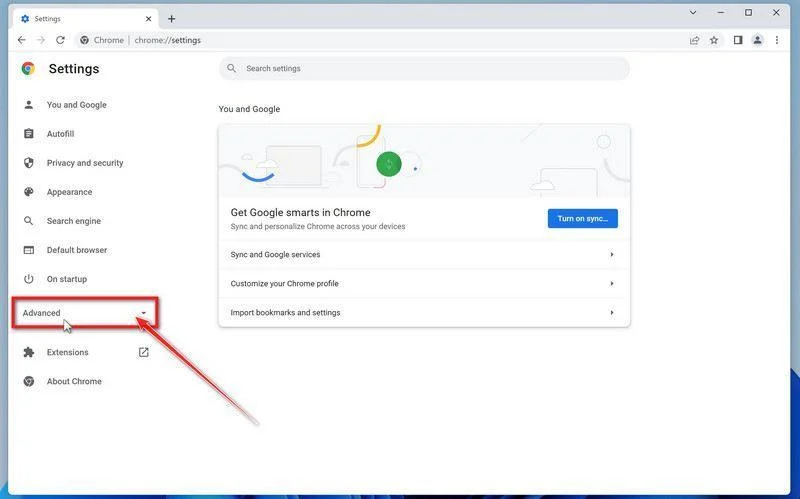
Click “Advanced”.
Chrome’s “Settings” should now be displayed in a new tab or window, depending on your configuration. In the left sidebar, click on the “Advanced” link.
-
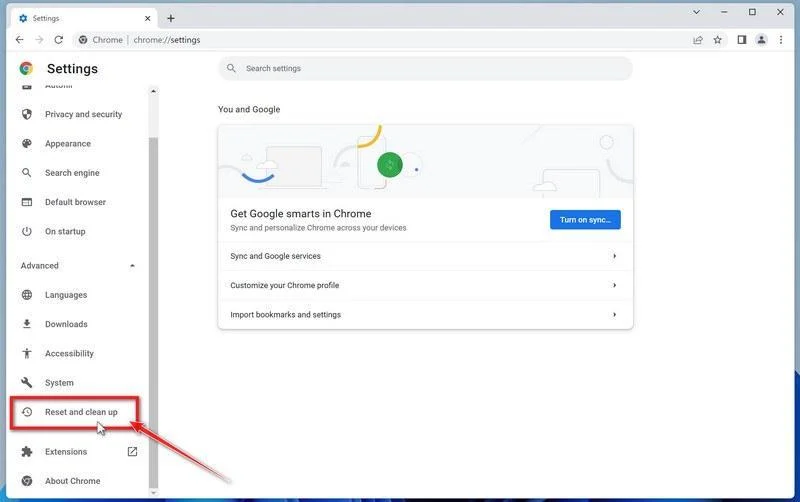
Click “Reset and clean up”.
In the left sidebar, under the “Advanced” section, click on “Reset and clean up“.
-
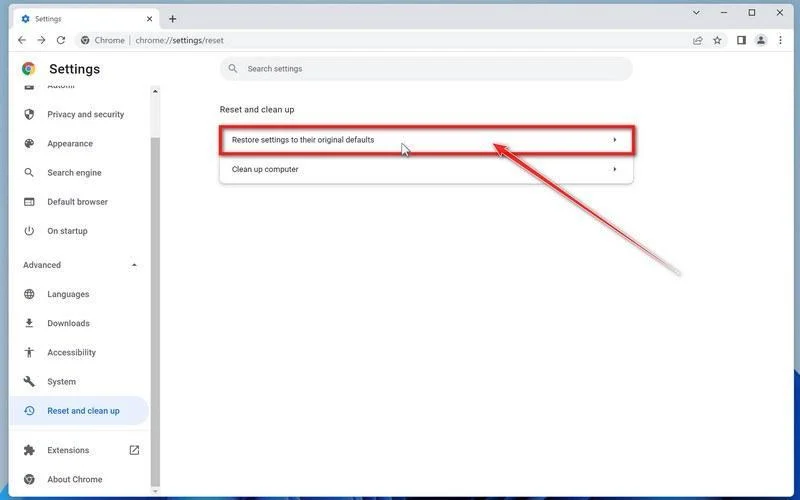
Click “Reset settings to their original defaults”.
In the main window, the “Reset and clean up” section is visible, as shown in the screenshot below. Click on “Reset settings to their original defaults“.
-
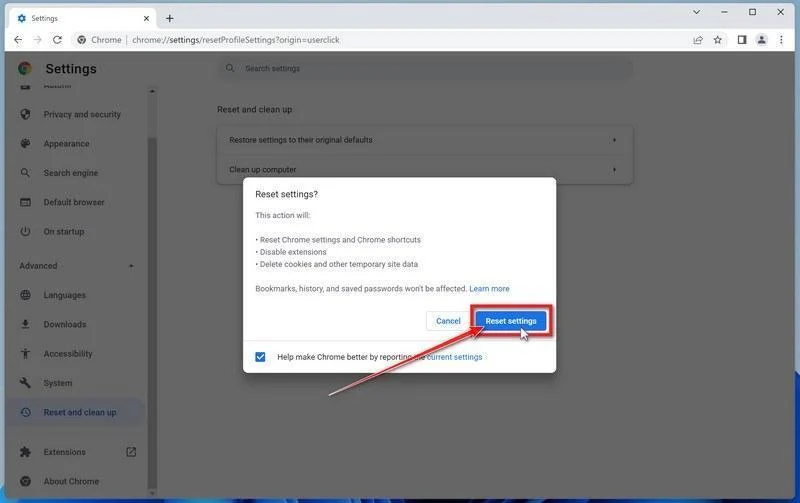
Click “Reset settings”.
A confirmation dialog will now be displayed, detailing the components that will be restored to their default state should you continue with the reset process. To complete the restoration process, click on the “Reset settings” button.
Remove Webregadvertising.com browser hijacker from Firefox
To remove the Webregadvertising.com redirect from Firefox we will reset the browser settings to its default. The reset feature fixes many issues by restoring Firefox to its factory default state while saving your essential information like bookmarks, passwords, web form auto-fill information, browsing history, and open tabs.
-
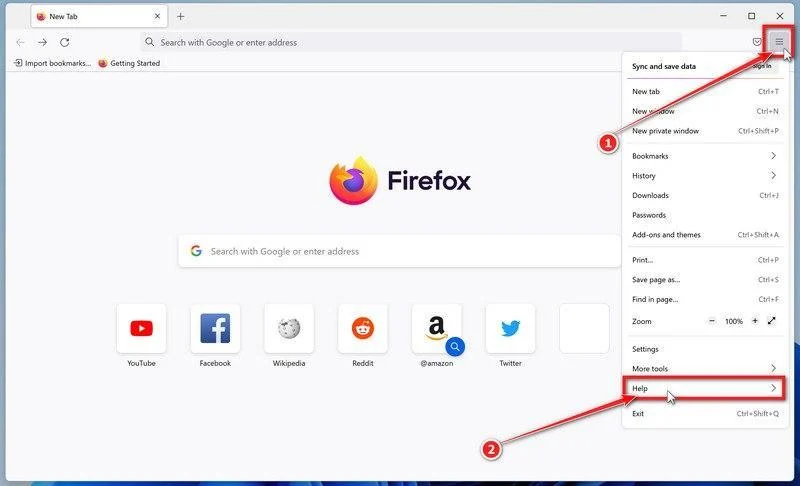
Click the three horizontal lines in the top-right corner and then click on “Help”.
Click on Firefox’s main menu button, represented by three horizontal lines. When the drop-down menu appears, select the option labeled “Help“.
-
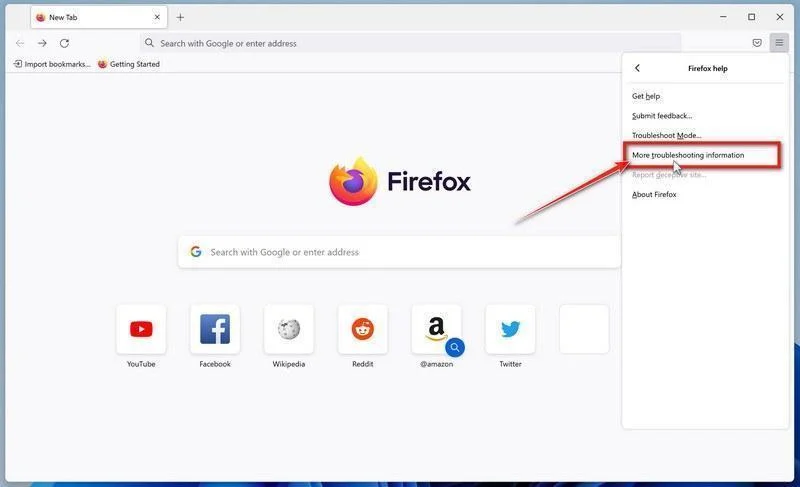
Click “More troubleshooting information”.
From the Help menu, click on “More troubleshooting information“.
-
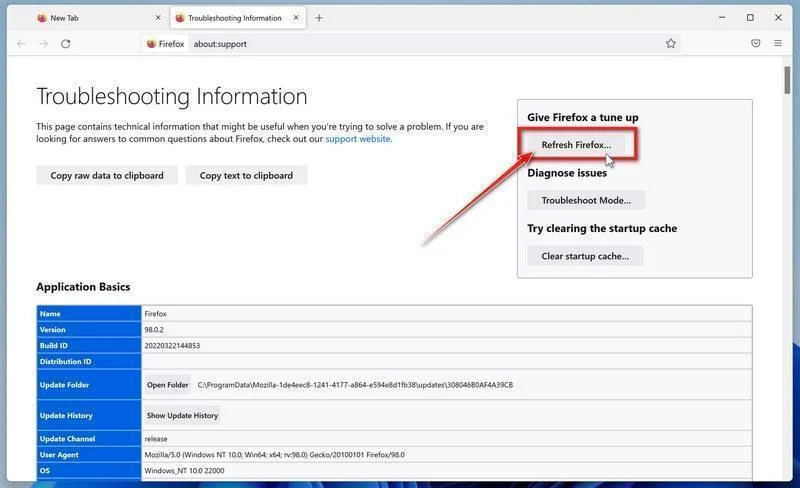
Click on “Refresh Firefox”
When the “Troubleshooting Information” page opens, click on the “Refresh Firefox” button.
-
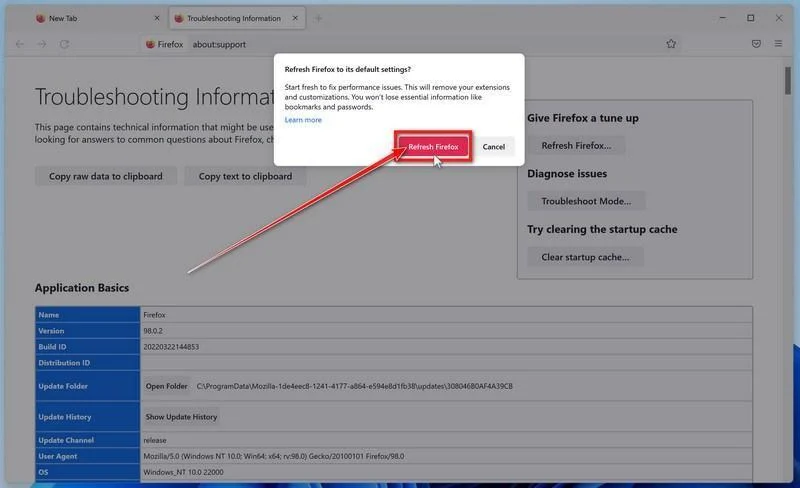
Confirm that you want to reset your browser settings.
To finish the reset process, click on the “Refresh Firefox” button in the new confirmation window that opens.
-
Click “Finish”.
Firefox will now close itself and will revert to its default settings. When it’s done, a window will list the information that was imported. Click on “Finish“.
Your old Firefox profile will be placed on your desktop in a folder named “Old Firefox Data“. If the reset didn’t fix your problem you can restore some of the information not saved by copying files to the new profile that was created. If you don’t need this folder any longer, you should delete it as it contains sensitive information.
Remove Webregadvertising.com browser hijacker from Microsoft Edge
To remove the Webregadvertising.com redirect from Microsoft Edge we will reset the browser settings to their default. This will reset your startup page, new tab page, search engine, and pinned tabs. It will also disable all extensions and clear temporary data like cookies. Your favorites, history, and saved passwords will not be cleared.
-
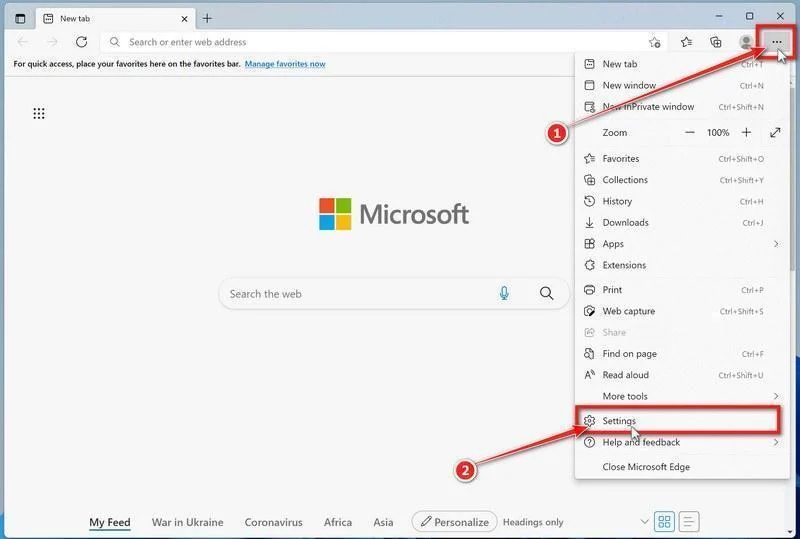
Click the three dots in the top-right corner and then click on “Settings”.
In the top right corner, click on Microsoft Edge’s main menu button, represented by three horizontal dots. When the drop-down menu appears, click on “Settings“.
-
Click on “Reset Settings”.
On the left side of the window, click on “Reset Settings“.
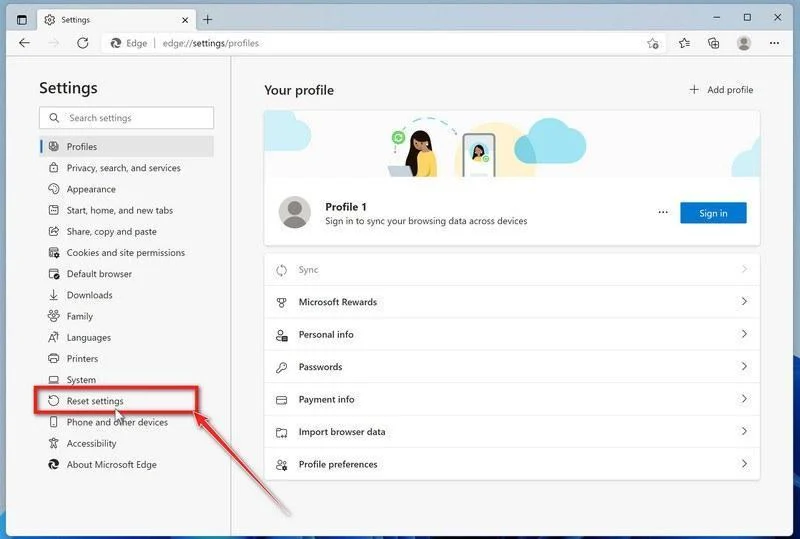
-
Click on “Restore settings to their default values”.
In the main window, click on “Restore settings to their default values“.
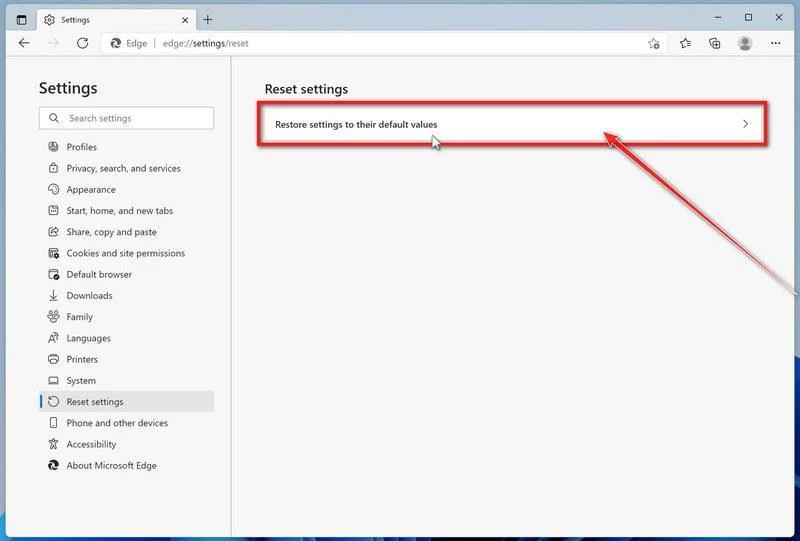
-
Click “Reset”.
A confirmation dialog should now be displayed, detailing the components that will be restored to their default state should you continue with the reset process. To complete the restoration process, click on the “Reset” button.
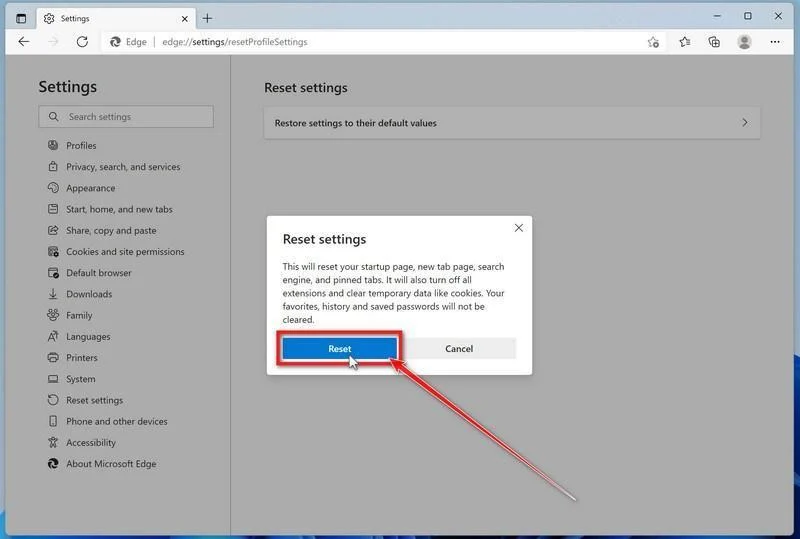
Microsoft Edge will now erase all your personal data, browsing history, and disable all installed extensions. Your bookmarks, though, will remain intact and still be accessible.
Remove Webregadvertising.com browser hijacker from Internet Explorer
To remove the Webregadvertising.com redirect from Internet Explorer we will reset the browser settings to its default. You can reset Internet Explorer settings to return them to the state they were in when Internet Explorer was first installed on your computer.
-
Go to “Internet Options”.
Open Internet Explorer, click on the gear icon in the upper-right part of your browser, then select “Internet Options“.
-
Select the “Advanced” tab, then click “Reset”
In the “Internet Options” dialog box, select the “Advanced” tab, then click on the “Reset” button.
-
Click on “Reset”.
In the “Reset Internet Explorer settings” section, select the “Delete personal settings” checkbox, then click on the “Reset” button.
-
Click on “Close”.
When Internet Explorer has completed its task, click on the “Close” button in the confirmation dialogue box.
Close your browser and then you can open Internet Explorer again.
Now that we’ve removed the Webregadvertising.com permissions to send spam notifications, in the next step we will scan your computer for any infections, adware, or potentially unwanted programs that may be present on your device.
STEP 2: Use Malwarebytes to remove the Webregadvertising.com browser hijacker
In this second step, we will install Malwarebytes to scan and remove any infections, adware, or potentially unwanted programs that may be present on your computer.
Malwarebytes is one of the most popular and most used anti-malware software for Windows, and for good reasons. It is able to destroy many types of malware that other software tends to miss, without costing you absolutely nothing. When it comes to cleaning up an infected device, Malwarebytes has always been free and we recommend it as an essential tool in the fight against malware.
-
Download Malwarebytes for Windows.
You can download Malwarebytes by clicking the link below.
 Malwarebytes Free for WindowsScans and removes malware at no cost
Download MalwarebytesOfficial installer for Windows 11 and 10. Your download starts right away.Want real-time protection? See Malwarebytes Premium
-
Double-click on the Malwarebytes setup file.
When Malwarebytes has finished downloading, double-click on the MBSetup file to install Malwarebytes on your computer. In most cases, downloaded files are saved to the Downloads folder.
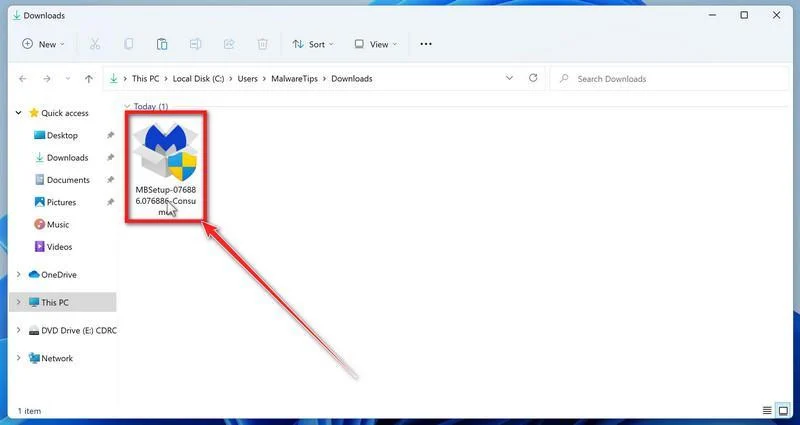
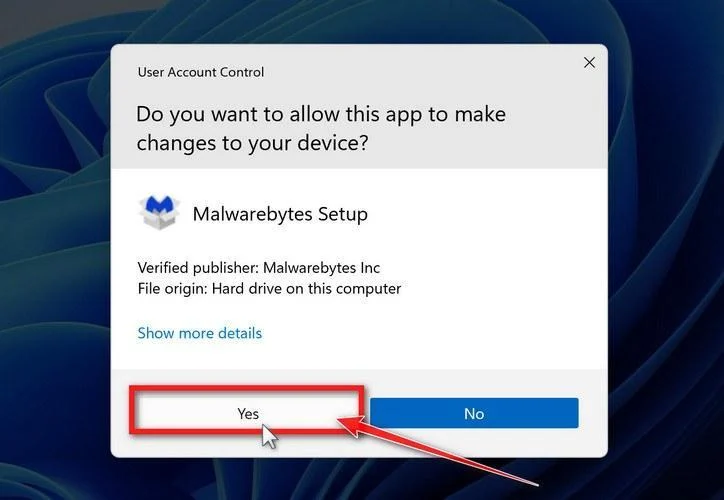
You may be presented with a User Account Control pop-up asking if you want to allow Malwarebytes to make changes to your device. If this happens, you should click “Yes” to continue with the Malwarebytes installation.
-
Follow the on-screen prompts to install Malwarebytes.
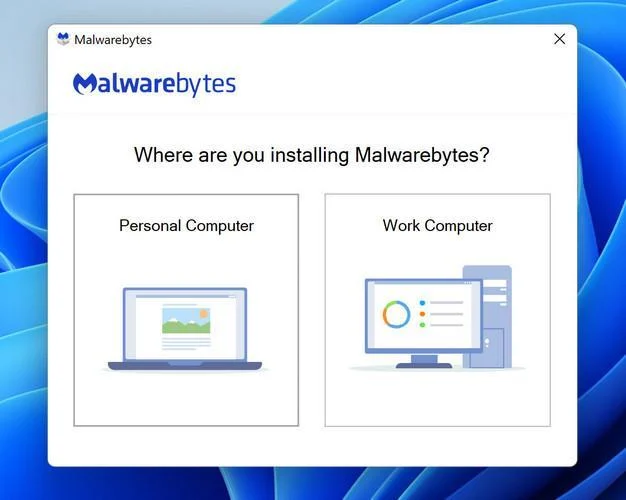
When the Malwarebytes installation begins, you will see the Malwarebytes setup wizard which will guide you through the installation process. The Malwarebytes installer will first ask you what type of computer are you installing this program on, click either Personal Computer or Work Computer.
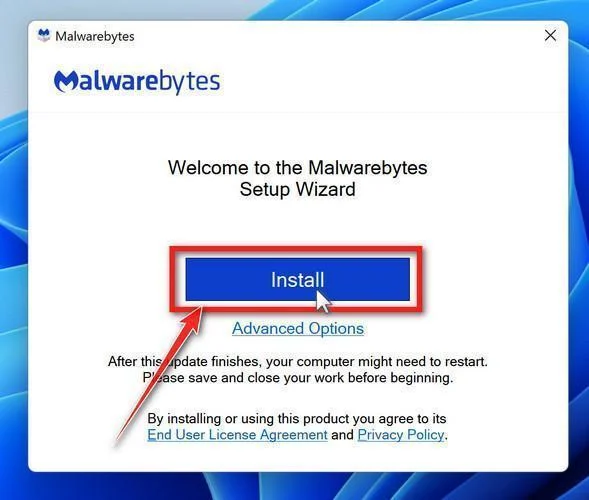
On the next screen, click “Install” to install Malwarebytes on your computer.
When your Malwarebytes installation completes, the program opens to the Welcome to Malwarebytes screen.
-
Click on “Scan”.
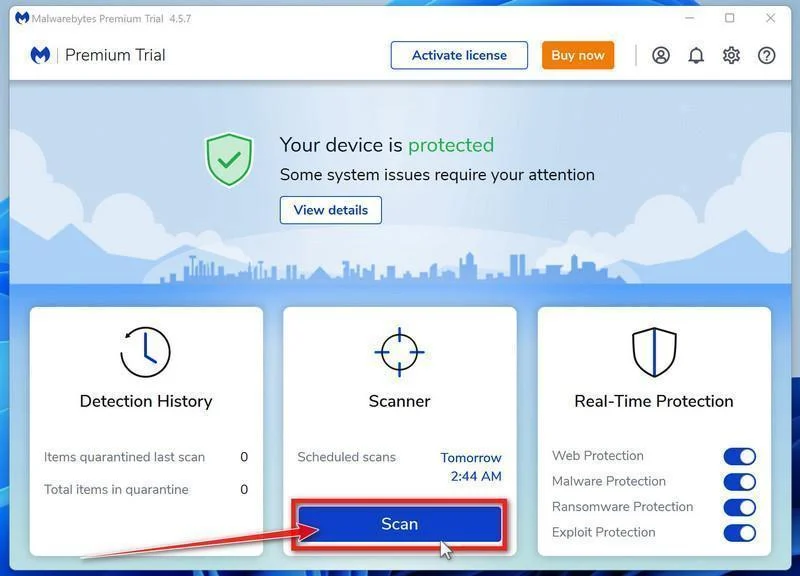
Malwarebytes is now installed on your computer, to start a scan click on the “Scan” button. Malwarebytes will automatically update the antivirus database and start scanning your computer for the Webregadvertising.com browser hijacker and other malicious programs.
-
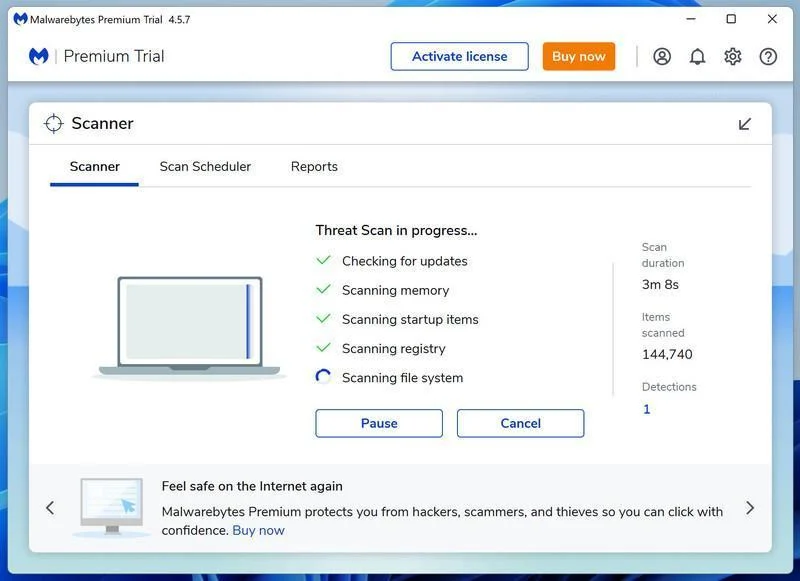
Wait for the Malwarebytes scan to complete.
Malwarebytes will now scan your computer for the Webregadvertising.com browser hijacker and other malicious programs. This process can take a few minutes, so we suggest you do something else and periodically check on the status of the scan to see when it is finished.
-
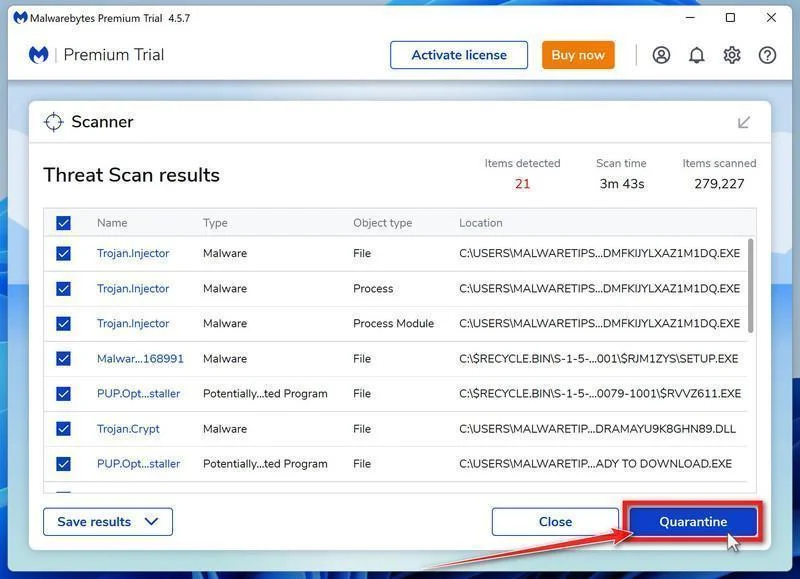
Click on “Quarantine”.
When the Malwarebytes scan is finished scanning it will show a screen that displays any malware, adware, or potentially unwanted programs that it has detected. To remove the Webregadvertising.com adware and other malicious programs that Malwarebytes has found, click on the “Quarantine” button.
-
Restart computer.
Malwarebytes will now remove all the malicious files and registry keys that it has found. To complete the malware removal process, Malwarebytes may ask you to restart your computer.
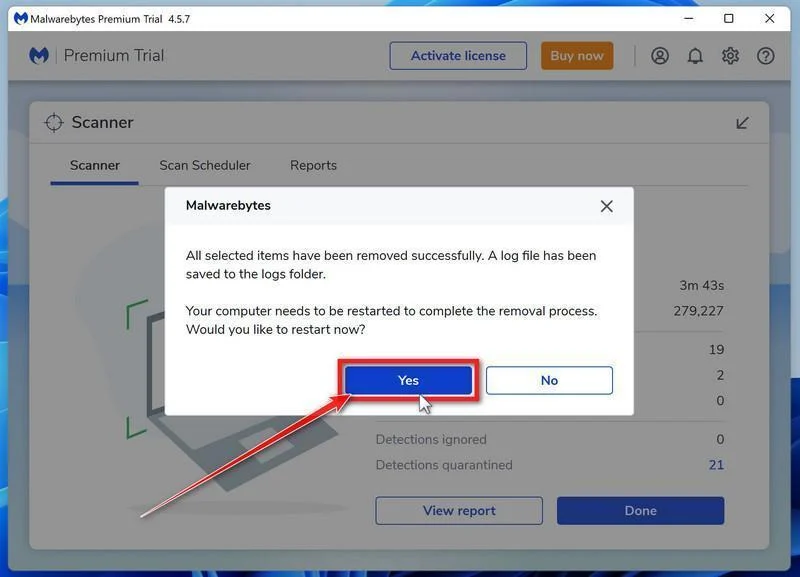
When the malware removal process is complete, you can close Malwarebytes and continue with the rest of the instructions to perform a final scan that ensures that no other malicious programs are installed on your device.
STEP 3: Use HitmanPro to scan your computer for Webregadvertising.com and other malware
In this third step, we will scan the computer with HitmanPro to ensure that no other malicious programs are installed on your device.
HitmanPro is a second opinion scanner that takes a unique cloud-based approach to malware scanning. HitmanPro scans the behavior of active files and also files in locations where malware normally resides for suspicious activity. If it finds a suspicious file that’s not already known, HitmanPro sends it to its clouds to be scanned by two of the best antivirus engines today, which are Bitdefender and Kaspersky.
Although HitmanPro is shareware and costs $24.95 for 1 year on 1 PC, there is no limit on scanning. The limitation only kicks in when there is a need to remove or quarantine detected malware by HitmanPro on your system and by then, you can activate the one-time 30-days trial to enable the clean up.
-
Download HitmanPro.
You can download HitmanPro by clicking the link below.
 HitmanProSecond-opinion malware scanner from Sophos
Download HitmanProFree scan. Removing threats needs the free 30-day trial. Your download starts right away.
-
Install HitmanPro.
When HitmanPro has finished downloading, double-click on “hitmanpro.exe” (for 32-bit versions of Windows) or “hitmanpro_x64.exe” (for 64-bit versions of Windows) to install this program on your computer. In most cases, downloaded files are saved to the Downloads folder.
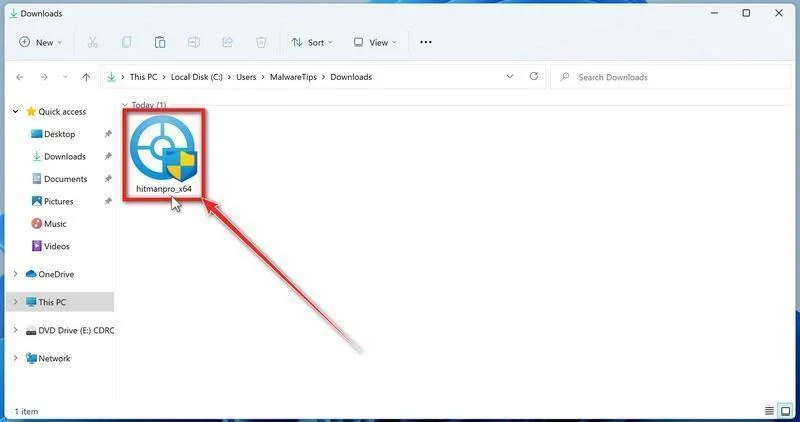
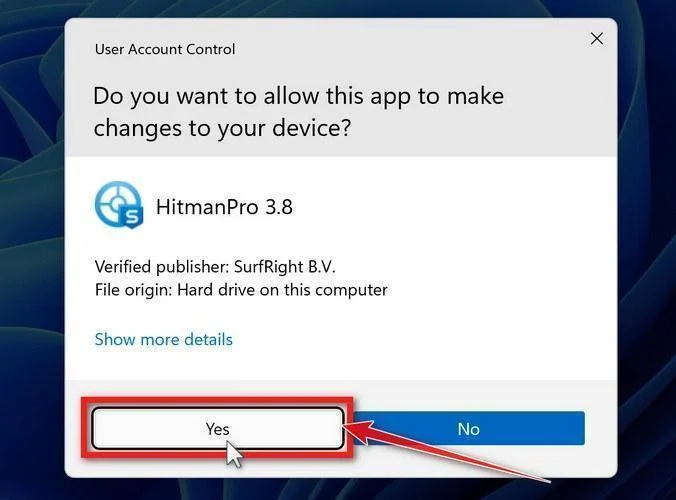
You may be presented with a User Account Control pop-up asking if you want to allow HitmanPro to make changes to your device. If this happens, you should click “Yes” to continue with the installation.
-
Follow the on-screen prompts.
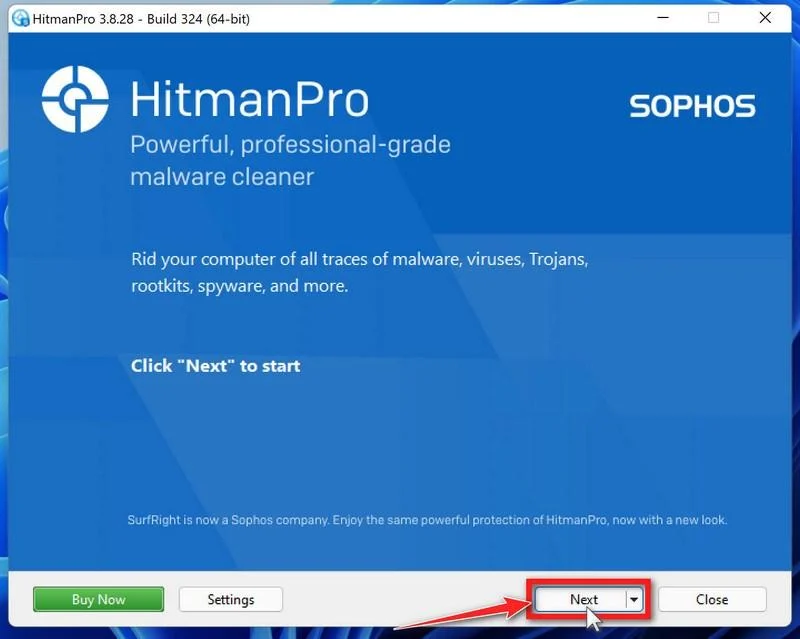
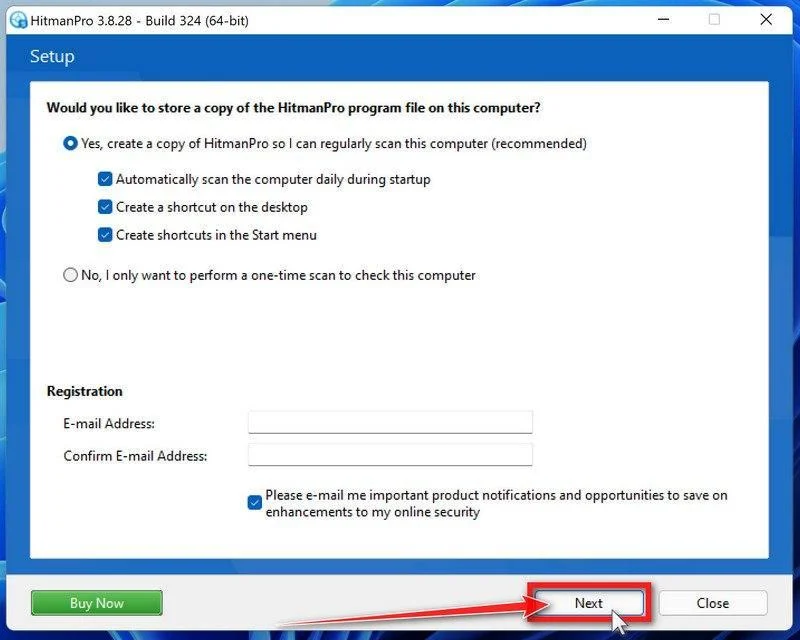
When HitmanPro starts you will be presented with the start screen as shown below. Click on the “Next” button to perform a system scan.
-
Wait for the HitmanPro scan to complete.
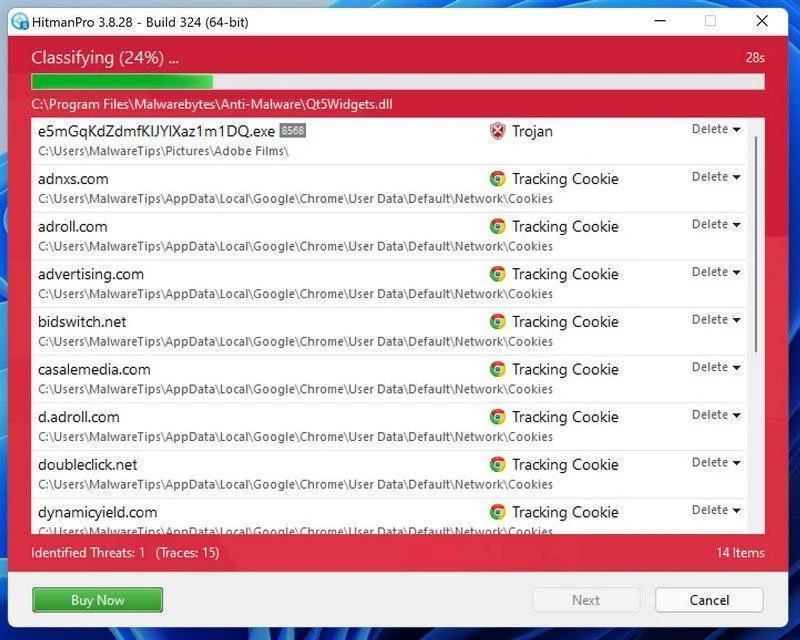
HitmanPro will now begin to scan your computer for the Webregadvertising.com browser hijacker and other malicious programs.
-
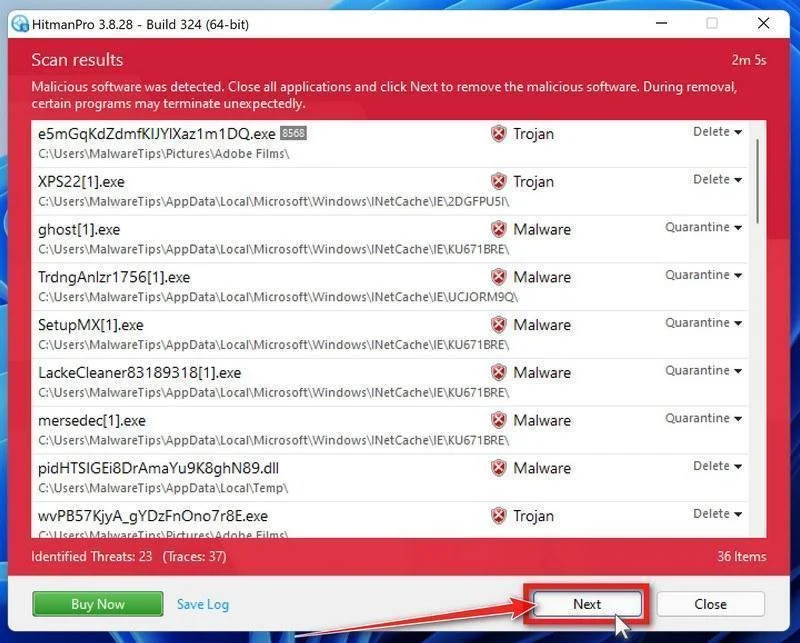
Click on “Next”.
When HitmanPro has finished the scan, it will display a list of all the malware that it has found. Click on the “Next” button to have HitmanPro remove the detected items.
-
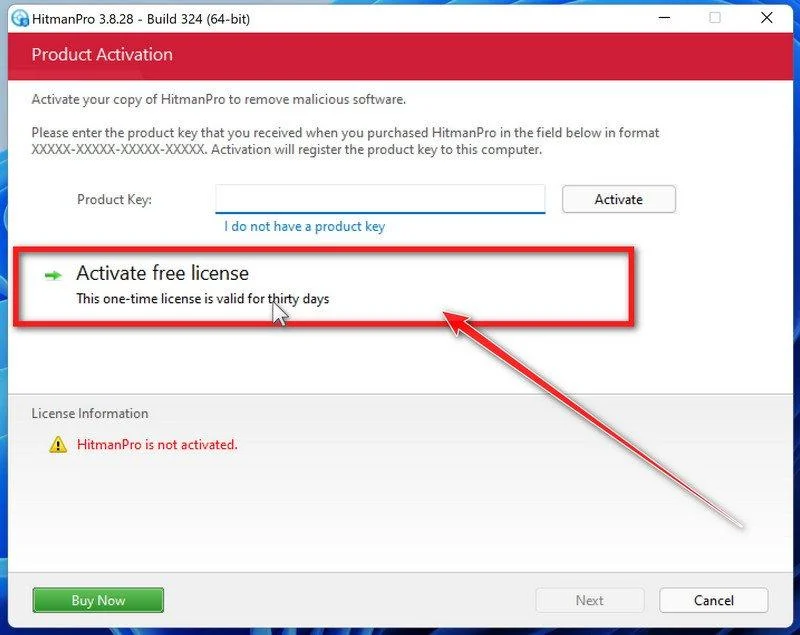
Click on “Activate free license”.
HitmanPro may now require to activate the free 30-days trial to remove the malicious files. To do this, click on the “Activate free license” button to begin the free 30 days trial and remove all the malicious files from your computer.
When the malware removal process is complete, it will display a screen that shows the status of the various programs that were removed. At this screen, you should click on the Next button and then if prompted you should click on the Reboot button. If HitmanPro does not prompt you to reboot, please just click on the Close button.
If you are still having problems with your computer after completing these instructions, then please follow one of the steps:
- Run a computer scan with ESET Online Scanner
- Ask for help in our Windows Malware Removal Help & Support forum.
Remove Webregadvertising.com from Mac
- STEP 1: Remove Webregadvertising.com spam push notifications from your Mac browser
- STEP 2: Use Malwarebytes for Mac to remove Webregadvertising.com adware
STEP 1: Remove Webregadvertising.com spam push notifications from your Mac browser
In this first step, we will go to your browser settings and remove Webregadvertising.com from the list of websites allowed to send push notifications to your Mac.
Remove Webregadvertising.com pop-up ads from Safari browser
- Open Safari. In the top left corner, click on Safari.
- Click Preferences, click Websites, then click Notifications. Deselect “Allow websites to ask for permission to send push notifications”.
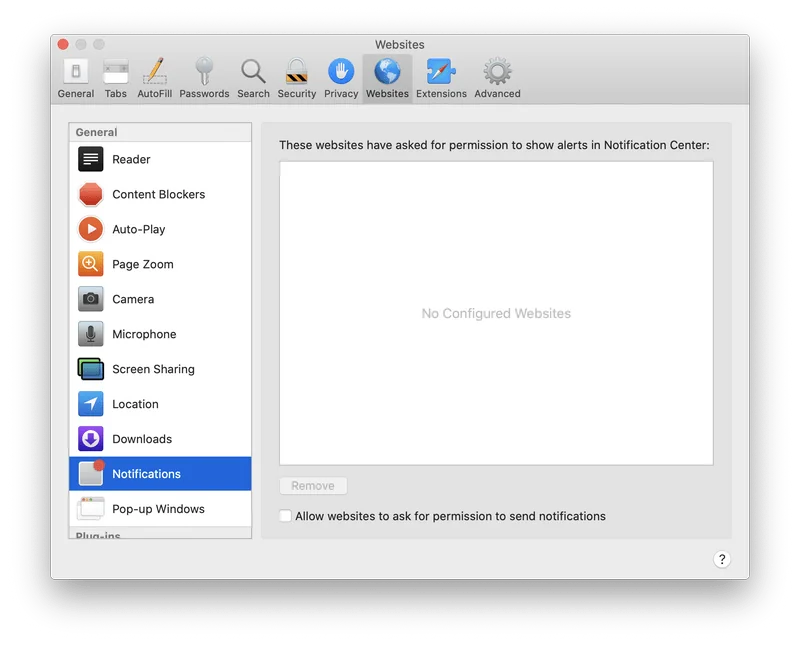
- Next, in the Notifications section, find the Webregadvertising.com site and select it, then click the Deny button.
Remove Webregadvertising.com pop-up ads from Chrome for Mac
- Open Chrome for Mac.
- In the top-right corner, expand the Chrome menu.
- In the Google Chrome menu, open Settings.
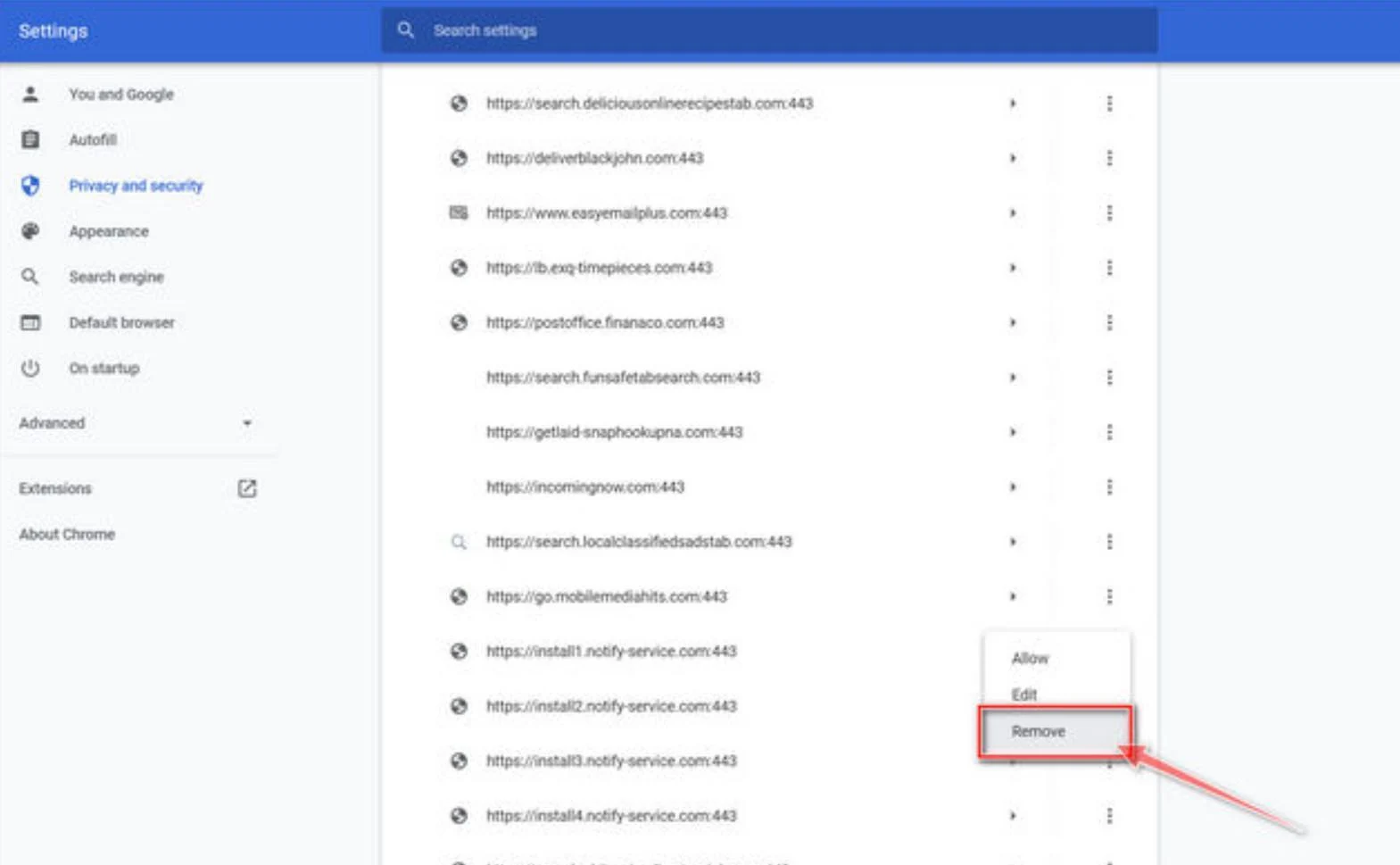
- At the Privacy and Security section, click Site settings.
- Open the Notifications settings.
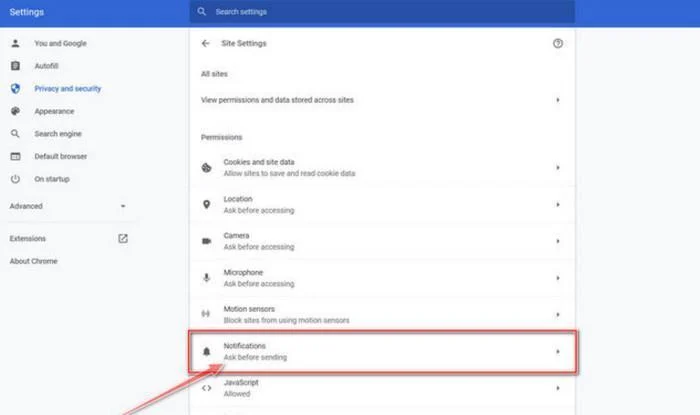
- Remove Webregadvertising.com by clicking the three dots on the right next to the Webregadvertising.com URL and click Remove.
Remove Webregadvertising.com pop-up ads from Firefox for Mac
- Open Firefox
- In the top-right corner, click the Firefox menu (three horizontal stripes).
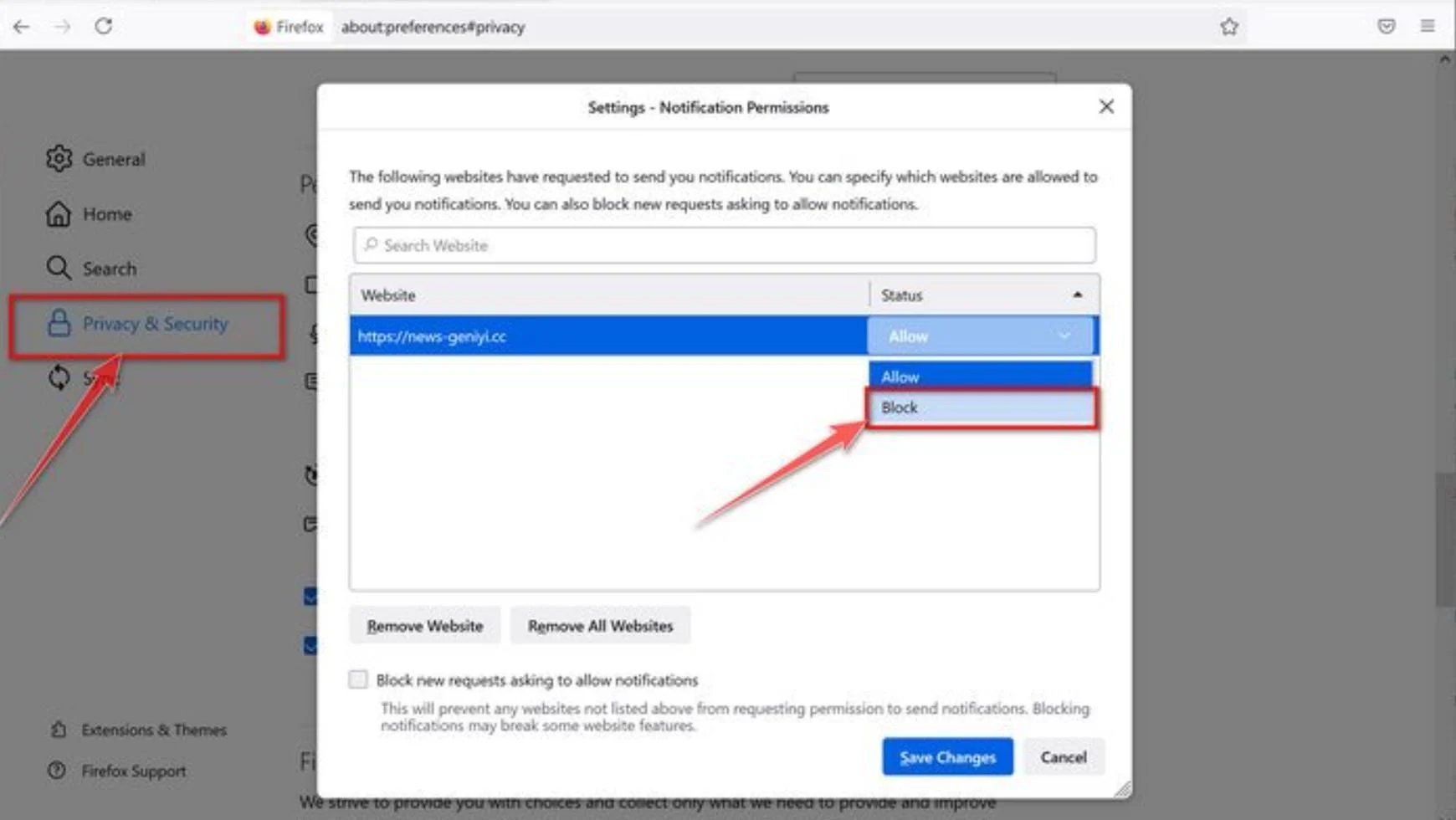
- In the menu go to Options, in the list on the left go to Privacy & Security.
- Scroll down to Permissions and then to Settings next to Notifications.
- Select the Webregadvertising.com URL from the list, and change the status to Block, save Firefox changes.
STEP 2: Use Malwarebytes for Mac to remove Webregadvertising.com adware
In this second step, we will download, install and run a scan with Malwarebytes to find and remove browser hijackers, adware, malicious browser extensions, and other malware from your Mac.
Malwarebytes for Mac is an on-demand scanner that is able to destroy many types of malware that other software tends to miss without costing you absolutely nothing. When it comes to cleaning up an infected device, Malwarebytes has always been free, and we recommend it as an essential tool in the fight against malware.
-
Download Malwarebytes for Mac.
You can download Malwarebytes for Mac by clicking the link below.
Malwarebytes Free for MacScans and removes malware at no costDownload MalwarebytesOfficial installer for macOS. Your download starts right away.Want real-time protection? See Malwarebytes Premium
-
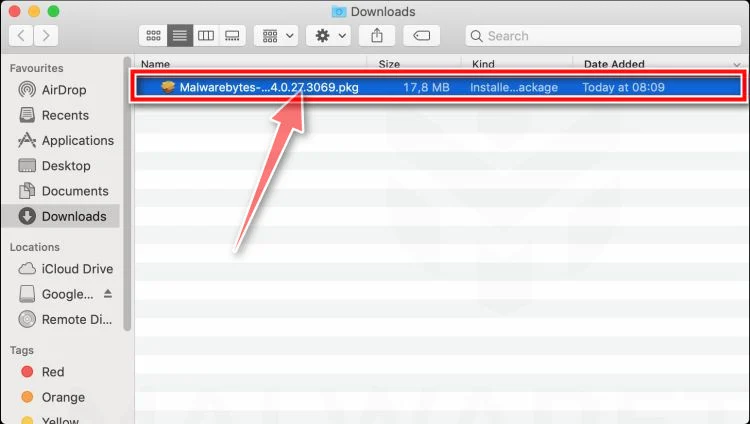
Double-click on the Malwarebytes setup file.
When Malwarebytes has finished downloading, double-click on the setup file to install Malwarebytes on your computer. In most cases, downloaded files are saved to the Downloads folder.
-
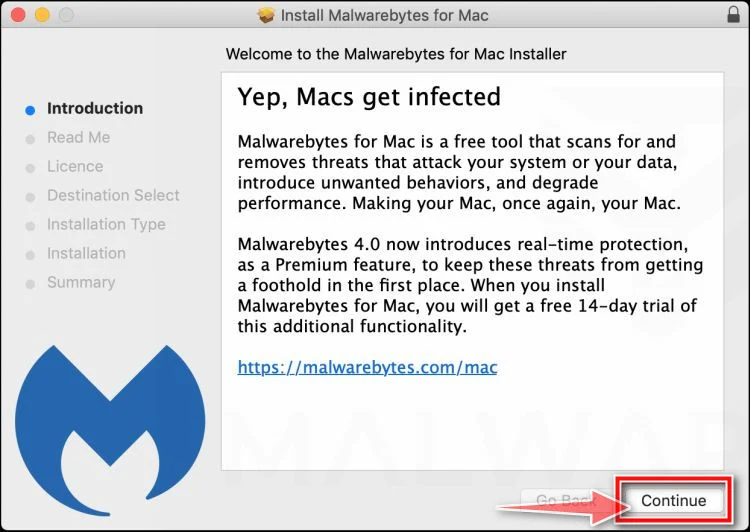
Follow the on-screen prompts to install Malwarebytes for Mac.
When the Malwarebytes installation begins, you will see the Malwarebytes for Mac Installer which will guide you through the installation process. Click “Continue“, then keep following the prompts in order to continue with the installation process.
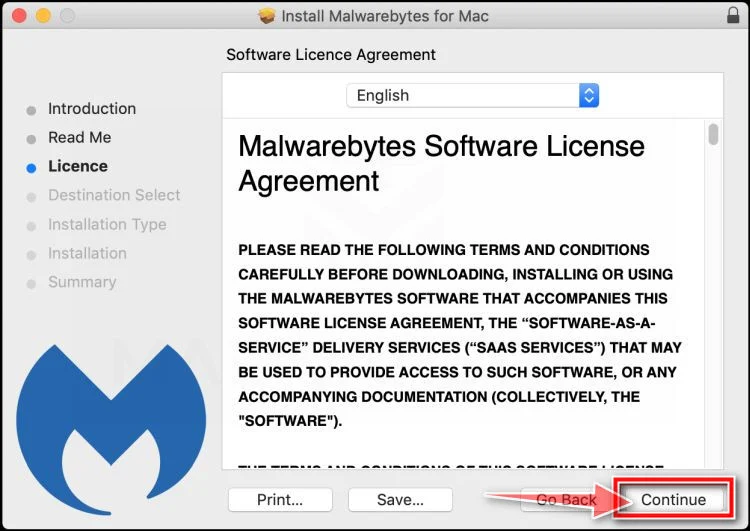
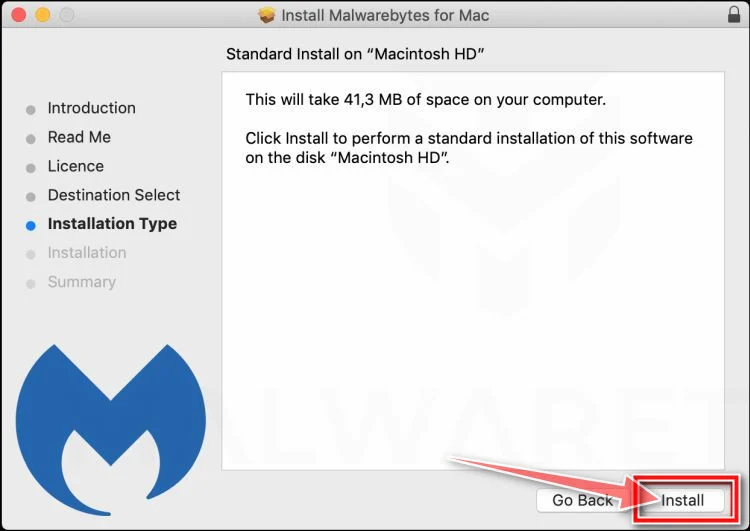
When your Malwarebytes installation completes, the program opens to the Welcome to Malwarebytes screen. Click the “Get started” button.
-
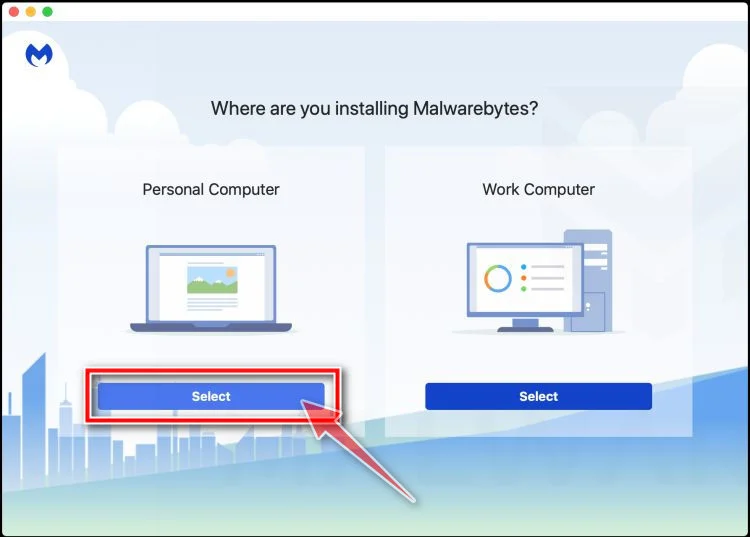
Select “Personal Computer” or “Work Computer”.
The Malwarebytes Welcome screen will first ask you what type of computer are you installing this program, click either Personal Computer or Work Computer.
-
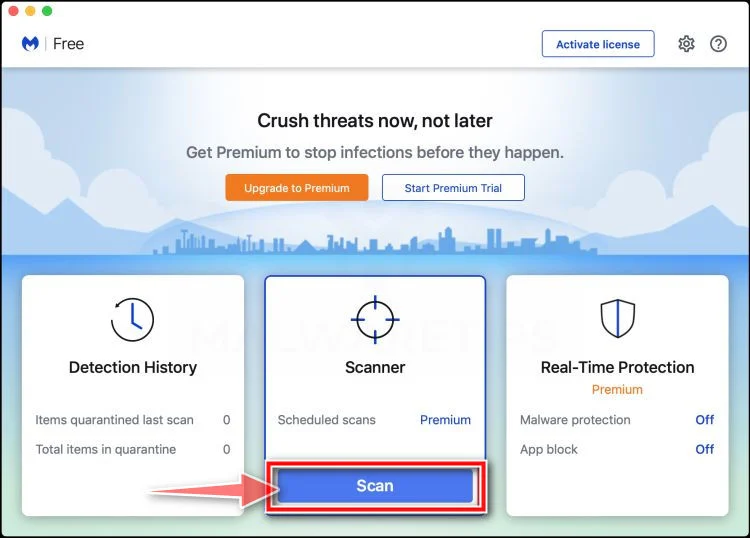
Click on “Scan”.
To scan your computer with Malwarebytes, click on the “Scan” button. Malwarebytes for Mac will automatically update the antivirus database and start scanning your computer for malware.
-
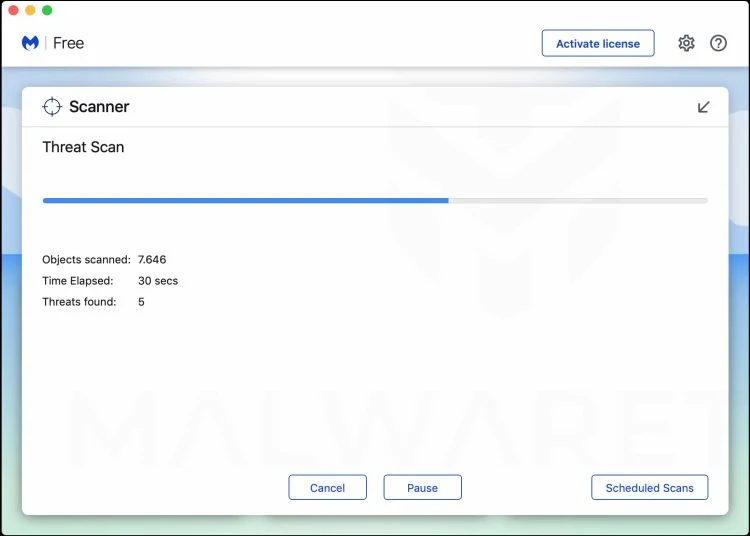
Wait for the Malwarebytes scan to complete.
Malwarebytes will scan your computer for pop-up ads and other malicious programs. This process can take a few minutes, so we suggest you do something else and periodically check on the status of the scan to see when it is finished.
-
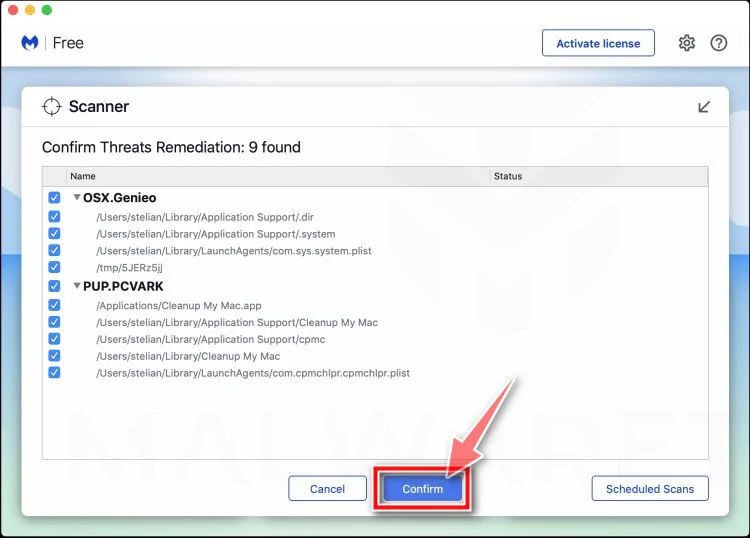
Click on “Quarantine”.
When the scan has been completed, you will be presented with a screen showing the malware infections that Malwarebytes has detected. To remove the malicious programs that Malwarebytes has found, click on the “Quarantine” button.
-
Restart computer.
Malwarebytes will now remove all the malicious files that it has found. To complete the malware removal process, Malwarebytes may ask you to restart your computer.
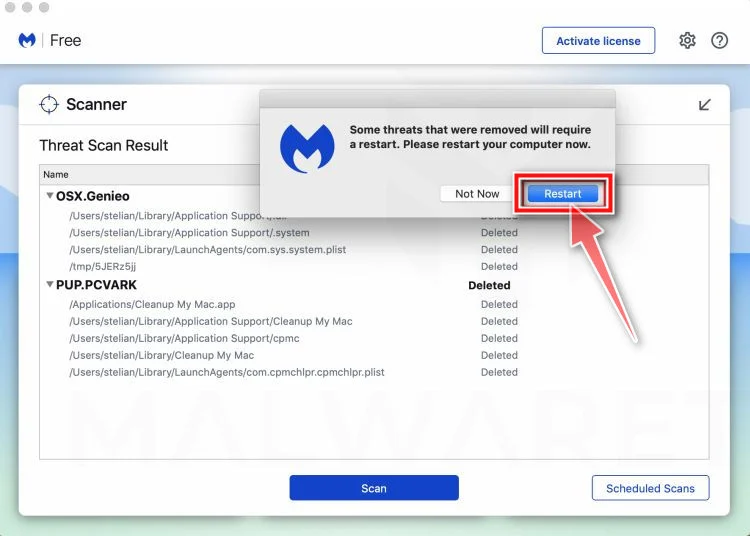
When the malware removal process is complete, you can close Malwarebytes and continue with the rest of the instructions.
If you are still experiencing problems while trying to remove a malicious program from your computer, please ask for help in our Mac Malware Removal Help & Support forum.
Remove Webregadvertising.com from Android
- STEP 1: Remove the Webregadvertising.com notifications from your Android browser
- STEP 2: Use Malwarebytes for Android to remove Webregadvertising.com adware
STEP 1: Remove the Webregadvertising.com pop-up ads from your Android browser
In this first step, we will remove the Webregadvertising.com permissions to send push notifications to your phone’s browser. Depending on which browser are you seeing the Webregadvertising.com pop-up ads, click on the below browser tab.
Remove Webregadvertising.com pop-up ads from Chrome for Android
- On your Android phone, open Google Chrome
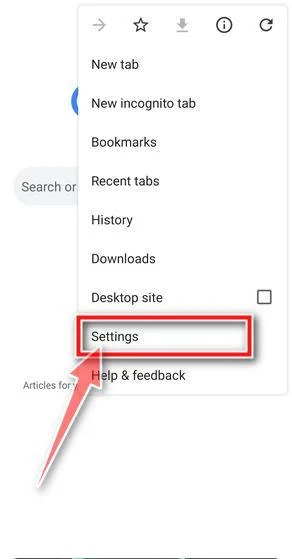
- In the top right corner, tap “More” (three vertical dots), then click on “Settings”.
- Chrome’s “Settings” menu should now be displayed, scroll down to the “Advanced” section, and tap on “Site Settings“.
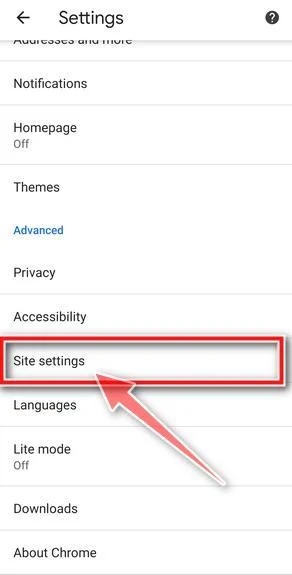
- In the “Site Settings” menu, tap on “Notifications“.
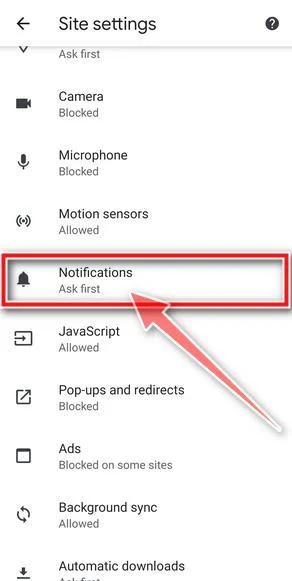
- The “Notifications” options will open and you will be presented with a list of sites that you have “Blocked” and “Allowed” to send you notifications. In the “Allowed” section, scroll through the list until you find the Webregadvertising.com site, then tap on it, then click the “Clean & Reset” button that appears on the bottom of the window.
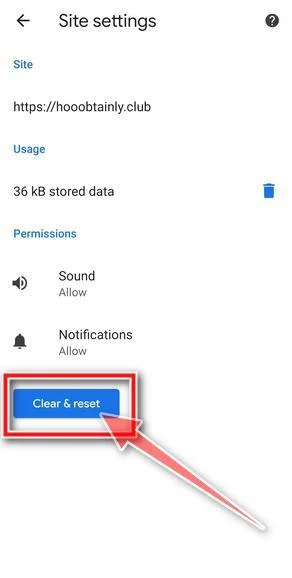
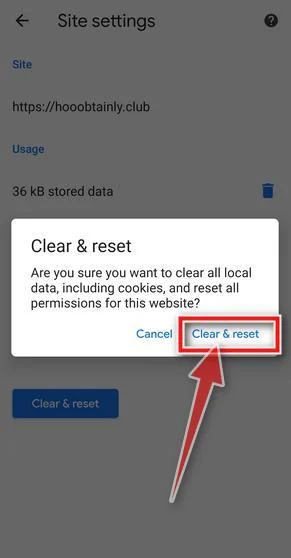
- A confirmation dialog should now be displayed, detailing the actions that will be taken should you continue on with the reset process. To complete the clean-up process, click on the “Clean & Reset” button.
Remove Webregadvertising.com pop-up ads from Firefox for Android
To remove the Webregadvertising.com advertisements from Firefox we will reset the browser settings to their default. This will remove all the cookies, cache, and other site settings that may have been saved.
-
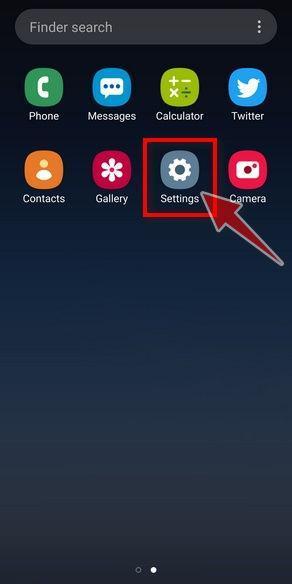
Open the “Settings” menu.
Tap on the “Settings” app from your phone menu or home screen.
-
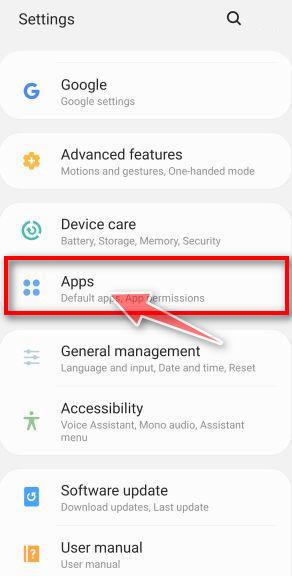
Tap on “Apps”.
When the “Settings” menu opens, tap on “Apps” (or “App Manager”) to see all the installed applications on your phone.
-
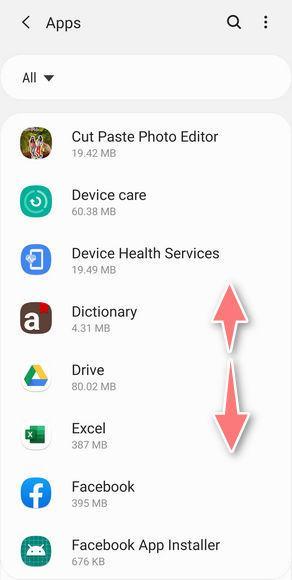
Find and tap on Firefox.
The “Apps” screen will be displayed with a list of all the apps installed on your phone. Scroll through the list until you find the Firefox app, then tap on it to open the app’s details.
-
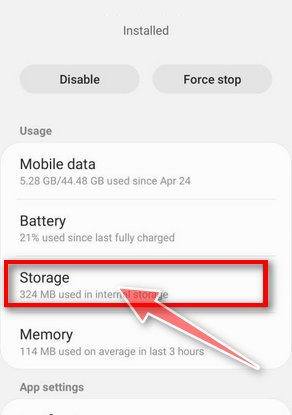
Tap “Storage”.
When Firefox’s app info menu is displayed, tap on “Storage“.
-
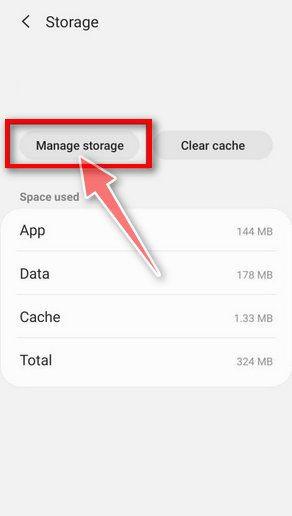
Tap “Manage Space”.
Under the storage settings, you will get two options — Manage Space and Clear Cache. Tap on “Manage Space“.
-
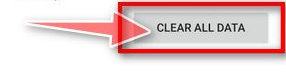
Tap “Clear all data”.
Tap “Clear all data” to delete all Firefox data including accounts, bookmarks, and your settings to reset the default settings.
-
Confirm by tapping “Ok”.
A confirmation dialog should now be displayed, detailing the components that will be restored to their default state should you continue with the reset process. To complete the restoration process, tap “Ok“.
Remove Webregadvertising.com pop-up ads from Opera
To remove the Webregadvertising.com advertisements from the Opera browser we will reset the browser settings to their default. This will remove all the cookies, cache, and other site settings that may have been saved.
-
Open the “Settings” menu.
Tap on the “Settings” app from your phone menu or home screen.
-
Tap on “Apps”.
When the “Settings” menu opens, tap on “Apps” (or “App Manager”) to see all the installed applications on your phone.
-
Find and tap on Opera.
The “Apps” screen will be displayed with a list of all the apps installed on your phone. Scroll through the list until you find the Opera app, then tap on it to open the app’s details.
-
Tap “Storage”.
When Opera’s app info menu is displayed, tap on “Storage“.
-
Tap “Manage Space”.
Under the storage settings, you will get two options — Manage Space and Clear Cache. Tap on “Manage Space“.
-
Tap “Clear all data”.
Tap “Clear all data” to delete all Opera’s data including accounts, bookmarks, and your settings to reset the default settings.
-
Confirm by tapping “Ok”.
A confirmation dialog should now be displayed, detailing the components that will be restored to their default state should you continue with the reset process. To complete the restoration process, tap “Ok“.
Remove Webregadvertising.com pop-up ads from Brave
To remove the Webregadvertising.com advertisements from Brave browser we will reset the browser settings to their default. This will remove all the cookies, cache, and other site settings that may have been saved.
-
Open the “Settings” menu.
Tap on the “Settings” app from your phone menu or home screen.
-
Tap on “Apps”.
When the “Settings” menu opens, tap on “Apps” (or “App Manager”) to see all the installed applications on your phone.
-
Find and tap on Brave.
The “Apps” screen will be displayed with a list of all the apps installed on your phone. Scroll through the list until you find the Brave app, then tap on it to open the app’s details.
-
Tap “Storage”.
When the Brave’s app info menu is displayed, tap on “Storage“.
-
Tap “Manage Space”.
Under the storage settings, you will get two options — Manage Space and Clear Cache. Tap on “Manage Space“.
-
Tap “Clear all data”.
Tap “Clear all data” to delete all Brave’s data including accounts, bookmarks, and your settings to reset the default settings.
-
Confirm by tapping “Ok”.
A confirmation dialog should now be displayed, detailing the components that will be restored to their default state should you continue with the reset process. To complete the restoration process, tap “Ok“.
Remove Webregadvertising.com pop-up ads from Samsung Internet Browser
To remove the Webregadvertising.com advertisements from Samsung Internet Browser we will reset the browser settings to their default. This will remove all the cookies, cache, and other site settings that may have been saved.
-
Open the “Settings” menu.
Tap on the “Settings” app from your phone menu or home screen.
-
Tap on “Apps”.
When the “Settings” menu opens, tap on “Apps” (or “App Manager”) to see all the installed applications on your phone.
-
Find and tap on Samsung Internet Browser.
The “Apps” screen will be displayed with a list of all the apps installed on your phone. Scroll through the list until you find the Samsung Internet Browser app, then tap on it to open the app’s details.
-
Tap “Storage”.
When the Samsung Internet Browser’s app info menu is displayed, tap on “Storage“.
-
Tap “Manage Space”.
Under the storage settings, you will get two options — Manage Space and Clear Cache. Tap on “Manage Space“.
-
Tap “Clear all data”.
Tap “Clear all data” to delete all Samsung Internet Browser’s data including accounts, bookmarks, and your settings to reset the default settings.
-
Confirm by tapping “Ok”.
A confirmation dialog should now be displayed, detailing the components that will be restored to their default state should you continue with the reset process. To complete the restoration process, tap “Ok“.
Remove Webregadvertising.com pop-up ads from Microsoft Edge
To remove the Webregadvertising.com advertisements from Microsoft Edge we will reset the browser settings to their default. This will remove all the cookies, cache, and other site settings that may have been saved.
-
Open the “Settings” menu.
Tap on the “Settings” app from your phone menu or home screen.
-
Tap on “Apps”.
When the “Settings” menu opens, tap on “Apps” (or “App Manager”) to see all the installed applications on your phone.
-
Find and tap on Microsoft Edge.
The “Apps” screen will be displayed with a list of all the apps installed on your phone. Scroll through the list until you find the Microsoft Edge app, then tap on it to open the app’s details.
-
Tap “Storage”.
When the Microsoft Edge’s app info menu is displayed, tap on “Storage“.
-
Tap “Manage Space”.
Under the storage settings, you will get two options — Manage Space and Clear Cache. Tap on “Manage Space“.
-
Tap “Clear all data”.
Tap “Clear all data” to delete all Microsoft Edge’s data including accounts, bookmarks, and your settings to reset the default settings.
-
Confirm by tapping “Ok”.
A confirmation dialog should now be displayed, detailing the components that will be restored to their default state should you continue with the reset process. To complete the restoration process, tap “Ok“.
STEP 2: Use Malwarebytes for Android to remove Webregadvertising.com adware
In this second step, we will install Malwarebytes to scan and remove the Webregadvertising.com browser hijackers from your phone.
Malwarebytes for Android searches all files and apps quickly and effectively for malware or potentially unwanted programs such as screen lockers or adware, freeing your phone from bloatware.
-
Download Malwarebytes for Android.
You can download Malwarebytes for Android by clicking the link below.
Malwarebytes for AndroidScans your phone and removes malwareGet Malwarebytes for AndroidOpens the download page in a new tab.
-
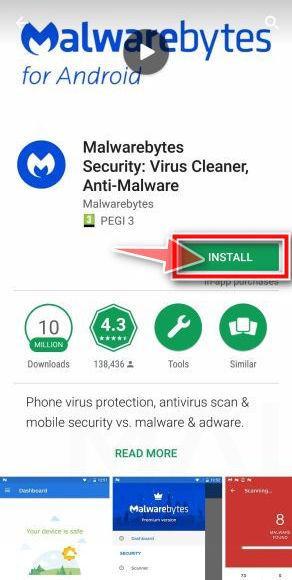
Install Malwarebytes on your phone
In the Google Play Store, tap “Install” to install Malwarebytes on your device.
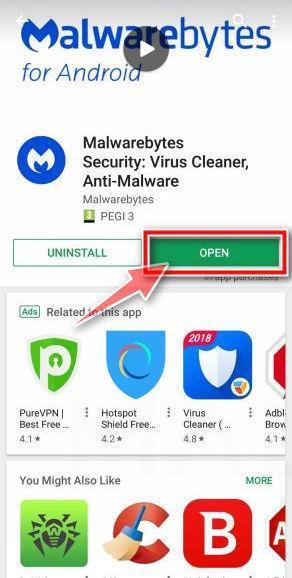
When the installation process has finished, tap “Open” to begin using Malwarebytes for Android. You can also open Malwarebytes by tapping on its icon in your phone menu or home screen.
-
Follow the on-screen prompts to complete the setup process
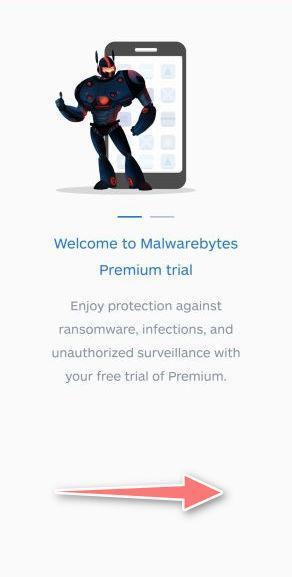
When Malwarebytes will open, you will see the Malwarebytes Setup Wizard which will guide you through a series of permissions and other setup options.
This is the first of two screens that explain the difference between the Premium and Free versions. Swipe this screen to continue.
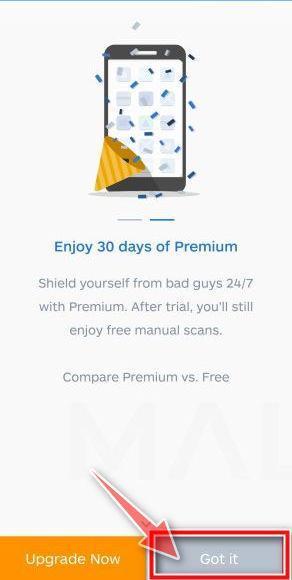
Tap on “Got it” to proceed to the next step.
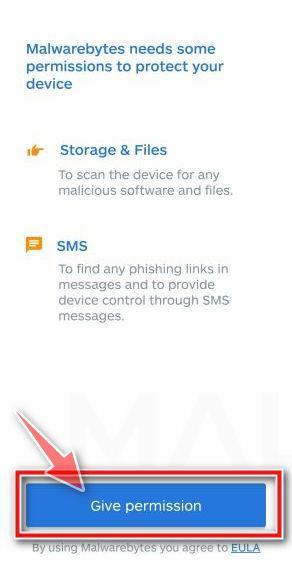
Malwarebytes for Android will now ask for a set of permissions that are required to scan your device and protect it from malware. Tap on “Give permission” to continue.
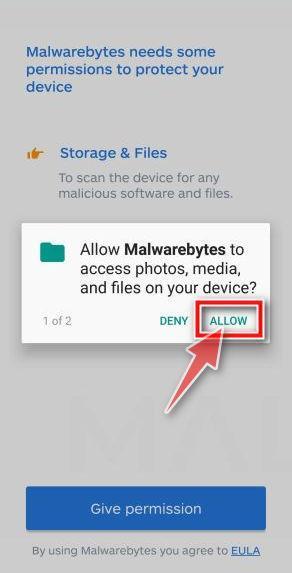
Tap on “Allow” to permit Malwarebytes to access the files on your phone.
-
Update database and run a scan with Malwarebytes for Android
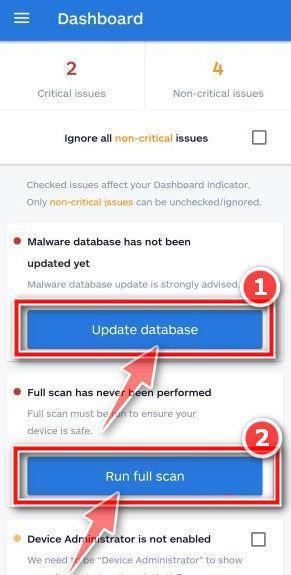
You will now be prompted to update the Malwarebytes database and run a full system scan.
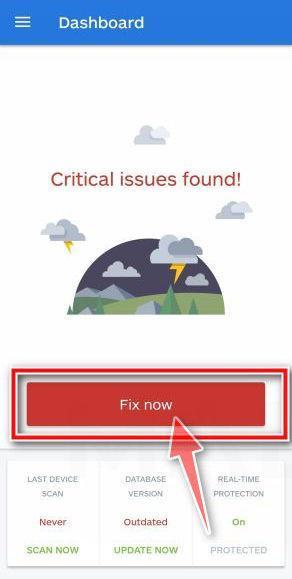
Click on “Update database” to update the Malwarebytes definitions to the latest version, then click on “Run full scan” to perform a system scan.
-
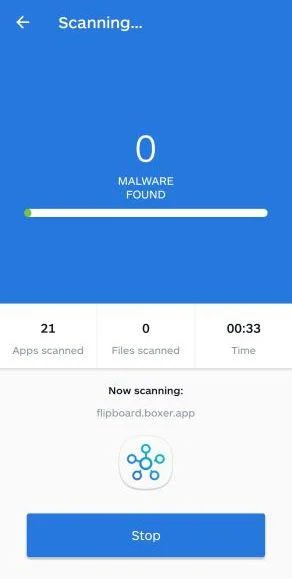
Wait for the Malwarebytes scan to complete.
Malwarebytes will now start scanning your phone for the Webregadvertising.com adware and other malicious apps. This process can take a few minutes, so we suggest you do something else and periodically check on the status of the scan to see when it is finished.
-
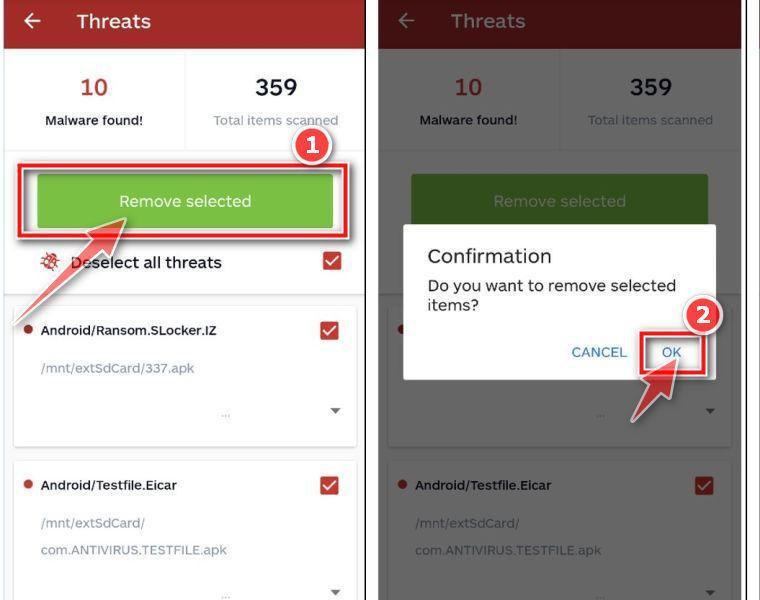
Click on “Remove Selected”.
When the scan has been completed, you will be presented with a screen showing the malware infections that Malwarebytes has detected. To remove the Webregadvertising.com adware and other malicious apps that Malwarebytes has found, tap on the “Remove Selected” button.
-
Restart your phone.
Malwarebytes will now remove all the malicious apps that it has found. To complete the malware removal process, Malwarebytes may ask you to restart your device.
If you are still experiencing problems while trying to remove a malicious program from your phone, please ask for help in our Mobile Malware Removal Help & Support forum.

Join the discussion
0 commentsShare your experience or ask a question about this article.
Your progress
Did these steps help?
Let us know how the guide worked for you.
Describe what you see and the step you reached. Keep passwords and other private information out.
Discussion
Start the conversation
Have a question or something useful to share? Add the first comment.