


Your workplace security team asks for the original email. You have a screenshot, a Forward button, and an attachment you would rather leave unopened.
Choosing the right handoff can spare everyone another round of questions. First, establish what the investigator needs and where the message should go.
Overview
An original message is different from its picture
A screenshot records the content currently visible. An email attached as an .eml file gives an authorized reviewer the message as a separate email object.
Google documents forwarding Gmail messages as attachments on a computer. You can select the message without opening the files it contains.
The reviewer determines the appropriate format
A security investigator may need message content and delivery information together. Someone answering a general question may need only a carefully limited description.
- Use a screenshot when the relevant issue concerns visible presentation.
- Use an attached original when the approved investigator requests the message.
- Provide full headers privately when the reviewer specifically requests delivery details.
The destination matters as much as the attachment
Send suspicious material only through the organization’s approved reporting route. Verify that route independently of the email you are reporting.
An attached original can carry private conversation content and embedded files. Preserving those items for authorized review does not make them safe to open.
Choose Between a Screenshot, Forward, Original, and Headers
Each format answers a different review question. Choosing among them becomes easier when you separate what the recipient can read from what they can inspect.
A screenshot can show a warning banner, the arrangement of a message, or the wording visible at a particular moment.
Its usefulness ends at the captured view. Cropped content, hidden recipient details, and information outside the picture remain unavailable to the reviewer.
An ordinary inline forward places message content into a new outgoing email. It is convenient for conversation, but the new message has its own delivery history.
Visible forwarded sender and date lines can provide context. They should not be confused with a complete original delivery record.
An attached original remains a separate message within the outer email. The investigator can examine that object using their approved tools and handling process.
Full headers provide another view: the fields associated with message addressing, handling, and transport. They complement readable content rather than replacing every part of it.
| Format | Useful purpose and practical limit |
|---|---|
| Screenshot | Shows the captured appearance, but omits anything outside that visible view. |
| Inline forward | Shares readable content inside a new message, without supplying a complete original as a separate object. |
| Attached .eml original | Shares the email object for authorized inspection, potentially including private content and embedded attachments. |
| Full headers | Shares message-handling details, while requiring context and careful interpretation by the reviewer. |
For example, an investigator asking about a suspicious attachment may need the attached original. A screenshot cannot supply the file contained within it.
If the problem concerns a delivery delay, the relevant header information may be sufficient. Ask before sending a conversation containing unrelated personal material.
When a reviewer specifically requests the original, avoid assuming that a readable screenshot satisfies the request. Clarify the approved format before choosing a substitute.
Understand What Travels Inside an Attached Original
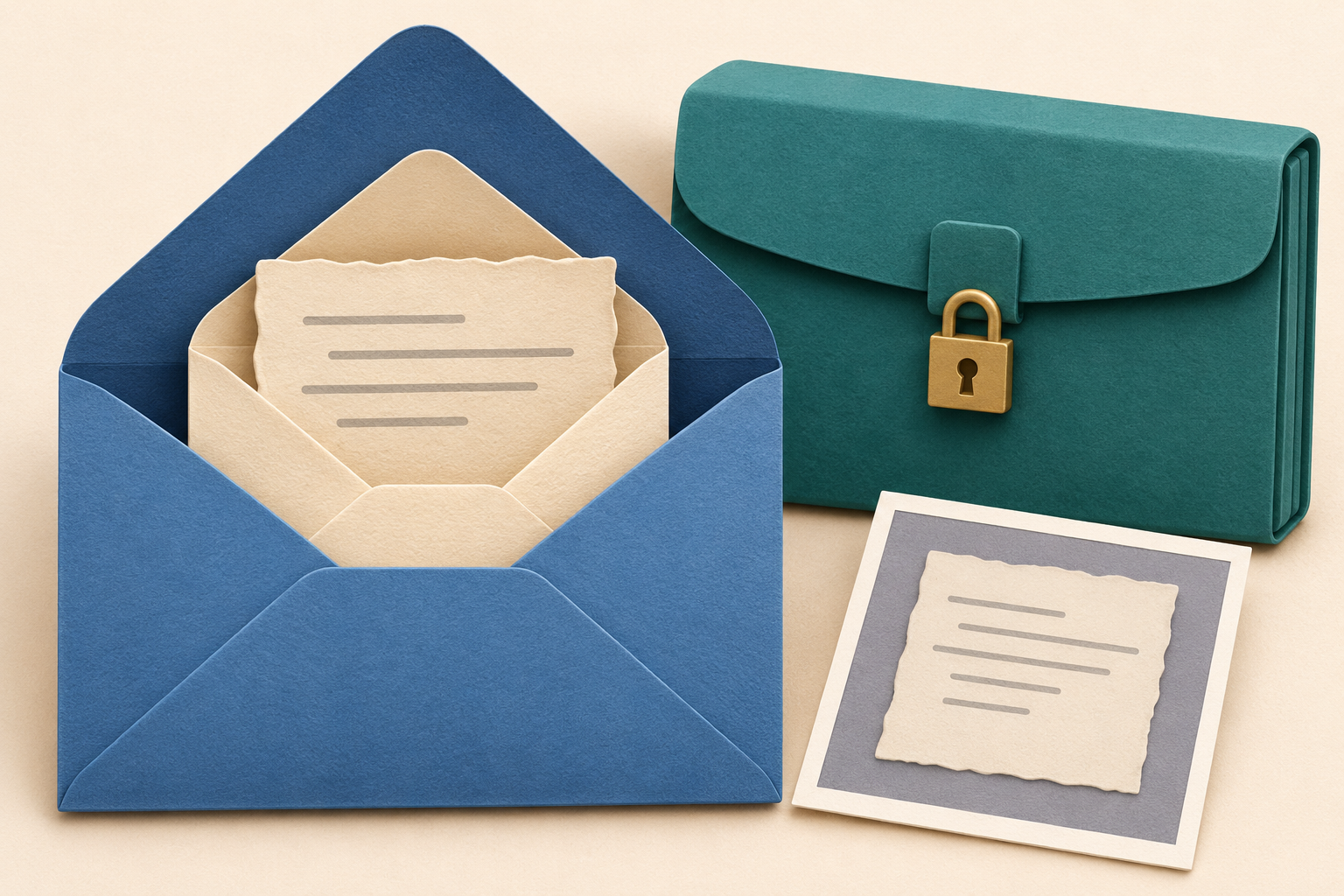
The nested-envelope illustration describes the basic relationship: you send an outer message containing another message. It is conceptual artwork rather than a Gmail screen.
Your short explanation belongs in the outer message. The source email remains attached so the reviewer can distinguish your observations from its contents.
- The outer message
- Your report identifies the concern and the approved recipient.
- The attached email object
- The source message remains available as a separate email attachment.
- Files inside the source message
- Embedded attachments remain material for the authorized review process.
- The handling boundary
- Providing evidence does not require personally opening its embedded files.
This distinction prevents a common mistake: opening a document to discover what it contains before forwarding the suspicious email.
You can describe the attachment’s displayed filename without launching it. A name claiming to be an invoice or a PDF does not establish its contents.
Likewise, attaching an email does not disinfect its files. The reviewer needs their normal process for examining potentially harmful material.
Do not test a suspicious file on a personal computer just because your workplace blocks it. That moves the material outside the intended handling boundary.
Preserving the message cannot answer every question. An .eml file is useful evidence, but possessing one does not independently prove its claims or the sender’s identity.
Any question about tampering, authenticity, or formal evidence requirements belongs with the investigator. Do not promise a legally sufficient evidence package from a forwarding choice alone.
Confirm the Reporting Route Before Preparing the Message
Use your organization’s published security instructions, a known help desk, or a previously established investigator contact to confirm the destination.
An address supplied inside the suspicious email cannot verify itself. The same applies when a stranger replies offering to inspect your attachment privately.
Ask whether the team wants an attached original, headers, a screenshot, or submission through a designated reporting tool. Their process may already collect what they need.
Some organizations restrict forwarding outside their systems or require a particular handling route. Follow that instruction before making a local copy.
Consider a fictional payroll message containing employee details and a strange spreadsheet. A public discussion may need the general circumstances rather than the original correspondence.
The internal investigator, by contrast, may need the source message. Matching the recipient’s role to the requested material protects both privacy and investigative usefulness.
Receiving an official-looking request for evidence does not remove that verification step. Establish the recipient through a known route before sending anything sensitive.
What to Do When an Investigator Requests the Original Gmail Message
-
Confirm the scope and recipient independently. Check whether the investigator wants one message, several separate originals, or a particular reporting workflow.
Use the verified address from your organization’s instructions. Avoid adding colleagues merely because they appeared on the suspicious email’s recipient list.
-
Select the specific source message in Gmail on a computer. Use the checkbox beside it rather than opening its embedded files.
Read the sender, subject, and date shown in the list to reduce the chance of attaching a similarly titled but unrelated message.
-
Open the list’s More menu and choose Forward as attachment. Google describes this route for creating an outgoing message with the selected email attached.
The resulting attachment uses the .eml format. Keep your explanation in the outer message rather than rewriting or editing the attached original.
-
Describe the concern without investigating the payload yourself. Explain whether you clicked a link, entered information, or opened anything before reporting.
Include the approximate time if it helps distinguish events. Do not include passwords, one-time codes, or unrelated personal records in your explanation.
-
Check the draft before sending it. Confirm the approved recipient, selected attachment, and reporting context, then follow the investigator’s handling instructions.
Google says attachments over 25 MB use Google Drive. If that occurs, confirm the approved handoff rather than assuming a Drive-based route meets requirements.
-
Retain the source according to the investigator’s instructions. Ask whether you should leave the message in place, report it through Gmail, or take another action.
Avoid deleting the only available copy before the team confirms receipt. Keep any reference number with your own brief account of what happened.
These instructions describe Gmail’s computer interface. If you only have a phone or the option is unavailable, ask the reviewer for an approved alternative.
Do not install a new mail application merely to force the workflow. The organization may provide a reporting method better suited to your access.
When Downloading a Message Is the Approved Alternative
Google also documents opening a message, choosing More, and selecting Download message. That saves an EML file to your computer.
Opening the email to reach its menu is different from launching a file attached inside it. Leave those embedded files for authorized inspection.
Use this route only when saving locally fits your organization’s instructions. A computer’s Downloads folder may be outside the team’s preferred evidence location.
You can attach the downloaded email through a new message’s Attach files control. Selecting the file for attachment does not require launching its contents first.
Google notes that opening the downloaded EML requires a desktop mail client. You do not need to install one merely to send the saved file.
Keep the downloaded source intact for review. Put observations in a separate note, and tell the reviewer which Gmail message you downloaded.
A filename alone may not distinguish several similarly titled reports. Confirm the selected source before downloading, and avoid attaching an unrelated file with a matching name.
If you accidentally saved a copy on a shared computer, tell the investigator. Follow their retention or cleanup instructions rather than improvising an evidence-handling process.
When Full Headers Are Enough, and When They Are Not
For a header request, Google’s full-header instructions direct Gmail users to open the message in a browser.
Next to Reply, open More and choose Show original. The original view offers Copy to clipboard for transferring the requested information.
Before pasting anything, confirm the approved destination. Message headers can include addresses, routing information, and identifiers that should remain within the approved investigation.
Do not assume everything in the original view is harmless technical metadata. Review what the recipient requested and avoid posting a copied original view publicly.
A header can help an investigator examine delivery and authentication information. It does not supply the visible context of every warning or every file’s behavior.
Nor does a familiar sender name in a header establish the human writer’s identity. The reviewer needs context beyond that displayed name.
If the reviewer needs both content and transport details, ask whether an attached original is preferable. Repeatedly copying isolated fields can omit useful context.
Leave analysis to the approved reviewer when you are unsure. You can accurately report what arrived and what you did without declaring its technical origin.
Choose the Handoff That Fits Your Purpose
Keep the original private while deciding. Each option below identifies a different recipient and purpose, so there is no reason to send every format everywhere.
My organization’s investigator specifically requested the original
Confirm the approved recipient and follow the requested attachment workflow. Leave embedded files unopened, and describe your own actions separately in the outer report.
If Gmail blocks or changes the handoff, ask for another approved method. Do not bypass a security control or redirect evidence to personal storage.
I only want Gmail to receive a phishing report
Use Gmail’s reporting control rather than choosing another person to receive the message. Google’s instructions place Report phishing in the message’s More menu.
That report serves Google’s abuse review. Check separately whether your organization also requires an internal report, because those are different destinations.
I want advice from a public forum
Describe the issue without uploading an original message or raw headers. If a picture is necessary, share a carefully checked derivative containing only relevant details.
Keep the unmodified original for an authorized investigator. A public discussion does not require exposing private correspondence or distributing the suspicious attachment.
Make the Report Useful Without Expanding the Exposure
The most useful explanation separates what you observed from what you inferred. Saying that a link asked for a password is more precise than guessing malware.
Report an accidental interaction honestly, even when it feels embarrassing. The team needs to know whether the issue concerns delivery, credentials, an opened file, or payment.
If you already entered a password or opened a file, alert the responsible team promptly. Do not wait to assemble a perfect evidence package.
Keep any additional response tied to that actual exposure. Merely receiving a message and running its attachment are materially different events.
Google’s phishing guidance advises avoiding suspicious links, downloads, and requests for private information. A missing warning banner does not authenticate a message.
Before sending, read the outer report once from the recipient’s perspective. They should understand which message concerns you and whether any interaction already occurred.
Frequently Asked Questions
Can I forward the original without opening its attachments?
Yes, Gmail on a computer lets you select the email and choose Forward as attachment. You do not need to launch the files inside it.
Is an ordinary forward equivalent to an attached original?
No, an inline forward places content in a new message. An attached original provides a separate email object, which an investigator may specifically request.
Does an .eml extension mean the email is safe?
The extension describes an email format rather than a safety verdict. The original can contain suspicious links or embedded files requiring authorized handling.
Should I send both a screenshot and the original?
Ask what the approved reviewer needs. A screenshot can add visible context, but sending extra private material without a purpose increases unnecessary disclosure.
Can full headers prove who personally sent the message?
Headers provide information for technical interpretation, but they do not independently establish a person’s identity. The investigator needs context beyond a familiar displayed name.
What if Gmail will not attach the suspicious message?
Stop and ask the investigator for an approved alternative. Do not bypass the restriction, open embedded files, or transfer workplace evidence into a personal account.
The Bottom Line
Send an original Gmail message as an attachment when your verified investigator requests it. Select the source carefully and leave its embedded files unopened.
Use screenshots and headers for the questions they actually answer. Keep the original private, follow the approved reporting route, and describe any interaction accurately.
If you already opened something or entered information, notify the responsible team promptly. Reporting the exposure matters more than preparing every possible evidence format.

Join the discussion
0 commentsShare your experience or ask a question about this article.
Community experiences
Did this happen to you?
Your experience could help someone recognize the same scam. Submit a private report for our team to review.
I experienced this tooReports are reviewed before publication. Sharing publicly is always your choice.
Discussion
Start the conversation
Have a question or something useful to share? Add the first comment.