


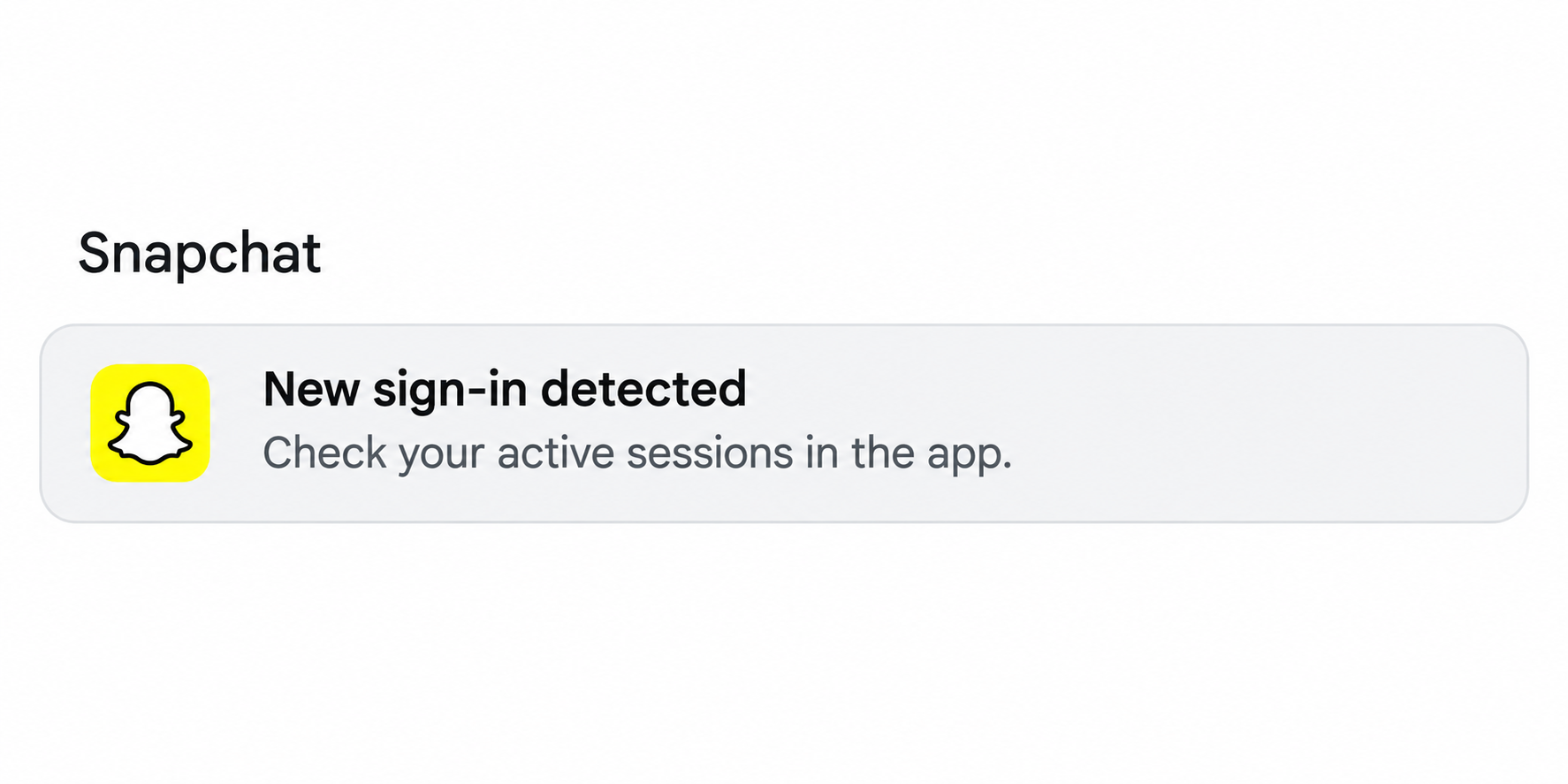
A Snapchat sign-in alert says there was activity on your account. You didn’t open Snapchat on a different device, and now you’re wondering whether someone got in.
Before following anything in the alert, check what it actually reports. A security code, a blocked attempt, and a completed login call for different decisions.
Overview
Read the event before reacting to the notification
Snapchat distinguishes codes it sends for extra verification, attempts it stopped, and notices about successful sign-ins. Those events aren’t equivalent, even when they arrive in the same inbox.
A successful sign-in from a device you don’t recognize deserves immediate attention. A verification code you didn’t request needs action too, but doesn’t by itself show the attempt succeeded.
Use Session Management to check access independently
Your signed-in devices show more about current access than the sender label on a text. Open Snapchat directly and check which phones and browsers are signed in.
The session list doesn’t make every earlier message genuine. It gives you a separate place to look for evidence and remove devices that shouldn’t be connected.
A fake alert tries to pick your recovery route
A spoofed security notice may ask you to sign in on a page it supplies. Don’t make that page the place where you change a password or enter a code.
- Code only: Keep it private, protect your password, and check for unfamiliar sessions.
- Unfamiliar session: Remove it and secure the login and recovery details.
- Lost access: Use official account recovery without paying a stranger to intervene.
- No Snapchat account: Don’t use the alert to sign in or create one.
What Each Snapchat Sign-In Alert Means
Snapchat’s sign-in guidance separates three kinds of messages. The wording matters after you verify the source, because it says how far a login got.
| Verified Snapchat notice | What happened | Priority |
|---|---|---|
| Unrequested login code for your account | Snapchat says your password was used in a new-device attempt that needed further verification | Don’t disclose the code; change the password and review active devices. |
| Attempted Log In | Snapchat blocked a suspicious attempt | Check the account directly and change the password if the attempt wasn’t yours. |
| Just logged in! | A sign-in succeeded on a new device | Remove any unrecognized session and secure the password and recovery settings. |
Apply the table to genuine notices only. An email can copy the wording of a successful login without anyone signing into your account at all.
If you recently switched phones or signed in on the web, check whether the time and device fit that activity. Don’t treat every unfamiliar location as the deciding clue.
A location inferred from the network can be approximate. If the time fits but you can’t identify the browser or device, verify the actual session.
If the event clearly isn’t yours, don’t wait for someone to send another code. Change the exposed password through Snapchat and review devices, contact details, and authentication settings.
If you don’t have a Snapchat account, the platform notes that a person can enter the wrong phone number or email. Ignore requests to pass on the resulting code.
How a Fake Snapchat Sign-In Alert Gets You to the Wrong Place
An alarming notification gives you a reason to act quickly. A message that says someone viewed your account can make a linked recovery page feel like the fastest fix.
The problem is the destination, not just the quality of the email. A fake page can ask for your current credentials while promising to restore your account.
If someone also messages you claiming to be Snapchat support, keep that conversation separate from a real system alert. The person has not proved they can investigate your account.
A friend might forward a message saying someone used your account. Ask them what they saw, but don’t have them send a link or a private code to verify it.
Open your existing Snapchat app without tapping the message. From there, check settings and any active notifications; use Snapchat’s published support guidance if you’re signed out.
The earlier fake Snapchat support text case covers a specific request for codes. An unexpected sign-in alert also calls for checking whether there is an active session.
How to Review and End Snapchat Sessions
A session is an app or browser that’s signed in. Keeping a password in a browser is not the same thing as that browser currently having an active session.
From Snapchat’s settings, look for Session Management. On the official account site, the corresponding session controls are also available after you sign in.
Snapchat’s session guide says to select the X in the app or Log Out on the web beside a device you don’t recognize, then confirm.
Read the device description and compare it with the phones or browsers you use. If you don’t recognize it, record the useful details and remove the session promptly.
Snapchat cautions that a logout may not take effect instantly. Check back after securing your password, and contact support if an unfamiliar session is still there or comes back.
Review the phone number and email attached to your account as well. If someone changed either, the problem isn’t limited to a single signed-in browser.
Look for things you didn’t do: posts, friend additions, changed settings, or messages other people received. An unexplained export notification is also worth bringing to Snapchat support.
Don’t delete useful evidence to tidy up your activity before support sees it. Keep the minimum necessary privately, without recording a code or posting sensitive messages.
Recovery Codes, Passkeys, and Your Private Snaps
Don’t log out of the only trusted session on a device you control before you know which recovery methods are available. It may be your best route to the settings.
After removing unknown access, use Snapchat’s official settings to update the password and check the recovery methods. Secure the email account if you see unauthorized changes there too.
If you’ve set up two-factor authentication, a normal password reset doesn’t necessarily remove the need for a second factor. Check whether you still control your phone or authenticator.
A Snapchat Recovery Code must be created in advance. It is a private way to regain access when your normal second factor isn’t available.
Using it turns off two-factor authentication according to Snapchat’s guide. Once you’re safely back in, review your settings and re-enable the protection if you still want it.
A passkey is an additional way to sign in when available. Review the passkeys already enrolled and remove ones you don’t recognize rather than just adding another.
The My Eyes Only passcode serves a different purpose from the login password. Don’t share it with an apparent representative who says they need it to recover your account.
Resetting a forgotten My Eyes Only passcode deletes Snaps protected by the old passcode. Don’t take that destructive step just because you received an account sign-in alert.
Three Examples of What You Might Find in Snapchat
A blocked attempt arrived while you were offline
Imagine you didn’t use Snapchat that evening and see a blocked-attempt message the next morning. Check Snapchat separately before doing anything with the email itself.
Your review might show only your usual phone. That is reassuring about current sessions, but the service’s blocked-attempt notice still gives you a reason to replace the password.
If that password was used on a different site, change it there as well. Start with any account that could reset your other logins, such as your email.
A successful login follows a recent phone upgrade
Suppose the alert arrived right after you set up a new phone. Look for that session in the app and compare the device and time with what you did.
Snapchat may still list an older phone. If you no longer own it, remove the session so account access isn’t tied to the device you sold.
On the other hand, if you find another browser you can’t explain, don’t assume it’s part of the upgrade. End it and investigate settings and activity changes.
Your friends see messages you didn’t send
An unusual direct message from your account is stronger evidence than somebody claiming to know your username. Ask friends for the time and what they were asked to do.
Warn them through a separate account you control. They should verify any request to pay, disclose a code, or move a conversation somewhere else before trusting it.
Check if your account name or recovery details changed too. Fixing only one public post doesn’t remove an unfamiliar login that can post or message people again.
If You’re Locked Out, Identify Which Recovery Step Failed
Snapchat can lock an account for reasons besides a confirmed takeover. Follow the error shown in the app before interpreting a lock notice somebody sent you.
For a locked Snapchat account, use the official lock guidance. It distinguishes conditions you can handle in the app from ones that require a support route.
If the recovery message goes to an old email or number, tell support which one you no longer control. Make sure the reply can reach you somewhere safe.
If you still have access to the email but notice unfamiliar inbox sessions, secure the mailbox too. A password reset isn’t reliable if someone else can intercept the reset.
If someone enabled a factor you don’t control, don’t trust a helper who promises to bypass it. Tell Snapchat support which recovery setting was changed.
Use the account username and approximate time of lost access when requested through Snapchat. Don’t include private photos or passwords to prove that you are the owner.
When access returns, confirm the phone and email before leaving the app. Otherwise, the next password or device change can put you back in the same recovery problem.
Keep any recovery code in a secure place separate from a social chat. People helping with one alert don’t need a credential that lets them sign in later.
Finally, check whether a passkey appears on a familiar device. If you see one you didn’t enroll, use Snapchat’s passkey controls to remove it and recheck signed-in devices.
What to Do If You Received an Alert or Already Entered a Code
-
If you got only an alert, verify it in Snapchat. Identify whether it refers to an attempt, a code, or a successful login before taking action.
If it refers to an action you recognize, confirm the device and approximate time. Don’t use the alert to sign in again unnecessarily.
-
If you entered a password or shared a code, act promptly. Use the app or the official site to change the password and remove sessions you don’t recognize.
Check recent changes to your email address, phone number, authentication settings, and passkeys. Don’t assume a password change alone proves all unfamiliar sessions have ended.
-
If someone messaged people as you, warn them separately. Tell them which activity you didn’t send and ask them not to pay or disclose codes.
Use a contact route you still control. Sending the warning from an account you haven’t secured can leave the other person with conflicting instructions.
-
If you cannot get in, use Snapchat’s recovery guidance. The compromised account page points to current support. Give them a reachable email address, not your password.
Don’t give a recovery code to someone who asks to log in for you. The purpose of the code is to let you recover access yourself.
-
If the scam moved into money or threats, handle that separately. Contact the payment provider about any charge and use official reporting options for the abusive message.
Keep the sender’s username and contact history in a private record. Don’t send money to an unverified recovery service to get back photos or access.
Frequently Asked Questions
Does an unexpected Snapchat login code mean someone is inside my account?
A genuine code can mean someone reached an extra verification step. Don’t share it; reset the password independently and see whether an unfamiliar session actually exists.
What does a Snapchat attempted login notification mean?
Snapchat uses that wording for a blocked suspicious attempt. It doesn’t mean you should approve a login or follow an unsolicited link to clear the alert.
Is a new sign-in notice different from a login code?
A verified successful sign-in notice concerns a device that got access. Check the session details and remove the session if the browser or device isn’t yours.
Why might I get a code when I don’t use Snapchat?
Someone may have entered your phone number or email by mistake. There’s no need to give them the code or follow a link to explain it.
Can I see saved passwords in Snapchat Session Management?
The screen shows active sessions, not previously saved login credentials. A browser can remember a password even if the session it previously used has ended.
Should I reset My Eyes Only to secure the account?
Account access and My Eyes Only are different. Don’t reset a forgotten private passcode just for a sign-in alert; resetting it deletes the Snaps it protected.
The Bottom Line
Take an unexpected Snapchat sign-in alert seriously, but verify it from the app rather than its link. Check whether the alert describes an attempt or access that actually succeeded.
If a stranger received your password or code, remove unfamiliar sessions, update the login and recovery settings, and contact Snapchat support if you can’t regain control.

Join the discussion
0 commentsShare your experience or ask a question about this article.
Community experiences
Did this happen to you?
Your experience could help someone recognize the same scam. Submit a private report for our team to review.
I experienced this tooReports are reviewed before publication. Sharing publicly is always your choice.
Discussion
Start the conversation
Have a question or something useful to share? Add the first comment.