


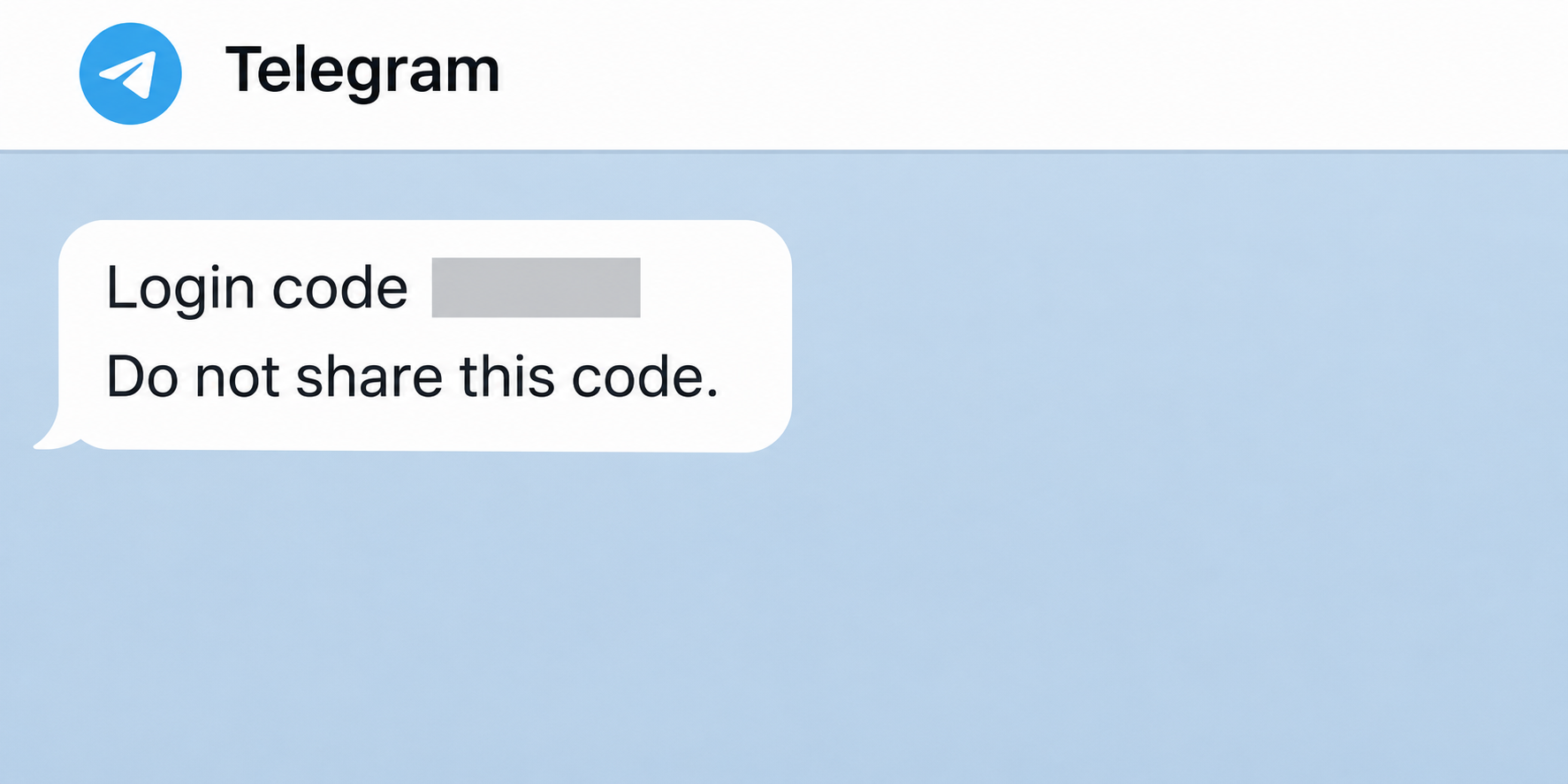
A Telegram login code appears when you weren’t trying to sign in. Around the same time, a familiar contact asks you to help with something in the app.
Before you send a screenshot or touch a code, find out which account it belongs to. The name of the chat carrying it is a useful clue.
Overview
Telegram delivers more than one kind of verification message
Telegram uses its verified service notifications chat for codes for your Telegram account. A separate Verification Codes chat can deliver codes for participating outside services.
The two code types serve different accounts. A third-party code doesn’t show that someone accessed Telegram. Use any code only for the sign-in you intended.
A request for a screenshot can be a request for a code
Singapore police documented cases in which familiar contacts asked people to share screenshots that exposed Telegram login codes. The request didn’t have to mention a password at all.
Don’t use the same Telegram conversation to verify that your friend is in control of their account. Ask them another way before you send anything.
Check a connected device, not just the code message
An unsolicited code is not the same thing as a successful sign-in. Use the device list to look for an unfamiliar active session and terminate it if found.
- Telegram account code: Keep it private and inspect Devices if the attempt wasn’t yours.
- Third-party verification message: Check the named service directly if you use it.
- Request for a screenshot or device approval: Stop until you confirm the purpose independently.
- Unknown active session: Remove it promptly and protect the methods used to sign in.
Telegram Login Code or Verification Codes Chat?
Telegram’s FAQ distinguishes its own account codes from messages it delivers for other services. That difference matters if you’re trying to work out which account is at risk.
| Where you see it | What it can be for | Where to check |
|---|---|---|
| Verified Telegram service chat | Sign-in to your Telegram account | Open Telegram settings and inspect Devices. |
| Verification Codes chat | A login or verification for an outside service | Read the named service and verify through its own account. |
| Message from a regular profile or bot | May be posing as someone who needs your approval | Don’t provide a code, screenshot, or device link. |
| System sign-in notice with unfamiliar device | Possible new authorized session | Compare with the signed-in devices you actually control. |
A code may show up in Telegram rather than as an ordinary text if you’re already signed in elsewhere. Don’t assume every code delivered there came from a scammer.
Likewise, a real code can arrive during a fraudulent conversation. You started no login, but another person may have made an attempt and now needs you to finish it.
Telegram says an unrequested third-party code can result from someone entering the wrong number. You can report that message in the Verification Codes chat without sending the code back.
If the code names a service you use and you also notice account changes there, open that service directly. Managing Telegram sessions cannot sign someone out of another company’s app.
Never test an unrequested code by entering it into a page someone sent. To troubleshoot a login you did start, return to the app or site you opened yourself.
How the Telegram Login Code Scam Works
Step 1: Someone speaks from a profile you recognize
A friend seems to need your help finding a person, recovering a profile, or getting past a verification problem. Their name and conversation history make the question seem ordinary.
In its Telegram impersonation advisory, the Singapore Police Force explains that these requests can come from an account belonging to someone you really know, after that account has been compromised.
This is stronger than copying a photograph. You may be seeing the same contact you’ve messaged before, while the person controlling the session has changed.
Step 2: An ordinary-looking request exposes an authentication secret
In one documented version, the contact asks for a screenshot of Telegram. A login notification can show up while you’re taking the picture, carrying a code you didn’t expect.
Another asks you to verify someone’s account through a bot or link. The action can expose a code belonging to your own account, even though their story is about theirs.
Check the entire image before sharing it with anyone. A notification preview, search result, or service message can disclose information unrelated to the question you were asked.
Step 3: The new session can be used to reach other people
Someone who gets access may send requests in your name, including asking contacts for a loan or repeating the trick. Your existing relationships make those messages more convincing.
If a friend reports an odd message from you, don’t only delete the message. Check for an active session that can send more, and warn contacts from a trusted channel.
A code you kept private isn’t proof that a session was created. A code you gave away is reason to check for access immediately, not wait to see more messages.
A Device-Linking QR Code Is Not a Profile Card
Telegram also has an official QR sign-in for Desktop or Web. The mobile app’s device-linking screen exists to connect a session, not verify that a stranger is a friend.
Telegram’s login interface reference points users to Settings, Devices, and the link-device action when scanning a login QR. Use that only for your own sign-in on a device you control.
A profile QR code has a different purpose. A friend can use it to find you, but that doesn’t make every code sent in a chat safe to scan.
When the app says you’re linking or authorizing a device, stop unless you meant to create that session. Read the confirmation before choosing what to approve.
Merely seeing a QR image in a message doesn’t create a session. If you scanned it and approved a device, open Devices right away to see what was connected.
If all you wanted to do was join a channel or contact support, you shouldn’t be authenticating another computer. Close the request and use the original app’s verified controls.
How to Check Devices Without Losing Your Own Access
Open the Telegram app that’s already signed in on a device you trust. Go to Settings and open Devices, or look for Active Sessions under Privacy and Security.
Compare recent sessions with the phones, desktops, and browser tabs you actually use. A different location may reflect network routing, so check the client and approximate time as well.
End a session you don’t recognize and confirm that it disappears. If several are unknown, use the option to terminate other sessions if available from your trusted device.
Don’t log out of the only working session if you’re unsure whether you still control the recovery number. Keep the route you can use to secure the account.
Under Privacy and Security, check Two-Step Verification. Set a strong separate password if it isn’t enabled and verify that any recovery email belongs to you.
A passkey can add another way to sign in, but it doesn’t remove every existing session. Review what is connected as well as how new sign-ins are protected.
If another person controls the SIM or the number is no longer yours, coordinate with your operator. A device list cannot restore control of the phone subscription.
An account open on another device may still offer a route to secure it. If you have neither the number nor a connected device, Telegram’s recovery options may be limited.
What the Same Request Looks Like in Three Different Chats
Your friend asks for a search screenshot
Suppose the person says they cannot find a particular profile and asks you to search for it. You see a service notification appear while looking for the name.
Don’t send the screenshot to explain what happened. Call your friend using a number you already have, and leave the service notice inside the app.
If your friend says they didn’t ask, tell them to check their own sessions. Your screenshot won’t establish who took over their account, and it may expose yours.
A third-party verification code appears without any request
Open the Verification Codes chat and read the service name without interacting with the code. A sign-in involving an online marketplace can be unrelated to your Telegram credentials.
If you use that marketplace, open its app and check for account activity you don’t recognize. If you don’t use it, don’t sign up just to explain a stray code.
Keep codes for different services separate when you report the incident. Changing the Telegram password wouldn’t revoke a valid session in the marketplace account.
A trusted group links to an unfamiliar device approval
People in a group may repost a link they haven’t verified. Membership in a legitimate group doesn’t make a request to authorize a new device part of Telegram’s moderation process.
If the request promises a membership or vote, look for a way to complete it without linking a client. Don’t create access to your messages as proof you can participate.
If the session is already present, end it before arguing about the link. Then flag the message to the group’s real administrators so they can warn the other members.
Check What Changed Before You Treat the Account as Recovered
Review new messages, groups you didn’t join, and changes to your profile or recovery information. An unauthorized session may have left signs outside the particular chat that exposed the problem.
If you manage a group or channel, ask another trusted administrator to check recent changes. An account takeover can be a problem for the community as well as your inbox.
Don’t assume that terminating a device retrieves conversations the person may already have seen. Focus on stopping further access and helping people who were contacted.
For the different transport-voucher pretext, see the public transport voucher case. The Singapore police’s screenshot advisory describes a separate approach using the identity of someone you know.
Report a forged support profile or malicious message in the app where that option is available. You don’t need to reopen the original destination to report its pretext.
Keep the order of recovery clear: find the trusted session, remove the unauthorized device, then check the number and security settings that govern future sign-ins.
What to Do If Someone Asked for Your Code or Gained Access
-
If you received a code you didn’t request, keep it private. Check which service it belongs to, and don’t send screenshots that can expose it.
-
Verify your contact outside their Telegram account. Use a separate number or channel you already trust. Let them know the request came from their profile.
-
If you sent a code or approved a device, inspect Devices immediately. Remove unfamiliar sessions, then review your two-step password, recovery email, and number.
Keep a record of useful access notices without copying the code itself. If the unauthorized session keeps returning, check every account or device involved in recovery.
-
If access is lost, start with the recovery method you still control. Use a trusted session or contact your carrier if the mobile number no longer works.
Use Telegram’s official support form for account access problems. Don’t pay a stranger who promises to recover Telegram with a code or another device link.
-
If the account sent messages as you, notify people separately. Prioritize contacts asked for payment or credentials and tell them not to continue the conversation.
If money moved, report it to the payment provider as a separate issue. Regaining Telegram access won’t by itself reverse a payment someone made.
Frequently Asked Questions
Does an unexpected Telegram code mean my account was hacked?
A code doesn’t show that anyone completed sign-in. Keep the code private and check the active devices for evidence that a login actually succeeded.
Is Telegram’s Verification Codes chat for Telegram sign-ins?
Telegram says that chat carries codes for outside services. Its own login codes arrive through the verified Telegram service notifications chat, or another supported verification method.
Can I send a screenshot if I don’t copy the code?
A screenshot can show a code even if you didn’t type it. Don’t send your chat list, message previews, or security notices as proof of identity.
Should I scan a QR code sent by someone who needs help?
Don’t use Link Desktop Device to help someone else’s account. That feature grants a session access to your Telegram account rather than restoring theirs.
Will adding a two-step password end an unknown session?
Use the device controls to remove unfamiliar sessions directly. Two-Step Verification protects the sign-in process; it isn’t the same operation as terminating a connected client.
What if the message came from my real friend’s account?
The profile can belong to your friend while someone else controls it. Verify through a different channel, and never pass along a code to prove you’re helping.
The Bottom Line
Don’t share a Telegram login code, even inside a picture. Check whether the request concerns Telegram or another service, then verify the sender through a separate route.
If you shared a code or linked a device, inspect active sessions immediately and revoke unfamiliar ones. Protect your sign-in methods and warn anyone contacted from your account.

Join the discussion
0 commentsShare your experience or ask a question about this article.
Community experiences
Did this happen to you?
Your experience could help someone recognize the same scam. Submit a private report for our team to review.
I experienced this tooReports are reviewed before publication. Sharing publicly is always your choice.
Discussion
Start the conversation
Have a question or something useful to share? Add the first comment.