

A payment account that suddenly stops sending payouts can disrupt an entire working day. That possibility makes an unexpected confirmation request difficult to ignore.
The message may look like routine maintenance, yet its vague explanation deserves a closer look before any button is opened or password is entered.
Overview
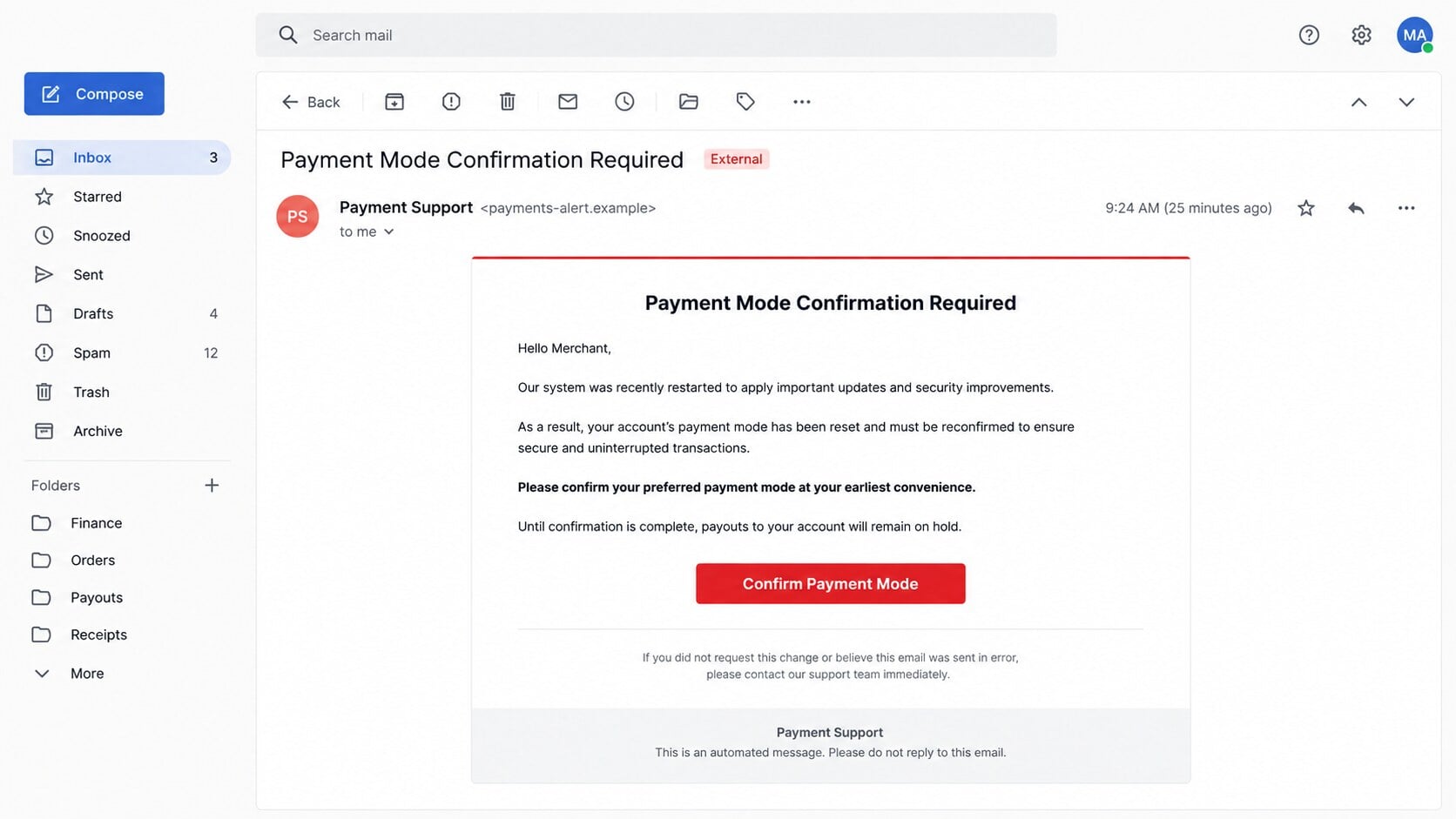
The email invents a Payment Mode problem
The SumUp Payment Mode Confirmation email impersonates SumUp, a legitimate payment provider used by merchants and independent businesses.
It claims a recent system restart reset the recipient’s payment settings. Payouts supposedly cannot continue until the account owner confirms a preferred mode.
That explanation sounds technical, but it never identifies the affected store, payment method, payout reference, or genuine service incident.
The button leads away from the real merchant account
A prominent confirmation button directs the recipient to a website controlled by the sender, not the established SumUp account dashboard.
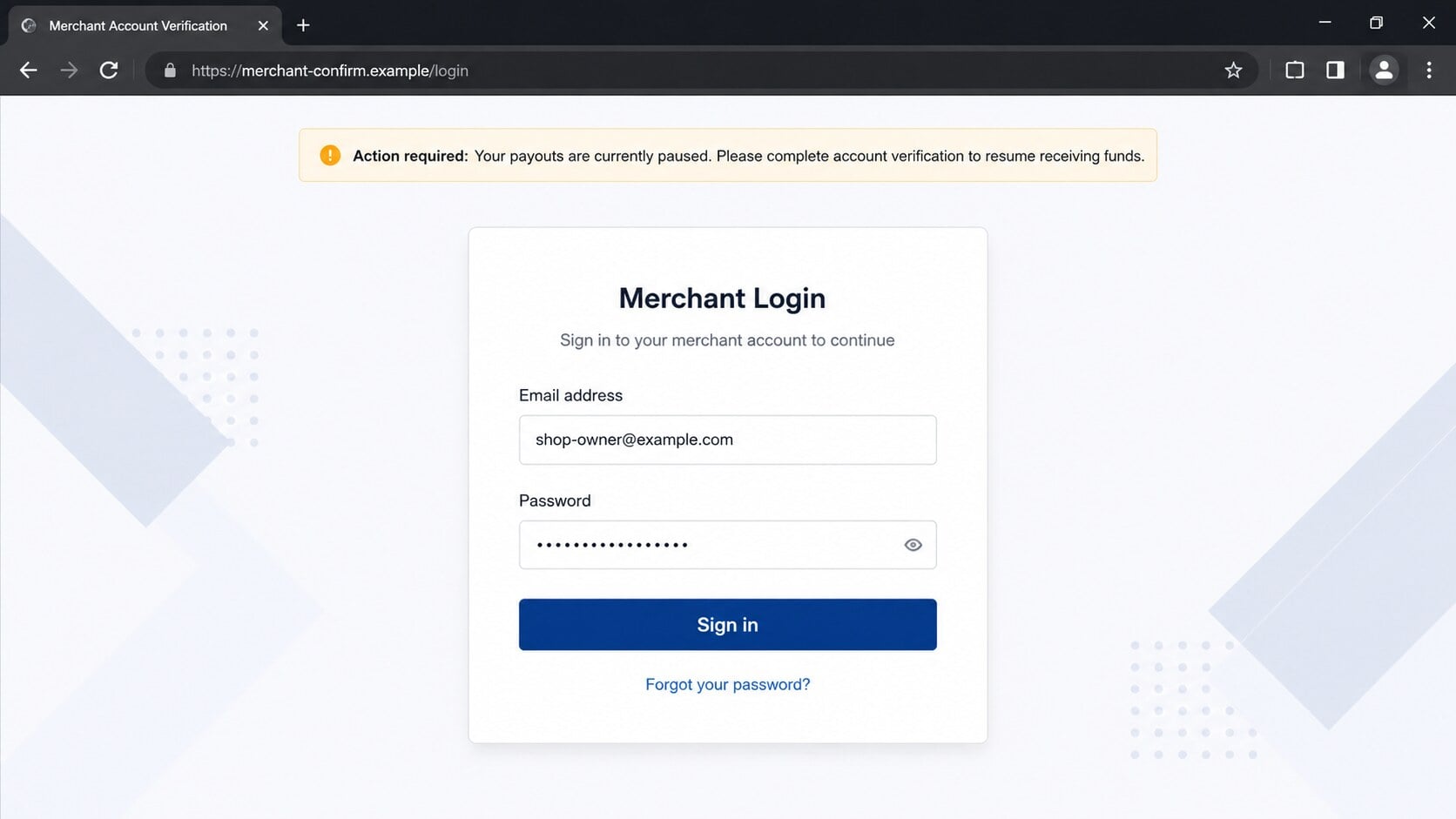
The destination presents a merchant login form and asks for an email address and password. Those details are transmitted to the phishing operator.
Entering information does not restore payouts because no legitimate payment setting was lost. The supposed system restart exists only inside the lure.
SumUp is being impersonated, not accused
SumUp provides real payment services and is not responsible for this campaign. Criminals borrow recognizable branding because merchants already trust the name.
The danger comes from the unsolicited email and counterfeit destination. A real brand name inside a message does not authenticate its sender.
The clearest warning signs are visible when the story, link, and genuine dashboard are compared:
- The notice gives no merchant name, store identifier, or payout number.
- A mysterious system restart supposedly changed a sensitive account preference.
- The recipient must use an embedded button to prevent payout disruption.
- The landing page requests credentials before showing any account evidence.
- The destination address does not belong to the official payment provider.
Why This Message Feels Urgent to a Merchant
Delayed payouts can become an immediate business problem
Small businesses often depend on predictable settlements for inventory, wages, rent, postage, and supplier invoices.
A warning about paused payouts therefore carries more weight than a generic account notice. It appears to threaten normal cash flow rather than convenience.
The scammer does not need to prove any loss occurred. The possibility of tomorrow’s deposit failing may be enough to trigger a hurried click.
The phrase “Payment Mode” sounds important but remains undefined
The email never clearly explains whether Payment Mode means a bank destination, card setting, settlement schedule, or checkout option.
That ambiguity is useful to criminals. Each recipient can interpret the phrase according to whichever merchant function matters most to them.
A legitimate service notice should identify the exact setting, explain why it changed, and provide verification inside the authenticated account.
A maintenance story makes the request appear ordinary
Software platforms do restart systems and deploy updates. The email borrows that familiar background to make an unexplained reset seem plausible.
However, responsible payment platforms do not casually erase payout preferences and then demand passwords through links sent by an unknown address.
The story avoids testable details such as an incident number, affected region, maintenance window, or dashboard notification.
How the SumUp Payment Mode Confirmation Scam Works
Step 1: Criminals target addresses that may belong to merchants
Email addresses can come from business directories, leaked databases, storefront contact pages, social profiles, or earlier phishing campaigns.
The operator does not need to know whether every recipient uses SumUp. Bulk delivery makes a small number of accurate guesses worthwhile.
A business-style address may receive a more tailored version mentioning payouts, payment terminals, invoices, or account verification.
Step 2: The email announces a fabricated system restart
The message says an internal restart affected Payment Mode settings and that confirmation is now required.
No credible technical explanation connects a restart with the loss of a merchant’s payout configuration. The phrase merely gives the warning a cause.
The message may use a generic greeting because the sender lacks the account holder’s verified business details.
Step 3: A payout pause creates pressure to respond
The recipient is told payments or settlements cannot resume until confirmation is completed.
This is a carefully chosen consequence. Merchants may tolerate a newsletter problem, but they cannot easily ignore money allegedly being withheld.
The warning encourages immediate action before the recipient checks the real dashboard or asks another account administrator.
Busy trading hours make that pressure stronger because every minute feels connected to another delayed sale.
That emotional calculation is intentional, even though the message provides no evidence that a single payout has stopped.
Step 4: The confirmation button opens an imitation login page
The embedded link points to an unrelated domain that displays a polished merchant sign-in form.
Some pages copy colors, wording, and layout associated with a payment platform. Others use generic finance branding that still feels familiar.
A padlock in the browser only means the connection is encrypted. It does not prove the site belongs to SumUp or another trusted company.
Step 5: The form captures the merchant’s credentials
The page asks for the account email and password, sometimes pre-filling the address taken from the phishing link.
When the victim submits the form, the information is sent to the attacker or stored in a remote collection panel.
The page may display an error and request the password again. This can help the operator capture a corrected password after an initial typo.
Step 6: A second screen may request a security code
More advanced kits relay credentials to the genuine service while the victim remains on the counterfeit page.
If the real account requests a one-time code, the fake page can immediately ask the victim to enter that code as confirmation.
This real-time relay may bypass basic two-factor protection. A verification code should never be entered on a page reached through an unexpected email.
Step 7: Stolen access is used against the business
Attackers may inspect transactions, personal details, linked bank information, invoices, customer records, and account recovery options.
They may attempt to change payout details, create unauthorized payment links, impersonate the merchant, or use reused credentials on other services.
Even an unsuccessful payout change can create disruption, support disputes, and temporary account restrictions while the legitimate owner recovers access.
What Criminals May Do With a Compromised Merchant Account
They can study the business before attempting fraud
A merchant dashboard may reveal business names, transaction patterns, customer references, settlement schedules, and staff contact information.
That context helps criminals craft convincing follow-up messages. An attacker can mention recent activity rather than relying on a generic story.
Collected information may also be sold or combined with data from earlier breaches.
Payout settings are a particularly valuable target
If the account permits changes to settlement details, an intruder may try adding or replacing a bank destination.
Payment services normally apply checks to sensitive changes, but criminals may exploit stolen sessions, compromised email accounts, or persuasive support impersonation.
Reviewing payout details quickly matters because a pending modification may be easier to stop than a completed transfer.
Connected email accounts can widen the incident
Many merchants reuse passwords or keep payment emails accessible through the same compromised mailbox.
An intruder who controls that mailbox can intercept alerts, reset passwords, delete warnings, and impersonate the owner when contacting employees.
Recovery must therefore cover every account sharing the exposed password, not only the payment portal named in the lure.
Sender, Dashboard, Link, and Payout Checks
Examine the complete sender address
A display name such as “SumUp Team” can be typed by anyone. Expand the sender details and inspect the address after the @ symbol.
Look for substitutions, extra words, unusual subdomains, or an unrelated mail service. A familiar logo cannot repair an untrusted sender domain.
Authentication indicators may help an administrator investigate, but ordinary recipients should not treat polished formatting as proof.
Open the genuine dashboard independently
Use the official app, a saved bookmark, or an address typed manually. Do not reach the account through the message’s button.
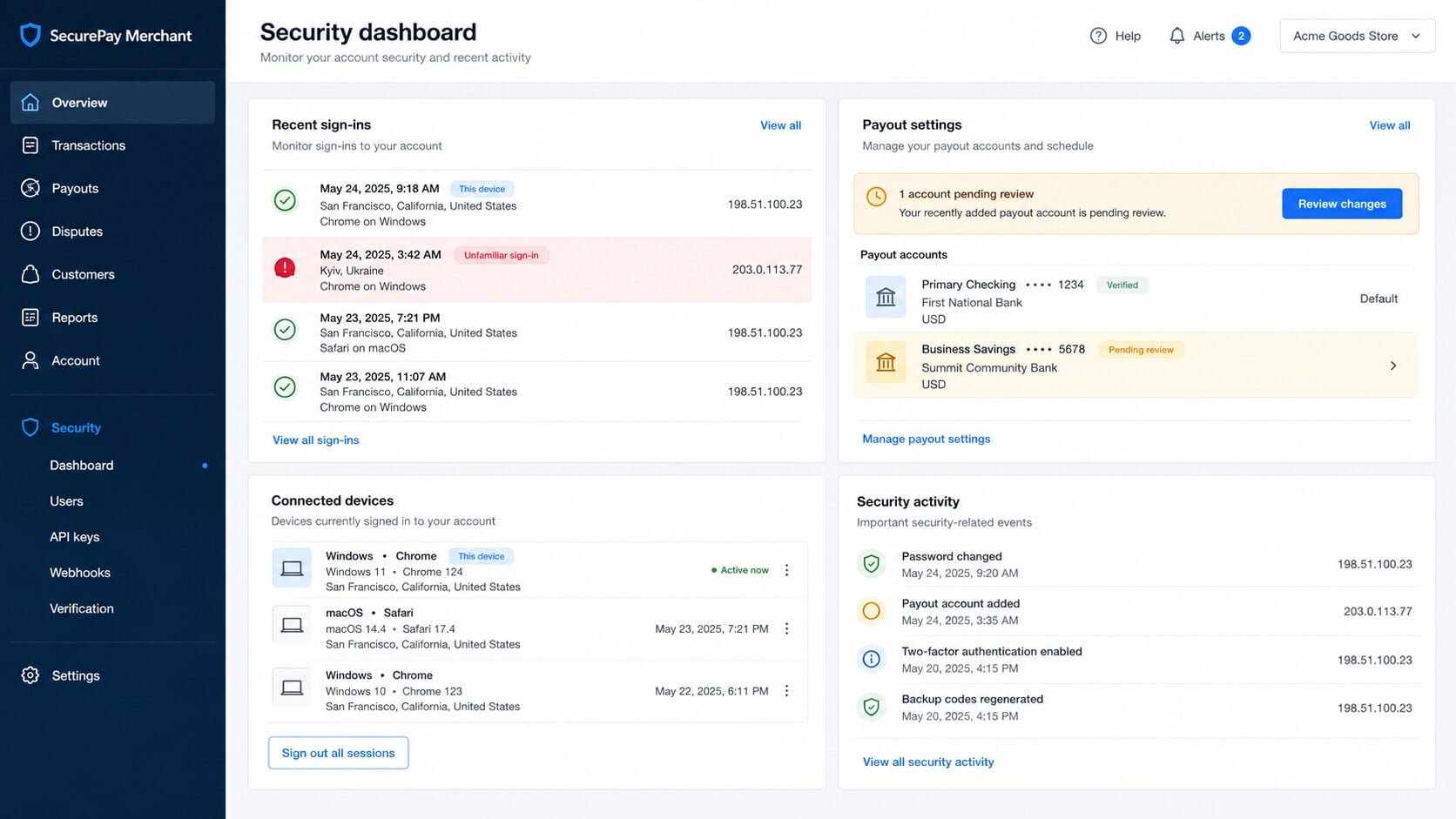
Check notifications, payouts, bank details, and account settings. A genuine restriction should be visible inside the authenticated service.
If the dashboard shows normal operation, the email’s central claim has failed a direct verification test.
Inspect the link without visiting it
On a computer, hover over the button and compare the destination with the provider’s known domain. On mobile, avoid long-pressing suspicious links.
Shortened addresses, free hosting, random paths, and lookalike spelling are strong warnings. The meaningful part of a URL appears before its first slash.
Do not be distracted by a trusted brand name placed later in the path. Attackers can put almost any words after their own domain.
Confirm payout information through trusted support
Review the receiving bank account, settlement schedule, pending changes, and recent transfers from inside the real dashboard.
If anything looks unfamiliar, contact SumUp using support options obtained from its official application or website, not from the suspicious email.
Ask whether any setting changed, whether new sessions appeared, and whether the account requires additional protection or temporary payout controls.
Red Flags Inside the Payment Mode Confirmation Email
The notice withholds basic account details
A real financial notification normally connects the issue to an identifiable account, business, transaction, or setting.
This lure relies on broad language that can be delivered to thousands of unrelated recipients without modification.
The missing specifics are not a minor writing flaw. They prevent the recipient from checking the claim without following the attacker’s chosen path.
The cause and requested remedy do not fit together
A system restart should not require a merchant to surrender credentials on a separate website.
If maintenance genuinely affected service, the provider could explain the incident publicly and display instructions after a normal sign-in.
The email instead turns an internal technical event into a personal authentication emergency, which is exactly what the phishing operator needs.
The message makes the button feel like the only route
There may be no case number, trusted support path, dashboard menu, or alternative verification method.
That closed route discourages independent checking. It keeps the recipient inside a journey designed and monitored by the attacker.
A legitimate provider benefits when customers verify sensitive requests safely. A scammer benefits when they do not leave the email.
What to Do if You Have Fallen Victim to This Scam
- Stop interacting with the page. Close it without submitting more information. Do not download files, call numbers shown there, or approve further prompts.
- Change the merchant-account password safely. Open the genuine SumUp app or official website independently, choose a unique password, and sign out unfamiliar sessions.
- Secure the connected email account. Change its password, review forwarding rules and recovery details, remove unknown applications, and enable strong two-factor authentication.
- Review payout and business settings. Check bank destinations, recent transfers, staff users, payment links, API access, devices, and profile changes for anything unauthorized.
- Contact official support immediately. Explain what was entered and when. Ask support to protect the account, inspect sensitive changes, and stop pending transfers.
- Call the bank if money or card data was exposed. Use the number on a statement or card, describe the phishing incident, and dispute unauthorized activity promptly.
- Check the device for additional threats. Run a full Malwarebytes scan, remove unfamiliar downloads or extensions, and use AdGuard to reduce exposure to malicious advertising and redirects.
- Warn affected colleagues and preserve evidence. Save the email, sender address, timestamps, and destination URL. Tell other account administrators not to approve unexpected requests.
Is Your Device Infected? Run a Free Malware Scan
Slow performance, constant pop-ups, or strange behavior? These are classic signs of a malware infection. The fastest way to find out is to scan your device with Malwarebytes Free — one of the most trusted malware removal tools available.
The free version detects and removes the most common threats, including:
- Adware — the cause of those annoying pop-ups
- Browser hijackers — unwanted redirects and changed homepages
- Trojans and spyware — hidden programs stealing your data
- Potentially unwanted programs (PUPs) — software you never asked for
👉 Select your device below — Windows, Mac, or Android — then follow the simple steps to download Malwarebytes, scan your system, and remove any threats it finds. The scan usually takes 5 to 20 minutes.
Run a Malware Scan with Malwarebytes for Windows
Malwarebytes is one of the most popular and trusted anti-malware tools for Windows — and it’s completely free for removing infections. It catches threats that many antivirus programs miss, including adware, browser hijackers, and trojans. Follow the steps below to scan and clean your PC in just a few minutes.
Download Malwarebytes
Click the button below to download the latest version of Malwarebytes for Windows from the official source. The free version is all you need — it will scan your computer and remove adware, browser hijackers, and other malicious software at no cost.
Download MalwarebytesOfficial installer for Windows 11 and 10. Your download starts right away.Want real-time protection? See Malwarebytes Premium Malwarebytes Free for WindowsScans and removes malware at no cost
-
Install Malwarebytes
When the download finishes, open your Downloads folder and double-click the MBSetup file. If Windows shows a User Account Control pop-up, click “Yes” to allow the installation.

Follow the On-Screen Prompts to Install Malwarebytes
The setup wizard will walk you through a few quick screens:
-
Choose where you’re installing the program — “Personal Computer” or “Work Computer” — then click Next.

-
Malwarebytes will now install on your device. This usually takes under a minute.

-
When installation is complete, the “Welcome to Malwarebytes” screen will open automatically.

-
On the final screen, click Open Malwarebytes to launch the program.

-
Enable “Scan for Rootkits”
Before scanning, turn on rootkit detection so Malwarebytes can find even the most hidden threats. Click the Settings gear icon on the left side of the screen.

In the settings menu, find “Scan for rootkits” and click the toggle so it turns blue.

Done? Click “Dashboard” in the left pane to return to the main screen.
Start the Scan
Click the blue Scan button. Malwarebytes will automatically update its virus database and start checking your computer for malware.

-
Wait for the Scan to Finish
The scan checks your entire system for browser hijackers and other malicious programs, so it can take 5 to 20 minutes depending on your computer. Feel free to do something else — just check back occasionally to see the progress.

-
Quarantine the Detected Threats
When the scan is done, you’ll see a list of everything Malwarebytes found — malware, adware, and potentially unwanted programs. Click the “Quarantine” button to remove all of them at once.

Malwarebytes will now remove the malicious files and registry entries and move them safely into quarantine.

-
Restart Your Computer
Some threats can only be fully removed after a reboot. If Malwarebytes asks you to restart, click Yes. Once you’re logged back in, Malwarebytes has finished removing the threats it found.

That’s it — your Windows PC is now clean of trojans, adware, and other malware, and should be back to running smoothly.
If you are still having problems with your computer after completing these instructions, then please follow one of the steps:
- Run a computer scan with ESET Online Scanner
- Ask for help in our Windows Malware Removal Help & Support forum.
Run a Malware Scan with Malwarebytes for Mac
Malwarebytes for Mac is a free on-demand scanner that removes the malware other security software tends to miss — adware, browser hijackers, and unwanted programs included. Cleaning an infected Mac with Malwarebytes has always been completely free, and it’s our go-to recommendation. Follow the steps below to scan and clean your Mac in just a few minutes.
-
Download Malwarebytes for Mac
Click the button below to download the latest version of Malwarebytes for Mac.
Download MalwarebytesOfficial installer for macOS. Your download starts right away.Want real-time protection? See Malwarebytes PremiumMalwarebytes Free for MacScans and removes malware at no cost -
Open the Malwarebytes setup file
When the download finishes, open your Downloads folder and double-click the setup file to begin the installation.

-
Follow the On-Screen Prompts to Install Malwarebytes
The Malwarebytes for Mac Installer will guide you through a few quick screens. Click “Continue” and keep following the prompts until the installation completes.



When the installation is complete, Malwarebytes opens to the Welcome to Malwarebytes screen. Click “Get started“.
-
Select “Personal Computer” or “Work Computer”
Malwarebytes will ask what type of computer you’re installing it on. Click either Personal Computer or Work Computer, whichever applies.

-
Start the Scan
Click the “Scan” button. Malwarebytes will automatically update its detection database and begin checking your Mac for malware.

-
Wait for the Scan to Finish
Malwarebytes will scan your Mac for adware, browser hijackers, and other malicious programs. This can take a few minutes, so feel free to do something else — just check back occasionally to see the progress.

-
Quarantine the Detected Threats
When the scan is done, you’ll see a list of everything Malwarebytes found. Click the “Quarantine” button to remove all the threats at once.

-
Restart Your Mac
Malwarebytes will now remove all the malicious files it found. Some threats can only be fully removed after a reboot — if Malwarebytes asks you to restart, allow it. Once you’re logged back in, your Mac is clean.

That’s it — your Mac is now free of adware, rogue browser extensions, and other potentially harmful software.
If you are still experiencing problems while trying to remove a malicious program from your computer, please ask for help in our Mac Malware Removal Help & Support forum.
Run a Malware Scan with Malwarebytes for Android
Malwarebytes for Android automatically detects and removes dangerous threats like malware and ransomware so you don’t have to worry about your most-used device being compromised. Aggressive detection of adware and potentially unwanted programs keeps your Android phone or tablet running smooth.
-
Download Malwarebytes for Android.
You can download Malwarebytes for Android by clicking the link below.
Get Malwarebytes for AndroidOpens Google Play in a new tab.Want real-time protection? See Malwarebytes Premium for AndroidMalwarebytes for AndroidScans your phone and removes malware at no cost -
Install Malwarebytes for Android on your phone.
In the Google Play Store, tap “Install” to install Malwarebytes for Android on your device.

When the installation process has finished, tap “Open” to begin using Malwarebytes for Android. You can also open Malwarebytes by tapping on its icon in your phone menu or home screen.

-
Follow the on-screen prompts to complete the setup process
When Malwarebytes will open, you will see the Malwarebytes Setup Wizard which will guide you through a series of permissions and other setup options.
This is the first of two screens that explain the difference between the Premium and Free versions. Swipe this screen to continue.
Tap on “Got it” to proceed to the next step.
Malwarebytes for Android will now ask for a set of permissions that are required to scan your device and protect it from malware. Tap on “Give permission” to continue.
Tap on “Allow” to permit Malwarebytes to access the files on your phone.
-
Update database and run a scan with Malwarebytes for Android
You will now be prompted to update the Malwarebytes database and run a full system scan.

Click on “Update database” to update the Malwarebytes for Android definitions to the latest version, then click on “Run full scan” to perform a system scan.

-
Wait for the Malwarebytes scan to complete.
Malwarebytes will now start scanning your phone for adware and other malicious apps. This process can take a few minutes, so we suggest you do something else and periodically check on the status of the scan to see when it is finished.

-
Click on “Remove Selected”.
When the scan has been completed, you will be presented with a screen showing the malware infections that Malwarebytes for Android has detected. To remove the malicious apps that Malwarebytes has found, tap on the “Remove Selected” button.

-
Restart your phone.
Malwarebytes for Android will now remove all the malicious apps that it has found. To complete the malware removal process, Malwarebytes may ask you to restart your device.
That’s it — your Android phone is now clean — no more malicious apps, adware, or browser redirects.
If you are still having problems with your phone after completing these instructions, then please follow one of the steps:
- Restore your phone to factory settings by going to Settings > General management > Reset > Factory data reset.
- Ask for help in our Mobile Malware Removal Help & Support forum.
Stay Protected: Block Ads and Malicious Sites
Now that your device is clean, keep it that way. Most infections start with a malicious ad or a fake download button — so blocking them at the source is your best defense.
We recommend AdGuard, which blocks malicious ads, phishing pages, and dangerous redirects before they can reach you.
👉 Download AdGuard and browse safely
Frequently Asked Questions
Is the SumUp Payment Mode Confirmation email genuine?
The campaign described here is not genuine. It uses a system-restart story and a counterfeit sign-in page to collect merchant credentials.
Verify any real account issue from the official app or dashboard rather than the message’s button.
Does this mean SumUp itself is a scam?
No. SumUp is a legitimate payment provider being impersonated by unrelated criminals.
Brand impersonation works because recipients recognize and trust the real company. The fraudulent sender does not represent that company.
Would a system restart reset my Payment Mode?
The email provides no credible reason why routine maintenance would erase a merchant’s sensitive configuration.
If a genuine incident affected settings, evidence should appear inside the official dashboard and through verified service communications.
What if I clicked but entered nothing?
Closing the page is usually enough when nothing was downloaded, installed, or submitted.
Still review browser downloads, run a security scan, and watch the account for unusual alerts because the site may record visits.
What if I entered my password but have two-factor authentication?
Change the password immediately. Two-factor protection helps, but real-time phishing pages may also request and relay verification codes.
Sign out all sessions, review recovery settings, and contact official support if any unknown access or change appears.
Can the sender steal money with only my login?
The outcome depends on account controls, but stolen access can expose sensitive data and support attempts to alter payouts or impersonate the business.
Treat the incident urgently even when no transfer is visible. Early reporting can stop pending changes and preserve account evidence.
The Bottom Line
The SumUp Payment Mode Confirmation scam turns a fictional system restart into a threat against merchant payouts, then directs recipients to a credential-stealing login page.
Ignore the embedded button, inspect the real dashboard independently, and secure every connected account quickly if information was entered.

Join the discussion
0 commentsShare your experience or ask a question about this article.
Discussion
Start the conversation
Have a question or something useful to share? Add the first comment.