

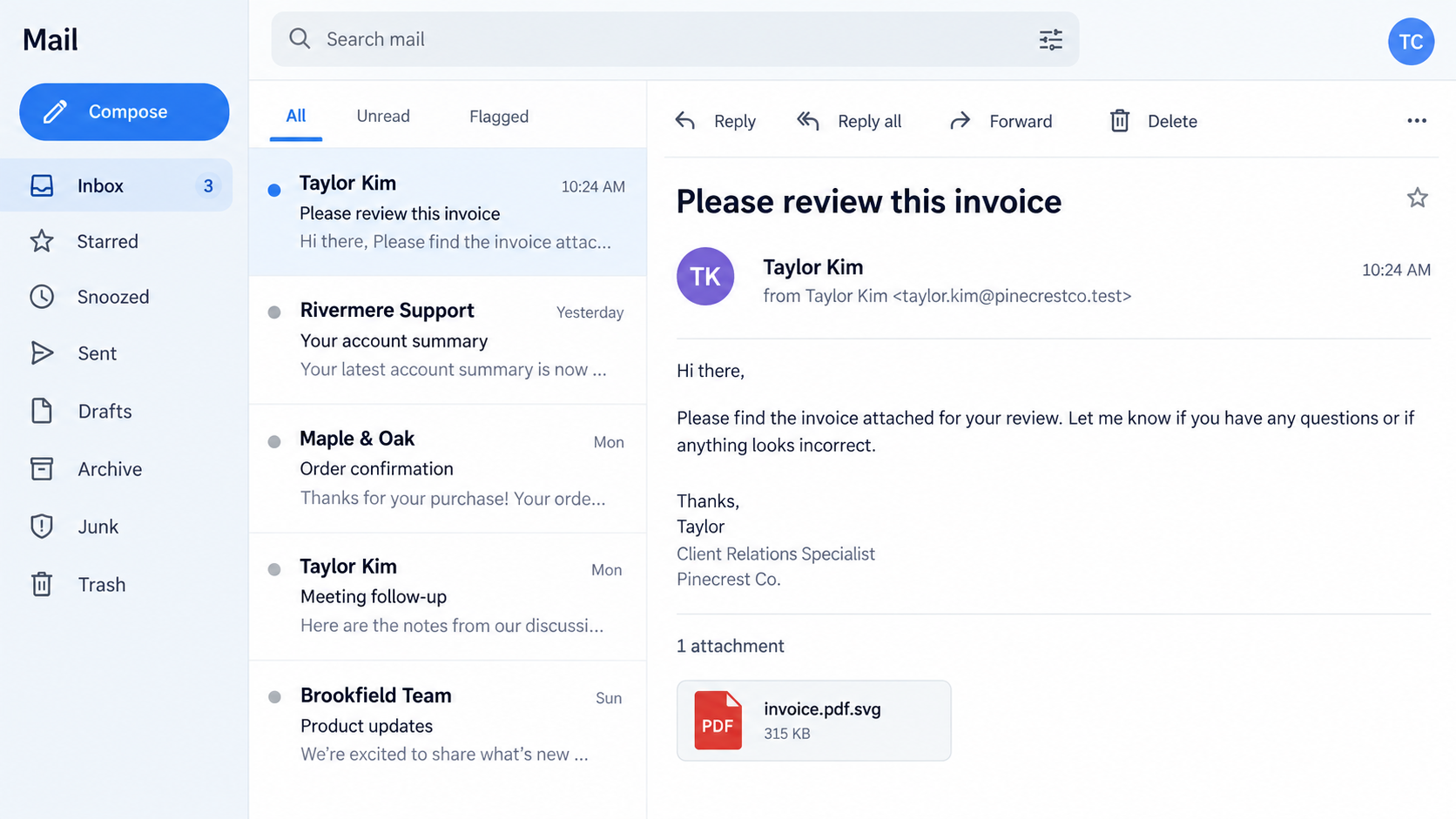
An invoice arrives as an attachment that looks like an image. Its filename ends in .svg, so it may seem safer than an executable program.
That assumption is exactly what the sender may be counting on. The important clues appear in the email, the file’s behavior, and the page it opens.
Overview
What the .svg file scam is
An SVG is a vector image format, but its contents are text-based. Attackers can abuse that flexibility to make an attachment open a deceptive page or perform unwanted browser actions.
In scam emails, the file may masquerade as an invoice, a voicemail transcript, or a document to review. The final goal is often credential theft or malware delivery.
The file type itself is not the verdict. Millions of ordinary SVG icons are harmless. The warning concerns an unexpected attachment used as part of a deceptive message.
What researchers have observed
Security researchers have documented SVG attachments redirecting readers to fake sign-in pages. Some campaigns have used additional downloads that can lead to malware.
A recent voicemail-themed campaign showed how a familiar workplace notification could hide an SVG redirect to a credential-harvesting page.
- The message creates a reason to open an attachment.
- The filename may disguise its true extension, such as
invoice.pdf.svg. - The file can open in a browser, not a document viewer.
- A later sign-in page or download asks for the action that causes harm.
The immediate safety rule
Do not open an unsolicited SVG just because it looks like an image. Confirm the sender through a channel you already trust.
If you opened one, do not panic. Your next steps depend on whether you entered credentials, downloaded another file, or ran software.
Simply receiving the email is not the same as infection. The scam needs another action to reach its intended result.
Why an Image Attachment Can Be Dangerous
Most people expect images to display pixels and stop there. SVG is different because it describes shapes and text in a format browsers can interpret.
That feature makes SVG useful for sharp icons and scalable graphics. It also gives attackers room to embed links, scripts, or other active content in some contexts.
The precise behavior depends on the file and how it is opened. Not every SVG executes anything, and a modern browser may block some harmful behavior.
That nuance matters. The risk is an attacker-controlled file arriving with a social-engineering story, not a claim that every designer’s SVG is unsafe.
A filename such as invoice.pdf.svg is a practical clue. The real extension is the final .svg, even if a PDF icon or earlier text suggests otherwise.
Operating systems can hide known extensions. That setting can make a double-extension file look like an ordinary invoice with a familiar name.
Another lure uses a voicemail recording theme. Workers open it because missed calls can be urgent, and the email may appear to come from an internal system.
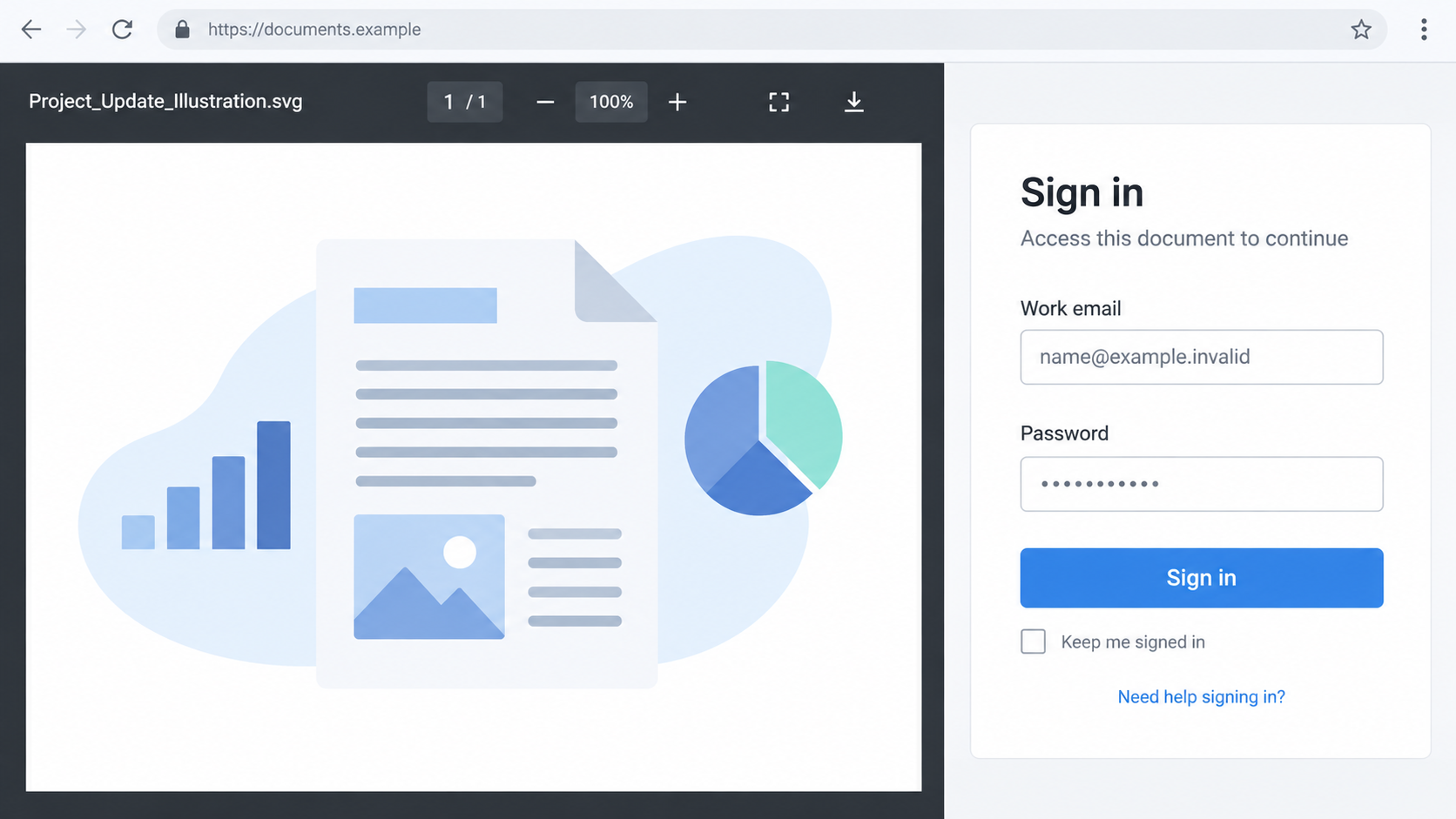
Check Point documented a campaign in which an SVG attachment redirected recipients to a fake work sign-in page. The email address was prefilled to make the page feel familiar.
How the SVG File Scam Works
Step 1: The email gives the attachment a job
The sender claims there is an invoice to approve, a voicemail to hear, or a shared file to read. The story gives you a reason to open the attachment.
It might arrive during a busy day when opening invoices and files is routine. A generic greeting or thin explanation may go unnoticed.
Some emails spoof a coworker’s address or your organization’s domain. A familiar display name is not proof that the attachment came from that person.
The sender may also use a reply thread or a realistic signature. None of those details establishes that the file is safe.
Before opening, compare the request with your normal workflow. Did you expect this invoice, file type, and sender today?
Step 2: The filename hides the actual format
A file named payment.pdf.svg is still an SVG. The apparent PDF reference is part of the name, not its true type.
Attackers choose familiar words because a PDF invoice would be unsurprising. A browser or mail preview may show an icon that adds to the confusion.
Check the full filename when your mail client permits it. A last extension you did not expect is a reason to stop.
Do not rename the file to .pdf and try again. Changing a name does not convert the content or make it trustworthy.
If the supposed sender is a vendor you know, ask them through an existing phone number or secure portal to send the document again.
Step 3: The SVG opens in a browser
On many systems, an SVG may open in a web browser. The browser then interprets the content instead of treating it as a static photo.
A malicious file may show a fake document-loading screen, a button, or a sign-in form. Other samples can redirect to an external page.
Do not assume a smooth-looking preview proves the document is genuine. The apparent preview may be the attacker’s interface.
Some campaigns embed the next-stage address inside the file, so the original email may not show an obvious clickable link.
This is why “I didn’t click a link in the email” does not rule out phishing. The attachment itself may carry the redirect.
Step 4: The next page requests credentials or a download
The fake page may say you need to sign in with a work account to view the invoice or transcript. A familiar email address can already be filled in.
That personalized field is not authentication. The attacker may have taken your address from the email recipient list or encoded it in the link.
If you type your password, the page may record it before showing an error. Repeated attempts can reveal several passwords to the operator.
Other campaigns request a ZIP or installer download. Opening the SVG does not mean that later software is safe.
Do not run a downloaded file to “finish” viewing a document. Close the page and verify the original request through your organization’s normal channel.
Step 5: The attacker uses what you provided
Stolen work credentials can be used to access email, shared files, or other services if additional protections do not stop the login.
An attacker with mailbox access might search for invoices or reset other accounts. That can turn a single phishing incident into a wider business problem.
If a malicious program was installed, the impact depends on the specific software. Some samples steal information or allow remote access.
It is inaccurate to say every SVG infection has the same payload. Incident response should follow the actions and alerts seen on the actual device.
The sooner you tell your IT or security team, the sooner they can revoke sessions, review logs, and warn coworkers about the message.
How to Inspect the Message Without Opening the Attachment
Read the sender address in full. If it claims to be an internal system but comes from an unrelated external domain, the mismatch matters.
Compare the request with recent business activity. A surprise invoice from an unknown company deserves independent verification before anyone views a file.
Look at the full attachment name. A double extension or an unexpected .svg should prompt a pause, especially when the sender calls it a PDF.
Check whether the organization has a safe reporting button in the mail client. Reporting the message lets specialists inspect it without asking every employee to open it.
Do not forward the attachment to coworkers just to ask whether it looks real. That spreads the risky file to more inboxes.
If the message appears to be from a client, call the client using a number already in your records. Do not use the phone number printed in the suspicious email.
When a file is genuinely required, ask for it through an established portal or a known conversation thread. You should not have to lower security settings to read it.
What a Real Invoice or Voicemail Workflow Looks Like
A legitimate invoice generally has context you can verify: a purchase order, a vendor account, a known contact, or a document in the company’s payment system.
If none of those records exists, an urgent attachment should not create a new obligation. Contact the supposed sender using details from your own records.
A voicemail alert should also match your phone system’s normal notification pattern. Ask an administrator where transcripts are normally stored and whether SVG files are expected.
Many workplaces provide a portal for invoices and shared documents. Going directly to that portal is safer than following the attachment’s invitation to sign in.
Watch for a message that insists the only way to view a file is to disable browser warnings. Real business workflows should not require that exception.
Do not rely on professional-looking formatting alone. A copied logo and signature can make a fraudulent email look more polished than a real rushed note.
If the sender replies to your question from the same suspicious mailbox, that response may still come from the attacker. Use an independent communication path.
Opening the File Is Not the Same as Sharing a Password
After an accidental click, determine which stage you reached. Did the file merely display, send you to a web address, ask for credentials, or download another item?
Those details change the response. A page that was closed without data entry creates a different concern from a submitted password or installed program.
Keep the browser history and the original message if your organization permits it. They can help a security team identify the exact site and time.
Do not revisit the page to gather more evidence yourself. Security staff can investigate the attachment in a controlled environment.
If you used a work account on a false page, changing the password is urgent, but it may not end the incident. Existing sessions can remain active.
Ask your administrator to revoke sessions and review mailbox forwarding rules. Attackers sometimes keep access by silently forwarding messages elsewhere.
If a second file was downloaded, do not judge it by its name. A supposed viewer or update could be unrelated software with a different risk.
Tell the responder whether you ran it and whether your computer displayed security alerts. Those facts are more useful than guessing that the SVG itself installed malware.
Preserve the original filename, too. A double extension can help investigators recognize other copies sent to your team.
What to Do if You Have Fallen Victim to This Scam
- Stop the chain. Close the attachment and any page it opened. Do not enter more information or run additional downloads.
- Record exactly what happened. Note whether you only viewed the SVG, entered a password, approved a sign-in prompt, or executed another file.
- Report it to your organization. Send the suspicious message through the approved security channel. Include the time and screenshot, but avoid forwarding it widely.
- Change exposed credentials. If you entered a password, change it from a trusted device. Tell IT so they can revoke active sessions and inspect account activity.
- Review multifactor prompts. Reject any approval requests you did not initiate. An attacker may try to use the stolen password immediately.
- Check the device after a download. Disconnect if you suspect active remote control. Have IT investigate and use a reputable scanner such as Malwarebytes where appropriate.
- Reduce repeat exposure. Report the sender and consider AdGuard to help block malicious pages and redirects. Business email filtering and training remain essential.
If this involved a personal account, also check recent logins, forwarding rules, and recovery settings. Secure any other account where you reused the password.
Do not erase a work device before asking your security team. Logs and the original email can be valuable for understanding what happened.
Frequently Asked Questions
Are all SVG files dangerous?
No. SVG is a widely used image format. The risk is an unexpected, attacker-controlled file that contains a phishing flow or harmful content.
Can opening an SVG install malware automatically?
Behavior varies by file and software. Some campaigns redirect or prompt a download. Do not assume either safety or infection without checking what actually happened.
Why does the attachment look like a PDF?
A name such as invoice.pdf.svg uses the word “pdf” as camouflage. The final extension tells you it is an SVG file.
What if I only opened the email?
Receiving or reading the message alone is not the same as opening the attachment. Report it and avoid further interaction.
What if I typed my work password?
Change it from a trusted device and notify IT immediately. They can revoke sessions, review sign-ins, and check for unauthorized mailbox changes.
Should I send the file to a colleague for a second opinion?
No. Use your company’s security-reporting process. Forwarding a suspicious attachment to coworkers can expose more people to the same trap.
The Bottom Line
The .svg file scam hides a phishing or malware step inside an attachment that looks like an ordinary image or document.
Verify unexpected files before opening them. If you entered credentials or ran a follow-up download, respond to that specific exposure quickly.

Join the discussion
0 commentsShare your experience or ask a question about this article.
Discussion
Start the conversation
Have a question or something useful to share? Add the first comment.