

Security Shield is a malicious program also known as rogue security software, which will display fake security alerts in an attempt to scare you into buying this fake security product.
In addition,as part of its self-defense mechanism,Security Shield virus disables the Windows system utilities, including Task Manager and Windows Registry and will block you from running certain programs, instead displaying the below alerts:
Security Shield
“notepad.exe” is infected with “Backdoor:Win32/Hackdef.O”.
Do you want to register your copy and remove all threats now?
Security Shield Warning
Spyware.IEMonster process is found. This is virus that is trying to send your passwords from Internet browser (Explorer, Mozilla Firefox, Outlook & others) for the third-parties.
Click here to protect your data with Security Shield.Security Shield Warning
Security Shield has found viruses at your system.
We highly recommended to get license for Security Shield to remove harmful software now.Security Shield Warning
Your computer is under the infections threat. Turn on instantshield protection to safe your data and prevent internet attacks for your credit card information.
Select this to turn instantshield on.
We strongly advise you to follow our Security Shield virus removal guide and ignore any alerts that this malicious software might generate.
Under no circumstance should you buy this rogue security software as this could lead to identity theft,and if you have, you should contact your credit card company and dispute the charge stating that the program is a scam and a computer virus.
Am I infected with Security Shield virus ?
If your computer is infected with Security Shield virus then you are seeing the below images:
![[Image: Security Shield virus]](http://malwaretips.com/blogs/wp-content/uploads/2012/06/security-shield-1.png "Security Shield main user interface")
![[Image: Security Shield alert]](http://malwaretips.com/blogs/wp-content/uploads/2012/06/security-shield-2.png "Security Shield fake alert")
Registration codes for Security Shield virus
As an optional step,you can use one of the following license key to register Security Shield virus and stop the fake alerts.
64C665BE-4DE7-423B-A6B6-BC0172B25DF2
Please keep in mind that entering the above registration code will NOT remove Security Shield virus from your computer , instead it will just stop the fake alerts so that you’ll be able to complete our removal guide more easily.
Security Shield Removal Instructions
STEP 1: Remove Security Shield malicious files with Malwarebytes Anti-Malware
Malwarebytes Chameleon technologies will allow us to install and run a Malwarebytes Anti-Malware scan without being blocked by Security Shield.
- Download Malwarebytes Chameleon from the below link, and extract it to a folder in a convenient location.
Download Malwarebytes ChameleonOpens the download page in a new tab.
![[Image: Extract Malwarebytes Chameleon utility]](//malwaretips.com/blogs/wp-content/uploads/2013/02/malwarebytes-chameleon-zip.jpg "Extract Malwarebytes Chameleon utility")
- Make certain that your infected computer is connected to the internet and then open the Malwarebytes Chameleon folder, and double-click on the svchost.exe file.
![[Image: Double click on svchost.exe]](//malwaretips.com/blogs/wp-content/uploads/2013/02/malwarebytes-chameleon-svchost.jpg "Double click on svchost.exe")
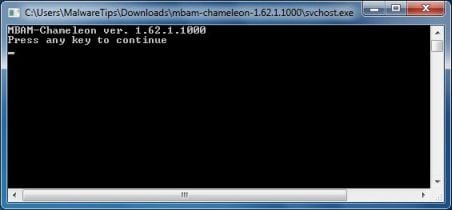
IF Malwarebytes Anti-Malware will not start, double-click on the other renamed files until you find one will work, which will be indicated by a black DOS/command prompt window. - Follow the onscreen instructions to press a key to continue and Chameleon will proceed to download and install Malwarebytes Anti-Malware for you.
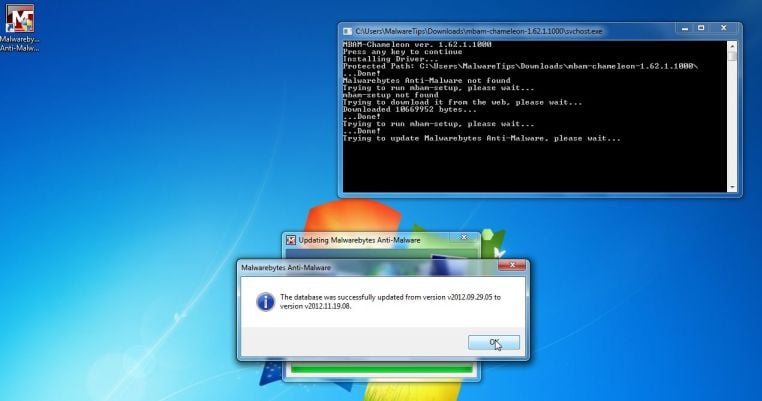
- Once it has done this, it will update Malwarebytes Anti-Malware, and you’ll need to click OK when it says that the database was updated successfully.
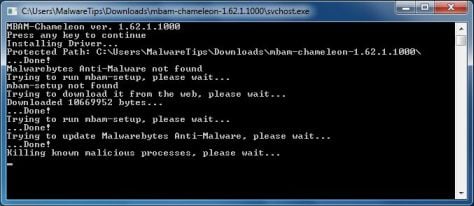
- Malwarebytes Anti-Malware will now attempt to kill all the malicious process associated with Security Shield.Please keep in mind that this process can take up to 10 minutes, so please be patient.
- Next, Malwarebytes Anti-Malware will automatically open and perform a Quick scan for Security Shield malicious files as shown below.
![[Image: Malwarebytes Anti-Malware scanning for Security Shield]](//malwaretips.com/blogs/wp-content/uploads/2013/01/malwarebytes-scan.jpg "Malwarebytes Anti-Malware scanning for Security Shield")
- Upon completion of the scan, click on Show Result
![[Image: Malwarebytes Anti-Malware scan results]](//malwaretips.com/blogs/wp-content/uploads/2013/01/malwarebytes-scan-results.jpg "Malwarebytes when the system scan has completed")
- You will now be presented with a screen showing you the malware infections that Malwarebytes Anti-Malware has detected.
Make sure that everything is Checked (ticked),then click on the Remove Selected button.
![[Image:Malwarebytes removing virus]](//malwaretips.com/blogs/wp-content/uploads/2013/01/malwarebytes-virus-removal.jpg "Click on Remove Selected to get rid of Security Shield")
- After your computer restarts, open Malwarebytes Anti-Malware and perform a Full System scan to verify that there are no remaining threats
![[Image: Extract Malwarebytes Chameleon utility]](http://malwaretips.com/blogs/wp-content/uploads/2013/02/malwarebytes-chameleon-zip.jpg "Extract Malwarebytes Chameleon utility")
![[Image: Double click on svchost.exe]](http://malwaretips.com/blogs/wp-content/uploads/2013/02/malwarebytes-chameleon-svchost.jpg "Double click on svchost.exe")
![[Image: Malwarebytes Anti-Malware scanning for Security Shield]](http://malwaretips.com/blogs/wp-content/uploads/2013/01/malwarebytes-scan.jpg "Malwarebytes Anti-Malware scanning for Security Shield")
![[Image: Malwarebytes Anti-Malware scan results]](http://malwaretips.com/blogs/wp-content/uploads/2013/01/malwarebytes-scan-results.jpg "Malwarebytes when the system scan has completed")
![[Image:Malwarebytes removing virus]](http://malwaretips.com/blogs/wp-content/uploads/2013/01/malwarebytes-virus-removal.jpg "Click on Remove Selected to get rid of Security Shield")
STEP 2: Remove Security Shield rootkit with HitmanPro
In some cases,Security Shield will also install a rootkit on victims computer.To remove this rootkit we will use HitmanPro.
- Download HitmanPro from the below link,then double-click on it to start this program.
Download HitmanProOfficial Sophos download. Free scan, free 30-day trial to remove threats.
IF you are experiencing problems while trying to start HitmanPro, you can use the Force Breach mode.To start HitmanPro in Force Breach mode, hold down the left CTRL key when you start HitmanPro and all non-essential processes are terminated, including the malware process. (How to start HitmanPro in Force Breach mode – Video) - HitmanPro will start and you’ll need to follow the prompts (by clicking on the Next button) to start a system scan with this program.
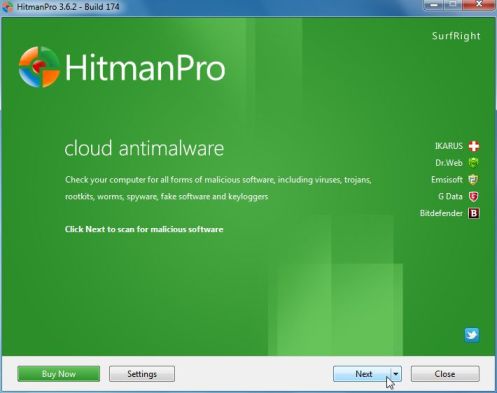
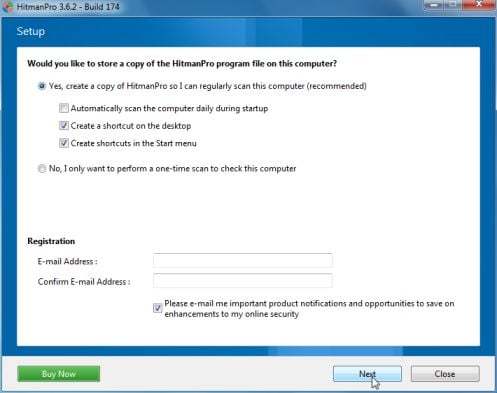
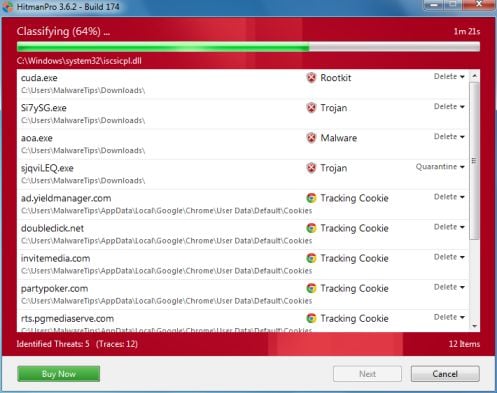
- HitmanPro will start scanning your computer for Security Shield malicious files as seen in the image below.
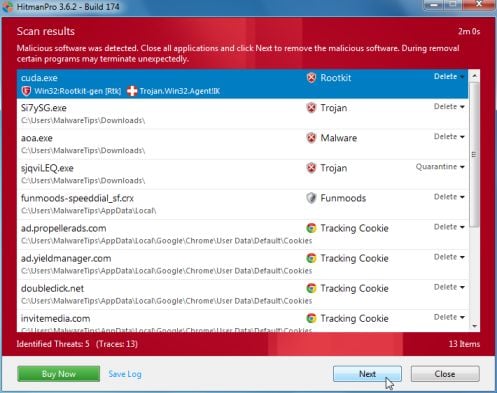
- Once the scan is complete,you’ll see a screen which will display all the infected files that this utility has detected, and you’ll need to click on Next to remove this malicious files.
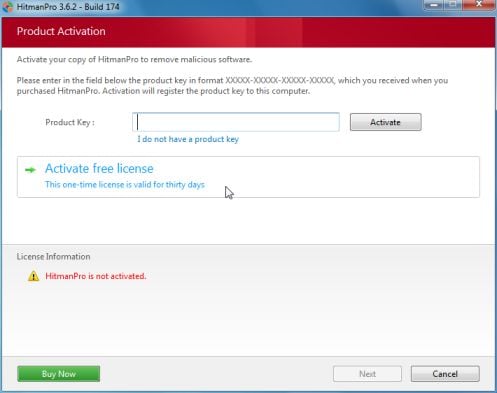
- Click Activate free license to start the free 30 days trial and remove all the malicious files from your computer.
STEP 3: Double check for any left over infections with Emsisoft Emergency Kit
- You can download Emsisoft Emergency Kit from the below link,then extract it to a folder in a convenient location.
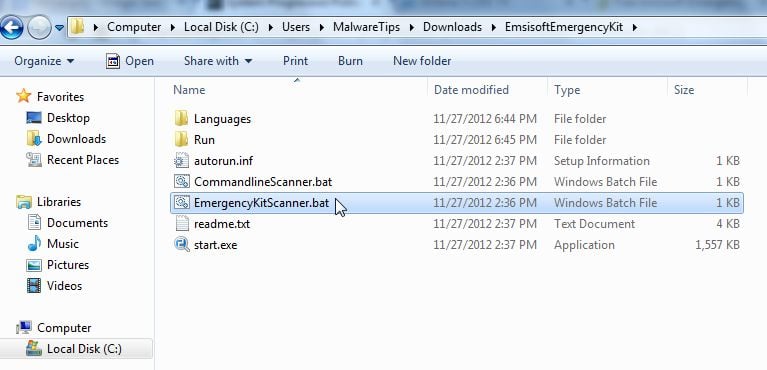
Download Emsisoft Emergency KitOpens the download page in a new tab. - Open the Emsisoft Emergency Kit folder and double click EmergencyKitScanner.bat, then allow this program to update itself.
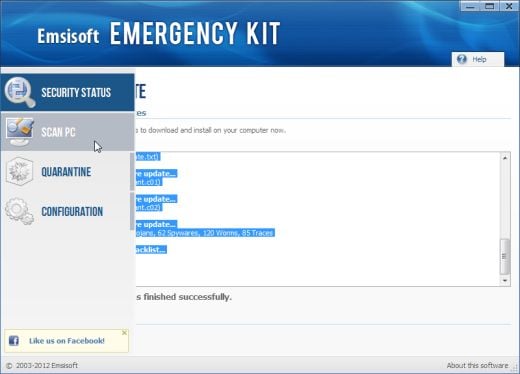
- After the Emsisoft Emergency Kit has update has completed,click on the Menu tab,then select Scan PC.
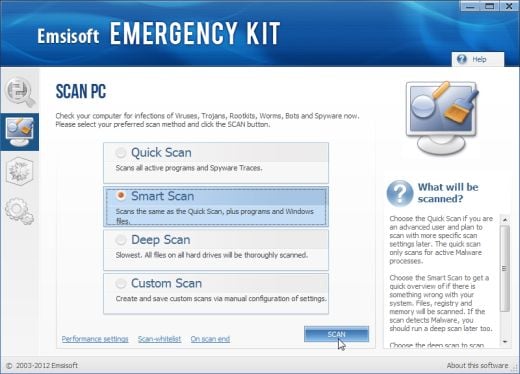
- Select Smart scan and click on the SCAN button to search for Security Shield malicious files.
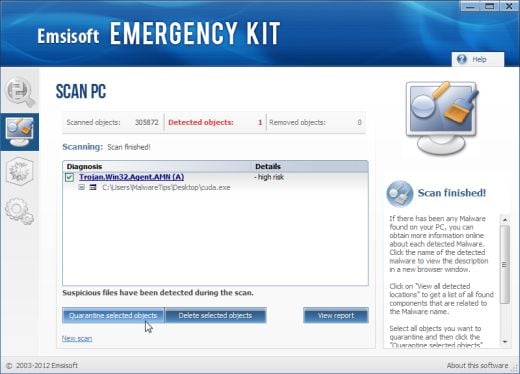
- When the scan will be completed,you will be presented with a screen reporting which malicious files has Emsisoft detected on your computer, and you’ll need to click on Quarantine selected objects to remove them.









Thanks man, awesome help! God Bless!
Hi Tran!
Thank you for your help! Your advices were very usefull and simple, I was able to remove this malicious virus easily!
from Hungary (Budapest)
Ummm You’re welcome? Thank Mr. Pilici for setting up this wonderful tutorial and the help he’s been providing.
hey when i tried to uncheck the “Use a proxy server for your LAN” in my google chrome it was already unchecked so i guess that means there is no malicious proxy server. i cant use my internet explorer or firefox because the virus made them disappear or something. the virus has locked me out of almost every program i got on my computer besides chrome and “run”. Help please. T.T
Hello Tran,
While in Normal Mode,please try to download and run Malwarebytes Chameleon:
iexplore.exe http://downloads.malwarebytes.org/file/chameleon2.Please perform a scan with HitmanPro and RogueKiller as seen on the guide.
3.Run a scan with ESET Online Scanner:
ESET Online Scanner Download Link (This link will automatically download ESET Online Scanner on your computer.)
Waiting for your reply to see how everything is running…. Good luck!
I cant access the internet on the infected computer even though its connected to the router so i downloaded chameleon and transfered it from another computer to the infected. i was able to open the chameleon help on it but it keeps saying malwarebytes anti-malware not found and mbam-setup not found and trying to download it from the web, please wait…..
Hello Tran,
Can you please run the RogueKiller scan and then try to run the Malwarebytes scan….
Hey! i just removed the virus! Thank you for your support and help. Thank you Thank you soo much!! Keep up the amazing work!
Oh you are an angel! (Again) I just picked up this virus for the second time….this time was much less stressful, as I knew where to go for my fix; right here! Your thoughtful steps are easy to follow and solve the problem….now if I could figure out where I’m picking up this crud. Question; do you know how long after I’ve visited the infected website that the virus appears on my computer? Knowing this might help me determine what website it might be.
Thanks again!!!
Hello Sara,
The new variants of this virus can wait up to 24 hours before actually showing the first signs of infections….
Stay safe!
Thank you for this guide, I’ve caught this once or twice in the past, admittedly by connecting to shifty websites. This time I caught it I was researching something related to math theory though, which just offends me to no end. You can expect to get mugged if you’re walking through a seedy neighborhood but when it happens 5 feet from your front door its just wrong.
Hello,
Well,it’s time to learn how to protect yourself…. http://malwaretips.com/blogs/how-to-easily-avoid-pc-infections/
Thank you for sharing your insites with us mere mortals! We’re not worthy! Thank you, seriously, you saved my bacon!
I ran the anti-malware software but it didnt find anything, before i used a microsoft scanner that my college sort of enforced us to have over norton, and i used combofix right after, but i couldnt use IE afterwords because it was “marked for deletion” and asked if i “wanted it deleted” so whats up?
Hello Ryan,
Lets check if there is any form of infection on your computer:
1.Run a scan with Kaspersky Virus Removal Tool
Click here to download the Kaspersky Virus Removal Tool.
2.Run a scan with Eset Online Scanner.
ESET Online Scanner Download Link (This link will automatically download ESET Online Scanner on your computer.)
I’m at the RogueKiller step. The status continues to say “Waiting” instead of initiating the Prescan, (which according to the instructions should only take a few seconds.) I closed RogueKiller and started it again; same thing.
Please help.
Hello Nina,
Can you please run a scan with Combofix,RogueKiller and ESET online scanner and post the logs here :
STEP 1 : Run a scan with Combofix
Download ComboFix from one of the following locations:
COMBOFIX DOWNLOAD LINK #1 (This link will automatically download Combofix on your computer)
COMBOFIX DOWNLOAD LINK #2 (This link will automatically download Combofix on your computer)
VERY IMPORTANT !!! Save as Combo-Fix.exe during the download. ComboFix must be renamed before you download to your Desktop
———————————————————–
———————————————————–
———————————————————–
Notes:
STEP 2: Run a scan with RogueKiller
RogueKiller Download Link (This link will automatically download RogueKiller on your computer)
STEP 3: Run a scan with ESET Online Scanner:
ESET Online Scanner Download Link (This link will automatically download ESET Online Scanner on your computer.)
Next,please run HitmanPro and Malwarebytes as seen on the guide.
Waiting for your reply to tell me if your machine is ok and the logs from this utilities.
I tried to run the combo fix and saved as directed but it seems the security shield immediately attached itself. I havent tried the others yet, should I go forward with your instructions? I also deleted anything I could with a security shiled symbol on it but I am still getting a pop up every day asking to update my java with the shield symbol on it. This is how things started before.
Hello,
By any chance are you talking about this icon: http://malwaretips.com/blogs/windows-7-user-account-control-guide/
Please help! I had this terrible virus and went through everything on here very carefully. It worked like a charm and I couldn’t have been more grateful! But now the “symptoms” are back and I see the shield symbol attached to only a few items on my desktop…malwarebytes, hitmanpro amd norton security scan!! What do I do now???
Hello Savannah,
Can you please run a scan with Combofix,RogueKiller and ESET online scanner and post the logs here :
STEP 1 : Run a scan with Combofix
Download ComboFix from one of the following locations:
COMBOFIX DOWNLOAD LINK #1 (This link will automatically download Combofix on your computer)
COMBOFIX DOWNLOAD LINK #2 (This link will automatically download Combofix on your computer)
VERY IMPORTANT !!! Save as Combo-Fix.exe during the download. ComboFix must be renamed before you download to your Desktop
———————————————————–
———————————————————–
———————————————————–
Notes:
STEP 2: Run a scan with RogueKiller
RogueKiller Download Link (This link will automatically download RogueKiller on your computer)
STEP 3: Run a scan with ESET Online Scanner:
ESET Online Scanner Download Link (This link will automatically download ESET Online Scanner on your computer.)
Next,please run HitmanPro and Malwarebytes as seen on the guide.
Waiting for your reply to tell me if your machine is ok and the logs from this utilities.
I’ve gone through everything in your post. Thank you!
But, now I can only access the internet when I’m in Safe Mode.
Thoughts?
Hello Chris,
Can you please run a scan with Combofix,RogueKiller and ESET online scanner and post the logs here :
STEP 1 : Run a scan with Combofix
Download ComboFix from one of the following locations:
COMBOFIX DOWNLOAD LINK #1 (This link will automatically download Combofix on your computer)
COMBOFIX DOWNLOAD LINK #2 (This link will automatically download Combofix on your computer)
VERY IMPORTANT !!! Save as Combo-Fix.exe during the download. ComboFix must be renamed before you download to your Desktop
———————————————————–
———————————————————–
———————————————————–
Notes:
STEP 2: Run a scan with RogueKiller
RogueKiller Download Link (This link will automatically download RogueKiller on your computer)
STEP 3: Run a scan with ESET Online Scanner:
ESET Online Scanner Download Link (This link will automatically download ESET Online Scanner on your computer.)
Next,please run the below utility:
Download and run the Complete Internet Repair utility.
1.Download Complete Internet Repair utilityto your desktop
2.Unzip all the files to their own folder on the desktop
3.Within the folder double click CIntRep
4.Select the following items,then press the GO button.
Waiting for your reply to tell me if your machine is ok and the logs from this utilities.
You’re like a superhero. Everything worked great, and you’re instructions are easy to follow.
Here are the log files. You are my Barbie dream date!
Chris
—————-
LOGS attached!
Great work mate on this document….helped me a great deal and i’m extremely grateful for your work…
Regards
Al
This fix worked fine! I had the advantage of having two PC’c so I could dl things to a thumbdrive to transfer if I had difficulty with the infected PC.
Thanks for your help!!
Thank you so much !!!!! It worked for me as well….
Appears to have worked but when I tried to download the hostfix.bat link I got an unspecified error and then it asked for a disk to be put in. Anyone have that before?
I get the error message, too. This whole process has worn me out, and trying to find an answer to HitmanPro is the last straw. Guess I’ll have to survive without running it.
Thank you so much. These were the easiest instructions to follow even thought it took concentration and patience. My son’s computer was affected from clicking on something called funmoods tool bar. sigh…. But your fix worked smoothly and as written.
Great Job Buddy! Worked like a champ!
This guide is not working for me. In the Safe Mode with Networking. I can not connect to the Internet. So, I tried registration code in Normal mode and the Security Shield messages stopped popping up. I can access the Internet now, but I can not download RKill or Malwarebytes’ Anti-Malware to try and kill this virus. Has anyone had this problem and know how to fix it? Do you have to do everything from the Safe Mode with Networking?
Hello,
Try the below steps and see if they work.
STEP 1. While in NORMAL MODE,download HitmanPro and then start this program in ForceBreach Mode
1.Here are the direct download links for HitmanPro,
– http://dl.surfright.nl/HitmanPro36.exe (For 32bit)
– http://dl.surfright.nl/HitmanPro36_x64.exe (For 64bit)
2.Hold down the left CTRL-key when you start HitmanPro and all non-essential processes are terminated, including this rogue malicious process
Here is a video that explains with graphic details how to do this : http://www.youtube.com/watch?v=m6eRWTv2STk
3. Let HitmanPro scan and remove all the detected threats.
Step 2: While in NORMAL MODE,download/Run Rkill and then run a scan with Malwarebytes
1.Download any re-named version of Rkill (direct download links bellow):
http://download.bleepingcomputer.com/grinler/WiNlOgOn.exe
http://download.bleepingcomputer.com/grinler/uSeRiNiT.exe
http://download.bleepingcomputer.com/grinler/rkill.scr
2.Next,please perform a scan with Malwarebytes as seen on the guide. (Direct download link for Malwarebytes: http://www.malwarebytes.org/mbam-download-exe.php )
Let me know , how everything goes.
I followed the instructions and all appears t be good – no more ugly SS popups controlling my computer. One problem – i wasn’t able to run the repair hosts file as indicated in the last step. ANy more useful hints??? Thanks
Hello,
Please download and run this utility : http://www.tweaking.com/content/page/repair_hosts_file.html
Thanks a lot! It worked for me.
Thanks…worked for me..,
It worked for me! Thank you so much!!
I found that even with all of the above steps, the (randomly named) main executable continued to reside in \users\%username%\appdata\local … The malware kept coming back until I killed it there.
Jim, how do you kill it there? I am not computer savvy, so all of these steps are causing me severe stress(lol!!!). I have not made it to the end yet but want to be prepared if your circumstances become mine as well. Thx!
Please follow the guide,Malwarebytes and HitmanPro should detect and remove the PC infection.
Well Stelian, I followed the rest of the steps and everything seems to be working fine now. Thank you so much for taking the time to post this solution for losers like me who would have had absolutely no idea what to do without you!!! I started getting the “you’re infected” warnings after clicking on one of my favorite gossip sites. Could I have “gotten it” from there??? Not that it really matters I guess.
Thanks again!