

Smart HDD is a malicious software that will display fake alerts, claiming that several hard drive errors were detected on your computer.The alerts are professional looking pop-ups and when you click on them, you’re advised to buy Smart HDD in order to fix this errors.
In reality, none of the reported issues are real, and are only used to scare you into buying Smart HDD and stealing your personal financial information.
If you’ve got a Smart HDD infection , you’ll be seeing this screens :
![[Image: Smart-HDD.png]](http://malwaretips.com/images/fakeav/Smart-HDD.png "Smart HDD")
Registration codes for Smart HDD
As an optional step,you can use the following license key to register Smart HDD and stop the fake alerts.
15801587234612645205224631045976
Please keep in mind that entering the above registration code will NOT remove Smart HDD from your computer , instead it will just stop the fake alerts so that you’ll be able to complete our removal guide more easily.
We strongly advise you to follow our Smart HDD removal guide and ignore any alerts that this malicious software might generate.Under no circumstance should you buy this rogue security software as this could lead to identity theft.
Removal guide for Smart HDD
STEP 1 : Start your computer in Safe Mode with Networking
- Remove all floppy disks, CDs, and DVDs from your computer, and then restart your computer.
- Press and hold the F8 key as your computer restarts.Please keep in mind that you need to press the F8 key before the Windows start-up logo appears.
- On the Advanced Boot Options screen, use the arrow keys to highlight Safe Mode with Networking , and then press ENTER.
![[Image: Safemode.jpg]](//malwaretips.com/images/removalguide/safemode.jpg "Safe Mode with Networking screen")
- Log on to your computer with a user account that has administrator rights
![[Image: Safemode.jpg]](http://malwaretips.com/images/removalguide/safemode.jpg "Safe Mode with Networking screen")
STEP 2: Remove Smart HDD malicious proxy server
Smart HDD may add a proxy server which prevents the user from accessing the internet,follow the below instructions to remove the proxy.
- Start Internet Explorer
![[Image: Smart HDD- IE]](//malwaretips.com/images/removalguide/Ieicon.png "IE 9") and if you are using Internet Explorer 9 ,click on the gear icon
and if you are using Internet Explorer 9 ,click on the gear icon ![[Image: IE gear icon]](//malwaretips.com/images/removalguide/icongear.jpg "Gear Icon") (Tools for Internet Explorer 8 users) ,then select Internet Options.
(Tools for Internet Explorer 8 users) ,then select Internet Options.
![[Image: Internet-options-IE.png]](//malwaretips.com/images/removalguide/ie1.png "Internet Options in IE")
- Go to the tab Connections.At the bottom, click on LAN settings.
![[Image: Remove-proxy-server2.png]](//malwaretips.com/images/removalguide/ie2.png "Connections tab in Internet Explorer")
- Uncheck the option Use a proxy server for your LAN. This should remove the malicious proxy server and allow you to use the internet again.
![[Image: Remove-proxy-server3.png]](//malwaretips.com/images/removalguide/ie3.png "Uncheck the option Use a proxy server for your LAN")
![[Image: Smart HDD- IE]](http://malwaretips.com/images/removalguide/Ieicon.png "IE 9") and if you are using Internet Explorer 9 ,click on the gear icon
and if you are using Internet Explorer 9 ,click on the gear icon ![[Image: IE gear icon]](http://malwaretips.com/images/removalguide/icongear.jpg "Gear Icon") (Tools for Internet Explorer 8 users) ,then select Internet Options.
(Tools for Internet Explorer 8 users) ,then select Internet Options.![[Image: Internet-options-IE.png]](http://malwaretips.com/images/removalguide/ie1.png "Internet Options in IE")
![[Image: Remove-proxy-server2.png]](http://malwaretips.com/images/removalguide/ie2.png "Connections tab in Internet Explorer")
![[Image: Remove-proxy-server3.png]](http://malwaretips.com/images/removalguide/ie3.png "Uncheck the option Use a proxy server for your LAN")
If you are a Firefox users, go to Firefox(upper left corner) → Options → Advanced tab → Network → Settings → Select No Proxy
STEP 3: Run RKill to terminate known malware processes associated with Smart HDD.
RKill is a program that attempts to terminate any malicious processes associated with Smart HDD ,so that your normal security software can then run and clean your computer of infections.
As RKill only terminates a program’s running process, and does not delete any files, after running it you should not reboot your computer as any malware processes that are configured to start automatically will just be started again.
- While your computer is in Safe Mode with Networking ,please download the latest official version of RKill.

- Double-click on the RKill iconin order to automatically attempt to stop any processes associated with Smart HDD.
![[Image: run-rkill-1.png]](//malwaretips.com/images/removalguide/rkill1.png "RKILL ICON")
- RKill will now start working in the background, please be patient while the program looks for various malware programs and tries to terminate them.
![[Image: run-rkill-2.png]](//malwaretips.com/images/removalguide/rkill2.png "RKILL Command prompt")
IF you receive a message that RKill is an infection, that is a fake warning given by the rogue. As a possible solution we advise you to leave the warning on the screen and then try to run RKill again.Run RKill until the fake program is not visible but not more than ten times.
IF you continue having problems running RKill, you can download the other renamed versions of RKill from here. - When Rkill has completed its task, it will generate a log. You can then proceed with the rest of the guide.
![[Image: Smart HDD rkill3.jpg]](//malwaretips.com/images/removalguide/rkill3.png "RKILL LOG")
![[Image: run-rkill-1.png]](http://malwaretips.com/images/removalguide/rkill1.png "RKILL ICON")
![[Image: run-rkill-2.png]](http://malwaretips.com/images/removalguide/rkill2.png "RKILL Command prompt")
![[Image: Smart HDD rkill3.jpg]](http://malwaretips.com/images/removalguide/rkill3.png "RKILL LOG")
WARNING: Do not reboot your computer after running RKill as the malware process will start again , preventing you from properly performing the next step.
STEP 4: Remove Smart HDD malicious files with Malwarebytes Anti-Malware FREE
- Please download the latest official version of Malwarebytes Anti-Malware FREE.
- Install Malwarebytes’ Anti-Malware by double clicking on mbam-setup.
![[Image: malwarebytes-installer.png]](//malwaretips.com/images/removalguide/mbam1.png "Malwarebytes Anti-Malware Installer")
- When the installation begins, keep following the prompts in order to continue with the installation process. Do not make any changes to default settings and when the program has finished installing, make sure you leave both the Update Malwarebytes’ Anti-Malware and Launch Malwarebytes’ Anti-Malware checked. Then click on the Finishbutton. If Malwarebytes’ prompts you to reboot, please do not do so.
![[Image: install-malwarebytes.png]](//malwaretips.com/images/removalguide/mbam2.png "Install Malwarebytes Anti-Malware")
- Malwarebytes Anti-Malware will now start and you’ll be prompted to start a trial period , please select ‘Decline‘ as we just want to use the on-demand scanner.
![[Image: decline-trial-malwarebytes.png]](//malwaretips.com/images/removalguide/mbam3.PNG "Decline trial period in Malwarebytes Anti-Malware")
- On the Scanner tab,please select Perform full scan and then click on the Scan button to start scanning your computer for any possible infections.
![[Image: malwarebytes-full-system-scan.png]](//malwaretips.com/images/removalguide/mbam4.png "Perform a Full System Scan")
- Malwarebytes’ Anti-Malware will now start scanning your computer for Smart HDD malicious files as shown below.
![[Image: malwarebytes-scanning.png]](//malwaretips.com/images/removalguide/mbam5.png "Malwarebytes Anti-Malware scanning for Smart HDD")
- When the scan is finished a message box will appear, click OK to continue.
![[Image: malwarebytes-scan-finish.png]](//malwaretips.com/images/removalguide/mbam9.png "Malwarebytes when the scan is finished")
- You will now be presented with a screen showing you the malware infections that Malwarebytes’ Anti-Malware has detected.Please note that the infections found may be different than what is shown in the image.Make sure that everything is Checked (ticked) and click on the Remove Selected button.
![[Image: malwarebytes-scan-results.png]](//malwaretips.com/images/removalguide/mbam6.png "Smart HDD infection scan results")
- Malwarebytes’ Anti-Malware will now start removing the malicious files.If during the removal process Malwarebytes will display a message stating that it needs to reboot, please allow this request.
![[Image: malwarebytes-reboot-prompt.png]](//malwaretips.com/images/removalguide/mbam10.png "Reboot prompt from Malwarebytes")
![[Image: malwarebytes-installer.png]](http://malwaretips.com/images/removalguide/mbam1.png "Malwarebytes Anti-Malware Installer")
![[Image: install-malwarebytes.png]](http://malwaretips.com/images/removalguide/mbam2.png "Install Malwarebytes Anti-Malware")
![[Image: decline-trial-malwarebytes.png]](http://malwaretips.com/images/removalguide/mbam3.PNG "Decline trial period in Malwarebytes Anti-Malware")
![[Image: malwarebytes-full-system-scan.png]](http://malwaretips.com/images/removalguide/mbam4.png "Perform a Full System Scan")
![[Image: malwarebytes-scanning.png]](http://malwaretips.com/images/removalguide/mbam5.png "Malwarebytes Anti-Malware scanning for Smart HDD")
![[Image: malwarebytes-scan-finish.png]](http://malwaretips.com/images/removalguide/mbam9.png "Malwarebytes when the scan is finished")
![[Image: malwarebytes-scan-results.png]](http://malwaretips.com/images/removalguide/mbam6.png "Smart HDD infection scan results")
![[Image: malwarebytes-reboot-prompt.png]](http://malwaretips.com/images/removalguide/mbam10.png "Reboot prompt from Malwarebytes")
STEP 5: Double check your system for any left over infections with HitmanPro
- This step can be performed in Normal Mode ,so please download the latest official version of HitmanPro.
- Double click on the previously downloaded file to start the HitmanPro installation.
![[Image: hitmanpro-icon.png]](//malwaretips.com/images/removalguide/hpro1.png "HitmanPro Installer")
NOTE : If you have problems starting HitmanPro, use the “Force Breach” mode. Hold down the left CTRL-key when you start HitmanPro and all non-essential processes are terminated, including the malware process. (How to start HitmanPro in Force Breach mode – Video) - Click on Next to install HitmanPro on your system.
![[Image: installing-hitmanpro.png]](//malwaretips.com/images/removalguide/hpro2.png "HitmanPro installation process")
- The setup screen is displayed, from which you can decide whether you wish to install HitmanPro on your machine or just perform a one-time scan, select a option then click on Next to start a system scan.
![[Image: hitmanpro-setup-options.png]](//malwaretips.com/images/removalguide/hpro3.png "HitmanPro setup options")
- HitmanPro will start scanning your system for malicious files. Depending on the size of your hard drive, and the performance of your computer, this step will take several minutes.
![[Image: hitmanpro-scanning.png]](//malwaretips.com/images/removalguide/hpro4.png "HitmanPro scanning for Smart HDD")
- Once the scan is complete,a screen displaying all the malicious files that the program found will be shown as seen in the image below.After reviewing each malicious object click Next.
![[Image: hitmanpro-scan-results.png]](//malwaretips.com/blogs/wp-content/uploads/2012/02/rsz_hpro5.png "HitmanPro Smart HDD scan results")
- Click Activate free license to start the free 30 days trial and remove the malicious files.
![[Image: hitmanpro-activation.png]](//malwaretips.com/images/removalguide/hpro6.png "Activate HitmanPro free license to remove detected infections")
- HitmanPro will now start removing the infected objects, and in some instances, may suggest a reboot in order to completely remove the malware from your system. In this scenario, always confirm the reboot action to be on the safe side.
![[Image: hitmanpro-icon.png]](http://malwaretips.com/images/removalguide/hpro1.png "HitmanPro Installer")
![[Image: installing-hitmanpro.png]](http://malwaretips.com/images/removalguide/hpro2.png "HitmanPro installation process")
![[Image: hitmanpro-setup-options.png]](http://malwaretips.com/images/removalguide/hpro3.png "HitmanPro setup options")
![[Image: hitmanpro-scanning.png]](http://malwaretips.com/images/removalguide/hpro4.png "HitmanPro scanning for Smart HDD")
![[Image: hitmanpro-scan-results.png]](http://malwaretips.com/blogs/wp-content/uploads/2012/02/rsz_hpro5.png "HitmanPro Smart HDD scan results")
![[Image: hitmanpro-activation.png]](http://malwaretips.com/images/removalguide/hpro6.png "Activate HitmanPro free license to remove detected infections")
STEP 6: Unhide your files and folders
Smart HDD modifies your file system in such a way that all files and folders become hidden, to restore the default settings , you’ll need to run the below program.
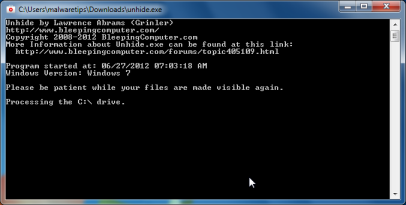
- Download Unhide.exe, to unhide your files and folders.
- Double-click on the Unhide.exe icon on your desktop and allow the program to run.The whole process should not take more than 5 minutes to complete,and at the end this utility will generate a report.
STEP 7 : Restore your shortcuts and remove any left over malicious registry keys
Smart HDD has moved your shortcuts files in the Temporary Internet folder and added some malicious registry keys to your Windows installation , to restore your files we will need to perform a scan with RogueKiller.
- Please download the latest official version of RogueKiller.
- Double click on RogueKiller.exe to start this utility and then wait for the Prescan to complete.This should take only a few seconds and then you can click the Start button to perform a system scan.
![[Image: roguekiller-1.png]](//malwaretips.com/blogs/wp-content/uploads/2012/04/roguek-1.png "Click on the Start button to perform a system scan")
- After the scan has completed, press the Delete button to remove any malicious registry keys.
![[Image: roguekiller-2.png]](//malwaretips.com/blogs/wp-content/uploads/2012/04/roguek-2.png "Press Delete to remove the malicious registry keys")
- Next we will need to restore your shortcuts, so click on the ShortcutsFix button and allow the program to run.
![[Image: roguekiller-1.png]](//malwaretips.com/blogs/wp-content/uploads/2012/04/roguek-3.png "Click on the Start button to perform a system scan")
![[Image: roguekiller-1.png]](http://malwaretips.com/blogs/wp-content/uploads/2012/04/roguek-1.png "Click on the Start button to perform a system scan")
![[Image: roguekiller-2.png]](http://malwaretips.com/blogs/wp-content/uploads/2012/04/roguek-2.png "Press Delete to remove the malicious registry keys")
![[Image: roguekiller-1.png]](http://malwaretips.com/blogs/wp-content/uploads/2012/04/roguek-3.png "Click on the Start button to perform a system scan")
STEP 8: Get your desktop look back!
Smart HDD changes your desktop background to a solid black color,to change it back to default one follow the below instruction.
- Windows XP : Click on the Start button and then select Control Panel. When the Control Panel opens, please click on the Display icon. From this screen you can now change your Theme and desktop background.
- Windows 7 and Vista : Click on the Start button and then select Control Panel. When the Control Panel opens, please click on the Appearance and Personalization category. Then select Change the Theme or Change Desktop Background to revert back to your original Theme and colors.
If you are still experiencing problems while trying to remove Smart HDD from your machine, please start a new thread in our Malware Removal Assistance forum.
What’s next? Join our amazing community and build up your malware defenses !









thank you,everything is ok now!
My computer was infected with this. I used Superantipayware to original remove. I have access to my computer can go online, followed instructions to show hidden files. Manually found programs to re-pin some. But when i go to I.E. and try to download the missing Adobe Flash it gives me an unspecified error. When i go to download Rkill or any program i get Access Denied or the same unspecified error C;\Users\Data user\AppData\Local\Microsoft\Windows\Temporary Internet Files\Content.IE5\CFENMA1N\Flash PlayerInstaller.exe. I also do not have the 4 smptp folders when i go to copy and paste my Quick Launch and Start Menu items. Also i have no option to save anything to desktop. My new desktop is inside my documents. Any help to get my computer back to normal would be appreciated. Thanks.
Option 1 : Try to download a different named Rkill (direct download links bellow):
http://download.bleepingcomputer.com/grinler/WiNlOgOn.exe
http://download.bleepingcomputer.com/grinler/uSeRiNiT.exe
http://download.bleepingcomputer.com/grinler/rkill.scr
And then follow the guide : http://malwaretips.com/blogs/uninstall-smart-hdd/
Option 2: Try to download HitmanPro and then start this program in ForceBreach Mode
1.Here are the direct download links for HitmanPro,
– http://dl.surfright.nl/HitmanPro36.exe (For 32bit)
– http://dl.surfright.nl/HitmanPro36_x64.exe (For 64bit)
2.Hold down the left CTRL-key when you start HitmanPro and all non-essential processes are terminated, including the Smart HDD malicious process
Here is a video that explains with graphic details how to do this : http://www.youtube.com/watch?v=m6eRWTv2STk
3. If it start ,let it scan and remove all the detected threats , then follow the guide : http://malwaretips.com/blogs/uninstall-smart-hdd/
Next , perform a system scan with Emsisoft Anti-Malware:
Download and scan with Emsisoft Emergency Kit
Make sure that everything is Checked (ticked) and click on the ‘Quarantine selected objects’ button.
If during the removal process Emsisoft will display a message stating that it needs to reboot, please allow this request.
If you are still experiencing problems , start a thread in our Malware Removal Support forum : http://malwaretips.com/Forum-Help-my-PC-is-infected
worked great thank you so much
Thanks a lot, an absolute cweaty sunt of a virus!! But with your help I’m now good to go again, thanks a bunch.
IF YOU ARE NOT ABLE TO KILL THIS MONSTER AFTER DOING EVERYTHING!
first thanks for a great help how to kill this bastard, it was rough. I owe you guys. I managed ;)
one possible trick to those who are not able to do it following these otherwise great instructions (try them first and only if it doesnt work exactly what JAck wrote, try what I say). I did everything but Malware bytes always cleaned and things showed up again. My problem was, that RKiller didnt show anything in the log (guess, didnt see anything to kill) while I was in the safe mode with networking. So I rebooted (after I downloaded malware bytes AND RKiller) in a normal mode, so the thing virus started going (I just clicked Stop in its screen to stop popups) and than hit R Killer. It was able to identify the culprits and blocked them. Than Malware bytes had easier time to clean it (I think) properly. Immediately after that Hitman MUST follow (if you cannot download it, because you are not in a safe mode, press windows key and R, and that will get you into exlorer, than type back the address of this AWESOME blog so you see intructions again and dowload Hitman and run it immediately. Than restart. I am afraid, that just running malware bytes is not enough, Bytes showed only few hits, Hitman showed me dozens of crap that had the same name as the one stopped by RKiller. To unhide the icons, easier than the described method I think is to dowload unhide.exe, form the same dude who wrote RKiller (god bless him)
Thanks so much this was a huge help. I was worried I lost something I was working on for a client for the last 2 months.
This was a particularly nasty virus in my opinion. Who is responsible for this?
Hey all….im back again…couple weeks ago i had this virus and it all seems clear after i run this
program on my computer. The strainge thing is, he is getting slower and slower and now its
verry hard to use again….I will run this scans again and hope it will make it better again
really strainge and stupid virus….keep up the good work guys….:D
Why don’t you start a thread in our Removal Assistance forum.. just to check if Smart HDD is on your PC on not :) – http://malwaretips.com/Forum-Help-my-PC-is-infected
Stay safe!
thanks!!!!!!
Hello! Great step-by-step, but it doesn’t work for me:
I have followed every step, in order, and smart HDD always goes “back to life”.
Rkill log didn’t show any stopped process ever.
Today, I have followed this guide for fifth time.
At fourth and fifth time, Malwarebytes found nothing. But Hitman found some “exe” files.
I don’t know what I am doing wrong.
Please, I need some help.
Thanks
This step-by-step (even though it took awhile to complete) TOTALLY KICKS A**!!! I got a call from my wife – Her work computer got infected – thought the hard-drive had crashed, and we need to buy a new one as she needs it daily. Found this site and everything is as good as new. Can’t thank you guys enough for saving our bacon. Even considered paying the silly fee with credit-card online to the S.M.A.R.T. HDD fairy but was just savvy enough to do a little search about this issue and karma sent me to your link. Anything I can do to repay (even monitarily) will be worth it! Can’t express my gratitude enough…
I downloaded HitmanPro 3.6 and the program opened. However, when it begins to run, It says “Scanning computer”, but then I get a No Internet Connection, Waiting for Internet Connection message. I checked IPCONFIG and it shows I have access to the Internet based on the IP address listed.
I turned off Proxy in Safe Mode for both my IE and my Firefox browsers. Any advice?
By the way, thank you so much for this guide; all my files are back on my laptop but I just want to make sure I run HitmanPro 3.6.
HitmanPro is a cloud scanner so you need an internet connection to use it…
While in Norman Mode does your Internet connection work?? Did you try performing this scan in Normal mode?
Yes it shows I am connected to the Internet in normal mode. I even get an ip address but it will not let me get to any website.
Hey Jack,
I am connected to the Internet but it will not allow me to use the browser. When I access the browser, it say cannot connect. I went in to the CMD and pinged yahoo but all the packets were lost.
I cannot proceed beyond the step of using the Hitman Pro as I cannot get access to the Internet.
My computer is showing it is connected to the wireless Internet. Please help.
Thanks a ton.I got hit with this Smart HDD crap and this really helped me out.It’s all gone now.However I do have a question.What if it were to happen again in the future?Acouple of the things used have an expiration date attached to them ie 30 days for HitmanPro.
First off all , this shouldn’t happen in the first place.. You can build up a solid malware defense with our help ,just start a thread in this forum : http://malwaretips.com/Forum-Security-Configuration-Wizard
As for the HitmanPro license, well in this 30days you can remove any piece of malware , however you’ll need to buy this product if this period expires. :*( But even after the 30 days trial you can still scan with this product and if it finds anything then you can use another product to remove the threats… :)
I followed through all the above steps, I was able to download RKill, I then ran it but when the log came up – a pop-up came up saying “Installation Failed” – i’d used the activation code so i assume it’s not a fake pop-up from the virus. IT appeared to then run, however when it generated the log everything came up like shown above^, however under the heading “Processes terminated by Rkill or while it was running” was blank, and then had “Rkill completed on 25/4/12 etc”
I tried it a few times too, but each time the same thing happened.
Option 1 : Try to download a different named Rkill (direct download links bellow):
http://download.bleepingcomputer.com/grinler/WiNlOgOn.exe
http://download.bleepingcomputer.com/grinler/uSeRiNiT.exe
http://download.bleepingcomputer.com/grinler/rkill.scr
And then follow the guide : http://malwaretips.com/blogs/uninstall-smart-hdd/
Option 2: Try to download HitmanPro and then start this program in ForceBreach Mode
1.Here are the direct download links for HitmanPro,
– http://dl.surfright.nl/HitmanPro36.exe (For 32bit)
– http://dl.surfright.nl/HitmanPro36_x64.exe (For 64bit)
2.Hold down the left CTRL-key when you start HitmanPro and all non-essential processes are terminated, including the Smart HDD malicious process
Here is a video that explains with graphic details how to do this : http://www.youtube.com/watch?v=m6eRWTv2STk
3. If it start ,let it scan and remove all the detected threats , then follow the guide : http://malwaretips.com/blogs/uninstall-smart-hdd/
If you are still experiencing problems , start a thread in our Malware Removal Support forum : http://malwaretips.com/Forum-Help-my-PC-is-infected
I made it all the way to the Deep Scan part of this process and Smart HDD reared it’s ugly head AGAIN! I’m back to square one. I followed the steps to a T, does anyone else have any suggestions? Should I add the step of going into “msconfig” as soon as I’m able and deleting the virus from the start up?
Help! I was so optimistic, and now I’m just bummed beyond belief.
Please start a thread in this forum : http://malwaretips.com/Forum-Help-my-PC-is-infected
I just had SMARTHDD pop up on my desktop, now I don’t know how to remove it. I am on my laptop
I have SMART HDD on my desktop, all my files are gone and I don’t know how to remove it.
Follow this guide…step by step.. don’t skip any step!
If you have problems removing this rogue , start a thread in this forum : http://malwaretips.com/Forum-Help-my-PC-is-infected
Under no circumstance should you buy this rogue security software as this could lead to identity theft!
Good luck!
Excelent info, thanks!
SUPERB DOCUMENTATION…..Worked very well user back up & running.. However all his menu items in the allprograms are still empty???
If you are an Windows XP user, please follow this step : http://malwaretips.com/Thread-RESOLVED-SMART-HDD-Infection?pid=48844#pid48844
Great Job, thanks a lot.