

When it comes to optimizing your computer’s performance, it’s important to understand the various components and files that make up your system. One such component that often raises questions is VAIO DVD Menu Data. In this article, we will delve into what VAIO DVD Menu Data is, its purpose, and whether or not you should remove it from your computer.
What is VAIO DVD Menu Data?
VAIO DVD Menu Data is a software component that comes pre-installed on Sony VAIO computers. It is responsible for providing the graphical user interface (GUI) and navigation options for the DVD menus that appear when you play a DVD on your computer. This data includes the layout, design, and functionality of the DVD menu.
When you insert a DVD into your Sony VAIO computer, the VAIO DVD Menu Data is used to display the menu options, allowing you to navigate through the DVD’s content, such as selecting chapters, audio tracks, or subtitles. It enhances the overall user experience by providing an intuitive and visually appealing interface.
Should I Remove VAIO DVD Menu Data?
Now that we understand what VAIO DVD Menu Data is, the question arises: should you remove it from your computer? The answer depends on your specific needs and preferences.
If you frequently use your Sony VAIO computer to watch DVDs and appreciate the convenience and aesthetics of the DVD menu interface, it is recommended to keep the VAIO DVD Menu Data installed. Removing it may result in a loss of functionality and a less enjoyable DVD viewing experience.
However, if you rarely use DVDs on your computer or prefer a more streamlined and minimalistic approach, removing the VAIO DVD Menu Data can free up valuable disk space and potentially improve system performance. It is important to note that removing this component will not prevent you from playing DVDs altogether, but it will remove the graphical interface and navigation options provided by the VAIO DVD Menu Data.
How to Remove VAIO DVD Menu Data?
If you have decided to remove the VAIO DVD Menu Data from your Sony VAIO computer, there are a few methods you can use:
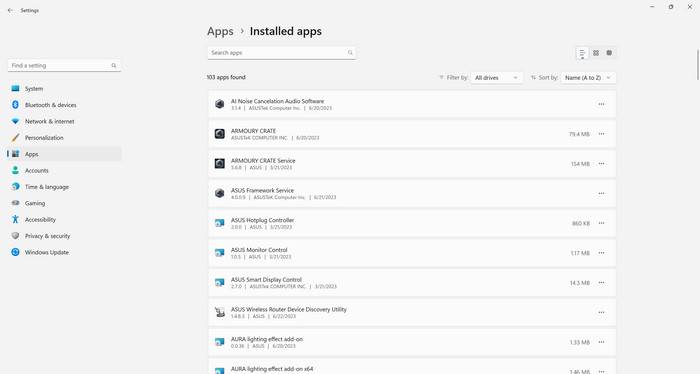
- Uninstalling through the Control Panel: You can remove the VAIO DVD Menu Data by accessing the Control Panel on your computer, navigating to the “Programs” or “Programs and Features” section, locating the VAIO DVD Menu Data entry, and selecting the “Uninstall” option. Follow the on-screen prompts to complete the uninstallation process.
- Using a third-party uninstaller: If you prefer a more thorough uninstallation process, you can utilize a third-party uninstaller tool such as Revo Uninstaller Free. These tools can help remove any leftover files and registry entries associated with the VAIO DVD Menu Data, ensuring a clean removal.
Before proceeding with the removal, it is recommended to create a backup of any important data or files to prevent accidental loss.
Conclusion
VAIO DVD Menu Data is a software component found on Sony VAIO computers that provides the graphical user interface and navigation options for DVD menus. Whether or not you should remove it depends on your personal preferences and usage patterns.
If you frequently use DVDs and appreciate the convenience and aesthetics of the DVD menu interface, it is advisable to keep the VAIO DVD Menu Data installed. However, if you rarely use DVDs or prefer a more streamlined approach, removing it can free up disk space and potentially improve system performance.
When removing the VAIO DVD Menu Data, you can either use the built-in uninstallation feature in the Control Panel or opt for a third-party uninstaller tool for a more thorough removal. Remember to create a backup of important data before proceeding with the uninstallation process.
Ultimately, the decision to remove VAIO DVD Menu Data rests with you and your specific needs. Consider your usage patterns and preferences to make an informed choice that aligns with your computing experience.

Join the discussion
0 commentsShare your experience or ask a question about this article.
Discussion
Start the conversation
Have a question or something useful to share? Add the first comment.