


The contract looks finished, right down to the signature at the bottom. Someone wants your approval before lunch, and the PDF seems to provide it.
Before that document becomes an instruction to sign, pay, or release information, take a closer look at what its signature actually tells you.
Overview
A signature can mean different things
A handwritten appearance, a certificate-based digital signature, and a signing service’s seal are different kinds of evidence. They should not be treated as interchangeable.
A document can contain an electronic signature without an individual signing certificate. That alone establishes neither fraud nor legal invalidity; legal requirements depend on the transaction.
The document and the decision need separate checks
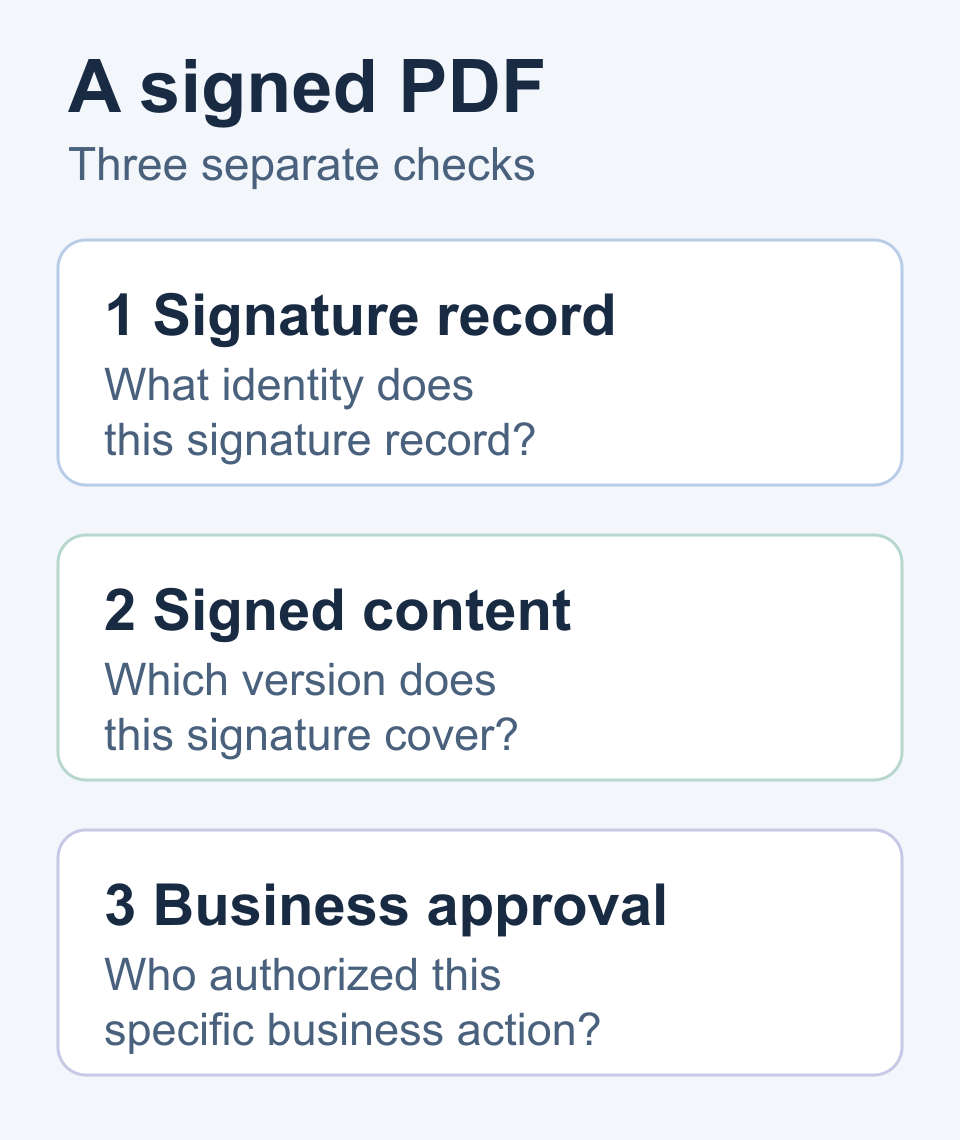
Your immediate task is to identify the signature record, understand which content it covers, and check whether the requested business action is authorized.
Keep these three questions separate while you work:
- What identity does the actual signature record identify?
- Which document version and later changes are involved?
- Who approved this particular agreement, payment, or disclosure?
This guide concerns an actual PDF
The instructions below describe Adobe Acrobat’s documented desktop tools. Other viewers may present different controls or less validation information.
For workplace documents, use your organization’s approved application and process. If the file or its arrival is suspicious, ask IT before opening it.
Start With the File, Not the Signature Picture
Check that you received the document you were expecting through the agreed channel. An unexpected attachment deserves a different response from an established signing workflow.
Do not follow an attachment’s request to install a special viewer, change security settings, or upload your work document to an unfamiliar verification website.
Acrobat’s security-warning guidance distinguishes trusted and untrusted sources. For an untrusted source, dismiss the warning with Close or Cancel.
A request to run scripts or access an outside resource is a security issue, not something to approve merely because a signature appears nearby.
Keep the received file intact for review. Make your working notes separately, rather than adding comments, replacing pages, or printing and rescanning the original before someone examines it.
Find the Actual PDF Signature Record
Adobe’s digital-signature validation procedure starts in the Signatures panel on the right. Select Options, then Validate Signatures, and review the validation status.
Select the relevant signature’s Signature Properties, then Show Signer’s Certificate. Those records give you something to examine beyond the signature’s appearance on the page.
Record the actual result and any explanation. Do not replace an unfamiliar message with your own shorthand such as “definitely fake” or “approved for payment.”
A picture of handwriting cannot provide the same certificate information. Conversely, Adobe documents invisible certification signatures, so the absence of visible ink does not settle the question.
If several records appear, examine the one relevant to the approval you need. A document’s final-looking page is not a substitute for selecting its signature entry.
When there is no certificate entry
Ask the sender which signing method was used and what completion record accompanies it. Do this through the established business contact, not contact details newly introduced inside the attachment.
Your procurement or legal team can decide whether that method meets the transaction’s requirements. Your role is to describe what you received without inventing a technical validation.
Check Whose Certificate You Are Looking At
Adobe’s certificate-information guide identifies details including the holder, validity period, permitted usage, and serial number. Review the holder and issuer instead of relying on the displayed autograph.
The issuer and holder answer different questions: who issued the credential, and whom or what the credential identifies. A familiar issuer name does not replace checking the holder.
Certificates can also be revoked, including after a security problem or an employee’s departure. Leave interpretation of unfamiliar certificate or revocation information to your authorized technical team.
A mismatch deserves a specific question: “This certificate identifies a different organization from the party named in the agreement. Which signing role does it represent?”
A service seal is not necessarily a person’s certificate
Adobe distinguishes individual signatures from organizational seals in its signature-types explanation. A signing service can seal a completed PDF to establish its origin and integrity.
That service’s certificate is not automatically the individual signer’s own certificate. Identify which role the record represents before describing who personally signed.
If a completion report accompanies the document, keep it with the agreement. Ask the responsible team to reconcile the signing roles rather than guessing from a logo.
Self-created identities need their own trust context
Adobe’s certificate-signature background explains that digital IDs can be self-created or obtained from a certificate authority. Their existence alone does not establish an independently verified identity.
Do not add an unfamiliar certificate to your trusted identities simply to remove an inconvenient warning. Ask IT to resolve the identity and trust question.
Check the Signed Version and Any Later Changes
A PDF can contain several signing stages. Your question is whether the content you plan to rely on matches the relevant signed version.
Adobe documents this signed-version comparison route: select the signature in Signatures, open Options, and choose Compare Signed Version to Current Version.
Review the comparison results before closing the dialog. If you cannot interpret a difference, keep the file and ask your document owner or IT to examine it.
If several signatures appear, note which entry you compared. Identify its position and relevant document section for your reviewer, rather than referring vaguely to “the signed copy.”
Be precise about the affected content. A question about the payment schedule is different from a question about an added signature or a completed form field.
Some changes can be permitted
Adobe’s PDF-certification guidance explains that certification sets permitted later actions. Depending on those permissions, later form completion, signatures, or comments may be allowed.
Do not label every later update tampering. Establish what changed, which signature it follows, and whether the document’s certification permits that kind of change.
Permission to make a technical change is still not your company’s approval of the resulting deal. The responsible business owner must review its practical effect.
For example, an allowed extra signature may complete an agreed approval chain. An unexplained change to delivery obligations needs a commercial answer before you proceed.
Read Dates and Unknown Status in Context
A date printed beside handwriting is not necessarily a trusted timestamp. Adobe distinguishes a signer’s computer time from a timestamp obtained through a timestamp service.
Its validation-preferences documentation also shows that verification time and revocation checking affect validation. Do not change those settings to manufacture a favorable result.
Ask your technical reviewer what time the check uses and what evidence supports it. A current certificate expiry date does not, by itself, settle historical validity.
Adobe’s long-term verification guidance explains how certificate-chain information, revocation data, and timestamps can support future checks.
Some of that information can be added after signing under specific conditions. Its absence is a question to resolve, not an instruction to disable verification.
For an unknown or unverifiable result, preserve the exact message and ask what could not be established. Do not announce forgery or approve the document prematurely.
Keep a Record That Someone Else Can Use
A short, factual note makes escalation much easier. Keep it in your approved work system alongside the unchanged document, with access limited to the people handling the request.
Use the following headings as a working record, not as an additional signing certificate or an automated trust score.
| Record heading | What to write down |
|---|---|
| Document received | Filename, arrival channel, and the relevant order or project. |
| Signature identity | The selected entry, certificate holder, and apparent signing role. |
| Content checked | The signed version examined and any difference requiring explanation. |
| Validation question | The exact result and the unresolved technical issue. |
| Business decision | The requested action, responsible approver, and outstanding commercial question. |
| Next owner | The person handling the issue and the next agreed action. |
Separate what you observed from what somebody told you. “Certificate holder differs from contracting party” is an observation; “the supplier says this is its signing service” is an explanation.
Leave room for a third category: what remains unconfirmed. That prevents a colleague from interpreting a partially completed note as a finished approval.
Choose the Next Action Without Guessing
Pause the requested approval when a material identity, content, or authorization question remains unresolved. Choose the relevant branch below for a more specific next step.
The signature result is unknown or unverifiable
Send the exact status and unchanged file through your approved IT process. Ask which verification requirement remains unresolved, without manually trusting the certificate yourself.
The certificate identifies a signing service instead
Ask the document owner for the signing record that identifies each person’s role. Keep the service’s role separate from the individual’s claimed approval.
The current document differs from its signed version
Identify the changed term and request an explanation from the responsible owner. Do not substitute an assumption about why the difference exists.
The technical check passes but approval remains unclear
Obtain the missing business approval through your established process. Confirm the actual obligation or instruction rather than asking only whether the signature looks correct.
A Worked Example: A Signed Agreement With New Instructions
Imagine a supplier sends a signed agreement for a project your company has already discussed. The covering email also asks your team to use new payment details.
For this example, assume your technical reviewer confirms the signature and the relevant document version. Those are hypothetical results, not findings about any real supplier.
You still have two separate requests to handle: accept the agreement and change the supplier’s payment record. Put each through its normal approval process.
Ask the project owner whether the scope, delivery terms, and price match the negotiated deal. Ask the authorized payment team to handle the banking instruction independently.
Use a previously established supplier contact or an independently verified channel. Do not let a new phone number in the same email serve as its own confirmation.
If the supplier confirms the agreement but not the payment change, record that distinction. Do not mark the entire email approved because one attachment checked out.
The same approach works without a payment request. A signed nondisclosure agreement does not tell you which customer files your manager has approved for release.
Before sharing, identify the permitted recipients, purpose, and information. Keep the access decision with the person responsible for that information, not with the PDF’s visual presentation.
What to Do If You Already Relied on the PDF
-
Identify the action you actually took. Tell the responsible colleague whether you approved an order, released a payment, shared information, or simply read the document.
Include the relevant time and business reference. Avoid turning an uncertain signature result into a claim that the entire transaction was fraudulent.
-
Preserve the received document and correspondence. Keep the original attachment and accompanying instructions in your approved work system, without editing them to make the inconsistency clearer.
Write explanations separately so the next reviewer can distinguish your notes from the material you received. Avoid forwarding confidential copies to unnecessary recipients.
-
Route the technical question to IT. Describe the specific certificate, validation, or version issue. Include the selected signature’s details rather than only a screenshot of handwritten ink.
If the file triggered an unexpected security warning, mention that separately. Do not reopen it or enable blocked features just to produce more evidence.
-
Route the business consequence to its owner. Finance handles payment instructions, procurement or legal handles contractual questions, and the information owner handles an unintended disclosure.
Say whether a further action is pending so that person can address it. Do not assume a corrected PDF reverses something already done.
Frequently Asked Questions
Does a picture of a signature prove the PDF is authentic?
No, the picture does not establish a certificate-based signing record. Check the document’s actual signature information and the signing method used, rather than judging handwriting.
Does a valid digital signature authorize a payment?
No, payment authorization is a separate business decision. Confirm the transaction, beneficiary, and approval through your established process, even when the technical review is satisfactory.
Does a service seal identify the person who signed?
Not necessarily, because an organizational seal can identify the service or organization. Ask for the accompanying signing record when you need to establish the individual’s role.
Does an expired certificate make an earlier signature invalid?
Not automatically, because verification time and supporting timestamp information matter. Ask your technical team to interpret the result without changing validation settings yourself.
Does every change after signing invalidate the document?
No, certification can permit specified later actions. Compare the relevant signed version with the current document and resolve the particular change before relying on it.
Should I upload a private contract to an online validator?
Not without your organization’s approval for that service and document. Use the approved local application or internal review route instead of disclosing confidential material to strangers.
The Bottom Line
Verify PDF digital signatures as evidence about a document, not as permission to carry out every accompanying instruction. Resolve the signing identity, content, and business approval separately.
If you already acted, preserve the original and tell the relevant technical and business owners what happened. Their next task is addressing the actual consequence, not improving its appearance.

Join the discussion
0 commentsShare your experience or ask a question about this article.
Community experiences
Did this happen to you?
Your experience could help someone recognize the same scam. Submit a private report for our team to review.
I experienced this tooReports are reviewed before publication. Sharing publicly is always your choice.
Discussion
Start the conversation
Have a question or something useful to share? Add the first comment.