


A familiar work message arrives with a long link containing safelinks.protection.outlook.com. The document supposedly comes from somebody else, leaving you unsure about the address.
You want to finish the task without making an expensive mistake. Before deciding what that address means, separate the link’s appearance from the request accompanying it.
Overview
A protective service can sit between you and another website
Microsoft Safe Links can inspect destinations when protected users click.
The task still needs a sensible business explanation
Consider the difference between receiving directions and receiving permission. A message can tell you where to go without establishing why you should complete the requested action.
For work, the useful question is concrete: does this particular request fit an expected task, an authorized person, and the information you are supposed to handle?
Choose your response according to what actually happened
- An unfamiliar address alone deserves clarification, not an immediate accusation.
- An unexpected request deserves verification before you supply anything.
- A protection warning is not an invitation to find another route.
- Information already submitted needs a specific report about that exposure.
What Microsoft Safe Links Does, and Does Not, Tell You
Supported configurations inspect links with or without rewriting their addresses.
Keep a useful distinction in mind: a website opening and a workplace task being authorized are different outcomes. Neither should be used as shorthand for the other.
For example, finding a document on a website does not answer whether you should upload your department’s unpublished plans there. The second decision involves your responsibilities.
Personal Outlook.com protection has separate subscription and mailbox conditions. Do not assume an enterprise feature description applies identically to every account opened in Outlook.
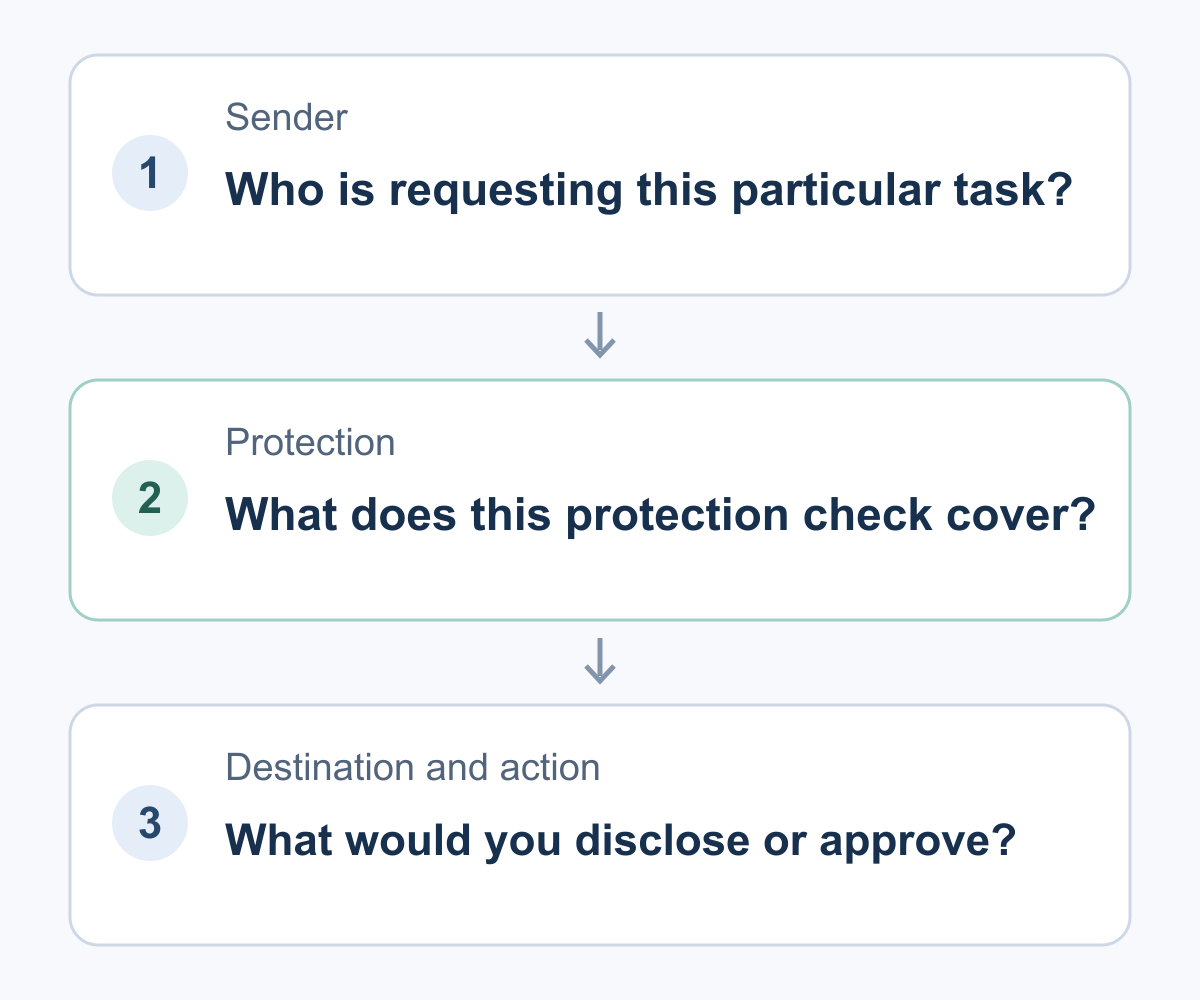
Separate These Three Questions Before Acting
Who is asking you to do something?
Start with the conversation, rather than searching the address for a reassuring company name. Identify the person making the request and the project they say it concerns.
Ask whether their role explains the request. A collaborator can legitimately send reading material without being authorized to request your team’s confidential files.
Likewise, a person introducing a project may not control your company’s account process. Their instructions should not automatically replace the procedures your workplace already uses.
Where does the requested task belong?
Think about the system where this work normally happens. Is this a document you expected in your regular workspace, or an unexplained move somewhere different?
A new destination is not automatically fraudulent. Projects change platforms, companies engage contractors, and organizations sometimes introduce new tools. Those changes should still have an understandable explanation.
Describe the mismatch plainly when asking for help. Saying the request moved a familiar task to an unfamiliar service is more useful than declaring every long address dangerous.
What would you be authorizing or disclosing?
Reading a public agenda, uploading an internal document, and approving account access are not interchangeable tasks. Identify which action is actually being requested before proceeding.
Ask what information the task requires, who should receive it, and whether that matches your responsibilities. Do not supply unrelated information simply to finish an inconvenient screen.
| Question to resolve | Useful evidence | Still unanswered |
|---|---|---|
| The person requesting the task | A previously established business conversation | Whether this new instruction belongs to that conversation |
| The place where work happens | Your team’s established workspace or approved process | Why the request would require moving elsewhere |
| The information being requested | The purpose and actual scope of your task | Whether you have permission to disclose those details |
Three Work Messages, Three Different Decisions
Example 1: The document you were expecting
Imagine your operations team has just finished its weekly meeting. A coordinator sends the updated handbook that everyone agreed would be circulated afterward.
The timing, subject, and requested activity fit the conversation. You are being asked to read revisions, not supply a password or send a confidential attachment.
Now imagine the address looks unfamiliar. That formatting question should not erase the business context you already have, but it should not create additional permission either.
Identify what would change your decision. A request to move payroll records, install an unfamiliar program, or approve access would be a different task.
The important habit is noticing that change. You are not making one permanent judgment about whether the coordinator is trustworthy for every future request.
For this example, the document’s expected arrival and limited purpose are useful context. They are not a reusable approval for anything added to the conversation later.
Example 2: The message changes where confidential work goes
Now imagine an unfamiliar project contact asks you to upload a draft proposal. The message says another team needs it before an approaching meeting.
You know the project exists, but your team has not agreed to release that draft. Recognizing the project name does not settle the disclosure question.
Break the decision into smaller questions. Who authorized the release, which version should leave the workspace, and why does this particular recipient need it?
You can ask your project owner about those questions without opening the supplied destination. That conversation establishes the business requirement rather than testing a potentially risky request.
Microsoft recommends checking unexpected requests through another trusted route, rather than using contact details supplied by the suspicious message.
Use an established project channel to explain that release needs confirmation. You can keep genuine work moving without replying to the unverified sender.
A useful result might be confirmation of the approved sharing process. Another result might be discovering that nobody requested the transfer. Both resolve something the prefix cannot answer.
Example 3: A familiar task triggers a warning
Finally, imagine the handbook request seems familiar, but a protection warning interrupts the journey. Familiar context does not make that warning an obstacle to work around.
Stop and ask your established help desk to investigate. Explain the expected task and the warning you saw, rather than asking colleagues for an unprotected replacement link.
Tell your security team whether other colleagues received the message. Do not circulate it as an experiment to compare their results.
The report can be accurate without claiming that the coordinator committed fraud. There may be a security problem, an incorrect classification, or another issue requiring investigation.
You do not need to decide which explanation is correct before reporting it. Preserve the distinction between what you expected, what appeared, and what you actually did.
Make an Internal Report Useful Without Exposing Secrets
A report saying that a link looked strange leaves the investigator with several unanswered questions. A short description of the task provides a better starting point.
Include the message’s approximate arrival time, the requested activity, and whether it matched an existing conversation. Describe a warning using the wording you already saw.
Then separate your observations from your conclusions. You can report that a page requested account details without claiming that you proved who controlled the page.
Most importantly, state your actions honestly. Reading a message, opening a destination, entering information, approving access, and running a downloaded file are different events.
Show the information a useful report should contain
- The expected task and why the message concerned you
- The approximate time and the account receiving the message
- The warning or unexpected request you actually observed
- The information or permissions you supplied, without including secrets
- Any download or installation, described separately from account activity
Those prompts are a reporting aid, not a diagnostic form. You do not need to collect extra evidence by returning to the suspicious page.
You might remember a download but not whether it opened. Report what you remember and what you cannot confirm, instead of repeating the process.
If the incident involves a shared mailbox or another person’s account, say so. The investigator needs to understand whose actions and permissions are involved.
Shared-mailbox reporting can depend on client support and delegation permissions. Confirm your team’s process rather than assuming a message disappearing means the intended team received it.
Follow your workplace’s established reporting channel. If its instructions differ from a generic online checklist, ask the responsible team how to preserve the message safely.
Supported Outlook versions offer a Report phishing option when configured. Reporting destinations depend on organizational settings; the action can remove the message from your mailbox.
That is one reason to describe the incident promptly and follow your organization’s process. Do not assume that clicking a reporting control completes every internal notification you need.
Keep Private Work Links Out of Public Decoders
A long address can tempt you to paste it into a public website for an explanation. For work material, pause before sharing the entire string.
Some URLs can carry access-granting information. Microsoft’s Azure Storage documentation explains that signed query tokens can authorize resource access and create exposure if leaked.
That example does not mean every rewritten email link contains an access token. It explains why you should not assume every part of a URL is harmless.
Think about the audience for your question. Asking the internal security team to examine a work message is different from publishing its complete contents for strangers.
You can often describe the problem without reproducing the full address: an unexpected destination, a changed request, or a warning during an otherwise familiar task.
Let your support team specify how to transmit anything more detailed. Do not remove pieces of the link yourself and present the altered version as the original evidence.
A useful screenshot can also reveal more than intended. Before sharing one outside an approved channel, consider the document names, account details, and private conversation around the address.
Let the incident lead decide who else needs notification. Posting the message widely can spread a risky destination or expose details from the original conversation.
Keep a simple record of whom you contacted and when. That makes later instructions easier to follow without starting conflicting discussions about the same incident.
What to Do If You Already Clicked or Responded
-
Stop the unexpected task and describe your actions. Do not continue through another sign-in, upload, or download merely to find out what happens next.
Tell your help desk whether you only viewed the destination or also supplied something. If you are uncertain, explain the uncertainty rather than guessing an outcome.
-
Report the original message through your established channel. Use your workplace’s approved reporting process, and mention any protection warning or unexpected request you encountered.
A useful report should connect the original email to the later action. Reporting a strange-looking address alone may leave out the information needed to prioritize your incident.
-
Escalate exposed account information without sending more secrets. If you entered a work password or approved unwanted access, contact your real account administrator immediately.
Microsoft’s compromised-account guidance covers containment and investigation beyond passwords, including permissions, authentication changes, mail forwarding, and suspicious activity.
Do not send your password in the incident report. Describe where you entered it and the approximate time so the administrator can identify the relevant event.
-
Follow containment instructions until the investigation is complete. Closing the browser is not the same as withdrawing access already granted through an account.
Microsoft’s revocation guidance explains that applications and token types affect timing. Do not assume one action instantly ends every session.
-
Identify any work information you already disclosed. Tell the responsible internal team which document or information category was involved, using the reporting method they authorize.
A password change does not retrieve a file already sent elsewhere. The organization needs to assess that disclosure separately, including any necessary privacy or business response.
-
Describe downloads and device actions as separate exposures. Say whether a file was merely downloaded, opened, installed, or given additional permissions.
Ask your IT team how to handle the affected device. Do not install a cleaner from the message, erase evidence, or reset company equipment on your own.
Frequently Asked Questions
Does a Safe Links address mean Microsoft wrote the email?
The wrapper does not identify the email’s author. Verify who requested the task before acting on the message.
Does every protected link have a visibly rewritten address?
Some configurations protect links without rewriting their addresses. Your organization’s settings and supported client determine how that protection works.
Should I remove the wrapper to see whether a warning disappears?
Do not bypass the warning or ask for an unprotected replacement. Ask your established security team to investigate the interrupted task.
Can I put a complete work URL into a public decoder?
A full work URL may contain information you should not disclose. Use an approved internal reporting method instead of publishing the string for analysis.
Does reporting the message prove my account is secure?
Reporting and containing account access are separate actions. If you supplied credentials or approved access, describe that exposure to your administrator as well.
Do these enterprise instructions apply to every personal Outlook account?
Consumer Outlook.com has separate eligibility and coverage. Use the guidance for your actual mailbox and subscription rather than assuming every Outlook connection behaves identically.
The Bottom Line
Keep the protection in place and judge the requested task separately. A reassuring prefix should not substitute for a clear business purpose and appropriate authority.
If you already supplied information or approved access, stop and tell your real support team what happened. Give them the actions, not just the address.

Join the discussion
0 commentsShare your experience or ask a question about this article.
Community experiences
Did this happen to you?
Your experience could help someone recognize the same scam. Submit a private report for our team to review.
I experienced this tooReports are reviewed before publication. Sharing publicly is always your choice.
Discussion
Start the conversation
Have a question or something useful to share? Add the first comment.