

A new online scam is making the rounds, targeting Zara fans with promises that sound too good to be true. Through spam emails and misleading social media ads, scammers are promoting a site called Zartest.online, claiming you can become a “Zara product reviewer” and score a $750 PR package.
In reality, it’s a trap designed to collect your personal information and push you toward shady websites. In this article, we’ll break down how the scam works, how to spot similar schemes, and what steps to take if you’ve already shared your details.
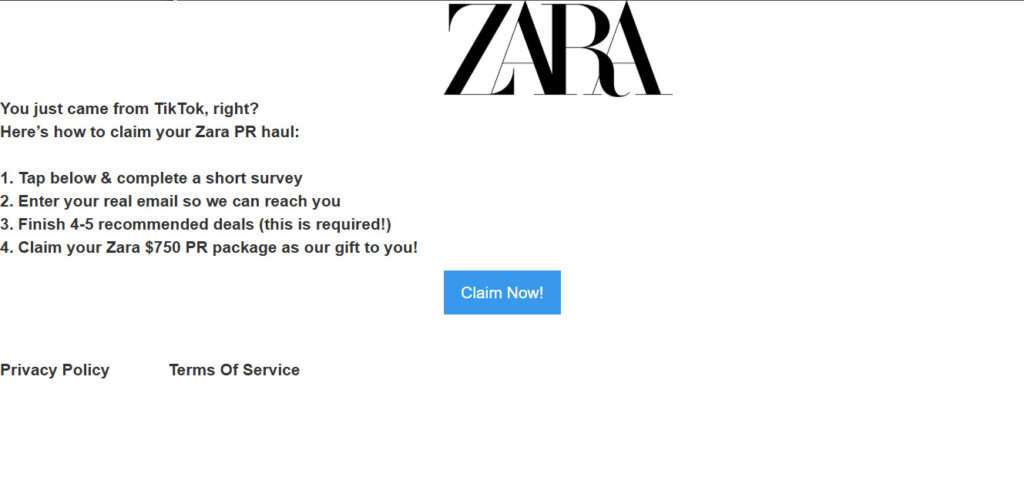
Overview of the Zartest.online Scam
This scam starts with fake ads on platforms like TikTok or spammy emails promising a free Zara product review package. These messages direct users to a site called Zartest.online, which falsely uses Zara’s logo and branding to appear legitimate.
On the site, visitors are told they can receive a $750 Zara PR haul by completing a few simple steps:
- Fill out a short survey
- Enter a valid email address
- Complete several “recommended deals”
- Claim their free package
But here’s what really happens.
Once users submit their personal details, they’re funneled through a series of shady affiliate links. These links lead to sketchy websites that push people to:
- Download unwanted apps
- Sign up for worthless subscriptions
- Purchase low-quality or fake products
Meanwhile, the scammers collect affiliate commissions for every click, install, or payment made through these links. The victims? They get nothing—no free products, no PR haul—just spam, scams, and a compromised inbox.
Zartest.online has no connection to the real Zara. Its only goal is to harvest personal information and drive affiliate revenue by misleading people with false promises.
The scam is convincing because it plays on the idea of becoming a Zara product tester—something that sounds exclusive and exciting. In reality, it’s just a front for phishing, digital manipulation, and unwanted subscriptions.
Avoid Zartest.online and be cautious of any site offering “free product testing” in exchange for personal info and deal completions. If it sounds too good to be true, it probably is.
How the Zartest.online Scam Works
Here is a step-by-step look at how the Zartest.online scam operates to trick unsuspecting people:
Step 1: Scam Ads Promote Zartest.online
The scammers behind this scheme utilize online ads to drive traffic to the fraudulent Zartest.online website. These ads appear on social networks like Facebook and Instagram, or in spam email campaigns.
The ads contain eye-catching images implying visitors can get free Zara products. For example, they may show a photo of Zara clothes with text like “Become a Product Tester for Zara – Get Free Products”. Other ads seen simply say “Zara Rewards” or “Free Zara Products”.
These compelling ads target Zara fans and entice them to click through to Zartest.online.
Step 2: Zartest.online Claims You Can Become a “Product Reviewer”
When you arrive at Zartest.online, the site has the look and feel of an official Zara page. Zara’s name and stylized logo are prominently shown.
The headline says “Become a Zara product reviewer!” and the page claims there are limited spots to qualify.
To apply, it asks you to click a button and complete a short questionnaire. According to the site, if selected, you’ll be notified by email and sent shopping credits to spend on reviewing Zara products.
This creates the illusion that Zartest.online is run by Zara to recruit product testers. But it’s a total scam.
Step 3: Questionnaire Collects Personal Information
If you click the application button, you are taken to a questionnaire hosted on a different domain name.
The survey asks for your name, email address, phone number, home address, date of birth, interests, and shopping preferences.
After filling out the questionnaire, you must click a button to submit your details.
The scammers behind Zartest.online use this tactic to harvest personal information from victims. Your data can then be used for identity theft or sold to other scammers.
Step 4: You Are Redirected to Shady Websites
Here is where the scam really starts extracting money from victims.
As soon as you submit the questionnaire, the site automatically redirects you through a series of shady websites. These destinations are part of an affiliate network that pays commissions to Zartest.online owners.
Typical landing pages include:
- Sites offering free ebooks or PDF reports that require an email address to access. This allows them to add you to mailing lists and re-target you with offers.
- Mobile app download pages that attempt to get you to install unwanted games, apps, or browser extensions. They earn a bounty for every install.
- Sales pages for subscriptions to useless services like horoscope sms alerts, iq training games, etc. Signing up earns them recurring fees.
- Online contests that require an email address or phone number to enter. This data gets sold to other marketers.
As you click through each page, the scammers earn affiliate commissions. But you gain nothing from these offers in return.
Step 5: Scammers Profit, You Get Nothing
The purpose of the Zartest.online scam is to earn affiliate commissions from your clicks, downloads, subscriptions and purchases through their network.
You never get shopping credits or opportunities to review Zara products. The claim of becoming a “product tester” is completely false.
At best, victims waste time filling out surveys and getting bombarded with junk offers. But worse, many end up buying useless services, downloading malware, or having their personal data stolen.
Meanwhile, the scammers behind Zartest.online profit with every click and conversion. It’s an insidious scam designed to take advantage of Zara fans.
What to Do If You Fell Victim to the Scam
If you entered personal information at Zartest.online or clicked through to any other sites, here are important steps to take right away:
- Contact your bank/credit card company – If you signed up for a free trial or subscription service, call your bank immediately and explain it was fraud. Ask them to reverse any unauthorized charges.
- Watch for credit card fraud – Check your statements closely for any suspicious charges from scammers who now have your card number. Report any fraud to your bank.
- Change passwords – Update logins and passwords for any online accounts that use the same credentials you entered at Zartest.online.
- Run antivirus software – If you downloaded any free apps or files, scan your devices thoroughly to detect any malware. Delete anything suspicious.
- Place fraud alert – Consider placing a fraud alert on your credit reports to help protect your identity. This alerts you if someone applies for credit in your name.
- Block unwanted emails – Use email filters to block further messages from Zartest.online or any other sources you now receive spam from.
- Remove software – If you installed any unwanted mobile apps, extensions or programs from the scam offers, uninstall them.
- Report the scam – File a complaint with the FTC about Zartest.online and any affiliate sites you reached to help shut them down.
Stay vigilant for any future spam emails, texts, or social media ads promoting free trial offers or opportunities to get paid for product testing. The vast majority are scams similar to Zartest.online. Protect yourself by ignoring them completely.
Is Your Device Infected? Run a Free Malware Scan
Slow performance, constant pop-ups, or strange behavior? These are classic signs of a malware infection. The fastest way to find out is to scan your device with Malwarebytes Free — one of the most trusted malware removal tools available.
The free version detects and removes the most common threats, including:
- Adware — the cause of those annoying pop-ups
- Browser hijackers — unwanted redirects and changed homepages
- Trojans and spyware — hidden programs stealing your data
- Potentially unwanted programs (PUPs) — software you never asked for
👉 Select your device below — Windows, Mac, or Android — then follow the simple steps to download Malwarebytes, scan your system, and remove any threats it finds. The scan usually takes 5 to 20 minutes.
Run a Malware Scan with Malwarebytes for Windows
Malwarebytes is one of the most popular and trusted anti-malware tools for Windows — and it’s completely free for removing infections. It catches threats that many antivirus programs miss, including adware, browser hijackers, and trojans. Follow the steps below to scan and clean your PC in just a few minutes.
Download Malwarebytes
Click the button below to download the latest version of Malwarebytes for Windows from the official source. The free version is all you need — it will scan your computer and remove adware, browser hijackers, and other malicious software at no cost.
Download MalwarebytesOfficial installer for Windows 11 and 10. Your download starts right away.Want real-time protection? See Malwarebytes Premium Malwarebytes Free for WindowsScans and removes malware at no cost
-
Install Malwarebytes
When the download finishes, open your Downloads folder and double-click the MBSetup file. If Windows shows a User Account Control pop-up, click “Yes” to allow the installation.

Follow the On-Screen Prompts to Install Malwarebytes
The setup wizard will walk you through a few quick screens:
-
Choose where you’re installing the program — “Personal Computer” or “Work Computer” — then click Next.

-
Malwarebytes will now install on your device. This usually takes under a minute.

-
When installation is complete, the “Welcome to Malwarebytes” screen will open automatically.

-
On the final screen, click Open Malwarebytes to launch the program.

-
Enable “Scan for Rootkits”
Before scanning, turn on rootkit detection so Malwarebytes can find even the most hidden threats. Click the Settings gear icon on the left side of the screen.

In the settings menu, find “Scan for rootkits” and click the toggle so it turns blue.

Done? Click “Dashboard” in the left pane to return to the main screen.
Start the Scan
Click the blue Scan button. Malwarebytes will automatically update its virus database and start checking your computer for malware.

-
Wait for the Scan to Finish
The scan checks your entire system for browser hijackers and other malicious programs, so it can take 5 to 20 minutes depending on your computer. Feel free to do something else — just check back occasionally to see the progress.

-
Quarantine the Detected Threats
When the scan is done, you’ll see a list of everything Malwarebytes found — malware, adware, and potentially unwanted programs. Click the “Quarantine” button to remove all of them at once.

Malwarebytes will now remove the malicious files and registry entries and move them safely into quarantine.

-
Restart Your Computer
Some threats can only be fully removed after a reboot. If Malwarebytes asks you to restart, click Yes. Once you’re logged back in, Malwarebytes has finished removing the threats it found.

That’s it — your Windows PC is now clean of trojans, adware, and other malware, and should be back to running smoothly.
If you are still having problems with your computer after completing these instructions, then please follow one of the steps:
- Run a computer scan with ESET Online Scanner
- Ask for help in our Windows Malware Removal Help & Support forum.
Run a Malware Scan with Malwarebytes for Mac
Malwarebytes for Mac is a free on-demand scanner that removes the malware other security software tends to miss — adware, browser hijackers, and unwanted programs included. Cleaning an infected Mac with Malwarebytes has always been completely free, and it’s our go-to recommendation. Follow the steps below to scan and clean your Mac in just a few minutes.
-
Download Malwarebytes for Mac
Click the button below to download the latest version of Malwarebytes for Mac.
Download MalwarebytesOfficial installer for macOS. Your download starts right away.Want real-time protection? See Malwarebytes PremiumMalwarebytes Free for MacScans and removes malware at no cost -
Open the Malwarebytes setup file
When the download finishes, open your Downloads folder and double-click the setup file to begin the installation.

-
Follow the On-Screen Prompts to Install Malwarebytes
The Malwarebytes for Mac Installer will guide you through a few quick screens. Click “Continue” and keep following the prompts until the installation completes.



When the installation is complete, Malwarebytes opens to the Welcome to Malwarebytes screen. Click “Get started“.
-
Select “Personal Computer” or “Work Computer”
Malwarebytes will ask what type of computer you’re installing it on. Click either Personal Computer or Work Computer, whichever applies.

-
Start the Scan
Click the “Scan” button. Malwarebytes will automatically update its detection database and begin checking your Mac for malware.

-
Wait for the Scan to Finish
Malwarebytes will scan your Mac for adware, browser hijackers, and other malicious programs. This can take a few minutes, so feel free to do something else — just check back occasionally to see the progress.

-
Quarantine the Detected Threats
When the scan is done, you’ll see a list of everything Malwarebytes found. Click the “Quarantine” button to remove all the threats at once.

-
Restart Your Mac
Malwarebytes will now remove all the malicious files it found. Some threats can only be fully removed after a reboot — if Malwarebytes asks you to restart, allow it. Once you’re logged back in, your Mac is clean.

That’s it — your Mac is now free of adware, rogue browser extensions, and other potentially harmful software.
If you are still experiencing problems while trying to remove a malicious program from your computer, please ask for help in our Mac Malware Removal Help & Support forum.
Run a Malware Scan with Malwarebytes for Android
Malwarebytes for Android automatically detects and removes dangerous threats like malware and ransomware so you don’t have to worry about your most-used device being compromised. Aggressive detection of adware and potentially unwanted programs keeps your Android phone or tablet running smooth.
-
Download Malwarebytes for Android.
You can download Malwarebytes for Android by clicking the link below.
Get Malwarebytes for AndroidOpens Google Play in a new tab.Want real-time protection? See Malwarebytes Premium for AndroidMalwarebytes for AndroidScans your phone and removes malware at no cost -
Install Malwarebytes for Android on your phone.
In the Google Play Store, tap “Install” to install Malwarebytes for Android on your device.

When the installation process has finished, tap “Open” to begin using Malwarebytes for Android. You can also open Malwarebytes by tapping on its icon in your phone menu or home screen.

-
Follow the on-screen prompts to complete the setup process
When Malwarebytes will open, you will see the Malwarebytes Setup Wizard which will guide you through a series of permissions and other setup options.
This is the first of two screens that explain the difference between the Premium and Free versions. Swipe this screen to continue.
Tap on “Got it” to proceed to the next step.
Malwarebytes for Android will now ask for a set of permissions that are required to scan your device and protect it from malware. Tap on “Give permission” to continue.
Tap on “Allow” to permit Malwarebytes to access the files on your phone.
-
Update database and run a scan with Malwarebytes for Android
You will now be prompted to update the Malwarebytes database and run a full system scan.

Click on “Update database” to update the Malwarebytes for Android definitions to the latest version, then click on “Run full scan” to perform a system scan.

-
Wait for the Malwarebytes scan to complete.
Malwarebytes will now start scanning your phone for adware and other malicious apps. This process can take a few minutes, so we suggest you do something else and periodically check on the status of the scan to see when it is finished.

-
Click on “Remove Selected”.
When the scan has been completed, you will be presented with a screen showing the malware infections that Malwarebytes for Android has detected. To remove the malicious apps that Malwarebytes has found, tap on the “Remove Selected” button.

-
Restart your phone.
Malwarebytes for Android will now remove all the malicious apps that it has found. To complete the malware removal process, Malwarebytes may ask you to restart your device.
That’s it — your Android phone is now clean — no more malicious apps, adware, or browser redirects.
If you are still having problems with your phone after completing these instructions, then please follow one of the steps:
- Restore your phone to factory settings by going to Settings > General management > Reset > Factory data reset.
- Ask for help in our Mobile Malware Removal Help & Support forum.
Stay Protected: Block Ads and Malicious Sites
Now that your device is clean, keep it that way. Most infections start with a malicious ad or a fake download button — so blocking them at the source is your best defense.
We recommend AdGuard, which blocks malicious ads, phishing pages, and dangerous redirects before they can reach you.
👉 Download AdGuard and browse safely
Frequently Asked Questions About the Zartest.online Scam
Many people have questions about the misleading claims and tactics used by Zartest.online. Here are answers to some frequently asked questions about this “Zara product reviewer” scam.
What is Zartest.online?
Zartest.online is a fraudulent website that has no actual association with the clothing brand Zara. The site falsely claims visitors can sign up to become a product reviewer and receive Zara shopping credits. Its real purpose is to harvest personal information and redirect victims to shady offers that earn affiliate commissions.
How does the Zartest.online scam work?
The scam website runs sponsored posts and ads directing people to their site. Once there, you are prompted to complete a questionnaire to “apply” as a reviewer. After entering personal details, you are redirected to various websites that pay commissions to the scammers when you sign up for offers. Victims never get to review products or receive shopping credits.
Is Zartest.online operated by or connected to Zara?
No. Zartest.online has no relationship to the real company Zara. The scam website simply displays the Zara logo illegally to look official. Its claims of giving away free products in exchange for reviews are completely false.
What happens when you complete the Zartest.online questionnaire?
The questionnaire asks for personal information like your name, email, phone number, address and more. This data is likely used for identity theft or sold to other scammers. Right after submitting details, you are redirected to shady websites through the scammers’ affiliate network.
What types of websites does Zartest.online redirect users to?
Typical shady websites you may be redirected to include free ebook offers (that sell your data), mobile app downloads, subscriptions to useless services, online contests, and more. The scammers earn affiliate commissions from any downloads, purchases or sign-ups generated through their links.
Does Zartest.online send free Zara products if you apply?
No. The claims of sending shopping credits or Zara products to reviewers are completely bogus. It is a false promise used to manipulate victims and steal personal information. You never receive any opportunity to actually test or review products.
Is personal information entered on Zartest.online secure?
Absolutely not. Any data collected is likely used fraudulently or sold to other scammers involved in identity theft. Never enter any personal or financial details on questionable websites like this.
What should you do if you gave information to Zartest.online?
Immediately contact your bank about any unauthorized charges, scan devices for malware, place fraud alerts on credit reports, change passwords, block unwanted emails, and report the scam to the FTC.
How can you avoid the Zartest.online scam?
Be wary of too-good-to-be-true offers, ignore related ads and sponsored posts, don’t click questionable links, protect your personal information, and avoid entering details on sketchy sites promising free products.
The Bottom Line
The website Zartest.online is a fraudulent site promoting a fake opportunity to become a Zara product reviewer. It lures in victims with the false promise of shopping credits.
In reality, it steals personal information and redirects visitors to shady websites in order to earn affiliate commissions. You never get anything of value in return.
Avoid sponsored posts and sketchy offers associated with Zartest.online. Be cautious of any site offering free products or easy ways to make money online. Many are ploys to harvest data or push unwanted services on users.
Carefully guard your personal and financial information to avoid falling victim to manipulative scams. And warn your friends and family to stay far away from Zartest.online.

Reviews & discussion
0 commentsShare a firsthand experience, or ask a question.
Community reviews
zartest.online
Moderated reader experiences, not an editorial verdict.
Start the conversation
Have a question or something useful to share? Add the first comment.