Troubleshoot A Recurring Problem

Dave Russo

Level 22
Thread author
Verified
Top Poster
Well-known
Forum Veteran
May 26, 2014
1,145
1
6,460
2,068
Connecticut
Hi folks of MalwareTips,

Ever month or so I get caption"Windows cannot access the specified device..and I cannot download I have Googled and tried you tube advice it to no avail the only thing thats helped is restore by a backup Anyway anyone know what does this?,I have shut windows app block, disabled Av, looked at properties on link ect,with no luck .Appreciate any insite if you have it.


Thanks Dave
 
Hi folks of MalwareTips,Ever month or so I get caption"Windows cannot access the specified device..and I cannot download I have Googled and tried you tube advice it to no avail the only thing thats helped is restore by a backup Anyway anyone know what does this?,I have shut windows app block, disabled Av, looked at properties on link ect,with no luck .Appreciate any insite if you have it .Thanks Dave
Hi Dave Russo,

Welcome to MalwareTips! That error message—"Windows cannot access the specified device, path, or file"—is a classic one that pops up for all sorts of reasons, often tied to permissions, antivirus interference, or even something like a corrupted file path. It's frustrating when it recurs like that, especially if a system restore is the only temporary fix. Since you've already tried disabling AV, checking properties, and turning off Windows app blocking (SmartScreen?), let's dig a bit deeper without jumping to conclusions.

First off, could you share a few more details to help narrow this down? Things like:
  • What exactly are you trying to download or access when this happens? (e.g., a specific file type, from a browser, or something else?)
  • Which version of Windows are you on? (10, 11?)
  • Does it happen with all downloads, or just certain ones? Any patterns, like after updates or specific apps?
  • Have you noticed any other odd behavior on your system, like slowdowns or pop-ups?

In the meantime, here are some safe, step-by-step suggestions to troubleshoot without risking your system:

1. Run a System File Check
This can fix corrupted system files that might be causing permission glitches. Open Command Prompt as admin and type:
Code:
sfc /scannow
Let it run and restart if it finds issues.

2. Check for Malware
Since this is MalwareTips, I'd recommend a thorough scan—recurring issues can sometimes point to something sneaky. If you haven't already:
- Download and run Malwarebytes (free version) for a quick scan.
- Follow up with something like AdwCleaner or ESET Online Scanner for a second opinion.
Avoid sketchy tools; stick to reputable ones.

3. Permissions and Ownership
If it's a specific file or folder:
- Right-click the item > Properties > Security tab.
- Click Edit, add your user account, and give it full control.
If that doesn't stick, try taking ownership via Command Prompt:
Code:
takeown /F "path_to_file_or_folder"

4. Browser or Download Manager Issues
If this ties to downloads, try a different browser (e.g., switch from Chrome to Edge) or clear your browser cache/temp files. Also, check if your downloads folder has any permission restrictions.

5. Windows Updates and Drivers
Ensure Windows is fully updated, as bugs like this sometimes get patched. If it's hardware-related (e.g., external drives), update those drivers too.

If none of that clicks and it keeps happening monthly, it might be worth looking at scheduled tasks or recent software installs that could be triggering it. Restoring from backup is a solid workaround, but let's see if we can stop it for good.

Hang in there—plenty of folks here have dealt with similar headaches. Reply with more info, and we'll keep brainstorming!

Cheers,
@Bot

 
Upvote 0
Suggestions: have you tried these?

Check the Event Viewer around the time you receive the "Windows cannot access the specified device" message to see if there are any clues?

Try the typical restore commands:
sfc /scannow
DISM /Online /Cleanup-Image /RestoreHealth

Settings > System > Recovery > Fix problems using Windows Update.


Look at the Task Scheduler to see if a task was run at the time you get the message.
 
Upvote 0
Hi folks of MalwareTips,

Ever month or so I get caption"Windows cannot access the specified device..and I cannot download I have Googled and tried you tube advice it to no avail the only thing thats helped is restore by a backup Anyway anyone know what does this?,I have shut windows app block, disabled Av, looked at properties on link ect,with no luck .Appreciate any insite if you have it.


Thanks Dave
Hav you checked the windows service / error logs?

Have you just for ##### and giggles ran chkdsk /f /r
 
Upvote 0
Hi folks of MalwareTips,

Ever month or so I get caption"Windows cannot access the specified device..and I cannot download I have Googled and tried you tube advice it to no avail the only thing thats helped is restore by a backup Anyway anyone know what does this?,I have shut windows app block, disabled Av, looked at properties on link ect,with no luck .Appreciate any insite if you have it.


Thanks Dave
Id check for file corruption first.

Open an Elevated Command Prompt

The commands must be run with administrator privileges to modify protected system files.

Click the Start Menu or press the Windows key (Win).

Type cmd in the search results, right-click on Command Prompt and select Run as administrator.

If prompted by User Account Control (UAC), click Yes. The title bar of the resulting window should read "Administrator: Command Prompt." Type in this command below.

DISM /Online /Cleanup-Image /RestoreHealth

Result


You should see a message stating, "The operation completed successfully," or indicating that the corruption was repaired.

After ensuring the Windows source files are healthy, run SFC to check and repair all protected operating system files.

While still in the Elevated Command Prompt enter the command below.

sfc /scannow

This will Scan all protected system files and replaces any corrupted or missing files with the good copies from the now-repaired Component Store.

Once both DISM /RestoreHealth and sfc /scannow have run successfully and reported their results, you must reboot the system to finalize all system file replacements and integrity fixes.

Why am I recommending this order and not a sfc /scannow first?

Both commands repair corruption, but they target different layers of the operating system. If you run SFC first and the parts in the Component Store are corrupted, SFC might fail, or it might replace a working file with a slightly older or damaged file from the corrupted store, essentially making the problem worse or guaranteeing its quick return.

By running DISM /RestoreHealth first, you guarantee that when SFC /scannow runs, it is pulling known-good, trusted files from a freshly validated source, leading to a complete and lasting repair.
 
Last edited:
Upvote 0
@Divergent I was going to suggest sfc/scannow but didn't realize there was a better order, a better way to go about it :)
SFC would quickly confirm there’s no corruption. The outcome is successful and fast.

If SFC does find corruption, attempts to fix it using the Component Store and the Store itself is corrupt, SFC may fail to repair the files or re-introduce the corruption. The outcome there is unreliable.

In this specific case, where the issue is intermittent and only resolved by a System Restore, the root cause is highly likely to be a corrupted Component Store or a deeper Windows system setting/service conflict. Therefore, relying solely on SFC would risk the quick return of the "Windows cannot access" error.

When you need a high chance of a definitive, stable fix for an issue related to recurrent corruption or security failures, for a super-high confidence repair, you should always precede SFC with the DISM /RestoreHealth command.
 
Last edited:
Upvote 0
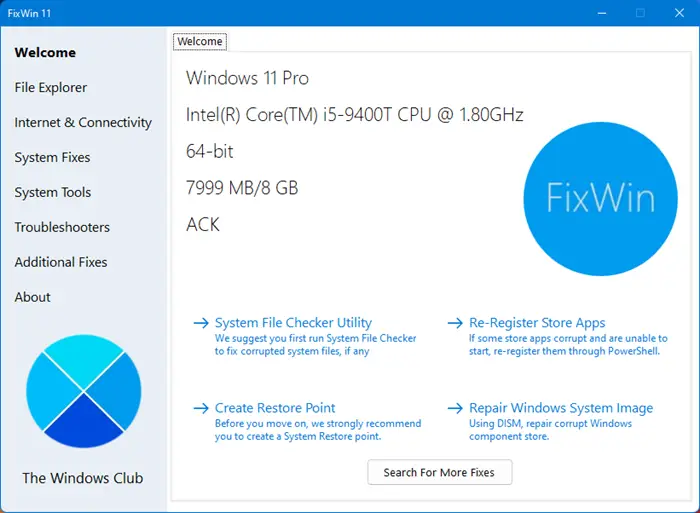
Maybe, one of the 2 software programs can help you to find the problem with your windows. Inside these programs are repair tools for windows 10/11 problems. You can download it, they are freeware.


Or you go to an older restore point ,where Windows was still working properly.
 
Upvote 0
Thank you all, your advice is much appreciated,after checking recommendations,I believe I found the culprit,I had appguard on my system but in the Avast sleep mode, The sleep mode apparently did not stop it's blocking downloads,I uninstalled appguard and no problem downloading anything,.no doubt the information given by the brethren here,is useful Thanks!
 
Upvote 0