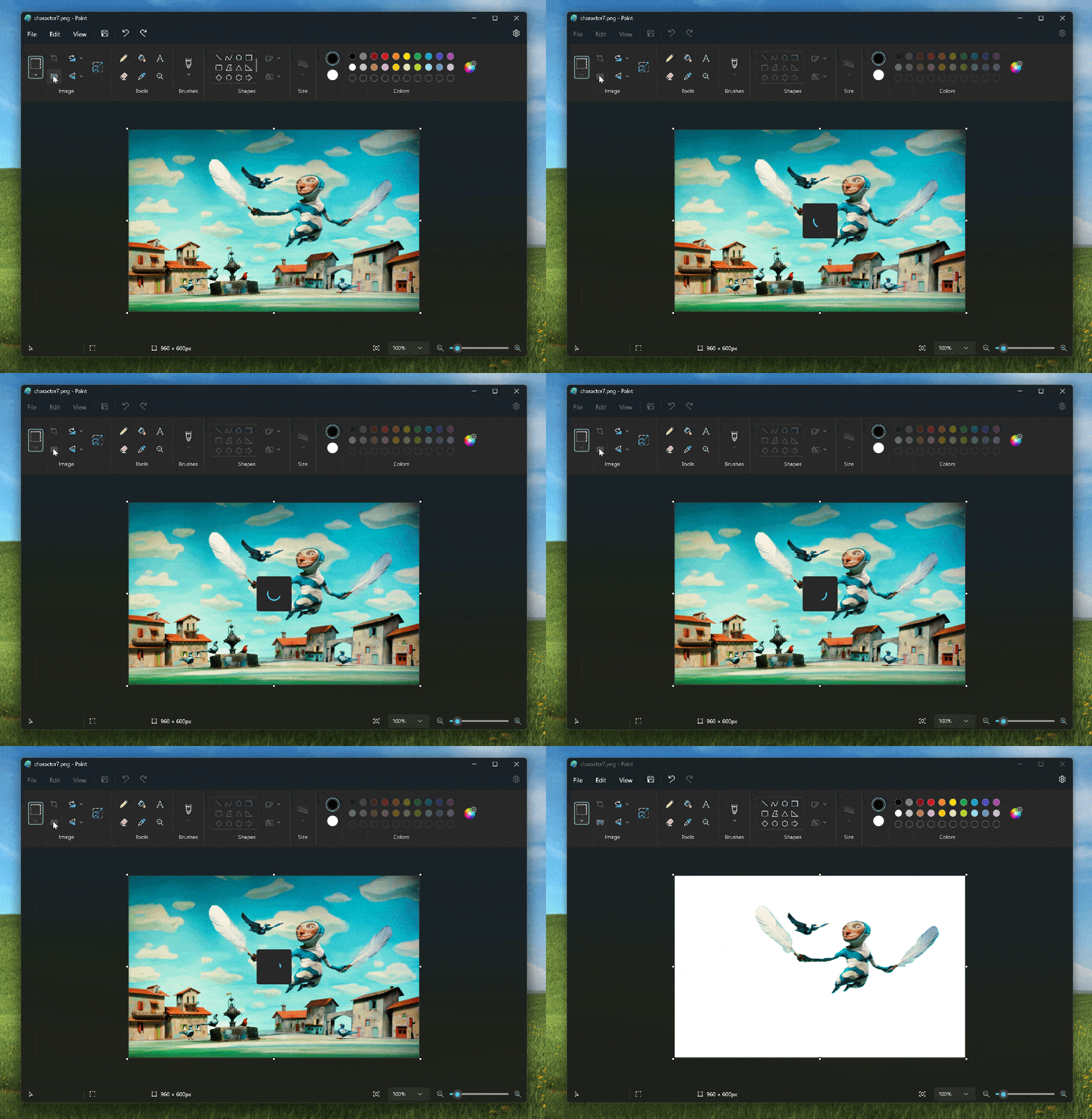
Hello Windows Insiders, Today we are beginning to roll out an update for the Paint app to Windows Insiders in the Canary and Dev Channels (version 11.2306.30.0). With this update, we are introducing background removal! With background removal, you can now remove the background of any image automatically in just one click leaving a smooth cutout of the subject. Background removal can detect the subject from the entire canvas or from a selection using the selection tool. [caption id="attachment_176534" align="alignnone" width="1024"]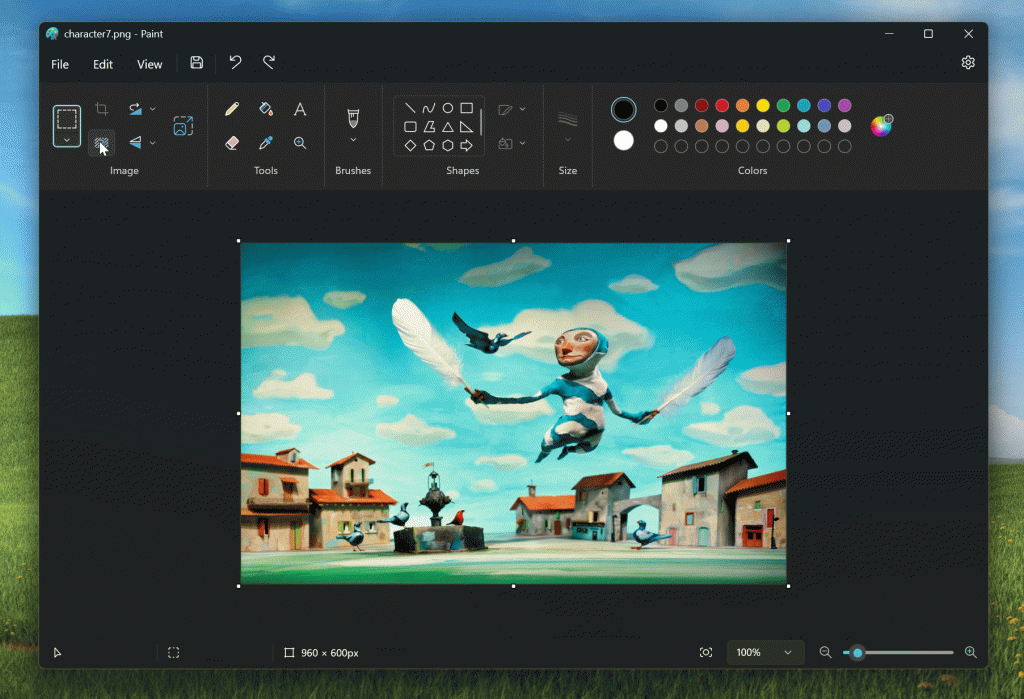 Short animation showing the background getting removed in Paint.[/caption] To get started, paste or import content onto the canvas and click on the new remove background button in the toolbar to remove the background on your entire image. You can also use the rectangle select to specify an area that you want to remove the background on. As always, we love getting feedback from the community and we will be looking out for your thoughts and suggestions on this update! Please note that an earlier version of this update (version 11.2306.28.0) went live earlier today and includes a bug where a confidentality banner is shown. The newer update (version 11.2306.30.0) will correct the issue. FEEDBACK: Please file feedback in Feedback Hub (WIN + F) under Apps > Paint. Thanks, Dave Grochocki, Principal Product Manager Lead – Windows Inbox Apps
Source: Background Removal in Paint begins rolling out to Windows Insiders
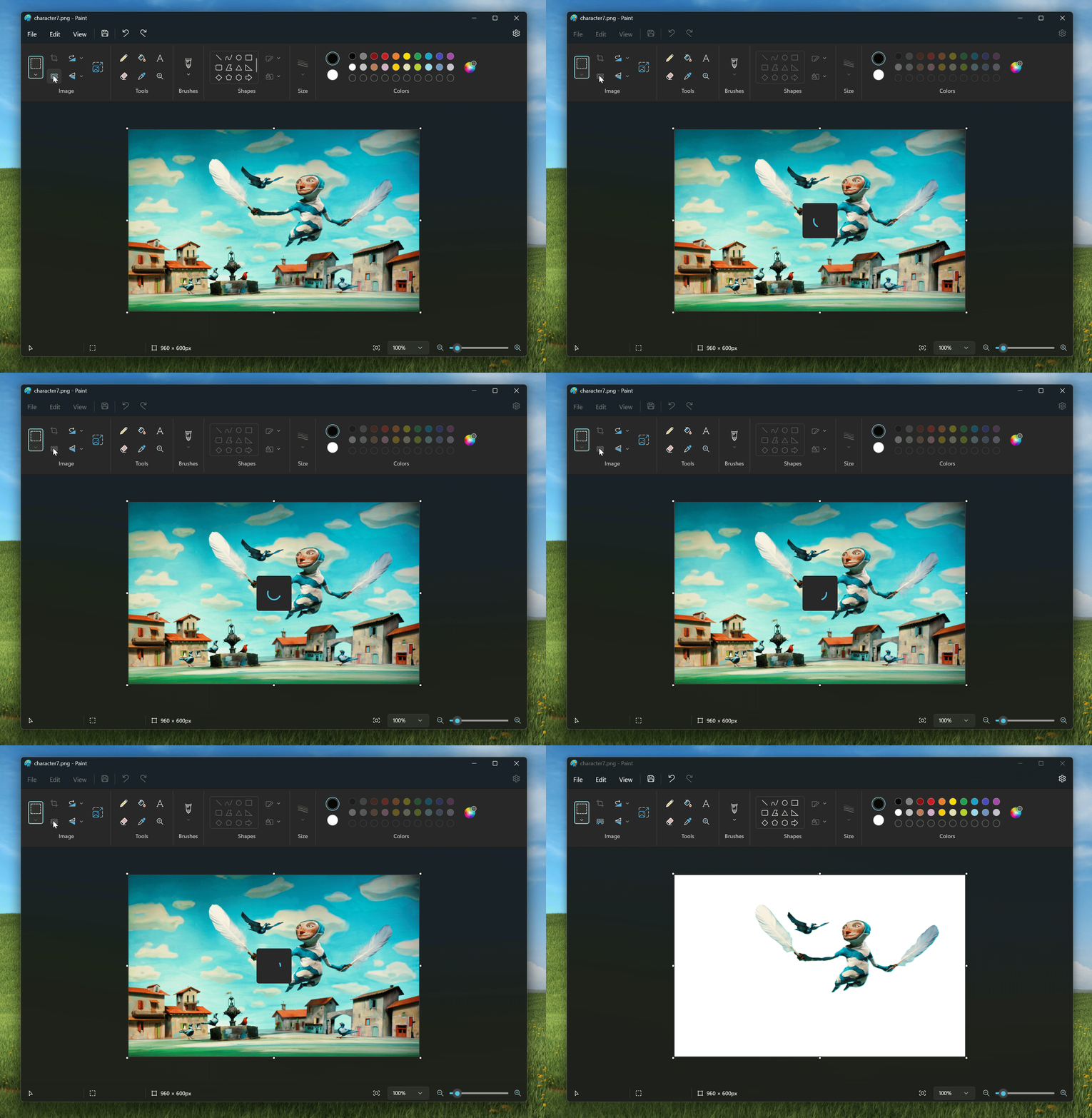 Short animation showing the background getting removed in Paint.[/caption] To get started, paste or import content onto the canvas and click on the new remove background button in the toolbar to remove the background on your entire image. You can also use the rectangle select to specify an area that you want to remove the background on. As always, we love getting feedback from the community and we will be looking out for your thoughts and suggestions on this update! Please note that an earlier version of this update (version 11.2306.28.0) went live earlier today and includes a bug where a confidentality banner is shown. The newer update (version 11.2306.30.0) will correct the issue. FEEDBACK: Please file feedback in Feedback Hub (WIN + F) under Apps > Paint. Thanks, Dave Grochocki, Principal Product Manager Lead – Windows Inbox Apps
Source: Background Removal in Paint begins rolling out to Windows Insiders