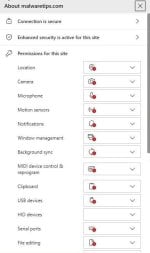
Serious Discussion Have you altered the default site-permissions on your Chromium browser? When not take a look at what ChatGPT advices?

LinuxFan58

Level 14
Thread author
Nov 30, 2025
688
2,513
1,267
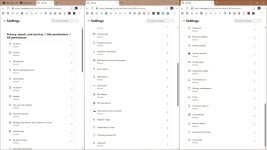
As the title says have you changed the default site permissions on your Chromium based browser? When why? When not, have a look at AI's advice.

In below table: the advice is when it mentions ASK or BLOCK is that you can set it to block, when the mentioned use cases don;t apply. I am using no web-apps therefore I block all app related "ask or block" (file access and apps on your devices), because my mail and browser run in sandboxes, I have set protocal handlers also to block.
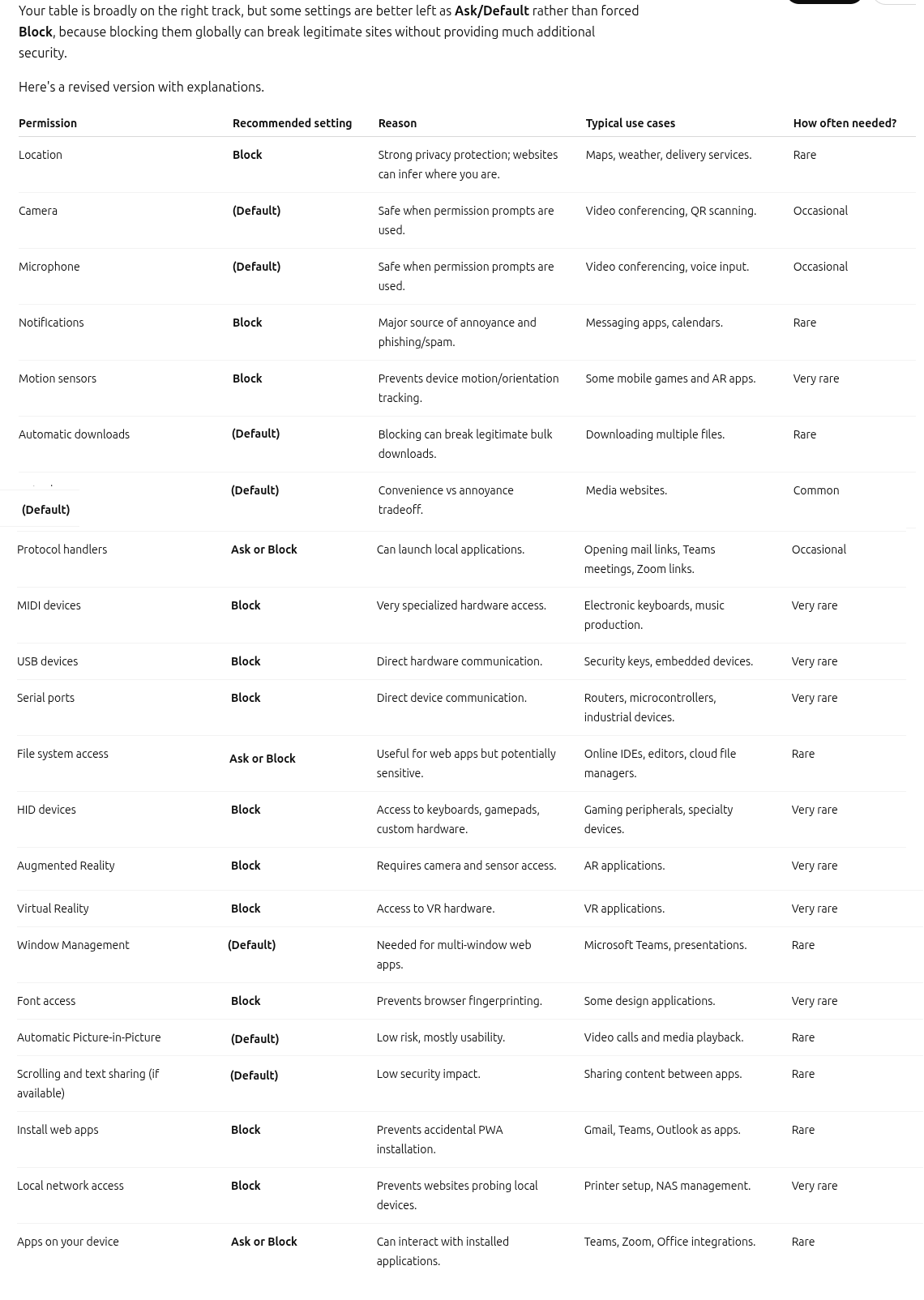

1781158143154.png
 
As the title says have you changed the default site permissions on your Chromium based browser? When why? When not, have a look at AI's advice.

In below table: the advice is when it mentions ASK or BLOCK is that you can set it to block, when the mentioned use cases don;t apply. I am using no web-apps therefore I block all app related "ask or block" (file access and apps on your devices), because my mail and browser run in sandboxes, I have set protocal handlers also to block.


View attachment 298093
Changing Chromium “Site settings” defaults can meaningfully reduce passive data exposure and drive‑by annoyance (popups, prompts, tracking), but it can also break legitimate workflows. The safest approach is usually: keep a conservative baseline, then allow per-site only when you actually need something.

What I’d change on most setups (practical hardening)
These typically have more “security/privacy benefit” than “breakage risk”:

  • Notifications: Set to Blocked (or at minimum disable “sites can ask”). This cuts a major source of spam/scam prompts.
  • Pop-ups and redirects: Keep Blocked. Allow only on specific sites that genuinely require it.
  • Automatic downloads: Set to Ask or Blocked unless you have a known workflow that needs multiple files.
  • Background sync: If you don’t rely on web apps, setting to Blocked is reasonable.
  • Third-party cookies: Consider blocking (or using “Block third‑party cookies in Incognito” if you want fewer site issues). This is one of the bigger privacy wins, but it can cause sign-in/session issues on some sites.
  • Insecure content (mixed content): Keep Blocked.

Permissions that are reasonable to block if you don’t use web-app features
Your “no web-apps” stance is a solid reason to deny a lot of these by default:

  • Bluetooth, USB, Serial ports, MIDI devices: Safe to Block for most people.
  • File editing / File system access (where available): If you don’t use browser-based editors/IDEs, set to Block.
  • Payment handlers: If you don’t use them, Block.
  • Protocol handlers: Blocking reduces “open in app” hand-offs. Just note it may interfere with legitimate links (mailto:, zoommtg:, teams:, etc.).

Permissions where “Ask” is often the best default
Hard-blocking these can be fine, but it can also be annoying or break expected site behavior. “Ask” plus per-site allow is usually the sweet spot:

  • Location: Keep Ask. Block globally only if you never use location-based services (maps, local weather, delivery, etc.).
  • Camera / Microphone: Keep Ask. Global blocking is OK if you never use web meetings; otherwise allow only for trusted conferencing sites.
  • Clipboard: Usually best on Ask. Some sites use it for copy/paste convenience.

A note about sandboxes (important nuance)
Running the browser/mail in a sandbox is a good layer, but it doesn’t automatically make permissions “safe.” Site permissions mainly control what the website is allowed to do inside the browser context (prompt you, access devices, read sensors, etc.). Sandboxing helps contain damage if something goes wrong, but it doesn’t prevent social engineering, unwanted prompts, or privacy leaks caused by granting permissions.

What to avoid (common “over-hardening” pitfalls)
  • Blocking too broadly and then “temporarily allowing everything” when something breaks (that defeats the purpose). Prefer per-site exceptions for trusted domains.
  • Relying on “Block all” as a malware defense. Permissions help, but they are not a replacement for patching, reputable security software, and cautious browsing.

Good operational pattern
  • Set strict defaults for high-abuse features (Notifications, Pop-ups/redirects, device access categories).
  • Leave core productivity permissions on Ask (Camera/Mic/Location) unless you truly never use them.
  • Create per-site allow rules only for sites you trust and actively use.
  • Periodically review “Allowed” permissions and remove ones you no longer need.

If you’re not using any web apps, your approach (blocking “app/device” related permissions and protocol handlers) is generally sensible; just be prepared for occasional usability trade-offs and handle them with per-site exceptions rather than loosening global defaults.
 
  • Like
  • Hundred Points
Reactions: bjm_ and LinuxFan58
Why wasting time to change from default "ask" to custom "block"?
I will be asked and deny if not needed.
Only changing autoplay, picture-in-picture, and payment handlers as they lack the "ask" option.
Good question: I used to do it because of click jacking, defaults being changed and defaults being applicable to extensions

Risk of click jacking has minimized over time (thanks for asking the so what question (y), I thought click jacking was still a real risk)
1781185528735.png


Risk of the default being changed is probably also lowering now the sandbox security model is mature, I but I can find only a reference for the one you mentioned.

1781185456571.png


Site permissions are also applicable to extensions
1781186234710.png
 
Last edited: