


Features
- Website Blocking— Block any URL, full domain, or specific YouTube channel across all supported browsers without installing extensions.
- Windows UI Automation API enforcement — Reads URLs directly from browser windows at the OS level, closing the browser-switching loophole.
- Per-block granularity — Choose between blocking a full domain, a specific URL path, or a single YouTube channel while leaving the rest of the platform accessible.
- Supported browsers — Chrome, Firefox, Edge, Internet Explorer, Opera, Brave, and Maxthon are all covered natively.
- Process-level app blocking — Desktop apps like Steam, Discord, and others are closed at the process level the moment they open during a restriction window.
- Full-screen lock overlay — A tamper-resistant overlay appears on any violation attempt; Alt+F4 is disabled, system audio is muted, and the taskbar is hidden.
- App Time Limits— Assign a daily time budget to any app or website; when the budget runs out, the app is blocked for the rest of the day.
- 43+ pre-recognised apps — YouTube, YouTube Shorts, Instagram, Facebook, TikTok, Netflix, Twitch, Reddit, WhatsApp Web, and more are detected automatically.
- Grouped limits — Combine multiple apps into a single shared budget (e.g., “Social Media: 45 minutes per day”).
- Per day-of-week configuration — Each day of the week can carry a different budget, so weekday and weekend rules are fully independent.
- Real-time countdown — Remaining minutes for each limit are visible on the dashboard at all times.
- Midnight reset — All budgets automatically reset at midnight, requiring no manual intervention.
- Downtime & Free Time— Schedule hard-block windows that enforce every item on your blocklist, with optional whitelist exceptions carved out inside them.
- Multiple downtime slots — The free tier includes one slot; Pro adds three more for up to four separate daily windows.
- Free Time whitelist windows — Up to four whitelist windows can punch holes in Downtime, allowing specific approved apps (meditation app, reading app, calculator) during otherwise blocked periods.
- All-week or specific day scheduling — Downtime can apply every day or only on selected days of the week.
- Wake-from-sleep grace period — A 30-second grace window after Windows wakes from sleep prevents false enforcement triggers.
- Category Filtering— Every app and website is classified as Productive, Neutral, or Unproductive, with server-maintained defaults for 1,000+ common apps and domains.
- Three-tier classification system — Productive (code editors, document apps), Neutral (utilities), and Unproductive (social media, entertainment) are the three available tiers.
- Per-user overrides — Any default classification can be changed on a per-user basis without affecting other accounts.
- Report integration — Category splits are shown in usage reports and the activity timeline so you can see at a glance how your day was distributed.
- Usage Tracking & Reports— Passively logs every app and domain, then presents the data in structured reports with multiple aggregation levels.
- 30-minute resolution timeline — A stacked-bar activity timeline shows the exact mix of apps and sites used in each 30-minute window.
- Active vs. idle auto-detection — Focus retroactively applies a 5-minute grace period to remove idle time from your active usage totals.
- IP tracking — Each session records which network you were on, useful for remote work accountability.
- Email reports — Daily, weekly, and monthly reports with HTML charts are sent automatically to the configured address.
- Screenshot attachments — Reports can include screenshot collages from the reporting period for visual verification.
- Screenshot Monitoring— Optional periodic screenshots create a visual record of activity, stored locally and accessible from the gallery view.
- Configurable capture interval — Set how frequently screenshots are taken; intervals can be adjusted per-user.
- Per-user toggle — A parent can enable screenshots for a child account while keeping them disabled for the parent account.
- Admin-only deletion — Optional restriction prevents non-admin users from deleting screenshots, preserving the audit trail.
- 30-minute collage generator — Screenshots from each 30-minute interval are automatically grouped into compact collages for cleaner reports.
- Three-Mode Architecture— Self, Parent, and Employee modes are built into a single install with no additional cost per mode.
- Self mode — The user is their own admin; settings are locked behind a PIN that only the future self would need to bypass.
- Parent mode — Admin (parent) manages one or more child profiles, each with independent rules, timelines, and restrictions; pause requests go through an email approval flow.
- Employee mode — Managers define tracked hours, enforce minimum working time (daily, weekly, or monthly), and receive automated accountability reports.
- Admin PIN & Tamper Resistance— A 4-digit PIN locks every settings panel, and multiple system-level mechanisms prevent bypass.
- PIN-locked settings — Changing rules, disabling Focus, or deleting screenshots all require the admin PIN.
- Alt+F4 and Task Manager resistance — Lock screens cannot be dismissed with standard keyboard shortcuts or the Windows Task Manager.
- Watchdog service — A background service automatically restarts Focus if the process is forcibly terminated.
- PIN-required uninstall — Removing the application from the machine requires the admin PIN, preventing silent removal.
- Pause Restrictions flow — Pausing restrictions either requires the PIN directly or sends an email approval request to the admin, depending on the setup.
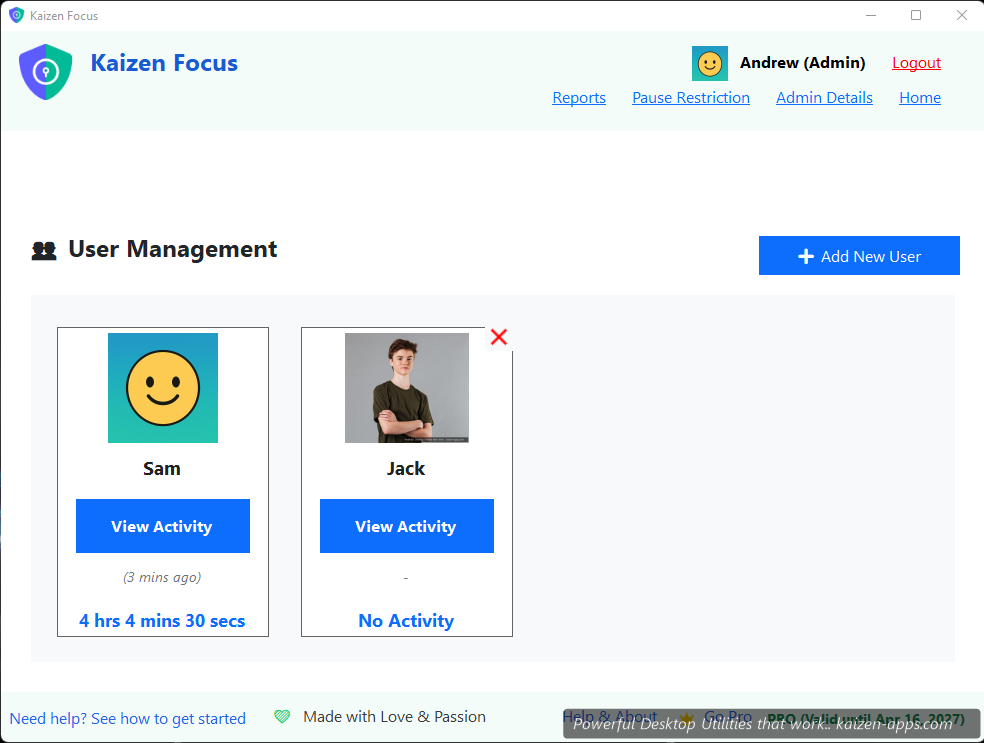
Kaizen Focus — Take Back Your Screen
Block distracting sites and apps on Windows. Daily limits, downtime, usage tracking, parental controls.
 kaizen-apps.com

