Troubleshoot Keep getting my-live-videos.com popups

Infected operating system
Android
Infected device
Samsung galaxy tab A 2019
Infected device issues
New tabs keep popping up on chrome - my-live-videos.com - and others.
Steps taken to remove the infection
Disabled notifications, removed data from cache, ran anti virus Norton, ran scan from malwarebytes

Cait

Level 1
Thread author
Aug 11, 2021
10
26
27
Hi All

I keep getting popups on chrome. I have disabled notifications removed all cookies and data from the cache.
I have changed virus protector from f sécurité to Norton and neither détected malware.
I installed Malwarebytes, ran a scan and equally it did not detect malware.
The device is a galaxy tab A 2019.

If anyone has any suggestions I world be very grateful

Thanks in advance
Kate
 
Helo Cait,

Let's rmake sure this site is removed from your browser:

  1. Open Google Chrome
  2. In the top-right corner, tap on the 3 vertical dots (menu button).
  3. In the menu tap Settings, scroll down to Advanced.
  4. In the Site Settings section, tap the Notifications settings, find the my-live-videos.com domain, and tap on it.
  5. Tap the Clean & Reset button and confirm.
 
Hi Jack

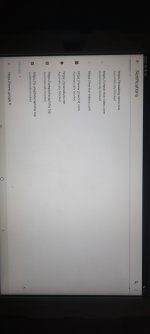
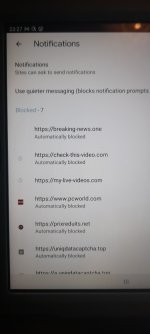
The my-live-videos.com domain is in the list of blocked domains but I don't have a Clean & Reset button?


20210811_232738.jpg 20210811_232720.jpg
 
Let's try clearing your history and cache first. Clearing the history and cache within your default browser may help stop the ads and redirects. In addition, clearing the Storage & Cache within the browser’s App Info itself also helps:
  1. Go to Settings > App Info
  2. Go to your browser app icon in App info list (such as Chrome) and click on it
  3. Once in your browser’s App info, go to Storage & cache
    1. Click Clear Storage
    2. Click Clear cache
 
Let's check to see if an app is responsible for these pop-ups. Let's start the tablet in Safe Mode and see if we have any pop-ups or not. To do this, follow the below steps:

  1. Press and hold the Power button.
  2. Tap and hold Power Off.
  3. When the Reboot to Safe Mode prompt appears, tap again or tap OK.
If done correctly, "Safe Mode" will display on the bottom left corner of the screen. If "Safe Mode" does not appear, repeat the steps above.

Once you're in Safe Mode, let me know if you see any of these pop-ups.

To exit Safe Mode, simply restart your phone and it will reboot normally.
 
  • Like
Reactions: peter1111
So this means that an app is responsible right, but how do I determine which one?
Yes, it's an app that is displaying these ads. Most likely is a gaming app, customization (wallpapers, lock screen images), or a utility app (battery saver, phone optimizer).
Unfortunately, unlike in Windows, there aren't a lot of tools that would allow me to find remotely the malicious app name so you will need to do some of the work.

1. Lets's start the table in normal mode and install Kaspersky - Kaspersky Mobile Antivirus: AppLock & Web Security - Apps on Google Play -- it's a paid product but it has a free section for scanning. Run a Full scan and see if it can find anything malicious. If it does, remove it and then run another scan to confirm it's removed.

2. If Kaspersky can't find the malicious app, you can uninstall it. And we will need to go into Settings > Apps and sort the apps by Last Used, and the malicious app should be at the top. If none are suspicious, then you can try to remove the apps that you've recently installed one by one until the ads stop.


Let me know if Kaspersky found anything the malicious app.
 
Last edited:
Hi Jack

Unfortunately I looked at option 2 before running Kaspersky.
I saw an app that my son installed a month or so ago as one of the last used apps - Android wear App - and i removed it before running the scan (It hasn't been used in the last 2 weeks).
The scan did not find anything but the adds have gone away so it must have been the app - i didn't note the name of the software editor so i'm unable to say more than the name it had - when i look for it in google play I cannot find it.

Thanks so much for you help

Best regards
Cait
 

You may also like...