


Gandalf_The_Grey
Level 86
Verified
Honorary Member
Top Poster
Content Creator
Well-known
Forum Veteran
Microsoft is retiring the Microsoft Store installation type of Office applications in favour of Click-to-Run. The company will stop issuing new feature updates for Microsoft 365 apps with Store installation in October 2025. Security updates will end in December 2026.
The company urges users who rely on the Microsoft Store version of Office apps to migrate to the Click-to-Run installation type to continue getting new features and security patches.
How to check your installation type?
Open any Microsoft 365 (Office) application, like Word.
Click File. Select Account at the bottom left.
On the right side, next to the About Word button, you’ll see either Click-to-Run or Microsoft Store. Both have a Version and a Build number under the About text.
How to upgrade to Click-to-Run installation type for Microsoft 365 Apps
Fortunately, upgrading from the Microsoft Store install type to Click-to-Run is completely free and easy to do.
First, save any open documents in all Office applications. Close all Microsoft 365 apps like Excel, or Outlook.
Visit the official download page for Microsoft 365 Installer. You may need to sign in with your Microsoft account. Be sure that it is the same account that you have for your Office applications.
Click the Download button. This will download the Office Deployment Tool (ODT).
Double-click the downloaded .exe file. The installer will automatically detect and remove your Microsoft Store version of Office and then reinstall Office using Click-to-Run.
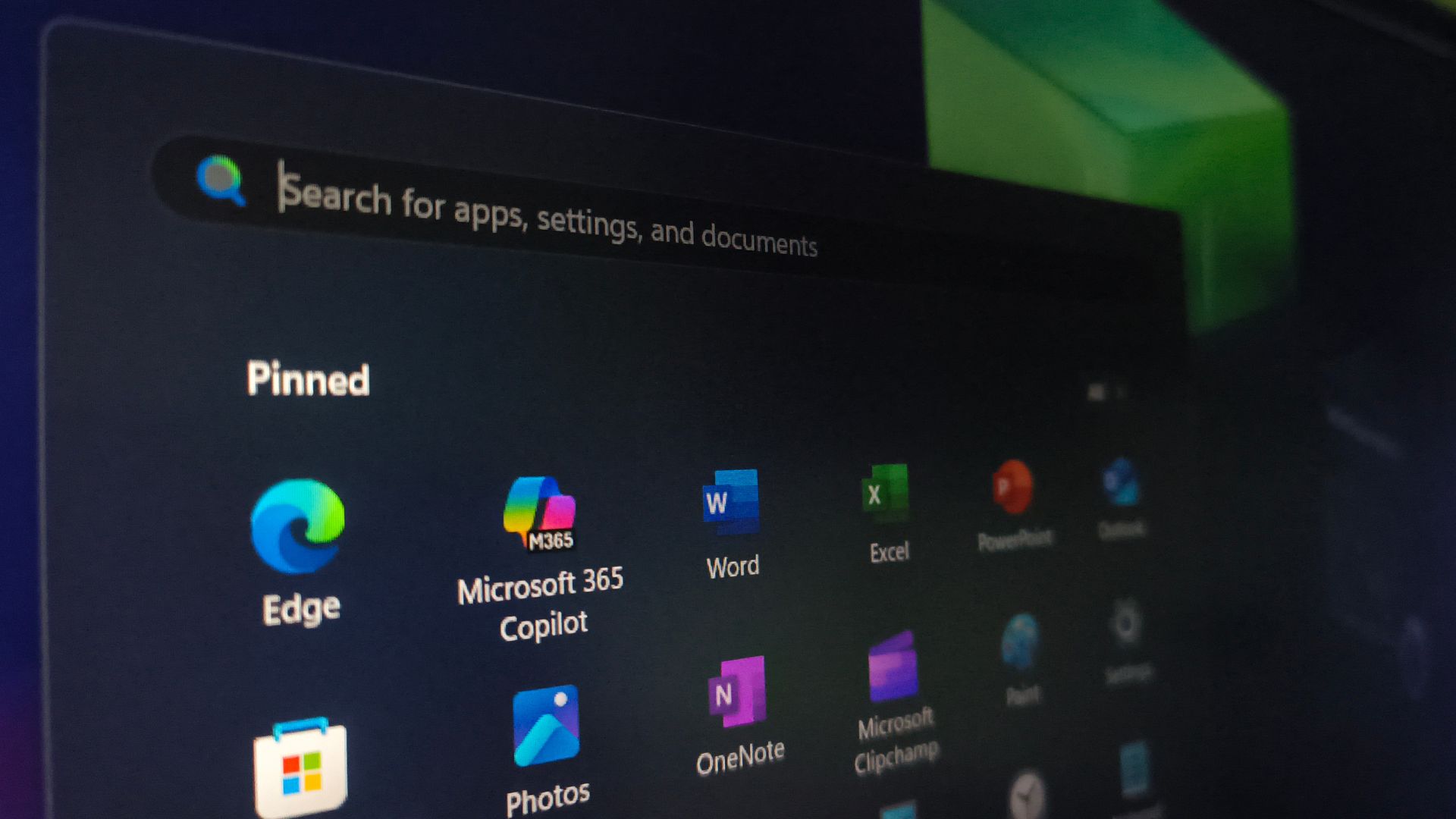
Microsoft 365 installs via Windows Store will stop getting updates
Microsoft is ending support for Microsoft Store installation of Office apps by October 2025, in favor of the newer Click-to-Run versions.
 www.windowslatest.com


