

Guide | How To Most Convenient Way to Launch Safe Mode for Windows 8.1 (Easy)

The associated guide may contain user-generated or external content.

Ink

Administrator
Thread author
Verified
Jan 8, 2011
22,318
2
55,055
8,379
Important: This method requires Windows to be accessible, if you are unable to boot in normal Windows mode. Please check for alternate methods, see footer of post.
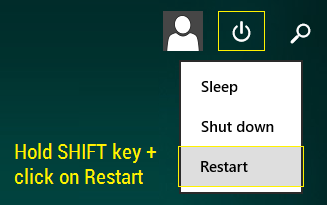
1. Open the Start Screen​

2. Click the Power Icon​

3. Hold Shift + Click on Restart​

upload_2015-6-1_14-47-2.png


You will see a blue screen with a few options.

4. Choose Troubleshoot > Advanced Options > Startup Settings > Press 4 for Safe Mode, or Press for Safe Mode with Networking, or Press 6 for Safe Mode with Command Prompt.​

Source: 7Tutorials for step-by-step screenshots
 
Salutations,

Hope Microsoft will fix this headache with Windows 10! Normally very hard to in safe mode in Windows 8.1 current.
Nice! Post above! Thanks!
 
Just in case anyone wondering / needing it:

F8 Key for Safe Boot
Open a cmd prompt with privileges then copy-paste
Enable:
bcdedit /set {default} bootmenupolicy legacy

Disable:
bcdedit /set {default} bootmenupolicy standard
 
  • Like
Reactions: Moose and Oxygen
I don't know why Microsoft didn't enable it by default.
Windows 8.x is designed and intended for machines with UEFI, for Fast / Secure Boot enabled by default so no need for Key F8 Safe Boot.

Nevertheless, you can always use a MBR partitioning scheme and CSM Boot (Legacy boot) then you can use Safe Boot with Key F8 or use the OP method.
 
Last edited:
  • Like
Reactions: Oxygen

You may also like...