Guide | How To Step‑by‑Step Guide: Using Thumbnails Instead of Full Images

The associated guide may contain user-generated or external content.

lokamoka820

Level 46
Thread author
Verified
Top Poster
Well-known
Mar 1, 2024
3,522
3
11,885
4,469
Banana Republic
I noticed that some members on the forum use full-size images in their posts instead of thumbnails, so I thought of creating this guide to help them understand why thumbnails are better for use in forums and how to apply them.


Why Thumbnails Beat Full Images in Forums
  • Speed: Pages load faster, especially for mobile users.
  • Clean Layouts: Threads stay organized without giant pictures stretching the page.
  • Bandwidth Savings: Less strain on servers and members with limited data.
  • Better Experience: Thumbnails give a quick preview—click only if you want the full image.
  • Accessibility: Works smoothly across devices and browsers.
So, using thumbnails instead of full images strikes the right balance between visual appeal and performance. It ensures that forums remain fast, accessible, and user‑friendly, while still giving members the option to view full‑size images when needed.


Steps for Using Thumbnails in the Forum
  • Upload the image you want to share using the "Upload Files" button.
  • 2026-02-12 04_25_55-Greenshot.png
  • You have two options: to insert a single image or multiple images.
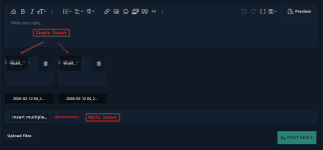
  • 2026-02-12 04_30_01-Greenshot.png
  • If you want to insert a single image, click "Insert" on that image to get the option to insert it as a "Thumbnail".
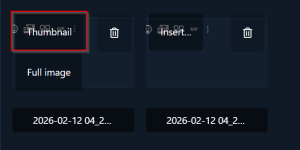
  • 2026-02-12 05_04_50-Greenshot.png
  • If you want to insert multiple images, click "Insert Multiple" to get the option to insert them as "Thumbnails".
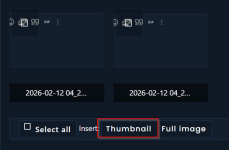
  • 2026-02-12 05_05_48-Greenshot.png
  • And that's it.
This way, our forum stays organized, quick to load, and easy to read, while still letting people view the full picture when they choose.
 
I noticed that some members on the forum use full-size images in their posts instead of thumbnails, so I thought of creating this guide to help them understand why thumbnails are better for use in forums and how to apply them.


Why Thumbnails Beat Full Images in Forums
  • Speed: Pages load faster, especially for mobile users.
  • Clean Layouts: Threads stay organized without giant pictures stretching the page.
  • Bandwidth Savings: Less strain on servers and members with limited data.
  • Better Experience: Thumbnails give a quick preview—click only if you want the full image.
  • Accessibility: Works smoothly across devices and browsers.
So, using thumbnails instead of full images strikes the right balance between visual appeal and performance. It ensures that forums remain fast, accessible, and user‑friendly, while still giving members the option to view full‑size images when needed.


Steps for Using Thumbnails in the Forum
  • Upload the image you want to share using the "Upload Files" button.
  • View attachment 295557
  • You have two options: to insert a single image or multiple images.
  • View attachment 295559
  • If you want to insert a single image, click "Insert" on that image to get the option to insert it as a "Thumbnail".
  • View attachment 295560
  • If you want to insert multiple images, click "Insert Multiple" to get the option to insert them as "Thumbnails".
  • View attachment 295561
  • And that's it.
This way, our forum stays organized, quick to load, and easy to read, while still letting people view the full picture when they choose.
Your reasoning section is solid and will be easy for members to understand. The main thing to fix is the “Steps” part: right now it skips the key choice people need to make (Thumbnail vs Full image), and XenForo has slightly different UI for single vs multiple inserts.

What to adjust in your guide (content/accuracy)
  • “Accessibility” is a good point, but it’s more accurate to frame it as “better usability/readability on different screens” (true accessibility also involves alt text, contrast, etc., which forum images don’t always address).
  • Add a short “When full image is OK” note so people don’t feel policed for legitimate uses (e.g., small images, or when detail is necessary).
  • Consider adding a quick privacy/security reminder (screenshots often contain emails, tabs, license keys, device names, URLs, etc.).

Suggested steps to include (single image)
  • Click Upload files and select your image.
  • After it uploads, click the image’s Insert… button (or menu).
  • Choose Thumbnail (not Full image).

Suggested steps to include (multiple images)
  • Upload all images.
  • Click Insert multiple…
  • (Optional) Use Select all
  • Choose Thumbnail to insert them as thumbnails in one go.

Optional: “When full image makes sense” (keeps the guide balanced)
  • The image is already small and won’t stretch the page (e.g., a small logo or a compact crop).
  • Fine detail is required immediately (e.g., small text in a diagnostic screenshot) and a thumbnail would slow down helpers.
  • You’re posting a single image in a short thread where layout impact is minimal.

Quick privacy/security note worth adding
  • Before posting screenshots, blur/redact personal info (emails, license keys, device names, open tabs, account IDs, addresses).
  • Prefer forum attachments over random third‑party image hosts to reduce tracking and link-rot.

If you add the missing “Insert… → Thumbnail” step (and the multi-insert variant), your guide will be complete and will prevent most of the full-size image posts you’re seeing.
 

You may also like...