Guide | How To Testing Safe Edge

The associated guide may contain user-generated or external content.
Is it possible for you to create a command line as well
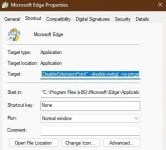
There is 259 characters limit in Target, so it can be used only for a limited number of commands, preferably those that can not be set in any other way, like disable WebGL. I use those:
Code:
"C:\Program Files (x86)\Microsoft\Edge\Application\msedge.exe" --enable-features="EnableCsrssLockdown,EncryptedClientHello,IsolatePrerenders,IsolateSandboxedIframes,RendererAppContainer,WinSboxDisableExtensionPoint" --disable-webgl --no-pings

capture_07122025_143626.jpg
 
There is 259 characters limit in Target, so it can be used only for a limited number of commands, preferably those that can not be set in any other way, like disable WebGL. I use those:
Code:
"C:\Program Files (x86)\Microsoft\Edge\Application\msedge.exe" --enable-features="EnableCsrssLockdown,EncryptedClientHello,IsolatePrerenders,IsolateSandboxedIframes,RendererAppContainer,WinSboxDisableExtensionPoint" --disable-webgl --no-pings

View attachment 289493
thx
 
  • Like
Reactions: Capiche
How to improve the authentication via Edge Password Manager.

Using the web browser's built-in password manager is an excellent protection against phishing, but most InfoStealers can steal the passwords saved in Edge and other web browsers. Here is a simple method to increase the security:
  1. Use the password to your email, built from two passwords. The first should be complex, but the second can be simple.
  2. Save the first password in the web browser password manager.
  3. Complete the autofill data by manually adding the second (simple) password.
  4. Initiate the sign-in action. In the "Save password" prompt, choose "Never save for this site".
Now you can use this method for any website. Each sign-in action will require autofill data from a password manager + manually inserted simple password.
The first password must be unique (different for different websites). The second (simple) password can be the same for all websites.
This is kinda similar to using a dedicated password manager with a master password.
The difference is that the master password is inserted once and must be complex. This method uses a simple password, but it must be inserted several times.
The passwords saved in the web browser can be written on paper. They will not be useful for others without knowing the second part (must be remembered).

There is some advantage over a dedicated Password manager against keyloggers. If the master password is compromised, all passwords are compromised too. The method in this post can protect the full password against keyloggers.

It is also better and easier compared to not using password managers. The full passwords are safer, and the user must remember/write only one simple password for all websites.:)(y)
 
Last edited:
How to improve the authentication via Edge Password Manager.

Using the web browser's built-in password manager is an excellent protection against phishing, but most InfoStealers can steal the passwords saved in Edge and other web browsers. Here is a simple method to increase the security:
  1. Use the password to your email, built from two passwords. The first should be complex, but the second can be simple.
  2. Save the first password in the web browser password manager.
  3. Complete the autofill data by manually adding the second (simple) password.
  4. Initiate the sign-in action. In the "Save password" prompt, choose "Never save for this site".
Now you can use this method for any website. Each sign-in action will require autofill data from a password manager + manually inserted simple password.
The first password must be unique (different for different websites). The second (simple) password can be the same for all websites.
This is kinda similar to using a dedicated password manager with a master password.
The difference is that the master password is inserted once and must be complex. This method uses a simple password, but it must be inserted several times.
The passwords saved in the web browser can be written on paper. They will not be useful for others without knowing the second part (must be remembered).

There is some advantage over a dedicated Password manager against keyloggers. If the master password is compromised, all passwords are compromised too. The method in this post can protect the full password against keyloggers.

It is also better and easier compared to not using password managers. The full passwords are safer, and the user must remember/write only one simple password for all websites.:)(y)
I like this idea, but it is not 100% effective. It is still vulnerable to things like in-memory grabbing, cookie hijacking, and dark web databases. If two or more of your passwords are stolen in server breaches, it won't be long before somebody notices they have the same suffix. If an infostealer harvests your saved passwords, they now have the other half, and it's game over.

A better alternative would be a password manager that uses a master password and a key file. 1Password does this, but it's not free. KeePassXC also does this, and is free. It even makes it possible to self-host your vault blob for total data sovereignty. But it's a lot more technical.

Still another option is to enter your master password once on a known clean mobile device, and then use the mobile app to authorize new logins. Bitwarden supports this via push notifications, and Proton Pass does it with QR codes. If you buy a new iPhone or restore a used one in DFU mode, you can skip through the initial configurations to get to the desktop, then jump into Settings, enable Lockdown Mode, and reboot. Once back in, you can download Proton Pass, change your master password, use the QR code to grandfather a second mobile device, and then restore the phone again if you need to restore a backup. I actually borrowed an iPhone 11 to do just this. If you're Android and more savvy, you could install GrapheneOS on a Pixel.

While nothing is 100% invincible, no malware to date has ever successfully defeated GOS or Lockdown Mode. And the ones most likely to be able to do so actually check to see if you're running either and abort if you are, to avoid the risk of exposing the code for an exploit kit that costs millions of dollars per use.

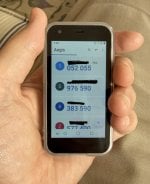
Once you update your master password, just keep at least two mobile devices logged in, so you have one to reauthorize the other if an update logs you out. I have a 73-character passphrase for Proton Pass created from a conversation with my girlfriend, with 343.7 bits of entropy. So long as the device is clean when I create the password, a billion monkeys banging on typewriters for a billion years will never crack it. My preferred 2FA method is offline TOTP, using an ultra-mini phone with Aegis Authenticator. That's a little on the technical side, albeit no more so than flashing a Pixel with GOS.

IMG_2213.jpeg
 
Last edited by a moderator:
I like this idea, but it is not 100% effective.


I am aware of this. The method from my previous post is a simplistic modification of the master password + key file. It works well when the session is not open.
Nowadays, the real problem is the abuse of already-open sessions. The master password + key cannot protect well against such attacks.
 
Last edited:
I am aware of this. The method from my previous post is a simplistic modification of the master password + key file. It works well when the session is not open.
Nowadays, the real problem is the abuse of already-open sessions. The master password + key cannot protect well against such attacks.
True, which is where 2FA comes in. High-value accounts should never be secured with a password alone, no matter what medium is used. Email and SMS OTP verification add a degree of security, but not as much as a passkey, YubiKey, or air-gapped TOTP.
 

You may also like...