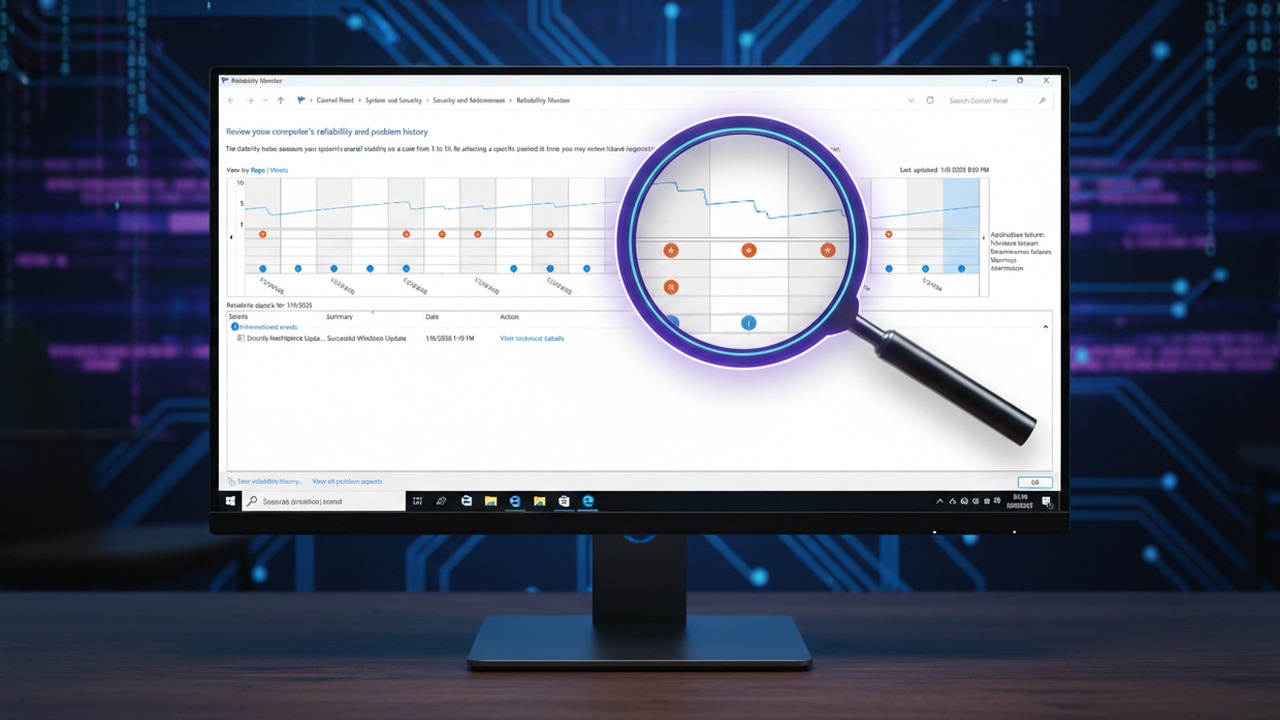
Hot Take The Reliability Monitor Is A Nifty Hidden Tool to Track Your PC Health

lokamoka820

Level 41
Thread author
Verified
Top Poster
Well-known
Mar 1, 2024
3,076
3
9,898
3,969
Banana Republic
Windows offers a deep bench of diagnostic tools, but the Reliability Monitor is the hidden gem that often gets overlooked. If you’ve ever wanted a “health score” for your PC that shows you exactly how it’s performing, this is it. Let’s see how this simple tool can help you pinpoint PC issues and keep your system running smoothly.

Table of Contents​


Table of Contents​

Reliability Monitor is genuinely one of the most useful built-in “what changed / what broke” views in Windows, especially for troubleshooting recurring crashes, driver problems, bad updates, and unexpected restarts. It’s not a malware detector and it’s not a true “health score,” but the Stability Index and the timeline can quickly point you to the exact day an issue started.

What Reliability Monitor actually shows
  • A timeline of “events” (application crashes, Windows failures, hardware errors, warnings, and informational events like installs/updates).
  • A Stability Index (1 to 10). It trends down when Windows logs failures, and trends up when the system is stable.
  • Per-day details you can expand to see the specific app/service/Windows component that failed.

How to open it (fast and safe)
  • Press Win+R and run: perfmon /rel
  • Or Start menu search: “Reliability Monitor” (it’s under Security and Maintenance / Control Panel on many systems)

How to use it for real troubleshooting
  • Find the first bad day: Look for the first drop in the Stability Index that matches “when it started.”
  • Click the red X days first: Focus on “Critical events” (AppCrash, Windows failure, “Hardware error,” unexpected shutdown).
  • Open the event details: Use “View technical details” and note:
    • Faulting application/module name
    • Exception code (for app crashes)
    • BugCheck code (for BSODs)
    • Update name/KB (if it correlates with Windows Update)
  • Correlate with Event Viewer: Reliability Monitor is a friendly summary, but Event Viewer often has the fuller story. If you see a repeating pattern (same module/driver), that’s a strong lead.

Common patterns (what they usually mean)
  • “Windows was not properly shut down” / unexpected restart: Can be power loss, PSU issues, system freeze, driver/hardware instability.
  • “Hardware error” entries: Often WHEA-related (CPU/RAM/PCIe/GPU/storage). Worth taking seriously if repeated.
  • Same app crashing repeatedly: Corrupt install, incompatible plugin/overlay, bad GPU driver, or a specific module (DLL) causing the fault.
  • Problems right after an install/update: A clean uninstall/rollback or driver change is often the quickest test.

Security angle (important on MalwareTips)
Reliability Monitor can help you spot “something changed” (new installs, repeated crashes, service failures), but it can’t tell you if something is malicious or safe. If the timeline suggests suspicious new software or repeated crashes after an unknown install, the safe next steps are:
  • Run a full scan with Microsoft Defender (and optionally a reputable second-opinion scanner).
  • Submit any suspicious file to VirusTotal and wait for community analysis before making conclusions.
  • If you suspect compromise, collect logs (e.g., from Windows Security history, installed apps list, and relevant Event Viewer entries) and post them in the appropriate MalwareTips help section.

Bottom line
Reliability Monitor is best used as a “when did it start and what exactly failed” timeline. For many stability issues, it’s the fastest way to identify the first breaking change and the repeating component involved, then you can validate the cause with Event Viewer and standard repair steps (driver rollback/update, uninstall recent changes, SFC/DISM, hardware checks) as appropriate.