


The MalwareTips app
Your community, one tap away.
Open MalwareTips from your Home Screen or desktop. Follow discussions, find answers and pick up where you left off.
- Home Screen access
- Optional push alerts
- Your community
You're ready to explore.Explore what's new
Installation instructions
iPhone & iPad
- Open MalwareTips in Safari and tap Share. You may need to open the Page Menu first.
- Choose Add to Home Screen. If it is not listed, use Edit Actions to add it.
- Keep Open as Web App enabled if shown, then tap Add.
Android
- Open MalwareTips in Chrome or another browser that supports app installation.
- Open the browser menu and look for Install app, Install and create shortcut, or Add to Home screen.
- Choose Install and confirm. Wording varies by browser.
Desktop
- Chrome: use the install icon in the address bar, or the menu under Cast, save and share.
- Edge: open the menu, then More tools, Apps and Install this site as an app.
- Safari on Mac: choose Share or File, then Add to Dock. Firefox on Windows: look for the web apps button in the address bar.
If you cannot find an install option, update your browser or use its bookmark option to keep MalwareTips close.
Keep up with your conversations
After installation, open the app and sign in. Enable push notifications in Preferences if you want alerts. On iPhone and iPad, push requires a Home Screen web app and iOS or iPadOS 16.4 or later.
Sign in to manage notificationsInstallation is optional. Your notification settings stay under your control.
You are using an out of date browser. It may not display this or other websites correctly.
You should upgrade or use an alternative browser.
You should upgrade or use an alternative browser.
Question What app can I use to hunt down what's causing a slow shutdown/reboot?
-
 Thread starter
cartaphilus
Thread starter
cartaphilus
- Start date
- 8 Replies
- 1,364 Views
- Featured
Help answer the author's question with clear explanations and useful steps.

If you’re on Windows 10/11, the two best “apps” for figuring out what’s making shutdown/reboot slow are:What app can I use to hunt down what's causing a slow shutdown/reboot?
Thanks
1) Event Viewer (fastest, usually enough)
Windows logs slow shutdowns and often names the culprit.- Press Win + R, type eventvwr.msc, Enter
- Go to: Applications and Services Logs → Microsoft → Windows → Diagnostics-Performance → Operational
- Filter for these Event IDs:
- 200 = overall slow shutdown
- 201–203 = a specific app/service/driver delaying shutdown (PC No Problems)
2) Windows Performance Recorder + Windows Performance Analyzer (deep dive, most accurate)
If Event Viewer isn’t clear (or you suspect a driver), capture a shutdown trace and analyze it.- Use Windows Performance Recorder (WPR) to record a shutdown
- Open the trace in Windows Performance Analyzer (WPA) to see exactly what blocks the shutdown pipeline (Microsoft Learn)
Bonus tools (good for “what is it doing?”)
- Sysinternals Process Monitor (ProcMon): can help identify what’s hanging around shutdown time, especially if you need to see file/registry activity tied to a process. (Microsoft Learn)
- Sysinternals Autoruns: great for quickly disabling “stuff that runs” (test by disabling non essential entries, then re-enable in batches to isolate).
If you tell me your OS (Windows 10/11, or macOS) and whether it’s shutdown, restart, or reboot after updates, I’ll point you to the exact log path and what fields to look at.
Windows 11 latest built. Just a regular shutdownIf you’re on Windows 10/11, the two best “apps” for figuring out what’s making shutdown/reboot slow are:
1) Event Viewer (fastest, usually enough)
Windows logs slow shutdowns and often names the culprit.
Open the events and look for the process/service name and the delay time.
- Press Win + R, type eventvwr.msc, Enter
- Go to: Applications and Services Logs → Microsoft → Windows → Diagnostics-Performance → Operational
- Filter for these Event IDs:
- 200 = overall slow shutdown
- 201–203 = a specific app/service/driver delaying shutdown (PC No Problems)
2) Windows Performance Recorder + Windows Performance Analyzer (deep dive, most accurate)
If Event Viewer isn’t clear (or you suspect a driver), capture a shutdown trace and analyze it.
Microsoft’s own troubleshooting guidance for slow shutdowns is based on WPR traces. (Microsoft Learn)
- Use Windows Performance Recorder (WPR) to record a shutdown
- Open the trace in Windows Performance Analyzer (WPA) to see exactly what blocks the shutdown pipeline (Microsoft Learn)
Bonus tools (good for “what is it doing?”)
- Sysinternals Process Monitor (ProcMon): can help identify what’s hanging around shutdown time, especially if you need to see file/registry activity tied to a process. (Microsoft Learn)
- Sysinternals Autoruns: great for quickly disabling “stuff that runs” (test by disabling non essential entries, then re-enable in batches to isolate).
If you tell me your OS (Windows 10/11, or macOS) and whether it’s shutdown, restart, or reboot after updates, I’ll point you to the exact log path and what fields to look at.
On Windows 11, the most practical way to “hunt down” slow shutdown causes is to use Windows’ built-in performance logging first, then (only if needed) a WPR/WPA trace.Windows 11 latest built. Just a regular shutdown
1) Check Windows’ slow-shutdown log (built-in)
This is usually enough to identify the offending app/service/driver.
- Press Win + R → type: eventvwr.msc → Enter
- Go to:
Applications and Services Logs → Microsoft → Windows → Diagnostics-Performance → Operational - On the right, click Filter Current Log…
- In Event IDs, enter:
200,201,202,203
What to look for:
- Event ID 200 = overall slow shutdown (total shutdown time)
- Event IDs 201–203 = Windows naming a specific component (app/service/driver) that delayed shutdown; open the event and check the Details tab for the name and timing.
2) Use Reliability Monitor to correlate “what changed”
This helps when shutdown got slow “suddenly” after a driver/app/update.
- Press Win + R → type: perfmon /rel → Enter
- Look at the day/time the slow shutdown started and check for:
- Driver installs/updates
- App installs/updates
- Windows Updates
- App crashes/hangs
3) If logs don’t clearly name the culprit: WPR/WPA trace (advanced, most accurate)
If Event Viewer only shows “slow shutdown” but doesn’t point to a clear offender, the next step is a shutdown trace with Windows Performance Recorder (WPR) and analysis in Windows Performance Analyzer (WPA) (part of Microsoft’s Windows Performance Toolkit / Windows ADK). This can identify driver/service delays that don’t show cleanly in Event Viewer.
Because WPR has a couple different capture modes depending on toolkit version, the safe approach is: install WPT, then use the WPR “shutdown”/“boot” scenario that explicitly includes shutdown in the recording options, and analyze the resulting .etl in WPA.
Practical next step
Start with the Diagnostics-Performance events (IDs 200–203) and use those to pinpoint which process/service is delaying shutdown; that’s the quickest, lowest-risk method on Windows 11.
Not like you are a human so no feelings but thank you regardlessOn Windows 11, the most practical way to “hunt down” slow shutdown causes is to use Windows’ built-in performance logging first, then (only if needed) a WPR/WPA trace.
1) Check Windows’ slow-shutdown log (built-in)
This is usually enough to identify the offending app/service/driver.
- Press Win + R → type: eventvwr.msc → Enter
- Go to:
Applications and Services Logs → Microsoft → Windows → Diagnostics-Performance → Operational- On the right, click Filter Current Log…
- In Event IDs, enter:
200,201,202,203
What to look for:
- Event ID 200 = overall slow shutdown (total shutdown time)
- Event IDs 201–203 = Windows naming a specific component (app/service/driver) that delayed shutdown; open the event and check the Details tab for the name and timing.
2) Use Reliability Monitor to correlate “what changed”
This helps when shutdown got slow “suddenly” after a driver/app/update.
- Press Win + R → type: perfmon /rel → Enter
- Look at the day/time the slow shutdown started and check for:
- Driver installs/updates
- App installs/updates
- Windows Updates
- App crashes/hangs
3) If logs don’t clearly name the culprit: WPR/WPA trace (advanced, most accurate)
If Event Viewer only shows “slow shutdown” but doesn’t point to a clear offender, the next step is a shutdown trace with Windows Performance Recorder (WPR) and analysis in Windows Performance Analyzer (WPA) (part of Microsoft’s Windows Performance Toolkit / Windows ADK). This can identify driver/service delays that don’t show cleanly in Event Viewer.
Because WPR has a couple different capture modes depending on toolkit version, the safe approach is: install WPT, then use the WPR “shutdown”/“boot” scenario that explicitly includes shutdown in the recording options, and analyze the resulting .etl in WPA.
Practical next step
Start with the Diagnostics-Performance events (IDs 200–203) and use those to pinpoint which process/service is delaying shutdown; that’s the quickest, lowest-risk method on Windows 11.
You’re welcome.Not like you are a human so no feelings but thank you regardless
If you want a concrete “next step” to move it forward: after a slow shutdown, check Event Viewer at:
- Applications and Services Logs → Microsoft → Windows → Diagnostics-Performance → Operational
Open the newest Event ID 200/201–203 and note the process/service/driver name and the delay time. That’s usually the quickest way to identify what’s holding shutdown up.

I don't know the answer, but I got annoyed by the same thing. So, what I did was write an AutoHotKey script to close all the apps I normally have open before I shut down, etc. This is a very quick process, as it typically sends close messages to the windows. The rest usually closes without trouble anyway.
The drawbacks of this are:
The drawbacks of this are:
- You have to maintain the script.
- You can't close all windows unless you are elevated.
- Some apps respond poorly, i.e., they do a dump and exit.
- The process in the first paragraph is a simplification; it seems that for some apps, multiple "kill" methods need to be tried.

Code:
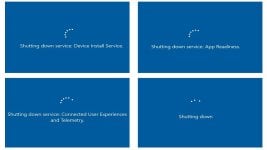
reg add "HKLM\Software\Microsoft\Windows\CurrentVersion\Policies\System" /v "VerboseStatus" /t REG_DWORD /d "1" /f
Enable verbose startup, shutdown, logon, and logoff status messages in Windows Server 2003 - Windows Server
Describes how to enable verbose status messages by using Group Policy Object Editor or by editing the Windows registry.
learn.microsoft.com
Thanks, you are a bottomless source of learning. 
Recently browsing
Members who viewed this thread in the last 5 minutes


