


Have you received an email claiming you can get a $1000 PayPal gift card? Don’t fall for it! This widespread phishing scam aims to steal your personal information. Read on to learn all about how this deceitful tactic works and how to protect yourself.
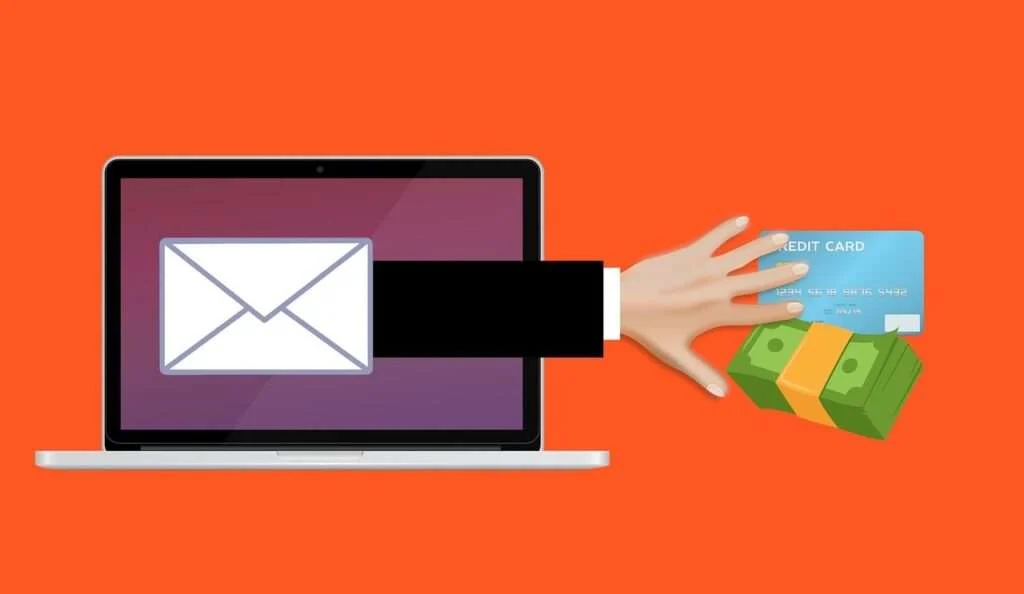
Overview of the $1000 PayPal Gift Card Scam Email
This fraudulent email claims you have been specially selected to receive a $1000 PayPal gift card. While this may seem like a lucky windfall, it’s just a trick designed by scammers to access your PayPal account and steal your money.
The email instructs you to click on a button to claim the gift card. However, clicking this button leads to a fake PayPal login page. If you enter your details here, the criminals behind the scam will gain access to your account.
This scam email is mass-distributed to thousands of random email addresses at once. The criminals are counting on a few recipients being PayPal users who fall for the offer and provide their information.
Common Traits of the Email
These fake gift card emails often share certain characteristics that can help identify them as fraudulent:
- Sender email and name look official: The email appears to come from an official PayPal email address like “service@paypal.com”. The sender name may say something like “PayPal Gift Cards.”
- Unofficial logos and branding: While incorporating the PayPal name and logo, subtle design differences reveal the email didn’t actually come from PayPal.
- Grammatical errors and typos: These scam emails tend to have spelling and grammar mistakes, since many come from non-native English speaking criminal groups.
- Sense of urgency: The email may say you need to “act now” or “claim today only” to pressure you into clicking without thinking.
- Personalization: It may include your name and email address to seem like it was sent directly to you. In reality, this data often comes from prior data breaches.
- Request for personal information: The email tries to trick you into inputting your PayPal login credentials on the phishing site.
Example Email Content
Here is an example of the type of messaging these $1000 PayPal gift card scam emails contain:
Dear,

CONGRATULATIONS!

You have been selected at random to receive a $1000 PayPal Gift Card! To claim your prize, please click here to validate your PayPal information and shipping address:

[Malicious Link]

We will be distributing rewards from our yearly $10 Million Gift Campaign. Out of the thousands of email addresses in our system, yours was randomly chosen as today's lucky winner!

To receive your $1000 PayPal gift code, you must confirm your details within the next 24 hours. This offer is only valid once for each email address.

Claim your $1000 PayPal gift card now! This opportunity won't last long.

Sincerely,
The PayPal Gift Card Team
This email contains several red flags, like the false sense of urgency, request for personal information, and claim you were specially “selected” to receive the gift card. No legitimate company would operate sweepstakes this way.
Now that you know the general traits of this scam, let’s look more closely at how the $1000 PayPal gift card phishing tactic actually works when recipients fall for it.
How the $1000 PayPal Gift Card Phishing Scam Works
While the setup varies slightly, the $1000 PayPal gift card scam follows the same general blueprint each time. Here is a step-by-step look at what happens when someone falls for this fraud.
1. Recipient Receives the Email
The journey starts when the recipient gets an email offering them a $1000 PayPal gift card. The scam email is crafted to appear like official correspondence from PayPal, often including corporate logos and messaging.
Grammatical mistakes and urgent calls-to-action offering rewards are red flags that indicate the email is fraudulent. But the scam relies on recipients focusing on the $1000 gift card and ignoring these problems.
2. Recipient Clicks the Link
If the recipient takes the bait, they will click the link within the email that supposedly leads to a website for claiming their gift card.
This links to a fake website pretending to be PayPal designed specifically for this scam. The site is known as a phishing page because its sole purpose is illegally “fishing” for the user’s personal data.
To trick visitors, the phishing page copies the visual design of the real PayPal login page. But the URL reveals it’s on an entirely different domain owned by the scammers.
3. Recipient Enters Their PayPal Login Details
On the phishing site, the user sees a form asking them to enter their PayPal email and password to verify their identity and claim their gift card.
Since the page looks like the real PayPal login, an excited recipient is likely to comply and submit their private account credentials.
4. Scammers Gain Access to the PayPal Account
Behind the scenes, software on the phishing site captures the login details and sends them directly to the criminals running this scam.
Armed with the email and password, the fraudsters now have full access to log into the victim’s actual PayPal account.
5. Money is Stolen from the PayPal Account
Once inside the hijacked PayPal account, the criminals can transfer money to their own accounts or make purchases online. They often move quickly to steal as much as possible before the victim detects the fraud.
The fake gift card offer was just a ruse to lower the recipient’s guard and trick them into surrendering their login credentials. In mere minutes, an excited user can go from expecting a $1000 gift card to having their real money stolen right out of their account.
What to Do If You Already Entered Your PayPal Details
If you received one of these emails and submitted your information on the phishing site, don’t panic. Here are important steps to take right away if you suspect your PayPal account has been compromised:
Change Your Password Immediately
First, login to the real PayPal website and change your password. Make sure it’s unique and very strong. This prevents the criminals from accessing your account again with the password you already provided.
Contact PayPal
Notify PayPal customer service that your account may have been compromised due to a phishing attack. Ask them to watch for suspicious activity and help protect your account.
Review Recent Transactions
Carefully go through your PayPal transaction history watching for any money transfers you didn’t authorize. Flag any suspicious payments or purchases.
Contact Your Bank
If money was stolen from a linked bank account, notify your bank too so they can stop further fraudulent transfers or debit charges.
Scan Your Computer for Malware
Sometimes phishing sites try to install keylogging malware that can capture your new passwords too. Run a full system antivirus scan to check for and remove infections.
Enable Extra Login Protections
Consider setting up two-factor authentication on your PayPal account for extra login security going forward. This requires providing your password plus a temporary code sent to your phone.
By taking quick action, you can limit the damage from providing your PayPal login to scammers. But it’s always best not to fall for these gift card offers in the first place.
How to Avoid Falling for the $1000 PayPal Gift Card Scam
Now that you understand how this phishing tactic works, here are some tips to help avoid becoming a victim:
- Watch for poor spelling/grammar: Legitimate emails from corporations like PayPal will not contain multiple grammatical errors.
- Verify the sender address: Even if the “From” name looks official, check that the sending email address matches the real PayPal domain.
- Avoid clicking links: Don’t click links in unexpected emails offering deals or prizes. Manually navigate to the real website if you want to check for offers.
- Know how sweepstakes work: Real random gift card giveaways don’t require you to provide personal information or “verify” anything.
- Don’t trust urgent offers: It’s a tactic to pressure you into acting rashly before you identify the scam.
- Secure your email account: Use a strong, unique password so hackers can’t access your inbox to target you with phishing emails.
- Use multiple email addresses: Provide your main email to trusted contacts only, and a secondary email for online services, to limit scam exposure.
- Beware impersonators: Even emails that appear to come from people you know may be scammers who hacked their accounts. Verify suspicious messages.
- Install antivirus software: This can warn you of fraudulent sites and block known phishing URL’s. Some programs even flag suspicious emails.
Staying vigilant stops most phishing attempts in their tracks. But if a scammer does get your PayPal login, act quickly to secure your account and control the damage.
Is Your Device Infected? Run a Free Malware Scan
Slow performance, constant pop-ups, or strange behavior? These are classic signs of a malware infection. A quick way to check is to scan your device with Malwarebytes Free, one of the most trusted malware removal tools available. If you only visited a scam page and didn’t download or install anything, this scan is optional.
The free version detects and removes the most common threats, including:
- Adware — the cause of those annoying pop-ups
- Browser hijackers — unwanted redirects and changed homepages
- Trojans and spyware — hidden programs stealing your data
- Potentially unwanted programs (PUPs) — software you never asked for
👉 Select your device below — Windows, Mac, or Android — then follow the simple steps to download Malwarebytes, scan your system, and remove any threats it finds. The scan usually takes 5 to 20 minutes.
Run a Malware Scan with Malwarebytes for Windows
Malwarebytes is one of the most popular and trusted anti-malware tools for Windows — and it’s completely free for removing infections. It catches threats that many antivirus programs miss, including adware, browser hijackers, and trojans. Follow the steps below to scan your PC and remove what Malwarebytes finds.
Download Malwarebytes
Click the button below to download the latest version of Malwarebytes for Windows from the official source. The free version is all you need — it will scan your computer and remove adware, browser hijackers, and other malicious software at no cost.
Download MalwarebytesOfficial installer for Windows 11 and 10. Your download starts right away.Want real-time protection? See Malwarebytes Premium Malwarebytes Free for WindowsScans and removes malware at no cost
-
Install Malwarebytes
When the download finishes, open your Downloads folder and double-click the MBSetup file. If Windows shows a User Account Control pop-up, click “Yes” to allow the installation.

Follow the On-Screen Prompts to Install Malwarebytes
The setup wizard will walk you through a few quick screens:
-
Choose where you’re installing the program — “Personal Computer” or “Work Computer” — then click Next.

-
Malwarebytes will now install on your device. This usually takes under a minute.

-
When installation is complete, the “Welcome to Malwarebytes” screen will open automatically.

-
On the final screen, click Open Malwarebytes to launch the program.

-
Optional: Check for rootkits with a Custom Scan
You don’t need to change any settings for a normal scan. The standard Threat Scan in the next step is enough for most problems, so you can go straight to it.
If you also want to check for rootkits, use a Custom Scan. In current versions of Malwarebytes, rootkit scanning is only available there:
- On the Scanner tile, click the three-dot menu and select Advanced Scan.
- Choose Custom Scan. In its options, check Scan for rootkits.
- Select your system drive (usually C:\) as the location to scan, then start the scan. It takes longer than a Threat Scan.
- When it finishes, review and quarantine the results as described in the steps below.
Rootkit scanning isn’t available on Windows devices with ARM processors.
Start the Scan
Click the blue Scan button. Malwarebytes will automatically update its virus database and start checking your computer for malware.

-
Wait for the Scan to Finish
The scan checks your entire system for browser hijackers and other malicious programs, so it can take 5 to 20 minutes depending on your computer. Feel free to do something else — just check back occasionally to see the progress.

-
Quarantine the Detected Threats
When the scan is done, you’ll see a list of everything Malwarebytes found — malware, adware, and potentially unwanted programs. Click the “Quarantine” button to remove all of them at once.

Malwarebytes will now remove the malicious files and registry entries and move them safely into quarantine.

-
Restart Your Computer
Some threats can only be fully removed after a reboot. If Malwarebytes asks you to restart, click Yes. Once you’re logged back in, Malwarebytes has finished removing the threats it found.

When the scan is done, check whether the problems you noticed have stopped. If they continue, see the options below.
If you are still having problems with your computer after completing these instructions, then please follow one of the steps:
- Run a computer scan with ESET Online Scanner
- Ask for help in our Windows Malware Removal Help & Support forum.
Run a Malware Scan with Malwarebytes for Mac
Malwarebytes for Mac is a free on-demand scanner that removes the malware other security software tends to miss — adware, browser hijackers, and unwanted programs included. Cleaning an infected Mac with Malwarebytes has always been completely free, and it’s our go-to recommendation. Follow the steps below to scan your Mac and remove what Malwarebytes finds.
-
Download Malwarebytes for Mac
Click the button below to download the latest version of Malwarebytes for Mac.
Download MalwarebytesOfficial installer for macOS. Your download starts right away.Want real-time protection? See Malwarebytes PremiumMalwarebytes Free for MacScans and removes malware at no cost -
Open the Malwarebytes setup file
When the download finishes, open your Downloads folder and double-click the setup file to begin the installation.

-
Follow the On-Screen Prompts to Install Malwarebytes
The Malwarebytes for Mac Installer will guide you through a few quick screens. Click “Continue” and keep following the prompts until the installation completes.



When the installation is complete, Malwarebytes opens to the Welcome to Malwarebytes screen. Click “Get started“.
Malwarebytes needs Full Disk Access to check your whole Mac. When it asks, open System Settings > Privacy & Security > Full Disk Access, turn on Malwarebytes (it may be listed as Malwarebytes Protection), and confirm with your password or Touch ID. Then return to Malwarebytes. On macOS Monterey and earlier, this setting is in System Preferences > Security & Privacy > Privacy.
-
Select “Personal Computer” or “Work Computer”
Malwarebytes will ask what type of computer you’re installing it on. Click either Personal Computer or Work Computer, whichever applies.

-
Start the Scan
Click the “Scan” button. Malwarebytes will automatically update its detection database and begin checking your Mac for malware.

-
Wait for the Scan to Finish
Malwarebytes will scan your Mac for adware, browser hijackers, and other malicious programs. This can take a few minutes, so feel free to do something else — just check back occasionally to see the progress.

-
Quarantine the Detected Threats
When the scan is done, you’ll see a list of everything Malwarebytes found. Click the “Quarantine” button to remove all the threats at once.

-
Restart Your Mac
Malwarebytes will now remove all the malicious files it found. Some threats can only be fully removed after a reboot — if Malwarebytes asks you to restart, allow it. Once you’re logged back in, check whether the problems you noticed have stopped. If they come back, save the scan report and ask for help in our forum.

If the problems you noticed continue after the scan, see the options below.
If you are still experiencing problems while trying to remove a malicious program from your computer, please ask for help in our Mac Malware Removal Help & Support forum.
Run a Malware Scan with Malwarebytes for Android
Malwarebytes for Android scans your phone or tablet for malware, adware, and potentially unwanted apps. The free version scans only when you start a scan. Real-time protection, which checks apps automatically, is part of the paid Premium version.
-
Download Malwarebytes for Android.
You can download Malwarebytes for Android by clicking the link below.
Get Malwarebytes for AndroidOpens Google Play in a new tab.Want real-time protection? See Malwarebytes Premium for AndroidMalwarebytes for AndroidScans your phone and removes malware at no cost -
Install Malwarebytes for Android on your phone.
In the Google Play Store, tap “Install” to install Malwarebytes for Android on your device.

When the installation process has finished, tap “Open” to begin using Malwarebytes for Android. You can also open Malwarebytes by tapping on its icon in your phone menu or home screen.

-
Follow the on-screen prompts to complete the setup process
When Malwarebytes opens, it walks you through a short setup. Tap Get started and follow the prompts. If you see an offer for a trial or a paid plan, read it before you accept. You can skip it and keep using the free scanner.
Malwarebytes will ask for permission to access the files on your phone so it can scan them. Tap Allow, or turn on the permission in the Android screen that opens, then return to Malwarebytes.
-
Run a scan with Malwarebytes for Android
On the main screen, tap Scan now. In some versions, you open the menu, tap Scanner, and then tap Run a scan.
-
Wait for the Malwarebytes scan to complete.
Malwarebytes will now start scanning your phone for adware and other malicious apps. This process can take a few minutes, so we suggest you do something else and periodically check on the status of the scan to see when it is finished.

-
Remove the detected apps.
When the scan has been completed, you will see a list of the threats that Malwarebytes for Android has detected. Next to each detected item, tap the menu icon (three dots), then choose to uninstall the app or delete the file. Android then asks you to confirm. Tap OK or Uninstall to remove the app.
-
Restart your phone.
When the detected apps are removed, restart your phone if Malwarebytes asks you to. Then check whether the problems you noticed have stopped.
If the problems you noticed continue after the scan, see the options below.
If you are still having problems with your phone after completing these instructions, then please follow one of the steps:
- Ask for help in our Mobile Malware Removal Help & Support forum.
- Only as a last resort, reset your phone to factory settings. Read the warning below first.
- Back up your photos, videos, files, and messages, for example to your Google account or a computer.
- Make sure you know your Google account email and password. The phone asks for them after the reset. If you changed the password recently, Google recommends waiting 24 hours before you reset.
- On a Samsung phone, also make sure you know your Samsung account password.
- If you use an authenticator app for two-step verification, move your accounts to another device or save your backup codes first.
Stay Protected: Block Ads and Malicious Sites
No scan can prove a device is completely clean, so it helps to block threats before they reach you. Most infections start with a malicious ad or a fake download button — so blocking them at the source is your best defense.
We recommend AdGuard, which blocks malicious ads, phishing pages, and dangerous redirects before they can reach you.
👉 Download AdGuard and browse safely
FAQ About the $1000 PayPal Gift Card Scam
What is the $1000 PayPal gift card scam?
This is a phishing scam where recipients receive an email claiming they can earn a $1000 PayPal gift card. The email provides a link to fake PayPal login page to steal your account credentials.
How does the scam work?
You get an email offering the gift card prize. When you click the link and enter your PayPal login on the phishing site, scammers steal your username and password to access your real account.
What are some red flags of the scam email?
Bad grammar, fake sender address, urgent tones, request for personal information, and slight logo/design differences reveal it’s not real PayPal correspondence.
What happens if you provide your login information?
Scammers can log into your account, change security settings, and steal your money. Act quickly to lock them out by resetting your password.
How can I avoid falling for this scam?
Watch for poor writing, verify sender address, don’t click links, understand sweepstakes rules, use antivirus software, and never provide personal info via email.
What if I lost money to this scam?
Notify PayPal and your bank immediately. Review your transaction history and dispute any unauthorized charges. Change your password and enable two-factor authentication for extra security.
How do scammers get your email address?
They buy email lists stolen in data breaches. Using a unique email address just for online services can limit exposure to these scams.
Are these scams illegal?
Yes, phishing scams violate laws against wire fraud, identity theft, and gaining unauthorized access to computers or accounts.
Can I get my money back if I fall for the scam?
If you act quickly, banks and PayPal will often cover unauthorized charges. But the longer the criminals have access, the lower the chance of recovering stolen funds.
The Bottom Line
The promise of a $1000 PayPal gift card waiting for you may seem like a dream come true. But as the old saying goes, if it seems too good to be true, it probably is. This notorious scam has stolen millions from PayPal users who fell for the false offer.
Now that you know what red flags to watch for, you can identify this scam email right away and avoid becoming another victim. Phishing for financial information remains a lucrative business for online criminals. But a little awareness goes a long way in protecting yourself and your hard-earned money.
So enjoy the $1000 you have in your actual bank account instead of chasing fictional gift card windfalls. And be sure to think twice next time you receive an offer that asks for your personal information over email. Staying skeptical can save you big headaches and financial loss to phishing scammers.

Join the discussion
0 commentsShare your experience or ask a question about this article.
Community experiences
Did this happen to you?
Your experience could help someone recognize the same scam. Submit a private report for our team to review.
I experienced this tooReports are reviewed before publication. Sharing publicly is always your choice.
Discussion
Start the conversation
Have a question or something useful to share? Add the first comment.