

The phone number 877-683-5342 has been linked to a variety of fraudulent schemes and scams targeting unsuspecting victims across the United States. This comprehensive guide will provide an in-depth look at how the 877-683-5342 scam operates, how to identify signs of the scam, and most importantly, what steps to take if you or someone you know has fallen prey to the 877-683-5342 scam.
An Overview of the 877-683-5342 Phone Scam
The 877-683-5342 phone scam refers to illegal and deceptive acts carried out by scammers using the 877-683-5342 number to defraud victims. This number disguises itself as a legitimate customer support or billing contact number for major corporations and government agencies in order to gain the trust of recipients.
Once a potential victim calls the number or responds to fraudulent communications referencing the number, the scammers pose as representatives and attempt to trick them into revealing personal information or sending money. The end goal is identity theft or stealing funds from the victim’s accounts.
Some of the most common tactics utilized through the 877-683-5342 phone scam include:
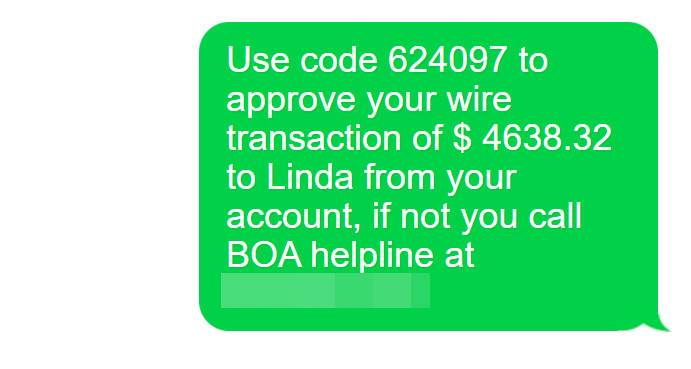
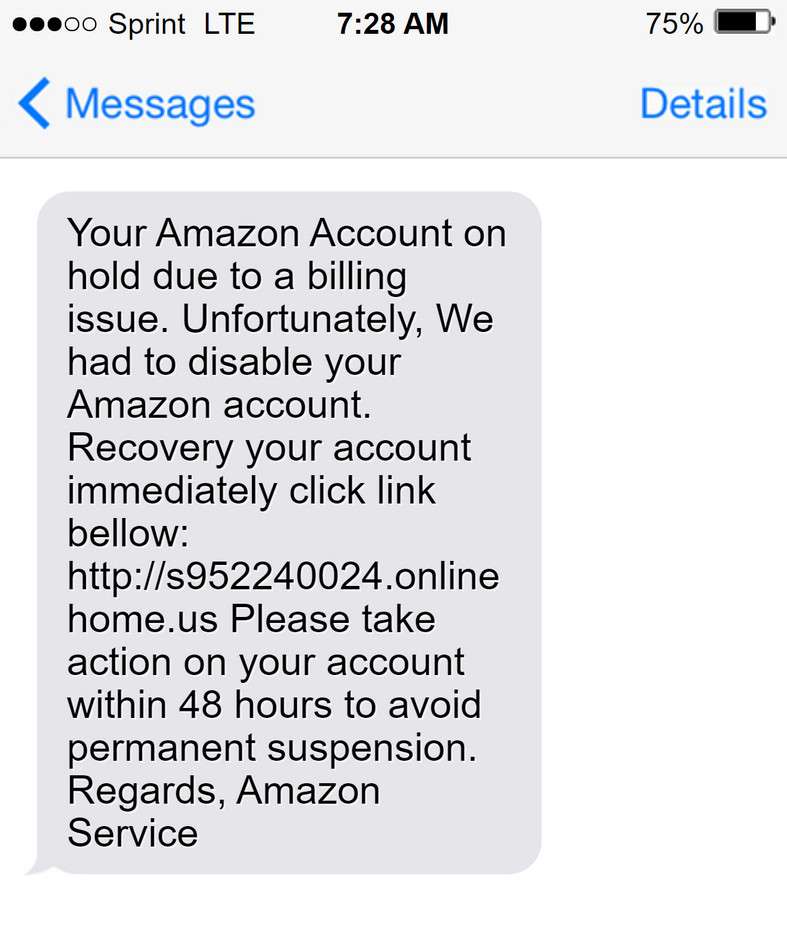
- Fake customer support calls/messages: Scam messages that masquerade as customer service calls or inquiries from companies like Apple, Microsoft, Amazon, or the Social Security Administration. The messages insist that there is an issue with your account that requires immediate attention by calling 877-683-5342.
- Phishing tax calls: Fraudulent calls impersonating IRS or treasury agents claiming you owe back taxes or fees and demanding payment through threatening legal action if 877-683-5342 is not called.
- Impersonation of government officials: Scammers pretending to be government employees or law enforcement officials claiming your SSN or benefits are compromised and your identity is at risk if you do not call 877-683-5342.
- Billing and utility scam calls/messages: Scam calls or voicemails threatening to suspend your electricity, water service, or other bills if you do not call 877-683-5342 and make an immediate payment.
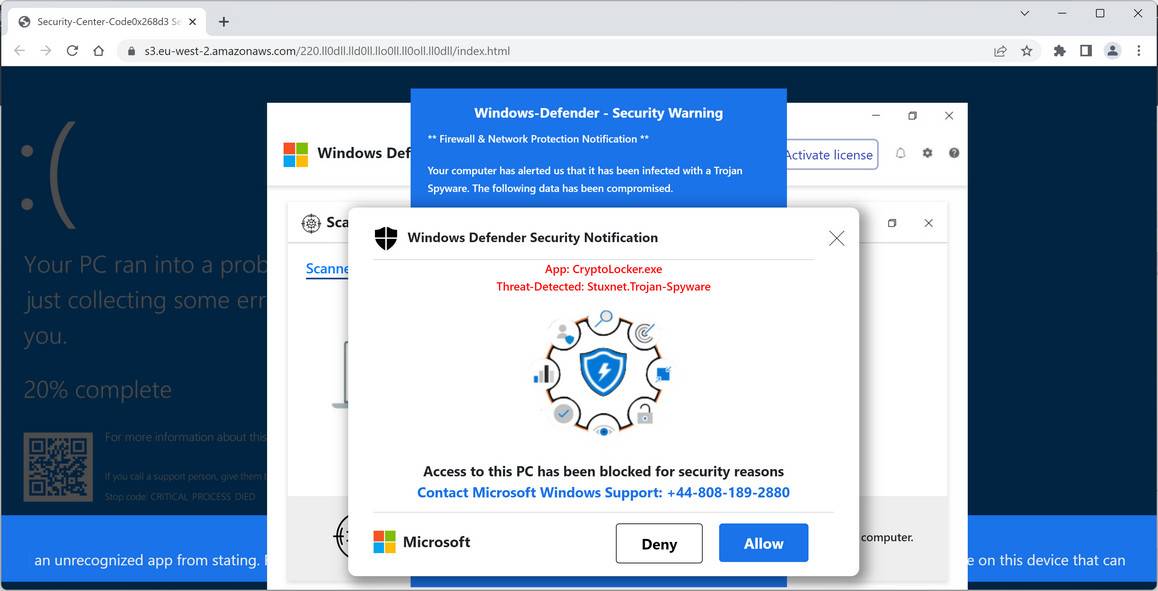
- Tech support scam messages/websites: Fraudulent tech support websites and pop-up messages that say your computer is infected with a virus or compromised in order to get you to call 877-683-5342 for expensive, unnecessary “support”.
- Loan and credit report scams: Scammers promise loans, credit card rate reductions, or amazing credit scores if you pay an upfront fee via 877-683-5342 first.
- Romance scams: Fraudsters posing as romantic interests they met online tell victims they need money urgently and provide 877-683-5342 as a contact to wire money.
- Prize and lottery scams: Victims get calls saying they won a contest/lottery prize, but must first use 877-683-5342 to pay fees before they can collect it.
These are just a few examples of the endless variations of fraudulent schemes utilizing 877-683-5342 to lure innocent consumers into traps. Keep reading to learn how to protect yourself from this scam.
How the 877-683-5342 Phone Scam Works
Now that you know the premise behind the 877-683-5342 scam, it is crucial to understand the nitty gritty details of how scammers manipulate and deceive people through this harmful scam.
Here is a step-by-step breakdown of the inner workings of the 877-683-5342 scam:
Step 1: Scammers Obtain Your Personal Information
The scammers first gain access to names, phone numbers, emails, addresses and sometimes other private data of potential victims. This can happen through:
- Data breaches and hacking into accounts
- Buying bulk data from the dark web
- Malware infections on devices
- Retrieving information from public records
- Randomly cold contacting numbers
Step 2: The Scammers Contact You Posing as a Trusted Source
Armed with some personal information, the fraudsters contact victims while impersonating:
- Well-known companies like Apple or Amazon
- Government agencies like Social Security Administration
- Utility companies
- Law enforcement or other officials
They communicate urgent messages via:
- Telephone calls
- Emails
- Text/SMS messages
- Pop-up alerts on websites
- Mailed letters
Their messages are intended to instill fear and urgency so you call 877-683-5342 immediately.
Step 3: Scammers Pressure You to Provide Confidential Information
Once contacted, the scammers pressure and manipulate victims to divulge private details. They may:
- Threaten account suspension or legal consequences
- Offer enticing rewards or too-good-to-be-true offers
- Generate a sense of urgency to call 877-683-5342 ASAP
- Request sensitive info to “verify account ownership”
Data they commonly phish for includes:
- Full name, birthdate, SSN, IDs
- Login usernames & passwords
- Bank account and routing numbers
- Credit/debit card numbers and CVV codes
- Answers to security questions
- Remote access to devices
Step 4: Scammers Monetize Your Information
In the final stage, scammers monetize your information and payments in various forms, including:
- Emptying bank accounts and stealing money
- Committing credit card and identity fraud
- Selling your information on the dark web
- Using accounts to file fake tax returns and benefits claims
- Charging exorbitant fees for fake tech support services
Unfortunately by this point, the scammers already have your data and payments, leaving you with limited recourse.
Warning Signs of the 877-683-5342 Scam
Now that you understand how the mechanics of the scam work, here are some big red flag warnings to help you detect the 877-683-5342 scam:
- They contact you first out of the blue: Real customer support only reaches out if you contact them first.
- They request immediate action: Scammers always insist the issue is urgent and you must call 877-683-5342 right now. Legitimate businesses give you time to review the situation.
- Odd timing of contact: Be wary of calls/messages claiming there’s an issue with your account that happen at weird hours outside normal business times.
- Aggressive insistence on only calling: Pressuring you to immediately call 877-683-5342 and rejecting any other contact method is a huge red flag.
- Threats and consequences: Real customer service does not threaten account suspension or legal action if you don’t call a number.
- Promises of guaranteed rewards: Claims you can get large cash sums, jackpot prizes or outstanding loans by first calling a number are always scams. Legitimate giveaways don’t require an upfront fee.
- Requests for unusual forms of payment: Government and utilities do not demand payment solely via gift cards, cryptocurrency, wire transfers, prepaid debit cards or other hard to trace forms.
- Poor grammar/spelling errors: Carefully crafted scam messages often have typos, grammar issues and awkward phrasing.
- You don’t have an account with the company: Scammers randomly contact numbers claiming issues with accounts at companies you don’t even do business with.
- No record of the issue claimed: Log into your real account to verify any claims of unusual charges, account deactivation or other problems before calling any number.
- Weird or inconsistent call back numbers: Scammers spoofing legitimate businesses use non-working callback numbers or numbers that don’t match any official company contacts when you research.
Trust your gut. If anything seems suspicious or too good to be true, avoid calling 877-683-5342 or providing personal details.
What to Do If You Already Fell For the 877-683-5342 Scam
If you or someone you know unfortunately already fell victim to the 877-683-5342 scam, stay calm. Here are the most important steps to take in order to minimize damages and regain control:
1. Immediately Contact Your Bank and Credit Card Companies
Alert your bank and credit/debit card companies that your account information is compromised. Request that:
- They flag your accounts and monitor for fraudulent charges.
- Issue new account and card numbers to replace compromised ones.
- Reverse any fraudulent charges already made if possible.
- Increase security protocols for online/phone transactions.
Remain vigilant and review statements frequently for any suspicious activity.
2. Change All Account Passwords
Assume the scammers have gained access to any accounts for which you revealed usernames and passwords. Change logins and security credentials for:
- Email, social media and financial accounts
- Utility and phone accounts
- Retail sites, Amazon, eBay etc.
- Routing numbers for automatic payments/deposits
Use updated passwords that are complex and unique for each account.
3. Freeze Credit Reports
Request that Equifax, Experian and TransUnion freeze your credit reports. This stops scammers from fraudulently opening new credit or loans in your name. Expect fees up to $10 per bureau.
4. Monitor Your Credit Reports and Scores
Keep close watch over your credit reports from all three bureaus for any signs of false accounts or charges. Inspect your credit score frequently as damages lower it quickly.
Dispute any fraudulent activity immediately with credit bureaus to reduce lasting harm to your finances. Sign up for credit monitoring if possible.
5. File Reports With Law Enforcement
File reports about the scam with the following agencies so investigations can potentially catch the criminals:
- Your local police department
- FBI Cybercrime Division at www.ic3.gov
- FTC Complaint Assistant at www.ftccomplaintassistant.gov
- Phone number abuse reports to Federal Communications Commission
Unfortunately, recovery of lost funds is very rare. But reporting aids prevention of ongoing harm.
6. Learn From This Experience
Scammers are experts at psychological manipulation tactics that work on many victims. Don’t blame yourself.
Use this as a teaching moment to be more vigilant against future scams. Share your experience to warn family and friends too.
Review the techniques in this article to recognize the 877-683-5342 scam in the future before you become a victim again.
Staying informed on the latest scam tactics and threats is the best defense. Search for “common online scams” to find more guides that can help protect you.
Is Your Device Infected? Run a Free Malware Scan
Slow performance, constant pop-ups, or strange behavior? These are classic signs of a malware infection. The fastest way to find out is to scan your device with Malwarebytes Free — one of the most trusted malware removal tools available.
The free version detects and removes the most common threats, including:
- Adware — the cause of those annoying pop-ups
- Browser hijackers — unwanted redirects and changed homepages
- Trojans and spyware — hidden programs stealing your data
- Potentially unwanted programs (PUPs) — software you never asked for
👉 Select your device below — Windows, Mac, or Android — then follow the simple steps to download Malwarebytes, scan your system, and remove any threats it finds. The scan usually takes 5 to 20 minutes.
Run a Malware Scan with Malwarebytes for Windows
Malwarebytes is one of the most popular and trusted anti-malware tools for Windows — and it’s completely free for removing infections. It catches threats that many antivirus programs miss, including adware, browser hijackers, and trojans. Follow the steps below to scan and clean your PC in just a few minutes.
Download Malwarebytes
Click the button below to download the latest version of Malwarebytes for Windows from the official source. The free version is all you need — it will scan your computer and remove adware, browser hijackers, and other malicious software at no cost.
Download MalwarebytesOfficial installer for Windows 11 and 10. Your download starts right away.Want real-time protection? See Malwarebytes Premium Malwarebytes Free for WindowsScans and removes malware at no cost
-
Install Malwarebytes
When the download finishes, open your Downloads folder and double-click the MBSetup file. If Windows shows a User Account Control pop-up, click “Yes” to allow the installation.

Follow the On-Screen Prompts to Install Malwarebytes
The setup wizard will walk you through a few quick screens:
-
Choose where you’re installing the program — “Personal Computer” or “Work Computer” — then click Next.

-
Malwarebytes will now install on your device. This usually takes under a minute.

-
When installation is complete, the “Welcome to Malwarebytes” screen will open automatically.

-
On the final screen, click Open Malwarebytes to launch the program.

-
Enable “Scan for Rootkits”
Before scanning, turn on rootkit detection so Malwarebytes can find even the most hidden threats. Click the Settings gear icon on the left side of the screen.

In the settings menu, find “Scan for rootkits” and click the toggle so it turns blue.

Done? Click “Dashboard” in the left pane to return to the main screen.
Start the Scan
Click the blue Scan button. Malwarebytes will automatically update its virus database and start checking your computer for malware.

-
Wait for the Scan to Finish
The scan checks your entire system for browser hijackers and other malicious programs, so it can take 5 to 20 minutes depending on your computer. Feel free to do something else — just check back occasionally to see the progress.

-
Quarantine the Detected Threats
When the scan is done, you’ll see a list of everything Malwarebytes found — malware, adware, and potentially unwanted programs. Click the “Quarantine” button to remove all of them at once.

Malwarebytes will now remove the malicious files and registry entries and move them safely into quarantine.

-
Restart Your Computer
Some threats can only be fully removed after a reboot. If Malwarebytes asks you to restart, click Yes. Once you’re logged back in, Malwarebytes has finished removing the threats it found.

That’s it — your Windows PC is now clean of trojans, adware, and other malware, and should be back to running smoothly.
If you are still having problems with your computer after completing these instructions, then please follow one of the steps:
- Run a computer scan with ESET Online Scanner
- Ask for help in our Windows Malware Removal Help & Support forum.
Run a Malware Scan with Malwarebytes for Mac
Malwarebytes for Mac is a free on-demand scanner that removes the malware other security software tends to miss — adware, browser hijackers, and unwanted programs included. Cleaning an infected Mac with Malwarebytes has always been completely free, and it’s our go-to recommendation. Follow the steps below to scan and clean your Mac in just a few minutes.
-
Download Malwarebytes for Mac
Click the button below to download the latest version of Malwarebytes for Mac.
Download MalwarebytesOfficial installer for macOS. Your download starts right away.Want real-time protection? See Malwarebytes PremiumMalwarebytes Free for MacScans and removes malware at no cost -
Open the Malwarebytes setup file
When the download finishes, open your Downloads folder and double-click the setup file to begin the installation.

-
Follow the On-Screen Prompts to Install Malwarebytes
The Malwarebytes for Mac Installer will guide you through a few quick screens. Click “Continue” and keep following the prompts until the installation completes.



When the installation is complete, Malwarebytes opens to the Welcome to Malwarebytes screen. Click “Get started“.
-
Select “Personal Computer” or “Work Computer”
Malwarebytes will ask what type of computer you’re installing it on. Click either Personal Computer or Work Computer, whichever applies.

-
Start the Scan
Click the “Scan” button. Malwarebytes will automatically update its detection database and begin checking your Mac for malware.

-
Wait for the Scan to Finish
Malwarebytes will scan your Mac for adware, browser hijackers, and other malicious programs. This can take a few minutes, so feel free to do something else — just check back occasionally to see the progress.

-
Quarantine the Detected Threats
When the scan is done, you’ll see a list of everything Malwarebytes found. Click the “Quarantine” button to remove all the threats at once.

-
Restart Your Mac
Malwarebytes will now remove all the malicious files it found. Some threats can only be fully removed after a reboot — if Malwarebytes asks you to restart, allow it. Once you’re logged back in, your Mac is clean.

That’s it — your Mac is now free of adware, rogue browser extensions, and other potentially harmful software.
If you are still experiencing problems while trying to remove a malicious program from your computer, please ask for help in our Mac Malware Removal Help & Support forum.
Run a Malware Scan with Malwarebytes for Android
Malwarebytes for Android automatically detects and removes dangerous threats like malware and ransomware so you don’t have to worry about your most-used device being compromised. Aggressive detection of adware and potentially unwanted programs keeps your Android phone or tablet running smooth.
-
Download Malwarebytes for Android.
You can download Malwarebytes for Android by clicking the link below.
Get Malwarebytes for AndroidOpens Google Play in a new tab.Want real-time protection? See Malwarebytes Premium for AndroidMalwarebytes for AndroidScans your phone and removes malware at no cost -
Install Malwarebytes for Android on your phone.
In the Google Play Store, tap “Install” to install Malwarebytes for Android on your device.

When the installation process has finished, tap “Open” to begin using Malwarebytes for Android. You can also open Malwarebytes by tapping on its icon in your phone menu or home screen.

-
Follow the on-screen prompts to complete the setup process
When Malwarebytes will open, you will see the Malwarebytes Setup Wizard which will guide you through a series of permissions and other setup options.
This is the first of two screens that explain the difference between the Premium and Free versions. Swipe this screen to continue.
Tap on “Got it” to proceed to the next step.
Malwarebytes for Android will now ask for a set of permissions that are required to scan your device and protect it from malware. Tap on “Give permission” to continue.
Tap on “Allow” to permit Malwarebytes to access the files on your phone.
-
Update database and run a scan with Malwarebytes for Android
You will now be prompted to update the Malwarebytes database and run a full system scan.

Click on “Update database” to update the Malwarebytes for Android definitions to the latest version, then click on “Run full scan” to perform a system scan.

-
Wait for the Malwarebytes scan to complete.
Malwarebytes will now start scanning your phone for adware and other malicious apps. This process can take a few minutes, so we suggest you do something else and periodically check on the status of the scan to see when it is finished.

-
Click on “Remove Selected”.
When the scan has been completed, you will be presented with a screen showing the malware infections that Malwarebytes for Android has detected. To remove the malicious apps that Malwarebytes has found, tap on the “Remove Selected” button.

-
Restart your phone.
Malwarebytes for Android will now remove all the malicious apps that it has found. To complete the malware removal process, Malwarebytes may ask you to restart your device.
That’s it — your Android phone is now clean — no more malicious apps, adware, or browser redirects.
If you are still having problems with your phone after completing these instructions, then please follow one of the steps:
- Restore your phone to factory settings by going to Settings > General management > Reset > Factory data reset.
- Ask for help in our Mobile Malware Removal Help & Support forum.
Stay Protected: Block Ads and Malicious Sites
Now that your device is clean, keep it that way. Most infections start with a malicious ad or a fake download button — so blocking them at the source is your best defense.
We recommend AdGuard, which blocks malicious ads, phishing pages, and dangerous redirects before they can reach you.
👉 Download AdGuard and browse safely
In Conclusion
The 877-683-5342 phone scam is a dangerous threat that everyone should be aware of in order to avoid falling victim and suffering financial damages. But with knowledge of how this scam operates, the warning signs to look for, and steps to take if compromised, you can reduce chances of getting defrauded and minimize harm if targeted. Bookmark this page as an easy reference to refresh your memory on 877-683-5342 scam defense tactics. Share with your social circle as well to help others prevent their own victimization through education and vigilance.
Frequently Asked Questions
1. What happens if I call the 877-683-5342 number?
Calling the number connects you to scammers impersonating a trusted entity claiming you have an urgent issue to resolve. They will pressure and manipulate you into providing private account details or sending money that allows them to steal your identity and funds or sell your information.
2. What if I already called 877-683-5342 and gave them my information?
Immediately contact banks, credit bureaus, and any companies compromised to report unauthorized access before the scammers can capitalize. Freeze credit reports, monitor your credit and accounts diligently, and change all passwords. You may have to close accounts completely if fraud already occurred.
3. Why is providing my social security number to 877-683-5342 dangerous?
Armed with your full SSN, name, and address the scammers can open fraudulent credit accounts, file fake tax returns, steal government benefits, take out payday loans, and commit other identity theft in your name. Protect it at all costs.
4. Can the police find who is behind 877-683-5342?
Unfortunately, tracking down the scammers is very difficult since they use spoofing technology to mask their true locations and identities. But reporting assists authorities in building cases against larger criminal rings. Having documentation if you lost money also helps if prosecutions occur to potentially recover damages.
5 You mentioned credit freezes. How does that work?
Freezing your credit reports prevents new accounts being opened in your name without approval of a unique PIN only you know. This blocks scammers who gained your info from abusing it further. Expect fees up to $10 per bureau. You can easily lift the freeze whenever you need credit checks run.
Key Takeaways
- The 877-683-5342 phone number is used by scammers impersonating trusted companies or agencies to deceive victims into providing private information and money. Do not call it or provide data if contacted.
- Look for urgent demands, threats, unusual payment methods, and other red flags to detect the scam.
- Contact banks and companies affected if you already fell victim. Freeze credit reports, monitor your credit, and change all account passwords immediately.
- Share knowledge of this scam with family and friends to prevent them from being victimized.

Join the discussion
0 commentsShare your experience or ask a question about this article.
Discussion
Start the conversation
Have a question or something useful to share? Add the first comment.