

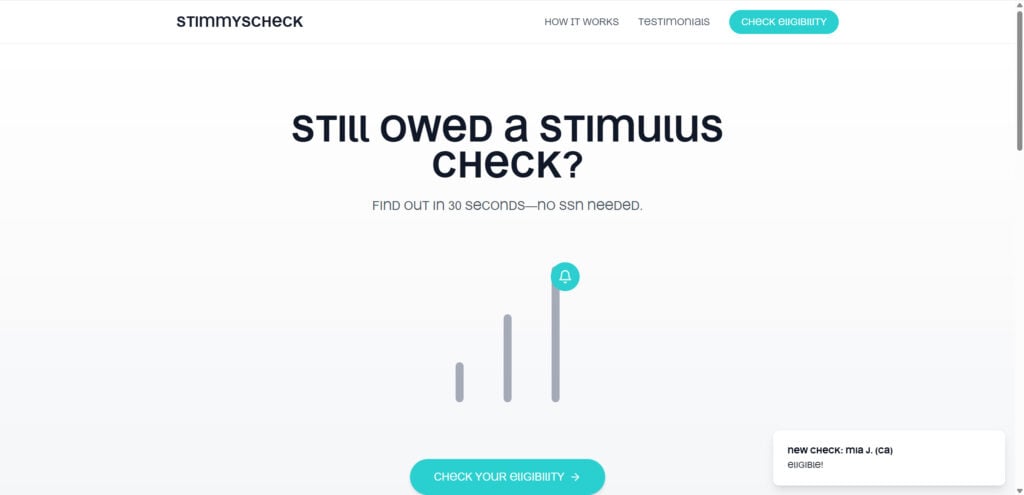
StimmysCheck.com promotes itself as a fast and simple solution for checking whether you are still owed a stimulus payment. It advertises a quick “30-second” check with “no SSN required,” presenting itself as safe, efficient, and consumer-friendly. However, this surface-level convenience masks a more deceptive operation that could put your privacy and personal data at serious risk.
While the idea of free stimulus money may tempt millions of Americans, what appears to be a legitimate opportunity is, in reality, a sophisticated funnel for collecting information and redirecting users to third-party platforms. In this article, we go far beyond the surface to explain what StimmysCheck.com really is, how the scam operates, what red flags to look out for, and exactly what to do if you’ve already interacted with the site.
Scam Overview
What Is StimmysCheck.com Really Offering?
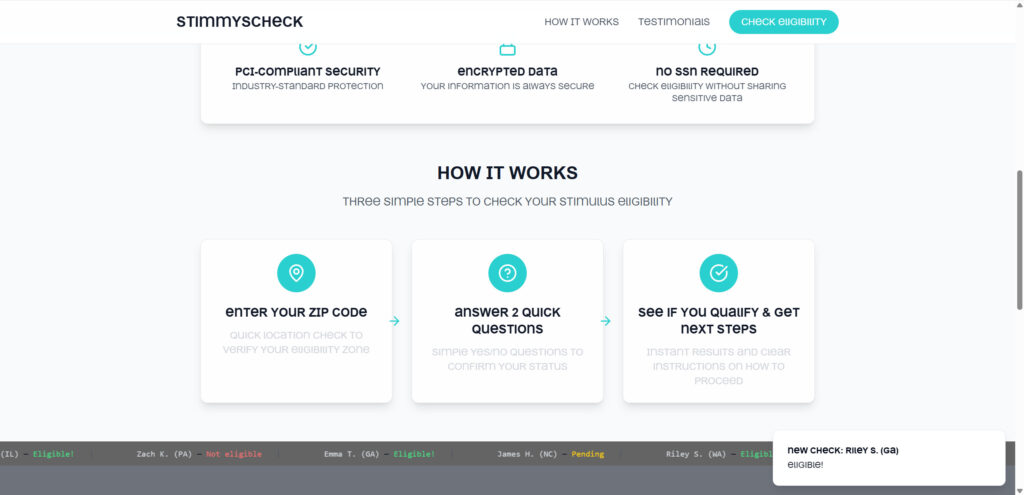
StimmysCheck.com is presented as a public service tool designed to help you find out if you missed out on stimulus payments from the federal government. Its clean layout, convincing testimonials, and user-friendly process are all designed to build credibility. You are asked to provide minimal information—such as a ZIP code and yes/no answers to a few questions—which makes the service appear low-risk.
But the illusion of simplicity is part of the trap. What’s really happening behind the scenes is that the site is not connected to any official stimulus database or government entity. Instead, it operates as a lead-generation platform designed to extract basic user data and route visitors to unrelated promotional offers or affiliate deals that have nothing to do with financial relief.
Signs You’re Dealing With a Scam
1. No Official Government Affiliation
One of the biggest warning signs is the complete lack of any links to .gov websites or any verifiable mention of the IRS, U.S. Treasury, or state treasuries. Real stimulus tracking tools are hosted on government domains and are backed by transparent policies and contact information.
2. Recently Registered Domain
Scam websites often appear suddenly and disappear just as quickly. A WHOIS domain lookup on StimmysCheck.com shows that the site was registered recently, which aligns with typical scam lifecycles. This short history indicates the site hasn’t had time to build any legitimate reputation.
3. Fake or Unverifiable Testimonials
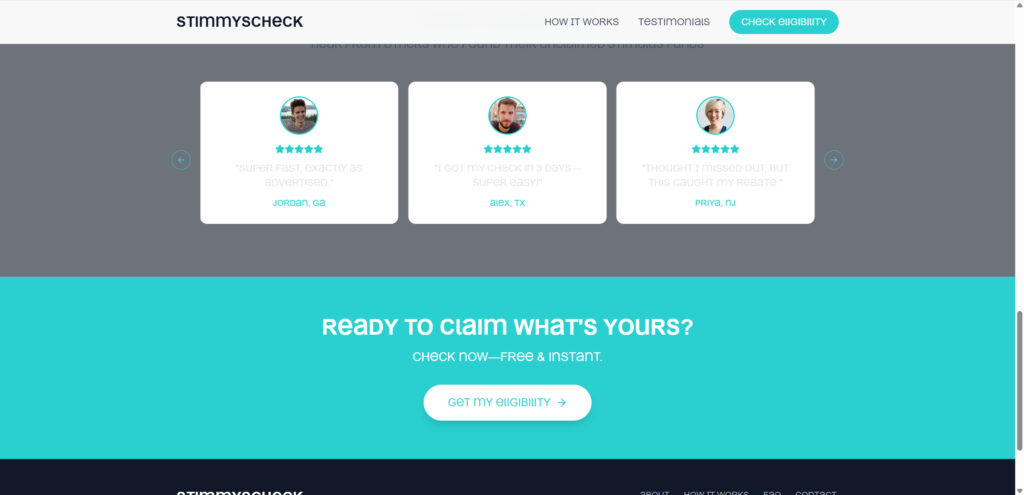
The website features reviews from supposed users who claim they received checks “in 3 days” or “finally got their rebate,” often with first names and states listed. These testimonials lack last names, official confirmation, or verifiable links. Most are likely fabricated to build false trust.
4. Unrelated Redirects
Rather than directing you to the IRS or other official resources, the site reroutes users to unrelated promotional offers. These include survey platforms, e-commerce trials, and online sweepstakes. Every redirection serves the purpose of generating affiliate income, not helping you access stimulus funds.
5. Lack of Transparency
There is no listed privacy policy, company name, or real customer support contact. Any website collecting user data, especially related to financial matters, should clearly identify who they are and how your data will be used. The absence of these basics is a clear red flag.
6. Manipulative Messaging
Phrases like “don’t miss out” and “act now” are common throughout the site. These are classic emotional triggers used in scams to hurry users into acting without proper research.
7. Poor Security Indicators
While the site may use HTTPS, it lacks trust seals from independent security bodies, terms of service, or any visible assurance that your data will be protected. Legitimate financial services are expected to meet strict data protection standards.
How the Scam Works: Step-by-Step
Step 1: Clickbait Appeal
You’re drawn in by a headline like “Still owed a stimulus check?” The site reassures you that it’s fast, free, and requires no SSN. This sets up the illusion of safety while simultaneously sparking curiosity and urgency.
Step 2: Basic Input Collection
The site prompts you to enter your ZIP code and answer a few yes/no questions like whether you’ve received a previous stimulus payment or whether you’re a U.S. resident. The process is designed to seem legitimate while subtly priming you for the next phase.
Step 3: Fake Eligibility Confirmation
After entering your responses, the site generates a congratulatory message saying that you’re “eligible.” This is likely the same outcome for everyone, regardless of their input. It’s engineered to validate the user’s belief in the system and encourage continued interaction.
Step 4: Redirection to Offers
Next, you’re told to click a button for “next steps.” Instead of being taken to a legitimate site like IRS.gov, you are redirected to unrelated third-party sites. These can include everything from coupon offers and product giveaways to fake contests or email list sign-ups.
Step 5: Data Collection and Monetization
At this point, the scammers have already collected your ZIP code and possibly interaction data like your IP address, device ID, and browser type. If you’ve entered your email or phone number, that data may be sold to advertisers or used in more targeted scams.
Step 6: Future Exploitation
After the visit, your inbox may start filling with promotional spam or scam emails. You might also begin receiving robocalls or texts. The site’s goal isn’t to help you receive money—it’s to make money off your clicks, sign-ups, and information.
Step 7: Retargeting Campaigns
Scam operators may use cookies or trackers to target you with additional fraudulent ads later. Because you’ve shown interest in “free money,” your browsing habits may be flagged for more financial scams in the future.
What to Do if You Have Fallen Victim to This Scam
- Stop Using the Site Immediately
Close the page, avoid clicking any follow-up links, and do not respond to texts or emails originating from the site or its affiliates. - Change Your Passwords
If you used the same email for other accounts, change those passwords as soon as possible. Use a strong, unique password and enable two-factor authentication wherever possible. - Report the Website
Notify:
- The Federal Trade Commission (www.reportfraud.ftc.gov)
- The Internet Crime Complaint Center (www.ic3.gov)
- Your state’s consumer protection division or attorney general’s office
- Monitor Your Digital Footprint
Use tools like Google Alerts or credit monitoring services to stay informed about any unusual activity related to your name, phone number, or email address. - Install Call and Spam Blockers
Apps like Truecaller or RoboKiller can help you filter out unwanted calls. Mark suspicious emails as spam and avoid opening attachments or clicking links. - Freeze Your Credit (If Needed)
If you entered enough identifying information or suspect further compromise, consider placing a credit freeze with Equifax, Experian, and TransUnion. - Educate Your Circle
Warn friends and family about the scam, especially those who may be more vulnerable. Encourage them to use only verified government sources for financial claims.
Is Your Device Infected? Run a Free Malware Scan
Slow performance, constant pop-ups, or strange behavior? These are classic signs of a malware infection. The fastest way to find out is to scan your device with Malwarebytes Free — one of the most trusted malware removal tools available.
The free version detects and removes the most common threats, including:
- Adware — the cause of those annoying pop-ups
- Browser hijackers — unwanted redirects and changed homepages
- Trojans and spyware — hidden programs stealing your data
- Potentially unwanted programs (PUPs) — software you never asked for
👉 Select your device below — Windows, Mac, or Android — then follow the simple steps to download Malwarebytes, scan your system, and remove any threats it finds. The scan usually takes 5 to 20 minutes.
Run a Malware Scan with Malwarebytes for Windows
Malwarebytes is one of the most popular and trusted anti-malware tools for Windows — and it’s completely free for removing infections. It catches threats that many antivirus programs miss, including adware, browser hijackers, and trojans. Follow the steps below to scan and clean your PC in just a few minutes.
Download Malwarebytes
Click the button below to download the latest version of Malwarebytes for Windows from the official source. The free version is all you need — it will scan your computer and remove adware, browser hijackers, and other malicious software at no cost.
Download MalwarebytesOfficial installer for Windows 11 and 10. Your download starts right away.Want real-time protection? See Malwarebytes Premium Malwarebytes Free for WindowsScans and removes malware at no cost
-
Install Malwarebytes
When the download finishes, open your Downloads folder and double-click the MBSetup file. If Windows shows a User Account Control pop-up, click “Yes” to allow the installation.

Follow the On-Screen Prompts to Install Malwarebytes
The setup wizard will walk you through a few quick screens:
-
Choose where you’re installing the program — “Personal Computer” or “Work Computer” — then click Next.

-
Malwarebytes will now install on your device. This usually takes under a minute.

-
When installation is complete, the “Welcome to Malwarebytes” screen will open automatically.

-
On the final screen, click Open Malwarebytes to launch the program.

-
Enable “Scan for Rootkits”
Before scanning, turn on rootkit detection so Malwarebytes can find even the most hidden threats. Click the Settings gear icon on the left side of the screen.

In the settings menu, find “Scan for rootkits” and click the toggle so it turns blue.

Done? Click “Dashboard” in the left pane to return to the main screen.
Start the Scan
Click the blue Scan button. Malwarebytes will automatically update its virus database and start checking your computer for malware.

-
Wait for the Scan to Finish
The scan checks your entire system for browser hijackers and other malicious programs, so it can take 5 to 20 minutes depending on your computer. Feel free to do something else — just check back occasionally to see the progress.

-
Quarantine the Detected Threats
When the scan is done, you’ll see a list of everything Malwarebytes found — malware, adware, and potentially unwanted programs. Click the “Quarantine” button to remove all of them at once.

Malwarebytes will now remove the malicious files and registry entries and move them safely into quarantine.

-
Restart Your Computer
Some threats can only be fully removed after a reboot. If Malwarebytes asks you to restart, click Yes. Once you’re logged back in, Malwarebytes has finished removing the threats it found.

That’s it — your Windows PC is now clean of trojans, adware, and other malware, and should be back to running smoothly.
If you are still having problems with your computer after completing these instructions, then please follow one of the steps:
- Run a computer scan with ESET Online Scanner
- Ask for help in our Windows Malware Removal Help & Support forum.
Run a Malware Scan with Malwarebytes for Mac
Malwarebytes for Mac is a free on-demand scanner that removes the malware other security software tends to miss — adware, browser hijackers, and unwanted programs included. Cleaning an infected Mac with Malwarebytes has always been completely free, and it’s our go-to recommendation. Follow the steps below to scan and clean your Mac in just a few minutes.
-
Download Malwarebytes for Mac
Click the button below to download the latest version of Malwarebytes for Mac.
Download MalwarebytesOfficial installer for macOS. Your download starts right away.Want real-time protection? See Malwarebytes PremiumMalwarebytes Free for MacScans and removes malware at no cost -
Open the Malwarebytes setup file
When the download finishes, open your Downloads folder and double-click the setup file to begin the installation.

-
Follow the On-Screen Prompts to Install Malwarebytes
The Malwarebytes for Mac Installer will guide you through a few quick screens. Click “Continue” and keep following the prompts until the installation completes.



When the installation is complete, Malwarebytes opens to the Welcome to Malwarebytes screen. Click “Get started“.
-
Select “Personal Computer” or “Work Computer”
Malwarebytes will ask what type of computer you’re installing it on. Click either Personal Computer or Work Computer, whichever applies.

-
Start the Scan
Click the “Scan” button. Malwarebytes will automatically update its detection database and begin checking your Mac for malware.

-
Wait for the Scan to Finish
Malwarebytes will scan your Mac for adware, browser hijackers, and other malicious programs. This can take a few minutes, so feel free to do something else — just check back occasionally to see the progress.

-
Quarantine the Detected Threats
When the scan is done, you’ll see a list of everything Malwarebytes found. Click the “Quarantine” button to remove all the threats at once.

-
Restart Your Mac
Malwarebytes will now remove all the malicious files it found. Some threats can only be fully removed after a reboot — if Malwarebytes asks you to restart, allow it. Once you’re logged back in, your Mac is clean.

That’s it — your Mac is now free of adware, rogue browser extensions, and other potentially harmful software.
If you are still experiencing problems while trying to remove a malicious program from your computer, please ask for help in our Mac Malware Removal Help & Support forum.
Run a Malware Scan with Malwarebytes for Android
Malwarebytes for Android automatically detects and removes dangerous threats like malware and ransomware so you don’t have to worry about your most-used device being compromised. Aggressive detection of adware and potentially unwanted programs keeps your Android phone or tablet running smooth.
-
Download Malwarebytes for Android.
You can download Malwarebytes for Android by clicking the link below.
Get Malwarebytes for AndroidOpens Google Play in a new tab.Want real-time protection? See Malwarebytes Premium for AndroidMalwarebytes for AndroidScans your phone and removes malware at no cost -
Install Malwarebytes for Android on your phone.
In the Google Play Store, tap “Install” to install Malwarebytes for Android on your device.

When the installation process has finished, tap “Open” to begin using Malwarebytes for Android. You can also open Malwarebytes by tapping on its icon in your phone menu or home screen.

-
Follow the on-screen prompts to complete the setup process
When Malwarebytes will open, you will see the Malwarebytes Setup Wizard which will guide you through a series of permissions and other setup options.
This is the first of two screens that explain the difference between the Premium and Free versions. Swipe this screen to continue.
Tap on “Got it” to proceed to the next step.
Malwarebytes for Android will now ask for a set of permissions that are required to scan your device and protect it from malware. Tap on “Give permission” to continue.
Tap on “Allow” to permit Malwarebytes to access the files on your phone.
-
Update database and run a scan with Malwarebytes for Android
You will now be prompted to update the Malwarebytes database and run a full system scan.

Click on “Update database” to update the Malwarebytes for Android definitions to the latest version, then click on “Run full scan” to perform a system scan.

-
Wait for the Malwarebytes scan to complete.
Malwarebytes will now start scanning your phone for adware and other malicious apps. This process can take a few minutes, so we suggest you do something else and periodically check on the status of the scan to see when it is finished.

-
Click on “Remove Selected”.
When the scan has been completed, you will be presented with a screen showing the malware infections that Malwarebytes for Android has detected. To remove the malicious apps that Malwarebytes has found, tap on the “Remove Selected” button.

-
Restart your phone.
Malwarebytes for Android will now remove all the malicious apps that it has found. To complete the malware removal process, Malwarebytes may ask you to restart your device.
That’s it — your Android phone is now clean — no more malicious apps, adware, or browser redirects.
If you are still having problems with your phone after completing these instructions, then please follow one of the steps:
- Restore your phone to factory settings by going to Settings > General management > Reset > Factory data reset.
- Ask for help in our Mobile Malware Removal Help & Support forum.
Stay Protected: Block Ads and Malicious Sites
Now that your device is clean, keep it that way. Most infections start with a malicious ad or a fake download button — so blocking them at the source is your best defense.
We recommend AdGuard, which blocks malicious ads, phishing pages, and dangerous redirects before they can reach you.
👉 Download AdGuard and browse safely
Frequently Asked Questions About the StimmysCheck.com Scam
What is StimmysCheck.com claiming to do?
StimmysCheck.com claims to check your eligibility for unclaimed stimulus payments in just 30 seconds. It promotes a quick, no-SSN-required process that seems risk-free. However, it does not connect to any official government systems and instead funnels users to unrelated offers.
Is StimmysCheck.com a legitimate government website?
No, StimmysCheck.com is not affiliated with any federal or state government agency. There are no links to .gov domains or references to official bodies like the IRS or U.S. Treasury. It is a private, unverified site with no transparency about ownership or operation.
How does the StimmysCheck.com scam work?
The site gathers minimal input from users to build trust, then redirects them to unrelated third-party offers. These redirections generate affiliate revenue for the operators while exposing users to unwanted marketing and potential scams. It also collects user data which can be sold or used in future fraudulent campaigns.
What personal information does StimmysCheck.com collect?
While the site claims not to require a Social Security number, it still collects location data (ZIP code), browser fingerprints, and possibly your email or phone number. This information is valuable for targeted advertising and phishing attacks.
Why are the testimonials on StimmysCheck.com suspicious?
The testimonials use only first names and states, lack verifiable sources, and often appear too perfect or repetitive. This is a common tactic used to build false credibility and push users to take action without proper scrutiny.
What are the risks of using StimmysCheck.com?
The risks include exposure to data harvesting, spam marketing, phishing attempts, and future scams. Users may also be lured into providing more personal information through the third-party offers they are redirected to.
What should I do if I submitted information to StimmysCheck.com?
Immediately stop using the site, change your passwords if necessary, and begin monitoring your email, phone, and financial accounts for unusual activity. Report the site to the FTC, IC3, and other consumer protection agencies.
How can I tell if a stimulus check site is real?
Always verify the domain. Real government services will use a .gov address and offer clear contact details, privacy policies, and data use explanations. If a site lacks transparency or pressures you to act fast, it’s likely a scam.
Where can I safely check for unclaimed stimulus payments?
The safest place to check for unclaimed stimulus or tax refund payments is the official IRS website (www.irs.gov). You can also contact your state’s treasury or revenue department directly.
Can StimmysCheck.com cause identity theft?
While the site doesn’t ask for Social Security numbers, it can still contribute to identity-related fraud through the data it collects. If this information is matched with data from other breaches, it can be used to impersonate you online.
The Bottom Line
At first glance, StimmysCheck.com looks legitimate. The design is sleek, the language is persuasive, and the process is simple. But behind the curtain lies a digital trap. It misleads users into believing they are engaging with a legitimate stimulus recovery process when in fact, they are being steered into a data collection and monetization funnel.
There is no shortcut to finding real government-issued stimulus checks. For accurate and secure information, always stick to official sites like IRS.gov or your state’s treasury department. If a site can’t prove who’s behind it or how your data will be used, don’t trust it.
In a world full of online promises, it’s your responsibility to verify before you click. Stay alert, stay informed, and help others do the same.

Join the discussion
0 commentsShare your experience or ask a question about this article.
Discussion
Start the conversation
Have a question or something useful to share? Add the first comment.