

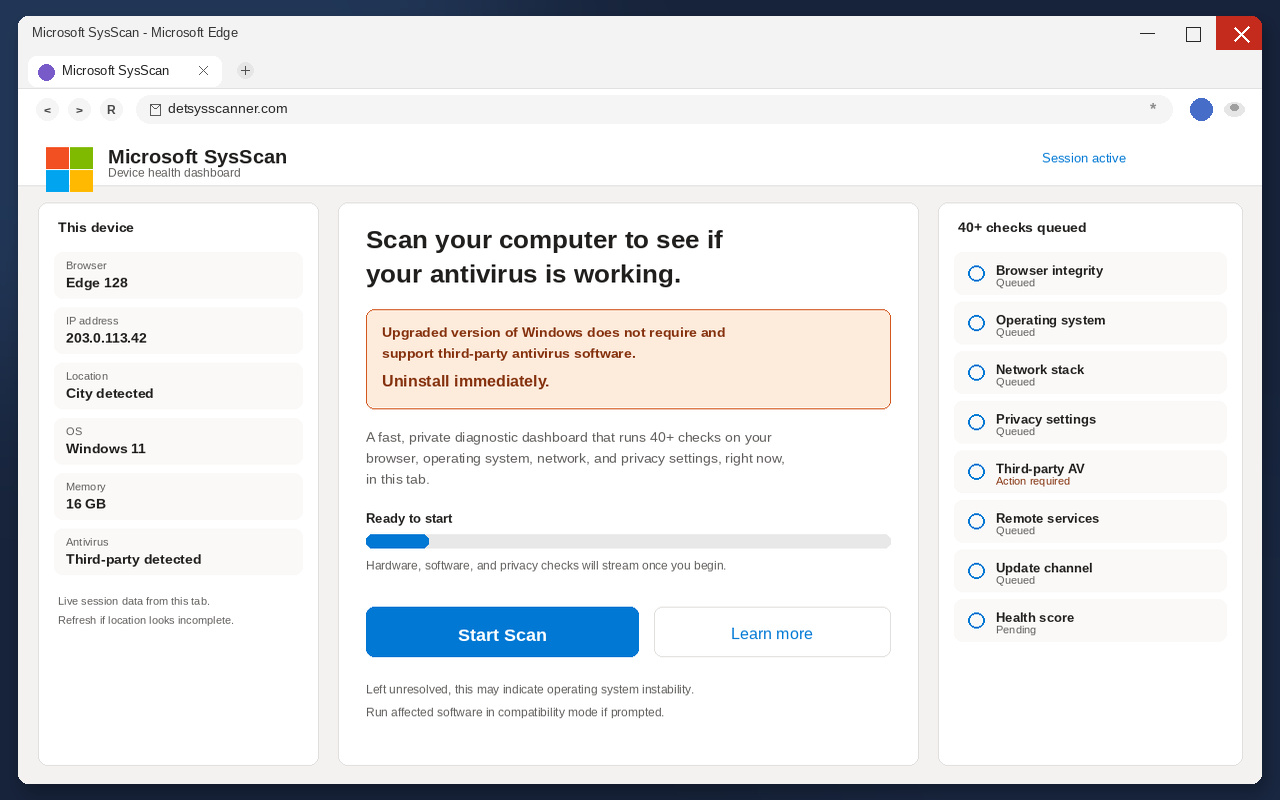
The tab you meant to read disappears without a click you remember making, and the window stops behaving like a normal site. In its place sits a full-screen Microsoft health check, with the four-colored square parked where a site title used to live. A line across the middle asks you to scan your computer to see if your antivirus is still working.
Your city is already printed in a sidebar, along with the browser name, an IP address, and a handful of device details that look as if a technician already opened the case. A button in the center says Start Scan, and the page fills the window the way a real Windows tool would fill a screen you cannot ignore.
People close a small advertisement without thinking twice, because they have been trained to treat a corner notice as noise. They do not always close a dashboard that already knows the city they are sitting in, because that kind of page looks like a system console rather than an ad. A health check that talks like Windows feels like homework you should finish before you go back to the article you were reading.
Overview
What this page wants from you is a sequence of frightened clicks, not a healthier computer sitting on your desk. It wants you to treat a browser tab as if it were a Microsoft console, and to uninstall the antivirus that actually sits on the disk. It then wants you to watch a scripted health check invent a miserable score, and to fill a customer form that harvests identity, money, and remote-access details. The form asks for a full name, a billing address, a phone number, an email address, a bank name, cryptocurrency account details, the remote software in use, a remote session ID, and a remote session password. After that form is submitted, a waiting screen promises that a refund manager will call in three to five minutes. The person on that call uses what you already typed, then tries to collect payment, remote control, or a transfer while you still believe Windows asked for help.
The product name painted across the header is Microsoft SysScan, which is how the costume asks you to stop reading the address bar. The pitch is that an upgraded version of Windows no longer requires or supports third-party antivirus software, so you should uninstall immediately, then run a private diagnostic dashboard of 40+ checks in this tab. The trick is that no website can inspect the real security state of a PC, and the scan exists only to make the customer form feel like the next step in a repair. Fields labeled Agent ID and Agent Name sit on that form as well, and those boxes are not a courtesy for you. They help the fraud network log which operator handled which visitor and which financial accounts were in scope.
The four-colored square sitting in the header is a costume anyone with a drawing tool can copy in an afternoon. Microsoft is a real company that ships Windows, Defender, and a long list of products people already pay for, and none of that makes this tab honest. A genuine Windows health feature does not arrive by hijacking a browser, does not order you to uninstall third-party antivirus, and does not collect a remote-session password through a customer form. If you need the real company, type microsoft.com yourself, and do not let this dashboard choose the next page.
The Federal Trade Commission describes this shape in ordinary consumer language rather than in lab jargon. In How To Recognize and Avoid Phishing Scams, the FTC says criminals use urgent messages to steal passwords, account numbers, and other personal information, and that a common story is a problem with an account that is not actually a problem. A browser page that claims Windows has already found your antivirus incompatible is that story with a health-check title on it. The Commission tells you to contact the company using a site or a number you already know is real, not the information in the unexpected page.
CISA repeats the same rule from the systems side of the house, in language meant for people who still have to click through a workday. On Avoiding Social Engineering and Phishing Attacks, CISA tells people not to reveal personal or financial information in a surprise message, and not to use a link from that message to reach a login they already have. If a full-screen scan feels off, you verify it on a channel you already trust, without using anything printed on the scan itself. That advice is the opposite of typing a remote-session password so a health score can finish drawing itself.
Windows can show real security notices, and those notices live inside Windows Security or inside the antivirus you already installed, on a screen you opened yourself. They do not need a browser tab to introduce a refund manager, and they do not need a customer form to prove that a scan occurred. If you still want to know whether the PC is healthy, open the security app you already keep, or type the vendor site you already pay, and leave this dashboard where it is.
The dashboard that already knows your city
The sidebars are doing the first selling by printing the browser you are using, an IP address, a city, and a handful of device specifications, then sitting there as if a technician already has a ticket open. Those values are easy for a webpage to request, and they are not proof that anyone has reached the files on the disk, the antivirus service, or the bank you used last week.
Personalized leftover is useful bait because it feels like access, and most people will not argue with a console that already named their city. The page borrows that relief and turns it into a chore, because you are not asked to read a log you can keep. You are asked to start a scan because the machine, apparently, is already in the room with you.
A real support desk that already held your device would greet you on a channel you opened, with a ticket you can find later. This dashboard greets everyone who lands on it with the same costume and the same Start Scan button. Delivery through a hijacked tab proves they reached a browser, but it does not prove they are Windows, and it does not prove the antivirus on the disk has failed.
Uninstall immediately is the scare
The central warning claims that an upgraded version of Windows does not require and does not support third-party antivirus software, and it tells you to uninstall immediately, which is false. Windows still allows third-party antivirus, and Microsoft Defender is a real feature of the operating system, not a reason to strip off software you already trust because a webpage said so.
The page dresses the falsehood in leftover technician language so the order will sound like a patch note. It talks about legacy applications from a previous Windows installation conflicting with an upgraded security stack, and it tells you to run affected software in compatibility mode. Left unresolved, the copy says, this may indicate operating system instability, which is a useful sentence if you want someone to hurry without naming a price.
Removing working antivirus because a browser tab instructed it would leave the computer easier to misuse during the call that follows, and that is the outcome the sequence is built to produce. Urgency does extra work here, because immediately does not name a fee and instead suggests that waiting until tonight might leave the PC unstable. People will click to avoid that feeling, and the only action that looks available is Start Scan.
The score is a performance
Visitors who click Start Scan are shown a fake diagnostic sequence in which a progress meter fills while an event stream scrolls through hardware and software checks in real time. When it finishes, the page reports 30 problems and 52 warnings across 8 categories, and it gives the device a health score of 13 out of 100, which is a number designed to feel specific.
All of those results are invented, because a website cannot genuinely assess a computer’s security state without software installed on the device rather than a script running in a tab. The animation is designed to create alarm, not to produce information you could take to a real technician, and a score of 13 out of 100 is a costume for the next screen, which is the customer form.
The 40+ checks are part of the same costume, with browser, operating system, network, and privacy settings named because those words sound like a lab. None of them requires you to type a billing address, and none of them requires a remote-session password. The checks exist so that, when the form appears, it feels like the next step in a repair you have already started, rather than a stranger asking who you are.
The form is the harvest
Once the fake results appear, the page moves into its data-collection phase and directs visitors to a Customer Information form that requests a full name, billing address, phone number, and email. The same form asks which remote software is being used, plus a remote session ID and a remote session password. Those remote fields are the most dangerous part of the sheet, because a session ID and password can let someone connect to the device without another click from you.
The form collects still more by asking for a bank name and cryptocurrency account details, which tells you the call that follows is not a courtesy check on a health score. Agent ID and Agent Name sit beside those money fields as internal tracking, so the network can record which operator owned the visitor and which accounts were in scope. You are filling a work order for a call center rather than confirming a Windows repair that already finished on the disk.
After submission, the page displays a waiting screen that still wears a Microsoft costume and tells you to please wait 3-5 minutes because a refund manager will call you shortly. An AI-generated image of a professional-looking man in a suit is shown to project the appearance of a legitimate support business. The wait is not a queue in Redmond, and it is a pause while a caller picks up the sheet you just completed.
How The Scam Works
1. A full-screen scan appears
You were reading something else when the tab took the whole screen and refused to sit in a normal window. The page looks like a console Microsoft would ship, and it talks as if Windows has already decided that your antivirus is the problem. Most people reach it through a compromised site, a rogue pop-up advertisement, or software they did not mean to keep, rather than by typing a support address they already trust.
The arrival is the first trick, because a real Windows health tool does not hijack a browser tab to introduce itself. Closing the browser is enough at this stage, and staying to watch the dashboard is how the next six steps get a chance to run.
2. The page copies Microsoft
The header uses the recognizable four-colored square and the product name Microsoft SysScan, then fills sidebars with browser data, an IP address, a city, and device specifications so the costume can pretend it already has meaningful access. Anyone can paint those squares, and anyone can print an IP address the browser already exposes to a page that asks.
The company those squares belong to did not put this dashboard in your tab. One page that has carried this costume used the host detsysscanner.com, which you should treat as an example of the costume rather than as a site you should visit. Do not hunt for a fresher copy of the dashboard just to compare the logo against a screenshot a neighbor sent.
3. Uninstall your antivirus is the hurry
The warning says an upgraded version of Windows does not require and does not support third-party antivirus software, and it tells you to uninstall immediately. Compatibility-mode language and a hint of operating-system instability sit under that order so it sounds like a patch note. The hurry is there so you will strip a real defense before you have read the address bar.
A genuine Windows notice does not need you to uninstall working antivirus from a surprise webpage. If you already removed it because the tab said so, the later section is for you, and if you have not, leave the software where it is and close the browser.
4. The health check is the handoff
You click Start Scan because that is what a health button is for, and the click is the moment the costume can drop its next layer. A progress meter fills, an event stream of hardware and software checks scrolls by, and a finished screen reports 30 problems, 52 warnings, eight categories, and a health score of 13 out of 100.
There is no honest reason for a webpage to invent that score, because the diagnostic cannot see the disk. It can only hold you in the tab long enough for alarm to feel like evidence, then hand you to the form as if a repair were already underway.
5. The form wants identity and remote access
The Customer Information sheet wants a full name, billing address, phone, and email, then the remote software, session ID, and session password. It also wants a bank name, cryptocurrency account details, an Agent ID, and an Agent Name. Identity tells them who to call, remote fields tell them how to sit at the keyboard, and money fields tell them what to ask for once you pick up.
A login or a session password typed here is not a confirmation that Windows finished a scan, and it is the access the caller is waiting to use. If the page looks empty, slow, or already taken down, that is not a reason to try Start Scan again later, so leave the tab closed.
6. A callback sells the rest
The waiting screen asks you to stay for three to five minutes while a refund manager calls, and the person who rings uses the sheet while posing as Microsoft support. That caller tries to extract payment for fabricated repair services, push you into granting remote access, or instruct a transfer through the bank or cryptocurrency account you already named. The suit in the picture is generated, and the script on the phone is a sales floor.
Granting remote access during that call carries consequences that last after you hang up. A connected stranger can steal stored passwords, plant unwanted software, and open banking or email accounts while you watch a fake repair. Hang up without paying, and do not approve a remote prompt because a full-screen scan told you a manager was coming.
7. A second crew uses the same details
A new name appears later with an offer to reverse the health score, restore the antivirus, cancel the refund, or finish the Microsoft case if you confirm one more time. Sometimes they even claim to be the first desk calling back with a cleaner process. They found you because the form already marked the phone number, the email, and the money fields.
That follow-up is a second harvest rather than a help desk, and recovery that asks for another remote session, a gift card, a transfer, or a fresh set of passwords is another trap. Hang up and use the steps below, and do not hire the person who found you through the same sheet.
What To Do If You Have Fallen Victim to This Scam
If you only saw the full-screen scan and closed the browser, you are not finished, but you are not doomed. If you uninstalled antivirus, filled the form, stayed for the callback, or granted remote access, treat the device and the accounts as touched and move in this order, because speed helps on a live session and panic does not.
- Write down what you did, then close the browser completely: note the time, whether you clicked Start Scan, whether you uninstalled antivirus, whether you submitted the customer form, and whether a caller reached you. Close every window of that browser, using Task Manager on Windows or Force Quit on a Mac if a script keeps the tab open. Do not keep refreshing the dashboard to see if the health score improves, and do not paste the address into a second browser to compare the logo.
- If you uninstalled antivirus because the page said to, put real protection back on a path you already trust. Open Windows Security from Settings you launch yourself, or reinstall the antivirus you already pay for from the vendor site you type, not from a file the caller sent. A webpage that ordered an uninstall is not a vendor, so do not install a cleaner the refund manager names while you are still frightened of a 13 out of 100 score.
- If you typed a remote session ID or password, assume someone may already be sitting in the session. Disconnect from the network if you can do that quickly, quit the remote-access app, and change that app’s password on a page you open yourself. Uninstall the remote tool if you only installed it because the scan or the caller asked, and treat the session password as a key you already gave away rather than as a support PIN.
- If you submitted the customer form, treat the identity on it as exposed, because the sheet asked for a name, billing address, phone, email, bank name, and cryptocurrency details. Watch the phone and the inbox for a refund-manager call you did not request, and tell relatives that a callback claiming to be Microsoft about a health scan is not a reason to stay on the line. Do not confirm more of the same details to prove you are the customer.
- If a caller already reached you, hang up and do not go back, which means you do not pay for a fabricated repair or approve a remote prompt. Do not read a card number, a one-time code, or a cryptocurrency seed because a full-screen scan promised a refund manager. A real Microsoft support case does not begin in a hijacked browser tab, so if they call again, hang up again and repeat that refusal as many times as the phone rings.
- Call the bank and any cryptocurrency service you named, using a number you already have, and tell them a browser health-check page collected account details and that a support call may try to move money. Ask them to watch for a rushed transfer, a new payee, or a password reset. If you already sent funds, say so in the first sentence, because time still matters on a wire, a card, and many cryptocurrency transfers.
- Change the passwords that sit next to that email and that phone number, starting with email, then banking, then the remote-access app if you kept it. Pick passwords you have not used on the form, and turn on multifactor authentication where it is waiting. If you approved an authenticator prompt while the waiting screen was up, assume that prompt was not yours until you kill the session on a page you typed.
- Report the page, then scan the device if a stranger connected or a file arrived, and file at ReportFraud.ftc.gov. If a bank account, a Social Security number, or a full identity packet went into the form, use IdentityTheft.gov for the next steps, and you can also file at IC3. If remote access was granted or a caller pushed a download, run a full scan with Malwarebytes or the antivirus you just restored. The scan does not get a session password back, and the password change plus the hang-up do that work.
- Ignore the recovery offer that arrives next, because a new crew will sell a restore, a takedown, a refund of the refund, or a cleaner second confirmation. They found you because the first crew already marked the phone, the email, and the money fields, and they will want a fee, a fresh remote session, or another password. Close that offer, and if you need help, use the FTC plan, the bank, and a support number you already have rather than hiring the person who called you from the form.
If someone forwarded you a screenshot of the dashboard, send them this page instead of the Start Scan button. These notices travel in family threads because they look like Windows doing homework, and that movement through a trusted forward is part of how they spread.
If you typed nothing, paid nothing, and granted no remote session, still close the browser and leave the uninstall order alone, which is enough. You do not owe the dashboard a debate about whether Microsoft is a real company, because the company is real, the products are real, and the tab can still be a thief, and those facts sit next to each other without a problem.
The Bottom Line
A full-screen Microsoft health check in a browser tab is not Windows talking to you through a console you already own. Microsoft SysScan, as this page uses the name, is a costume that tells you third-party antivirus must be uninstalled. It then runs a bogus diagnostic so a customer form can harvest personal, financial, and remote-access details for a follow-up support call. Microsoft is a real company and Windows is a real product, and neither one collects a remote-session password through a surprise Start Scan button.
Open the security app you already keep if you need to know whether the PC is healthy, and type the vendor you already pay instead of trusting a dashboard that arrived uninvited. Call the bank with a number from last month’s bill if the form already has your account name. If you already stayed for the callback, hang up, kill the remote session, and tell the people who hold your money before the next voice claims to be a refund manager. The scan was cover for a grab at identity, access, and a transfer.








