An unexpected invitation promises access to a high-profile UFC prediction market and a generous trading bonus. The message looks polished, timely, and surprisingly personal.
Before connecting a crypto wallet, however, several details deserve careful attention. One careless approval can carry consequences far beyond a missed sporting event.
Overview
A convincing invitation borrows Polymarket’s identity
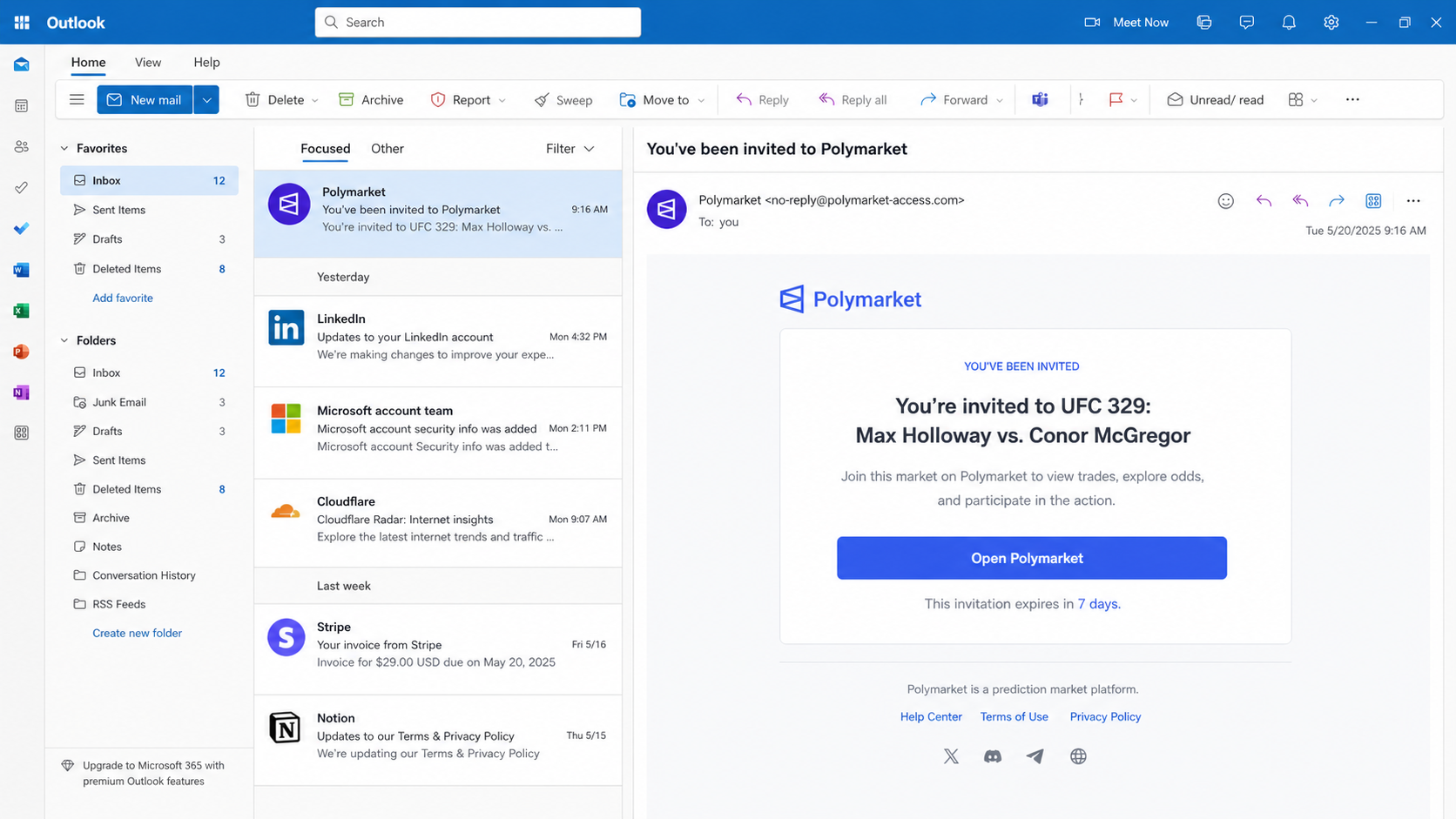
The Polymarket UFC invite scam begins with an email claiming the recipient was invited to a special prediction market.
One observed message promoted a supposed UFC 329 matchup between Max Holloway and Conor McGregor. A prominent button invited the reader to open Polymarket.
The email copied recognizable branding, restrained colors, and professional spacing. It also claimed the invitation would expire after seven days.
Those details make the message feel more like a legitimate product notification than ordinary cryptocurrency spam.
The campaign even used a legitimate transactional email service for delivery. That technical detail can improve appearance, but it does not validate the sender’s offer.
Real companies use outside email platforms every day. Criminals can also abuse or imitate those services when distributing a phishing campaign.
The invitation was not an official Polymarket communication. The promoted event, bonus, and destination were parts of an impersonation scheme.
The destination is a counterfeit trading platform
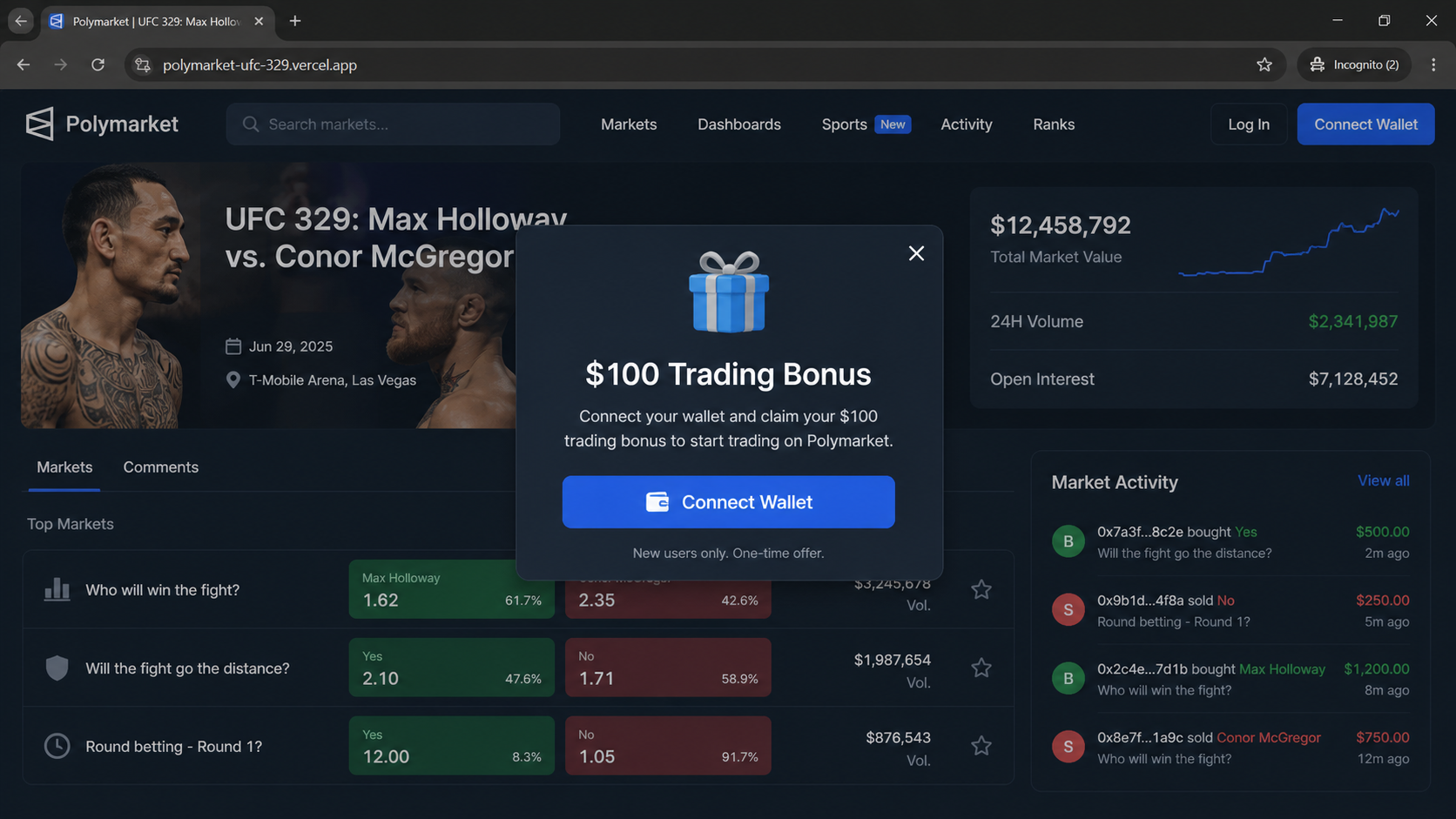
The button led toward a site hosted at polymarket-ufc-329.vercel.app, rather than an official Polymarket domain.
Its pages copied the visual language of an active prediction market. Visitors could see sports listings, trading figures, market volumes, and wallet options.
A free hosting subdomain is not automatically malicious. Developers use such services legitimately for previews, prototypes, and production applications.
In this case, the unrelated host mattered because the page claimed to be an established financial platform while asking visitors to authorize wallet access.
The site presented a $100 trading bonus as an incentive. That promise encouraged visitors to connect quickly instead of checking the address carefully.
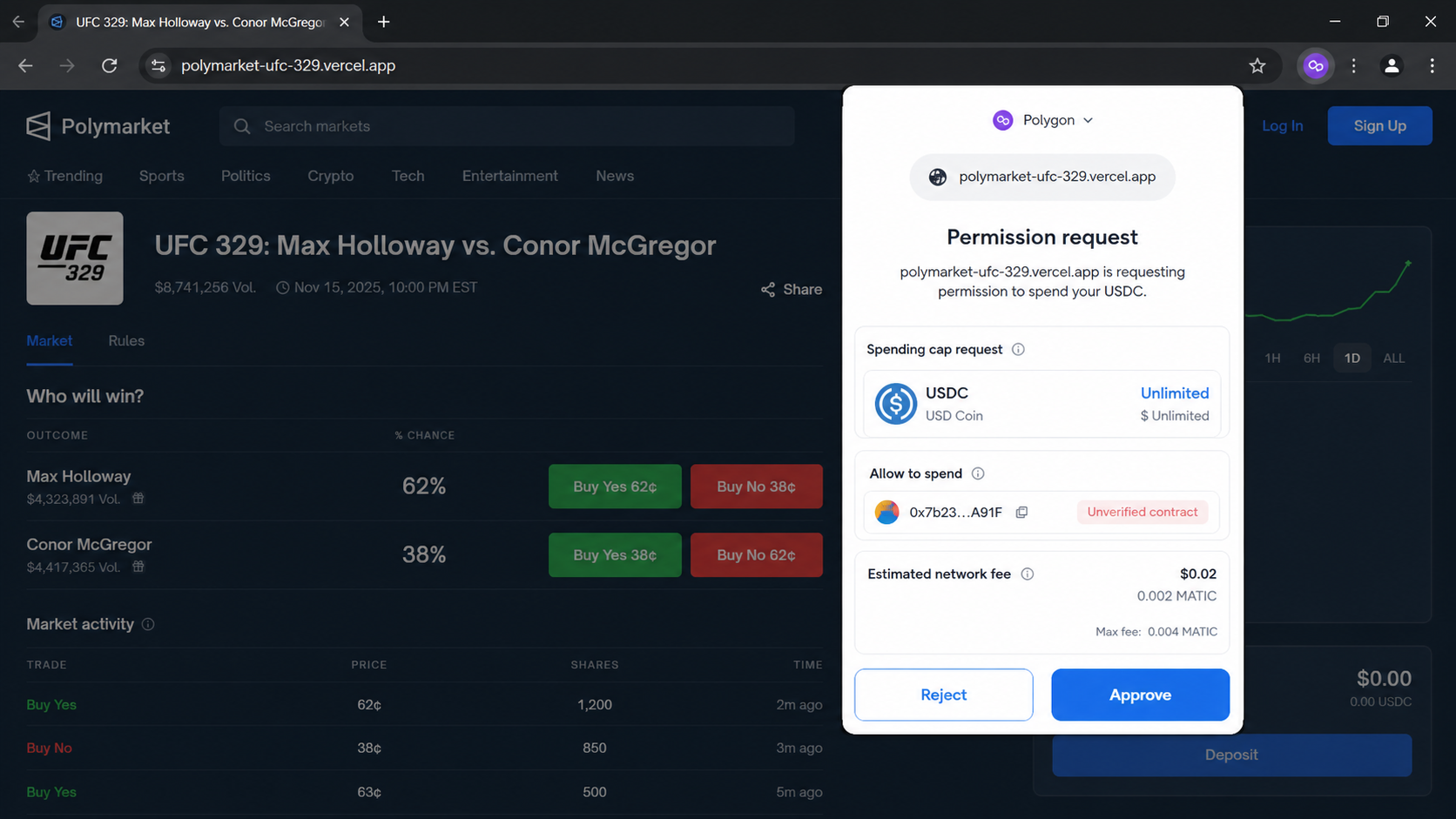
No legitimate bonus needs an unknown website to receive unlimited spending authority over tokens already held inside a personal wallet.
Polymarket and the named athletes have no connection with the deceptive email, copied page, or wallet request.
The dangerous moment is the transaction approval
Connecting a wallet does not always move cryptocurrency immediately. It allows a website to request information and present transactions for the owner to sign.
The malicious page uses that familiar process to place a harmful authorization inside what appears to be routine account setup.
Depending on the wallet and contract, the request may grant token spending permission, authorize a transfer, or approve another operation benefiting the scammer.
An unlimited token allowance is especially dangerous. It can permit the approved contract or spender to move eligible assets later without another spending-cap decision.
The wallet may display technical language that a hurried visitor does not understand. Scammers count on the promised bonus carrying attention past those details.
The campaign can be recognized through this sequence:
An unsolicited email claims the recipient received an exclusive Polymarket invitation.
A current-looking sports event supplies excitement and urgency.
The button opens a lookalike platform on an unrelated domain.
Professional market graphics create the appearance of active trading.
A $100 bonus encourages the visitor to connect a wallet.
The wallet receives an approval or transaction request.
Signing the request can expose cryptocurrency to theft.
The theft happens through blockchain permissions, not through the email itself. Simply reading the message does not empty a wallet.
Risk rises after opening the counterfeit site, connecting a wallet, and approving a transaction or token allowance that was not independently verified.
The safest response is to close the page, reject every request, and access any genuine service through a separately typed or saved official address.
How The Scam Works
Step 1: The email turns a sporting event into an invitation
The campaign starts with a message framed as special access rather than a traditional prize. Being invited feels more credible than being declared a random winner.
The subject announces that the reader has been invited to Polymarket. Inside, the same idea appears again beside familiar branding.
A named UFC matchup gives the message a concrete purpose. It feels easier to verify emotionally because the fighters and sport are recognizable.
The scammers do not need every recipient to follow mixed martial arts. They need enough curiosity to earn one click.
Expiration language adds a quiet deadline. Seven days seems reasonable, yet it still discourages leaving the invitation for later research.
The email contains few obvious distractions. This restrained presentation can appear more authentic than messages filled with flashing prizes and aggressive promises.
Recipients may also assume a friend, coworker, or online community triggered the invitation. The message does not provide reliable evidence of who supposedly invited them.
Step 2: Professional delivery supplies borrowed credibility
The observed email referenced a legitimate service used by companies for account messages and transactional mail.
That footer can lower suspicion because recipients associate established infrastructure with screened, trustworthy businesses. The assumption is unsafe.
An email provider transports messages. It does not guarantee that every customer’s offer, linked domain, or connected application is honest.
Scammers may register accounts using temporary business details, compromise a legitimate account, or imitate service notices inside their own design.
Authentication checks can show whether a server was permitted to send for a domain. They do not prove the business proposition itself is genuine.
The visible sender name can also differ from the actual address. Always expand sender details before trusting a recognizable display name.
Even then, a believable sender is only one clue. The destination domain and requested wallet action carry far more weight.
Step 3: The invitation button crosses into the counterfeit site
The Open Polymarket button does not take the visitor to the official platform. It opens a separate domain built to resemble it.
On a phone, the address bar may be collapsed or shortened. The screen then emphasizes logos, market cards, and buttons instead of ownership.
The fake page can use encrypted HTTPS. A padlock means the browser connection is encrypted, not that the recipient behind the site is trustworthy.
Hosting providers make modern deployment fast and inexpensive. A scammer can publish a polished application without operating a recognizable standalone web server.
The page may disappear after reports and return under another subdomain. Its name matters, but the behavioral pattern remains the stronger warning.
Visitors who navigate directly to the real platform will not find the emailed invitation or identical $100 wallet offer.
That difference is why independent navigation matters. Never let an unsolicited financial message choose the address where a wallet gets connected.
Step 4: Fake market activity makes the page feel occupied
The landing page displays odds, participant counts, prices, charts, or trading volume to suggest other people are already participating.
These numbers may be copied, fabricated, or generated inside the browser. A changing total is not proof that real blockchain trades support it.
Logos and interface elements can be copied from public websites. Producing a familiar screen is far easier than operating a legitimate regulated business.
The sports theme also gives the visitor something engaging to inspect. While attention follows odds and outcomes, the domain mismatch fades into the background.
Some visitors may click several markets before seeing the bonus. That interaction builds comfort and creates the impression of a functioning product.
Nothing shown on the page establishes who controls the wallet request. The decisive evidence appears inside the transaction details, not the attractive dashboard.
When a platform appears through an invitation, compare it with the official site opened independently. Navigation, account history, and documented contracts should agree.
Step 5: A $100 bonus moves attention toward Connect Wallet
The counterfeit platform presents a trading credit to new users. The amount is large enough to attract interest without appearing impossibly extravagant.
Bonuses are common in finance, gaming, and cryptocurrency marketing. That familiarity makes the prompt feel like ordinary customer acquisition.
The offer may imply the wallet connection is only needed to identify an account. In reality, connection begins a sequence of permission requests.
A legitimate wallet connection can reveal the public address and token balances to a site. It cannot reveal a secret recovery phrase by itself.
The danger comes when the page requests a signature, spending allowance, contract interaction, or direct transfer and the visitor approves it.
Scammers often place these requests immediately after a bonus button. The victim expects setup paperwork and treats technical prompts as routine.
A reward should never require an unexplained unlimited allowance. Reject the request and investigate from a clean, independently opened browser tab.
Step 6: The wallet presents authority the website wants
Modern wallets usually display the requesting site, blockchain network, contract, assets involved, and estimated fee. Those details are the final safety checkpoint.
A malicious request may seek unlimited USDC approval or permission to interact with another token held by the connected address.
Spending approval differs from sending a one-time payment. It can authorize a named spender to transfer tokens up to the permitted limit later.
If the limit is unlimited, the potential exposure may exceed the visible $100 offer or the amount expected for a single prediction.
Some signatures are harder to interpret. A typed-data message can look less serious than a transfer while still granting meaningful authority.
Wallet warnings help, but they cannot always determine intent. Users must compare the site, contract, asset, and requested power before signing.
Rejecting the request costs nothing and preserves the assets. A real opportunity remains available after careful verification, while a malicious signature may not be reversible.
Step 7: The attacker uses the approval and disappears
Once useful authority is granted, the malicious spender can attempt to transfer approved tokens from the victim’s address.
The withdrawal may happen quickly or after a delay. Waiting can make the victim forget which site received the permission.
Blockchain transactions are generally final after confirmation. A bank cannot simply reverse them as it might investigate an unauthorized card charge.
The copied website may then show an error, endless loading screen, or false account balance. Support contacts can remain silent.
Operators can abandon the hosting subdomain and launch a new version using another sporting event, bonus, or prediction-market brand.
Stolen funds may move through several addresses, swaps, bridges, or exchanges. Movement complicates recovery, although transaction records remain visible publicly.
Victims can then attract recovery scammers promising guaranteed retrieval for an advance payment. That second payment usually creates another loss.
Why Disconnecting the Wallet May Not Be Enough
Many people disconnect the suspicious website inside their wallet and assume the danger has ended. Disconnecting and revoking are different actions.
Disconnecting removes the site’s current ability to view account information through that browser session. It does not automatically cancel blockchain token approvals.
A spending allowance is recorded on-chain. It remains active until the owner submits a revocation transaction or changes the allowance.
Revocation usually requires a small network fee. Use the wallet’s official approval manager or a reputable explorer reached independently.
Check every asset and network used during the incident. A wallet may have permissions on Polygon, Ethereum, Base, or another chain.
Look for unfamiliar spenders, unusually high caps, and approvals created near the time of the visit. Revoke questionable entries promptly.
If a seed phrase or private key was exposed, approval cleanup is insufficient. Those secrets provide broader wallet control.
Create a new wallet on a clean device and move remaining assets carefully. Never reuse the compromised recovery phrase.
Test with a small transfer before moving larger holdings. Confirm addresses through more than one trusted view to avoid clipboard replacement malware.
Do not enter a recovery phrase into any revocation website. Legitimate approval management works through the wallet’s transaction confirmation process.
Sender, Domain, Wallet, and Contract Checks
Expand the sender and inspect the invitation story
A display name reading Polymarket is not proof of origin. Expand the header and examine the complete address, reply path, and mailed-by information.
Ask why the account received an invitation. A genuine message should connect to an action, account, or person the recipient actually recognizes.
Unexpected exclusivity is a warning. Scammers use invitations because curiosity can replace the skepticism triggered by an obvious prize.
Do not reply to request confirmation. A response tells the sender the address is active and can invite more targeted attempts.
Read the entire domain before touching the wallet
Polymarket-ufc-329.vercel.app is not the same as Polymarket’s official address. The decisive ownership portion appears immediately before the final domain ending.
Brand words can appear inside a subdomain without any relationship to the brand. Attackers deliberately place trusted names where hurried readers will notice them.
Open financial services from a bookmark or a manually entered official address. Do not use search advertisements as the only route.
A polished page, valid certificate, and respected hosting provider cannot repair an ownership mismatch. None proves the copied service controls that site.
Treat wallet prompts as financial contracts
Read every line of a signature or transaction request. Identify the network, token, amount, spender, and action before selecting Approve.
Unlimited allowances deserve special caution. Set a specific spending cap when a legitimate service supports it, then remove unnecessary access afterward.
If the wallet cannot explain the request clearly, reject it. Technical confusion is not a reason to grant broader authority.
Never provide a recovery phrase, private key, remote-control session, or screen-sharing access to someone offering help with a bonus.
Verify contracts and support through independent records
Legitimate decentralized applications publish contract information through official documentation. Compare addresses character by character using a trusted route.
Do not trust a contract address supplied only by the suspicious page, its chat agent, or a reply to the original email.
Search the address on the appropriate blockchain explorer. Review creation time, verified code status, approvals, transactions, and warnings when available.
A new contract is not automatically malicious, but a new unverified spender attached to an impersonation page presents an unacceptable combination.
What to Do if You Have Fallen Victim to This Scam
Reject pending requests and close the page. Do not retry the bonus, sign corrective messages, or follow support links displayed by the counterfeit platform.
Disconnect the suspicious site. Remove its active connection inside every wallet and browser profile used, while remembering that disconnection does not revoke allowances.
Revoke malicious approvals immediately. Use the wallet’s official tools or a trusted blockchain explorer to cancel unfamiliar token allowances on every affected network.
Move funds if wallet secrets were exposed. Create a fresh wallet on a clean device, transfer remaining assets, and permanently retire the compromised recovery phrase.
Contact relevant exchanges quickly. Provide transaction hashes, destination addresses, amounts, networks, and timestamps. An exchange may flag an account, although recovery is not guaranteed.
Preserve evidence. Save the email, complete headers, destination URL, screenshots, wallet prompts, transaction records, and every conversation with supposed support.
Report the campaign. Notify the impersonated company, email provider, hosting service, wallet provider, local police, and national fraud reporting authority.
Change exposed account credentials. If a password was entered anywhere, replace it from a clean device and enable strong app-based multifactor authentication.
Scan the device with Malwarebytes. This is important after installing a file, browser extension, remote-access tool, or software offered by the deceptive site.
Use AdGuard to reduce malicious advertising. Filtering cannot replace careful wallet review, but it can block many deceptive redirects and known scam destinations.
Ignore recovery guarantees. Anyone demanding an advance fee, tax, wallet synchronization, or recovery phrase is likely attempting a second scam.
Monitor every affected address. Watch balances and approvals for delayed movement, then document any new transaction before alerting exchanges and investigators.
Is Your Device Infected? Run a Free Malware Scan
Slow performance, constant pop-ups, or strange behavior? These are classic signs of a malware infection. The fastest way to find out is to scan your device with Malwarebytes Anti-Malware Free — one of the most trusted malware removal tools available.
The free version detects and removes the most common threats, including:
Adware — the cause of those annoying pop-ups
Browser hijackers — unwanted redirects and changed homepages
Trojans and spyware — hidden programs stealing your data
Potentially unwanted programs (PUPs) — software you never asked for
👉 Select your device below — Windows, Mac, or Android — then follow the simple steps to download Malwarebytes, scan your system, and remove any threats it finds. The whole process takes about 5 minutes.
Malwarebytes for WindowsMalwarebytes for MacMalwarebytes for Android
Run a Malware Scan with Malwarebytes for Windows
Malwarebytes is one of the most popular and trusted anti-malware tools for Windows — and it’s completely free for removing infections. It catches threats that many antivirus programs miss, including adware, browser hijackers, and trojans. Follow the steps below to scan and clean your PC in just a few minutes.
Download Malwarebytes
Click the button below to download the latest version of Malwarebytes for Windows from the official source. The free version is all you need — it will scan your computer and remove adware, browser hijackers, and other malicious software at no cost.
(The link opens in a new page where your download will start)
Install Malwarebytes
When the download finishes, open your Downloads folder and double-click the MBSetup file. If Windows shows a User Account Control pop-up, click “Yes” to allow the installation.
Follow the On-Screen Prompts to Install Malwarebytes
The setup wizard will walk you through a few quick screens:
Choose where you’re installing the program — “Personal Computer” or “Work Computer” — then click Next.
Malwarebytes will now install on your device. This usually takes under a minute.
When installation is complete, the “Welcome to Malwarebytes” screen will open automatically.
On the final screen, click Open Malwarebytes to launch the program.
Enable “Scan for Rootkits”
Before scanning, turn on rootkit detection so Malwarebytes can find even the most hidden threats. Click the Settings gear icon on the left side of the screen.
In the settings menu, find “Scan for rootkits” and click the toggle so it turns blue.
Done? Click “Dashboard” in the left pane to return to the main screen.
Start the Scan
Click the blue Scan button. Malwarebytes will automatically update its virus database and start checking your computer for malware.
Wait for the Scan to Finish
The scan checks your entire system for browser hijackers and other malicious programs, so it can take several minutes. Feel free to do something else — just check back occasionally to see the progress.
Quarantine the Detected Threats
When the scan is done, you’ll see a list of everything Malwarebytes found — malware, adware, and potentially unwanted programs. Click the “Quarantine” button to remove all of them at once.
Malwarebytes will now remove the malicious files and registry entries and move them safely into quarantine.
Restart Your Computer
Some threats can only be fully removed after a reboot. If Malwarebytes asks you to restart, click Yes. Once you’re logged back in, your PC is clean and you can continue with the next steps in this guide.
When the scan finishes, click Quarantine to remove everything Malwarebytes found. That’s it — your Windows PC is now clean of trojans, adware, and other malware, and should be back to running smoothly.
If your current antivirus allowed this malicious program on your computer, you may want to consider purchasing Malwarebytes Premium to protect against these types of threats in the future. If you are still having problems with your computer after completing these instructions, then please follow one of the steps:
Malwarebytes for Mac is a free on-demand scanner that removes the malware other security software tends to miss — adware, browser hijackers, and unwanted programs included. Cleaning an infected Mac with Malwarebytes has always been completely free, and it’s our go-to recommendation. Follow the steps below to scan and clean your Mac in just a few minutes.
Download Malwarebytes for Mac
Click the button below to download the latest version of Malwarebytes for Mac.
When the download finishes, open your Downloads folder and double-click the setup file to begin the installation.
Follow the On-Screen Prompts to Install Malwarebytes
The Malwarebytes for Mac Installer will guide you through a few quick screens. Click “Continue” and keep following the prompts until the installation completes.
When the installation is complete, Malwarebytes opens to the Welcome to Malwarebytes screen. Click “Get started“.
Select “Personal Computer” or “Work Computer”
Malwarebytes will ask what type of computer you’re installing it on. Click either Personal Computer or Work Computer, whichever applies.
Start the Scan
Click the “Scan” button. Malwarebytes will automatically update its detection database and begin checking your Mac for malware.
Wait for the Scan to Finish
Malwarebytes will scan your Mac for adware, browser hijackers, and other malicious programs. This can take a few minutes, so feel free to do something else — just check back occasionally to see the progress.
Quarantine the Detected Threats
When the scan is done, you’ll see a list of everything Malwarebytes found. Click the “Quarantine” button to remove all the threats at once.
Restart Your Mac
Malwarebytes will now remove all the malicious files it found. Some threats can only be fully removed after a reboot — if Malwarebytes asks you to restart, allow it. Once you’re logged back in, your Mac is clean.
Once the scan is done, remove every threat it detected. Your Mac is now free of adware, rogue browser extensions, and other potentially harmful software.
If your current antivirus allowed a malicious program on your computer, you might want to consider purchasing the full-featured version of Malwarebytes Anti-Malware to protect against these types of threats in the future. If you are still experiencing problems while trying to remove a malicious program from your computer, please ask for help in our Mac Malware Removal Help & Support forum.
Run a Malware Scan with Malwarebytes for Android
Malwarebytes for Android automatically detects and removes dangerous threats like malware and ransomware so you don’t have to worry about your most-used device being compromised. Aggressive detection of adware and potentially unwanted programs keeps your Android phone or tablet running smooth.
Download Malwarebytes for Android.
You can download Malwarebytes for Android by clicking the link below.
In the Google Play Store, tap “Install” to install Malwarebytes for Android on your device.
When the installation process has finished, tap “Open” to begin using Malwarebytes for Android. You can also open Malwarebytes by tapping on its icon in your phone menu or home screen.
Follow the on-screen prompts to complete the setup process
When Malwarebytes will open, you will see the Malwarebytes Setup Wizard which will guide you through a series of permissions and other setup options. This is the first of two screens that explain the difference between the Premium and Free versions. Swipe this screen to continue. Tap on “Got it” to proceed to the next step. Malwarebytes for Android will now ask for a set of permissions that are required to scan your device and protect it from malware. Tap on “Give permission” to continue. Tap on “Allow” to permit Malwarebytes to access the files on your phone.
Update database and run a scan with Malwarebytes for Android
You will now be prompted to update the Malwarebytes database and run a full system scan.
Click on “Update database” to update the Malwarebytes for Android definitions to the latest version, then click on “Run full scan” to perform a system scan.
Wait for the Malwarebytes scan to complete.
Malwarebytes will now start scanning your phone for adware and other malicious apps. This process can take a few minutes, so we suggest you do something else and periodically check on the status of the scan to see when it is finished.
Click on “Remove Selected”.
When the scan has been completed, you will be presented with a screen showing the malware infections that Malwarebytes for Android has detected. To remove the malicious apps that Malwarebytes has found, tap on the “Remove Selected” button.
Restart your phone.
Malwarebytes for Android will now remove all the malicious apps that it has found. To complete the malware removal process, Malwarebytes may ask you to restart your device.
After the scan, tap Remove Selected to delete all detected threats. Your Android phone is now clean — no more malicious apps, adware, or browser redirects.
If your current antivirus allowed a malicious app on your phone, you may want to consider purchasing the full-featured version of Malwarebytes to protect against these types of threats in the future. If you are still having problems with your phone after completing these instructions, then please follow one of the steps:
Restore your phone to factory settings by going to Settings > General management > Reset > Factory data reset.
Now that your device is clean, keep it that way. Most infections start with a malicious ad or a fake download button — so blocking them at the source is your best defense.
We recommend AdGuard, which blocks malicious ads, phishing pages, and dangerous redirects before they can reach you.
No. The documented message impersonated Polymarket and directed recipients to an unrelated site presenting a fake sports market and wallet bonus.
Open the official service independently if an invitation seems plausible. A genuine account notification should also appear within the real account environment.
Can opening the email alone drain a crypto wallet?
Simply reading the email does not authorize token movement. The critical risk begins after visiting the counterfeit site and signing a malicious wallet request.
Avoid loading unexpected attachments or installing anything. Those actions can introduce separate threats beyond the wallet-drainer method documented here.
Does connecting a wallet automatically give away cryptocurrency?
A basic connection generally exposes the public address and permits transaction requests. It does not automatically reveal the recovery phrase or approve every transfer.
However, the next signature can grant dangerous authority. Read each prompt independently rather than treating connection and approval as one harmless setup step.
What does an unlimited USDC approval mean?
It lets a specified spender move USDC up to a very high allowance from that wallet, subject to the token contract’s rules and available balance.
The allowance can remain active after leaving the website. Revoke it on-chain if the spender is unfamiliar or the approval came from this campaign.
Can stolen cryptocurrency be recovered?
Recovery is difficult and never guaranteed. Contact exchanges and law enforcement quickly, preserving transaction hashes and destination addresses for tracing.
Do not send more money to private recovery agents promising certainty. Fraudsters monitor victims and frequently return with a second persuasive story.
Are Max Holloway or Conor McGregor involved?
No evidence connects either athlete with the fraudulent invitation. Their names were used as attention-grabbing material inside an impersonation campaign.
A recognizable person or event can be copied into an advertisement without consent. Celebrity imagery never verifies the website requesting financial authority.
The Bottom Line
The Polymarket UFC invite scam turns a believable sports invitation into a path toward a counterfeit platform and a dangerous wallet authorization.
Its strongest weapons are familiarity and timing. Professional email design, active-looking markets, and a $100 bonus make an unrelated domain seem briefly reasonable.
Pause at the wallet prompt. Verify the site independently, reject unexplained approvals, and remember that unlimited token access is never routine account registration.
If approval was already granted, disconnect the site and revoke allowances immediately. Move funds when secrets were exposed, then document and report the loss.
10 Rules to Avoid Online Scams
Here are 10 practical safety rules to help you avoid malware, online shopping scams, crypto scams, and other online fraud. Each tip includes a quick “if you already got hit” action.
Stop and verify before you click, log in, download, or pay.
Most scams win by creating urgency. Verify using a trusted method: type the website address yourself, use the official app, or call a known number (not the one in the message).
If you already clicked: close the page, do not enter passwords, and run a malware scan.
Keep your operating system, browser, and apps updated.
Updates patch security holes used by malware and malicious ads. Turn on automatic updates where possible.
If you saw a scary “update now” pop-up: close it and update only through your device settings or the official app store.
Use layered protection: antivirus plus an ad blocker.
Antivirus helps block malware. An ad blocker reduces scam redirects, phishing pages, and malvertising.
If your browser is acting weird: remove unknown extensions, reset the browser, then run a full scan.
Install apps, software, and extensions only from official sources.
Avoid cracked software, “keygens,” and random downloads. During installs, choose Custom/Advanced and decline bundled offers you do not recognize.
If you already installed something suspicious: uninstall it, restart, and scan again.
Treat links and attachments as untrusted by default.
Phishing often impersonates delivery services, banks, and popular brands. If it is unexpected, do not open attachments or log in through the message.
If you entered credentials: change the password immediately and enable 2FA.
Shop safely: research the store, then pay with protection.
Be cautious with brand-new stores, “closing sale” stories, and prices that make no sense. Prefer credit cards or PayPal for dispute options. Avoid wire transfers, gift cards, and crypto payments.
If you already paid: contact your card issuer or PayPal quickly to dispute the transaction.
Crypto rule: never pay a “fee” to withdraw or recover money.
Common patterns include fake profits, then “tax,” “gas,” or “verification” fees. Another is a “recovery agent” who demands upfront crypto.
If you already sent crypto: stop paying, save evidence (wallet addresses, TXIDs, chats), and report the scam to the platform used.
Secure your accounts with unique passwords and 2FA (start with email).
Use a password manager and unique passwords for every account. Enable 2FA using an authenticator app when possible.
If you suspect an account takeover: change passwords, sign out of all devices, and review recent logins and recovery settings.
Back up important files and keep one backup offline.
Backups protect you from ransomware and device failure. Keep at least one backup on an external drive that is not always connected.
If you suspect infection: do not connect backup drives until the system is clean.
If you think you are a victim: stop losses, document evidence, and escalate fast.
Move quickly. Speed matters for disputes, account recovery, and limiting damage.
Stop payments and contact: do not send more money or respond to the scammer.
Call your bank or card issuer: block transactions, replace the card if needed, and start a dispute or chargeback.
Secure your email first: change the email password, enable 2FA, and remove unfamiliar recovery options.
Secure other accounts: change passwords, enable 2FA, and log out of all sessions.
Scan your device: remove suspicious apps or extensions, then run a full malware scan.
Save evidence: screenshots, emails, order pages, tracking pages, wallet addresses, TXIDs, and chat logs.
Report it: to the payment provider, marketplace, social platform, exchange, or wallet service involved.
These rules are intentionally simple. Most online losses happen when decisions are rushed. Slow down, verify independently, and use payment methods and account controls that give you recourse.
Hello! I'm Lapain Epuran, your go-to source for detailed and honest product reviews. From tech gadgets to miracle cures, I provide insights to help you make informed choices. Join me as we discover what's truly worth your time and money.