Zoho Backstage Scam: How Fake Event Invites Steal Logins and Spread Malware
Written by: Lapain Epuran
Published on:
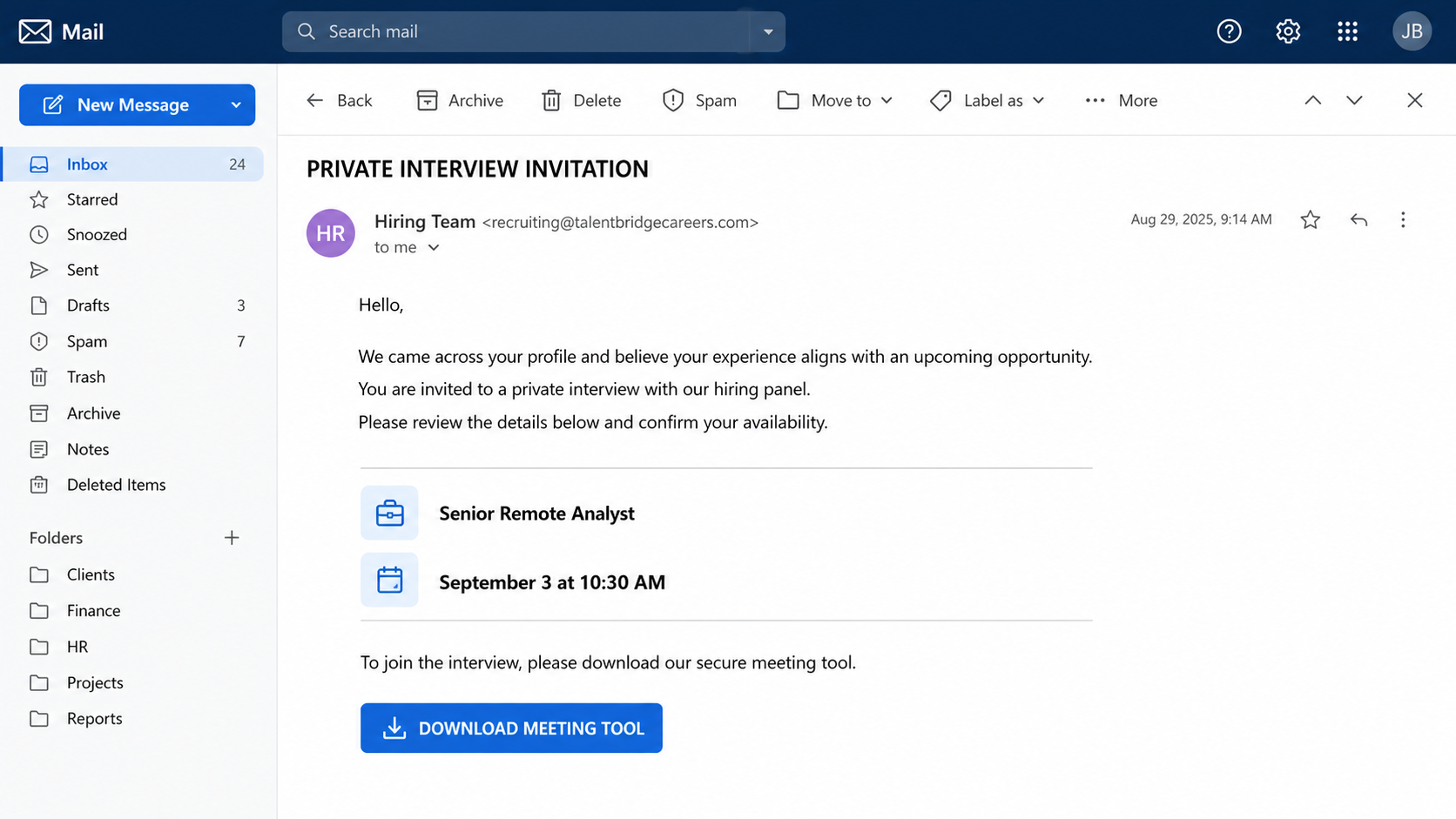
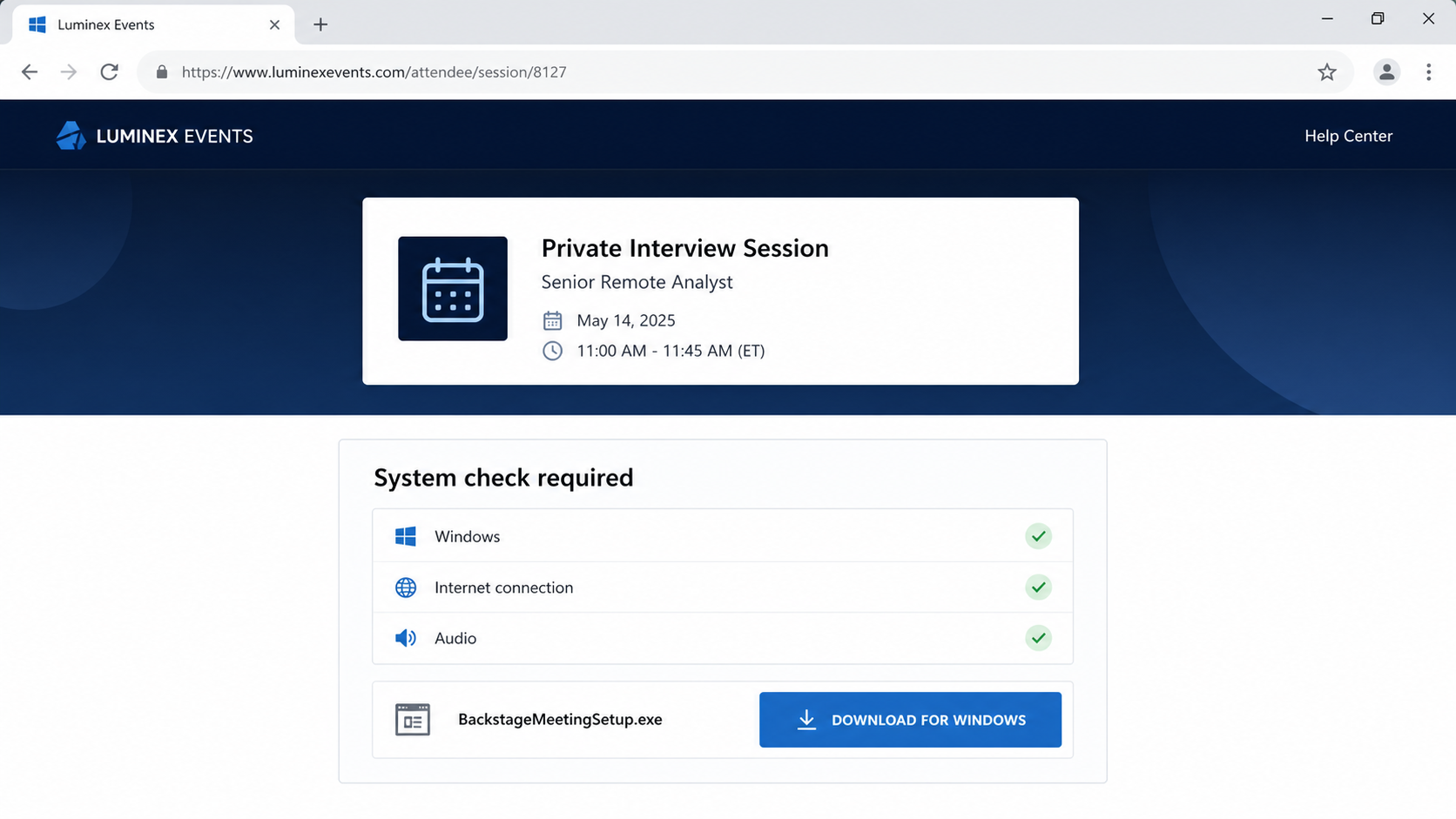
A recruiter sends an invitation to discuss a promising role through Zoho Backstage. The page looks professional, the event has a title and schedule, and the meeting seems only one click away.
The danger may begin when that click asks you to do something a normal event never should.
Overview
Zoho Backstage is legitimate software that scammers can impersonate or abuse
Zoho Backstage is a real event-management platform used to create event websites, registrations, attendee emails, agendas, and virtual sessions. Receiving a genuine Backstage invitation is not inherently suspicious.
The Zoho Backstage scam refers to fake or malicious invitations, recruiter messages, and billing notices that borrow the platform’s name. In some cases, criminals may link to an imitation page; in others, they may misuse a legitimate hosted event as the first step toward an external phishing or malware site.
The distinction matters. Zoho is not accused of operating the fraud. The attacker is exploiting the trust created by a recognized business service.
The message may use a job interview, conference, or billing problem
A job seeker may receive a supposed interview booking and be told to join through a special desktop client. A business user may see a renewal invoice, account suspension warning, or request to confirm payment details.
Common versions include:
A recruiter schedules an interview or onboarding session
A conference organizer shares a private attendee invitation
An event recording or presentation is ready to download
A Backstage subscription invoice is overdue
An account will be suspended unless billing is updated
A speaker must confirm credentials or upload documents
A Windows installer is presented as a meeting application
The dangerous action happens after trust has been established
The first page may contain harmless event details. The attacker then redirects the visitor to a fake email login, payment page, cloud document, or download.
A file with an .exe, .msi, .zip, or disguised extension may install an information stealer or remote-access tool. A fake sign-in page may capture email credentials and one-time codes.
Zoho’s official attendee guidance describes joining virtual sessions through the event website and, where configured, being redirected to the selected webcast service. A surprise executable from an unknown recruiter is not a normal proof of a legitimate event.
Why a Real Event Platform Makes Phishing Stronger
People often distrust an unfamiliar attachment but feel comfortable with a recognizable collaboration or event service. The platform name creates borrowed credibility before the recipient has checked the organizer.
A hosted event page can include logos, speakers, schedules, venue details, and registration forms. Those features describe the event entered by the organizer; they do not independently verify that the organizer is who they claim to be.
Job seekers are particularly exposed because they expect messages from new people and may have recently posted resumes containing phone numbers, work history, and email addresses.
Businesses also receive genuine invoices from many cloud services. A fake Backstage renewal can hide among ordinary procurement messages, especially when it uses a modest charge and a plausible billing date.
The safest approach is to verify both layers: the platform and the person or company using it. A genuine Zoho page does not automatically authenticate a recruiter, event, invoice, or external download.
The Fake Recruiter and Interview Version
The scammer may contact the victim through LinkedIn, email, text, or a job board. The message refers to a role, company, or resume detail and invites the candidate to choose an interview time.
After registration, the victim is told to download a “secure meeting client,” “assessment tool,” or “audio compatibility update.” The file may display Zoho artwork even though it comes from an unrelated server.
Another version opens a fake Microsoft 365, Google, or corporate email page. The attacker claims the candidate must sign in to view the meeting or confidential job description.
Once email access is stolen, criminals can search for invoices, payroll data, contacts, cloud files, and password-reset messages. They may send new phishing invitations from the compromised mailbox.
A real employer should be identifiable through its official careers page, switchboard, and staff directory. High-pressure recruiting that avoids every independently verifiable channel is a warning.
The Fake Invoice and Account-Hold Version
A billing email may say that an annual Backstage plan renewed, payment failed, or an account is about to be suspended. The recipient is encouraged to open an invoice or call a cancellation number.
The link can lead to a counterfeit Zoho login and payment form. A phone number may connect to a refund scammer who requests remote access to “reverse” the charge.
Unexpected invoices sometimes rely on panic rather than a real charge. The criminal wants the recipient to call before checking the bank or the organization’s genuine Zoho account.
Do not use the phone number, QR code, or cancellation button in the notice. Open the known account through an existing bookmark or contact Zoho through its official website.
If your company has an IT or procurement team, forward the message as an attachment so headers and links can be examined without another employee opening them.
How the Scam Works
Step 1: The attacker chooses a credible business pretext
A fake recruiter targets job seekers, while a billing lure targets office staff. Event invitations may be tailored to the recipient’s industry, location, or employer.
Public profiles and breached data provide enough detail to make the opening message feel researched.
Step 2: A branded invitation or invoice creates trust
The email uses Zoho Backstage wording, colors, buttons, and event terminology. The sender name may say “Zoho Events” even when the address belongs to another domain.
A legitimate service can also be abused to host an event page, so branding alone cannot verify the organizer.
Step 3: The victim registers or opens the event
The first form may ask only for a name, email, employer, and phone number. This low-risk beginning encourages the visitor to continue.
The details also tell the attacker who engaged and provide material for a follow-up call.
Step 4: A second page demands credentials or software
The victim is redirected to an external login, shared document, video tool, or download. The new page may continue the same visual theme.
A recruiter may insist that the custom program is required before the scheduled interview can begin.
Step 5: The victim defeats a security warning
Instructions may say to ignore a browser alert, extract a password-protected archive, enable macros, or choose “Run anyway.” These steps help the malware bypass ordinary protections.
A fake login may deliberately reject the first password and request a one-time code, giving the attacker everything needed for immediate access.
Step 6: Accounts, cards, or the device are compromised
Stolen email credentials can lead to business email compromise, cloud-file theft, and password resets. Malware can capture browser cookies, saved passwords, cryptocurrency wallets, and screenshots.
In the invoice version, card details or remote banking access may be the primary target.
Step 7: The trusted account spreads the next wave
A compromised mailbox can send invitations to colleagues, candidates, customers, and suppliers. Recipients are more likely to trust a message from someone they know.
The attacker may also create payment requests or change bank details inside genuine business conversations.
Company, Address, and Fulfillment Checks
Verify the organizer, not only the platform
Contact the employer, conference, or sender through a website and number you found independently. Ask whether the named person, event, and invitation are genuine.
A legitimate Zoho-hosted page can still contain information submitted by a dishonest organizer.
Inspect every domain in the journey
Check the original sender, registration page, redirect, login page, and download host. Attackers may begin on a familiar service and move to an unrelated domain at the dangerous step.
Shortened links and QR codes hide destinations. Preview them safely or ask an IT team to inspect them.
Confirm company addresses and recruiter identities
Compare the recruiter’s email domain, job listing, office address, and telephone number with the company’s official careers page. Search for the role independently.
A stolen logo, real office address, and copied employee name are public details, not proof that the sender controls the real company account.
Understand the legitimate event flow
Official Backstage communications can include event reminders and registration information. Zoho documents its automated event emails, but the exact organizer and destination still require verification.
Do not install an unexpected executable merely to view an agenda, invoice, or ordinary browser-based session. Confirm software requirements with the verified organizer first.
Warning Signs in a Backstage Invitation
The recruiter uses a free or lookalike email domain
The job does not appear on the employer’s official careers page
The event organizer cannot be reached through the claimed company
A browser session unexpectedly requires an executable download
The file is compressed, password protected, or digitally unsigned
Instructions say to ignore security warnings or disable antivirus
The sign-in page is hosted outside the identity provider’s real domain
An invoice arrives for a service your team does not use
The cancellation number is available only inside the suspicious email
The sender demands secrecy or immediate action
A new recruiter may legitimately contact you, and some events use external webcast services. The risk rises when the organizer cannot be independently confirmed and the next step requests credentials, payment, or software.
How to Open Event Invitations More Safely
Start from the organizer’s official website when possible. Find the event or careers page independently and compare the date, title, speakers, and registration route.
Use a password manager. It normally fills credentials only on the correct domain, so a refusal to fill can warn that the page is not where you usually sign in.
Keep the operating system, browser, and security software updated. Do not weaken those protections because a stranger says an interview tool requires it.
Organizations should route unexpected event and invoice messages through email security and sandboxing controls. Staff should have a simple way to report a suspicious invitation without forwarding a live link to coworkers.
For interviews, request a calendar invitation from the employer’s corporate domain and confirm the recruiter’s identity through the company’s switchboard or official profile. A genuine recruiter can tolerate a short verification.
For invoices, compare the vendor, plan, amount, and renewal date with procurement records before opening attachments or calling a cancellation number.
What to Do if You Have Fallen Victim to This Scam
Disconnect a potentially infected device. If you ran an installer or remote-access tool, remove the device from Wi-Fi or wired networking without continuing to explore files.
Tell your employer or IT team immediately. A business account or managed computer can expose colleagues and customers. Provide the message, file name, website address, and actions taken.
Change credentials from a known-clean device. Begin with email and identity-provider accounts, then protect cloud storage, payroll, banking, social accounts, and any reused password.
Revoke active sessions and tokens. A password change may not terminate stolen browser cookies or connected applications. Sign out all sessions, review devices, remove unknown app access, and reset multifactor methods.
Scan and investigate the device. Run a complete scan with Malwarebytes. Businesses should preserve forensic evidence and follow their incident-response procedure before wiping the machine.
Protect financial accounts. If card or banking information was entered, contact the issuer using an official number. Request blocks, replacements, transaction reviews, and disputes as appropriate.
Contain the message. Search sent mail and account rules for unauthorized activity. Warn recipients if the compromised account distributed invitations, but do not forward the malicious file.
Block the malicious infrastructure. Report the page and download host. A content blocker such as AdGuard can reduce access to known malicious domains, but the organization should also block indicators in its security controls.
Report the impersonation. Notify Zoho, the claimed employer or event, the email provider, and appropriate cybercrime or consumer-protection authorities. Preserve report numbers.
Monitor for business email compromise. Verify payment-detail changes by phone, review mailbox forwarding, and alert finance teams to invoices or transfer requests using the stolen conversation context.
Is Your Device Infected? Run a Free Malware Scan
Slow performance, constant pop-ups, or strange behavior? These are classic signs of a malware infection. The fastest way to find out is to scan your device with Malwarebytes Anti-Malware Free — one of the most trusted malware removal tools available.
The free version detects and removes the most common threats, including:
Adware — the cause of those annoying pop-ups
Browser hijackers — unwanted redirects and changed homepages
Trojans and spyware — hidden programs stealing your data
Potentially unwanted programs (PUPs) — software you never asked for
👉 Select your device below — Windows, Mac, or Android — then follow the simple steps to download Malwarebytes, scan your system, and remove any threats it finds. The whole process takes about 5 minutes.
Malwarebytes for WindowsMalwarebytes for MacMalwarebytes for Android
Run a Malware Scan with Malwarebytes for Windows
Malwarebytes is one of the most popular and trusted anti-malware tools for Windows — and it’s completely free for removing infections. It catches threats that many antivirus programs miss, including adware, browser hijackers, and trojans. Follow the steps below to scan and clean your PC in just a few minutes.
Download Malwarebytes
Click the button below to download the latest version of Malwarebytes for Windows from the official source. The free version is all you need — it will scan your computer and remove adware, browser hijackers, and other malicious software at no cost.
(The link opens in a new page where your download will start)
Install Malwarebytes
When the download finishes, open your Downloads folder and double-click the MBSetup file. If Windows shows a User Account Control pop-up, click “Yes” to allow the installation.
Follow the On-Screen Prompts to Install Malwarebytes
The setup wizard will walk you through a few quick screens:
Choose where you’re installing the program — “Personal Computer” or “Work Computer” — then click Next.
Malwarebytes will now install on your device. This usually takes under a minute.
When installation is complete, the “Welcome to Malwarebytes” screen will open automatically.
On the final screen, click Open Malwarebytes to launch the program.
Enable “Scan for Rootkits”
Before scanning, turn on rootkit detection so Malwarebytes can find even the most hidden threats. Click the Settings gear icon on the left side of the screen.
In the settings menu, find “Scan for rootkits” and click the toggle so it turns blue.
Done? Click “Dashboard” in the left pane to return to the main screen.
Start the Scan
Click the blue Scan button. Malwarebytes will automatically update its virus database and start checking your computer for malware.
Wait for the Scan to Finish
The scan checks your entire system for browser hijackers and other malicious programs, so it can take several minutes. Feel free to do something else — just check back occasionally to see the progress.
Quarantine the Detected Threats
When the scan is done, you’ll see a list of everything Malwarebytes found — malware, adware, and potentially unwanted programs. Click the “Quarantine” button to remove all of them at once.
Malwarebytes will now remove the malicious files and registry entries and move them safely into quarantine.
Restart Your Computer
Some threats can only be fully removed after a reboot. If Malwarebytes asks you to restart, click Yes. Once you’re logged back in, your PC is clean and you can continue with the next steps in this guide.
When the scan finishes, click Quarantine to remove everything Malwarebytes found. That’s it — your Windows PC is now clean of trojans, adware, and other malware, and should be back to running smoothly.
If your current antivirus allowed this malicious program on your computer, you may want to consider purchasing Malwarebytes Premium to protect against these types of threats in the future. If you are still having problems with your computer after completing these instructions, then please follow one of the steps:
Malwarebytes for Mac is a free on-demand scanner that removes the malware other security software tends to miss — adware, browser hijackers, and unwanted programs included. Cleaning an infected Mac with Malwarebytes has always been completely free, and it’s our go-to recommendation. Follow the steps below to scan and clean your Mac in just a few minutes.
Download Malwarebytes for Mac
Click the button below to download the latest version of Malwarebytes for Mac.
When the download finishes, open your Downloads folder and double-click the setup file to begin the installation.
Follow the On-Screen Prompts to Install Malwarebytes
The Malwarebytes for Mac Installer will guide you through a few quick screens. Click “Continue” and keep following the prompts until the installation completes.
When the installation is complete, Malwarebytes opens to the Welcome to Malwarebytes screen. Click “Get started“.
Select “Personal Computer” or “Work Computer”
Malwarebytes will ask what type of computer you’re installing it on. Click either Personal Computer or Work Computer, whichever applies.
Start the Scan
Click the “Scan” button. Malwarebytes will automatically update its detection database and begin checking your Mac for malware.
Wait for the Scan to Finish
Malwarebytes will scan your Mac for adware, browser hijackers, and other malicious programs. This can take a few minutes, so feel free to do something else — just check back occasionally to see the progress.
Quarantine the Detected Threats
When the scan is done, you’ll see a list of everything Malwarebytes found. Click the “Quarantine” button to remove all the threats at once.
Restart Your Mac
Malwarebytes will now remove all the malicious files it found. Some threats can only be fully removed after a reboot — if Malwarebytes asks you to restart, allow it. Once you’re logged back in, your Mac is clean.
Once the scan is done, remove every threat it detected. Your Mac is now free of adware, rogue browser extensions, and other potentially harmful software.
If your current antivirus allowed a malicious program on your computer, you might want to consider purchasing the full-featured version of Malwarebytes Anti-Malware to protect against these types of threats in the future. If you are still experiencing problems while trying to remove a malicious program from your computer, please ask for help in our Mac Malware Removal Help & Support forum.
Run a Malware Scan with Malwarebytes for Android
Malwarebytes for Android automatically detects and removes dangerous threats like malware and ransomware so you don’t have to worry about your most-used device being compromised. Aggressive detection of adware and potentially unwanted programs keeps your Android phone or tablet running smooth.
Download Malwarebytes for Android.
You can download Malwarebytes for Android by clicking the link below.
In the Google Play Store, tap “Install” to install Malwarebytes for Android on your device.
When the installation process has finished, tap “Open” to begin using Malwarebytes for Android. You can also open Malwarebytes by tapping on its icon in your phone menu or home screen.
Follow the on-screen prompts to complete the setup process
When Malwarebytes will open, you will see the Malwarebytes Setup Wizard which will guide you through a series of permissions and other setup options. This is the first of two screens that explain the difference between the Premium and Free versions. Swipe this screen to continue. Tap on “Got it” to proceed to the next step. Malwarebytes for Android will now ask for a set of permissions that are required to scan your device and protect it from malware. Tap on “Give permission” to continue. Tap on “Allow” to permit Malwarebytes to access the files on your phone.
Update database and run a scan with Malwarebytes for Android
You will now be prompted to update the Malwarebytes database and run a full system scan.
Click on “Update database” to update the Malwarebytes for Android definitions to the latest version, then click on “Run full scan” to perform a system scan.
Wait for the Malwarebytes scan to complete.
Malwarebytes will now start scanning your phone for adware and other malicious apps. This process can take a few minutes, so we suggest you do something else and periodically check on the status of the scan to see when it is finished.
Click on “Remove Selected”.
When the scan has been completed, you will be presented with a screen showing the malware infections that Malwarebytes for Android has detected. To remove the malicious apps that Malwarebytes has found, tap on the “Remove Selected” button.
Restart your phone.
Malwarebytes for Android will now remove all the malicious apps that it has found. To complete the malware removal process, Malwarebytes may ask you to restart your device.
After the scan, tap Remove Selected to delete all detected threats. Your Android phone is now clean — no more malicious apps, adware, or browser redirects.
If your current antivirus allowed a malicious app on your phone, you may want to consider purchasing the full-featured version of Malwarebytes to protect against these types of threats in the future. If you are still having problems with your phone after completing these instructions, then please follow one of the steps:
Restore your phone to factory settings by going to Settings > General management > Reset > Factory data reset.
Now that your device is clean, keep it that way. Most infections start with a malicious ad or a fake download button — so blocking them at the source is your best defense.
We recommend AdGuard, which blocks malicious ads, phishing pages, and dangerous redirects before they can reach you.
No. Zoho Backstage is a legitimate event-management service. Criminals may impersonate it, misuse hosted content, or use its name to make an external phishing page or download seem trustworthy.
Can a genuine Backstage page still be dangerous?
A real hosted page confirms the platform, not necessarily the event organizer. Be cautious when it redirects to an unrelated login, payment form, document, or download.
Should an interview require an .exe file?
Most video interviews use a browser or a well-known application obtained from its official publisher. Verify any custom installer with the employer before running it.
What if I entered my email password?
Change it immediately from a clean device, revoke sessions, review recovery settings and forwarding rules, reset multifactor access, and notify your employer if it was a work account.
How can I verify a recruiter?
Find the company’s official careers page and switchboard independently. Confirm the role and recruiter’s employment without relying on contact details in the invitation.
Does a one-time code make the event secure?
No. A code may support a legitimate event login, but it can also authorize an attacker’s account access. Read what generated the code and never provide it to an unsolicited person.
The Bottom Line
The Zoho Backstage scam hides a dangerous login, download, or payment request behind the ordinary appearance of an event. A legitimate platform can make the invitation look polished without proving that the organizer is genuine.
Verify the person and event independently, inspect every destination, and refuse surprise software. If credentials or a file were already exposed, secure the email account and isolate the device before the attacker can use that trust against others.
10 Rules to Avoid Online Scams
Here are 10 practical safety rules to help you avoid malware, online shopping scams, crypto scams, and other online fraud. Each tip includes a quick “if you already got hit” action.
Stop and verify before you click, log in, download, or pay.
Most scams win by creating urgency. Verify using a trusted method: type the website address yourself, use the official app, or call a known number (not the one in the message).
If you already clicked: close the page, do not enter passwords, and run a malware scan.
Keep your operating system, browser, and apps updated.
Updates patch security holes used by malware and malicious ads. Turn on automatic updates where possible.
If you saw a scary “update now” pop-up: close it and update only through your device settings or the official app store.
Use layered protection: antivirus plus an ad blocker.
Antivirus helps block malware. An ad blocker reduces scam redirects, phishing pages, and malvertising.
If your browser is acting weird: remove unknown extensions, reset the browser, then run a full scan.
Install apps, software, and extensions only from official sources.
Avoid cracked software, “keygens,” and random downloads. During installs, choose Custom/Advanced and decline bundled offers you do not recognize.
If you already installed something suspicious: uninstall it, restart, and scan again.
Treat links and attachments as untrusted by default.
Phishing often impersonates delivery services, banks, and popular brands. If it is unexpected, do not open attachments or log in through the message.
If you entered credentials: change the password immediately and enable 2FA.
Shop safely: research the store, then pay with protection.
Be cautious with brand-new stores, “closing sale” stories, and prices that make no sense. Prefer credit cards or PayPal for dispute options. Avoid wire transfers, gift cards, and crypto payments.
If you already paid: contact your card issuer or PayPal quickly to dispute the transaction.
Crypto rule: never pay a “fee” to withdraw or recover money.
Common patterns include fake profits, then “tax,” “gas,” or “verification” fees. Another is a “recovery agent” who demands upfront crypto.
If you already sent crypto: stop paying, save evidence (wallet addresses, TXIDs, chats), and report the scam to the platform used.
Secure your accounts with unique passwords and 2FA (start with email).
Use a password manager and unique passwords for every account. Enable 2FA using an authenticator app when possible.
If you suspect an account takeover: change passwords, sign out of all devices, and review recent logins and recovery settings.
Back up important files and keep one backup offline.
Backups protect you from ransomware and device failure. Keep at least one backup on an external drive that is not always connected.
If you suspect infection: do not connect backup drives until the system is clean.
If you think you are a victim: stop losses, document evidence, and escalate fast.
Move quickly. Speed matters for disputes, account recovery, and limiting damage.
Stop payments and contact: do not send more money or respond to the scammer.
Call your bank or card issuer: block transactions, replace the card if needed, and start a dispute or chargeback.
Secure your email first: change the email password, enable 2FA, and remove unfamiliar recovery options.
Secure other accounts: change passwords, enable 2FA, and log out of all sessions.
Scan your device: remove suspicious apps or extensions, then run a full malware scan.
Save evidence: screenshots, emails, order pages, tracking pages, wallet addresses, TXIDs, and chat logs.
Report it: to the payment provider, marketplace, social platform, exchange, or wallet service involved.
These rules are intentionally simple. Most online losses happen when decisions are rushed. Slow down, verify independently, and use payment methods and account controls that give you recourse.
Hello! I'm Lapain Epuran, your go-to source for detailed and honest product reviews. From tech gadgets to miracle cures, I provide insights to help you make informed choices. Join me as we discover what's truly worth your time and money.