


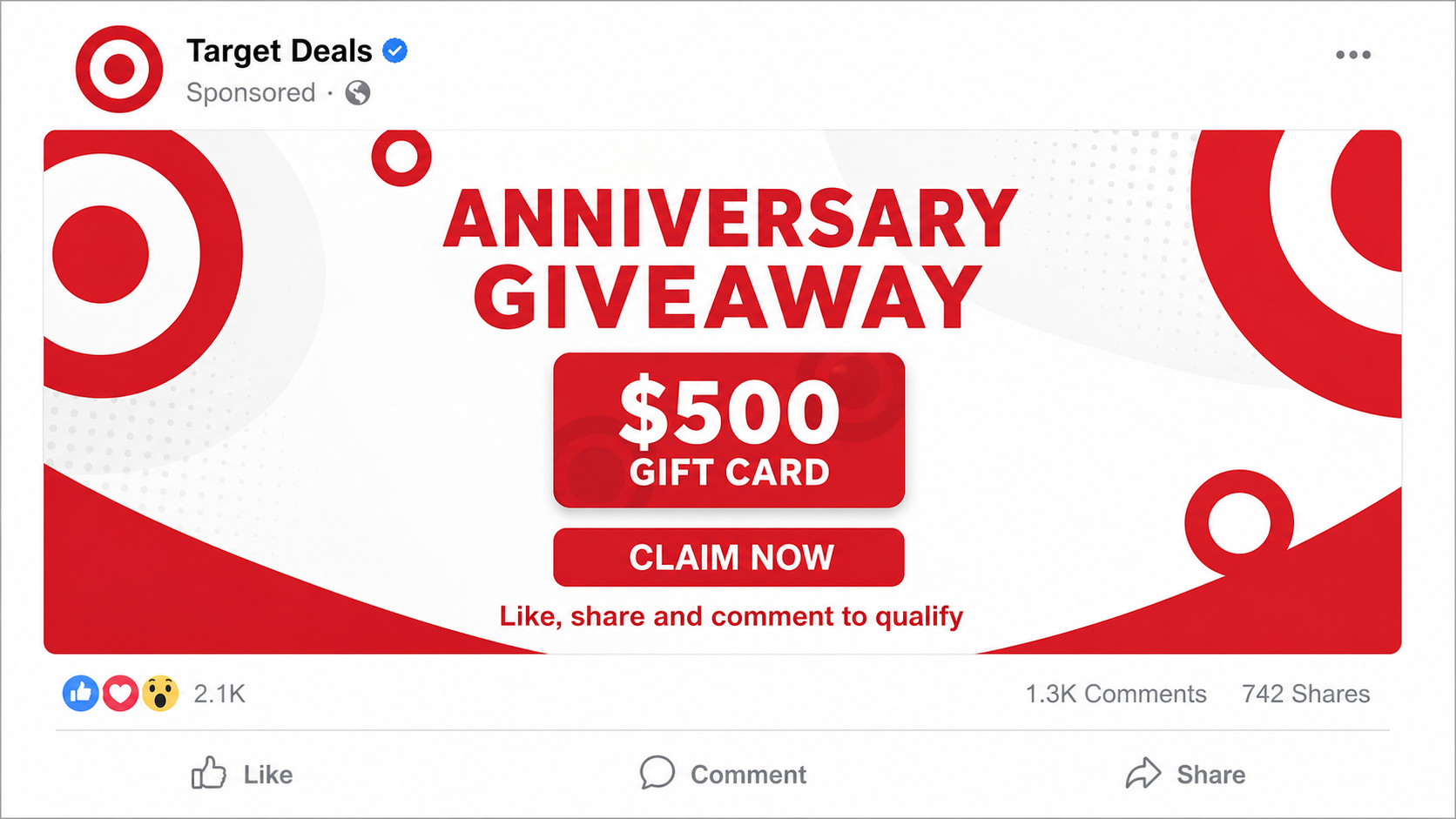
A cheerful post says Target is celebrating an anniversary by giving away $500 gift cards. Thousands of reactions and comments make it look like everyone has discovered the same generous offer.
The celebration is designed to feel familiar. The path behind it is anything but.
Overview
The giveaway borrows Target’s name without authorization
The Target anniversary $500 gift scam is a social media promotion that falsely claims the retailer is distributing gift cards, shopping vouchers, or cash-equivalent rewards. It commonly appears on Facebook or Instagram as a sponsored post, shared image, comment, direct message, or copycat page.
The post may tell users to click, answer a few questions, share the offer, or comment with a phrase to qualify. Target is a real retailer, but the fake anniversary promotion is not operated by the company.
Criminals can copy logos, store photographs, red-and-white branding, and public company history in minutes. Familiar artwork does not authenticate the account that posted it.
The promised gift card is a doorway to several schemes
Some links lead to a short survey that never awards a gift card. Instead, the visitor is moved through advertising pages, subscription offers, or forms that collect personal information.
More dangerous versions lead to a counterfeit Target login, request card details for a small shipping fee, or download a suspicious app. Possible goals include:
- Stealing Target account usernames and passwords
- Collecting card details through a small verification charge
- Harvesting names, addresses, phone numbers, and birthdays
- Enrolling users in recurring subscriptions
- Driving paid traffic through endless survey pages
- Taking over social accounts to spread the post
- Installing unwanted software or notification permissions
Engagement makes the fake offer spread without paid advertising
Requests to like, share, tag friends, or comment are not harmless participation rules. They increase the post’s reach and add social proof for the next victim.
A friend may share the post in good faith, so seeing it from someone you trust does not establish that Target created it. The friend may not have reached the final page yet.
The Federal Trade Commission’s giveaway guidance recommends verifying the promotion through the company’s real account or website and never paying to receive a prize.
Why the $500 Promise Feels So Believable
A $500 gift card is substantial, but it is not so enormous that it immediately resembles a lottery. It feels like a believable marketing budget for a nationwide retailer celebrating a milestone.
The offer also arrives in a setting where legitimate brands do run promotions. Users are accustomed to clicking social ads, joining loyalty campaigns, and receiving digital coupons.
Fake comments strengthen the illusion. Accounts claim their cards arrived, post screenshots of balances, or tell skeptical users to “try again.” Those comments can be fabricated, copied, or posted by compromised accounts.
A visible reaction count is equally weak evidence. Scammers can buy engagement, reuse an older page, or change the name and content of a page that already attracted followers.
The safest question is not whether the post looks popular. It is whether Target independently confirms that exact giveaway through a verified channel.
The Survey and Small-Fee Trap
The first page often asks simple questions about shopping habits. Easy questions create momentum and make the visitor feel close to completing a legitimate entry.
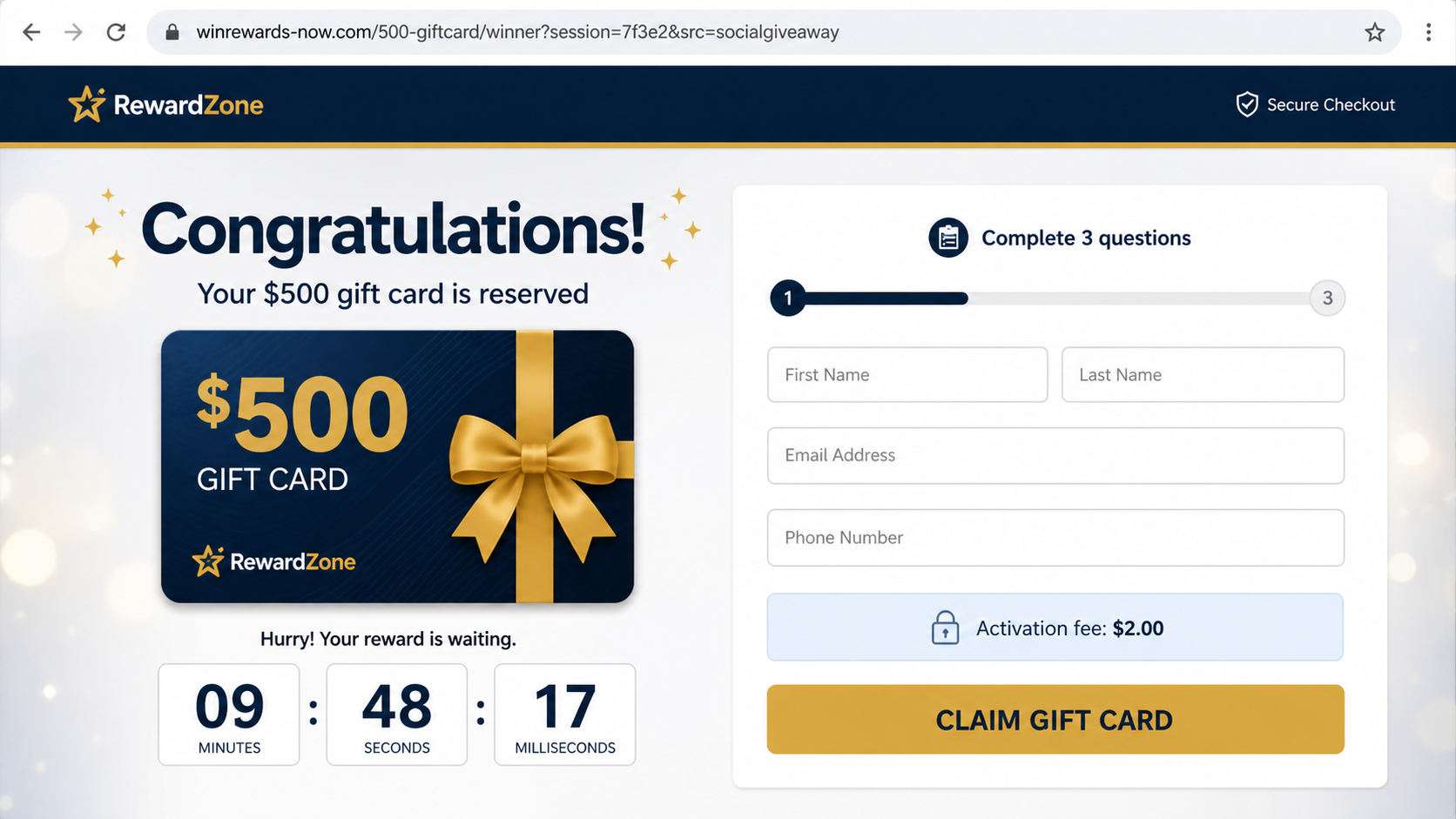
After a few screens, a congratulatory message says a reward has been reserved. A timer appears, and the user must enter contact information before the spot expires.
The final step may request $1, $2, or another small amount for shipping, identity verification, or gift-card activation. The tiny charge lowers suspicion and captures complete payment details.
Fine print can authorize recurring billing unrelated to Target. Other pages simply send the card data to criminals and display an error so the victim tries another card.
A genuine prize does not require a card number to prove that a free digital gift card can be received. Do not let the small amount distract from the sensitive information being requested.
How the Scam Works
Step 1: A fake Target post enters the social feed
The scam appears through an advertisement, copycat page, group post, comment, or message from a friend. The design uses Target branding and anniversary language.
The account name may include extra punctuation, added words, or unusual spelling that is easy to miss on a phone screen.
Step 2: A simple action promises eligibility
Users are told to comment, share, tag friends, or answer a question. These actions create visibility and make the campaign look popular.
No meaningful eligibility check occurs. Nearly everyone who clicks is told they have qualified.
Step 3: The visitor leaves the social platform
A shortened or redirected link opens an unrelated website. Target branding continues, but the exact domain does not belong to Target.
Several redirects can make the final operator difficult to identify and allow the campaign to swap destination pages.
Step 4: A survey collects personal information
The page asks about age, household, shopping preferences, email, phone number, and address. This profile can be sold to aggressive marketers or used in later impersonation scams.
Questions may change based on the answers, creating the impression of a personalized reward process.
Step 5: A fake winner screen creates urgency
Confetti, a countdown, and a limited quantity appear. The visitor is told that the $500 gift card will be reassigned if checkout is not completed immediately.
The pressure is artificial. Reopening the page may restart the timer or produce the same “last card” message.
Step 6: Credentials, payment details, or permissions are taken
The victim may be asked to sign into a Target account, pay a small fee, install an app, or allow browser notifications. Each route creates value for the operator even though no prize exists.
A stolen Target login may expose saved payment methods, addresses, Circle rewards, order history, and gift-card balances.
Step 7: The victim becomes a new distribution channel
The page asks the user to forward the offer to several contacts before the reward unlocks. It may also request social account permissions or post through a compromised account.
Friends see the offer coming from someone familiar and repeat the cycle.
Company, Address, and Fulfillment Checks
Confirm the promotion on Target’s own channels
Open Target’s website or verified social account independently and search for the exact promotion. Do not use a link in the giveaway post to perform the verification.
Target’s own safe-shopping guidance advises consumers to be cautious with offers that seem too good to be true and to inspect website addresses carefully.
Check the page history and account details
Look at when the social page was created, previous names, location information, verified status, and older posts. A page created recently for one giveaway deserves skepticism.
A profile picture containing the Target logo does not mean Target owns the account.
Inspect the website and legal operator
A real promotion should disclose rules, sponsor, eligibility, dates, selection method, and privacy terms. The legal sponsor should be consistent across every page.
A vague survey network, unrelated address, or domain created only for the campaign is not the same as Target.
Verify how the reward would be delivered
Understand whether a real prize would arrive by email, account credit, or physical card, and how the winner is contacted. No valid process needs cryptocurrency, gift cards, or a transfer to release another gift card.
Never send a photograph of a gift card’s number and PIN to “activate” a prize. Whoever has those details can spend the balance.
Warning Signs of a Fake Target Giveaway
- The page is not Target’s verified account
- The post has no official rules or verifiable closing date
- Everyone who clicks is immediately declared a winner
- A countdown resets when the page is refreshed
- The website address is unrelated to target.com
- A card number is required for a supposedly free digital reward
- The page demands shares or messages before revealing the prize
- Comments repeat the same wording or use unrelated profiles
- The offer requests a login after several redirects
- A browser asks to allow notifications or download an app
Legitimate promotions may ask for contact details and can have eligibility conditions. They should still identify the sponsor clearly, publish rules, and be verifiable outside the post.
What Happens to the Information Collected
An email address and phone number can be added to spam lists or sold as a responsive lead. Because the person clicked a retail giveaway, later messages can be tailored around coupons, deliveries, or loyalty rewards.
A stolen Target password may work on other accounts if it was reused. Criminals often test credential combinations against email, retail, streaming, and financial services.
Card data can be used for unauthorized transactions or subscription billing. Even a small successful charge confirms that the card is active.
Addresses and birthdays improve identity profiles. They can help criminals answer weak security questions or make a later bank or delivery scam sound credible.
Browser notification permission allows a site to send alarming pop-ups after the page is closed. Those notifications may promote fake antivirus warnings, prizes, or investment scams.
The lack of an immediate charge does not mean nothing was stolen. Continue monitoring accounts and messages after submitting data.
How to Verify a Target Promotion Before You Share It
Search Target’s official website for the exact wording and date of the offer. A real national giveaway should leave a trace outside one social post, including rules that identify the sponsor and explain how winners are selected.
Open the social account’s profile instead of judging a single image. Compare its username, verification status, posting history, follower patterns, and links with the accounts listed by Target itself.
Ask a practical question: why would a retailer need you to pay a fee, install an unrelated app, or send the promotion to several friends before revealing a prize? Those actions benefit the promoter, not the supposed winner.
If you remain unsure, contact Target through its official customer-service route. Waiting a few minutes to verify the offer will not invalidate a genuine promotion, while artificial urgency is one of the scam’s main tools.
What to Do if You Have Fallen Victim to This Scam
- Close the page and preserve evidence. Save the social post, profile, website address, screenshots, terms, emails, messages, and transaction records. Then report and block the account.
- Change stolen passwords. If you entered a Target login, change it through the official site. Change every account using the same password, starting with email, and enable multifactor authentication.
- Contact the card issuer. Report card details entered on the page and any small or recurring charge. Ask whether the card should be frozen, replaced, or enrolled in stronger alerts.
- Review the real Target account. Check orders, saved cards, addresses, gift-card balances, Circle rewards, authorized devices, and account information for unauthorized changes.
- Revoke permissions. Remove suspicious social apps, sign out unknown sessions, disable browser notifications from the site, and uninstall any application added during the survey.
- Scan the device. If a download opened or the browser behaved unexpectedly, run a full scan with Malwarebytes and remove anything the scan or installed-app list identifies as unwanted.
- Block malicious advertising and pages. A tool such as AdGuard may reduce exposure to known malicious ads and trackers, but still verify promotions through the retailer.
- Warn friends without resharing the live link. If you tagged or messaged people, tell them the offer was fraudulent. Share a screenshot or explanation instead of spreading the clickable post again.
- Report the campaign. Notify the social platform, Target, the FTC, and local consumer authorities. Report identity theft through IdentityTheft.gov if personal information is misused.
- Watch for follow-up scams. Treat later prize confirmations, delivery fees, account warnings, and refund services as suspicious, especially when they reference information from the survey.
Is Your Device Infected? Run a Free Malware Scan
Slow performance, constant pop-ups, or strange behavior? These are classic signs of a malware infection. A quick way to check is to scan your device with Malwarebytes Free, one of the most trusted malware removal tools available. If you only visited a scam page and didn’t download or install anything, this scan is optional.
The free version detects and removes the most common threats, including:
- Adware — the cause of those annoying pop-ups
- Browser hijackers — unwanted redirects and changed homepages
- Trojans and spyware — hidden programs stealing your data
- Potentially unwanted programs (PUPs) — software you never asked for
👉 Select your device below — Windows, Mac, or Android — then follow the simple steps to download Malwarebytes, scan your system, and remove any threats it finds. The scan usually takes 5 to 20 minutes.
Run a Malware Scan with Malwarebytes for Windows
Malwarebytes is one of the most popular and trusted anti-malware tools for Windows — and it’s completely free for removing infections. It catches threats that many antivirus programs miss, including adware, browser hijackers, and trojans. Follow the steps below to scan your PC and remove what Malwarebytes finds.
Download Malwarebytes
Click the button below to download the latest version of Malwarebytes for Windows from the official source. The free version is all you need — it will scan your computer and remove adware, browser hijackers, and other malicious software at no cost.
Download MalwarebytesOfficial installer for Windows 11 and 10. Your download starts right away.Want real-time protection? See Malwarebytes Premium Malwarebytes Free for WindowsScans and removes malware at no cost
-
Install Malwarebytes
When the download finishes, open your Downloads folder and double-click the MBSetup file. If Windows shows a User Account Control pop-up, click “Yes” to allow the installation.

Follow the On-Screen Prompts to Install Malwarebytes
The setup wizard will walk you through a few quick screens:
-
Choose where you’re installing the program — “Personal Computer” or “Work Computer” — then click Next.

-
Malwarebytes will now install on your device. This usually takes under a minute.

-
When installation is complete, the “Welcome to Malwarebytes” screen will open automatically.

-
On the final screen, click Open Malwarebytes to launch the program.

-
Optional: Check for rootkits with a Custom Scan
You don’t need to change any settings for a normal scan. The standard Threat Scan in the next step is enough for most problems, so you can go straight to it.
If you also want to check for rootkits, use a Custom Scan. In current versions of Malwarebytes, rootkit scanning is only available there:
- On the Scanner tile, click the three-dot menu and select Advanced Scan.
- Choose Custom Scan. In its options, check Scan for rootkits.
- Select your system drive (usually C:\) as the location to scan, then start the scan. It takes longer than a Threat Scan.
- When it finishes, review and quarantine the results as described in the steps below.
Rootkit scanning isn’t available on Windows devices with ARM processors.
Start the Scan
Click the blue Scan button. Malwarebytes will automatically update its virus database and start checking your computer for malware.

-
Wait for the Scan to Finish
The scan checks your entire system for browser hijackers and other malicious programs, so it can take 5 to 20 minutes depending on your computer. Feel free to do something else — just check back occasionally to see the progress.

-
Quarantine the Detected Threats
When the scan is done, you’ll see a list of everything Malwarebytes found — malware, adware, and potentially unwanted programs. Click the “Quarantine” button to remove all of them at once.

Malwarebytes will now remove the malicious files and registry entries and move them safely into quarantine.

-
Restart Your Computer
Some threats can only be fully removed after a reboot. If Malwarebytes asks you to restart, click Yes. Once you’re logged back in, Malwarebytes has finished removing the threats it found.

When the scan is done, check whether the problems you noticed have stopped. If they continue, see the options below.
If you are still having problems with your computer after completing these instructions, then please follow one of the steps:
- Run a computer scan with ESET Online Scanner
- Ask for help in our Windows Malware Removal Help & Support forum.
Run a Malware Scan with Malwarebytes for Mac
Malwarebytes for Mac is a free on-demand scanner that removes the malware other security software tends to miss — adware, browser hijackers, and unwanted programs included. Cleaning an infected Mac with Malwarebytes has always been completely free, and it’s our go-to recommendation. Follow the steps below to scan your Mac and remove what Malwarebytes finds.
-
Download Malwarebytes for Mac
Click the button below to download the latest version of Malwarebytes for Mac.
Download MalwarebytesOfficial installer for macOS. Your download starts right away.Want real-time protection? See Malwarebytes PremiumMalwarebytes Free for MacScans and removes malware at no cost -
Open the Malwarebytes setup file
When the download finishes, open your Downloads folder and double-click the setup file to begin the installation.

-
Follow the On-Screen Prompts to Install Malwarebytes
The Malwarebytes for Mac Installer will guide you through a few quick screens. Click “Continue” and keep following the prompts until the installation completes.



When the installation is complete, Malwarebytes opens to the Welcome to Malwarebytes screen. Click “Get started“.
Malwarebytes needs Full Disk Access to check your whole Mac. When it asks, open System Settings > Privacy & Security > Full Disk Access, turn on Malwarebytes (it may be listed as Malwarebytes Protection), and confirm with your password or Touch ID. Then return to Malwarebytes. On macOS Monterey and earlier, this setting is in System Preferences > Security & Privacy > Privacy.
-
Select “Personal Computer” or “Work Computer”
Malwarebytes will ask what type of computer you’re installing it on. Click either Personal Computer or Work Computer, whichever applies.

-
Start the Scan
Click the “Scan” button. Malwarebytes will automatically update its detection database and begin checking your Mac for malware.

-
Wait for the Scan to Finish
Malwarebytes will scan your Mac for adware, browser hijackers, and other malicious programs. This can take a few minutes, so feel free to do something else — just check back occasionally to see the progress.

-
Quarantine the Detected Threats
When the scan is done, you’ll see a list of everything Malwarebytes found. Click the “Quarantine” button to remove all the threats at once.

-
Restart Your Mac
Malwarebytes will now remove all the malicious files it found. Some threats can only be fully removed after a reboot — if Malwarebytes asks you to restart, allow it. Once you’re logged back in, check whether the problems you noticed have stopped. If they come back, save the scan report and ask for help in our forum.

If the problems you noticed continue after the scan, see the options below.
If you are still experiencing problems while trying to remove a malicious program from your computer, please ask for help in our Mac Malware Removal Help & Support forum.
Run a Malware Scan with Malwarebytes for Android
Malwarebytes for Android scans your phone or tablet for malware, adware, and potentially unwanted apps. The free version scans only when you start a scan. Real-time protection, which checks apps automatically, is part of the paid Premium version.
-
Download Malwarebytes for Android.
You can download Malwarebytes for Android by clicking the link below.
Get Malwarebytes for AndroidOpens Google Play in a new tab.Want real-time protection? See Malwarebytes Premium for AndroidMalwarebytes for AndroidScans your phone and removes malware at no cost -
Install Malwarebytes for Android on your phone.
In the Google Play Store, tap “Install” to install Malwarebytes for Android on your device.

When the installation process has finished, tap “Open” to begin using Malwarebytes for Android. You can also open Malwarebytes by tapping on its icon in your phone menu or home screen.

-
Follow the on-screen prompts to complete the setup process
When Malwarebytes opens, it walks you through a short setup. Tap Get started and follow the prompts. If you see an offer for a trial or a paid plan, read it before you accept. You can skip it and keep using the free scanner.
Malwarebytes will ask for permission to access the files on your phone so it can scan them. Tap Allow, or turn on the permission in the Android screen that opens, then return to Malwarebytes.
-
Run a scan with Malwarebytes for Android
On the main screen, tap Scan now. In some versions, you open the menu, tap Scanner, and then tap Run a scan.
-
Wait for the Malwarebytes scan to complete.
Malwarebytes will now start scanning your phone for adware and other malicious apps. This process can take a few minutes, so we suggest you do something else and periodically check on the status of the scan to see when it is finished.

-
Remove the detected apps.
When the scan has been completed, you will see a list of the threats that Malwarebytes for Android has detected. Next to each detected item, tap the menu icon (three dots), then choose to uninstall the app or delete the file. Android then asks you to confirm. Tap OK or Uninstall to remove the app.
-
Restart your phone.
When the detected apps are removed, restart your phone if Malwarebytes asks you to. Then check whether the problems you noticed have stopped.
If the problems you noticed continue after the scan, see the options below.
If you are still having problems with your phone after completing these instructions, then please follow one of the steps:
- Ask for help in our Mobile Malware Removal Help & Support forum.
- Only as a last resort, reset your phone to factory settings. Read the warning below first.
- Back up your photos, videos, files, and messages, for example to your Google account or a computer.
- Make sure you know your Google account email and password. The phone asks for them after the reset. If you changed the password recently, Google recommends waiting 24 hours before you reset.
- On a Samsung phone, also make sure you know your Samsung account password.
- If you use an authenticator app for two-step verification, move your accounts to another device or save your backup codes first.
Stay Protected: Block Ads and Malicious Sites
No scan can prove a device is completely clean, so it helps to block threats before they reach you. Most infections start with a malicious ad or a fake download button — so blocking them at the source is your best defense.
We recommend AdGuard, which blocks malicious ads, phishing pages, and dangerous redirects before they can reach you.
👉 Download AdGuard and browse safely
Frequently Asked Questions
Is Target really giving everyone a $500 anniversary gift card?
No. Posts claiming that everyone can receive a $500 Target anniversary gift by clicking and sharing are fraudulent. Verify any real promotion on Target’s own website or verified accounts.
Can a friend safely send me the giveaway?
A friend may share the scam before realizing it is fake, or their account may be compromised. Trust the official sponsor’s confirmation, not only the person who forwarded it.
Why are there so many positive comments?
Comments can be fabricated, purchased, copied, or posted by victims who have not completed the process. Popularity inside the post is not independent proof.
Would a real giveaway ask for payment details?
A legitimate promotion may need winner contact information, but a free gift card should not require a card number or payment to cover activation, verification, tax, or delivery.
What if I only completed the survey?
Expect targeted spam and phishing based on the details submitted. Secure any reused password, review account activity, and be cautious with later messages referencing Target or prizes.
Can Target recover money I paid to the scam site?
The fraudulent merchant is separate from Target. Contact your bank or payment provider immediately and report the impersonation to Target and the platform where the post appeared.
The Bottom Line
The Target anniversary $500 gift scam uses a familiar retailer, an appealing amount, and visible social engagement to make a false promotion feel ordinary. The reward disappears while the survey, login, or checkout captures something valuable.
Slow down before sharing. Find the promotion through Target’s official channels, read the rules, and never pay to receive a gift card. If the page already collected information, secure the affected accounts before the next message arrives.

Join the discussion
0 commentsShare your experience or ask a question about this article.
Discussion
Start the conversation
Have a question or something useful to share? Add the first comment.