A password-reset email appears even though you did not ask for one. It warns that incoming messages could be interrupted unless you respond.
Unexpected reset notices can be unsettling. The safest answer comes from your account’s normal security page, not from the button demanding immediate attention.
Overview
A Reset Warning That Invents a Mail Delivery Problem
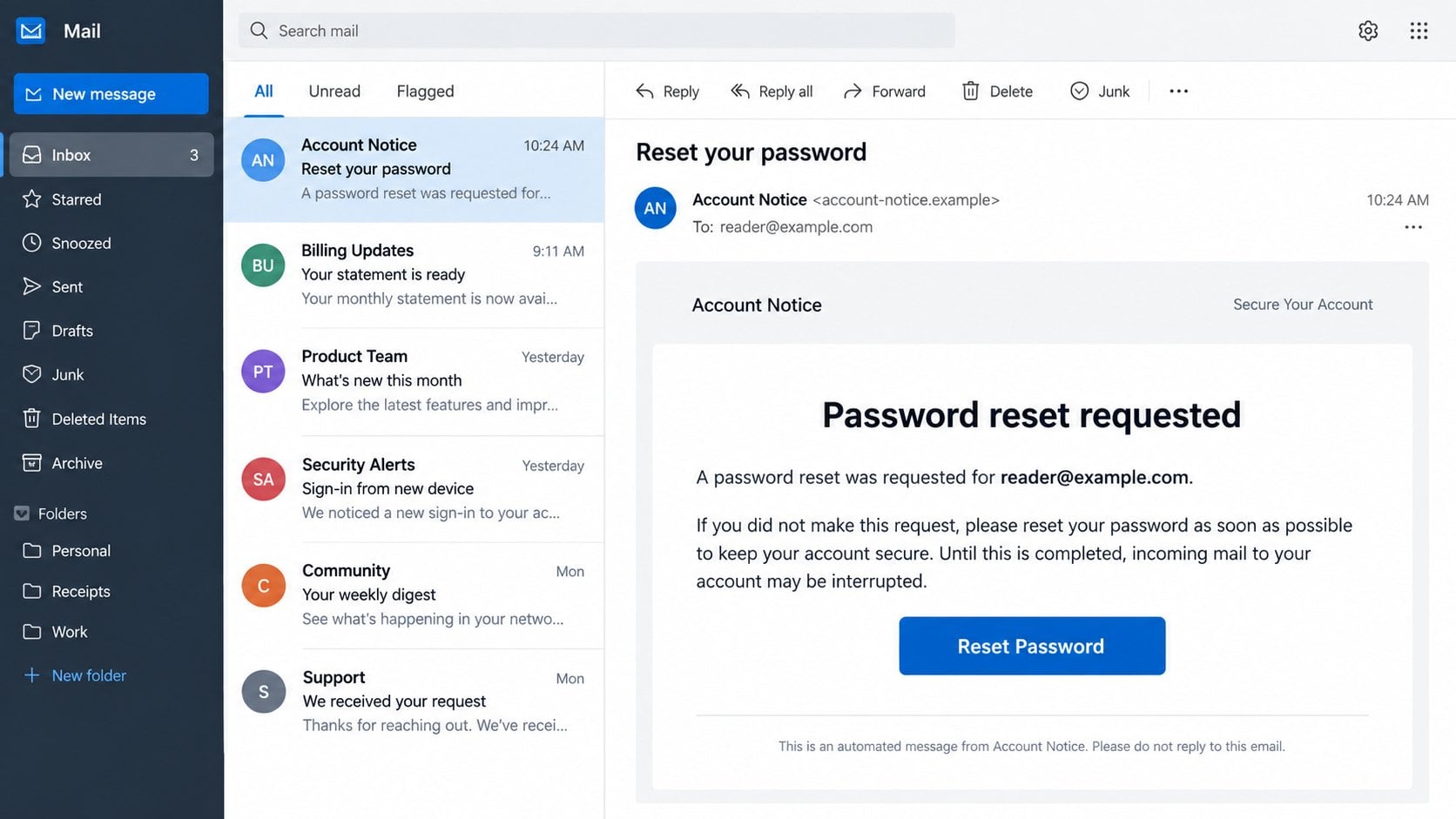
The Password Reset Request email scam impersonates an unspecified email provider. It says someone requested a reset and urges the recipient to choose a new password.
The subject in the documented sample is “Reset your password.” Inside, a heading reads “Password reset requested,” followed by a “Reset Password” button.
The unusual pressure comes afterward. The message claims incoming mail may be interrupted if the recipient fails to complete the reset.
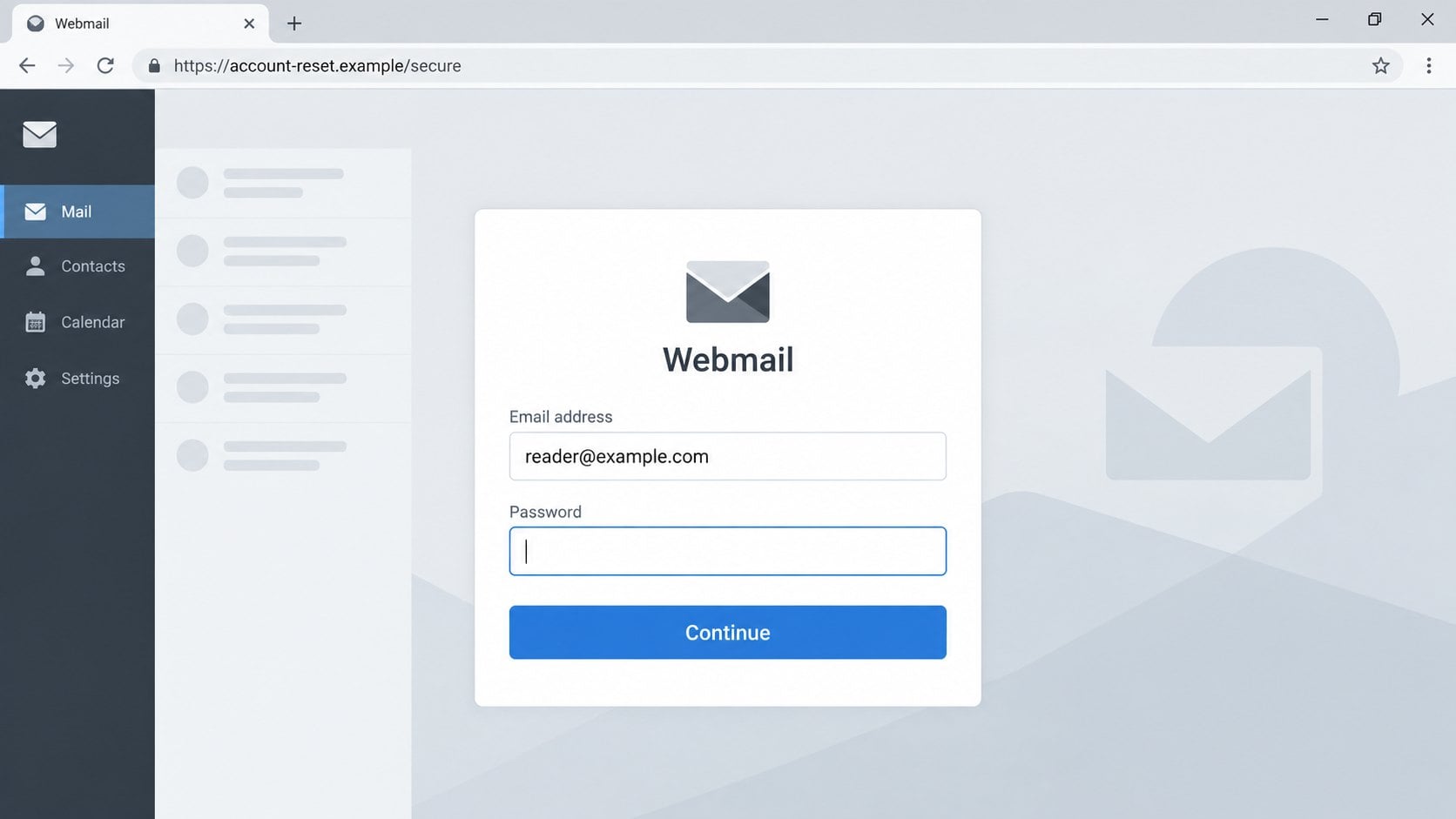
That threat is designed to drive a click. The button leads to a copied login interface where the visitor’s existing credentials can be collected.
The Details That Set This Version Apart
Real reset emails and phishing copies can share similar headings. The surrounding request, destination, and consequence provide the stronger clues.
The email arrives without a reset the recipient remembers requesting.
It uses the subject “Reset your password.”
The main heading says “Password reset requested.”
It threatens interruption of incoming messages.
The call to action says “Reset Password.”
The destination was hosted on Backblaze B2 storage.
The page combined Roundcube and Google-style visual elements.
The reported host was f005.backblazeb2[.]com. That address identifies one observed page and should not be treated as the campaign’s permanent home.
Backblaze, Roundcube, and Google are legitimate services or projects. The available evidence indicates impersonation and platform abuse, not their participation in the scheme.
The Requested Secret Does Not Match the Claimed Task
A genuine password-reset flow normally verifies a request and lets the user create a replacement. It should not ask for the current mailbox password on an unrelated host.
This imitation instead behaves like a login page. The old credential is precisely what a phishing operator wants to learn.
The campaign’s documented objective is credential theft. Reading the email alone does not demonstrate malware infection or an account takeover.
If a password was submitted, the risk becomes immediate. Email can unlock recovery links, private messages, cloud invitations, and other accounts connected to the address.
How the Password Reset Request Email Scam Works
Step 1: An Unrequested Reset Creates a Credible Concern
Legitimate services send notifications when someone begins account recovery. Receiving one unexpectedly can mean a mistake, automated abuse, or a real takeover attempt.
Phishers exploit that ambiguity. The recipient does not need to believe the sender completely, only to worry that ignoring it could be worse.
The message avoids naming a specific provider prominently. That generic presentation allows it to reach hosted domains and public mail users with the same template.
A genuine unexpected reset can usually be ignored or investigated from the service. It does not require using the notification’s embedded route.
Step 2: The Mail Interruption Claim Adds Artificial Consequences
The warning says incoming mail may stop unless the password is reset. That is not a normal result of simply failing to answer an unsolicited request.
Reset links commonly expire without changing the account. A provider may secure an account after suspicious activity, but that action should appear in its actual dashboard.
The scam’s wording converts optional investigation into an urgent continuity problem. People who depend on email for work may click before checking the logic.
Ask whether the stated consequence makes technical sense. A stranger requesting a reset should not gain power to suspend your incoming messages.
Step 3: Legitimate Cloud Storage Serves the Counterfeit Page
The button opens content stored on Backblaze B2. Cloud object storage can deliver web files quickly and is used by many legitimate customers.
That infrastructure may look less suspicious than a newly registered misspelled domain. It can also help a campaign rotate files without maintaining a traditional website.
The host’s reputation does not transfer to every uploaded object. A secure connection means the file arrived encrypted, not that the file is honest.
Users should expect account recovery to stay on the provider’s established domain. A storage bucket is not an appropriate place to disclose mailbox credentials.
Step 4: Mixed Branding Broadens the Illusion
The reported landing page places a Google-style login prompt over a Roundcube-looking webmail screen. That combination is visually familiar but operationally incoherent.
Roundcube is software many hosts use for mail. Google accounts follow their own authentication flow and do not need an overlay pasted onto another provider’s interface.
Mixing brands helps a generic kit feel relevant to more visitors. A recognizable sign-in card can draw attention away from the address bar.
The page’s appearance is an image and layout choice. It does not create a relationship with either service.
Step 5: The Visitor Enters Existing Credentials
Instead of generating a replacement password, the form requests a familiar email and password combination. Submitting it can deliver those values to the operator.
A reset process asking for the old secret can feel plausible, particularly when the username is already present. That prefill may come directly from the link.
The page can reject the first entry to collect alternatives. It may then forward the browser elsewhere, leaving no obvious confirmation of theft.
Do not interpret a failed login message as protection. A counterfeit form controls its own error responses and can record every attempt.
Step 6: The Inbox Becomes a Recovery Hub for Other Targets
Once inside, an attacker may search for banking notices, shopping receipts, or password-reset messages from other services. They can trigger additional resets themselves.
They may create forwarding or filtering rules so future warnings disappear from view. Sending phishing mail from the account can also exploit trust among contacts.
Multifactor authentication may block the password alone. However, criminals can request codes, send push prompts, or try older recovery options.
Actual damage varies. Account logs and configuration changes should determine the response, rather than assuming either perfect safety or total compromise.
How to Check a Password Reset Notice
Recall Whether You Started the Request
Consider whether you recently used “Forgot password,” changed a security setting, or asked an administrator for help. A requested email should arrive close to that action.
If you did not start it, leave the button alone. An unwanted genuine request can expire while you inspect the account separately.
Shared or workplace accounts deserve extra care. Ask the authorized administrator through a known channel before changing credentials or recovery settings.
Navigate Directly to Account Security
Open the service through a saved bookmark, official application, or address typed from your records. Check recent security events and recovery activity.
If the provider requires a password change, its own account page should explain why. Complete that change after reaching the service independently.
Never search for a support telephone number inside the suspicious page. Use billing documents, official applications, or established administrative contacts.
Compare the URL With the Provider’s Domain
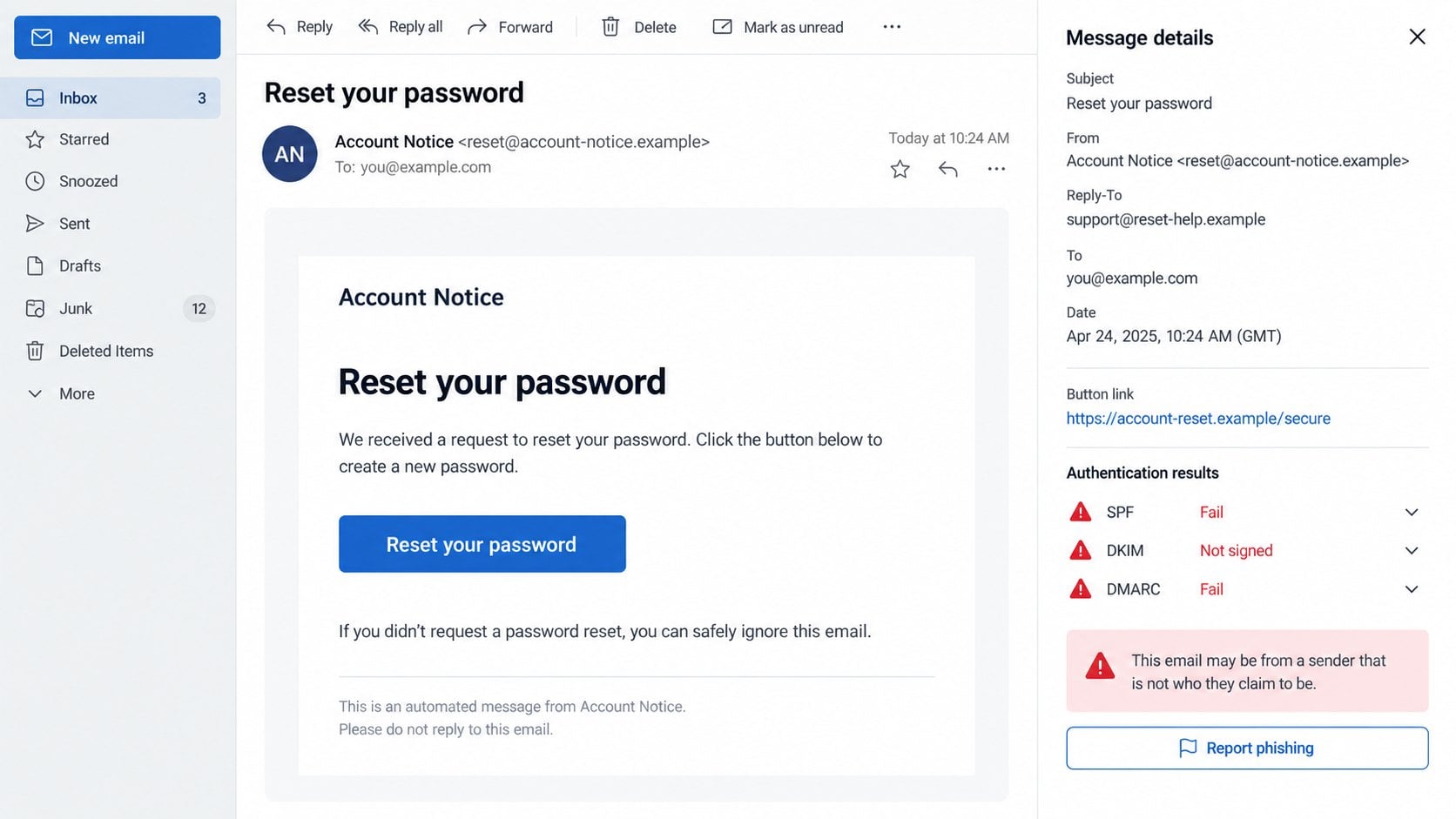
Preview the reset button and identify the registrable domain. A long path under a storage service is not equivalent to your email provider’s account center.
Watch for provider names appearing only in paths or subdomains. The domain owner sits immediately before the public suffix, not wherever a logo word appears.
A padlock is expected on both legitimate and malicious sites. It cannot tell you who authored the page.
Look for Workflow Contradictions
A reset link should lead toward creating a new secret, not collecting the old one for an unrelated webmail screen.
Mixed provider branding is another contradiction. One organization’s login overlay should not float above a separate webmail product during a normal recovery flow.
Grammar and typography can support the assessment, yet they are secondary. The destination and requested information remain more dependable indicators.
What to Do If You Fell Victim to the Password Reset Request Email Scam
The proper response depends on whether you merely received the notice or supplied information. Work from the most sensitive action you completed.
Close the false reset page and keep the evidence.
Avoid testing another password or following footer links. Save the original message and record the site address before reporting it.
If you only viewed the email, mark it as phishing and delete it afterward. Reading ordinary message content does not expose your password.
Change the submitted password through the genuine service.
Use a trusted device and reach the provider without the email. Set a strong, unique password and update any reused copies elsewhere.
Do this even if the form showed an error. The page could have stored the entry before displaying that response.
Review recovery settings and active authentication.
Sign out unknown sessions and regenerate backup codes where needed. For managed mail, ask the administrator to revoke tokens and review logs.
Search the mailbox for attacker-made rules.
Examine forwarding, filters, delegates, connected applications, sent items, and deleted mail. Pay attention to hidden copies of financial or security conversations.
Preserve suspicious settings before removal when an employer needs forensic evidence. Note their creation times if the interface provides them.
Protect accounts that depend on this inbox.
Start with financial, cloud, shopping, social, and workplace accounts. Change reused passwords and review their recent recovery events.
Treat authentic reset emails you did not initiate as possible follow-on activity. Reach each service directly before taking action.
Address any downloaded file separately.
The observed attack uses a web form, but related spam can deliver attachments. Do not open a download merely to identify it.
If you executed something, run a full Malwarebytes scan and involve technical support. Account cleanup remains necessary even when no malware is detected.
Revoke browser access and add another protection layer.
Remove site notifications, suspicious extensions, and saved credentials associated with the imitation page. Install browser and system updates.
AdGuard can reduce exposure to some malicious pages and advertising paths. It cannot validate every password-reset message or replace careful navigation.
Report the page without blaming the hosting provider.
Submit the email through your provider’s phishing channel. Report the hosted object to the cloud service with its exact URL and supporting evidence.
Tell affected contacts if unauthorized mail was sent. A concise warning can prevent the stolen identity from creating additional victims.
Is Your Device Infected? Run a Free Malware Scan
Slow performance, constant pop-ups, or strange behavior? These are classic signs of a malware infection. The fastest way to find out is to scan your device with Malwarebytes Anti-Malware Free — one of the most trusted malware removal tools available.
The free version detects and removes the most common threats, including:
Adware — the cause of those annoying pop-ups
Browser hijackers — unwanted redirects and changed homepages
Trojans and spyware — hidden programs stealing your data
Potentially unwanted programs (PUPs) — software you never asked for
👉 Select your device below — Windows, Mac, or Android — then follow the simple steps to download Malwarebytes, scan your system, and remove any threats it finds. The whole process takes about 5 minutes.
Malwarebytes for WindowsMalwarebytes for MacMalwarebytes for Android
Run a Malware Scan with Malwarebytes for Windows
Malwarebytes is one of the most popular and trusted anti-malware tools for Windows — and it’s completely free for removing infections. It catches threats that many antivirus programs miss, including adware, browser hijackers, and trojans. Follow the steps below to scan and clean your PC in just a few minutes.
Download Malwarebytes
Click the button below to download the latest version of Malwarebytes for Windows from the official source. The free version is all you need — it will scan your computer and remove adware, browser hijackers, and other malicious software at no cost.
(The link opens in a new page where your download will start)
Install Malwarebytes
When the download finishes, open your Downloads folder and double-click the MBSetup file. If Windows shows a User Account Control pop-up, click “Yes” to allow the installation.
Follow the On-Screen Prompts to Install Malwarebytes
The setup wizard will walk you through a few quick screens:
Choose where you’re installing the program — “Personal Computer” or “Work Computer” — then click Next.
Malwarebytes will now install on your device. This usually takes under a minute.
When installation is complete, the “Welcome to Malwarebytes” screen will open automatically.
On the final screen, click Open Malwarebytes to launch the program.
Enable “Scan for Rootkits”
Before scanning, turn on rootkit detection so Malwarebytes can find even the most hidden threats. Click the Settings gear icon on the left side of the screen.
In the settings menu, find “Scan for rootkits” and click the toggle so it turns blue.
Done? Click “Dashboard” in the left pane to return to the main screen.
Start the Scan
Click the blue Scan button. Malwarebytes will automatically update its virus database and start checking your computer for malware.
Wait for the Scan to Finish
The scan checks your entire system for browser hijackers and other malicious programs, so it can take several minutes. Feel free to do something else — just check back occasionally to see the progress.
Quarantine the Detected Threats
When the scan is done, you’ll see a list of everything Malwarebytes found — malware, adware, and potentially unwanted programs. Click the “Quarantine” button to remove all of them at once.
Malwarebytes will now remove the malicious files and registry entries and move them safely into quarantine.
Restart Your Computer
Some threats can only be fully removed after a reboot. If Malwarebytes asks you to restart, click Yes. Once you’re logged back in, your PC is clean and you can continue with the next steps in this guide.
When the scan finishes, click Quarantine to remove everything Malwarebytes found. That’s it — your Windows PC is now clean of trojans, adware, and other malware, and should be back to running smoothly.
If your current antivirus allowed this malicious program on your computer, you may want to consider purchasing Malwarebytes Premium to protect against these types of threats in the future. If you are still having problems with your computer after completing these instructions, then please follow one of the steps:
Malwarebytes for Mac is a free on-demand scanner that removes the malware other security software tends to miss — adware, browser hijackers, and unwanted programs included. Cleaning an infected Mac with Malwarebytes has always been completely free, and it’s our go-to recommendation. Follow the steps below to scan and clean your Mac in just a few minutes.
Download Malwarebytes for Mac
Click the button below to download the latest version of Malwarebytes for Mac.
When the download finishes, open your Downloads folder and double-click the setup file to begin the installation.
Follow the On-Screen Prompts to Install Malwarebytes
The Malwarebytes for Mac Installer will guide you through a few quick screens. Click “Continue” and keep following the prompts until the installation completes.
When the installation is complete, Malwarebytes opens to the Welcome to Malwarebytes screen. Click “Get started“.
Select “Personal Computer” or “Work Computer”
Malwarebytes will ask what type of computer you’re installing it on. Click either Personal Computer or Work Computer, whichever applies.
Start the Scan
Click the “Scan” button. Malwarebytes will automatically update its detection database and begin checking your Mac for malware.
Wait for the Scan to Finish
Malwarebytes will scan your Mac for adware, browser hijackers, and other malicious programs. This can take a few minutes, so feel free to do something else — just check back occasionally to see the progress.
Quarantine the Detected Threats
When the scan is done, you’ll see a list of everything Malwarebytes found. Click the “Quarantine” button to remove all the threats at once.
Restart Your Mac
Malwarebytes will now remove all the malicious files it found. Some threats can only be fully removed after a reboot — if Malwarebytes asks you to restart, allow it. Once you’re logged back in, your Mac is clean.
Once the scan is done, remove every threat it detected. Your Mac is now free of adware, rogue browser extensions, and other potentially harmful software.
If your current antivirus allowed a malicious program on your computer, you might want to consider purchasing the full-featured version of Malwarebytes Anti-Malware to protect against these types of threats in the future. If you are still experiencing problems while trying to remove a malicious program from your computer, please ask for help in our Mac Malware Removal Help & Support forum.
Run a Malware Scan with Malwarebytes for Android
Malwarebytes for Android automatically detects and removes dangerous threats like malware and ransomware so you don’t have to worry about your most-used device being compromised. Aggressive detection of adware and potentially unwanted programs keeps your Android phone or tablet running smooth.
Download Malwarebytes for Android.
You can download Malwarebytes for Android by clicking the link below.
In the Google Play Store, tap “Install” to install Malwarebytes for Android on your device.
When the installation process has finished, tap “Open” to begin using Malwarebytes for Android. You can also open Malwarebytes by tapping on its icon in your phone menu or home screen.
Follow the on-screen prompts to complete the setup process
When Malwarebytes will open, you will see the Malwarebytes Setup Wizard which will guide you through a series of permissions and other setup options. This is the first of two screens that explain the difference between the Premium and Free versions. Swipe this screen to continue. Tap on “Got it” to proceed to the next step. Malwarebytes for Android will now ask for a set of permissions that are required to scan your device and protect it from malware. Tap on “Give permission” to continue. Tap on “Allow” to permit Malwarebytes to access the files on your phone.
Update database and run a scan with Malwarebytes for Android
You will now be prompted to update the Malwarebytes database and run a full system scan.
Click on “Update database” to update the Malwarebytes for Android definitions to the latest version, then click on “Run full scan” to perform a system scan.
Wait for the Malwarebytes scan to complete.
Malwarebytes will now start scanning your phone for adware and other malicious apps. This process can take a few minutes, so we suggest you do something else and periodically check on the status of the scan to see when it is finished.
Click on “Remove Selected”.
When the scan has been completed, you will be presented with a screen showing the malware infections that Malwarebytes for Android has detected. To remove the malicious apps that Malwarebytes has found, tap on the “Remove Selected” button.
Restart your phone.
Malwarebytes for Android will now remove all the malicious apps that it has found. To complete the malware removal process, Malwarebytes may ask you to restart your device.
After the scan, tap Remove Selected to delete all detected threats. Your Android phone is now clean — no more malicious apps, adware, or browser redirects.
If your current antivirus allowed a malicious app on your phone, you may want to consider purchasing the full-featured version of Malwarebytes to protect against these types of threats in the future. If you are still having problems with your phone after completing these instructions, then please follow one of the steps:
Restore your phone to factory settings by going to Settings > General management > Reset > Factory data reset.
Now that your device is clean, keep it that way. Most infections start with a malicious ad or a fake download button — so blocking them at the source is your best defense.
We recommend AdGuard, which blocks malicious ads, phishing pages, and dangerous redirects before they can reach you.
Someone may mistype an address, test whether an account exists, or deliberately start recovery. A real reset notice does not automatically mean the account was entered.
Most legitimate links expire and make no change until the user completes verification. You can usually ignore an isolated request after checking security activity.
Repeated authentic requests may justify contacting the provider and strengthening authentication. Continue using the provider’s application or manually reached site.
The scam differs because its route attempts to collect the current password. That action is unrelated to allowing an unwanted reset link to expire.
Separating those scenarios prevents unnecessary panic. It also keeps you from handing credentials to someone who manufactured the warning.
Document repeated notices so support can recognize a sustained recovery attempt.
Frequently Asked Questions
Does an Unexpected Reset Email Mean I Was Hacked?
No. It may reflect a mistake, an attempted reset, or phishing. Check recent account activity through the provider’s real security page.
Unauthorized sign-ins or changed settings provide stronger evidence than the arrival of one message.
Will Incoming Mail Stop If I Ignore the Button?
The phishing email’s interruption threat is artificial. A genuine provider may take protective action, but that status should appear inside the actual account.
Open webmail normally to confirm delivery. Do not resolve the claim through the suspicious reset link.
Why Is the Page Hosted on Backblaze B2?
Cloud storage can serve web content, and criminals sometimes abuse legitimate platforms for deceptive files. Hosting does not mean Backblaze approved the page.
The correct response is reporting the object and securing exposed credentials, not treating every Backblaze address as malicious.
Why Does the Page Show Roundcube and Google Elements?
Mixed branding helps a generic phishing kit feel familiar to several audiences. It is also a warning that unrelated authentication systems are being combined.
Your provider’s normal recovery path should have consistent branding and an expected domain.
What If I Entered Only My Email Address?
The campaign already knew the address used to deliver the message. Submitting it may confirm that you interacted and can trigger more targeted spam.
Monitor for follow-ups and report the message. Password recovery becomes urgent if you also supplied an authentication secret.
Should I Change My Password After Receiving the Email?
Receipt alone does not require a change. Review the account and change it if you entered the password, see unknown activity, or reused a weak credential.
Make any change from the provider’s real settings, never from the email’s button.
The Bottom Line
The Password Reset Request email scam invents a mail interruption to steer recipients toward a mixed-brand credential form hosted outside their provider.
Let unrequested genuine links expire, verify security independently, and replace any secret entered on the imitation page. A reset warning should never dictate its own proof.
10 Rules to Avoid Online Scams
Here are 10 practical safety rules to help you avoid malware, online shopping scams, crypto scams, and other online fraud. Each tip includes a quick “if you already got hit” action.
Stop and verify before you click, log in, download, or pay.
Most scams win by creating urgency. Verify using a trusted method: type the website address yourself, use the official app, or call a known number (not the one in the message).
If you already clicked: close the page, do not enter passwords, and run a malware scan.
Keep your operating system, browser, and apps updated.
Updates patch security holes used by malware and malicious ads. Turn on automatic updates where possible.
If you saw a scary “update now” pop-up: close it and update only through your device settings or the official app store.
Use layered protection: antivirus plus an ad blocker.
Antivirus helps block malware. An ad blocker reduces scam redirects, phishing pages, and malvertising.
If your browser is acting weird: remove unknown extensions, reset the browser, then run a full scan.
Install apps, software, and extensions only from official sources.
Avoid cracked software, “keygens,” and random downloads. During installs, choose Custom/Advanced and decline bundled offers you do not recognize.
If you already installed something suspicious: uninstall it, restart, and scan again.
Treat links and attachments as untrusted by default.
Phishing often impersonates delivery services, banks, and popular brands. If it is unexpected, do not open attachments or log in through the message.
If you entered credentials: change the password immediately and enable 2FA.
Shop safely: research the store, then pay with protection.
Be cautious with brand-new stores, “closing sale” stories, and prices that make no sense. Prefer credit cards or PayPal for dispute options. Avoid wire transfers, gift cards, and crypto payments.
If you already paid: contact your card issuer or PayPal quickly to dispute the transaction.
Crypto rule: never pay a “fee” to withdraw or recover money.
Common patterns include fake profits, then “tax,” “gas,” or “verification” fees. Another is a “recovery agent” who demands upfront crypto.
If you already sent crypto: stop paying, save evidence (wallet addresses, TXIDs, chats), and report the scam to the platform used.
Secure your accounts with unique passwords and 2FA (start with email).
Use a password manager and unique passwords for every account. Enable 2FA using an authenticator app when possible.
If you suspect an account takeover: change passwords, sign out of all devices, and review recent logins and recovery settings.
Back up important files and keep one backup offline.
Backups protect you from ransomware and device failure. Keep at least one backup on an external drive that is not always connected.
If you suspect infection: do not connect backup drives until the system is clean.
If you think you are a victim: stop losses, document evidence, and escalate fast.
Move quickly. Speed matters for disputes, account recovery, and limiting damage.
Stop payments and contact: do not send more money or respond to the scammer.
Call your bank or card issuer: block transactions, replace the card if needed, and start a dispute or chargeback.
Secure your email first: change the email password, enable 2FA, and remove unfamiliar recovery options.
Secure other accounts: change passwords, enable 2FA, and log out of all sessions.
Scan your device: remove suspicious apps or extensions, then run a full malware scan.
Save evidence: screenshots, emails, order pages, tracking pages, wallet addresses, TXIDs, and chat logs.
Report it: to the payment provider, marketplace, social platform, exchange, or wallet service involved.
These rules are intentionally simple. Most online losses happen when decisions are rushed. Slow down, verify independently, and use payment methods and account controls that give you recourse.
Hello! I'm Lapain Epuran, your go-to source for detailed and honest product reviews. From tech gadgets to miracle cures, I provide insights to help you make informed choices. Join me as we discover what's truly worth your time and money.