CinnaShield Supplement Exposed: Fake or Real? Our Full Investigation Today
Written by: Lapain Epuran
Published on:
CinnaShield arrives with a polished promise: one concentrated cinnamon capsule each morning, steadier glucose, fewer cravings, and energy that lasts all day.
The website looks unusually complete for a new supplement. A closer reading, however, reveals details that shoppers should understand before placing an order.
Overview
What CinnaShield is
CinnaShield is marketed as a dietary supplement containing a concentrated Ceylon cinnamon extract and MCT oil.
The label shown online describes 30 capsules, while the website recommends taking one capsule daily.
It is sold through a direct-response website rather than a familiar pharmacy or established marketplace.
Why the offer raises concern
The landing page makes aggressive claims about insulin sensitivity, glucose spikes, cravings, blood pressure, and results visible within weeks.
It displays more than 17,000 excellent reviews near the top, although structured data embedded in the page describes only six reviews.
The seller also uses countdowns, low-stock messages, extraordinary percentages, and a subscription checkout that can create continuing charges.
Our assessment
CinnaShield is a real bottle offer, but the evidence reviewed does not justify treating its advertised outcomes as proven.
The largest concerns are medical overstatement, inconsistent guarantees, weak company transparency, template remnants, and recurring refill language.
Shoppers should know these facts:
The sales domain and checkout domain were registered in late August and early September 2026.
The landing page claims a 90-day guarantee.
The legal refund policy provides 60 days from shipping.
The checkout states that refills ship every 30 days.
No clearly named legal entity appears responsible for the order.
A returns warehouse is shown, but no manufacturing address is identified.
Support is primarily an email address.
The terms contain leftover language from unrelated marketing templates.
CinnaShield Makes Results Sound Predictable and Nearly Universal
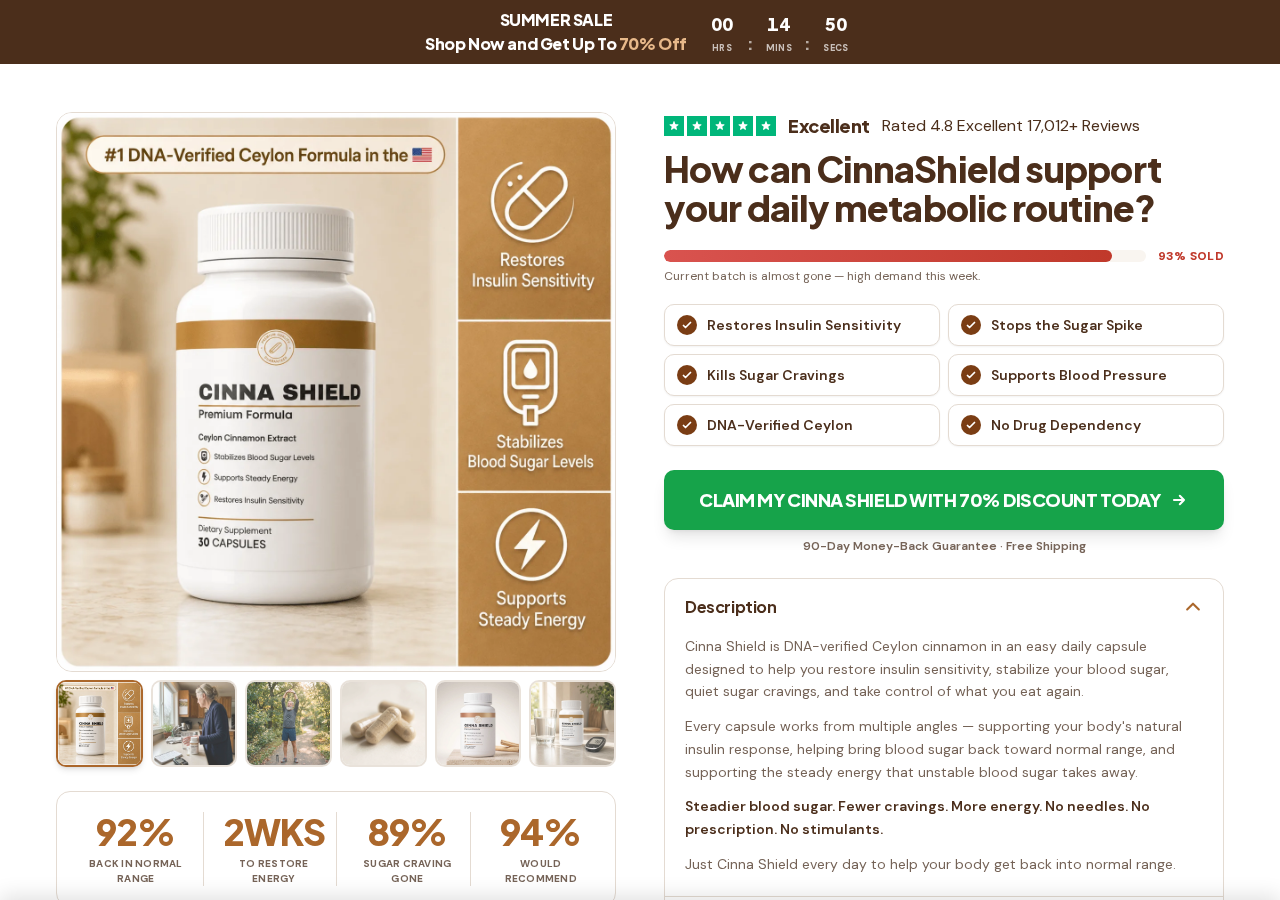
The page does not limit itself to modest wellness language. It describes CinnaShield as restoring insulin sensitivity and stopping sugar spikes.
It also says the formula kills cravings, supports blood pressure, removes afternoon crashes, and returns readings to a normal range.
Prominent statistics claim 92% of users returned to normal range and 89% lost sugar cravings.
The page does not identify the survey protocol, participant recruitment, baseline readings, laboratory methods, or independent researcher behind those percentages.
A section titled “What to Expect” describes week-by-week changes as though buyers can anticipate a reliable progression.
Week one supposedly brings lower meter readings and lost cravings. Later weeks supposedly flatten meal spikes and reduce waist size.
Such precise timelines can sound clinical without providing the evidence required to evaluate them.
The testimonials follow the same pattern. Customers describe dramatic glucose improvements, physician reactions, sharper focus, and results after other approaches failed.
Names are abbreviated, and the page supplies no independent platform where the reviewers, purchases, or medical results can be verified.
How the CinnaShield Sales Funnel Works
Step 1: A dramatic advertisement creates the health problem
The buyer may first encounter a social video about diabetes, a hidden cinnamon discovery, or a supposed endorsement from television personalities.
Some versions use an invented Shark Tank episode and a honey-recipe story before mentioning any bottle.
That separation matters. The most extreme medical claims can appear in affiliate advertising while the main website uses slightly softer wording.
The emotional advertisement supplies urgency, and the product page closes the sale.
Step 2: The landing page presents a scientific-sounding mechanism
CinnaShield compares insulin with a key and cells with a rusted lock that supposedly stops responding.
The formula is presented as helping that lock open, allowing glucose to enter cells and reducing blood sugar.
This simple analogy makes the product sound like a direct answer to insulin resistance.
Yet an analogy is not clinical proof that one branded capsule produces the advertised outcomes in people with diabetes.
Step 3: Ceylon cinnamon is positioned as uniquely effective
The page contrasts Ceylon cinnamon with cassia cinnamon and claims most competing products use the wrong species or dose.
It advertises a 12:1 extract equal to 7,200 mg of raw bark, delivered with MCT oil for absorption.
The NCCIH explains that studies vary by species, plant part, dose, and formulation, making the evidence difficult to interpret.
Its conclusion is careful: research does not clearly support cinnamon for any health condition.
Step 4: Social proof reduces hesitation
A green rating strip claims 4.8 stars and more than 17,000 reviews.
Further down, another section says the rating is based on 193 reviews. Embedded product data lists only six detailed reviews.
Those three figures do not explain how the totals were calculated or where the larger review population can be inspected.
Photographs and “verified” labels look reassuring, but a label created by the seller is not independent purchase verification.
Step 5: Scarcity and discounts accelerate the decision
The page says the current batch is almost gone and displays a 93% sold bar.
A countdown labeled as a summer sale keeps running, while buttons promise up to 70% off.
These elements can make a buyer focus on losing a discount instead of reviewing ingredients, interactions, and billing terms.
Reloading a page should not create a new medical urgency or replace careful comparison.
Step 6: The checkout favors a large bundle
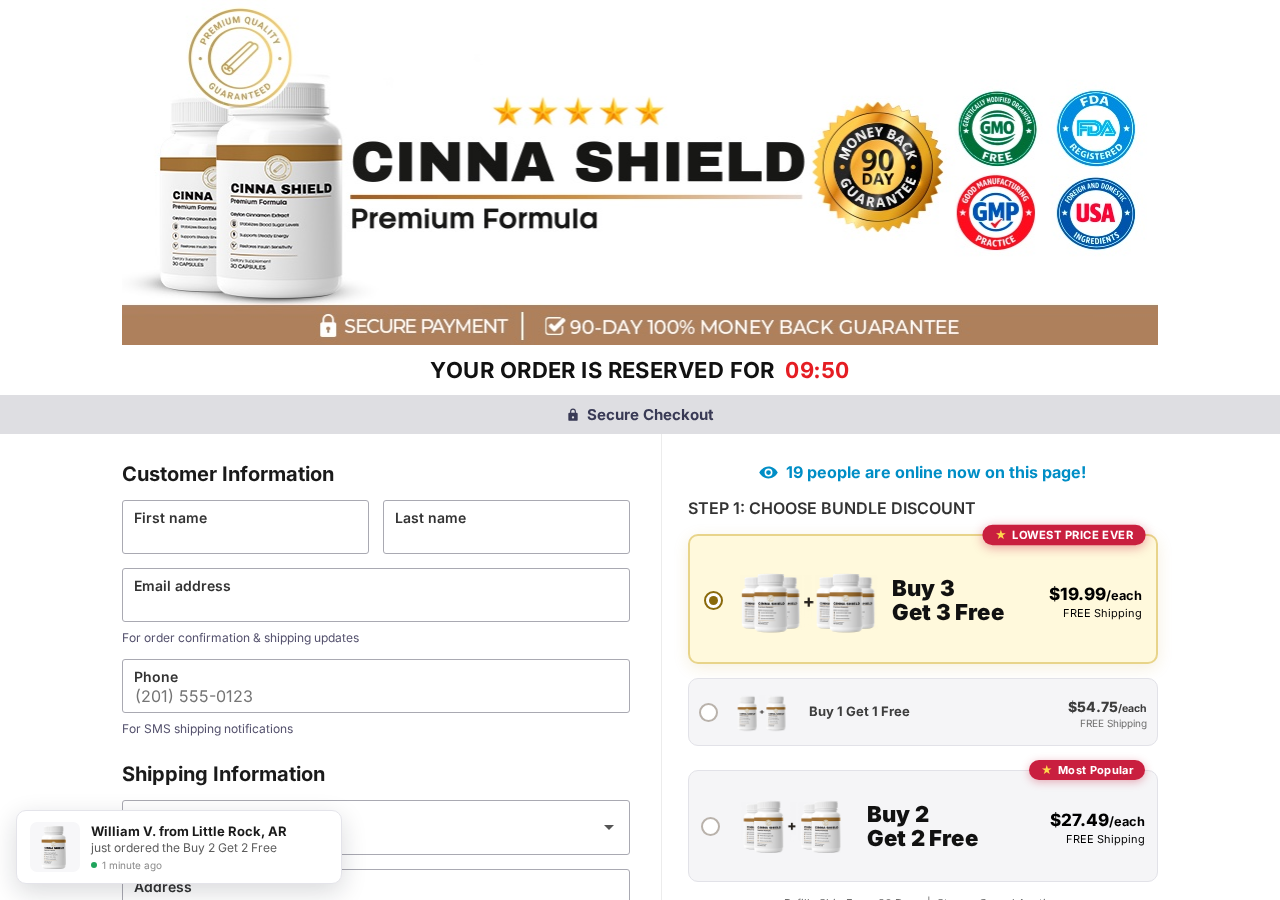
The selected checkout package displayed six bottles through a buy-three-get-three-free offer.
It showed $19.99 for each bottle and a total of $139.93 in the page code.
Two other options represented two and four bottles at higher per-bottle prices.
A timer claimed the order was reserved, while recent-purchase notifications and a live-visitor counter added more pressure.
Step 7: Refill language creates an ongoing commitment
Directly below the bundles, the checkout said refills ship every 30 days and can be stopped or canceled.
The landing-page FAQ separately says subscribing locks in a discount and allows buyers to pause, skip, or cancel through an account.
Consumers should not rely on a general “cancel anytime” phrase. They need the exact recurring amount, shipment quantity, first renewal date, and cancellation route.
Take a screenshot of the final order summary before pressing the payment button.
The Guarantee Changes Between the Advertisement and Legal Policy
The main website repeatedly promotes a 90-day promise.
One section says buyers can send empty bottles back. Another says an email is enough and no return is required.
The checkout banner also displays a 90-day, 100% money-back guarantee.
The linked refund policy tells a different story.
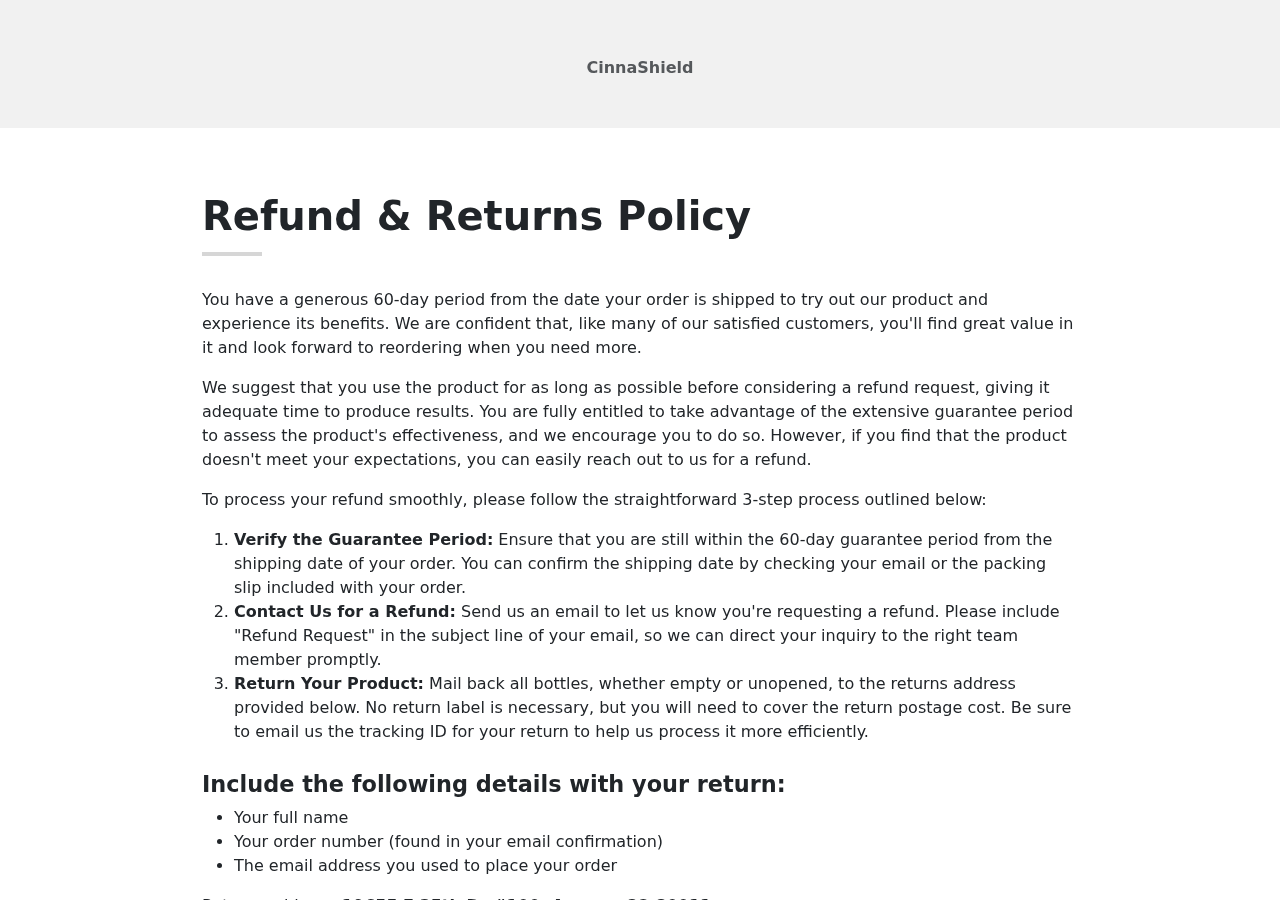
It gives buyers 60 days from the shipping date, not 90 days from delivery or purchase.
It requires all bottles, including empty and unopened bottles, to be returned to an Aurora, Colorado address.
The customer must pay return postage, contact support first, receive confirmation, and email the tracking number.
Those requirements can materially affect whether a refund request qualifies and how much it costs to pursue.
The policy ends with an editing note saying the wording was paraphrased for a refund-and-returns policy.
The landing domain’s separate refund page calls itself a draft and says no deadline should be added until checkout terms are confirmed.
A consumer should not have to reconcile draft policies after a health product is already accepting payments.
What Reliable Evidence Says About Cinnamon and Diabetes
Cinnamon is not imaginary, and researchers have studied possible metabolic effects. That does not make every commercial claim accurate.
The NCCIH diabetes review describes weak evidence of possible benefits and substantial variation among studies.
Researchers used different cinnamon forms, doses, treatment periods, and participant groups.
Those differences prevent confident conclusions about a specific supplement, especially one without published product-specific trials.
The same guidance says people should not take a dietary supplement instead of diabetes medicine.
Herbal products can interact with prescribed treatments, and lowering glucose unexpectedly can be dangerous for some patients.
Cassia cinnamon can contain more coumarin, while Ceylon generally contains less. That distinction does not prove CinnaShield’s advertised percentages.
Nor does “FDA-registered facility” mean the FDA approved the product or verified its claims.
The FDA explains that vitamins, minerals, herbs, and supplements are not approved to treat or prevent disease.
Consumers should ask for a complete Supplement Facts panel, serving size, batch testing, laboratory name, contaminant results, and manufacturer identity.
Without those documents, phrases like DNA-verified, independently tested, and premium quality remain seller claims.
The Website Looks Established, but the Domains Are New
The marketing site uses cinnashiield.com, a spelling containing two consecutive “i” characters.
Public domain records show it was registered on September 3, 2026.
The payment route moves shoppers to cinnashield.com, registered on August 28, 2026.
Two similar domains can be legitimate, but they complicate responsibility and make spelling errors difficult for customers to detect.
The short domain history sits awkwardly beside claims of 17,012 reviews, extensive testing, and broad media recognition.
The page displays “As Seen On” logos from major publications, but we found no linked coverage proving those outlets reviewed CinnaShield.
An outlet logo can mean advertising, mention, or nothing verifiable. It should never be treated as an endorsement without the underlying article.
What the CinnaShield Order Can Really Cost
The advertised per-bottle figure is not necessarily the amount charged at checkout.
The reviewed page selected a six-bottle package presented as “buy 3, get 3 free” at $19.99 per bottle.
Its page code showed a $139.93 total, illustrating why shoppers must read the complete order summary before authorizing payment.
Bundle language can make the largest package look like the sensible default, even when a visitor intended to test one bottle.
The order also described refills every 30 days. That turns a single health purchase into a continuing financial decision.
Customers should capture the quantity, total, refill interval, cancellation method, guarantee, and return address before pressing the final button.
Those screenshots matter if the receipt, card charge, or package differs from what appeared during checkout.
Do not assume an unopened parcel can simply be refused. Some merchants require prior authorization or tracking to a specific returns facility.
The Review Numbers Do Not Tell a Consistent Story
CinnaShield’s landing page displayed more than 17,000 reviews, creating the impression of a mature product with a large customer base.
Elsewhere, the same sales material used a much smaller figure. The structured page data exposed only six review entries.
Different counters can appear for legitimate technical reasons, but such a large gap requires a clear explanation.
The page did not provide a transparent review archive where visitors could sort feedback, confirm dates, or examine verified purchases.
Testimonials should also be compared for repeated phrasing, stock imagery, unusually perfect outcomes, and missing details about purchase timing.
Health results described inside a seller-controlled page are advertising claims, even when they are formatted like independent customer experiences.
A high star rating cannot substitute for published clinical evidence about the exact formula, dose, and intended outcome.
When the domain is weeks old, enormous lifetime review totals deserve especially careful scrutiny.
Company, Address, and Fulfillment Checks
No complete legal seller is identified
The checkout calls CinnaShield “the Company” without providing an incorporated entity name, registration number, or named operator.
The terms unexpectedly reference American Health Daily, but they do not define whether that name owns, markets, or processes CinnaShield orders.
If a merchant wants card details, shoppers should know exactly which legal business accepts the transaction.
The address looks like a returns operation
The refund policy lists 19655 E 35th Drive, unit 100, Aurora, Colorado 80011.
That address is presented for returns. It is not identified as a factory, testing laboratory, corporate office, or product developer.
Fulfillment centers routinely serve multiple brands, so a package-handling address does not verify the claims printed on a bottle.
Support is thin for a recurring health purchase
The public contact page directs buyers to support@cinnashield.com.
It does not publish a clearly identified customer-service telephone number, executive contact, or escalation process.
Email-only support can work, but recurring billing and short refund deadlines make response times especially important.
Manufacturing and testing claims need documents
The seller says the capsules are made in the United States in an FDA-registered, GMP-certified facility.
No facility name, certificate number, batch certificate, or independent laboratory report was visible on the pages we reviewed.
Ask for those records before relying on the claim. A generic quality badge is not a test result.
What to Do if You Have Fallen Victim to This Scam
Save evidence immediately. Capture the landing page, selected bundle, renewal statement, refund promise, confirmation email, and card descriptor before pages change.
Cancel recurring shipments in writing. Email support and state that you revoke authorization for every future refill, not only the next package.
Request a return authorization. Ask which deadline applies, what must be returned, and whether the seller will honor the advertised 90-day promise.
Use tracked shipping. Photograph the bottles, packing slip, sealed parcel, label, and tracking receipt. Keep delivery confirmation.
Contact your card issuer. Dispute unauthorized renewals or materially misleading terms. Provide the conflicting guarantees and your cancellation message.
Monitor your health. Stop using the product and contact a clinician if you experience symptoms, unusual glucose readings, or a suspected interaction.
Report the promotion. Submit deceptive advertising to the FTC and unproven disease claims or adverse events to the FDA.
Watch the account for several months. Recurring descriptors can change, so review every statement after cancellation.
Check unexpected browser activity. Run Malwarebytes if anything downloaded, and use AdGuard to reduce exposure to malicious advertising and tracking.
Is Your Device Infected? Run a Free Malware Scan
Slow performance, constant pop-ups, or strange behavior? These are classic signs of a malware infection. The fastest way to find out is to scan your device with Malwarebytes Anti-Malware Free — one of the most trusted malware removal tools available.
The free version detects and removes the most common threats, including:
Adware — the cause of those annoying pop-ups
Browser hijackers — unwanted redirects and changed homepages
Trojans and spyware — hidden programs stealing your data
Potentially unwanted programs (PUPs) — software you never asked for
👉 Select your device below — Windows, Mac, or Android — then follow the simple steps to download Malwarebytes, scan your system, and remove any threats it finds. The whole process takes about 5 minutes.
Malwarebytes for WindowsMalwarebytes for MacMalwarebytes for Android
Run a Malware Scan with Malwarebytes for Windows
Malwarebytes is one of the most popular and trusted anti-malware tools for Windows — and it’s completely free for removing infections. It catches threats that many antivirus programs miss, including adware, browser hijackers, and trojans. Follow the steps below to scan and clean your PC in just a few minutes.
Download Malwarebytes
Click the button below to download the latest version of Malwarebytes for Windows from the official source. The free version is all you need — it will scan your computer and remove adware, browser hijackers, and other malicious software at no cost.
(The link opens in a new page where your download will start)
Install Malwarebytes
When the download finishes, open your Downloads folder and double-click the MBSetup file. If Windows shows a User Account Control pop-up, click “Yes” to allow the installation.
Follow the On-Screen Prompts to Install Malwarebytes
The setup wizard will walk you through a few quick screens:
Choose where you’re installing the program — “Personal Computer” or “Work Computer” — then click Next.
Malwarebytes will now install on your device. This usually takes under a minute.
When installation is complete, the “Welcome to Malwarebytes” screen will open automatically.
On the final screen, click Open Malwarebytes to launch the program.
Enable “Scan for Rootkits”
Before scanning, turn on rootkit detection so Malwarebytes can find even the most hidden threats. Click the Settings gear icon on the left side of the screen.
In the settings menu, find “Scan for rootkits” and click the toggle so it turns blue.
Done? Click “Dashboard” in the left pane to return to the main screen.
Start the Scan
Click the blue Scan button. Malwarebytes will automatically update its virus database and start checking your computer for malware.
Wait for the Scan to Finish
The scan checks your entire system for browser hijackers and other malicious programs, so it can take several minutes. Feel free to do something else — just check back occasionally to see the progress.
Quarantine the Detected Threats
When the scan is done, you’ll see a list of everything Malwarebytes found — malware, adware, and potentially unwanted programs. Click the “Quarantine” button to remove all of them at once.
Malwarebytes will now remove the malicious files and registry entries and move them safely into quarantine.
Restart Your Computer
Some threats can only be fully removed after a reboot. If Malwarebytes asks you to restart, click Yes. Once you’re logged back in, your PC is clean and you can continue with the next steps in this guide.
When the scan finishes, click Quarantine to remove everything Malwarebytes found. That’s it — your Windows PC is now clean of trojans, adware, and other malware, and should be back to running smoothly.
If your current antivirus allowed this malicious program on your computer, you may want to consider purchasing Malwarebytes Premium to protect against these types of threats in the future. If you are still having problems with your computer after completing these instructions, then please follow one of the steps:
Malwarebytes for Mac is a free on-demand scanner that removes the malware other security software tends to miss — adware, browser hijackers, and unwanted programs included. Cleaning an infected Mac with Malwarebytes has always been completely free, and it’s our go-to recommendation. Follow the steps below to scan and clean your Mac in just a few minutes.
Download Malwarebytes for Mac
Click the button below to download the latest version of Malwarebytes for Mac.
When the download finishes, open your Downloads folder and double-click the setup file to begin the installation.
Follow the On-Screen Prompts to Install Malwarebytes
The Malwarebytes for Mac Installer will guide you through a few quick screens. Click “Continue” and keep following the prompts until the installation completes.
When the installation is complete, Malwarebytes opens to the Welcome to Malwarebytes screen. Click “Get started“.
Select “Personal Computer” or “Work Computer”
Malwarebytes will ask what type of computer you’re installing it on. Click either Personal Computer or Work Computer, whichever applies.
Start the Scan
Click the “Scan” button. Malwarebytes will automatically update its detection database and begin checking your Mac for malware.
Wait for the Scan to Finish
Malwarebytes will scan your Mac for adware, browser hijackers, and other malicious programs. This can take a few minutes, so feel free to do something else — just check back occasionally to see the progress.
Quarantine the Detected Threats
When the scan is done, you’ll see a list of everything Malwarebytes found. Click the “Quarantine” button to remove all the threats at once.
Restart Your Mac
Malwarebytes will now remove all the malicious files it found. Some threats can only be fully removed after a reboot — if Malwarebytes asks you to restart, allow it. Once you’re logged back in, your Mac is clean.
Once the scan is done, remove every threat it detected. Your Mac is now free of adware, rogue browser extensions, and other potentially harmful software.
If your current antivirus allowed a malicious program on your computer, you might want to consider purchasing the full-featured version of Malwarebytes Anti-Malware to protect against these types of threats in the future. If you are still experiencing problems while trying to remove a malicious program from your computer, please ask for help in our Mac Malware Removal Help & Support forum.
Run a Malware Scan with Malwarebytes for Android
Malwarebytes for Android automatically detects and removes dangerous threats like malware and ransomware so you don’t have to worry about your most-used device being compromised. Aggressive detection of adware and potentially unwanted programs keeps your Android phone or tablet running smooth.
Download Malwarebytes for Android.
You can download Malwarebytes for Android by clicking the link below.
In the Google Play Store, tap “Install” to install Malwarebytes for Android on your device.
When the installation process has finished, tap “Open” to begin using Malwarebytes for Android. You can also open Malwarebytes by tapping on its icon in your phone menu or home screen.
Follow the on-screen prompts to complete the setup process
When Malwarebytes will open, you will see the Malwarebytes Setup Wizard which will guide you through a series of permissions and other setup options. This is the first of two screens that explain the difference between the Premium and Free versions. Swipe this screen to continue. Tap on “Got it” to proceed to the next step. Malwarebytes for Android will now ask for a set of permissions that are required to scan your device and protect it from malware. Tap on “Give permission” to continue. Tap on “Allow” to permit Malwarebytes to access the files on your phone.
Update database and run a scan with Malwarebytes for Android
You will now be prompted to update the Malwarebytes database and run a full system scan.
Click on “Update database” to update the Malwarebytes for Android definitions to the latest version, then click on “Run full scan” to perform a system scan.
Wait for the Malwarebytes scan to complete.
Malwarebytes will now start scanning your phone for adware and other malicious apps. This process can take a few minutes, so we suggest you do something else and periodically check on the status of the scan to see when it is finished.
Click on “Remove Selected”.
When the scan has been completed, you will be presented with a screen showing the malware infections that Malwarebytes for Android has detected. To remove the malicious apps that Malwarebytes has found, tap on the “Remove Selected” button.
Restart your phone.
Malwarebytes for Android will now remove all the malicious apps that it has found. To complete the malware removal process, Malwarebytes may ask you to restart your device.
After the scan, tap Remove Selected to delete all detected threats. Your Android phone is now clean — no more malicious apps, adware, or browser redirects.
If your current antivirus allowed a malicious app on your phone, you may want to consider purchasing the full-featured version of Malwarebytes to protect against these types of threats in the future. If you are still having problems with your phone after completing these instructions, then please follow one of the steps:
Restore your phone to factory settings by going to Settings > General management > Reset > Factory data reset.
Now that your device is clean, keep it that way. Most infections start with a malicious ad or a fake download button — so blocking them at the source is your best defense.
We recommend AdGuard, which blocks malicious ads, phishing pages, and dangerous redirects before they can reach you.
It is a real online product offer. That does not verify the advertised medical outcomes, testimonials, testing claims, or review totals.
Does CinnaShield cure diabetes?
No reliable evidence reviewed supports treating CinnaShield as a cure. Dietary supplements should not replace prescribed diabetes care.
Is Ceylon cinnamon proven to restore insulin sensitivity?
Research on cinnamon remains inconsistent. Evidence does not establish that this branded capsule delivers the website’s promised timelines or percentages.
Does CinnaShield include automatic refills?
The reviewed checkout stated that refills ship every 30 days. Confirm the renewal price and cancellation in writing before ordering.
Is the guarantee 60 days or 90 days?
The sales pages advertise 90 days, while the linked refund policy specifies 60 days from shipping and requires bottle returns.
Who operates CinnaShield?
The reviewed pages did not clearly identify a complete legal entity. The terms also contained an unexplained American Health Daily reference.
The Bottom Line
CinnaShield uses a polished website to turn uncertain cinnamon research into confident promises about glucose, cravings, insulin response, and medication dependence.
The new domains, recurring-refill language, contradictory guarantees, incomplete company identity, and template errors make the offer difficult to trust.
Do not replace medical care with this capsule. If you still consider ordering, obtain written billing, testing, cancellation, and refund details first.
10 Rules to Avoid Online Scams
Here are 10 practical safety rules to help you avoid malware, online shopping scams, crypto scams, and other online fraud. Each tip includes a quick “if you already got hit” action.
Stop and verify before you click, log in, download, or pay.
Most scams win by creating urgency. Verify using a trusted method: type the website address yourself, use the official app, or call a known number (not the one in the message).
If you already clicked: close the page, do not enter passwords, and run a malware scan.
Keep your operating system, browser, and apps updated.
Updates patch security holes used by malware and malicious ads. Turn on automatic updates where possible.
If you saw a scary “update now” pop-up: close it and update only through your device settings or the official app store.
Use layered protection: antivirus plus an ad blocker.
Antivirus helps block malware. An ad blocker reduces scam redirects, phishing pages, and malvertising.
If your browser is acting weird: remove unknown extensions, reset the browser, then run a full scan.
Install apps, software, and extensions only from official sources.
Avoid cracked software, “keygens,” and random downloads. During installs, choose Custom/Advanced and decline bundled offers you do not recognize.
If you already installed something suspicious: uninstall it, restart, and scan again.
Treat links and attachments as untrusted by default.
Phishing often impersonates delivery services, banks, and popular brands. If it is unexpected, do not open attachments or log in through the message.
If you entered credentials: change the password immediately and enable 2FA.
Shop safely: research the store, then pay with protection.
Be cautious with brand-new stores, “closing sale” stories, and prices that make no sense. Prefer credit cards or PayPal for dispute options. Avoid wire transfers, gift cards, and crypto payments.
If you already paid: contact your card issuer or PayPal quickly to dispute the transaction.
Crypto rule: never pay a “fee” to withdraw or recover money.
Common patterns include fake profits, then “tax,” “gas,” or “verification” fees. Another is a “recovery agent” who demands upfront crypto.
If you already sent crypto: stop paying, save evidence (wallet addresses, TXIDs, chats), and report the scam to the platform used.
Secure your accounts with unique passwords and 2FA (start with email).
Use a password manager and unique passwords for every account. Enable 2FA using an authenticator app when possible.
If you suspect an account takeover: change passwords, sign out of all devices, and review recent logins and recovery settings.
Back up important files and keep one backup offline.
Backups protect you from ransomware and device failure. Keep at least one backup on an external drive that is not always connected.
If you suspect infection: do not connect backup drives until the system is clean.
If you think you are a victim: stop losses, document evidence, and escalate fast.
Move quickly. Speed matters for disputes, account recovery, and limiting damage.
Stop payments and contact: do not send more money or respond to the scammer.
Call your bank or card issuer: block transactions, replace the card if needed, and start a dispute or chargeback.
Secure your email first: change the email password, enable 2FA, and remove unfamiliar recovery options.
Secure other accounts: change passwords, enable 2FA, and log out of all sessions.
Scan your device: remove suspicious apps or extensions, then run a full malware scan.
Save evidence: screenshots, emails, order pages, tracking pages, wallet addresses, TXIDs, and chat logs.
Report it: to the payment provider, marketplace, social platform, exchange, or wallet service involved.
These rules are intentionally simple. Most online losses happen when decisions are rushed. Slow down, verify independently, and use payment methods and account controls that give you recourse.
Hello! I'm Lapain Epuran, your go-to source for detailed and honest product reviews. From tech gadgets to miracle cures, I provide insights to help you make informed choices. Join me as we discover what's truly worth your time and money.