

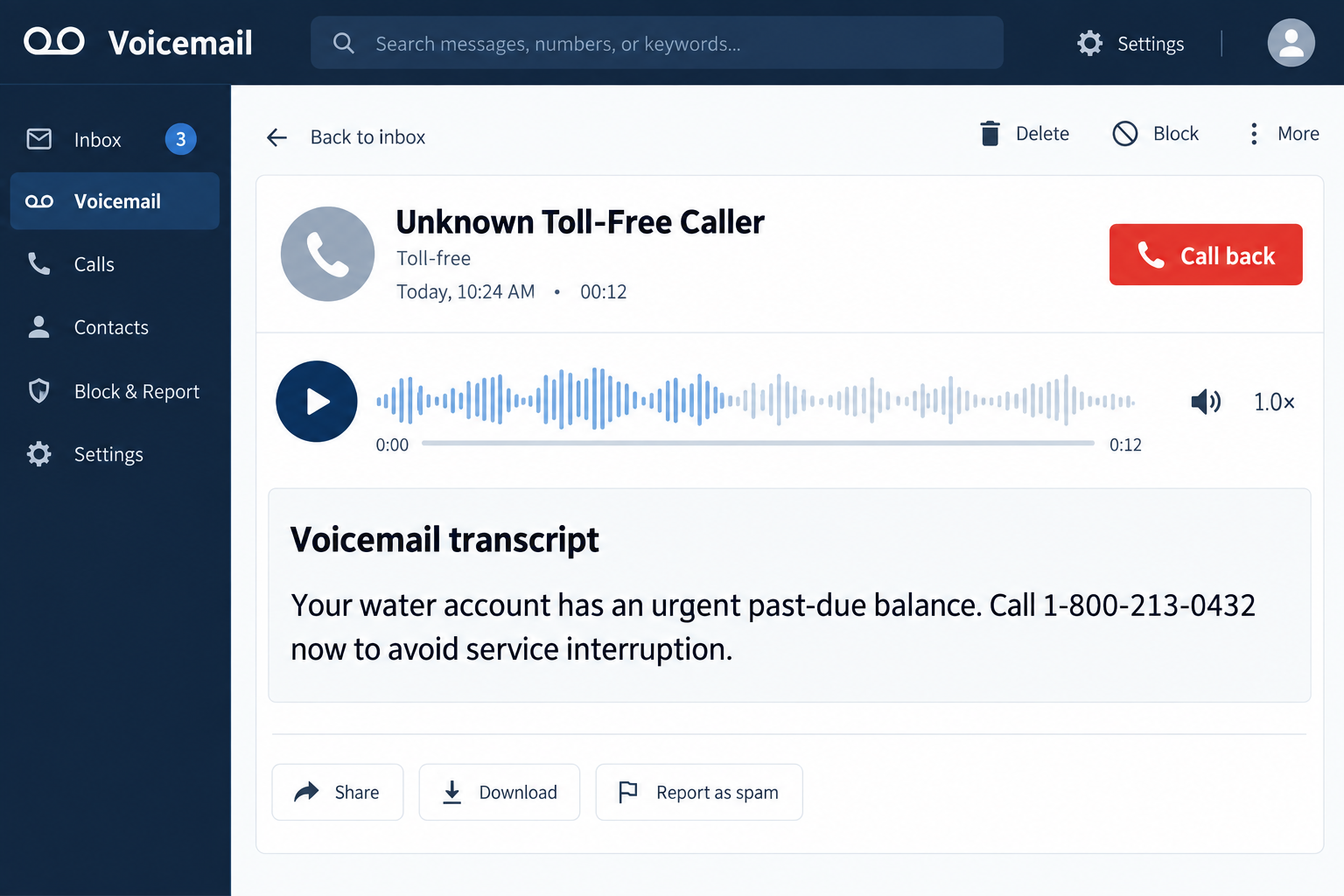
An automated call tells Newtown-area customers that their water account needs immediate attention and provides a toll-free number for payment.
The message sounds routine enough to follow. The real utility has now issued a direct warning that changes how recipients should respond.
Overview
The call is not an authorized Newtown water notice
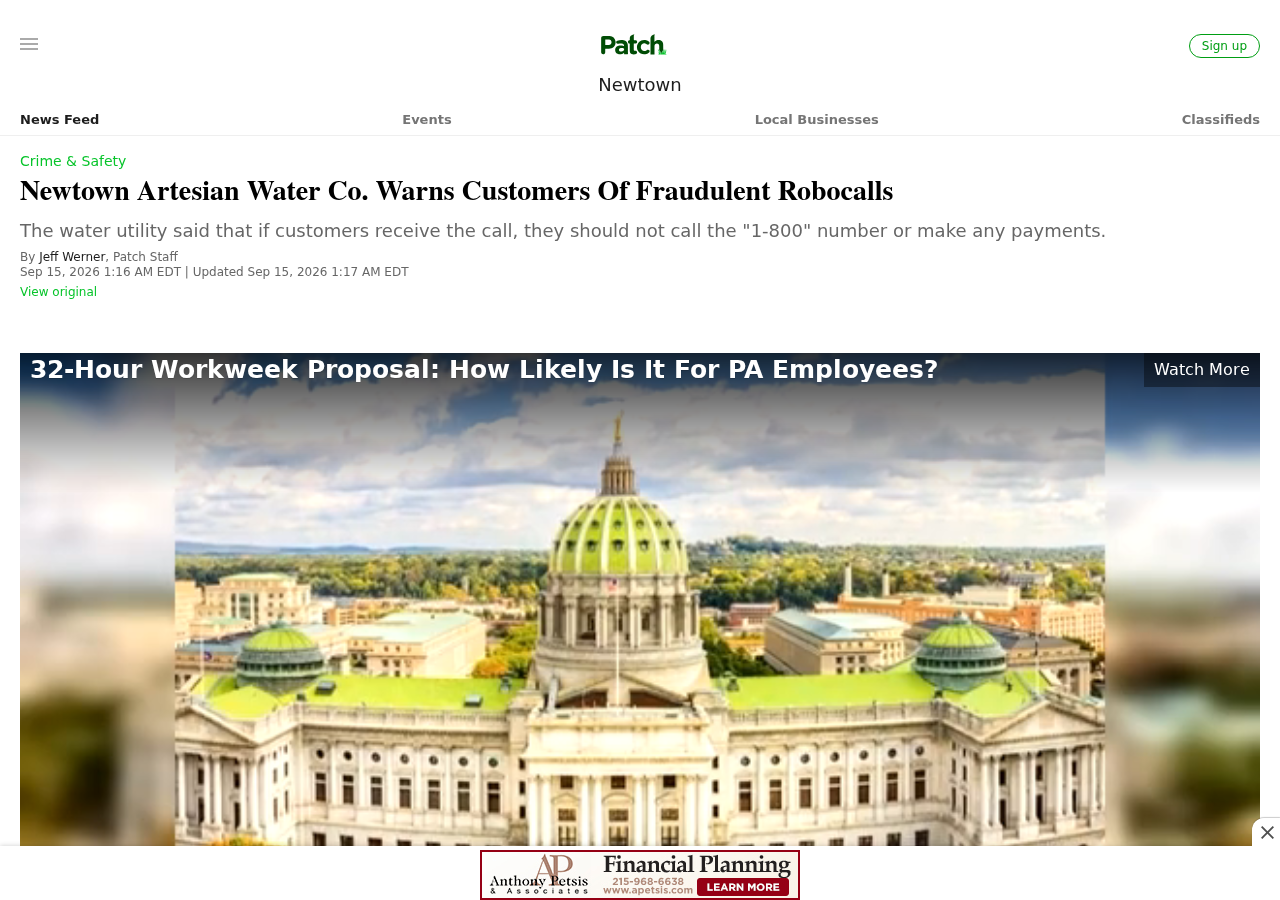
Newtown Artesian Water Company says the robocalls directing customers to 1-800-213-0432 are fraudulent.
The company instructed customers not to call that number and not to make payments in response.
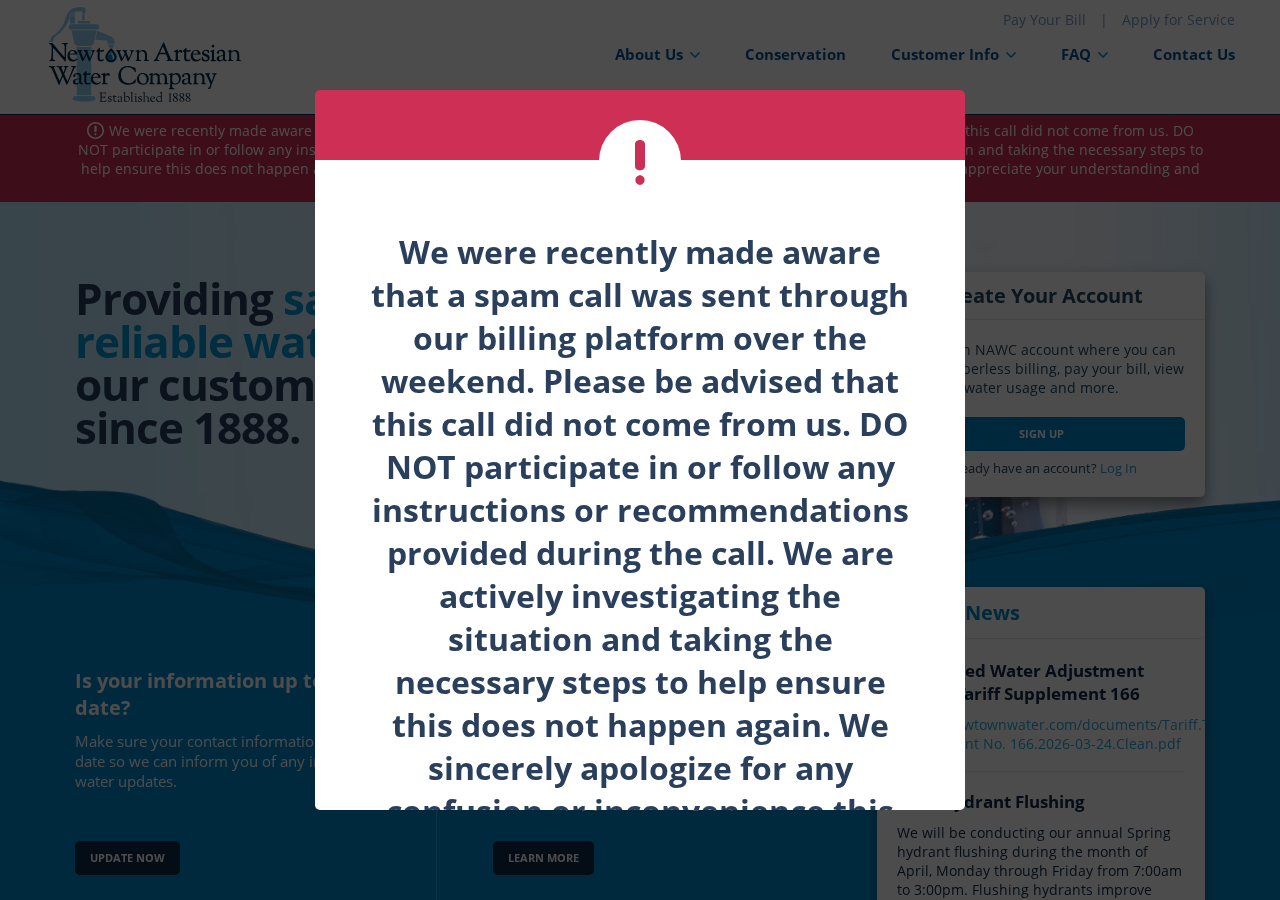
Its website also says a spam call was sent through the billing platform and did not come from the utility.
Why this incident is unusually convincing
A generic utility scam often guesses the victim’s provider. This campaign appears connected closely enough to a billing channel to sound more credible.
Recipients may recognize the company name, receive the message near a normal billing date, or hear language resembling routine customer notices.
Those details still do not make the callback number safe. The utility’s own warning is the controlling evidence.
What customers should do now
Do not return the call, press buttons, or use payment instructions from the recording.
Check the account through the official customer portal or call 215-968-6781, the number published on Newtown Artesian Water Company’s website.
Remember these essentials:
- 1-800-213-0432 is not the verified Newtown water customer-service number.
- Caller ID can be spoofed or misleading.
- A real account problem should appear in the official portal.
- Never give a caller a one-time code, PIN, or complete card number.
- Do not pay through gift cards, cryptocurrency, wire transfer, or an unfamiliar payment app.
- Save the voicemail and report it to the actual utility.
- Contact your bank quickly if you already paid.
What Newtown Artesian Water Company Actually Said
The company’s homepage displayed a prominent warning after it learned about the call.
It said a spam call had been sent through its billing platform during the weekend.
The notice told customers not to participate in or follow instructions provided during the call.
It also said the company was investigating and taking steps intended to prevent another incident.
A September 15, 2026 local report added the number used in the fraudulent calls: 1-800-213-0432.
The report quoted the company saying it acted to stop the compromise and notified local, state, and federal authorities.
That wording does not tell the public exactly how the billing platform was accessed or which customer records were exposed.
Customers should avoid assuming either that every account was compromised or that no personal information was involved.
The safe response is targeted caution: verify the account independently, preserve the message, and watch for related contact attempts.
How the Newtown Water Robocall Scam Works
Step 1: An automated message borrows the utility’s authority
The recipient hears a recorded voice referring to a water bill, customer account, overdue balance, or possible service interruption.
Automation can make the contact feel official because many genuine utilities use recordings for outages, maintenance, and payment reminders.
A robocall is only a delivery method. It does not authenticate the organization behind the message.
The caller may also display a familiar local number or company name through caller-ID spoofing.
Step 2: Urgency narrows the victim’s attention
The message may imply that payment is late, service is at risk, or immediate action is necessary.
Water is essential, so even careful people may respond before opening their latest bill.
The scam succeeds when fear replaces the ordinary verification process.
A short deadline also prevents the customer from contacting family, reviewing the portal, or searching the callback number.
Step 3: The recording supplies 1-800-213-0432
Instead of directing the customer to the official website, the recording asks the person to call a number controlled by the fraudulent operation.
The phone number is the bridge between a broad robocall campaign and a live social-engineering conversation.
Once recipients call voluntarily, they may trust the person answering because they initiated the conversation.
That psychological detail is useful to scammers. The agent can sound calm while the prerecorded message supplied the fear.
Step 4: A fake representative collects account details
The person answering can request the customer’s name, service address, account number, telephone number, and current balance.
Some of that information may be presented as identity verification, even though the caller initiated the suspicious contact.
The agent may ask for a debit card, bank details, account password, security code, or one-time authentication code.
No legitimate support agent needs a customer’s password or a one-time code to investigate an unexpected call.
Step 5: The scammer creates a payment emergency
The victim may be told that ordinary payment methods are unavailable because the account is already in a collections or disconnection process.
The fraudster can request an immediate card payment, bank transfer, payment-app transfer, gift card, cryptocurrency, or retail barcode.
The FTC explains that real utilities do not demand immediate payment through those difficult-to-reverse methods.
A caller who refuses to let you verify through the official portal has provided the answer: end the call.
Step 6: Stolen details support additional fraud
Even when no payment succeeds, information collected during the conversation can be valuable.
A service address and account number can make later impersonation calls sound more convincing.
Card details can be tested elsewhere, while passwords reused across sites can expose email or financial accounts.
Victims may also receive a second call from someone pretending to be the bank’s fraud department.
That follow-up can ask for the same one-time code needed to approve a transaction or reset an account.
Why the Toll-Free Number Is Not Proof of Legitimacy
Toll-free numbers are available to ordinary businesses, call centers, and fraud operations.
The prefix says nothing about who controls the line, where the operator is located, or whether a utility authorized its use.
A scammer can register a new number quickly, route it through internet calling services, and replace it after reports accumulate.
The number displayed on caller ID may also differ from the callback number spoken in the recording.
Write down both. They serve different functions and can help investigators connect related reports.
Search results also require caution. Scam campaigns publish fake support pages and sponsored advertisements designed to outrank official contact pages.
Use a paper bill, bookmarked customer portal, or address typed directly from the utility’s verified website.
For Newtown Artesian Water Company, the published office number is 215-968-6781.
How to Verify a Water Bill Without Calling the Recording
Begin by closing the voicemail or ending the call. Do not use its callback feature.
Open the utility website through a trusted bookmark or type newtownwater.com carefully into the browser.
Sign into the official portal and compare the balance, due date, recent payments, and contact information.
If anything remains unclear, call the number printed on your existing bill.
Explain that you received the fraudulent robocall and ask whether the company needs the timestamp, displayed caller ID, or recording.
Never read a password or one-time code to an inbound caller, even when the caller knows your name and service address.
If the official account shows no problem, no payment is needed merely because a recording demanded one.
If the account truly has a balance, pay through the normal portal or another method confirmed directly with the utility.
The Incident May Produce More Than One Kind of Scam
A compromised communication channel can create opportunities beyond the first robocall.
Customers may receive texts claiming a payment failed, emails linking to a fake portal, or calls offering a refund for the confusion.
One variation can pretend to help victims remove the charge, then request remote access or banking credentials.
Another can claim the utility needs to verify accounts after a security incident.
Public warnings themselves can be weaponized. A caller may mention the real investigation to sound informed and helpful.
The rule remains the same: end unexpected contact and start a new conversation through a verified channel.
Customers should also be skeptical of messages asking them to confirm personal information “for security.”
A legitimate company can tell you what protective steps are available without requesting passwords, full card numbers, or authentication codes.
What May Happen When Someone Calls 1-800-213-0432
The safest response is not to test the number. Calling confirms that the recipient heard the recording and is willing to engage.
A person answering may already know the customer’s name, area, or utility provider from public records and purchased marketing data.
That information can make the conversation feel official without proving access to a real water account.
The caller may ask for an account number, service address, birth date, or payment card to “locate” the supposed balance.
Another script may demand an immediate processing fee, reconnection payment, or identity-verification charge.
Some operators steer victims toward gift cards, bank transfers, cryptocurrency, or payment applications because recovery is difficult.
Others collect card details and later attempt unrelated transactions, sometimes using small test charges before larger purchases.
If the target hesitates, the caller can threaten shutoff, late fees, collections, or a technician already traveling to the property.
None of those statements should be evaluated inside the pressured call. Hang up and inspect the account independently.
How to Preserve Evidence Without Engaging the Caller
Save the voicemail or robocall recording if your device permits it.
Take screenshots showing the date, time, caller ID, callback number, and any accompanying text message.
Write down the amount demanded, payment method requested, claimed department, agent name, and any reference number.
Do not post an unredacted utility bill online. Account numbers, barcodes, addresses, and meter details can support further impersonation.
Report the event to Newtown Artesian Water Company through its verified 215-968-6781 line.
Customers can also submit unwanted-call details to the Federal Trade Commission and the Federal Communications Commission.
Evidence helps investigators connect calls using different caller IDs, scripts, and payment destinations to a coordinated campaign.
It also helps the real utility warn customers with exact language rather than a vague notice.
Why Utility Impersonation Works So Well
Water service is essential, and most households cannot comfortably ignore a warning about interruption.
Scammers exploit that concern while targeting times when customer-service offices may be closed or harder to reach.
A local company name further lowers suspicion because the message sounds more specific than a generic national alert.
The defense is a repeatable habit: never continue from the incoming contact, even when the name and caller ID appear correct.
Open the official website yourself, use a saved bill, or visit the established customer portal through a trusted bookmark.
Household members should share the warning so another person does not unknowingly respond to a second attempt.
Company, Address, and Fulfillment Checks
The real utility is easy to identify
Newtown Artesian Water Company has served the Newtown, Pennsylvania area since 1888.
Its website lists 201 North Lincoln Avenue, Newtown, Pennsylvania 18940, and telephone number 215-968-6781.
It is regulated by the Pennsylvania Public Utility Commission, Pennsylvania Department of Environmental Protection, and Environmental Protection Agency.
The fraudulent operator is not the utility
No verified public listing ties 1-800-213-0432 to Newtown Artesian Water Company.
The company’s direct warning says the number should not be called in response to the robocall.
Do not confuse the existence of the real utility with legitimacy of someone impersonating it.
A callback number is not a business address
The fraud operation provides no verified office, legal entity, billing license, or accountable management contact.
An agent may name a department, supervisor, or payment processor, but spoken details are easy to invent.
Only information confirmed through the utility’s established channels should guide payment.
No shipping or fulfillment is involved
This is a payment-impersonation scam, not a product purchase. There is no legitimate package, warehouse, or return process.
If someone promises documents after payment, that promise does not make the transaction safer.
The meaningful checks are the official account balance, verified telephone number, payment recipient, and method requested.
What to Do if You Have Fallen Victim to This Scam
- End every conversation with the fraudulent line. Do not call again, negotiate, or provide additional information to recover the payment.
- Contact the payment provider immediately. Ask the bank, card issuer, transfer service, or payment app to stop or reverse the transaction.
- Call the real water company. Use 215-968-6781 or the number on your bill. Confirm the account and report the robocall details.
- Secure exposed financial accounts. Replace compromised cards, reset banking credentials, enable alerts, and review recent transactions.
- Change reused passwords. Start with email, banking, utility portals, and any account sharing the same password.
- Protect authentication codes. Tell your bank if you disclosed a one-time code, because the scammer may still be attempting access.
- Document the incident. Save the voicemail, caller ID, callback number, payment receipt, account notes, and communications with institutions.
- File reports. Report the fraud at ReportFraud.ftc.gov and IC3.gov, and provide the same evidence to local law enforcement if requested.
- Monitor for follow-up impersonation. Expect callers pretending to be the bank, police, utility, or refund department after the first contact.
- Check devices used with suspicious links. Run Malwarebytes for malware and use AdGuard to block deceptive ads and malicious tracking requests.
Is Your Device Infected? Run a Free Malware Scan
Slow performance, constant pop-ups, or strange behavior? These are classic signs of a malware infection. The fastest way to find out is to scan your device with Malwarebytes Free — one of the most trusted malware removal tools available.
The free version detects and removes the most common threats, including:
- Adware — the cause of those annoying pop-ups
- Browser hijackers — unwanted redirects and changed homepages
- Trojans and spyware — hidden programs stealing your data
- Potentially unwanted programs (PUPs) — software you never asked for
👉 Select your device below — Windows, Mac, or Android — then follow the simple steps to download Malwarebytes, scan your system, and remove any threats it finds. The scan usually takes 5 to 20 minutes.
Run a Malware Scan with Malwarebytes for Windows
Malwarebytes is one of the most popular and trusted anti-malware tools for Windows — and it’s completely free for removing infections. It catches threats that many antivirus programs miss, including adware, browser hijackers, and trojans. Follow the steps below to scan and clean your PC in just a few minutes.
Download Malwarebytes
Click the button below to download the latest version of Malwarebytes for Windows from the official source. The free version is all you need — it will scan your computer and remove adware, browser hijackers, and other malicious software at no cost.
Download MalwarebytesOfficial installer for Windows 11 and 10. Your download starts right away.Want real-time protection? See Malwarebytes Premium Malwarebytes Free for WindowsScans and removes malware at no cost
-
Install Malwarebytes
When the download finishes, open your Downloads folder and double-click the MBSetup file. If Windows shows a User Account Control pop-up, click “Yes” to allow the installation.

Follow the On-Screen Prompts to Install Malwarebytes
The setup wizard will walk you through a few quick screens:
-
Choose where you’re installing the program — “Personal Computer” or “Work Computer” — then click Next.

-
Malwarebytes will now install on your device. This usually takes under a minute.

-
When installation is complete, the “Welcome to Malwarebytes” screen will open automatically.

-
On the final screen, click Open Malwarebytes to launch the program.

-
Enable “Scan for Rootkits”
Before scanning, turn on rootkit detection so Malwarebytes can find even the most hidden threats. Click the Settings gear icon on the left side of the screen.

In the settings menu, find “Scan for rootkits” and click the toggle so it turns blue.

Done? Click “Dashboard” in the left pane to return to the main screen.
Start the Scan
Click the blue Scan button. Malwarebytes will automatically update its virus database and start checking your computer for malware.

-
Wait for the Scan to Finish
The scan checks your entire system for browser hijackers and other malicious programs, so it can take 5 to 20 minutes depending on your computer. Feel free to do something else — just check back occasionally to see the progress.

-
Quarantine the Detected Threats
When the scan is done, you’ll see a list of everything Malwarebytes found — malware, adware, and potentially unwanted programs. Click the “Quarantine” button to remove all of them at once.

Malwarebytes will now remove the malicious files and registry entries and move them safely into quarantine.

-
Restart Your Computer
Some threats can only be fully removed after a reboot. If Malwarebytes asks you to restart, click Yes. Once you’re logged back in, Malwarebytes has finished removing the threats it found.

That’s it — your Windows PC is now clean of trojans, adware, and other malware, and should be back to running smoothly.
If you are still having problems with your computer after completing these instructions, then please follow one of the steps:
- Run a computer scan with ESET Online Scanner
- Ask for help in our Windows Malware Removal Help & Support forum.
Run a Malware Scan with Malwarebytes for Mac
Malwarebytes for Mac is a free on-demand scanner that removes the malware other security software tends to miss — adware, browser hijackers, and unwanted programs included. Cleaning an infected Mac with Malwarebytes has always been completely free, and it’s our go-to recommendation. Follow the steps below to scan and clean your Mac in just a few minutes.
-
Download Malwarebytes for Mac
Click the button below to download the latest version of Malwarebytes for Mac.
Download MalwarebytesOfficial installer for macOS. Your download starts right away.Want real-time protection? See Malwarebytes PremiumMalwarebytes Free for MacScans and removes malware at no cost -
Open the Malwarebytes setup file
When the download finishes, open your Downloads folder and double-click the setup file to begin the installation.

-
Follow the On-Screen Prompts to Install Malwarebytes
The Malwarebytes for Mac Installer will guide you through a few quick screens. Click “Continue” and keep following the prompts until the installation completes.



When the installation is complete, Malwarebytes opens to the Welcome to Malwarebytes screen. Click “Get started“.
-
Select “Personal Computer” or “Work Computer”
Malwarebytes will ask what type of computer you’re installing it on. Click either Personal Computer or Work Computer, whichever applies.

-
Start the Scan
Click the “Scan” button. Malwarebytes will automatically update its detection database and begin checking your Mac for malware.

-
Wait for the Scan to Finish
Malwarebytes will scan your Mac for adware, browser hijackers, and other malicious programs. This can take a few minutes, so feel free to do something else — just check back occasionally to see the progress.

-
Quarantine the Detected Threats
When the scan is done, you’ll see a list of everything Malwarebytes found. Click the “Quarantine” button to remove all the threats at once.

-
Restart Your Mac
Malwarebytes will now remove all the malicious files it found. Some threats can only be fully removed after a reboot — if Malwarebytes asks you to restart, allow it. Once you’re logged back in, your Mac is clean.

That’s it — your Mac is now free of adware, rogue browser extensions, and other potentially harmful software.
If you are still experiencing problems while trying to remove a malicious program from your computer, please ask for help in our Mac Malware Removal Help & Support forum.
Run a Malware Scan with Malwarebytes for Android
Malwarebytes for Android automatically detects and removes dangerous threats like malware and ransomware so you don’t have to worry about your most-used device being compromised. Aggressive detection of adware and potentially unwanted programs keeps your Android phone or tablet running smooth.
-
Download Malwarebytes for Android.
You can download Malwarebytes for Android by clicking the link below.
Get Malwarebytes for AndroidOpens Google Play in a new tab.Want real-time protection? See Malwarebytes Premium for AndroidMalwarebytes for AndroidScans your phone and removes malware at no cost -
Install Malwarebytes for Android on your phone.
In the Google Play Store, tap “Install” to install Malwarebytes for Android on your device.

When the installation process has finished, tap “Open” to begin using Malwarebytes for Android. You can also open Malwarebytes by tapping on its icon in your phone menu or home screen.

-
Follow the on-screen prompts to complete the setup process
When Malwarebytes will open, you will see the Malwarebytes Setup Wizard which will guide you through a series of permissions and other setup options.
This is the first of two screens that explain the difference between the Premium and Free versions. Swipe this screen to continue.
Tap on “Got it” to proceed to the next step.
Malwarebytes for Android will now ask for a set of permissions that are required to scan your device and protect it from malware. Tap on “Give permission” to continue.
Tap on “Allow” to permit Malwarebytes to access the files on your phone.
-
Update database and run a scan with Malwarebytes for Android
You will now be prompted to update the Malwarebytes database and run a full system scan.

Click on “Update database” to update the Malwarebytes for Android definitions to the latest version, then click on “Run full scan” to perform a system scan.

-
Wait for the Malwarebytes scan to complete.
Malwarebytes will now start scanning your phone for adware and other malicious apps. This process can take a few minutes, so we suggest you do something else and periodically check on the status of the scan to see when it is finished.

-
Click on “Remove Selected”.
When the scan has been completed, you will be presented with a screen showing the malware infections that Malwarebytes for Android has detected. To remove the malicious apps that Malwarebytes has found, tap on the “Remove Selected” button.

-
Restart your phone.
Malwarebytes for Android will now remove all the malicious apps that it has found. To complete the malware removal process, Malwarebytes may ask you to restart your device.
That’s it — your Android phone is now clean — no more malicious apps, adware, or browser redirects.
If you are still having problems with your phone after completing these instructions, then please follow one of the steps:
- Restore your phone to factory settings by going to Settings > General management > Reset > Factory data reset.
- Ask for help in our Mobile Malware Removal Help & Support forum.
Stay Protected: Block Ads and Malicious Sites
Now that your device is clean, keep it that way. Most infections start with a malicious ad or a fake download button — so blocking them at the source is your best defense.
We recommend AdGuard, which blocks malicious ads, phishing pages, and dangerous redirects before they can reach you.
👉 Download AdGuard and browse safely
Frequently Asked Questions
Is 1-800-213-0432 a Newtown Artesian Water Company number?
No. The company warned customers not to call that number or make payments in response to the fraudulent robocall.
Was Newtown Artesian Water Company hacked?
The company said a spam call went through its billing platform and that it stopped a compromise. Public details do not establish the full incident scope.
Can caller ID show the real utility’s name?
Yes. Caller ID can be spoofed, so a displayed company name or local number does not authenticate the caller.
What is the real Newtown water telephone number?
The official website lists 215-968-6781. Customers should also compare the number printed on their own bill.
What if my water bill is genuinely overdue?
Review the official portal or call the verified company number. Pay only through a method confirmed through those independent channels.
What if I shared information but did not pay?
Tell the relevant bank or utility, change exposed credentials, watch accounts closely, and expect additional targeted messages.
The Bottom Line
The Newtown water robocall is not a legitimate payment notice. The real company has explicitly rejected the call and the number 1-800-213-0432.
Do not follow the recording’s instructions. Verify every balance through the official portal or the telephone number printed on your existing bill.
If you already paid or disclosed sensitive information, act immediately. Fast contact with the payment provider offers the best chance of limiting damage.

Join the discussion
0 commentsShare your experience or ask a question about this article.
Discussion
Start the conversation
Have a question or something useful to share? Add the first comment.