Force Forever Recall Exposed: Hidden Drugs in Natural Joint Pain Pills
Written by: Lapain Epuran
Published on:
A bottle labeled as a natural joint remedy can appear far less intimidating than a prescription medicine, especially when pain has made ordinary movement difficult.
Force Forever reached buyers through that familiar promise, but federal laboratory testing turned this particular product into a serious public-health concern.
Overview
This is a confirmed FDA warning, not an ordinary negative review
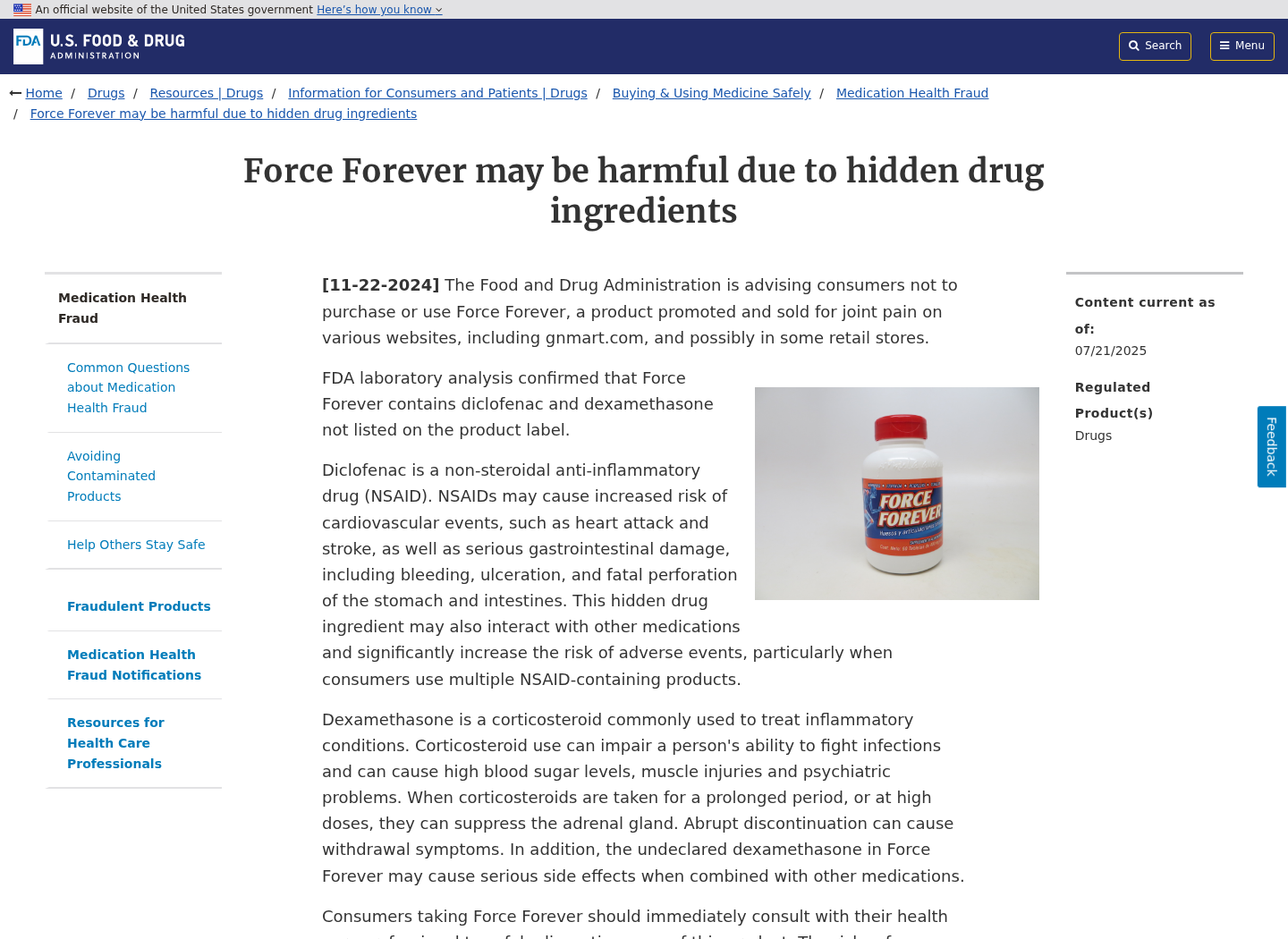
The Food and Drug Administration tested Force Forever and found two undeclared prescription drug ingredients, diclofenac and dexamethasone.
Neither drug appeared on the product label. Buyers therefore could not evaluate interactions, contraindications, dosing concerns, or withdrawal risks before taking the tablets.
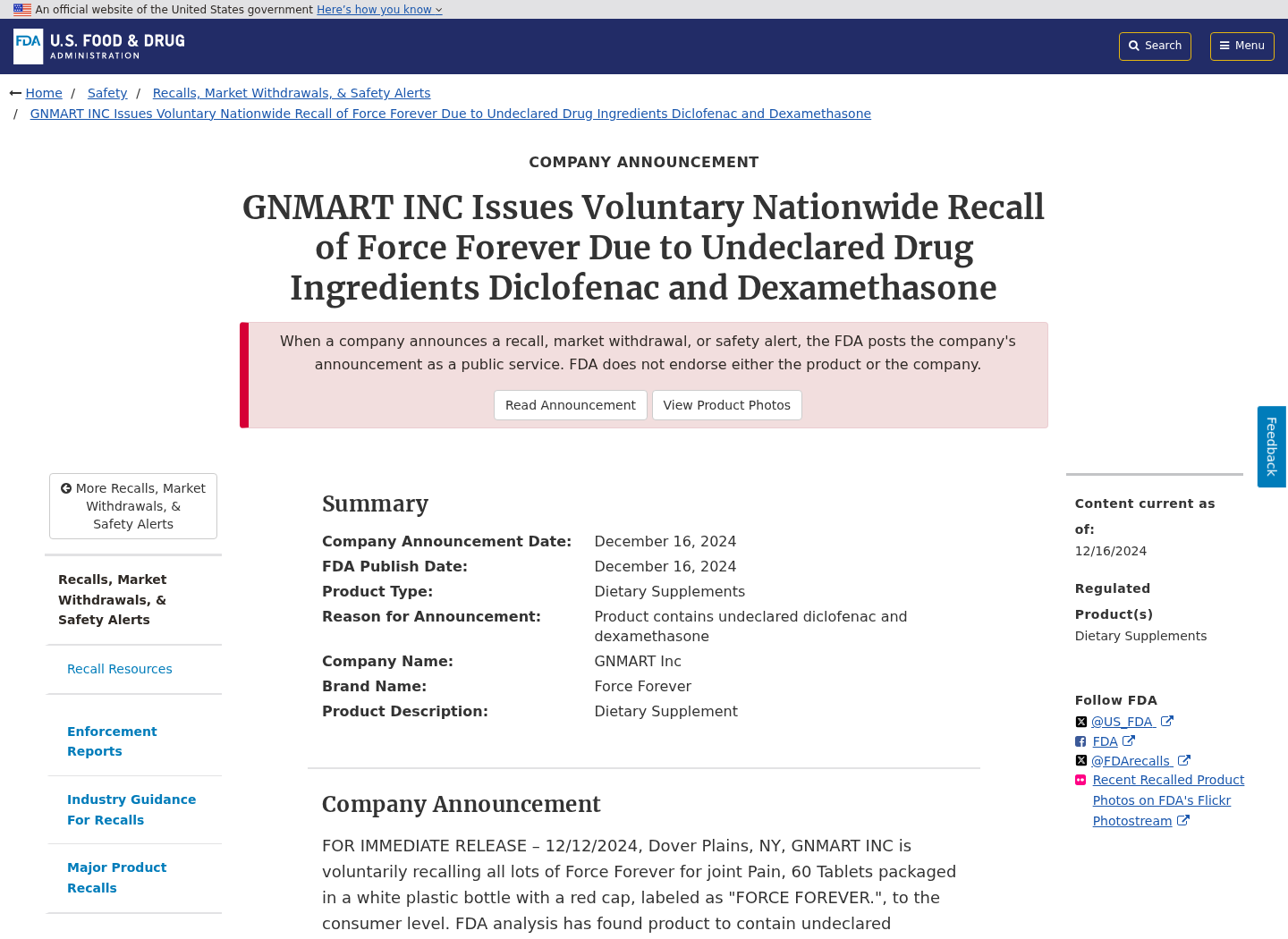
GNMART Inc. subsequently recalled every lot of Force Forever tablets with an expiration date of March 27, 2030.
The affected product was packaged in a white 60-tablet bottle with a red cap and distributed nationwide through the internet.
The word natural does not make an unlisted drug safe
Diclofenac is a nonsteroidal anti-inflammatory drug, commonly called an NSAID, used to reduce pain and inflammation under appropriate medical supervision.
Dexamethasone is a corticosteroid with powerful effects on inflammation, immunity, blood sugar, mood, muscles, and the body’s hormone regulation.
Both medicines can be useful in legitimate care. Hiding them inside a supplement changes the situation completely because neither the patient nor clinician knows the exposure.
What buyers need to know immediately
The recall covers all lots bearing the stated expiration date.
The FDA warning concerns undeclared diclofenac and dexamethasone.
People using the product should contact a healthcare professional promptly.
Stopping corticosteroid exposure abruptly can itself create medical problems.
Adverse reactions should be reported through the FDA MedWatch program.
Unused tablets should not be shared, resold, or given to another person.
This article explains what the FDA found, why the ingredients matter, and how buyers can respond without making an unsafe decision in panic.
How the Force Forever Safety Failure Unfolded
Step 1: The product was presented as a natural answer to joint pain
Force Forever was marketed for joint pain and arthritis, problems that often affect people who already take several prescription and over-the-counter medicines.
A supplement label can lower a buyer’s guard. It suggests herbs, vitamins, or familiar nutrients rather than potent pharmaceuticals requiring careful screening.
That distinction mattered here. The bottle did not tell customers they were consuming an NSAID and a corticosteroid alongside the advertised supplement ingredients.
Someone avoiding NSAIDs because of an ulcer, kidney problem, blood thinner, or heart condition could unknowingly receive diclofenac anyway.
Step 2: Undeclared medicines could make the tablets seem unusually effective
Both hidden drugs can reduce pain or inflammation. A customer might therefore believe the supplement’s natural formula was producing a fast, impressive result.
That apparent success can encourage continued use, repeat purchases, stronger testimonials, and recommendations to friends who have similar symptoms.
The relief would not prove that the labeled supplement blend worked. It could reflect pharmacological effects from medicines the customer never agreed to take.
This is why hidden-drug products are especially deceptive. The immediate experience can reinforce the very claim that conceals the true source of the effect.
Step 3: Existing medicines and health conditions created invisible conflicts
Medication safety depends on knowing what a person takes. Doctors and pharmacists cannot screen for an ingredient that is missing from the label.
Diclofenac may interact with anticoagulants, other NSAIDs, certain blood-pressure medicines, diuretics, lithium, methotrexate, and additional drugs.
It can raise the risk of heart attack, stroke, stomach bleeding, ulceration, and intestinal perforation, sometimes without an obvious early warning.
Dexamethasone can increase blood sugar, suppress immune responses, affect mood, weaken muscles, and alter the body’s production of natural corticosteroid hormones.
A customer with diabetes, infection, gastrointestinal disease, cardiovascular risk, or multiple prescriptions may face concerns that advertising never disclosed.
Step 4: Repeated use added a withdrawal problem
Corticosteroid exposure can suppress the adrenal glands, particularly after ongoing use. The body may reduce its own production of essential steroid hormones.
Suddenly removing that exposure may cause fatigue, weakness, nausea, low blood pressure, body aches, or a return of inflammation.
That is why the FDA advised people taking Force Forever to consult a healthcare professional about safely discontinuing it.
It would be irresponsible to tell every reader simply to stop immediately. The safer next step depends on duration, frequency, symptoms, and individual health history.
Step 5: FDA testing exposed what the label omitted
The FDA’s laboratory analysis detected diclofenac and dexamethasone in Force Forever, moving the concern beyond rumor, customer suspicion, or advertising criticism.
The agency warned consumers not to purchase or use the product and explained the medical hazards associated with both undeclared ingredients.
The official notice also placed Force Forever within the FDA’s health-fraud framework for products contaminated with hidden drug ingredients.
Laboratory confirmation is important. Many online supplement disputes involve uncertain claims, but this case includes a direct federal finding and formal recall.
Step 6: The distributor recalled every affected lot
GNMART Inc. announced a nationwide voluntary recall of Force Forever after the FDA analysis identified the undeclared pharmaceutical ingredients.
The recall covered all lots of the 60-tablet product with the March 27, 2030 expiration date, rather than one isolated production code.
According to the recall notice, the product was distributed through the internet, making it harder to identify every buyer through a traditional retail chain.
Online distribution can scatter purchases across marketplaces, advertisements, saved links, and resellers. Customers may not remember which storefront handled the transaction.
Step 7: Buyers were left to connect a medical warning with an online order
A recall only protects people who learn about it. Some customers may still have a bottle stored at home or continue using tablets without seeing the announcement.
Others may recognize the bottle but lack an order email, receipt, lot number, or responsive seller to guide the return process.
The safest response begins with preserving the container and purchase records, then speaking with a qualified healthcare professional before changing ongoing use.
This is not a situation for home detoxes, replacement supplements, or advice from anonymous comments. Hidden drug exposure requires individualized medical judgment.
Why the Hidden Ingredients Are Dangerous
Diclofenac can cause serious cardiovascular and digestive harm
Diclofenac belongs to the NSAID family. These medicines can relieve pain, but they carry warnings that depend on dose, duration, health history, and other medications.
The risk is not limited to mild stomach irritation. NSAIDs can contribute to ulcers, bleeding, or perforation in the stomach and intestines.
They can also increase cardiovascular risk. A person cannot make an informed decision when the ingredient and dose are absent from the packaging.
Combining an unknown diclofenac exposure with ibuprofen, naproxen, aspirin, or an anticoagulant may further complicate the risk.
Dexamethasone affects far more than pain
Dexamethasone is not a simple pain reliever. It influences immune activity, glucose regulation, mood, muscle strength, inflammation, and hormonal balance.
Someone living with diabetes may see blood sugar rise. Someone fighting an infection may experience altered immune defenses or muted warning symptoms.
Longer exposure may create adrenal suppression. That possibility makes medical guidance important even when the customer currently feels well.
The absence of a disclosed dose adds uncertainty. Neither the buyer nor clinician can infer the exposure accurately from the supplement label.
Feeling better does not mean the product was safe
Rapid relief can be persuasive, particularly for chronic joint pain that has resisted creams, exercises, or ordinary supplements.
Yet an undisclosed prescription drug can create benefits and harms simultaneously. Symptom improvement cannot substitute for transparent ingredients and supervised treatment.
A positive testimonial also cannot reveal blood pressure changes, gastrointestinal injury, altered glucose, or a developing medication interaction.
The hidden ingredients explain why this recall deserves attention even from customers who experienced no obvious side effects.
Company, Address, and Fulfillment Checks
The recall identifies GNMART Inc. as the distributor
The FDA recall names GNMART Inc. of Dover Plains, New York, as the company recalling Force Forever nationwide.
That identification gives buyers a concrete company name to compare with their receipt, payment statement, shipping label, marketplace order, and seller correspondence.
If another business processed the payment, document that name too. Online supplement sales can involve separate advertisers, processors, storefronts, distributors, and fulfillment operations.
An internet seller is not necessarily the manufacturer
A marketplace listing or promotional page may disappear while the physical bottle remains in circulation through resellers or stored inventory.
Do not assume the website that accepted an order manufactured, tested, or even directly shipped the tablets.
Save the complete URL, seller profile, order number, return address, tracking history, and packaging before any page or account changes.
Support information must be verified against the recall notice
Scammers sometimes exploit real recalls by creating fake refund numbers, paid recovery services, or messages requesting card details.
Use the contact information in the official FDA recall notice, not a phone number copied from an advertisement, comment, or unsolicited email.
A legitimate recall representative should not need remote access to your computer, a gift card payment, cryptocurrency, or online banking credentials.
Traceability matters more than polished branding
A trustworthy supplement supply chain should support batch identification, accurate labeling, adverse-event reporting, responsive support, and clear responsibility for manufacturing and distribution.
Force Forever failed at the most basic level because two medically significant ingredients were not disclosed to customers.
No attractive bottle, natural claim, customer story, or refund promise can compensate for a label that conceals active pharmaceuticals.
What to Do if You Have Taken Force Forever
Do not make a sudden medication decision alone. Contact a doctor, pharmacist, poison center, or urgent-care service and explain that the product contained undeclared dexamethasone and diclofenac.
Describe exactly how you used it. Share the number of tablets, frequency, start date, last dose, symptoms, medical conditions, and every prescription or supplement you take.
Preserve the bottle and packaging. Photograph the front, back, lot markings, expiration date, seal, tablets, shipping label, and any insert before arranging a return.
Watch for urgent warning signs. Seek immediate help for chest pain, breathing difficulty, fainting, black stools, vomiting blood, severe weakness, confusion, or an allergic reaction.
Save the transaction trail. Keep receipts, order confirmations, card statements, advertisements, seller messages, tracking details, and marketplace listings in one folder.
Contact the seller through verified channels. Use details from the official recall or marketplace order, and request written return and refund instructions.
Dispute unresolved charges appropriately. If the seller refuses a valid refund, ask your card issuer about its recall, misrepresentation, or defective-product dispute process.
Report the event. Submit side effects or product problems to FDA MedWatch and notify the marketplace or advertising platform where you found the offer.
Secure the device used for the purchase. If the checkout behaved suspiciously, scan with Malwarebytes and use AdGuard to reduce malicious ads and deceptive redirects.
Is Your Device Infected? Run a Free Malware Scan
Slow performance, constant pop-ups, or strange behavior? These are classic signs of a malware infection. The fastest way to find out is to scan your device with Malwarebytes Anti-Malware Free — one of the most trusted malware removal tools available.
The free version detects and removes the most common threats, including:
Adware — the cause of those annoying pop-ups
Browser hijackers — unwanted redirects and changed homepages
Trojans and spyware — hidden programs stealing your data
Potentially unwanted programs (PUPs) — software you never asked for
👉 Select your device below — Windows, Mac, or Android — then follow the simple steps to download Malwarebytes, scan your system, and remove any threats it finds. The whole process takes about 5 minutes.
Malwarebytes for WindowsMalwarebytes for MacMalwarebytes for Android
Run a Malware Scan with Malwarebytes for Windows
Malwarebytes is one of the most popular and trusted anti-malware tools for Windows — and it’s completely free for removing infections. It catches threats that many antivirus programs miss, including adware, browser hijackers, and trojans. Follow the steps below to scan and clean your PC in just a few minutes.
Download Malwarebytes
Click the button below to download the latest version of Malwarebytes for Windows from the official source. The free version is all you need — it will scan your computer and remove adware, browser hijackers, and other malicious software at no cost.
(The link opens in a new page where your download will start)
Install Malwarebytes
When the download finishes, open your Downloads folder and double-click the MBSetup file. If Windows shows a User Account Control pop-up, click “Yes” to allow the installation.
Follow the On-Screen Prompts to Install Malwarebytes
The setup wizard will walk you through a few quick screens:
Choose where you’re installing the program — “Personal Computer” or “Work Computer” — then click Next.
Malwarebytes will now install on your device. This usually takes under a minute.
When installation is complete, the “Welcome to Malwarebytes” screen will open automatically.
On the final screen, click Open Malwarebytes to launch the program.
Enable “Scan for Rootkits”
Before scanning, turn on rootkit detection so Malwarebytes can find even the most hidden threats. Click the Settings gear icon on the left side of the screen.
In the settings menu, find “Scan for rootkits” and click the toggle so it turns blue.
Done? Click “Dashboard” in the left pane to return to the main screen.
Start the Scan
Click the blue Scan button. Malwarebytes will automatically update its virus database and start checking your computer for malware.
Wait for the Scan to Finish
The scan checks your entire system for browser hijackers and other malicious programs, so it can take several minutes. Feel free to do something else — just check back occasionally to see the progress.
Quarantine the Detected Threats
When the scan is done, you’ll see a list of everything Malwarebytes found — malware, adware, and potentially unwanted programs. Click the “Quarantine” button to remove all of them at once.
Malwarebytes will now remove the malicious files and registry entries and move them safely into quarantine.
Restart Your Computer
Some threats can only be fully removed after a reboot. If Malwarebytes asks you to restart, click Yes. Once you’re logged back in, your PC is clean and you can continue with the next steps in this guide.
When the scan finishes, click Quarantine to remove everything Malwarebytes found. That’s it — your Windows PC is now clean of trojans, adware, and other malware, and should be back to running smoothly.
If your current antivirus allowed this malicious program on your computer, you may want to consider purchasing Malwarebytes Premium to protect against these types of threats in the future. If you are still having problems with your computer after completing these instructions, then please follow one of the steps:
Malwarebytes for Mac is a free on-demand scanner that removes the malware other security software tends to miss — adware, browser hijackers, and unwanted programs included. Cleaning an infected Mac with Malwarebytes has always been completely free, and it’s our go-to recommendation. Follow the steps below to scan and clean your Mac in just a few minutes.
Download Malwarebytes for Mac
Click the button below to download the latest version of Malwarebytes for Mac.
When the download finishes, open your Downloads folder and double-click the setup file to begin the installation.
Follow the On-Screen Prompts to Install Malwarebytes
The Malwarebytes for Mac Installer will guide you through a few quick screens. Click “Continue” and keep following the prompts until the installation completes.
When the installation is complete, Malwarebytes opens to the Welcome to Malwarebytes screen. Click “Get started“.
Select “Personal Computer” or “Work Computer”
Malwarebytes will ask what type of computer you’re installing it on. Click either Personal Computer or Work Computer, whichever applies.
Start the Scan
Click the “Scan” button. Malwarebytes will automatically update its detection database and begin checking your Mac for malware.
Wait for the Scan to Finish
Malwarebytes will scan your Mac for adware, browser hijackers, and other malicious programs. This can take a few minutes, so feel free to do something else — just check back occasionally to see the progress.
Quarantine the Detected Threats
When the scan is done, you’ll see a list of everything Malwarebytes found. Click the “Quarantine” button to remove all the threats at once.
Restart Your Mac
Malwarebytes will now remove all the malicious files it found. Some threats can only be fully removed after a reboot — if Malwarebytes asks you to restart, allow it. Once you’re logged back in, your Mac is clean.
Once the scan is done, remove every threat it detected. Your Mac is now free of adware, rogue browser extensions, and other potentially harmful software.
If your current antivirus allowed a malicious program on your computer, you might want to consider purchasing the full-featured version of Malwarebytes Anti-Malware to protect against these types of threats in the future. If you are still experiencing problems while trying to remove a malicious program from your computer, please ask for help in our Mac Malware Removal Help & Support forum.
Run a Malware Scan with Malwarebytes for Android
Malwarebytes for Android automatically detects and removes dangerous threats like malware and ransomware so you don’t have to worry about your most-used device being compromised. Aggressive detection of adware and potentially unwanted programs keeps your Android phone or tablet running smooth.
Download Malwarebytes for Android.
You can download Malwarebytes for Android by clicking the link below.
In the Google Play Store, tap “Install” to install Malwarebytes for Android on your device.
When the installation process has finished, tap “Open” to begin using Malwarebytes for Android. You can also open Malwarebytes by tapping on its icon in your phone menu or home screen.
Follow the on-screen prompts to complete the setup process
When Malwarebytes will open, you will see the Malwarebytes Setup Wizard which will guide you through a series of permissions and other setup options. This is the first of two screens that explain the difference between the Premium and Free versions. Swipe this screen to continue. Tap on “Got it” to proceed to the next step. Malwarebytes for Android will now ask for a set of permissions that are required to scan your device and protect it from malware. Tap on “Give permission” to continue. Tap on “Allow” to permit Malwarebytes to access the files on your phone.
Update database and run a scan with Malwarebytes for Android
You will now be prompted to update the Malwarebytes database and run a full system scan.
Click on “Update database” to update the Malwarebytes for Android definitions to the latest version, then click on “Run full scan” to perform a system scan.
Wait for the Malwarebytes scan to complete.
Malwarebytes will now start scanning your phone for adware and other malicious apps. This process can take a few minutes, so we suggest you do something else and periodically check on the status of the scan to see when it is finished.
Click on “Remove Selected”.
When the scan has been completed, you will be presented with a screen showing the malware infections that Malwarebytes for Android has detected. To remove the malicious apps that Malwarebytes has found, tap on the “Remove Selected” button.
Restart your phone.
Malwarebytes for Android will now remove all the malicious apps that it has found. To complete the malware removal process, Malwarebytes may ask you to restart your device.
After the scan, tap Remove Selected to delete all detected threats. Your Android phone is now clean — no more malicious apps, adware, or browser redirects.
If your current antivirus allowed a malicious app on your phone, you may want to consider purchasing the full-featured version of Malwarebytes to protect against these types of threats in the future. If you are still having problems with your phone after completing these instructions, then please follow one of the steps:
Restore your phone to factory settings by going to Settings > General management > Reset > Factory data reset.
Now that your device is clean, keep it that way. Most infections start with a malicious ad or a fake download button — so blocking them at the source is your best defense.
We recommend AdGuard, which blocks malicious ads, phishing pages, and dangerous redirects before they can reach you.
Malwarebytes and AdGuard cannot remove hidden medicine from a tablet. They only help address separate digital risks that may accompany an unsafe storefront.
Medical advice remains the priority. Bring the bottle or clear photographs to the appointment so the clinician can review the exact recalled product.
How to Avoid Hidden-Drug Supplements
Treat unusually fast results as a reason to investigate
A supplement that seems to work like a prescription medicine may deserve more scrutiny, not automatic praise.
Search the product name alongside terms such as FDA warning, recall, hidden ingredients, and public notification before ordering or recommending it.
Check the FDA health-fraud database
The FDA maintains notices for products found with undeclared ingredients. A clean search does not prove safety, because testing cannot cover every product.
However, a positive match is a clear warning. Read the agency page directly and compare the bottle, package size, expiration date, and distributor.
Discuss joint-pain products with a pharmacist
A pharmacist can screen labeled ingredients against prescriptions, allergies, kidney function, cardiovascular history, bleeding risk, and other NSAID use.
That review cannot detect concealed ingredients, but it can identify obvious conflicts and help you choose products with better traceability.
Frequently Asked Questions
Is Force Forever officially recalled?
Yes. GNMART Inc. recalled all lots of Force Forever 60-tablet bottles carrying the March 27, 2030 expiration date after FDA laboratory testing.
What hidden ingredients did the FDA find?
The FDA identified diclofenac, an NSAID, and dexamethasone, a corticosteroid. Neither ingredient was declared on the product label.
Should I stop taking Force Forever immediately?
Contact a healthcare professional promptly for personalized instructions. Abruptly stopping corticosteroid exposure after ongoing use can cause withdrawal problems.
What symptoms require urgent medical attention?
Seek urgent help for chest pain, breathing trouble, fainting, severe weakness, black stools, vomiting blood, confusion, swelling, or signs of an allergic reaction.
Can I get a refund for a recalled bottle?
Follow the official recall instructions and contact the original seller. Preserve evidence, and ask your payment provider about dispute options if the seller refuses.
Where can I report a reaction?
Report adverse events to the FDA MedWatch program online, by mail, or by fax. Provide product photographs, purchase details, symptoms, and medical treatment received.
The Bottom Line
Force Forever is not merely a supplement with exaggerated advertising. FDA testing found undeclared diclofenac and dexamethasone, and every affected lot was recalled.
If you used it, preserve the bottle and contact a healthcare professional. Do not let fear push you into an abrupt change that creates another risk.
The central lesson is simple. A natural label is not proof of a natural formula, and hidden medicine can turn apparent relief into a dangerous blind spot.
10 Rules to Avoid Online Scams
Here are 10 practical safety rules to help you avoid malware, online shopping scams, crypto scams, and other online fraud. Each tip includes a quick “if you already got hit” action.
Stop and verify before you click, log in, download, or pay.
Most scams win by creating urgency. Verify using a trusted method: type the website address yourself, use the official app, or call a known number (not the one in the message).
If you already clicked: close the page, do not enter passwords, and run a malware scan.
Keep your operating system, browser, and apps updated.
Updates patch security holes used by malware and malicious ads. Turn on automatic updates where possible.
If you saw a scary “update now” pop-up: close it and update only through your device settings or the official app store.
Use layered protection: antivirus plus an ad blocker.
Antivirus helps block malware. An ad blocker reduces scam redirects, phishing pages, and malvertising.
If your browser is acting weird: remove unknown extensions, reset the browser, then run a full scan.
Install apps, software, and extensions only from official sources.
Avoid cracked software, “keygens,” and random downloads. During installs, choose Custom/Advanced and decline bundled offers you do not recognize.
If you already installed something suspicious: uninstall it, restart, and scan again.
Treat links and attachments as untrusted by default.
Phishing often impersonates delivery services, banks, and popular brands. If it is unexpected, do not open attachments or log in through the message.
If you entered credentials: change the password immediately and enable 2FA.
Shop safely: research the store, then pay with protection.
Be cautious with brand-new stores, “closing sale” stories, and prices that make no sense. Prefer credit cards or PayPal for dispute options. Avoid wire transfers, gift cards, and crypto payments.
If you already paid: contact your card issuer or PayPal quickly to dispute the transaction.
Crypto rule: never pay a “fee” to withdraw or recover money.
Common patterns include fake profits, then “tax,” “gas,” or “verification” fees. Another is a “recovery agent” who demands upfront crypto.
If you already sent crypto: stop paying, save evidence (wallet addresses, TXIDs, chats), and report the scam to the platform used.
Secure your accounts with unique passwords and 2FA (start with email).
Use a password manager and unique passwords for every account. Enable 2FA using an authenticator app when possible.
If you suspect an account takeover: change passwords, sign out of all devices, and review recent logins and recovery settings.
Back up important files and keep one backup offline.
Backups protect you from ransomware and device failure. Keep at least one backup on an external drive that is not always connected.
If you suspect infection: do not connect backup drives until the system is clean.
If you think you are a victim: stop losses, document evidence, and escalate fast.
Move quickly. Speed matters for disputes, account recovery, and limiting damage.
Stop payments and contact: do not send more money or respond to the scammer.
Call your bank or card issuer: block transactions, replace the card if needed, and start a dispute or chargeback.
Secure your email first: change the email password, enable 2FA, and remove unfamiliar recovery options.
Secure other accounts: change passwords, enable 2FA, and log out of all sessions.
Scan your device: remove suspicious apps or extensions, then run a full malware scan.
Save evidence: screenshots, emails, order pages, tracking pages, wallet addresses, TXIDs, and chat logs.
Report it: to the payment provider, marketplace, social platform, exchange, or wallet service involved.
These rules are intentionally simple. Most online losses happen when decisions are rushed. Slow down, verify independently, and use payment methods and account controls that give you recourse.
Hello! I'm Lapain Epuran, your go-to source for detailed and honest product reviews. From tech gadgets to miracle cures, I provide insights to help you make informed choices. Join me as we discover what's truly worth your time and money.