

If you are trying to start a program from a desktop shortcut and to your surprise nothing happens, or Windows is asking you with what program would you like to use to open the .LNK file, then your PC may have a corrupted registry key. This .LNK extension error may be which is caused by a failed Windows update, a faulty driver or in some rare cases a computer virus.
How to remove .LNK extension Adware (Virus Removal Guide)
Please perform all the steps in the correct order. If you have any questions or doubt at any point, STOP and ask for our assistance.
- STEP 1: Restore .LNK file association settings in Windows registry
- STEP 2: Use Malwarebytes to remove .LNK Extension Virus
- STEP 3: Use HitmanPro to Scan for Malware and Unwanted Programs
- STEP 4: Double-check for malicious programs with Emsisoft Emergency Kit
STEP 1: Restore .LNK file association settings in Windows registry
OPTION 1: Use Rkill to restore your file association
- You can download Rkill from the below link.
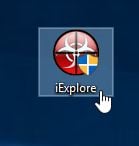
RKILL DOWNLOAD LINK (his link will open a new web page from where you can download “RKill”) - Double click on Rkill program to stop the malicious programs from running.

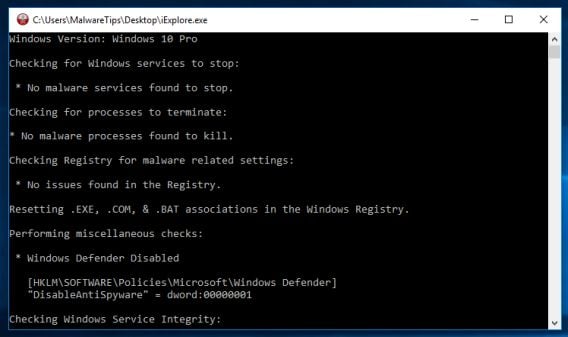
- RKill will now start working in the background, please be patient while this utiltiy looks for malicious process and tries to end them.
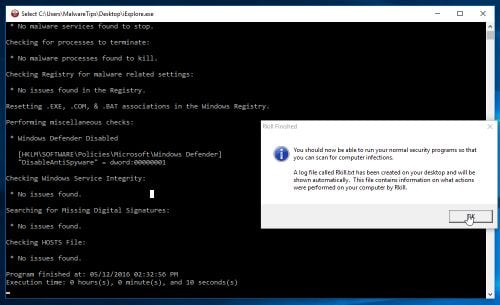
- When the Rkill tool has completed its task, it will generate a log. Do not reboot your computer after running RKill as the malware programs will start again.
OPTION 2: Use the “Repair .lnk (Shortcuts) File Association” tool
- You can download the Repair .lnk (Shortcuts) File Association tool from the below link
REPAIR .LNK FILE ASSOCIATION DOWNLOAD LINK (This link will open a new web page from where you can download Repair .lnk (Shortcuts) File Association) - Double click on the previously downloaded file, then click on the Start button.
![[Image: Repair LNK]](https://malwaretips.com/blogs/wp-content/uploads/2012/10/reapir-lnk.jpg "Repair LNK")
OPTION 3: Use System Restore to restore your system to an earlier state
- Open System Restore by clicking the Start button .
- In the search box, type System Restore, and then, in the list of results, click System Restore.
- Follow the steps in the wizard to choose a restore point and restore your computer to an earlier state.
OPTION 4: Manually remove the unwanted registry change
- Click Start Menu, and then type regedit in the Start Search and press ENTER.
- Browse to the following registry branch:
HKEY_CURRENT_USER\Software\Microsoft\Windows\CurrentVersion\Explorer\FileExts\.lnk - Click on the arrow to expand it and delete the sub-key named UserChoice.
- Exit from Registry Editor and reboot your machine.
STEP 2: Use Malwarebytes to remove .LNK extension Virus
Malwarebytes is a powerful on-demand scanner which should remove the .LNK extension adware from Windows. It is important to note that Malwarebytes will run alongside antivirus software without conflicts.
- You can download download Malwarebytes from the below link.
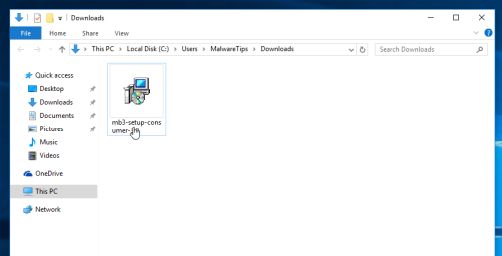
MALWAREBYTES DOWNLOAD LINK (This link open a new page from where you can download “Malwarebytes”) - When Malwarebytes has finished downloading, double-click on the “mb3-setup-consumer” file to install Malwarebytes on your computer.
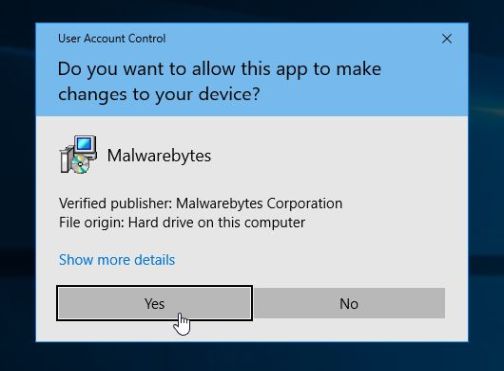
You may be presented with an User Account Control pop-up asking if you want to allow Malwarebytes to make changes to your device. If this happens, you should click “Yes” to continue with the installation.
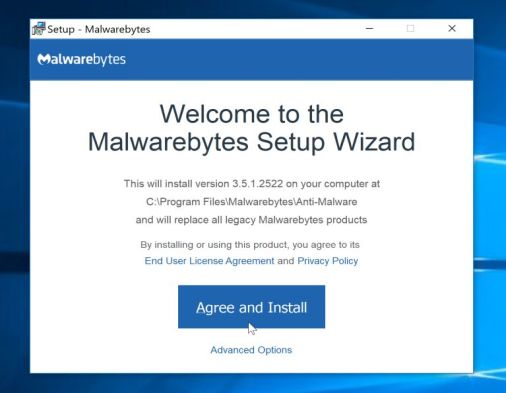
- When the Malwarebytes installation begins, you will see the Malwarebytes Setup Wizard which will guide you through the installation process.
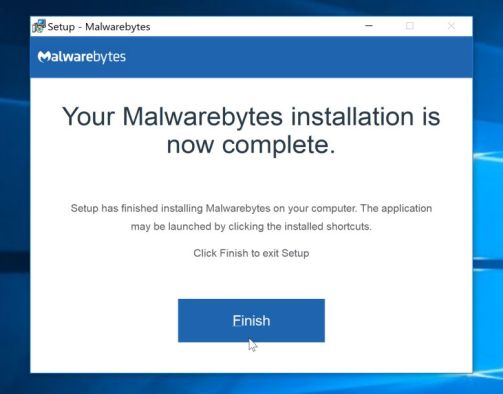
To install Malwarebytes on your machine, keep following the prompts by clicking the “Next” button.
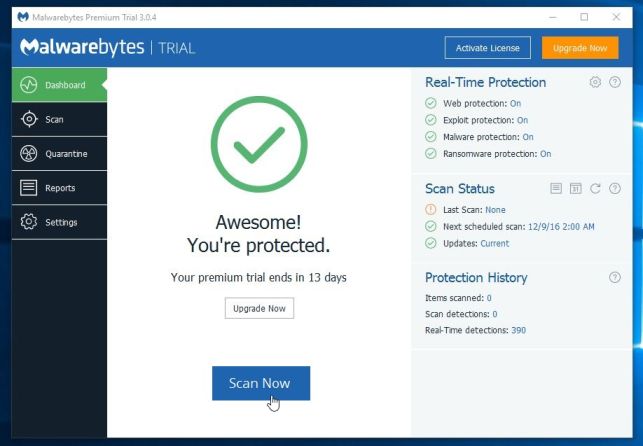
- Once installed, Malwarebytes will automatically start and update the antivirus database. To start a system scan you can click on the “Scan Now” button.
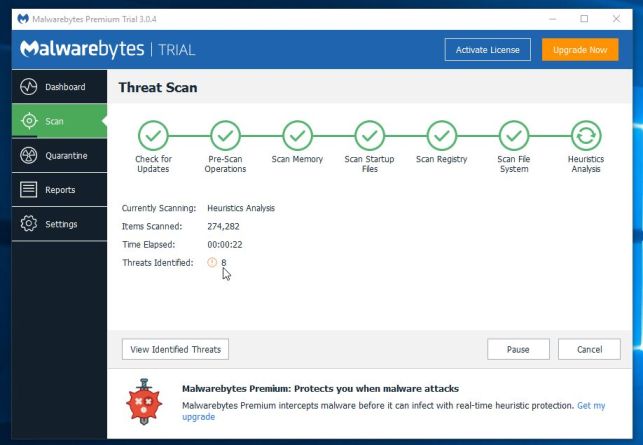
- Malwarebytes will now start scanning your computer for malicious programs.
This process can take a few minutes, so we suggest you do something else and periodically check on the status of the scan to see when it is finished.
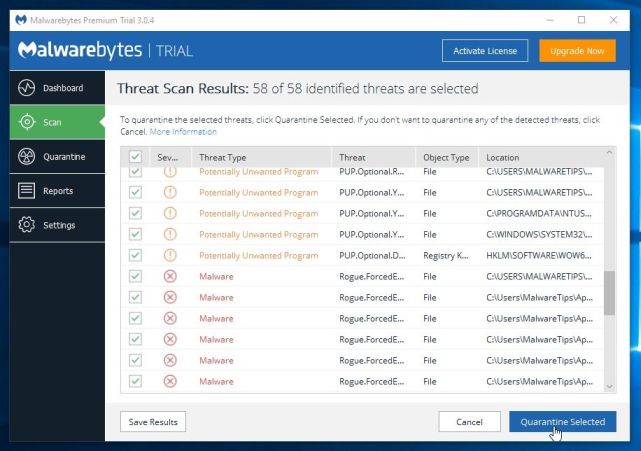
- When the scan has completed, you will be presented with a screen showing the malware infections that Malwarebytes has detected.
To remove the malicious programs that Malwarebytes has found, click on the “Quarantine Selected” button.
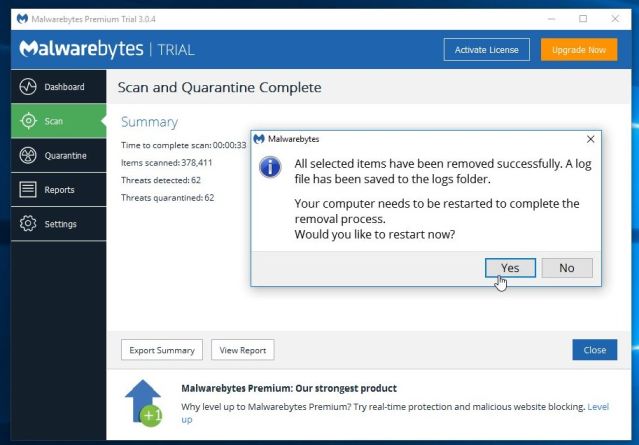
- Malwarebytes will now quarantine all the malicious files and registry keys that it has found.
To complete the malware removal process, Malwarebytes may ask you to restart your computer.
When the malware removal process is complete, you can close Malwarebytes and continue with the rest of the instructions.
STEP 2: Use HitmanPro to Scan for Malware and Unwanted Programs
HitmanPro can find and remove malware, adware, bots, and other threats that even the best antivirus suite can oftentimes miss. HitmanPro is designed to run alongside your antivirus suite, firewall, and other security tools.
- You can download HitmanPro from the below link:
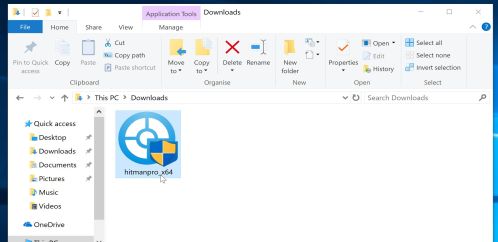
HITMANPRO DOWNLOAD LINK (This link will open a new web page from where you can download “HitmanPro”) - When HitmanPro has finished downloading, double-click on the “hitmanpro” file to install this program on your computer.
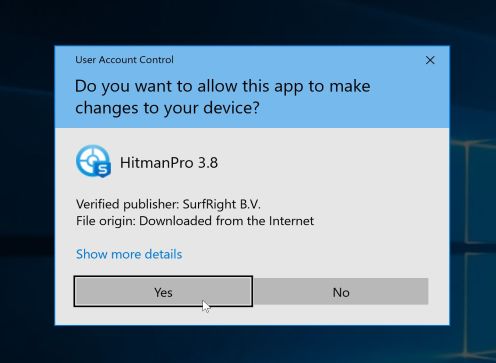
You may be presented with an User Account Control pop-up asking if you want to allow HitmanPro to make changes to your device. If this happens, you should click “Yes” to continue with the installation.
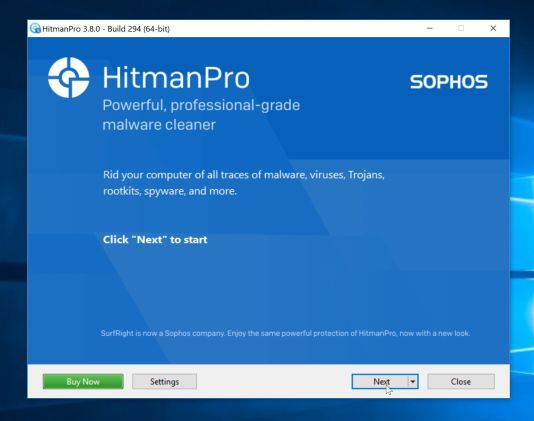
- When the program starts you will be presented with the start screen as shown below. Now click on the Next button to continue with the scan process.
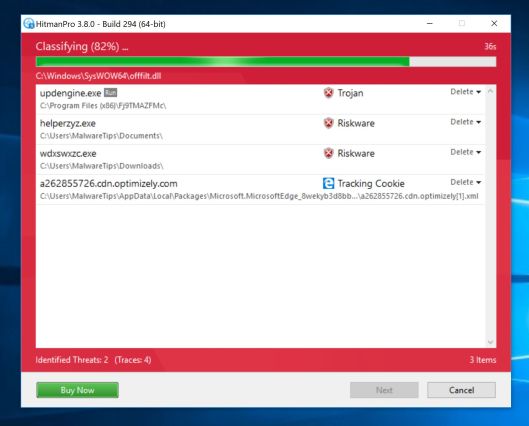
- HitmanPro will now begin to scan your computer for malware.
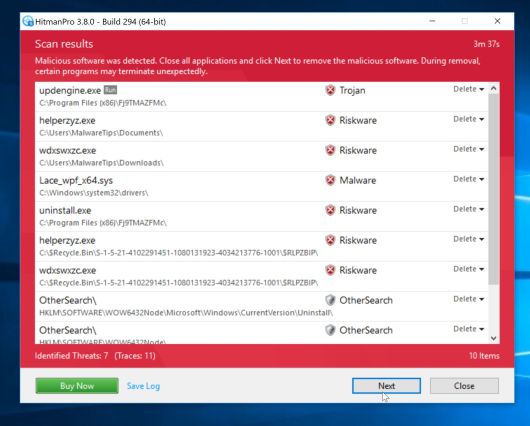
- When it has finished it will display a list of all the malware that the program found as shown in the image below. Click on the “Next” button, to remove malware.
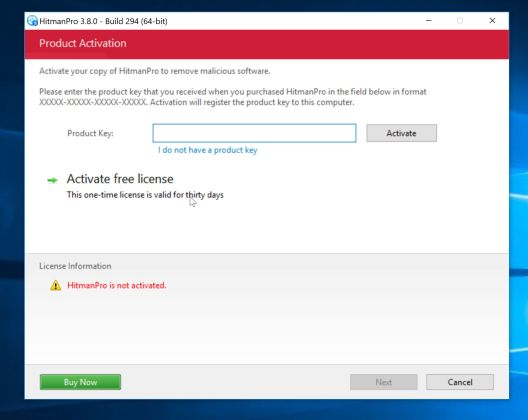
- Click on the “Activate free license” button to begin the free 30 days trial, and remove all the malicious files from your computer.
When the process is complete, you can close HitmanPro and continue with the rest of the instructions.
STEP 3: Double-check for malicious programs with Emsisoft Emergency Kit
The Emsisoft Emergency Kit Scanner includes the powerful Emsisoft Scanner complete with graphical user interface. Scan the infected PC for Viruses, Trojans, Spyware, Adware, Worms, Dialers, Keyloggers and other malicious programs.
- You can download Emsisoft Emergency Kit from the below link.
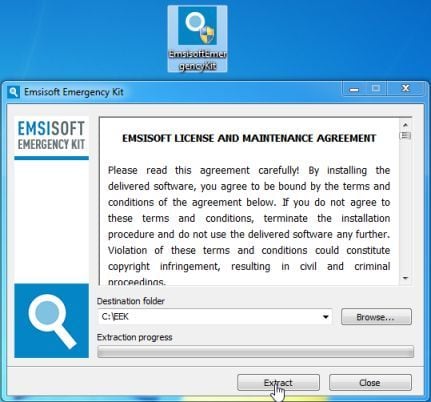
EMSISOFT EMERGENCY KIT DOWNLOAD LINK (This link will open a new web page from where you can download Emsisoft Emergency Kit) - Double-click on the “EmsisoftEmergencyKit” icon, then click on the “Extract” button.
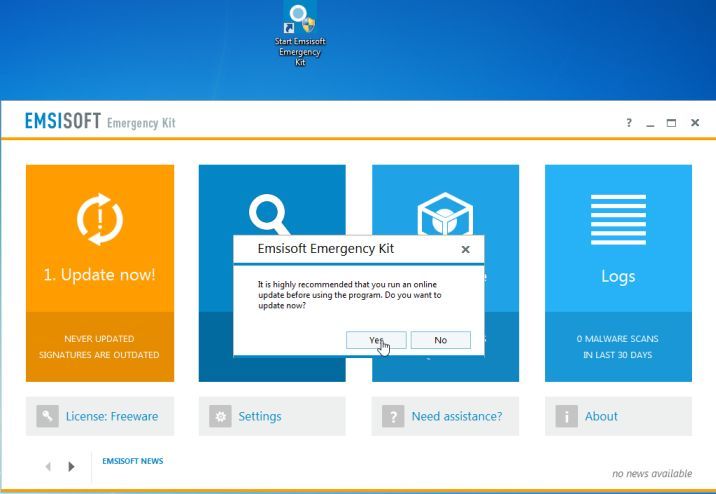
- On your desktop you should now have a “Start Extract Emsisoft Emergency Kit” icon, double-click on it, then when the program will start allow it to update its database.
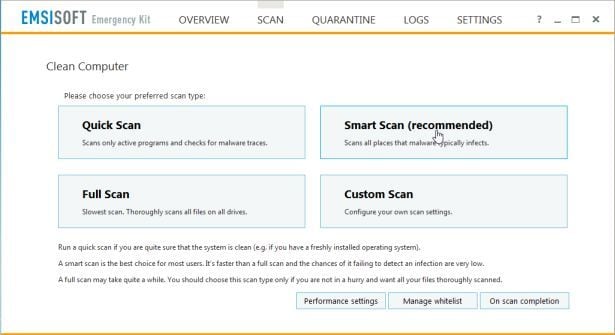
- Once the Emsisoft Emergency Kit has update has completed,click on the “Scan” tab, and perform a “Smart Scan“.
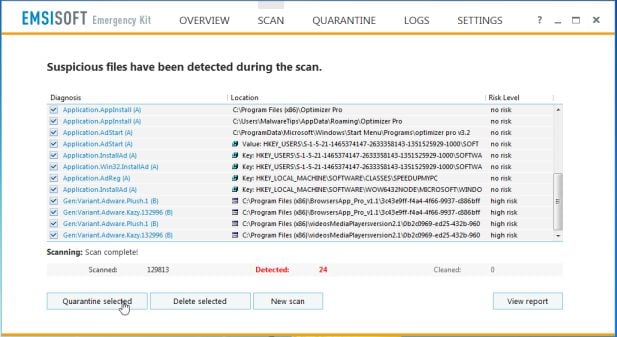
- When the scan will be completed,you will be presented with a screen reporting which malicious files has Emsisoft detected on your computer, and you’ll need to click on Quarantine selected objects to remove them.
STEP 4: Reset your browser to default settings
This step should be performed only if your issues have not been solved by the previous steps.
Google Chrome
- On your computer, open Google Chrome.
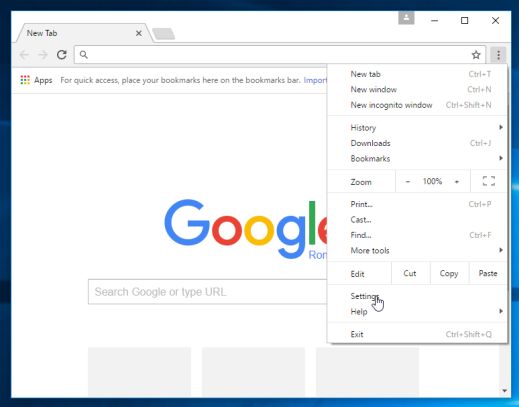
- At the top right, click “More” (represented by the three dots) and then “Settings”
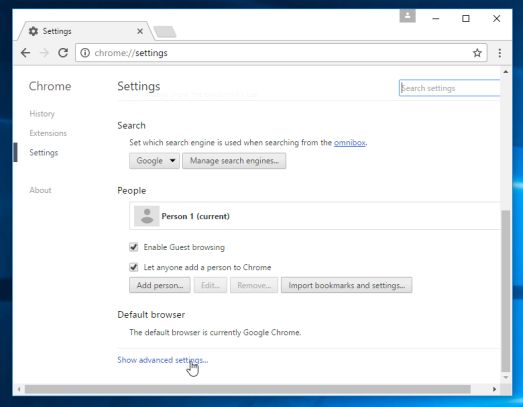
- At the bottom, click “Show advanced settings”.
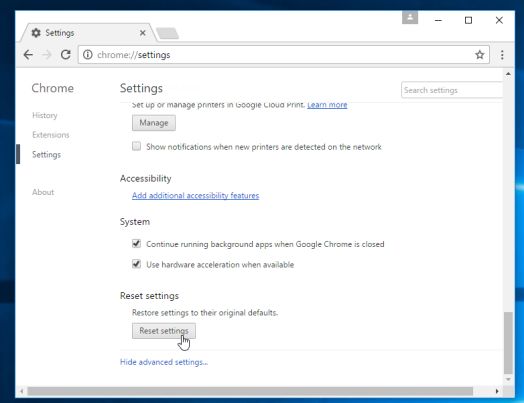
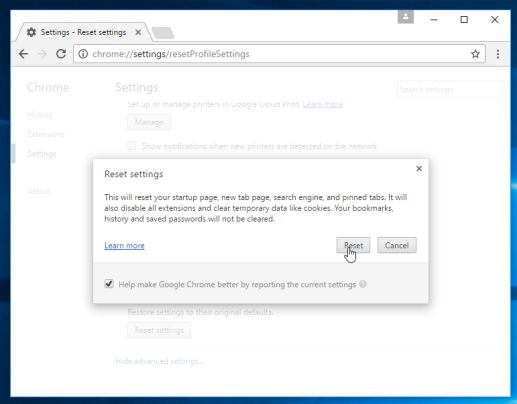
- Under the section “Reset settings”, click Reset settings.
- In the box that appears, click Reset.
Internet Explorer
- Open Internet Explorer, click on the “gear icon” in the upper right part of your browser, then click again on Internet Options.
- In the “Internet Options” dialog box, click on the “Advanced” tab, then click on the “Reset” button.
- In the “Reset Internet Explorer settings” section, select the “Delete personal settings” check box, then click on “Reset” button.
- When Internet Explorer has completed its task, click on the “Close” button in the confirmation dialogue box. You will now need to close your browser, and then you can open Internet Explorer again.
![[Image: Internet Options in Internet Explorer]](https://malwaretips.com/blogs/wp-content/uploads/2014/03/Internet-Options-Internet-Explorer.jpg "Click on the Gear Icon then on Internet Options")
![[Image: Reset Internet Explorer]](https://malwaretips.com/blogs/wp-content/uploads/2014/03/Reset-Internet-Explorer.jpg "In the Advanced tab click on the Reset button")
![[Image: Reset Internet Explorer to its default settings]](https://malwaretips.com/blogs/wp-content/uploads/2014/03/reset-button-Internet-Explorer.jpg "Click on the Reset button to revert IE to its default settings")
![[Image Reset Internet Explorer settings]](https://malwaretips.com/blogs/wp-content/uploads/2014/03/Close-button-Reset.jpg "Click on the Close button")
Mozilla Firefox
- In the upper-right corner of the Firefox window, click the Firefox menu button, then click on the “Help” button.
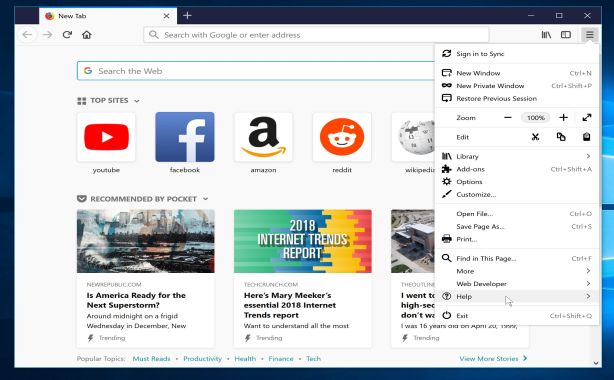
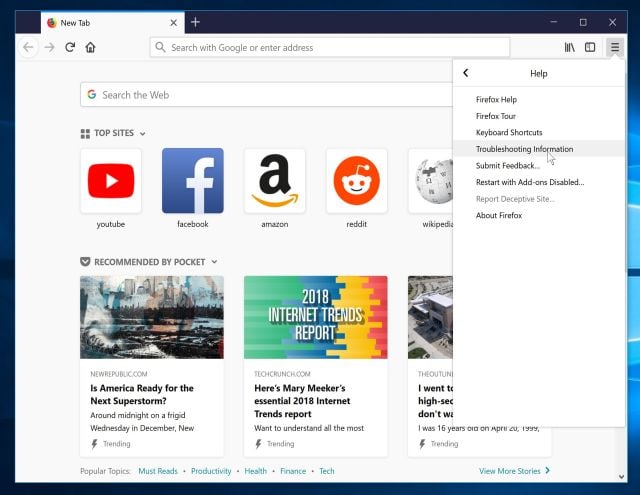
- From the Help menu, choose Troubleshooting Information.
If you’re unable to access the Help menu, type about:support in your address bar to bring up the Troubleshooting information page.
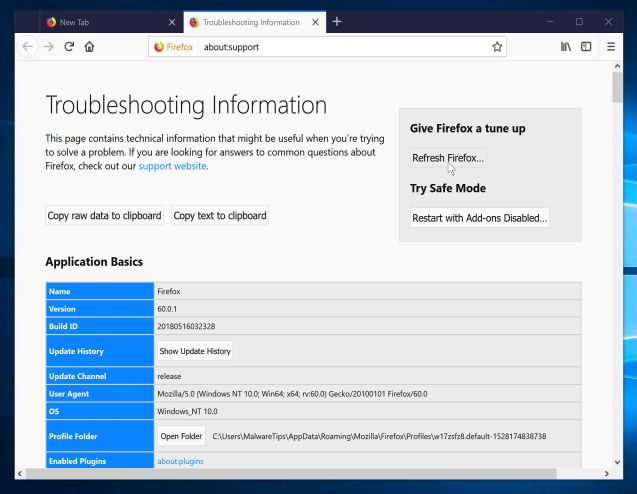
- Click the “Refresh Firefox” button in the upper-right corner of the “Troubleshooting Information” page.
- To continue, click on the “Refresh Firefox” button in the new confirmation window that opens.
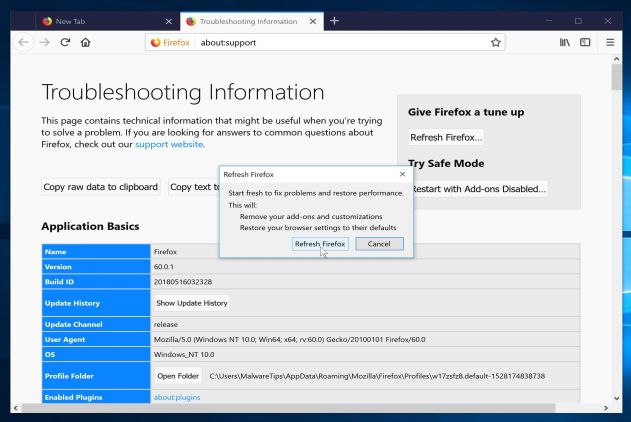
- Firefox will close itself and will revert to its default settings. When it’s done, a window will list the information that was imported. Click on the “Finish“.
![[Image: Firefox Help button]](https://malwaretips.com/blogs/wp-content/uploads/2014/04/Firefox-Help.png "Firefox Help button") button.
button.If you are still experiencing problems while trying to remove .LNK extension adware from your device, please do one of the following:
- Run a computer scan with ESET Online Scanner
- Ask for help in our Malware Removal Assistance forum.









Manual Method to Restore the Windows Registry
Steps:
1. Go to Start Menu > type regedit in the Start Search Box and press ENTER.
2. Browse to the following registry branch:
HKEY_CURRENT_USERSoftwareMicrosoftWindowsCurrentVersionExplorerFileExts.lnk
3. Click on the arrow to expand it and delete the sub-key named UserChoice.
4. Exit from Registry Editor and reboot your machine.
5. Hope it gets fixed.
Thank you for contributing the registry method. Deleting the incorrect `UserChoice` entry can allow Windows to rebuild the shortcut association, but readers should first create a restore point or registry backup and change only the exact key involved. Editing unrelated registry entries can make the system unusable.
Nothing worked for me
If the repair did not work, avoid repeatedly changing random registry entries. Try a new Windows user profile and run the built-in system-file repair tools, then restore from a known-good backup if the association remains broken. On an unsupported Windows version, upgrading to a supported release is safer than continuing to patch a damaged installation.
I had the .lnk problem and used the second option and it worked ,,thanks a lot,,,,hats off to u….
Great to hear that the second option restored the shortcut association, Mayur. Thank you for confirming which method worked.
Thanks a lot for the tips…it is very useful
Had the .lnk problem and I was so worried that I was going to reinstall windows! Googled for some help and came across to this site.
Step 2 fixed my problem. Thanks a lot.
had .lnk problems for two days …took a chance with Malware Tips and solve it immediately with Step 1, Option 1. Great Tip! Thank you so much! God Bless!!!
very nice and helpful tool
Thanks for sharing your knowledge i fix my friends computer because of you.. more power godbless..
Thanx……its tooo good
Thank you VERY much. The first option fixed everything. Run dl’d file, 2 seconds. Restarts. Everything fixed. Great tool. Great article
option 1 worked like mad! took 5seconds and am done thanks to whoever created the program
followed option 2. issue resolved. very helpful… thanks a lot.
hey its working …great ..thanks
Thanks a lot i used set 2 and it worked….