


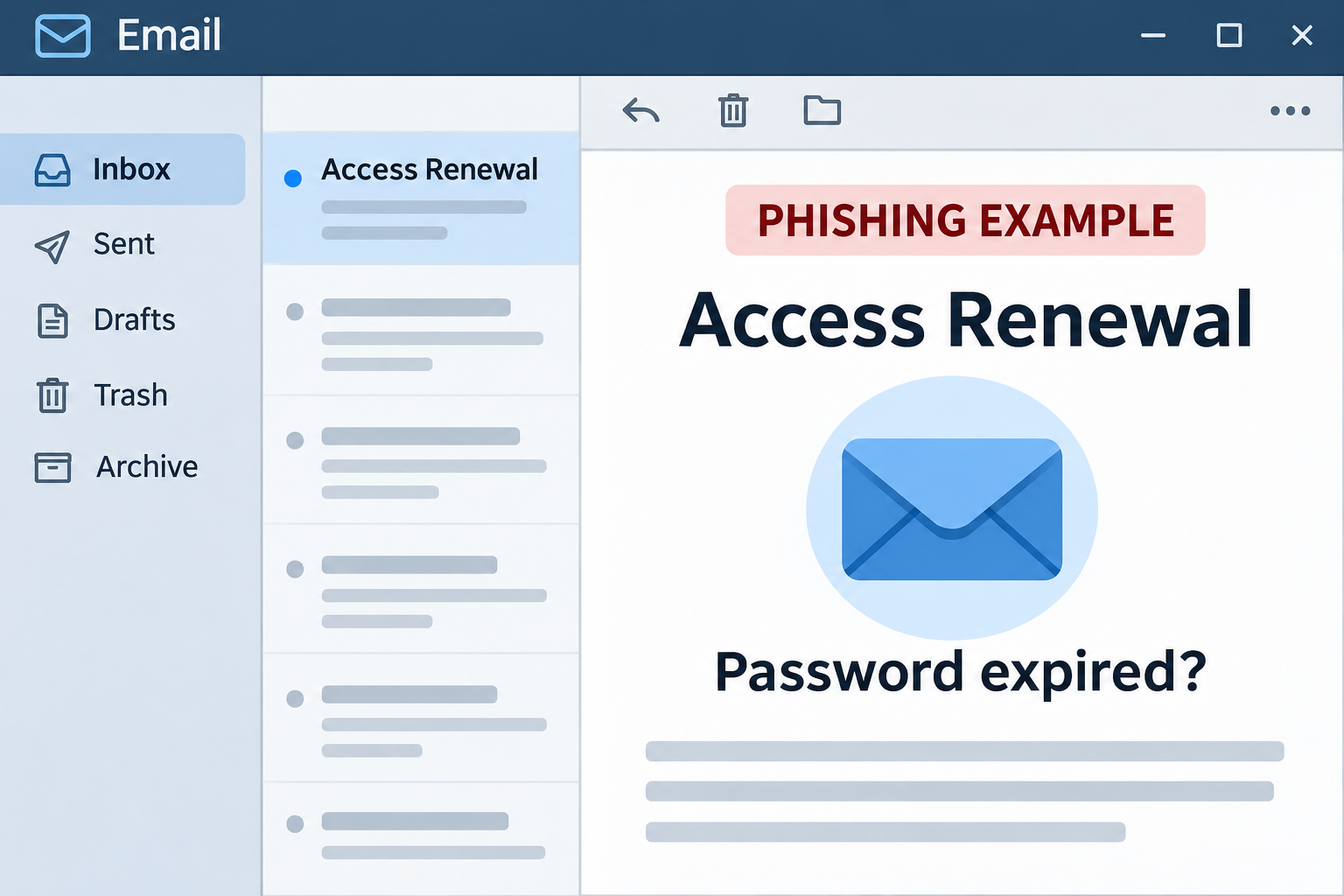
“Access Renewal” is the kind of email subject you might skim on your way into work. This one says your password expired and you’ve already been signed out.
The message offers a quick way back in. Before taking it, there’s one detail worth comparing with the way you normally get help.
Overview
The email says your old password has expired
The Access Renewal email scam presents itself as an automated help desk notice. It says your password no longer gives you access and asks you to verify a request.
But there’s an odd promise in the message: you can continue with the same password. A button that asks you to prove you know it isn’t a password change.
The documented button opened an unrelated login page, not a trusted company reset screen. It displayed the recipient’s address and asked for the password underneath it.
If your employer really requires a renewal, handle it through the sign-in or support route you already use. The email is not a reliable way to tell.
The page recognizes your address, not your account
It’s easy to feel reassured when a page already knows which account you intend to use. In this case, the prefilled address is part of the appearance of familiarity.
An address isn’t a secret, and a form can display it without checking your account. Seeing it does not mean you’ve passed a legitimate identification step.
The next field is the important one. Anyone who typed a current password into that page should treat it as exposed, regardless of what the screen displayed afterward.
Receiving the email is not evidence that your real account was disabled. Nor is it evidence of malware. The documented request was for credentials through a web form.
Checks you can make without using the button
- Open the work application you normally use, through your existing bookmark or app.
- If it prompts for a reset, use the organization’s established recovery process.
- Ask the help desk whether it sent a notice with that subject, using an existing channel.
- If you’re managing a personal account, check its security page directly.
- Treat a new sign-in approval you didn’t start as a separate warning.
Some organizations do send password reminders. The question isn’t whether reminders exist. It’s whether you can confirm this one from a place the sender doesn’t control.
How the Access Renewal Email Scam Works
Step 1: The subject makes the problem sound routine
“Access Renewal” doesn’t identify a particular service in the subject. It sounds administrative enough to fit a work account, a hosted mailbox or another login you depend on.
The body claims you’ve already been signed out. That moves the reader from wondering whether something will happen to believing there is already a problem to fix.
You may have been signed out of something for a genuine reason that day. A browser restart or an expired session can coincide with the email without being connected.
If an application asks you to sign in when you open it independently, that’s the request to evaluate. It isn’t a reason to go back to the email.
Step 2: The button promises continuity instead of a reset
The example calls the action “Verify Request Status.” It sounds as if you’ll see the progress of a request, rather than be asked to disclose the old password.
The email doesn’t tell you to use the usual help desk ticket or account settings. Its route keeps you inside the experience the sender chose.
A genuine reset may ask you to verify your identity through an existing provider. It still won’t require you to trust an unfamiliar page just because its button says verify.
If you don’t know the correct route, get it from your organization’s directory or a known contact. Don’t rely on a help address supplied by the suspicious message.
Step 3: An ordinary-looking sign-in page asks for a secret
The documented page was titled “Continue with your email.” That looks like language you might see in a normal account picker or login screen.
The page displays the email address before asking for the password. You don’t have to enter your address to feel as though the site already recognizes you.
You don’t need to identify the exact brand the form resembles. If you didn’t reach the real provider, stop. A professional-looking page isn’t evidence of a professional operator.
If your password manager doesn’t fill the field, don’t paste the password to work around that. Check your starting point before you supply anything by hand.
Step 4: A stolen password can outlast a sign-in error
A scam page may show an error or send you elsewhere. Neither outcome tells you what happened to the password you entered.
Depending on the provider and safeguards, an exposed credential can put email, shared tools and other accounts at risk. Reuse broadens the problem beyond the account mentioned in the notice.
An unexpected approval request is another possible consequence. Deny it if you didn’t start the sign-in, and tell the help desk what the request showed.
Don’t assume the account is safe just because it still opens. An incident can involve another active session even while your own device works normally.
Password Expiration, Sign-Out and Account Suspension Are Different
A signed-out browser may just need a new session
Many services sign you out periodically or when cookies are cleared. A new session may require your existing password, but start that process from the correct app or site.
Check which service is asking. If it’s a work app, the sign-in may be managed by your employer rather than by the service whose logo you see.
If only one browser is affected, another approved device may still work. That helps narrow the issue without attempting repeated sign-ins through a link you haven’t verified.
An expired password follows your organization’s policy
Some workplaces require a change under certain conditions. Others don’t use routine expiration. You don’t need to infer the policy from a countdown or a notice in your inbox.
For Microsoft environments, Entra self-service reset policies describe how the real service can require a password change or verify your identity. Your organization’s setup determines what you’ll see.
An employee should not guess which account to reset if there are several. Ask whether the affected credential belongs to email, the work identity provider or a separate service.
A disabled account needs a different response
If the genuine app says an account is disabled, ask the organization to verify why. An authorized help desk can tell you what recovery or identity checks it supports.
Don’t keep trying different passwords. Repeated guesses can make a simple recovery harder, and a fake sign-in page can collect more than one password if you try them there.
If you entered a password for an older account as a test, tell IT which account it belonged to. That credential may still be valid somewhere else.
What to Do if You Have Fallen Victim to This Scam
-
Stop using the email and note the last thing you did.
Close the page. Use your organization’s phishing-report process or your provider’s reporting option, depending on the mailbox where the notice arrived.
Include the receipt time and whether you typed a password, saw an error or approved a prompt. Do not include the password in the report.
-
Use a known recovery route for the affected credential.
Tell IT right away if you entered a work password. For an individually managed account, go to the service directly from a trusted device and change it.
If you submitted two or more passwords while troubleshooting, treat each as exposed. Identify the accounts that use them and reset them independently.
-
Check whether old sessions are still active.
Use the provider’s sign-out or account activity controls. For work accounts, ask the administrator to review sign-ins, revoke suspect sessions and check any newly added authentication methods.
Administrators using Microsoft Entra can refer to Microsoft’s emergency access revocation guidance. Some applications maintain their own sessions, so a change may need more than one action.
-
Review the parts of the mailbox an intruder could change.
Check for forwarding, filters, delegates and unfamiliar outgoing mail. Let the security team preserve evidence before making changes if it is already handling the case.
If the mailbox resets access to other accounts, prioritize services that can change payment, domain or administrative settings. Look for reset notices you didn’t request.
-
Handle separate exposure on its own terms.
If you only opened the email, report it and delete it when appropriate. An account reset isn’t necessary just because the message used the word expired.
If a variation asked you to install software and you did, tell IT about the installation. That is a different incident from submitting a password.
-
Make the real recovery route easy to find next time.
Keep the correct help desk link or sign-in instructions where you can find them without searching the inbox. Use a device or directory your organization already trusts.
If your role allows it, share a brief warning with coworkers through the official channel. Describe the subject and unsafe request without circulating the original link.
If You Can’t Sign In to Report It
Call the number from your company’s directory or use an approved alternative channel. If the directory is behind the same login, ask a colleague for the official contact.
Explain whether access was already broken before the email arrived. That distinction helps the support team determine whether it is investigating an outage, a lockout or possible unauthorized access.
If someone contacts you claiming to be from support, confirm their identity independently. A person who knows your name and says there is a ticket isn’t necessarily assigned to it.
If the team asks for identity verification, follow the process you started through the established channel. Don’t send passwords, authentication codes or recovery keys by email.
After the reset, check which account you’re using before reconnecting mail clients. Even in a trusted app, read what the prompt asks you to authorize.
On a shared workstation, a browser may open the wrong profile. Confirm which account is active before asking to reset a credential that belongs to someone else.
If an automated job stopped after the credential change, report the affected service to its owner. Don’t restore the old password just to get a mailbox integration working again.
Check password managers and the applications you actually use
If you saved the password while viewing the imitation, check the saved entry’s website. Remove an entry for the wrong destination without deleting the record for the genuine service.
Update the password manager only after you confirm the replacement works through your real provider. That keeps the old password from being filled back into an approved application.
If your browser keeps opening the wrong account, select the correct profile or ask support. Don’t reset somebody else’s credential because their address appeared in a shared browser.
Explain the exposure without sending the secret
Tell IT which service used the password and whether you reused it elsewhere. That is more useful than sending the string itself or a screenshot that displays it.
If you were using an application password for an older mail client, say so. Ask the provider whether it needs separate revocation and replacement through its settings.
When the report is resolved, confirm where staff should receive legitimate reminders. An internal note about expected sign-in routes is easier to act on than a list of suspicious phrases.
If the provider issues recovery codes after a reset, keep them in your approved secure storage. They are another way into the account, not information to send with a ticket.
Frequently Asked Questions
Is the “Access Renewal” email a genuine password expiry reminder?
The example here is not. It leads to an unrelated sign-in form. Verify a real expiry through your normal account or with your known help desk.
Why does the message say I can keep my old password?
That is part of the lure. The email frames entering the current password as a verification step instead of sending you through a genuine password change.
Does seeing my email address mean the site signed me in?
No. A page can display an address without checking it against your real account. Focus on whether you reached the provider independently.
I typed my password but closed the page before submitting. What now?
Treat it as potentially exposed and report exactly what happened. Do not reopen the form to test when it processes the information.
Should I approve a sign-in prompt to recover access?
Only approve an action you started yourself from the verified service and can identify. An unexpected prompt is a reason to stop and contact the administrator.
Can I keep using email after a password reset?
Follow your provider’s or organization’s instructions. Check sessions and recovery settings too; being able to use your own mailbox doesn’t show that all other access ended.
The Bottom Line
Skip the Access Renewal email’s verification button. A real access problem can be handled through your usual login or help desk without giving an unknown page your existing password.
If you typed a password, report the exposure, replace it through the real service and have lingering sessions and account changes checked.

Join the discussion
0 commentsShare your experience or ask a question about this article.
Discussion
Start the conversation
Have a question or something useful to share? Add the first comment.