

Most scams coming after your phone try to be subtle. They hide behind fake ads or sketchy downloads, hoping you barely notice them. The “Android Has Detected A Wiretap On Your Phone” scam does the exact opposite. It hits you hard. It throws a huge red warning onto your screen and tells you someone is spying on you, listening through your microphone, watching through your camera, and digging into your banking apps.
It’s dramatic, loud, and designed to make your stomach drop. And for a moment, even if you’re usually calm about tech stuff, you might hesitate. What if it’s true? What if someone really is listening?
That moment of panic is exactly what the scammers want.
What you saw wasn’t a system alert. It wasn’t Android. It wasn’t Google. It wasn’t a real security scan. It was a scare tactic crafted to push you into downloading something harmful or paying for something you don’t need.
In the following sections, we’ll break down how this scam works, why it’s so effective, what the warning really means, and how you can protect yourself and others from falling into the trap.
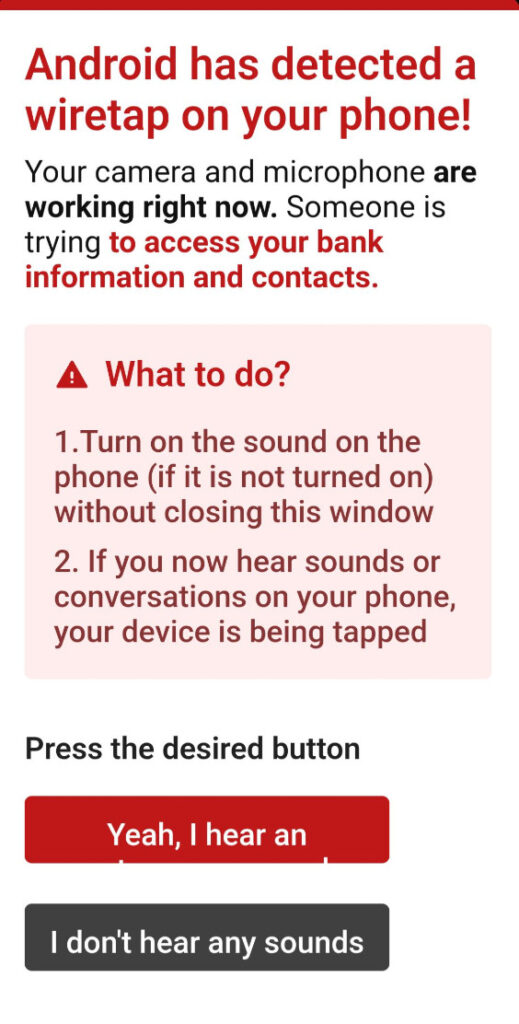
Scam Overview
The “Android Has Detected A Wiretap On Your Phone” scam is one of those schemes that survives purely because of psychological manipulation. It doesn’t hack your camera. It doesn’t turn on your microphone. It doesn’t scan your files. It doesn’t detect anything at all. It simply displays a fake warning convincing enough to make people doubt themselves.
Why This Scam Feels Real
The scam’s strength lies in how closely it imitates the visual style of legitimate Android system messages. Even though Android never sends warnings through a webpage, many users don’t know that. They see the Android colors, the red headline, the neat layout, and they assume it must be official.
Scammers rely on that momentary trust. They create a warning that:
- Uses familiar Android colors and icons
- Talks about spying, bank theft, and hacking
- Uses bold red text to create urgency
- Demands immediate action
- Presents instructions step-by-step as if it’s a real diagnostic tool
The instant you see phrases like “Your camera and microphone are working right now” or “Someone is trying to access your bank information,” your brain shifts into threat-response mode. You stop analyzing. You stop thinking carefully. You focus only on protecting yourself.
That’s exactly when they strike.
Where People Usually See This Scam
You don’t get this warning while idly sitting on your home screen. It almost always appears while you’re browsing the web. Most people encounter it on pages that already carry a higher risk of malicious ads, such as:
- Free movie streaming sites
- Pirated content or torrent pages
- Adult content sites
- Fake “free download” sites
- Shady game mod pages
- Online converters filled with popups
- Sites that redirect aggressively due to injected ads
These sites often partner with ad networks that don’t screen their advertisers well. One bad script loads, and suddenly you’re staring at a terrifying full-screen alert insisting someone is listening to your private conversations.
The Big Lie: “Android Has Detected A Wiretap”
The scam claims that Android has analyzed your phone and found a live wiretap. It tries to convince you that:
- Your microphone is recording.
- Your camera is streaming.
- Criminals are watching you.
- Someone wants your banking information.
- Your contacts are at risk.
This entire storyline is fictional. A webpage cannot assess your microphone. It cannot check your camera. It cannot examine your files. It certainly cannot detect hacking on your device.
The scammer wants you to feel cornered. Powerless. Under attack. When people feel that way, they look for the quickest way out. And conveniently, the scam claims it can “fix” everything if you follow the steps.
The Strange Instruction: “Turn on the sound”
One of the biggest psychological tricks in this scam is the instruction to turn on your sound and listen for “wiretap noises.”
It tells you:
- Turn up your volume.
- Do not close the window.
- Listen for strange sounds or conversations.
You’re already scared. You’re already convinced something might be wrong. So when you turn up the volume, your mind is primed to hear anything unusual, even completely normal environmental noise.
Some versions of the scam even play faint background audio to mimic “wiretap chatter.” It may sound like static or muffled voices. It’s not coming from your phone system. It’s an audio file embedded in the webpage. But people panic because they’ve already been psychologically steered to expect something suspicious.
This is how social engineering works. It doesn’t need actual technical power. It just needs you to believe the story.
The Fake Buttons
Once you’ve listened, the page presents two buttons.
- “Yeah, I hear something.”
- “I don’t hear any sounds.”
These buttons serve one purpose. They make you feel like you’re participating in a real diagnostic process. But here’s the trick: both buttons lead to the same next step.
Your choice doesn’t matter.
All the scam wants is for you to click one of them. The moment you click, the scam knows you’re emotionally invested enough to keep going.
What Happens After You Click
Once you tap either button, the scammers funnel you into their end goal, which might be:
- A fake antivirus download
- A malicious APK posing as security software
- A site trying to sell you a “protection service”
- A subscription scam
- A phishing form asking for personal information
- A page promoting a real antivirus product through a fraudulent affiliate link
This last tactic has become surprisingly common. Scammers know that many people won’t trust a random antivirus app they’ve never heard of. So instead, the scammers redirect victims to legitimate products like TotalAV, Norton, or McAfee. When you buy a subscription, the scammer earns a commission. You get a real antivirus, but the scammer profits through deception.
Who’s Actually Behind It?
There is no single group running this scam. Variations of it appear worldwide, often using similar scripts and designs but different final destinations. This suggests the scam is sold or shared through criminal networks where scammers can:
- Customize the message
- Change the language
- Target different regions
- Choose different scams for the final redirect
The core idea stays the same: scare the user into clicking.
Why This Scam Works So Well
There are several psychological triggers at play:
Fear of surveillance
Humans react strongly to the thought of being watched. The idea of someone listening through your microphone is deeply unsettling.
Fear of losing money
Mentioning bank data immediately raises urgency.
Fake authority
The Android brand name carries trust. Even a fake version of it feels legitimate to many users.
False interactivity
Telling you to turn up the volume, listen carefully, and then choose a button creates the illusion of real diagnostics.
Isolation
The scam appears suddenly when you’re alone with your phone. Panic happens in silence.
Urgency
The bright red text is designed to push you toward acting first and thinking later.
When all these elements line up, even people who consider themselves tech-savvy can momentarily fall for the setup.
Why Android Would Never Send an Alert Like This
Android security warnings:
- Do not appear inside your browser
- Do not appear on random websites
- Do not instruct you to turn on your sound
- Do not diagnose wiretapping
- Do not use scare tactics
- Do not require you to click buttons inside a webpage to “check your phone”
If you ever see a warning inside Chrome, Firefox, Samsung Internet, or any other browser, it is not coming from the Android operating system. It is coming from the webpage you are visiting.
And no webpage has the ability to analyze your device.
This rule alone can protect you from dozens of scams.
The Bigger Problem: What Comes After
The scam itself is just the bait. The real risk happens after you interact with it. Many victims end up downloading malicious apps, which can lead to:
- aggressive adware
- spyware that watches everything you do
- keyloggers that record your keystrokes
- banking Trojans
- apps that request full Accessibility permissions
- apps that forward your SMS messages
- apps that track your location
- apps that send your data to criminal servers
Some malicious apps are persistent, quietly installed, and hard to remove. Others disguise themselves as real antivirus tools and constantly demand payment to remove imaginary threats.
This scam may look like just a popup, but its consequences can be incredibly damaging.
How The Scam Works
Most scams follow a simple formula. The attacker tries to get your attention, create fear, and then guide you toward a mistake. The “Android Has Detected A Wiretap On Your Phone” scam is no different, but it stands out because of how calculated and theatrical it is. It builds tension. It builds panic. It gives you instructions that feel oddly official. Then it steers you directly toward the trap.
To understand just how deliberately crafted this scam is, let’s walk through the entire process from the very beginning. This section breaks the scam down step-by-step, highlighting what the criminal is doing at each stage and what psychological levers they’re pulling behind the scenes.
Step 1. You visit a website that triggers the scam
This scam almost never appears on reputable websites. It usually activates on pages that are already known to host intrusive ads or unsafe scripts. These sites might include:
- free streaming websites
- pirated movie sites
- cracked software pages
- adult websites
- file-sharing directories
- “free game cheats” pages
- unofficial APK download sites
- sketchy blogs filled with popups and redirects
The moment you click something on one of these pages, or sometimes just load the site, a script triggers and sends your browser to the fake Android wiretap page.
You didn’t do anything wrong. You didn’t download anything. You simply visited a site that allowed a malicious ad network to run whatever script it wanted.
From the attacker’s perspective, this step is the “bait”. They need you on their page long enough to scare you into following instructions.
Step 2. The browser displays a full-screen, fake Android-style warning
The next thing you see is a huge warning in bright red text, designed to jolt your nervous system instantly. It often reads:
“Android has detected a wiretap on your phone!”
“Your camera and microphone are working right now.”
“Someone is trying to access your bank information.”
When you see bold red text and the name “Android”, your brain automatically assumes authority. Even if you know better, there’s a moment of hesitation. That pause is exactly what the scammer needs.
This warning has several specific design choices:
- The color scheme mimics Android system alerts.
- The layout uses spacing similar to device notifications.
- The text is urgent but short, readable, and direct.
- It refers to high-stakes targets like banking information.
- It includes instructions that look like real troubleshooting steps.
Nothing about the message is technically possible from a webpage. But the design aims to create an emotional reaction before you have time to question it.
Step 3. The warning tells you to “turn on the sound” without closing the window
This instruction is unusual enough to be memorable, and that’s exactly the point. The scam tells you to:
- Turn on the sound or increase your phone’s volume.
- Keep the webpage open.
- Listen for strange noises or voices.
This accomplishes several things at once:
1. It makes the page feel interactive.
Real system diagnostics often include steps, instructions, and progress indicators. By providing specific steps, the scammers make their page feel more like a genuine Android tool.
2. It forces you to stop and follow directions.
Slowing you down actually helps the scam. Instead of closing the tab immediately, you’re now following the attacker’s script.
3. It primes your brain to listen for anything suspicious.
When you’re already anxious, even normal background noise can sound alarming. If you hear a faint sound in your room or home, your brain might misinterpret it as confirmation of the scam. The fear loop deepens.
4. It sets the stage for audio manipulation.
Some versions of the scam play faint static, soft chatter, or muffled noise after you raise the volume. Not loud enough to be obvious. Just enough to raise panic.
This is one of the most manipulative parts of the scam because it manufactures suspicion out of nothing.
Step 4. The page may play “wiretap sounds” to scare you
Once your volume is up, the scam might trigger audio automatically. The audio often consists of:
- soft static
- light clicking noises
- whispered voices
- electronic interference
- faint background conversation
These noises are plain audio files. They don’t come from your microphone. They aren’t from another person. They aren’t tapping into your hardware. They’re nothing more than an MP3 playing from the webpage.
To someone already nervous, these sounds feel like confirmation:
“Wait…what was that? Did someone just…talk?”
Scammers know that most people cannot distinguish between real threat signals and manufactured ones in a moment of panic.
Step 5. Two buttons appear on screen, making you think you’re diagnosing the issue
After the sound phase, the scam gives you two choices:
- “Yeah, I hear something”
- “I don’t hear anything”
This is not a real diagnostic question. It doesn’t matter which option you choose. Both buttons lead to the exact same next step.
So why add the buttons?
1. To reinforce the illusion of legitimacy
Real troubleshooting guides often ask yes/no diagnostic questions.
2. To make you feel like you’re participating in a real test
When you click something, you feel more engaged. More invested.
3. To lower your guard
Clicking a button feels harmless. But it’s not. It’s the step that tells the scammer they have your attention.
4. To gather data silently
Some scams use the button press as a way to track engagement and identify which variations of the page work best. It helps scammers refine their design and improve future attacks.
Psychologically, once you’ve clicked a button, you’re far more likely to continue following the page’s instructions.
Step 6. You are redirected to the scammer’s real goal
After the button click, the scam reveals its true purpose. The page redirects you to something the attacker wants you to download, install, buy, or subscribe to.
The exact final destination can vary depending on the attacker’s strategy. Common outcomes include:
1. A fake antivirus app
The app typically:
- claims your phone is infected
- demands payment to “clean” the device
- floods your phone with fake warnings
- harvests data
- installs additional malware
These apps often look polished but are harmful at their core.
2. A malicious APK download
This is one of the most dangerous outcomes because APK files can install:
- spyware
- keyloggers
- SMS interceptors
- banking Trojans
- adware
- data-stealing tools
- remote-control malware
APK-based attacks are especially common outside the United States.
3. A webpage selling a fake protection service
This type of scam might ask for:
- credit card info
- personal details
- recurring payments
- “membership fees”
You might be charged monthly without realizing it.
4. A phishing site
Phishing versions might ask for:
- your email
- your password
- your phone number
- your Google login
- your bank login
- your credit card details
Everything entered goes straight to the attacker.
5. A legitimate antivirus product—but through a fraudulent affiliate link
This variation is becoming increasingly common. The scam redirects to a real product like TotalAV or McAfee, but through a link that gives the scammer a commission.
The product is real.
But the path you took to get there was entirely fraudulent.
6. A fake Google Play prompt
This version impersonates Google Play security teams and tells you to “install the recommended protection app.”
Everything is engineered to look official.
Step 7. The scam tries to push you into installing or buying something immediately
Once you hit the final page, the pressure ramps up. You might see:
- countdown timers
- “immediate threat detected” warnings
- fake virus scan animations
- blinking red icons
- urgent text like “Fix Now” or “Remove Wiretap Fast”
- claims that your phone will shut down soon
- threats that your banking apps are “exposed”
These fake alerts have one goal. They want you to act before you have time to think clearly.
Scammers know that if you pause for even a few seconds, you might question the situation. So they remove your time to reflect by pushing urgency.
Step 8. If you install the malicious app, the scam continues from there
Once a malicious app gets installed, it may:
- take full control of your phone
- monitor your activity
- read your messages
- log your keystrokes
- watch your location
- access your camera
- send your data to criminal servers
- demand payment to “unlock” your device
Malicious apps often hide themselves behind fake interfaces. Some pretend to be:
- security tools
- battery savers
- device cleaners
- performance boosters
- anti-spy apps
Some scammers also use Accessibility permissions to give themselves powerful control over your device. This includes the ability to:
- record everything on the screen
- perform clicks
- navigate apps
- install more malware silently
At this stage, the scam has escalated from a harmless popup to an actual security threat.
Step 9. The scammer’s goal is fulfilled
The scam is considered successful if:
- you downloaded a malicious file
- you installed a harmful app
- you paid for a fake service
- you entered personal information
- you subscribed to something
- you clicked through an affiliate link
Not all scammers want to steal money directly. Some want your data. Some want access to your banking apps. Some want recurring payments. Others just want affiliate commissions.
But no matter which variation you encounter, the path to reaching that goal is always the same: fear, urgency, and a sense of imminent danger.
What To Do If You Have Fallen Victim to This Scam
If you interacted with the “Android Has Detected A Wiretap On Your Phone” scam in any way, don’t panic. Scammers rely on fear, but you’re not powerless. What matters most is what you do next. Whether you installed an app, clicked through multiple warnings, entered personal information, or simply opened the page, you can take back control and protect yourself.
Below is a clear, straightforward checklist. Follow each step carefully, especially if you installed anything or provided sensitive information.
1. Close the scam page immediately
If the page is still open, do not press anything on it. Do not try to close the popup using the fake buttons. Simply:
- close the browser
- or swipe the app away from your recent apps list
If the browser reopens the same page automatically, don’t worry. We will fix that next.
2. Clear your browser history, cache, and site data
This removes scripts and cached files that might drag you back into the scam page.
In Chrome for Android:
- Open Chrome
- Tap the three dots in the top right
- Tap History
- Tap Clear browsing data
- Select:
- Browsing history
- Cookies and site data
- Cached images and files
- Tap Clear data
This should stop the automatic reopening of the scam site.
3. Remove any app you installed because of the scam
If the scam talked you into installing a “security tool”, “wiretap remover”, or anything that sounds like protection software, remove it right away.
To uninstall:
- Open Settings
- Tap Apps
- Scroll through your list
- Tap any suspicious or unfamiliar app
- Tap Uninstall
If the app refuses to uninstall, restart your phone in Safe Mode, then remove it.
Safe Mode forces Android to run without third-party apps.
It’s one of the easiest ways to delete stubborn malware.
4. Use a legitimate mobile security app to scan your phone
Even if you removed suspicious apps, it’s smart to run a trusted scan.
Good options include:
- Malwarebytes Mobile Security
- Bitdefender Mobile Security
- Kaspersky Mobile Security
Only install apps from the Google Play Store.
Avoid APK files unless you trust the source completely.
5. Change your passwords immediately
If you clicked through the scam and especially if you entered information on any page it redirected you to, change your passwords right away.
Start with:
- your email
- your Google account
- your banking apps
- your social media
- any financial accounts
Make your new passwords strong, unique, and completely different from your old ones.
If you reused the same password across multiple accounts, change them all.
6. Turn on two-factor authentication (2FA)
Two-factor authentication is one of the best defenses you can add to your digital life. Even if someone has your password, they can’t access your account without the second verification step.
Enable it on your:
- Google account
- email accounts
- banking apps
- social platforms
- password manager
Use app-based authentication when possible (Google Authenticator, Microsoft Authenticator, etc.). SMS-based 2FA is better than nothing, but not as secure as an authenticator app.
7. Contact your bank if you entered credit card information
If you provided any financial details to the scam page or to any app it recommended, act quickly:
- Call your bank
- Explain that you may have entered information on a fraudulent website
- Request a card replacement
- Ask them to monitor the account for suspicious activity
Banks deal with situations like this every day. They will help you secure your account and prevent unauthorized charges.
8. Review your phone’s permissions
Some malicious apps take permissions they should never have. Check your phone’s permission settings to make sure nothing suspicious has access to sensitive features.
Check permissions such as:
- microphone
- camera
- SMS
- notifications
- accessibility
- location
- storage
If you see a strange app with access to anything important, revoke it immediately and uninstall the app.
9. Remove unwanted notification permissions
Some scam sites request notification access without you realizing it. If you accidentally allowed this, your phone may show popups even after you leave the site.
To remove these permissions:
- Open Chrome
- Tap the three dots
- Tap Settings
- Tap Site settings
- Tap Notifications
- Look for any suspicious sites
- Block or remove them
This prevents future spam alerts.
10. Check for subscription scams
Some scam links trick users into agreeing to recurring credit card charges. Even if the site looked “official”, always verify your subscriptions.
Check your:
- Google Play subscriptions
- bank statement
- credit card activity
- PayPal recurring payments
If you see anything unexpected:
- cancel it
- report it
- request a refund
11. Back up your files and consider a factory reset if the phone still acts odd
If your phone behaves strangely even after removing suspicious apps, you may have a deeper infection. Symptoms include:
- persistent popups
- apps reinstalling themselves
- abusive ads
- random background noise
- overheating
- rapid battery drain
- unknown apps appearing
If this happens, back up your files and perform a factory reset.
This wipes your device clean and removes hidden malware. It’s the nuclear option, but very effective.
12. Learn from the experience and share what happened
Cybercriminals rely on victims staying silent. If you tell your friends, family, coworkers, or social groups about the scam, you protect them from falling into the same trap.
The scam survives because many people feel embarrassed after falling for it. But there is nothing to be embarrassed about. These scams are engineered to fool people of all ages and experience levels.
Talking about it is one of the best defenses we have.
How to Remove Malware from Your Phone
- STEP 1: Uninstall malicious apps
- STEP 2: Reset browsers back to default settings
- STEP 3: Use Malwarebytes for Android to remove malicious apps
STEP 1: Uninstall malicious apps
In this first step, we will check if any malicious apps are installed on your phone. Sometimes browser hijackers or adware apps can have usable Uninstall entries that can be used to remove these apps.
-
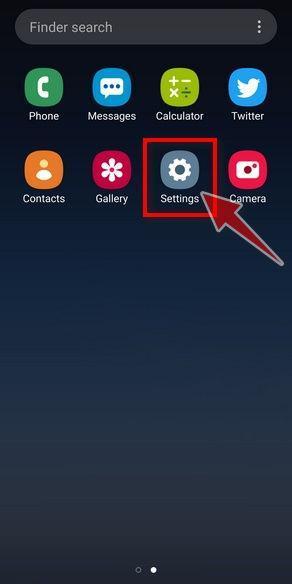
Open the “Settings” menu.
Tap on the “Settings” app from your phone menu or home screen.
-
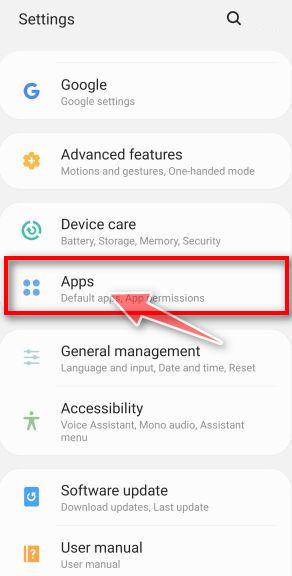
Tap on “Apps”.
When the “Settings” menu opens, tap on “Apps” (or “App Manager”) to see all the installed applications on your phone.
-
Find the malicious app.
The “Apps” screen will be displayed with a list of all the applications that are installed on your phone. Scroll through the list and look out for any suspicious app that could be behind all the drama – anything you don’t remember downloading or that doesn’t sound like a genuine program.
Most often, cyber criminals hide malware inside video or photo editing apps, weather apps, and camera apps.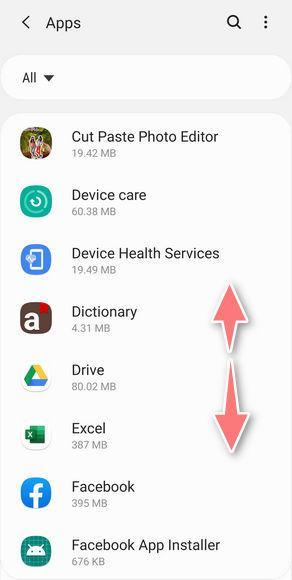
-
Uninstall the malicious app
When you find a suspicious or malicious app, tap on it to uninstall it. This won’t start the app but will open up the app details screen. If the app is currently running press the “Force stop” button, then tap on “Uninstall”.
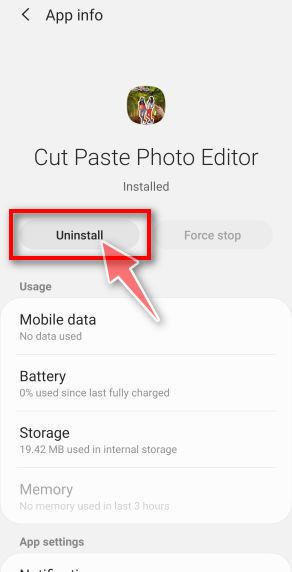
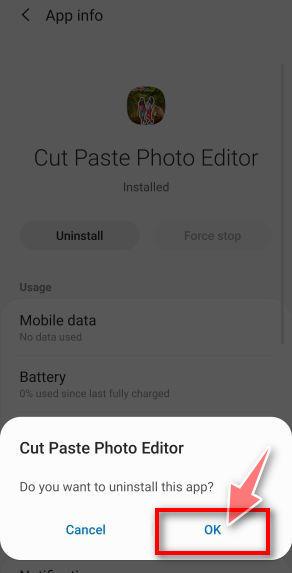
A confirmation dialog should be displayed to confirm you want to uninstall the app, tap on “OK” to remove the malicious app from your phone.
STEP 2: Reset browsers back to default settings
In this second step, we will reset your browser to its default settings to remove spam notifications, unwated search redirects, and restore its factory settings
Resetting the browser settings to their default it’s an easy task on Windows or Mac computers; however, when it comes to Android, this can’t be done directly because it’s not an option built-in into the browser settings. Restoring the browser settings on Android can be done by clearing the application data. This will remove all the cookies, cache, and other site settings that may have been saved. So let’s see how we can restore your browser to its factory settings.
Remove malware from Chrome for Android
To reset Chrome for Android to its default settings, follow the below steps:
-
Open the “Settings” menu.
Tap on the “Settings” app from your phone menu or home screen.
-
Tap on “Apps”.
When the “Settings” menu opens, tap on “Apps” (or “App Manager”) to see all the installed applications on your phone.
-
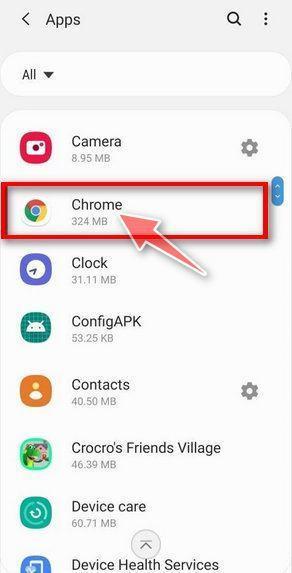
Find and tap on Chrome.
The “Apps” screen will be displayed with a list of all the apps installed on your phone. Scroll through the list until you find the Chrome app, then tap on it to open the app’s details.
-
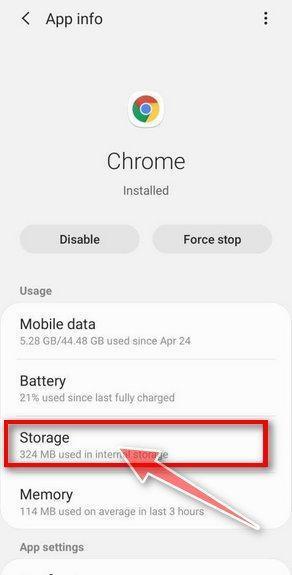
Tap “Storage”.
When Chrome’s app info menu is displayed, tap on “Storage“.
-
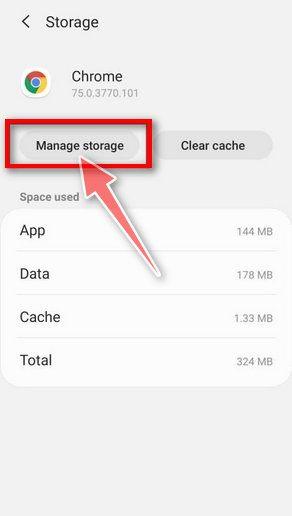
Tap “Manage Space”.
Under the storage settings, you will get two options — Manage Space and Clear Cache. Tap on “Manage Space“.
-
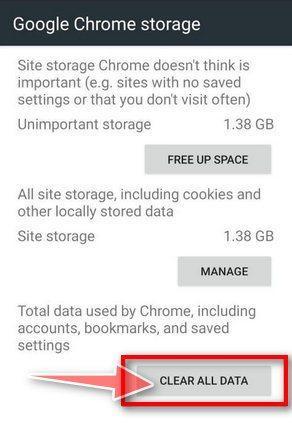
Tap “Clear all data”.
Tap “Clear all data” to delete all Chrome’s data including accounts, bookmarks, and your settings to reset the default settings.
-
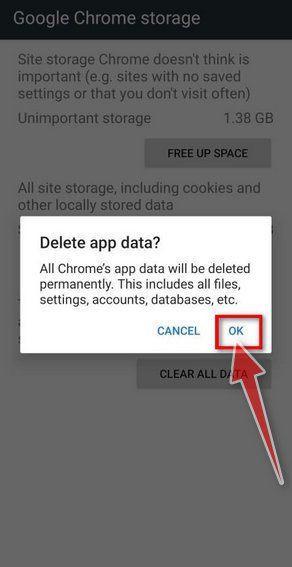
Confirm by tapping “Ok”.
A confirmation dialog should now be displayed, detailing the components that will be restored to their default state should you continue with the reset process. To complete the restoration process, tap “Ok“.
Remove malware from Firefox for Android
To reset Firefox for Android to its default settings, follow the below steps:
-
Open the “Settings” menu.
Tap on the “Settings” app from your phone menu or home screen.
-
Tap on “Apps”.
When the “Settings” menu opens, tap on “Apps” (or “App Manager”) to see all the installed applications on your phone.
-
Find and tap on Firefox.
The “Apps” screen will be displayed with a list of all the apps installed on your phone. Scroll through the list until you find the Firefox app, then tap on it to open the app’s details.
-
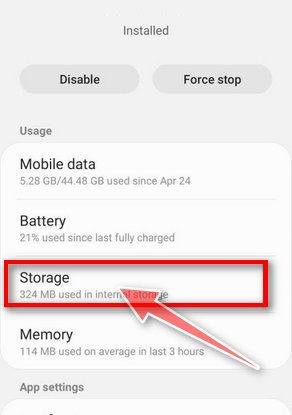
Tap “Storage”.
When Firefox’s app info menu is displayed, tap on “Storage“.
-
Tap “Manage Space”.
Under the storage settings, you will get two options — Manage Space and Clear Cache. Tap on “Manage Space“.
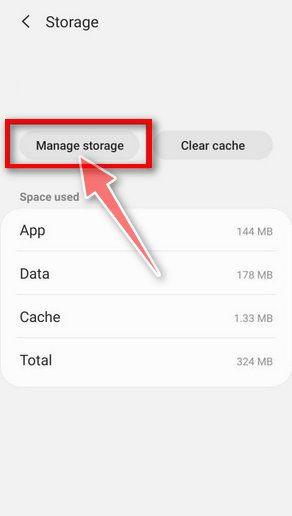
-
Tap “Clear all data”.
Tap “Clear all data” to delete all Firefox data including accounts, bookmarks, and your settings to reset the default settings.

-
Confirm by tapping “Ok”.
A confirmation dialog should now be displayed, detailing the components that will be restored to their default state should you continue with the reset process. To complete the restoration process, tap “Ok“.
Remove malware from the Opera browser
To reset the Opera browser to its default settings, follow the below steps:
-
Open the “Settings” menu.
Tap on the “Settings” app from your phone menu or home screen.
-
Tap on “Apps”.
When the “Settings” menu opens, tap on “Apps” (or “App Manager”) to see all the installed applications on your phone.
-
Find and tap on Opera.
The “Apps” screen will be displayed with a list of all the apps installed on your phone. Scroll through the list until you find the Opera app, then tap on it to open the app’s details.
-
Tap “Storage”.
When Opera’s app info menu is displayed, tap on “Storage“.
-
Tap “Manage Space”.
Under the storage settings, you will get two options — Manage Space and Clear Cache. Tap on “Manage Space“.
-
Tap “Clear all data”.
Tap “Clear all data” to delete all Opera’s data including accounts, bookmarks, and your settings to reset the default settings.
-
Confirm by tapping “Ok”.
A confirmation dialog should now be displayed, detailing the components that will be restored to their default state should you continue with the reset process. To complete the restoration process, tap “Ok“.
Remove malware from Samsung Internet Browser
To reset the Samsung Internet Browser to its default settings, follow the below steps:
-
Open the “Settings” menu.
Tap on the “Settings” app from your phone menu or home screen.
-
Tap on “Apps”.
When the “Settings” menu opens, tap on “Apps” (or “App Manager”) to see all the installed applications on your phone.
-
Find and tap on Samsung Internet Browser.
The “Apps” screen will be displayed with a list of all the apps installed on your phone. Scroll through the list until you find the Samsung Internet Browser app, then tap on it to open the app’s details.
-
Tap “Storage”.
When the Samsung Internet Browser’s app info menu is displayed, tap on “Storage“.
-
Tap “Manage Space”.
Under the storage settings, you will get two options — Manage Space and Clear Cache. Tap on “Manage Space“.
-
Tap “Clear all data”.
Tap “Clear all data” to delete all Samsung Internet Browser’s data including accounts, bookmarks, and your settings to reset the default settings.
-
Confirm by tapping “Ok”.
A confirmation dialog should now be displayed, detailing the components that will be restored to their default state should you continue with the reset process. To complete the restoration process, tap “Ok“.
Remove malware from Microsoft Edge for Android
To reset the Microsoft Edge for Android to its default settings, follow the below steps:
-
Open the “Settings” menu.
Tap on the “Settings” app from your phone menu or home screen.
-
Tap on “Apps”.
When the “Settings” menu opens, tap on “Apps” (or “App Manager”) to see all the installed applications on your phone.
-
Find and tap on Microsoft Edge.
The “Apps” screen will be displayed with a list of all the apps installed on your phone. Scroll through the list until you find the Microsoft Edge app, then tap on it to open the app’s details.
-
Tap “Storage”.
When the Microsoft Edge’s app info menu is displayed, tap on “Storage“.
-
Tap “Manage Space”.
Under the storage settings, you will get two options — Manage Space and Clear Cache. Tap on “Manage Space“.
-
Tap “Clear all data”.
Tap “Clear all data” to delete all Microsoft Edge’s data including accounts, bookmarks, and your settings to reset the default settings.
-
Confirm by tapping “Ok”.
A confirmation dialog should now be displayed, detailing the components that will be restored to their default state should you continue with the reset process. To complete the restoration process, tap “Ok“.
STEP 3: Use Malwarebytes for Android to remove malicious apps
In this final step, we will install Malwarebytes for Android to scan and remove malicious apps from your phone or tablet.
Malwarebytes for Android automatically detects and removes dangerous threats like malware and ransomware so you don’t have to worry about your most-used device being compromised. Aggressive detection of adware and potentially unwanted programs keeps your Android phone or tablet running smooth.
-
Download Malwarebytes for Android.
You can download Malwarebytes for Android by clicking the link below.
Get Malwarebytes for AndroidOpens Google Play in a new tab.Want real-time protection? See Malwarebytes Premium for Android Malwarebytes for AndroidScans your phone and removes malware at no cost
 -
Install Malwarebytes for Android on your phone.
In the Google Play Store, tap “Install” to install Malwarebytes for Android on your device.

When the installation process has finished, tap “Open” to begin using Malwarebytes for Android. You can also open Malwarebytes by tapping on its icon in your phone menu or home screen.

-
Follow the on-screen prompts to complete the setup process
When Malwarebytes will open, you will see the Malwarebytes Setup Wizard which will guide you through a series of permissions and other setup options.
This is the first of two screens that explain the difference between the Premium and Free versions. Swipe this screen to continue.
Tap on “Got it” to proceed to the next step.
Malwarebytes for Android will now ask for a set of permissions that are required to scan your device and protect it from malware. Tap on “Give permission” to continue.
Tap on “Allow” to permit Malwarebytes to access the files on your phone.
-
Update database and run a scan with Malwarebytes for Android
You will now be prompted to update the Malwarebytes database and run a full system scan.

Click on “Update database” to update the Malwarebytes for Android definitions to the latest version, then click on “Run full scan” to perform a system scan.

-
Wait for the Malwarebytes scan to complete.
Malwarebytes will now start scanning your phone for adware and other malicious apps. This process can take a few minutes, so we suggest you do something else and periodically check on the status of the scan to see when it is finished.

-
Click on “Remove Selected”.
When the scan has been completed, you will be presented with a screen showing the malware infections that Malwarebytes for Android has detected. To remove the malicious apps that Malwarebytes has found, tap on the “Remove Selected” button.

-
Restart your phone.
Malwarebytes for Android will now remove all the malicious apps that it has found. To complete the malware removal process, Malwarebytes may ask you to restart your device.
The Bottom Line
The “Android Has Detected A Wiretap On Your Phone” warning is one of the most dramatic and emotionally charged scams circulating today. It preys on your fear of being watched. It uses the name “Android” to borrow legitimacy. It pretends to diagnose your device. It makes you turn up your volume to create tension. And then it pushes you toward downloading something harmful, buying something unnecessary, or giving criminals access to sensitive information.
But once you understand how the scam works, everything becomes clear.
No website can detect a wiretap. No browser can scan your phone. No legitimate security warning appears through a webpage. And Android does not ask you to listen for “suspicious sounds.”
The entire scare message is a script designed to manipulate you.
If you ever see a warning like this, close the page immediately.
FAQ: Android Has Detected A Wiretap On Your Phone Scam
What is the “Android Has Detected A Wiretap On Your Phone” scam?
It is a fake warning that appears inside your mobile browser, not from the Android operating system. The page claims that your camera and microphone are being used by criminals, or that your phone has been wiretapped. The alert is completely fabricated. Its only purpose is to scare you into clicking buttons, installing apps, or paying for fraudulent services. No website can detect spying or wiretapping on your device.
Is this warning actually from Android or Google?
No. The warning has no connection to Android or Google LLC. Android does not send security alerts through websites or popups inside your browser. If a message like this appears while you are browsing, it is a scam. Real Android security notifications come from the system itself, not from a webpage.
Can a website really detect wiretapping or spying on my phone?
No. A website cannot scan your device, check your camera or microphone, detect malware, or identify wiretapping. Browsers are isolated from your phone’s internal system to prevent exactly this kind of abuse. Any claim that a webpage is scanning your device is a lie.
Why does the scam tell me to turn up my volume?
The scammers want to heighten your fear. When you turn up the sound, some versions of the scam play faint static, clicking noises, or muffled voices. These sounds are prerecorded audio files coming from the webpage. They are not evidence of wiretapping. The entire step is meant to trick you into believing something suspicious is happening.
Why are there buttons asking whether I heard anything?
The buttons like “Yeah, I hear something” or “I don’t hear anything” are part of the manipulation. Both buttons lead to the same result. They exist only to make you feel like you are participating in a real diagnostic process. Once you click, the scammers know they have your attention and can push you toward their real goal.
What happens if I click on the scam warning?
Clicking may redirect you to:
- fake antivirus apps
- malicious APK downloads
- phishing pages
- subscription scams
- sites promoting real antivirus software through fraudulent affiliate links
Even if the final destination looks trustworthy, the path that brought you there is fraudulent. Clicking deeper into the scam increases your risk of installing malware or exposing financial information.
What kind of malware could this scam install on my device?
If you download an app recommended by the scam, you may unknowingly install:
- spyware
- banking Trojans
- keyloggers
- adware
- SMS interceptors
- browser hijackers
- data stealers
- apps abusing Accessibility permissions
These apps can monitor your activity, track your keystrokes, steal login credentials, capture messages, or send your data to criminals.
How do I know if I installed something dangerous?
You may notice signs such as:
- sudden popups or ads
- strange background noises
- rapid battery drain
- overheating
- apps you do not recognize
- browser redirects
- changes in settings you did not make
- random notifications
- new permissions granted without your knowledge
Even subtle changes can indicate malicious activity.
What should I do if I installed an app from the scam page?
Remove the app immediately. Go to Settings, then Apps, find the suspicious app, and uninstall it. If you cannot uninstall it normally, restart your phone in Safe Mode and try again. After removing the app, run a full scan with a reputable security product from the Google Play Store.
Can my phone be permanently damaged by this scam?
The scam itself cannot damage your phone, but the apps it leads you to download might. Most attackers focus on data theft or subscription fraud rather than permanent destruction. Acting quickly and removing any suspicious apps is usually enough to regain security.
Will scammers gain access to my bank accounts through this alert?
Not through the alert alone. However, if you install a malicious app or enter financial information on a phishing page linked to the scam, your accounts could be exposed. If you shared banking information, contact your bank immediately, request card replacement, and monitor recent activity.
Do I need to factory reset my device after seeing this scam?
Not necessarily. Simply viewing the scam page is not dangerous. A factory reset is recommended only if:
- you installed an unknown app
- your phone behaves suspiciously
- malicious apps refuse to uninstall
- your security app detects threats
Always back up your data before performing a reset.
How can I tell the difference between a real Android alert and a scam?
Real Android alerts:
- appear within the operating system, not a webpage
- use consistent system design
- do not ask you to adjust volume
- do not run fake scans
- do not offer buttons that redirect to unknown sites
- never instruct you to download apps from outside Google Play
If the message appears in your browser, it is almost always a scam.
Why do scammers use threats involving the camera and microphone?
Threats involving spying or wiretapping cause strong emotional reactions. When people believe someone may be watching or listening, they feel vulnerable and act impulsively. Scammers use psychological pressure to push victims into downloading apps or paying for fake protection.
What should I do if I gave the scam my personal information?
Take action immediately:
- Change your passwords
- Enable two-factor authentication
- Contact your bank if financial info was shared
- Monitor your accounts for suspicious activity
- Scan your phone for malware
- Remove any unknown apps or permissions
Protecting your accounts quickly is the best way to minimize damage.
How can I protect myself from similar scams in the future?
You can reduce your risk by:
- avoiding unsafe websites
- not downloading APK files from unknown sources
- using a reputable security app
- keeping your device updated
- turning off pop-up permissions in your browser
- learning how real Android warnings look
- never acting out of panic
Knowledge is one of the strongest tools against mobile scams.
Is the “Android Has Detected A Wiretap” scam common?
Yes, it is widespread. Variations of it appear globally and often redirect to different services depending on the victim’s country or device. Scammers frequently update the design and messaging, making it one of the more persistent mobile threats.
What should I do if this scam keeps appearing?
If the warning pops up repeatedly:
- clear your browser data
- disable site notifications
- uninstall suspicious apps
- switch to a different browser temporarily
- avoid the site that triggered it
- run a full device scan
Consistent reappearance usually means the site you are visiting contains malicious advertising scripts.

Join the discussion
0 commentsShare your experience or ask a question about this article.
Discussion
Start the conversation
Have a question or something useful to share? Add the first comment.