


You installed a modified app to get one feature. A few days later, the phone uses more data even though you haven’t spent more time in the app.
That change has plenty of ordinary explanations. If a security product reports Android.Phantom, though, it gives you a more useful place to look than the battery graph.
Overview
Phantom is hidden activity inside an Android app
Doctor Web documented Android.Phantom trojans distributed in modified apps and games. The tested software could generate ad interactions in the background without the user’s participation.
This is not just the familiar problem of an app showing too many ads. An unwanted app can interact with web content even when the person isn’t watching it.
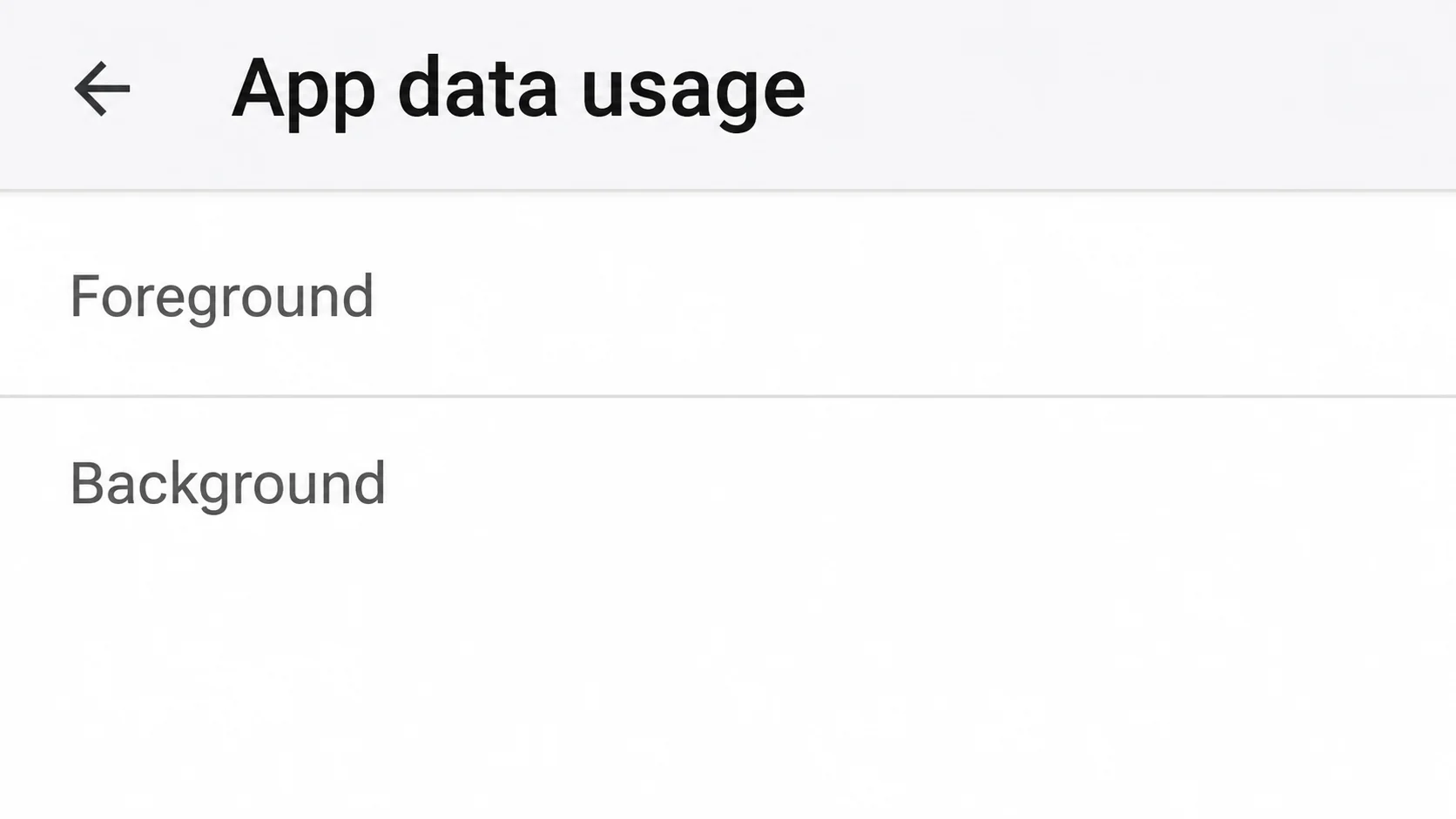
The image illustrates a data-usage setting. It is not evidence of an infected phone, and a busy background entry should not be treated as a security diagnosis.
The documented campaign used more than one distribution route
The researchers identified affected games in Xiaomi’s GetApps catalog and altered streaming-app packages distributed elsewhere. That does not make every GetApps title or every copy of a game malicious.
The report also describes mods borrowing the identities of legitimate services such as Spotify. It does not implicate the genuine app downloaded through its approved channel.
A familiar title can be useful in an investigation, but it doesn’t replace a trusted detection or a record of where your specific installation came from.
Click fraud and account theft are not interchangeable
Phantom’s documented background activity may use your device and connection to create false ad traffic. That capability alone doesn’t establish a stolen password or a charge on your account.
Different versions could carry or retrieve additional components. If your security tool identifies something else, treat it as a separate finding until a technician can link it.
Start with four observations you can verify:
- A modified package installed from an unfamiliar source matters more than the title alone.
- Unexpected data usage can justify checking an app, but doesn’t identify a malware family by itself.
- A blocked app download isn’t the same as an installed app running in the background.
- A payment or account change should be verified with the service that recorded it.
How the Phantom Android App Scheme Works
Step 1: The app looks like something you wanted anyway
A game or a promoted alternative to a streaming app already has a reason to be on the phone. That’s part of what makes a repackaged copy easy to miss.
Doctor Web traced examples to specific titles, listings and modified packages, not to all software with those names.
Compare your actual installation with verified evidence rather than searching for matching screenshots.
If you don’t know where the file came from, don’t download a second copy to check. Look at the installation record and any related message you already have.
Step 2: The visible features don’t tell the whole story
A modified app may appear to work while it does unrelated things behind the scenes. You don’t have to see an ad for the reported click fraud to occur.
That makes complaints about the interface a poor screening method. An app that looks ordinary and an app identified by a current security tool can be the same installation.
A different battery graph doesn’t prove that a game you recognize was responsible. Use the app inventory and your scanner’s record to identify the specific item.
Step 3: Background traffic can continue outside normal use
The malware can generate interactions with web content while the person’s attention is on something else. The reported campaign used that activity to create artificial ad traffic.
Do not try to reproduce what the program did by visiting addresses found in a report. Give the relevant detection or app details to a verified support person.
If your phone still shows unwanted activity after you remove an item, note when it returned. Researchers described different versions, so don’t assume one removal explains every new alert.
Step 4: Clean up the phone before judging account impact
Removing an identified app stops it from being available on the device. It doesn’t tell you what data every component used or whether an unrelated payment was authorized.
Check account records separately if you entered details into the modified app or see an unfamiliar sign-in. Use the provider’s genuine app on a different trusted device if necessary.
If you did not supply information and the only finding was an unwanted click-fraud package, don’t assume that every password has been stolen. Act on the exposure you can establish.
How to Identify the Installation You Actually Used
Separate the publisher, the title and the place you installed it
Two apps can have the same display name while coming from different publishers or downloads. Look at the existing app’s information and installation history without launching the suspect copy.
A past download from a known catalog isn’t a reason to dismiss the alert. Likewise, the existence of one modified streaming app doesn’t make the official service unsafe.
If a store still lists a similar title, don’t rate or report the wrong listing.
Give the store the link from your order or install history, if available, and the detection.
Use a data-usage check as context, not a verdict
Android’s settings can show data use by app, and some models separate foreground and background use. Use the device maker’s menu for your version rather than guessing from a screenshot.
Look at the selected date range and whether you’re checking Wi-Fi or mobile data. A normal streaming session or download can produce an increase in usage.
If you find an unexpected amount, record the app and period. Ask whether that matches use you remember before assuming all background traffic comes from Phantom.
Keep unrelated apps and incidents separate
A new bill or strange notification may have appeared near the same time. Check activity directly with the provider and don’t assume it was generated by the malware.
If you run a shared device, ask who installed new apps and when without asking them to reopen a suspect mod. Add that history to your notes.
Someone who only received a chat link without installing anything isn’t in the same situation as someone with a detection. Explain that difference if you’re helping a family member.
What to Do if You Find Android.Phantom on Your Phone
-
Close the suspect app and stop downloading related packages. If a trusted product reports an active threat, keep sensitive work off the device and consider disconnecting it while you investigate.
If your workplace manages the phone, contact its support team before changing settings. Give the detection name and the app you believe is involved.
-
Write down what you remember installing. Note the source, approximate date and whether a second install or permission prompt appeared.
Leave the file unopened and keep the notes private. A technician can tell you whether any package or log needs to be preserved.
-
Check account activity if you entered credentials. Use an unaffected device to review the real streaming, email or other service from which the mod borrowed its identity.
Change a credential you supplied to the unofficial app and close sessions you can’t explain. Never give a login to a caller who offers to fix the mod.
-
Review carrier or other charges through their official support. Provide the billing period and affected service, not a guess about what caused an increase.
A data charge and an unauthorized payment are different issues. Ask the appropriate provider what it recorded and what options are available.
-
Avoid restoring the modified app after cleanup. Use verified publisher routes for replacements and don’t reinstall from the link that brought you to the unofficial version.
Ask a trusted technician about further review if alerts or unexplained settings return. Don’t repeat the same download just to identify it.
How to Remove Android.Phantom From an Android Phone
Step 1: Match the finding to a specific installed app
Open Settings > Apps and choose the full list where available. Compare what your scanner reported with the app’s identity, without tapping its launch control.
Record its display name and other visible details if you’re planning to report it. Don’t remove a legitimate streaming app solely because the unofficial one used a similar name.
If you aren’t sure which item is involved, ask the device maker or someone qualified to identify it. Removing random system apps won’t establish what your scanner found.
Step 2: Review access only for the confirmed unwanted app
Check the identified item’s app information and the permissions it was granted. Use the phone’s search if the relevant settings are named differently.
If the phone won’t let you uninstall a confirmed unwanted item, check whether it was granted device administration. Disable only the unwanted authorization if it appears there.
Don’t remove managed-device controls or legitimate accessibility services to work around a warning. Get help if an item keeps restricting your ability to change settings.
Step 3: Uninstall the unwanted app and check the install route
From Settings > Apps, select the known unwanted app and tap Uninstall. Return to the app list and check that the same item is no longer there.
Search Settings for Install unknown apps if you enabled that access for a browser, file manager or chat app during the installation. Turn off the unintended permission afterward.
Do not uninstall the phone’s entire app catalog because one listing was affected. Check the specific listing and install route involved in your case.
Step 4: Review Play Protect and use the store scanner if appropriate
Reconnect only when it is appropriate, open Play Store, tap your profile and go to Play Protect. Confirm scanning is available and run its check.
If you want a second scanner, use the official Malwarebytes Play Store listing and verify the listed publisher before installing it.
The Malwarebytes Android link is an optional affiliate offer. A paid product is not necessary to remove a known unwanted app from the Android app list.
Step 5: Read the manual scan result, then check again
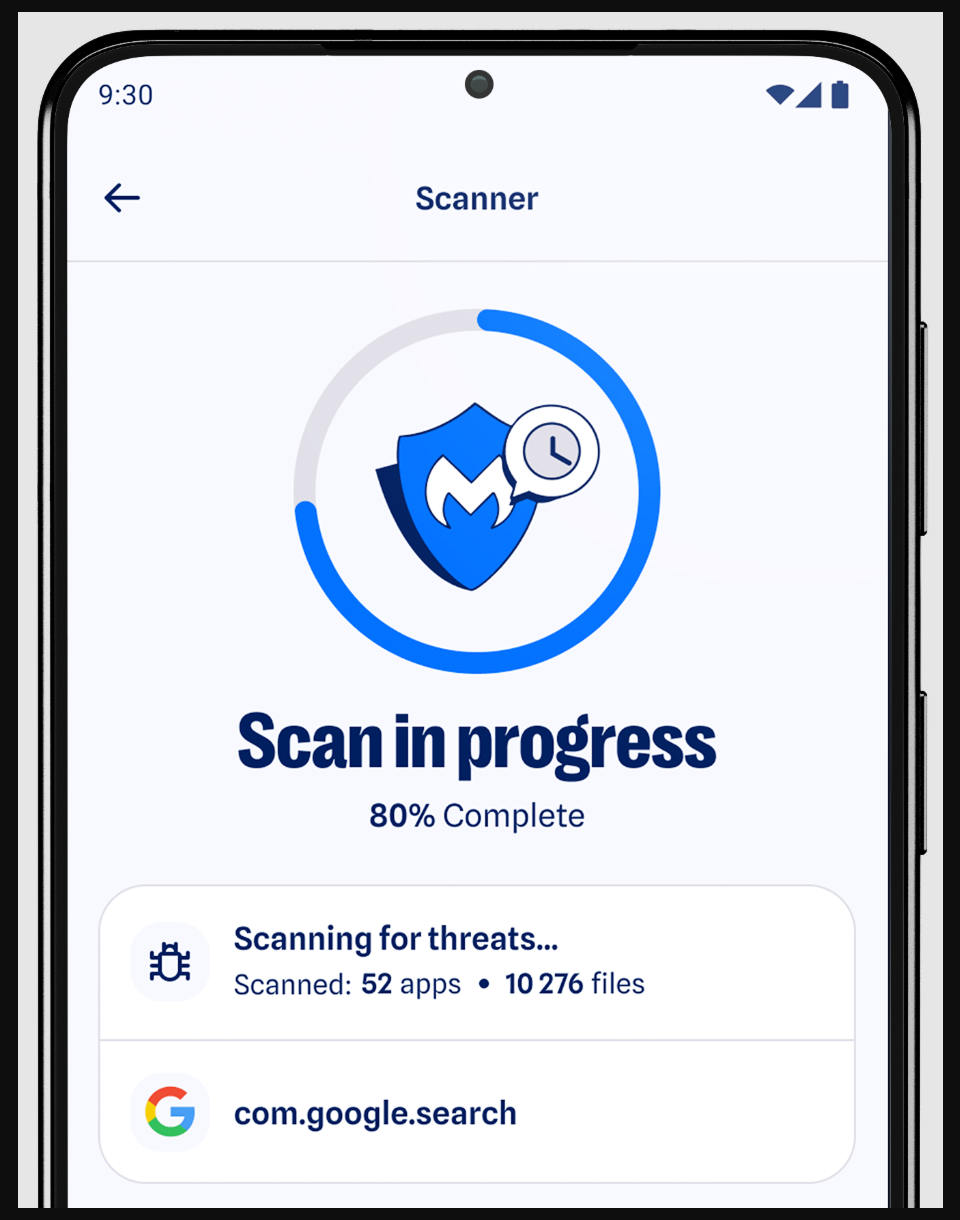
In Malwarebytes, open Device and tap Scan now. Review the results and follow the offered removal action for a confirmed unwanted item.
Restart if needed and safe, then verify the relevant app and permissions again. Record names of detections that come back rather than clearing everything without checking.
Use the MalwareTips mobile support area or the device maker if you still cannot identify or remove a finding.
Step 6: Update the phone and reinstall only apps you trust
Check for Android updates from Settings when the device is ready for normal use. Verify security settings again rather than depending on one removed app.
Install any replacement from the real publisher route and don’t let an old app backup restore the modified package. Ask about a reset only if the situation warrants it.
If you want to see whether normal data use returns, compare similar periods and similar activities. That follow-up isn’t a substitute for the actual security finding.
What to Check Before Getting a Replacement App
If the app came from an alternative catalog, compare the publisher with the one announced by the original service. Don’t rely on a familiar icon or an app’s review count.
Use Settings or your store’s existing record to confirm the old copy is gone before installing the replacement. If the device is shared, ask others not to restore the mod.
If your data use stays high afterward, check which app leads the list now. Treat that as a new observation rather than proof that Phantom survived cleanup.
Look for carrier support if the unexpected usage affected a plan limit or bill. Save the relevant dates and have the provider explain what its own records cover.
Frequently Asked Questions
Is this the same as a banking Trojan with a similar name?
This guide covers Doctor Web’s Android.Phantom click-fraud case, not an unrelated banking threat. Ask which exact detection the security product recorded.
Does every modified streaming app use this malware?
No, the documented case involved particular packages and sources. That doesn’t establish what is in every mod, and an unofficial copy shouldn’t be assumed safe either.
Did the genuine Spotify app deliver the malware?
The researchers described repackaged apps using recognizable service names. That does not establish that Spotify delivered this software through its normal official distribution.
Does higher mobile data usage prove infection?
No, regular updates and streaming can change data use. Check the installed app, security finding and relevant usage period instead of relying on one high number.
Will uninstalling the app settle a billing dispute?
Removal addresses the app, not the provider’s billing record. Check charges and report unexpected activity separately through the service that can verify it.
Can I restore an old backup of the modified app?
Avoid putting the same package back on the phone. Restore verified personal files and reinstall necessary apps from publishers you can independently check.
The Bottom Line
Remove the identified unofficial app rather than judging every copy by its name. Keep the original detection details and use genuine stores or publisher routes for any replacements.
If you entered credentials or see unexpected charges, handle those separately from the phone cleanup. A data graph or a clean scan can’t decide an account or billing case.

Reviews & discussion
0 commentsShare a firsthand experience, or ask a question.
Community reviews
android.phantom
Moderated reader experiences, not an editorial verdict.
Start the conversation
Have a question or something useful to share? Add the first comment.