


A folder you opened yesterday is full of longer filenames. A new text file appears among them, and suddenly everyone has an idea about what to try first.
If the files end in .locked, resist the urge to rename them. You need to establish what changed and keep at least one copy that nobody experiments on.
Overview
ChickenKiller leaves a pattern, not a unique extension
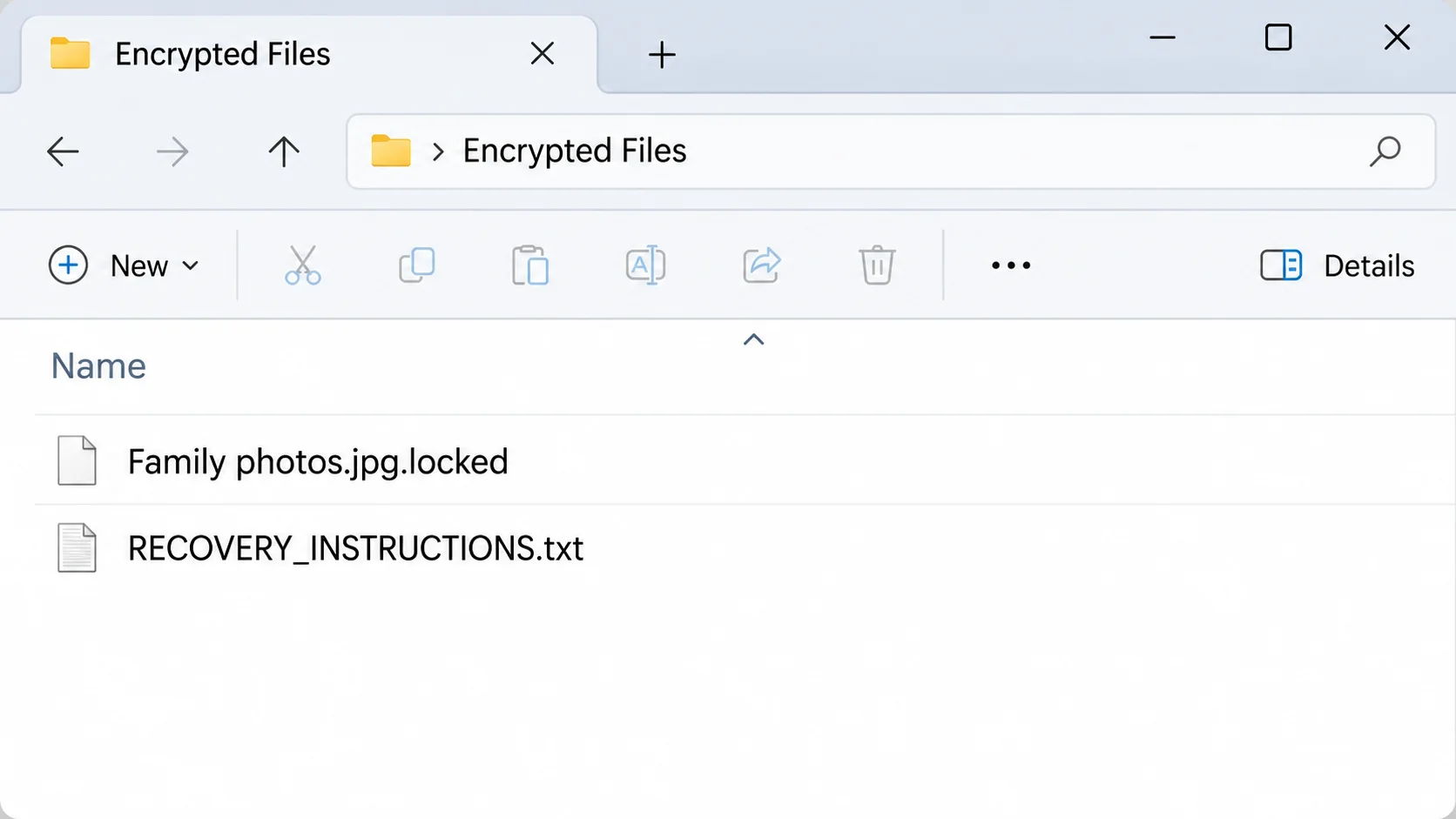
Researchers who examined a ChickenKiller sample observed encrypted files with .locked added to their names. The same test produced a note named RECOVERY_INSTRUCTIONS.txt.
Those clues can help a responder compare cases, but neither is a reliable identification by itself. Other malware families can use similar extensions or note names.
The picture is a reconstruction using a fictional filename. It shows what to record for support, not a set of actual files or an instruction to open the note.
Removing ransomware isn’t the same as reading old files
The threat is software that encrypts files and demands payment for access. Removing the active threat doesn’t convert those encrypted files back into their original contents.
A scanner can help find and quarantine malware, while a verified backup or previous version can supply separate usable data. Neither result establishes exactly what access an intruder had.
Before cleanup, decide how to keep the current notes and representative encrypted originals intact. That leaves room for further analysis if the first recovery avenue doesn’t work.
The note is not your guide to the incident
A ransom note is written to make you follow the operator’s preferred process. Its promises aren’t evidence that their tool works or that payment is the only recovery path.
If your organization is involved, record how the incident affected work and contact your security team separately. Do not follow the note’s instructions for contacting anyone.
Decide which situation you need to handle first:
- A suspected PC with active changes needs isolation before you connect any backup.
- An encrypted document and note should be preserved without rewriting the only copy.
- A known good offline backup should be tested away from the affected environment.
- A claim about a decryptor needs a verified match, not just the same filename suffix.
How to Tell What the .locked Files Mean
Identify the change without opening a suspicious file
Check a filename’s ending and the note name from the file list. Note when you last opened a normal version, and which folder you found it in.
If one person sees a changed file on a shared drive, tell the owner of the share. The machine that displayed the file isn’t necessarily where the encryption began.
Don’t keep retrying the file from different systems to see which program can open it. Preserve the original and use a verified previous version to test the file type instead.
A scanner name can be a clue without being a second diagnosis
Security vendors may use different names for the same sample or broad names for similar behavior.
A scanner family label alone isn’t proof that another document set uses the same encryption.
If you have a detection record, preserve it along with the time and affected machine. Give both records to a responder rather than choosing a recovery tool from the name.
Don’t relabel the files to match an article you found. Identification is based on the evidence, not on making the affected directory look like another case.
Check for shared storage and file versions early
If a sync service moves changes to other devices, isolate affected clients and notify the service or storage administrator. A clean online version may still be available.
Don’t try to restore a whole account from a machine you suspect is still active. Your storage owner should know which devices were connected before starting large changes.
If you are not sure whether backup media was connected during the incident, treat it as a copy that needs testing. Its physical presence is not proof it stayed intact.
What to Do if You Find ChickenKiller Ransomware
-
Stop the affected machine from touching more data. Disconnect a personal PC from Wi-Fi and Ethernet if safe, and leave any offline backup disconnected.
For work computers or a server, call your security team from a separate device. Follow its directions to isolate hosts and protect shared paths.
-
Preserve the note and encrypted originals without contacting the attacker. Keep the existing name, folder and time information where possible. Save a private note of what you saw.
If a responder needs to preserve volatile evidence, ask before restarting. Don’t turn off a device solely because someone wrote an instruction about it in the ransom note.
-
Document which services and copies could be affected. List the shared drives, sync accounts and removable storage you know were connected around the incident.
Request preservation of backup versions through the relevant owner. Do not overwrite an encrypted original with a partial recovery attempt while other options are still being checked.
-
Work with trusted incident support before using a decryptor. Keep a non-sensitive representative sample for an authorized responder if they request one.
Don’t upload customer records or family documents to a site that promises a result. Ask how the responder establishes a variant match and protects the sample.
-
Assess payments and outside claims separately from recovery. Paying doesn’t guarantee a key or prove anything about the use of your data.
If a third party calls after the incident, verify its identity through established contacts.
Avoid giving remote access to someone who offers to try a tool before you can verify them.
How to Remove ChickenKiller From Windows
Step 1: Keep evidence before choosing cleanup or reinstallation
If the computer is part of a business environment, let the incident team decide what to capture and when it is safe to change the PC.
For a personal device, decide where the original encrypted files and note will be kept. Do not use the only backup disk as a temporary place for suspect files.
If you see signs of wider compromise, ask whether a clean rebuild is safer than removing one entry. Make that decision before you restore your files.
Step 2: Use the trusted Windows scanner when authorized
From a clean computer, obtain the Windows Malwarebytes installer. Keep it separate from suspect downloads and do not transfer it on your protected backup drive.
Run setup only once changing the device is appropriate. Confirm the publisher at the Windows prompt, then proceed through the legitimate installer screens.
If setup needs a connection, get guidance before reconnecting to the usual network. In a managed incident, only security should determine how the computer is reached.

Step 3: Record what the scan removed and verify its result
Open Malwarebytes and select Scan from the Scanner card. Review the results and quarantine confirmed unwanted items when the incident plan allows.
If a restart is requested and safe, check detection history afterward. Repeated findings or additional components are a reason to keep the machine out of routine use.
The Malwarebytes Premium Windows link is optional and affiliate-supported. No scanner purchase will decode locked documents or guarantee that a network incident is finished.

Step 4: Verify the destination for recovery
Use known good installation media if the PC needs a clean rebuild. Apply security updates and restore only approved software before adding documents back.
Ask IT to confirm new account and share access separately if the affected system belonged to an organization. A Windows reinstall doesn’t reset passwords or remove access on other systems.
If you don’t know whether the original system is safe, use a separate destination. Test restored files there instead of writing to the disk you still need for evidence.
How to Recover .locked Files Without Risking the Only Copy
Test a protected backup in a separate location
Find the last reliable backup that predates the file changes. Use a known clean computer and restore a small batch of files into a separate folder.
Open representative documents and verify formatting and expected contents. For anything tied to an application, ask the owner to check that related records and dependencies work.
Compare the latest usable backup with the business or personal records you need. You may be able to reconstruct a gap from another safe source without touching the encrypted files.
Try previous versions only from a trusted environment
On a clean device, open the relevant cloud storage service and locate a file’s version history if available. Pick a version from before the file changes.
Save or restore a test copy without overwriting the only original.
If the service only restores in place, protect the remaining copy and discuss the process with the storage owner first.
For shared storage, ask about protected snapshots before users reconnect. Check a few restored files and permission settings before putting a whole folder back into regular use.
Check the exact variant before testing a decryptor
No public decryptor matching this ChickenKiller sample was verified in the No More Ransom catalog. A tool advertised for some other .locked files is not enough.
Ask a trusted responder to validate the match if a tool becomes available. Test it on copies and verify the recovered document before processing a bigger group.
Keep an untouched encrypted copy even if a trial works. If a tool fails, record what you tried and avoid doing repeated writes to the only affected disk.
If you don’t have a usable source, preserve options
Keep original encrypted files and the note in protected storage according to your responder’s guidance. A later tool or recovered backup may be useful only if the originals survived.
Do not install recovery utilities on the affected disk if you are hoping to recover deleted originals from the same drive. Ask a qualified technician how to preserve it first.
Don’t accept a stranger’s guarantee to recover everything. A paid promise isn’t a verified backup, working decryptor or reliable account of what happened.
How to Protect the Next Good Copy
Choose a location that won’t sync changes back to the incident
A clean folder is not enough if it’s part of the same active sync client or share.
Ask the storage owner for a separate recovery location before copying data into it.
If you are checking cloud versions, make sure you know which account and folder you are viewing.
Similar folder names can lead to a test being restored in the wrong place.
Write down where the test version went and which date you selected. That keeps it distinguishable from the encrypted original and from an older backup someone else preserved.
Set a clear standard for a usable recovery test
Verify more than whether the file opens. A spreadsheet may depend on other files, and a photo may look usable at first even if part of it didn’t recover.
Use several representative types, including something important to the person who needs the files. Record a failed sample separately and leave its original intact.
If your first backup has gaps, record the dates and continue checking separately protected copies. Don’t overwrite a second source while testing a tool or importing documents.
Reopen access after checking the clean copies
For a shared folder, have its owner verify permissions on the clean destination. Test with one approved account before returning the folder to several users.
Check which clients will resume sync when access is restored. Leave affected devices disconnected until the relevant team verifies them and confirms they use the correct recovery destination.
Keep a verified offline copy separate after the first restoration succeeds.
It may still matter if another device spreads old changes or the newly restored data turns out to be incomplete.
Frequently Asked Questions
Does .locked always mean ChickenKiller infected the PC?
No, the suffix isn’t unique to one threat. Compare the note, timeline and security evidence before deciding what the files represent.
Do I need to open the note to identify it?
The name and location are useful first clues. Share those details through trusted incident support rather than opening links or attempting to contact the note’s author.
Can I remove the suffix to recover a file?
Changing a filename does not decrypt its contents. Keep the name and original copy intact until an authorized responder knows what it is.
Does a successful scan mean the encrypted files will open?
No, cleanup addresses unwanted software rather than rebuilding the original files. Restore or decrypt test copies only after verifying a safe method for that particular case.
Can I reconnect my offline backup after quarantine?
Wait until the recovery destination is verified and active threats are addressed. Test the backup on another clean system rather than using the original PC as the test.
Does a missing public decryptor mean I should delete the files?
No, your options can change if a usable backup or matching decryptor appears. Retain originals safely and avoid repeated attempts that could make later analysis harder.
The Bottom Line
If you see .locked files and the ChickenKiller-style note, isolate the affected equipment and keep the evidence intact. Don’t choose a fix based on the extension alone.
Clean or rebuild before restoring files, and test recoverable copies on a trusted destination. If no safe method is available, preserve the originals for qualified review.

Join the discussion
0 commentsShare your experience or ask a question about this article.
Your progress
Did these steps help?
Let us know how the guide worked for you.
Describe what you see and the step you reached. Keep passwords and other private information out.
Discussion
Start the conversation
Have a question or something useful to share? Add the first comment.