


The first clue might be a spreadsheet that worked yesterday. Now Windows shows a much longer filename, and other people in the office are seeing the same thing.
A note on the desktop adds pressure at the worst possible time. Before anyone starts trying to get files back, figure out what should be kept out of reach.
Overview
The last part of the filename is the useful clue
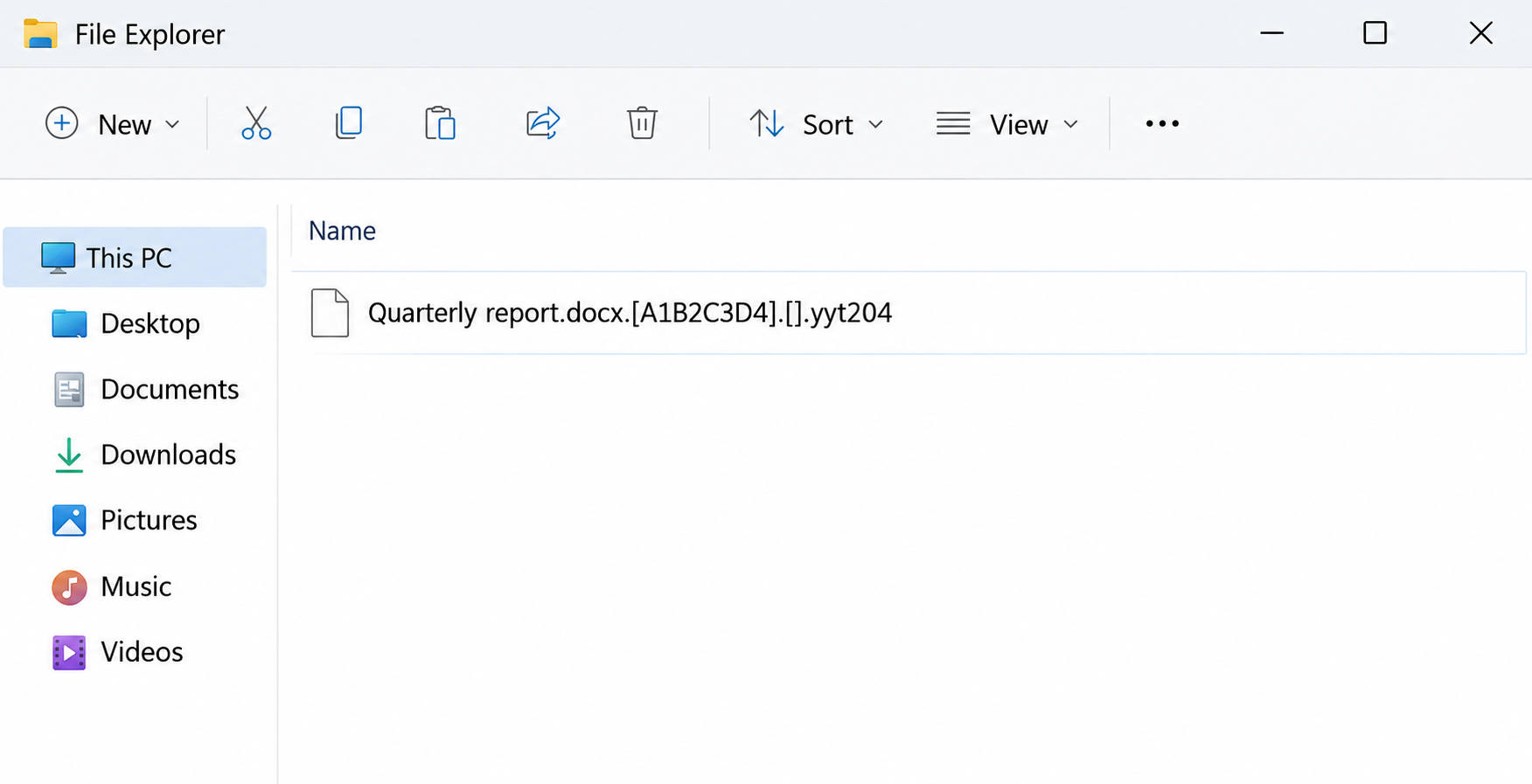
The analyzed Yyt204 sample added a victim identifier, an empty pair of brackets and the .yyt204 suffix to the files it encrypted. The image shows a reconstructed example.
Researchers associated the sample with the Makop family. An extension helps narrow down the investigation, but it doesn’t tell you which systems were touched or how the attackers got in.
A similarly named file can be copied from elsewhere. If only one machine has the extension, preserve the evidence rather than naming it as the only affected machine.
The ransom note describes two different threats
The sample created a file named +README-WARNING+.txt and changed the desktop background. The note demands contact and makes separate claims about locked files and stolen information.
Encryption can be apparent from the state of the files. Data theft needs a separate assessment, including logs and evidence of access to relevant systems.
The note’s deadlines are pressure tactics, not instructions from your incident responder. Save the message, but don’t assume that its claims have been verified by anyone independent.
Removal and recovery solve different problems
Cleaning an affected system can prevent further harm from the malware. It does not automatically decode a document, restore a database or answer what information may have left the network.
An offline or otherwise protected backup is useful only after you know what it contains and where it can be safely restored.
There are four things to keep distinct as you respond:
- Systems that need to stay isolated while your team works out the scope.
- Original encrypted files, ransom notes and logs that may still help an investigation.
- Clean environments that are ready to receive restored data without restarting the incident.
- Protected backups, file versions or matched decryptors that can be tested without replacing your only copy.
How to Read a Yyt204 Finding
An altered filename doesn’t prove the original file can be opened
Files can keep their old names as part of a longer name. Removing the added suffix does not turn encrypted bytes back into a spreadsheet.
Renaming a directory full of documents makes comparison with older copies harder. Leave the original names alone unless a qualified responder tells you otherwise.
Make a short inventory of what you know. A company might record when users last opened a shared folder, when the extension appeared and which backup jobs ran in between.
Take the threat seriously without taking the note at its word
The Yyt204 note tries to turn different fears into one decision. A promised decryption tool, a claim of data deletion and a warning about publication do not verify each other.
Check with the team responsible for your network before searching for files mentioned in the note.
Don’t move sensitive evidence to a personal drive to get it out of the way.
If a machine served several users, correlate the finding with the shared folders and accounts it could see. An affected workstation is not necessarily where the incident began.
Network access needs its own investigation
The sample report describes what happened in analysis, not the entry route for your organization. Do not assume a particular email, exposed service or user was responsible.
Ask a responder to check account sign-ins, remote access and recent changes around the time files stopped opening. Logs from unaffected systems can help establish what the ransom note cannot.
A new clean computer won’t fix access that still works against your network. Ask IT to verify that remote access and privileged accounts are safe before reopening restored services.
What to Do if You Find Yyt204 Ransomware
-
Disconnect affected devices from the network. On a personal computer, disconnect Wi-Fi and unplug Ethernet. Keep external backup drives away from the affected computer.
For business devices or shared storage, call security or IT from a separate device. Don’t reconnect a computer to send logs or let colleagues try the same files.
-
Keep the note and the current state intact. Record the time you discovered it and make a private copy of the visible warning if you can do so safely.
Do not follow the note’s contact directions. If you need to preserve volatile evidence, let your responder decide whether power should stay on after isolation.
-
Protect the rest of the recovery environment. Tell the backup owner which devices are suspected. Ask them to check offline copies, managed snapshots and backup administrator access separately.
Stop affected clients from syncing unwanted changes into cloud storage. A provider may retain older versions, but first preserve them rather than restoring from a suspect computer.
-
Open an incident record before deciding what to restore. Document unavailable services, reports of unusual access and the oldest likely date of suspicious activity.
Organizations should involve their incident-response, legal and privacy contacts. The evidence and applicable requirements, not a deadline in the note, should drive reporting decisions.
-
Reject paid recovery offers that cannot demonstrate a match. Don’t hand unknown people your files, keys or remote access because they use the correct family name.
Take the note and a non-sensitive encrypted sample to a trusted responder if requested. Avoid sending confidential files through a public upload service.
How to Remove Yyt204 From a Windows PC
Step 1: Decide whether the machine should be preserved or rebuilt
For a work computer, leave collection and cleanup to your responder. Running a scanner first can change evidence they need to answer how much of the network was affected.
For personal equipment, disconnect the device and decide what originals must be preserved before doing anything that writes to the disk. A technician can make a copy if necessary.
A trusted rebuild with known good installation media is often the better option when the extent of remote access is uncertain. Decide that before relying on individual quarantine events.
Step 2: Use a Windows scan only when you are ready to change the system
Use a clean computer to obtain the verified Windows installer. Avoid connecting recovery media or a drive containing your backup just to move the setup file.
Run the installer only on a personal machine you can safely change. Check the publisher in the Windows prompt, then follow the setup instructions without relying on the ransom note.
If setup can’t work without network access, don’t restore unrestricted internet access to a suspect machine. Ask a trusted technician how to scan it within an isolated environment.

Step 3: Run a scan and document the removal result
Open Malwarebytes and select Scan in the Scanner card. Read the detection list and compare it to the time and system you documented earlier.
Quarantine confirmed findings and note what was detected. Restart only when your containment plan permits it, then check for recurring findings and investigate any unexpected result.
The optional Malwarebytes Premium link is an affiliate link. A paid license will not decrypt a .yyt204 file or verify that confidential information stayed private.

Step 4: Verify the clean destination before restoring files
A scan does not answer how the malware got there. If the same findings recur or you cannot explain the scope, stop and get qualified help.
When rebuilding, start with known good media on a clean destination. Apply approved operating system and application updates before bringing restored accounts and data online.
Do not reuse unknown downloaded installers from the incident window. Ask a trusted technician to verify that backup-admin access and ordinary account access aren’t still controlled by someone else.
How to Recover .yyt204 Files Safely
Start with a backup that doesn’t depend on the infected PC
Identify the last known good copy of the data and document its date. A backup made before the first locked document appeared is worth checking, not automatically trusting.
On a clean system, restore a few files into a separate folder. Open representative documents and verify that important records are readable, current enough and not missing linked information.
For business databases, don’t judge the restoration by a single file that opens. Ask the application owner to check consistency, dependencies and expected records in a test environment.
Check cloud history or protected snapshots without overwriting originals
If OneDrive or a similar service synchronized encrypted copies, use the provider’s version history from an unaffected device. First collect one known good previous version and open the restored copy.
Do not immediately restore a whole shared folder into a location still connected to affected clients. Work with the storage owner so a later sync doesn’t spread the problem again.
If a listed previous version is missing or damaged, try another trusted backup source. Don’t treat a backup timestamp alone as evidence that the data underneath it is usable.
Reopen shared access in a deliberate order
If recovery involves a company file server, ask the data owner which folders people need first. There is little value in opening every share at once to test one document.
Verify that a recovered folder has the expected permissions before returning it to users. Restoring the documents is not the same as restoring the correct access rules around them.
After restoring a first set, compare the newest recovered records with the operating needs of the business. A missing day of entries may need to be reconstructed through ordinary records.
Write down which version was restored and where you placed the test copy. A second technician should be able to find the original encrypted file without hunting through restored folders.
Before reopening sync or inviting ordinary users back, check that the backup remains protected. Recovery gets harder if you’ve already overwritten your only clean copy while testing.
Record failed recovery attempts too, including the file type and what did not open. Keep those records separate from the still-encrypted files so later work starts with reliable information.
Keep the first recovery test small enough to repeat if it fails. Reopen more services only after you know how to return to a safe state without touching the source.
Verify a match before attempting decryption
The No More Ransom decryptor catalog is a safer starting point than a tool advertised in a search result. No compatible public Yyt204 decryptor was verified for this case.
A similar suffix or family name isn’t enough to make a decryptor safe for your files.
An experienced responder can compare sample characteristics before deciding whether any tool is worth testing.
If the tool is a match, try it against test copies only. Keep an original encrypted copy and record what you tried before using the tool on a larger set.
If the files remain locked, preserve your options
Keep original encrypted files and the note in a protected place if your responder says it’s safe to do so. You may need them for later analysis.
Don’t install file recovery utilities onto the only affected disk if deleted originals might still exist. The act of writing new files can make some recovery options worse.
Ransom payment does not establish that a decryptor will work or that copied information will disappear. Assess safe backups and incident support before you consider anything the note promises.
Frequently Asked Questions
Is every file ending in .yyt204 proof that malware is running now?
The suffix is an indicator, not proof of current activity. An already encrypted file can remain on disk after removal, or it may have arrived from another system.
Why are there brackets before the extension?
The analyzed sample included a victim identifier and an empty pair of brackets. Preserve that structure in samples so a responder can compare the files with the reported version.
Will Malwarebytes recover the encrypted documents?
The scanner can help identify and quarantine malware, but it isn’t a file decryptor. Verify what your backups or file versions can restore separately from the scan.
Can I check an offline backup on the affected machine?
Use a separate clean system for the test instead. Connecting a good backup to the original computer before containment could put an otherwise recoverable copy at risk.
Does the ransom note confirm data was stolen?
No, it makes a claim that should be investigated. Assess your logs and what the relevant systems could access even if a usable backup solves the immediate outage.
Should I shut down a machine that is still connected?
Isolate it promptly and get incident-response guidance before power changes when possible. For a managed network, your team may need to preserve evidence while stopping further damage.
The Bottom Line
If you see .yyt204 files and the warning note, isolate the affected machines and preserve evidence before trying to clean them. Don’t use the attacker’s note as your recovery plan.
Restore verified copies only onto a clean destination.
When there is no suitable backup or matched public decryptor, save the originals and get qualified help rather than risking the only copy.

Join the discussion
0 commentsShare your experience or ask a question about this article.
Your progress
Did these steps help?
Let us know how the guide worked for you.
Describe what you see and the step you reached. Keep passwords and other private information out.
Discussion
Start the conversation
Have a question or something useful to share? Add the first comment.