


A familiar filename now ends in .Qv. Between the old name and the new ending, there may be a contact and a long identifier you didn’t put there.
Then you find a text note offering to unlock a single file. Before you decide what that offer means, keep the files and the note intact.
Overview
Why the full filename matters
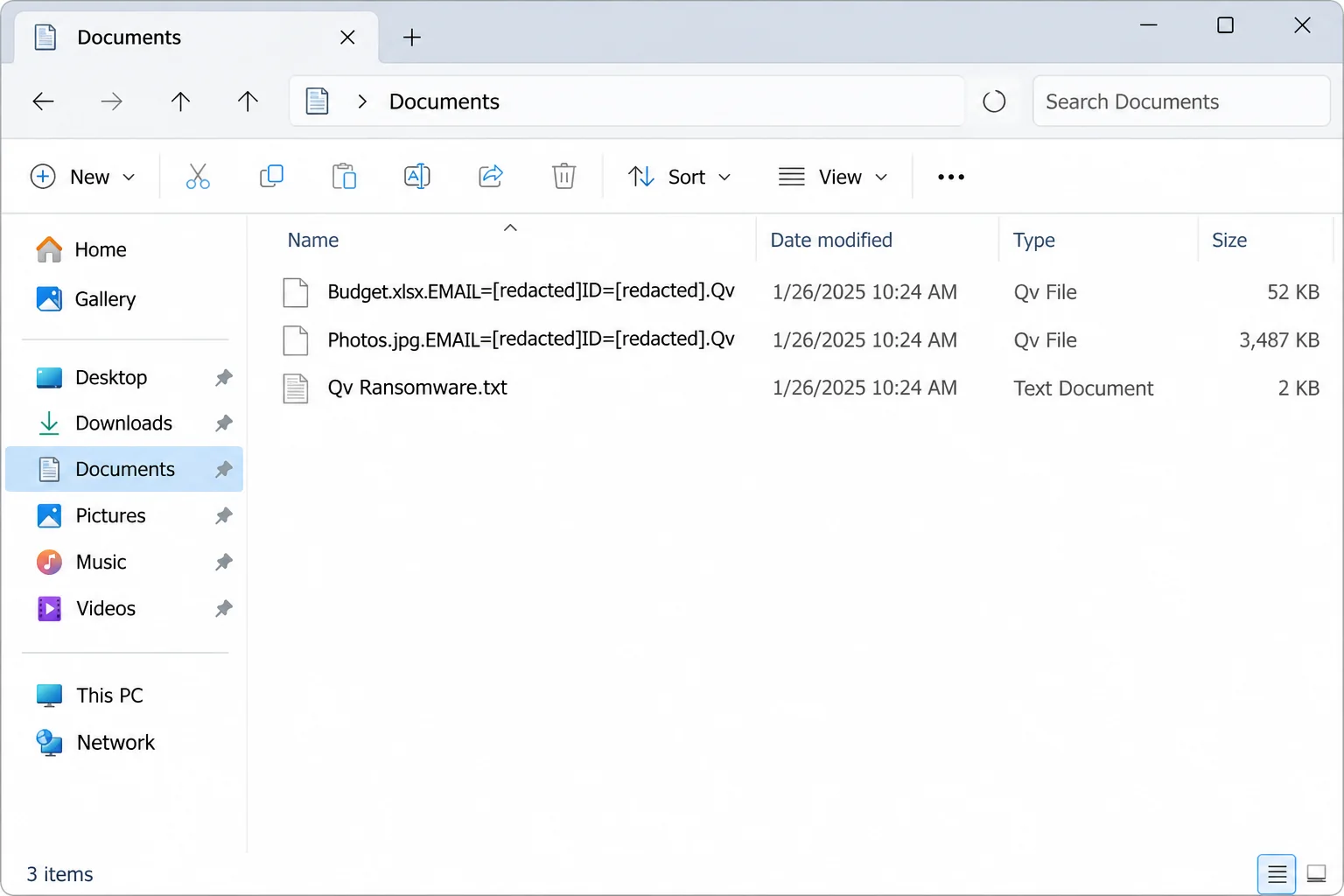
Qv ransomware doesn’t just add a short extension. In the documented Windows sample, the new ending also includes a contact label and an identifier assigned by the ransomware.
A filename can still start with the familiar name of a photo or spreadsheet. That makes it tempting to remove the last part and see what happens.
Renaming won’t restore encrypted contents. Keep the complete name on the original. The extra information can help responders tell this case apart from another locker with a similar suffix.
Record the pattern without sharing identifying details publicly:
- Affected files retain their old names before a longer added suffix.
- The suffix can include fields marked EMAIL and ID.
- The documented extension ends in .Qv.
- The note is named Qv Ransomware.txt.
The note offers one unlocked file, not a recovery guarantee
The ransom note offers to decrypt one file as a demonstration. It does not give a fixed ransom price. It asks the reader to contact the people behind the demand.
A working sample would answer only one question: whether one copy could be opened. It would not guarantee the result for a folder, a database, or a damaged drive.
Don’t send a private document to test the offer. A file can contain client data or personal details even if its name looks harmless.
The note also tries to discourage other recovery tools. Ignore that instruction, but don’t take the opposite gamble by downloading a random decryptor. Verify its publisher and exact family match.
Isolate first, then choose how to recover
The observed case supports identifying and responding to file encryption. It doesn’t tell you what brought the infection onto your particular system.
An antivirus scan may help with the program that caused the damage. Getting the files back requires an independently usable copy or a decryptor that actually supports this variant.
Those tasks should happen in the right order. Don’t reconnect a backup to the affected machine simply because you want to see whether it still opens.
What to Do When You Find Qv Ransomware.txt
-
Disconnect the affected machine.
Unplug its network cable and turn off Wi-Fi. Leave external backup drives disconnected. Don’t ask someone on another machine to open a shared folder from the affected PC.
-
Use a trusted channel to report a work incident.
Give your help desk the note name, the .Qv suffix, the affected locations, and when you noticed them. Wait for instructions before rebooting or scanning a managed device.
-
Preserve the filename pattern and note.
Record the full name privately. Save the note separately when responders can do so safely. If you share an example publicly, redact the ID, contact strings, and private filenames.
-
Find out whether an intact copy exists.
Use a separate system or ask the person responsible for backups. Check when the backup ran and whether a file opens, rather than just whether the backup appears online.
-
Avoid making the note your support channel.
Don’t send a file, payment, or information about your environment to the contact in the note. Keep those messages as evidence if you already replied.
Why preserving the original is useful even if it won’t open
A professional might need the note, the file extension pattern, and an affected sample to distinguish between variants. A folder full of renamed copies can erase useful context.
If the disk is your only source, ask about imaging it before making changes. An image preserves the storage as it is, including the encrypted files.
For business systems, logs can also show where changes started and which devices accessed a shared folder. Reinstalling one workstation before collecting those records may obscure the timeline.
CISA’s ransomware guide gives organizations a framework for isolating affected systems and coordinating evidence collection. A consumer scanner isn’t a substitute for that work.
Check the backup without connecting it to the suspect PC
If you have a disconnected drive, leave it that way until you have a clean place to inspect it. A backup can be healthy and still be put at risk.
Ask whether the backup includes the folders that actually changed. A backup of Documents may not contain the Desktop, a local app database, or files kept in another user profile.
Don’t assume a healthy backup contains the latest version. Record which dates are available and which files you would have to reconstruct separately.
How to Remove Qv Ransomware From Windows
Step 1: Decide whether scanning or a clean rebuild fits
A managed device needs its incident plan first. Your employer may want the disk and current system state preserved before anyone runs software or restarts.
On a personal PC, preserve evidence and original files before scanning. If the old Windows installation can’t be trusted, plan a clean rebuild instead.
If deleted-file recovery could matter, avoid writing more data to the affected disk. Ask a technician whether to work from a copy before installing a scanner there.
Step 2: Use a verified scanner installer if you’re cleared to proceed
Use a trusted device to get the Windows installer. Keep the installer on separate media from your only recovery copy. Don’t follow a link supplied in the note.
Malwarebytes for Windows
Download the Windows installer
Run a manual scan without buying a subscription.
Find the known installer in File Explorer and open it. Read the Windows publisher prompt before granting permission. Stop if you don’t recognize the source or publisher.

Follow the setup screens and decline extras you don’t need. The manual scan is distinct from the optional paid protection plan.
If installation needs network access you can’t provide safely, stop. Don’t reconnect the suspect computer to a home or work network holding files you need to protect.
Step 3: Run the scan, review detections and quarantine confirmed threats
Open Malwarebytes and choose Scan in the scanner panel. Let the scan finish. Note any error, cancellation, or partial result instead of treating it as a completed check.

Save the report, including the detection names and paths. A security team may need those details to understand what else was on the system.
Select confirmed threats and choose Quarantine when appropriate. If you are unsure about a file or the computer is managed, ask the person handling the incident before removing it.
The pictured result is a tutorial example. It shows where the control is located, not what Qv will be called by a scanner on your computer.

If a restart is requested, proceed only after preservation and approval where needed. If detections recur or files keep changing, keep the machine isolated and escalate.
Step 4: Don’t bring back data until the target system is trusted
If Windows still looks compromised or its state is uncertain, get help from your IT team or the MalwareTips Windows removal-help forum.
Microsoft’s Windows installation media guide explains the clean installation route. Confirm exactly which disk you can erase before choosing a destructive installation option.
Install operating system updates and use trusted sources for applications. Don’t restore downloaded setup files, unfamiliar startup programs, or whole system folders along with your personal files.
Use another clean device to handle any password resets the incident calls for. Getting a scan result doesn’t tell you whether a password or active session was exposed before cleanup.
How to Recover Locked .Qv Files
Start with verified originals
An email attachment you previously sent, a camera card, or a separately stored project export may contain a usable copy. Look for those before attempting decryption.
Save the recovered file under a new location and confirm it opens. Compare its date and contents with what you expected to avoid replacing recent work with an older copy.
Try a few different file types. If a document opens but a database doesn’t, keep looking for a backup designed for that application rather than copying its working folder blindly.
Check backups, cloud versions, and surviving snapshots
Test a small restore in an empty folder on a clean computer. Don’t overwrite the locked set or put a restored copy directly into a live sync folder.
From a trusted device, inspect cloud history for an intact version. For OneDrive, Microsoft’s recovery guide distinguishes restoring an individual file from rolling back broader changes.
If Previous Versions is available for an affected Windows folder, open an older version before choosing any restore action. A listed snapshot may be incomplete or too recent.
For a shared folder, ask its administrator to recover a test set. Test access and file contents before putting the recovered copy back where others will use it.
Check for a matching decryptor, not a similar name
The No More Ransom catalog did not show a confirmed Qv match. The .Qv ending alone doesn’t establish compatibility with a tool that happens to use the same letters.
A genuine decryptor provider should explain which version its tool covers and what evidence it needs. Try it on copies, not your only encrypted files.
No backup or verified tool? Keep the encrypted files anyway. A later decryptor cannot help if the only copies it might unlock are already gone.
Use deleted-file tools only for missing originals
A deleted-file scanner searches for remains of files that were removed. It doesn’t reverse encryption. It can help only if recoverable material is still present separately from the locked copy.
If you want to try it, avoid installing on the affected disk. Work from an image where possible and save recovered files onto a different clean drive.
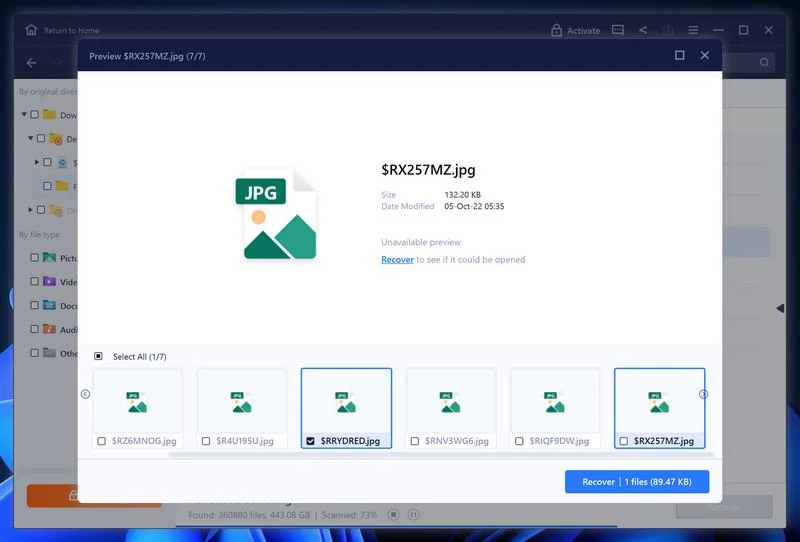
The EaseUS recovery walkthrough shows how to select a candidate and use the recovery controls. A preview isn’t always available; open the recovered copy before relying on it.
Keep a record of what came back
Label the restored folder with its source and date. If you find a newer copy later, that record makes it easier to choose which version to keep.
Don’t discard the locked set because a few documents opened. Verify the important folders and make a fresh, separate backup before deciding what to remove.
Handle partial recovery without replacing your only copies
If older photos come back but recent ones don’t, check where those recent files originated. A camera card or a shared album may cover part of the gap.
For spreadsheets, check the version that includes your latest formulas and inputs. An exported PDF might preserve the result without preserving the workbook you need to update.
If a program kept working copies on the encrypted disk, ask about the program’s own export or restore method. Not every useful copy is a standalone document.
Track gaps by folder and approximate date. A short list helps a technician look for missing originals without reopening the entire disk or touching encrypted files again.
Keep the original Qv filenames where you store affected samples. If you make a redacted copy for a support request, don’t replace the privately preserved filename record with it.
Keep the note with your incident records, away from folders people use every day. Label it as evidence so nobody mistakes it for instructions from your technician.
When you copy a recovered folder to a new disk, check its files again from that disk. A successful preview doesn’t prove the later copy finished correctly.
If someone offers a working decryption tool, ask for the actual publisher and documentation. A claim about the .Qv ending does not confirm compatibility with your case.
Frequently Asked Questions
Is .Qv the entire ransomware extension?
Not in the documented sample. The added part included a contact and identifier as well as .Qv. Preserve the whole filename privately if you need help identifying it.
Can I rename the affected files back to normal?
Renaming doesn’t repair encrypted data. Keep the original name on the preserved copy. Work on duplicates if a trusted recovery provider asks you to run a test.
Does the note name a ransom price?
The documented note doesn’t list a fixed price. That absence doesn’t make the offer safe, and the proposed test isn’t a guarantee for the rest of your files.
Will an antivirus scan decrypt my files?
No. A scan can help identify or remove malicious programs. Restore a verified backup or use a matching decryptor if a trusted source confirms one exists.
Should I send my smallest file for the offered test?
Don’t send a personal or business file to the people demanding payment. If a trusted responder needs a sample, ask which file is appropriate and how to transfer it safely.
Is there a verified free Qv decryptor?
No matching public tool was confirmed in the checked catalog. Keep encrypted originals, check independent backups, and don’t download a program simply because it advertises the .Qv extension.
The Bottom Line
Don’t follow the contact instructions in Qv Ransomware.txt. Disconnect the affected PC, keep the note and full filenames, and preserve the disk if recovery might depend on it.
Remove the infection or rebuild before restoring data. Test clean copies away from the affected system and keep encrypted originals until you know what you recovered.

Join the discussion
0 commentsShare your experience or ask a question about this article.
Your progress
Did these steps help?
Let us know how the guide worked for you.
Describe what you see and the step you reached. Keep passwords and other private information out.
Discussion
Start the conversation
Have a question or something useful to share? Add the first comment.