


At first, it looks as if someone changed the filenames. Then you find LEEME.txt in a folder where it wasn’t there yesterday.
Before changing the names back or following the note, take a moment to preserve what you found. The next decision matters more than the file extension.
Overview
Recognize the files without trying to repair them
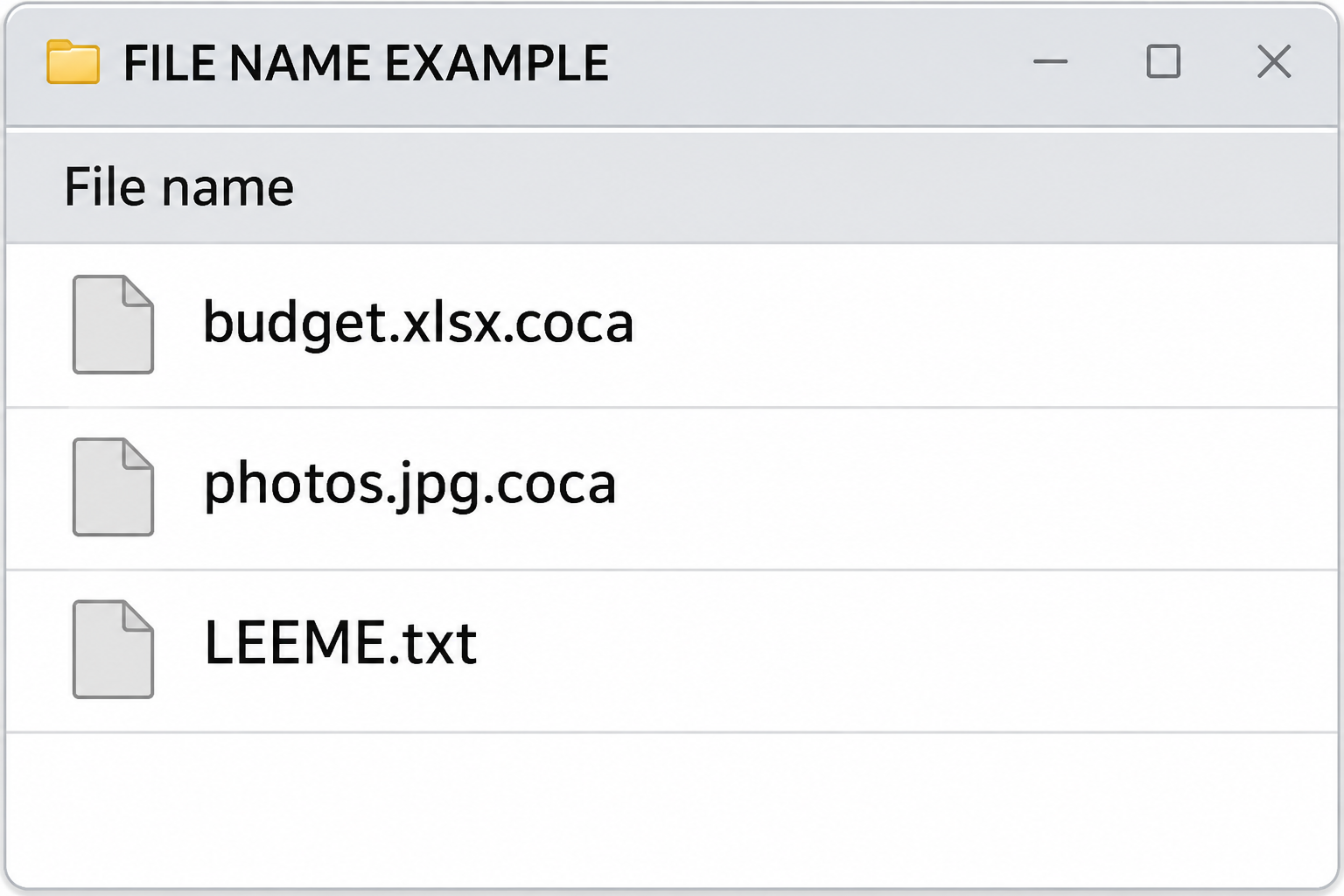
Cocaware ransomware appends .coca to files it encrypts. A spreadsheet might go from budget.xlsx to budget.xlsx.coca, with the original extension still visible before the new ending.
The documented Windows sample also left a file named LEEME.txt in folders containing encrypted data. The name means read me in Spanish. It isn’t a Windows recovery file.
One unfamiliar extension could have an ordinary cause. The same suffix appearing across different kinds of files, together with a matching ransom note, is a stronger signal.
The practical checks are straightforward:
- Write down the full suffix and the exact note name.
- Note which local folders or shared locations show the changes.
- Keep a record of when you last opened a known good copy.
- Preserve the note and original encrypted files instead of editing them.
The Spanish note tries to control your next move
The note demands $4,000 in cryptocurrency. It claims the files were encrypted with ChaCha20-Poly1305 and that the promised tool works only on the infected machine.
That’s the sender’s account of how the tool would work. It isn’t independent confirmation of the implementation, the machine-binding claim, or the chances of a successful recovery.
The claim creates an uncomfortable choice: keep a suspect PC untouched, or risk losing access by doing something the note forbids. You don’t have to accept either option blindly.
Keep an evidence copy when possible. That lets you preserve the old state without making your daily work, backups, and accounts depend on an infected Windows installation.
Cleanup, decryption, and replacement are different jobs
Cleanup deals with the program and the Windows system it ran on. A scanner may detect and quarantine malicious items. It cannot turn locked photos back into working files.
Decryption would require a tool that fits the exact variant and its implementation. No matching public Cocaware decryptor was found in the checked catalog.
Restoration is different again. If a backup, cloud version, or separately stored original predates the incident, you can recover the contents without unlocking the .coca copy.
What to Do When You First See .coca Files
-
Cut the affected PC off from the network.
Disconnect Ethernet and turn off Wi-Fi. Don’t connect a backup disk to see whether it’s still good. Look at backup status from a separate trusted device.
-
If it’s a work computer, call your help desk immediately.
Use an established phone number or another device. Tell them about LEEME.txt, which folders changed, and whether the computer was connected to shared drives.
Don’t reboot or run cleanup tools against a managed endpoint unless your incident team tells you to. It may need to preserve evidence first.
-
Set aside the note and the encrypted files.
Record the note and a few affected filenames. If the files matter and there are no backups, get advice about preserving the disk before installing software or starting recovery.
-
Write down the first signs you saw.
Include whether cloud sync was active and which drives were plugged in. This gives you a useful starting point for checking copies that might have escaped.
-
Ignore payment instructions and surprise recovery offers.
Don’t send cryptocurrency to see if the promise is genuine. Keep the original demand for your incident records and speak to your local cybercrime reporting service if needed.
CISA’s ransomware response guide explains why isolation comes before rebuilding. On a business network, coordinate the response instead of sending staff to test access to the same shares.
If you have only one usable offline backup, keep it disconnected while you figure out what happened. That copy is more valuable than a quick experiment on the infected machine.
Map the affected folders before making repairs
Start with locations you can identify without opening encrypted files: Documents, Desktop, a mounted backup drive, or a shared folder. Note whether each location was connected when the changes appeared.
An encrypted file in a sync folder tells you the folder contains a changed copy. It doesn’t tell you whether the provider still has an older version.
If several people use the PC, record which profiles show symptoms. Don’t sign into every profile on the suspect installation just to look for changes.
If a folder looks unaffected, that doesn’t make the whole drive a safe backup. Treat the folder as a potential recovery source and inspect copies from a controlled system.
Give a repair shop clear limits
If someone else will examine the machine, tell them whether your priority is preservation or fast replacement. The right next step depends on whether any intact originals exist elsewhere.
Ask where recovered files will be written and whether they’ll preserve the current disk before changing it. Don’t assume a shop keeps a copy after reinstalling Windows.
Provide the note name and affected suffix, but don’t put personal files into an online form just because it asks for a sample. Use an authorized transfer if needed.
How to Remove Cocaware Ransomware From Windows
Step 1: Decide whether the original Windows disk is evidence
If a technician needs to inspect the disk or you may try deleted-file recovery, don’t start by installing new programs on it. Ask about capturing an image first.
With verified backups, a clean rebuild may make more sense than relying on the old installation. Preserve the note and affected files before you decide.
If you do use the scanning route, keep personal backup media separate. A USB drive used to move an installer is not where you should store your only good copy.
Step 2: Obtain and install the trusted Windows scanner
Use a clean device to get the installer. Save it separately from any drive that holds files you need to recover. Don’t download software through links in the ransom note.
Malwarebytes for Windows
Use the free manual scan for this initial check.
On the affected PC, locate and open the verified installer in File Explorer. Check the publisher when Windows asks for permission. Stop if it isn’t what you expected.

Follow the installer prompts. Don’t install extra tools because a prompt says they’re recommended. You can use the on-demand scan without buying a protection plan.
If the setup won’t complete without internet access, keep the affected machine off your normal network and get help. Don’t reconnect it to a network holding your backups.
Step 3: Scan the PC and handle the results
Open Malwarebytes. In the scanner area, choose Scan and wait for the Threat Scan to finish. If the run stops early, save the error rather than treating it as clean.

When the results appear, record the names and locations of detections. If a technician is involved, share the report through a trusted channel, not by posting private paths publicly.
Review the items that were flagged. On a personal PC where evidence has been preserved, select the confirmed threats and choose Quarantine.
The sample result below illustrates where the control is. A detection list on your own machine may look different and need a different follow-up.

Restart only if prompted and only after preserving evidence. Run a follow-up check when appropriate. Don’t restore something from quarantine just to make a warning disappear.
Step 4: Rebuild when continued use isn’t a safe bet
If files keep changing or threats return, leave the PC isolated. Get help rather than repeating scans or guessing which unfamiliar software caused the problem.
The Windows removal-help forum can help you work out a next step. Don’t post keys, private file contents, or an unredacted ransom note.
If rebuilding, follow Microsoft’s installation-media guide from a trusted PC. A clean installation can erase data, so verify that preservation is complete before choosing a disk or deleting partitions.
Install updates on the clean system before you bring back user files. Use trusted installers for apps instead of copying programs or system folders wholesale from the affected Windows disk.
Recovering Files After Cocaware
Start with a copy you don’t have to decrypt
Search for originals first. Photos may still exist on a camera card or another family member’s computer. A budget spreadsheet may have a recent version in cloud history.
Open copies on a trusted system. Test several types of files, including a large one or one with formulas. A folder full of recognizable names isn’t enough.
Look for the last date that contains intact contents. A backup labeled yesterday might already include encrypted files if the changes started earlier than you noticed.
Restore a small set into a temporary folder before attempting a large copy. Keep track of the date and source so you can retrace it if a later batch fails.
Check version history instead of trusting the sync icon
Cloud sync can copy unwanted changes as readily as good ones. From a trusted device, check the provider’s web interface for individual versions, deleted items, or a supported rollback.
For OneDrive, Microsoft’s restore guide explains the Microsoft 365 rollback option. If only a few files changed, individual versions may save you from rolling back newer clean work.
If Windows exposes Previous Versions for an affected folder, open a pre-incident version to inspect it before restoring anything. Copy out only the files you can test.
Don’t clear the old version history or overwrite the encrypted set yet. If an earlier folder looks complete but contains unreadable files, you’ll want to try another date.
Check for a real decryptor without paying for a promise
Search the No More Ransom decryptor catalog from a clean device. Look for Cocaware itself, not just tools that mention a similar file extension.
If a reputable tool becomes available, follow the publisher’s identification instructions and work on copies. Keep sensitive files out of public identification services unless you have permission to submit them.
The note’s hardware claim hasn’t been verified. Preserve the original environment if it matters, but don’t keep using it as a trusted PC.
Consider deleted-file recovery only if it fits the evidence
A recovery program searches for remnants of deleted originals. It doesn’t solve the encryption applied to a .coca file. It is only worth considering where recoverable originals may still exist.
If the disk contains important material, avoid installing a recovery tool there. Use an image or get help making one. Any recovered files should go to a different disk.
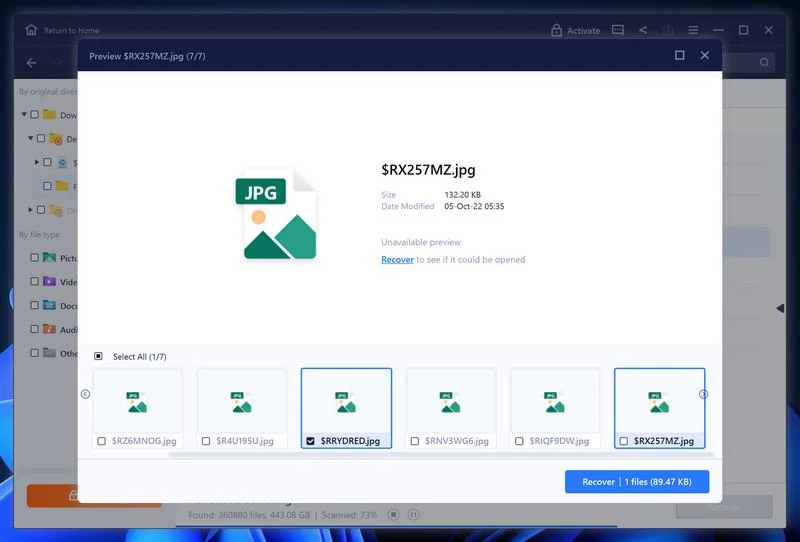
The EaseUS recovery walkthrough shows the preview and recovery controls. Preview availability depends on the candidate file. Save recovered items away from the source and open them to verify.
Don’t trust a tool that promises to decrypt every .coca file for an upfront fee. Ask what exact variant it handles and whether the publisher can substantiate it.
Keep recovered copies separate until you’re done testing
Mark each restored folder with its source and date. If several backups contain similarly named files, that small note can prevent an older copy from replacing a newer usable one.
Keep one intact copy away from the system while you restore another. If the first restore shows damaged files, you’ll have a known place to look instead of starting over.
Check more than the first file you see. Open several examples, including ones you care about most, and verify the contents aren’t empty, cut off, or missing important changes.
Once Windows is trustworthy and the data is tested, rebuild your backup routine with a copy that stays disconnected between runs. Test a small restore before relying on it.
Frequently Asked Questions
What does .coca mean on my files?
On the documented Cocaware sample, the suffix was added after encryption. The suffix plus a Spanish LEEME.txt note is more informative than the suffix on its own.
Can I remove .coca from the filename to fix it?
No. Renaming doesn’t change the locked contents. Leave originals intact and use a spare copy if a legitimate recovery tool needs you to test something.
Does the note prove that decryption only works on the same PC?
No. It makes that claim. Preserve the disk and note before major changes if recovery matters, but don’t treat the claim as a reason to leave the PC connected.
Can Malwarebytes restore my spreadsheets?
No. It can help identify and quarantine threats. Restoring the spreadsheet is a separate step using a verified copy or a genuinely matching decryptor if one becomes available.
Should I restore the newest backup immediately?
Check it first. Newest isn’t always best if encryption reached a sync folder before you discovered it. Open known files from a version that predates the first changes.
Does Cocaware prove that my files were stolen?
The documented sample establishes local encryption and extortion. Neither the extension nor the ransom note alone establishes that anyone copied data out of your system.
The Bottom Line
Don’t follow the payment instructions in LEEME.txt. Disconnect the affected Windows PC, keep the note and locked files, and decide how to preserve the drive before changing it.
Remove the threat or rebuild Windows before restoring files. Start with independently verified copies, and leave the encrypted originals intact if recovery is still uncertain.

Join the discussion
0 commentsShare your experience or ask a question about this article.
Your progress
Did these steps help?
Let us know how the guide worked for you.
Describe what you see and the step you reached. Keep passwords and other private information out.
Discussion
Start the conversation
Have a question or something useful to share? Add the first comment.