


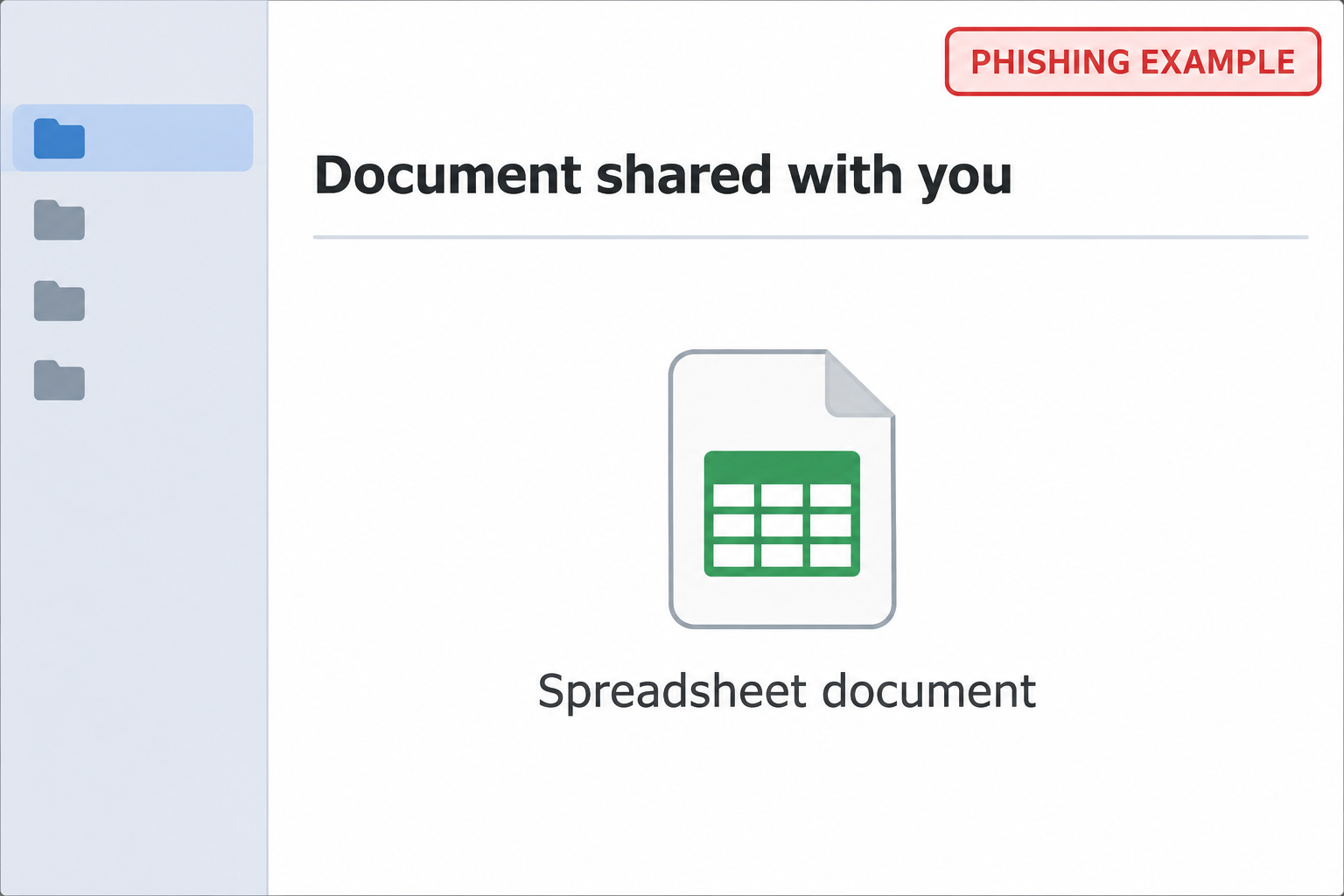
A document invitation arrives with the kind of filename you might see on a purchase order. It says you can view, edit, or sign the file whenever you’re ready.
That sounds like a normal part of a busy workday. But look closely at who supposedly shared the file and what happens after the invitation opens.
Overview
A familiar document tool and a very specific filename
The pdfFiller Document Shared With You scam starts with what looks like a collaboration invitation. The sample names a supposed contact and offers a file ending in .xls.
The filename includes strings that look like order and shipment references. Those details might mean something in a real spreadsheet. Here, their presence doesn’t authenticate the person who shared it.
An invitation may arrive before you know a vendor’s employee by name. That’s why a plausible document title can be hard to dismiss at a glance.
The message also describes familiar features such as editing and signing. Those details don’t prove the invitation came from the company whose service it is describing.
The page you reach isn’t the service named in the invitation
The documented link led away from pdfFiller to a Gmail-style password prompt on an unrelated host. That matters more than whether the invitation itself looks polished.
A service can support legitimate third-party sign-in. A Gmail-looking form on an unrelated page is different from being taken to Google’s actual sign-in service.
The distinction is easier to see if you split the invitation into three pieces:
- The email names pdfFiller as the document-sharing service.
- The document label promises an Excel spreadsheet, not access to your Google account.
- The destination asks for a mailbox password on a site outside the services it claims to represent.
- The visible name of the supposed sender is not proof that they authorized the invitation.
pdfFiller is real. The invitation is the problem.
The legitimate pdfFiller product supports sharing, editing, and signing. Its help page on sharing says recipients can open a shared document without a pdfFiller account.
That doesn’t mean every protected file in every workflow opens without a check. It does mean the fake mailbox prompt shouldn’t be accepted as part of a normal invitation.
The documented evidence shows a phishing destination, not a compromised pdfFiller platform. It doesn’t identify the operator or show that malware was installed when a reader opened the link.
How the pdfFiller Document Shared With You Scam Works
Step 1: An invitation arrives where you expect everyday paperwork
A subject like Document shared with you doesn’t promise a prize or threaten to close an account. It asks you to finish a small, ordinary task.
The filename does much of the persuasive work. Someone who handles purchasing, freight, or inventory sees a string with the shape of a reference they might recognize.
The visible label is not enough to tie the invitation to an actual shipment. If it refers to work you’re doing, compare it with your own open orders first.
Think about who normally sends you that kind of document. A finance colleague may send invoices, while a warehouse team might send packing lists through an entirely different service.
Step 2: The invitation surrounds the link with plausible product copy
The email mentions things the genuine service can do. That lets an unfamiliar sender borrow a real workflow, down to the way a product might describe its features.
The important distinction is between a feature and a transaction. A service really can let people sign documents. That doesn’t establish that this person shared this document with you.
The invitation’s button represents the promise of a file. It isn’t the file itself. Seeing the .xls suffix in the message doesn’t tell you what a click will open.
If the file would affect an order, payment, or shipping decision, treat verifying the sender as part of handling the document. Don’t let the invitation dictate the verification route.
Step 3: A different company appears at the sign-in screen
The captured destination looks like a Gmail sign-in even though the invitation advertised a pdfFiller document. A viewer expecting a permissions check might accept that switch without looking further.
Instead, use a known bookmark or type the provider’s official address yourself. If a page was already open, close the suspicious one rather than editing its address and continuing.
A remembered address or a browser icon isn’t enough. A page can display an email address without having authenticated anyone. Your password should never be the way you find out.
Do not copy the suspicious address into another browser or forward it to a colleague to try. You can report a suspicious invitation without reproducing the interaction.
Step 4: The mailbox becomes more valuable than the promised file
The requested password can be more useful than a one-time payment. A mailbox may contain invoices, account recovery messages, vendor contacts, and the names of people who approve purchases.
A criminal who gets access might reply inside an existing conversation. That can make a later request for updated banking details look like part of a legitimate order.
Someone doesn’t need a new password to benefit from access you approved through a code or prompt. If that happened after you entered credentials, tell the account administrator immediately.
The published example shows the fake sign-in. It doesn’t establish that a specific company was breached or that anyone who clicked lost access.
How to Verify a Spreadsheet Invitation Without Reopening It
Confirm the file through a relationship you already have
Contact the colleague or supplier through your address book, a known phone number, or an existing project chat. Start a fresh conversation rather than replying to the invitation.
Ask whether they shared a spreadsheet, what it was for, and which service they used. Include the purchase order or project name you already have, not the full suspicious link.
If the other party is real but didn’t send it, they may have their own security issue to look into. Don’t assume they are behind the email.
If they did send you a file, ask them to place it in a known workspace or to provide access through the channel you normally use together.
Verify which organization has permission to ask for a sign-in
A company’s internal collaboration policy may allow one tool but not another. If the invite came into a work mailbox, your team may know immediately whether the workflow is plausible.
The existence of a real pdfFiller account isn’t proof that a message belongs to it. Sign into any account you use independently, without following the invitation or reusing its link.
If the file needs permission, ask the sender to confirm which address they invited. You don’t need to give them your password to resolve an access problem.
Check the work that was supposedly waiting for you
If a spreadsheet relates to a shipment, compare its references with the seller’s portal or your normal freight records. If it’s a quote, check the request you actually sent.
An unexpected order reference might be real but unrelated. A message can include a plausible shipment string without having access to the carrier’s records or your internal system.
Don’t make a payment or change the shipment based on a document that never arrived. Wait until the transaction exists independently of the invitation.
If a coworker says the same invite arrived in their inbox
Tell your help desk before comparing the links in a browser. The security team can use the subject, delivery time, and file label to look for other messages.
An invitation sent to multiple employees isn’t necessarily an approved company workflow. A sender can approach several people who appear to handle the same type of paperwork.
If one person submitted credentials and another only received it, report those separately. It helps the administrator prioritize the account that may already be in use by someone else.
Use your own approved channel to warn the rest of the team. A short description of the invitation is usually more useful than circulating a screenshot with an address bar.
What to Do if You Have Fallen Victim to This Scam
-
Report an unexpected invitation through the mailbox that received it.
For work, use the approved phishing button or contact IT. Tell them it claimed to share a spreadsheet through pdfFiller. Leave the button and any other offers alone.
If your security team asks for the original, follow its reporting process. Don’t circulate the invitation in a group chat where more people could follow it.
-
Close the page and record what actually happened.
If you reached the sign-in but didn’t enter anything, note the time and whether your browser downloaded a file. Don’t open any new download to identify it.
A click alone isn’t evidence of a successful login or malware installation. If you ran a file or installed anything, report the device exposure as a separate issue.
-
Secure the account that the form tried to imitate.
Change a disclosed password from another device you trust. For personal Gmail, use Google’s compromised account guidance.
For a work or school account, notify its administrator. Tell them if you entered an authentication code, approved a sign-in, or can no longer access your mailbox.
-
Check for forwarding, recovery, and access changes.
Review unfamiliar devices, security events, and connected apps. Check inbox rules, delegates, and forwarding addresses where your provider makes them visible.
A new rule can move replies out of sight. Check sent, deleted, and archived items for unexpected activity rather than judging by the inbox alone.
-
Review the transactions that used that inbox.
If someone may have read order, payroll, or freight messages, alert the people who handle those transactions. Confirm any payment detail changes through a trusted second channel.
Don’t ask every supplier to open or inspect the fake link. Give a plain account of what was received and name the project or invoice they should verify.
-
Change reused credentials and keep a record of follow-up.
Use different passwords for services that shared the exposed one. Note which provider handled the reset and whether any accounts still depend on the affected mailbox.
Save any incident number. If suspicious email or payment instructions surface later, you’ll be able to connect them to the original report.
Why a Professional-Looking Filename Isn’t Proof
A supplier can name a file using a recognizable purchase order, a customer code, or a container number. Those names make documents easier to handle when the sender is genuine.
The same clues can distract you in a suspicious message. The longer the reference, the easier it is to assume someone else has already checked the details.
Read the task as two separate questions. First, were you expecting a document? Second, did this invitation come through a route your contact actually used?
The first answer can be yes and the second no. Asking through your usual channel is faster than trying to solve the problem on an unfamiliar page.
If the real file arrives later, check its destination, permissions, and contents independently. A genuine replacement doesn’t retroactively validate the first invitation or erase any password exposure.
Keep the verified version in the workspace where you normally track the order. That gives another employee a way to find it without searching old messages for the suspicious one.
If the named contact normally sends a different document type, ask about that too. A mismatch might be innocent, but the sender can explain it without needing your mailbox credentials.
For an active shipment, compare the invitation with the verified document. Check any address or payment changes directly with the person responsible for the order.
Frequently Asked Questions
Does pdfFiller really let people share documents?
Yes. The service has a genuine sharing feature. That doesn’t authenticate an unexpected invitation or a mailbox password form reached by clicking it.
Was the Excel file actually attached?
The documented message promised an XLS file through a link. The captured destination showed a fake email login, not the promised spreadsheet.
Why did the link ask for Gmail credentials?
The observed page imitated a Gmail sign-in. That design can make a request feel routine, but the real Google service was not the site displaying the form.
Did the contact named in the message send it?
The name is part of the invitation, not proof of authorship. Verify through a contact route you already know, and don’t assume the named party controls the site.
Is using my password manager enough to spot it?
A missing autofill can be a useful clue. It isn’t a final test. Leave the page and use a bookmark or your normal app rather than manually filling the form.
Do I need to change my pdfFiller password?
Secure the credential you actually entered. If you disclosed your email password, prioritize that mailbox and replace the same password anywhere else you used it.
The Bottom Line
Don’t use this pdfFiller-branded invitation to open the supposed spreadsheet. The documented link asks for a mailbox password instead of taking you to a genuine document.
If you were expecting paperwork, ask for it through your normal channel. If you signed in through the fake form, secure the mailbox and check any transactions it handled.

Join the discussion
0 commentsShare your experience or ask a question about this article.
Discussion
Start the conversation
Have a question or something useful to share? Add the first comment.